


Registration ID Query Guide
Overview
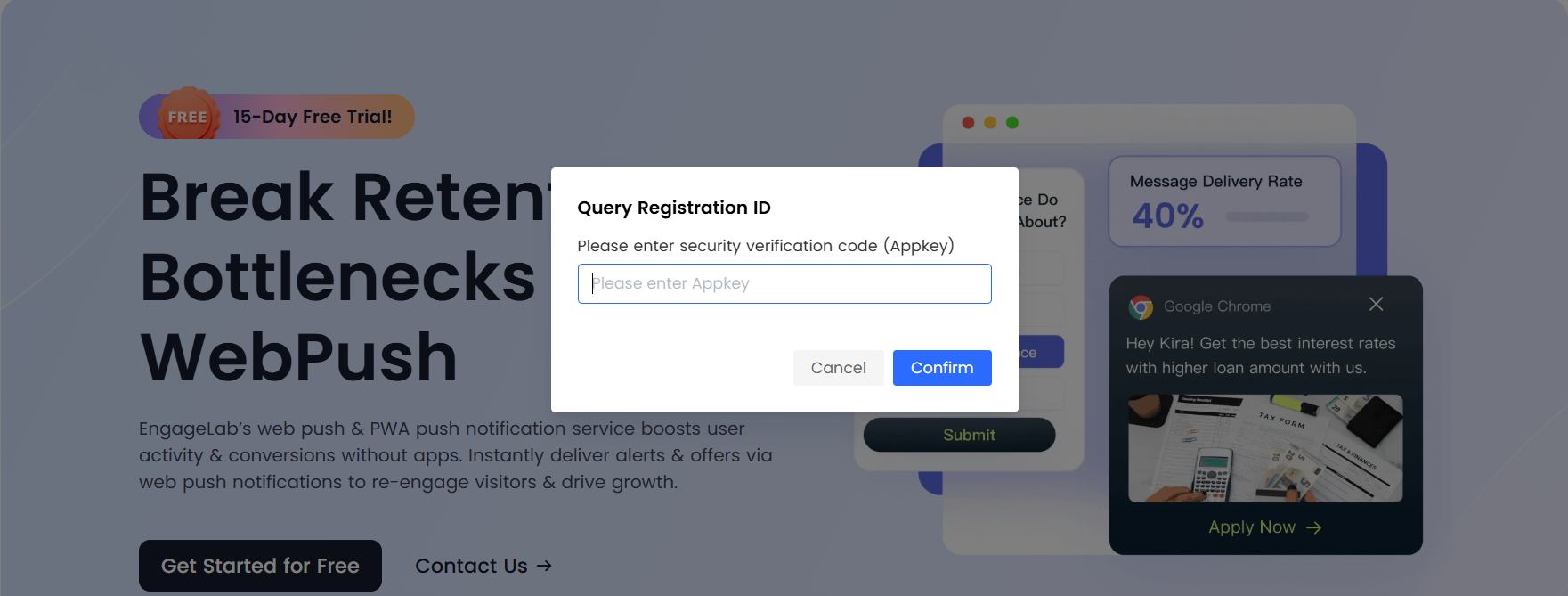
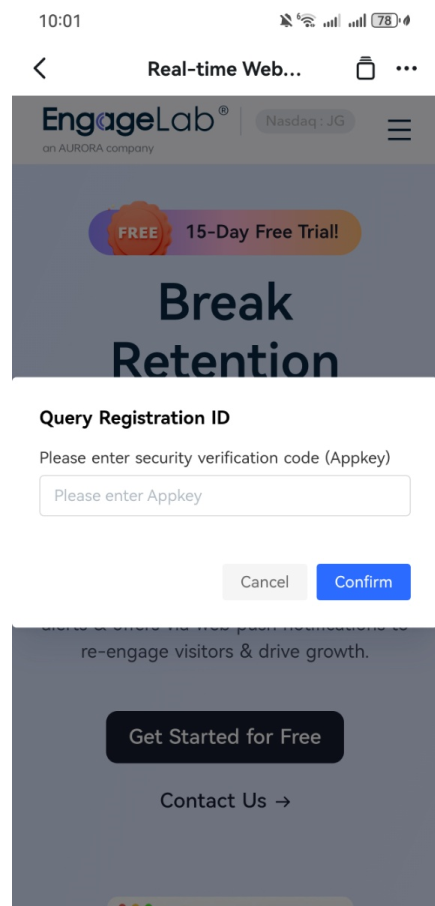
regidSearchPath is a Web Push SDK configuration option that lets you customize the URL path for the Registration ID query page. When a user visits the configured path, the SDK shows a secure verification dialog; after entering the correct Appkey, the user can view the current device's Registration ID.
PC:
Mobile:
Key Features
- 🔐 Secure verification: Appkey verification ensures only authorized users can view the Registration ID
- 📋 One-click copy: Quickly copy the Registration ID for testing and debugging
- 🎨 Clear UI: Simple dialog interface
- ⚙️ Flexible configuration: Custom trigger path
Configuration
regidSearchPath
- Type:
string - Default:
/engagelab/regid - Required: No
- Description: Path that triggers the Registration ID query dialog
Usage
Scenario 1: Default path
If regidSearchPath is not set, the SDK uses the default path /engagelab/regid.
              MTpushInterface.init({
  appkey: 'your-appkey',
  user_str: 'user-identifier',
});
Visiting https://yourdomain.com/engagelab/regid will open the query dialog.
Scenario 2: Custom path
Set a custom path to match your app structure.
              MTpushInterface.init({
  appkey: 'your-appkey',
  user_str: 'user-identifier',
  regidSearchPath: '/admin/push-debug'
});
Visiting https://yourdomain.com/admin/push-debug will open the query dialog.
Path matching examples
If you set regidSearchPath: '/admin/regid', the dialog will be triggered for:
✅ https://example.com/admin/regid
✅ https://example.com/dashboard/admin/regid
✅ https://example.com/admin/regid?debug=true
✅ https://example.com/#/admin/regid
✅ https://example.com/#/dashboard/admin/regid
Notes
- When it appears: The dialog is shown only after the SDK has been initialized successfully.
- Path format:
regidSearchPathis a relative path (e.g./admin/regid). Do not include protocol, domain, or port. - Full page load: The path is checked and the dialog is shown when the user opens the path in the address bar and the page loads. It does not trigger on client-side route changes without a full reload.
- Integration: The path must point to a page that includes and initializes the SDK; otherwise the query dialog will not appear.
- Multi-page apps: In multi-page setups, ensure the HTML page opened for that path includes and initializes the SDK.
- Matching: Matching is usually case-sensitive and checks whether the current URL path contains the configured path (see examples above).
