


WhatsApp Number Migration Guide
Migration overview
Migration requirements
| Asset | Source WABA | Phone number | Target WABA |
|---|---|---|---|
| Definition | The WABA on the current platform where the phone number is registered. | The phone number to be migrated. | The WABA registered on EngageLab that will receive the migrated phone number. |
| Requirements | 1) The Meta Business Account that owns this WABA must have completed Business Verification and been approved. 2) The WABA's review status must be Approved. | 1) Must currently be registered under the source WABA. 2) Two-step verification must be disabled. |
1) Must belong to the same Meta Business Account as the source WABA (with Business Verification completed and approved). 2) The WABA's review status must be Approved. 3) This WABA must be topped up on EngageLab. |
Migration impact
Downtime
Until migration is completed by registering the phone number on the target WABA, the source WABA can continue to send and receive messages without service interruption. After migration is complete, the target WABA can immediately start sending messages, with no downtime required.
Billing
Messages sent from another platform before migration (even if delivered after migration) will continue to be billed by that platform.
Messages sent after migration will be billed by EngageLab.
Migration results
After the phone number is migrated:
The existing display name, phone number quality rating, messaging limits, Official Business Account status, and approved good-quality templates that meet the migration criteria are retained.
Low-quality, rejected, or pending message templates are not retained.
Messages and conversation history are not migrated to the new platform. Please coordinate with LiveDesk to migrate historical records.
Exception handling
No action is required for WhatsApp channel data. Business data needs to be coordinated with the previous provider.
If migration fails, there will be no service interruption. Service will continue on the previous platform. The number will not leave the previous platform without being migrated to our platform.
Before migration
One week before migration
Confirm that the source WABA and the phone number meet the requirements:
The Meta Business Account that owns the source WABA has completed Business Verification.
The source WABA status is Approved.
The display name of the number to be migrated has been approved.
Register the target WABA on EngageLab:
Requirements for the target WABA:
The target WABA must belong to the same Meta Business Account as the source WABA.
The target WABA status must be Approved.
If a qualifying target WABA is already registered on EngageLab, you can use it directly.
If you need to register a new WABA on EngageLab, please note the following:
Select the Meta Business Account that owns the source WABA.
Follow the reference guide to create the target WABA.
We recommend preparing a test number (not the number you want to migrate), adding the test phone number, and completing the full registration flow. The WABA will be automatically linked to your EngageLab account. Return to the EngageLab overview page to see the WABA you just registered.
If you do not have a test number, you can still complete the flow, but additional steps will be needed later, and EngageLab will not be able to detect that the WABA is linked to your account.
Provide the following migration information to your account manager so that EngageLab can check whether the number and WABA meet the migration criteria:
The phone number to be migrated.
The target WABA ID.
Once confirmed, top up this WABA on EngageLab to ensure uninterrupted service after migration.
Find the WABA ID and check the Approved status
Two working days before migration
Notify the previous provider of the migration time.
Confirm that the previous provider will have staff online during migration.
Confirm that they can assist if any issues occur.
Do not terminate the contract with the previous provider or delete the configuration on the previous platform yet.
Confirm who will assist with migration, such as:
The Meta Business Account administrator.
The person receiving the verification code.
EngageLab checks
Perform a final check that the number and WABA meet the migration criteria.
Confirm that the LiveDesk agents and channel configuration are ready.
Migration day
Step 1: Turn off two-step verification
Disable two-step verification for the phone number to be migrated under the source WABA as follows:
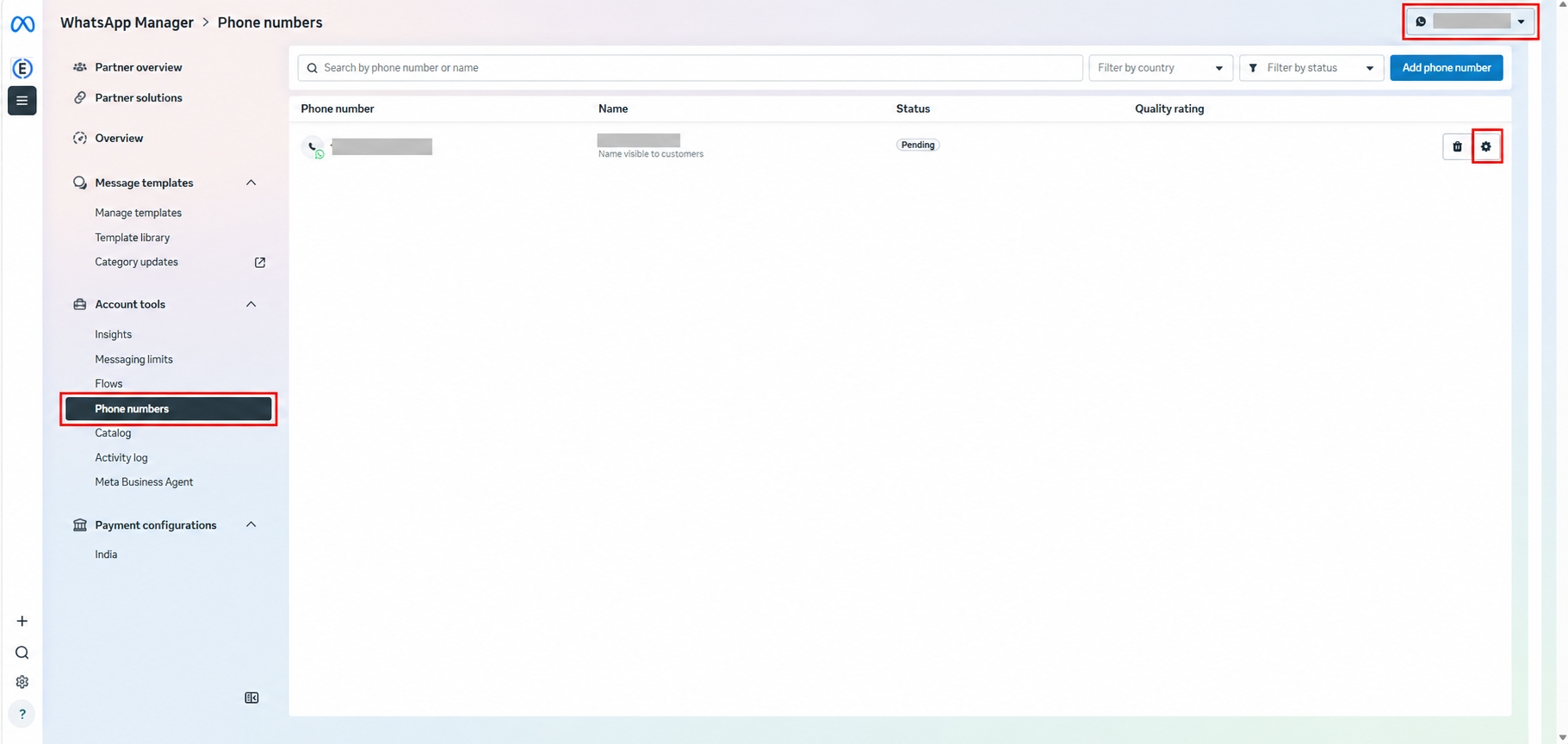
In WhatsApp Manager, select the source WABA as the WhatsApp account in the top-right corner, find the phone number to be migrated, and open its settings.
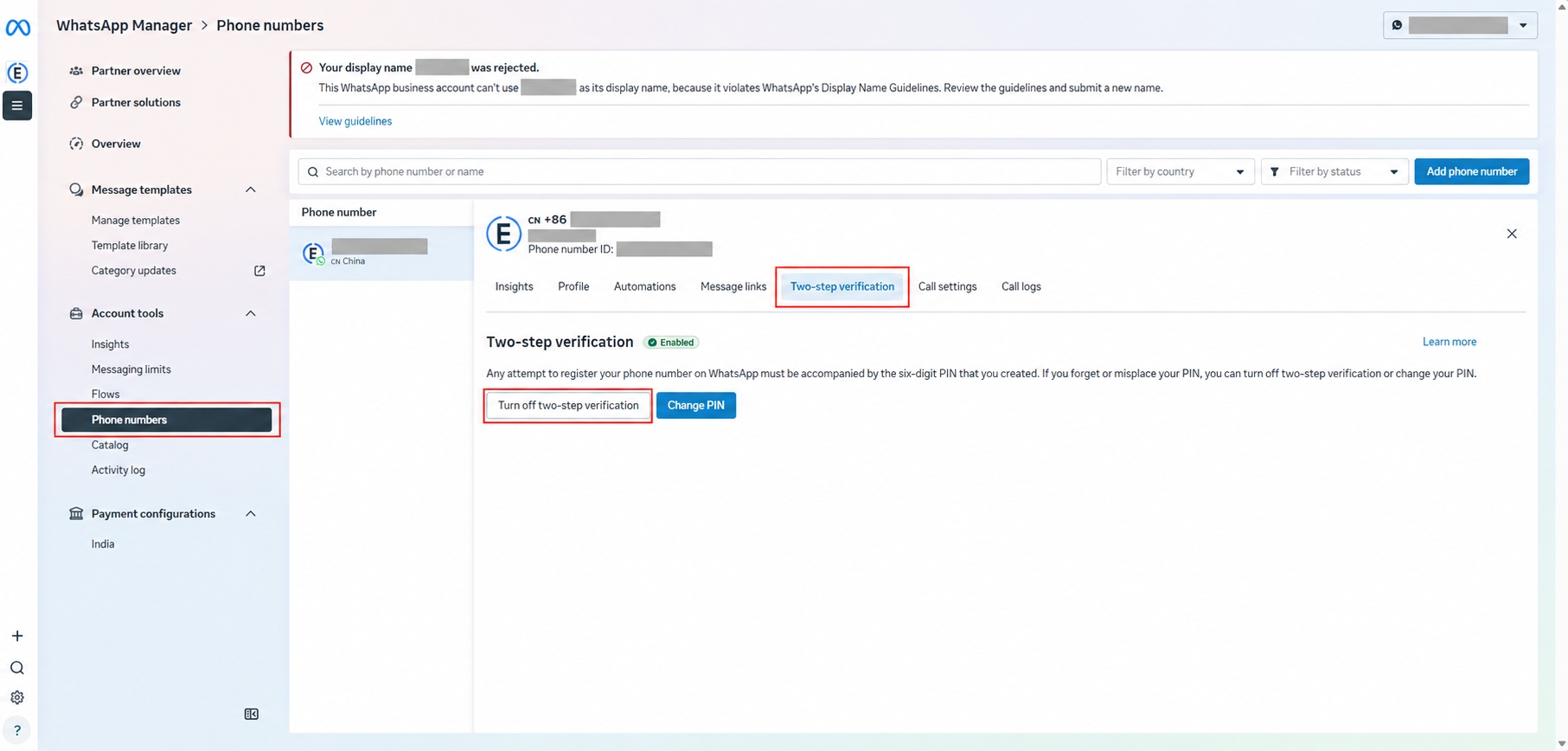
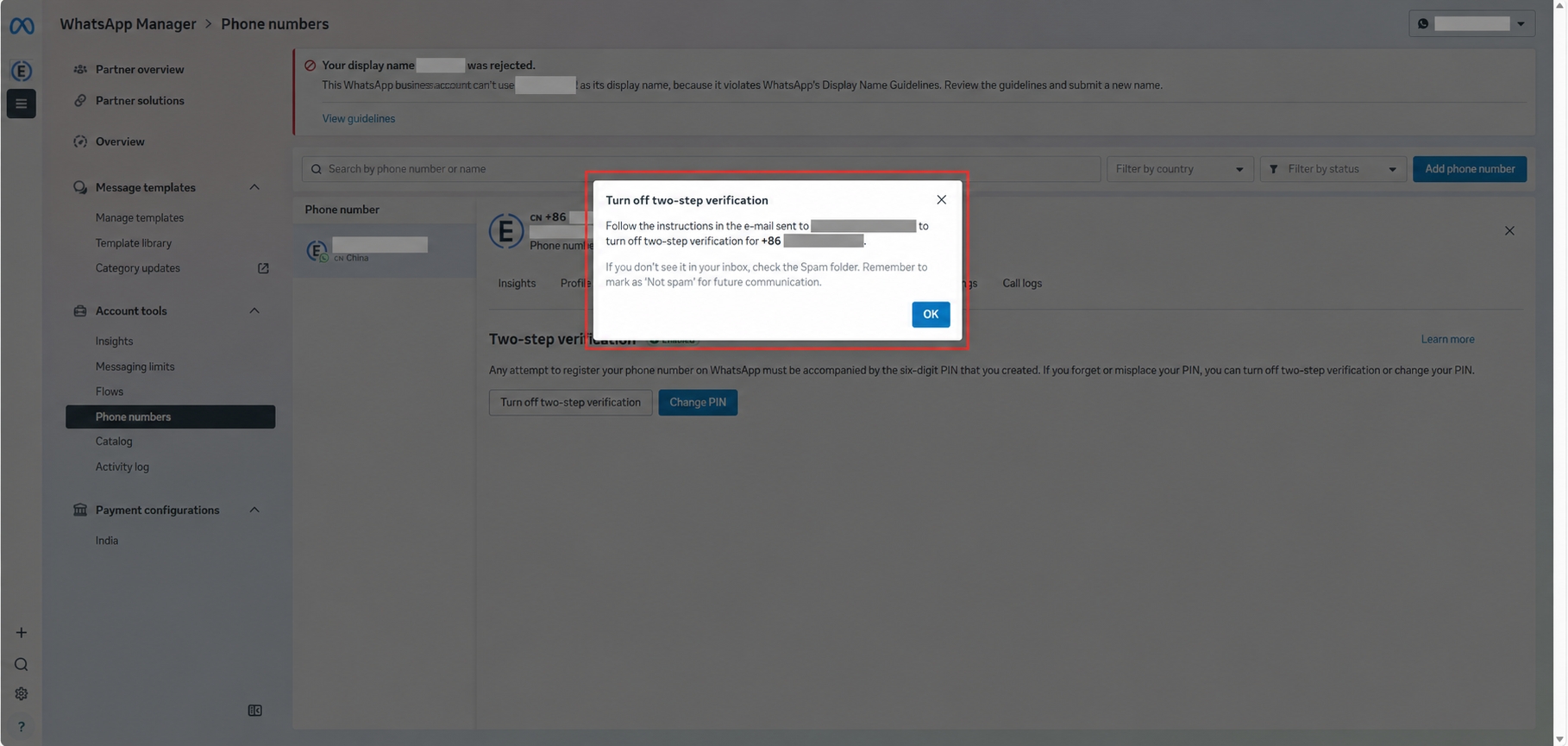
In settings, select Two-step verification, click Turn off two-step verification, and follow the instructions in the email.
After it has been turned off, open the page again to see the prompt to turn on two-step verification. Do not turn it on; this is only to confirm that two-step verification has been turned off.
Step 2: Initiate number migration
Keep the Meta administrator and the verification-code receiver online.
Customer service agents on the previous platform continue to work as normal. There is no need to stop early.
Receive the verification code sent by Meta.
Provide the verification code to EngageLab.
EngageLab procedure
Submit a migration request to Meta.
Once this is done, you can see the number on the target WABA's Sending Numbers page.
Send a number verification request to Meta. Meta will send a verification code to the phone number.
Use the verification code to complete number verification, which completes the migration.
- You need to provide the verification code to EngageLab.
- If you do not receive the verification code or cannot provide it for any reason, you can request number verification yourself later.
- On the target WABA's [Sending Numbers](/docs/whatsapp/console/configuration-management/sending-numbers) page, click **Verify number** for this number, select **Cloud API**, request a verification code, then enter and submit it on the page.- On the target WABA's [Sending Numbers](/docs/whatsapp/console/configuration-management/sending-numbers) page, click **Verify number** for this number, select **Cloud API**, request a verification code, then enter and submit it on the page.This code block in the floating windowWhen the number shows Connected on EngageLab, migration is complete and you can start using the service on EngageLab.
