


Template Management
Create a Template
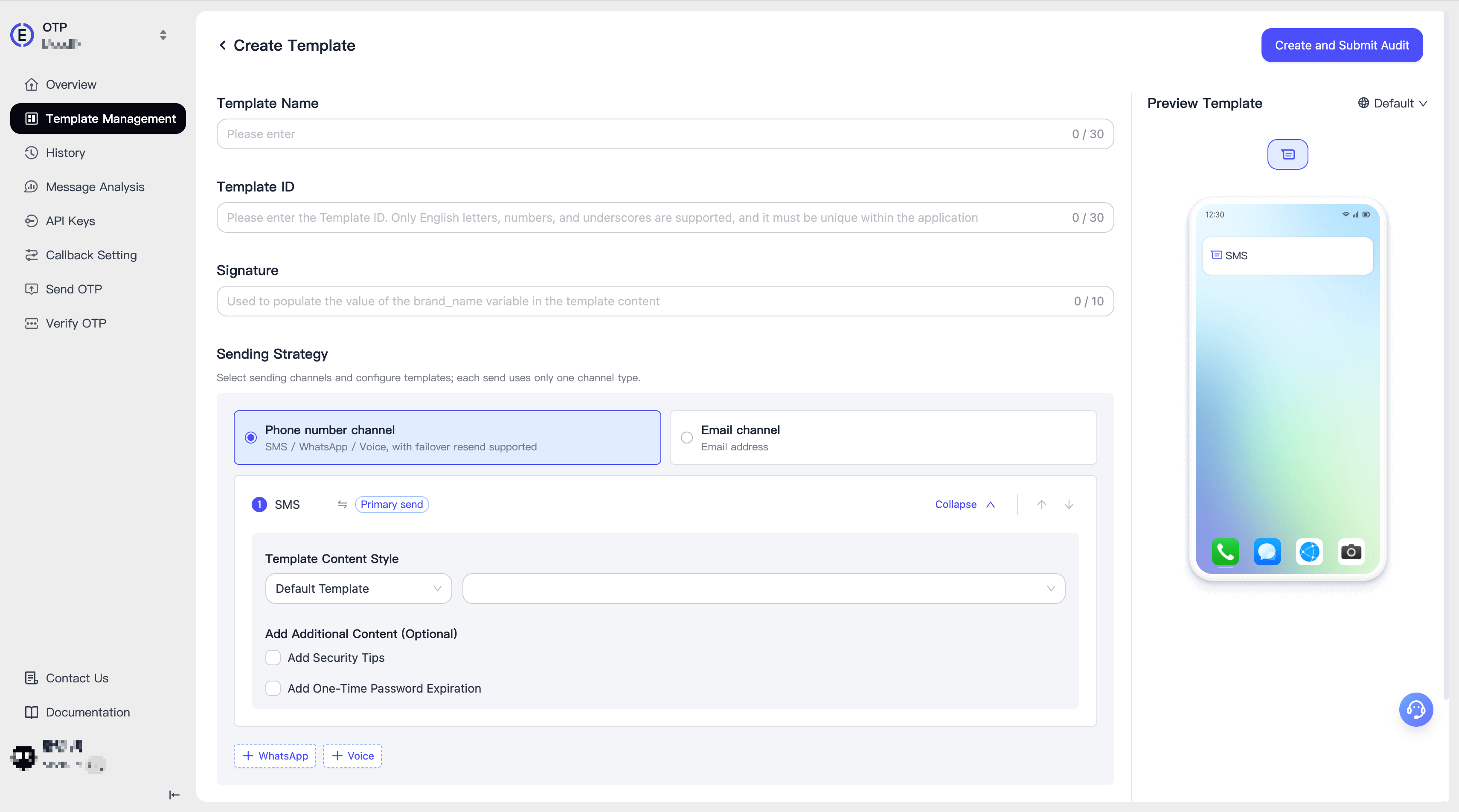
To create a template in [Template Management], please fill in the following information in order:
- Template Name
- Template ID: Used as an input parameter when calling the send API
- Signature: Used to fill the value of
{{brand_name}}in the template content - Sending Strategy: See detailed introduction below
- Code Length/Type: Define the length and type of the OTP (numbers, uppercase letters, numbers + uppercase letters)
- Code Validity Period: Define the validity period of the OTP in minutes, used to fill the value of
{{ttl}}in the template content. If you need a longer validity period, please contact sales or email support@aurora-mobile.com for consultation
Sending Strategy
EngageLab OTP supports sending based on phone number or Email channels, and supports custom fallback strategies in the phone number channel, as follows.
Phone Number Channel
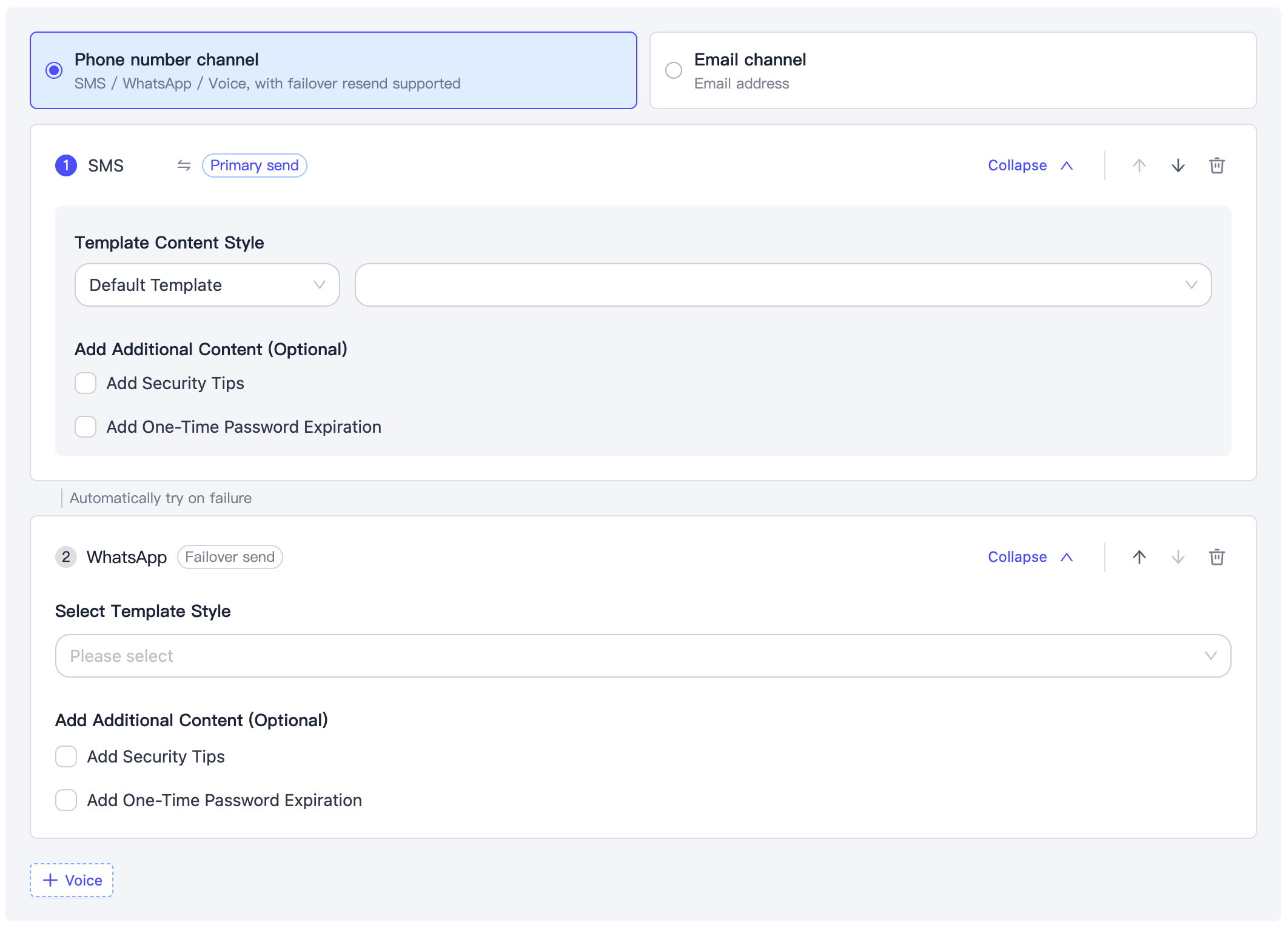
In the phone number channel, EngageLab OTP currently supports delivering OTP messages via SMS, WhatsApp, Zalo, Viber, or Voice.
You need to set at least one primary sending channel, and optionally up to two fallback channels.
When you only set a primary sending channel, this template will only deliver OTP messages through the primary sending channel. If you set fallback channels, when the primary sending channel fails to send, the system will automatically use the fallback channels for you until successful or there are no more fallback channels.
You can freely combine the order and number of primary and fallback channels, but each channel can only be added once, for example:
- SMS → WhatsApp → Voice
- SMS → Zalo → Viber
- WhatsApp → SMS → Voice
- Zalo → SMS → Voice
- ...
SMS
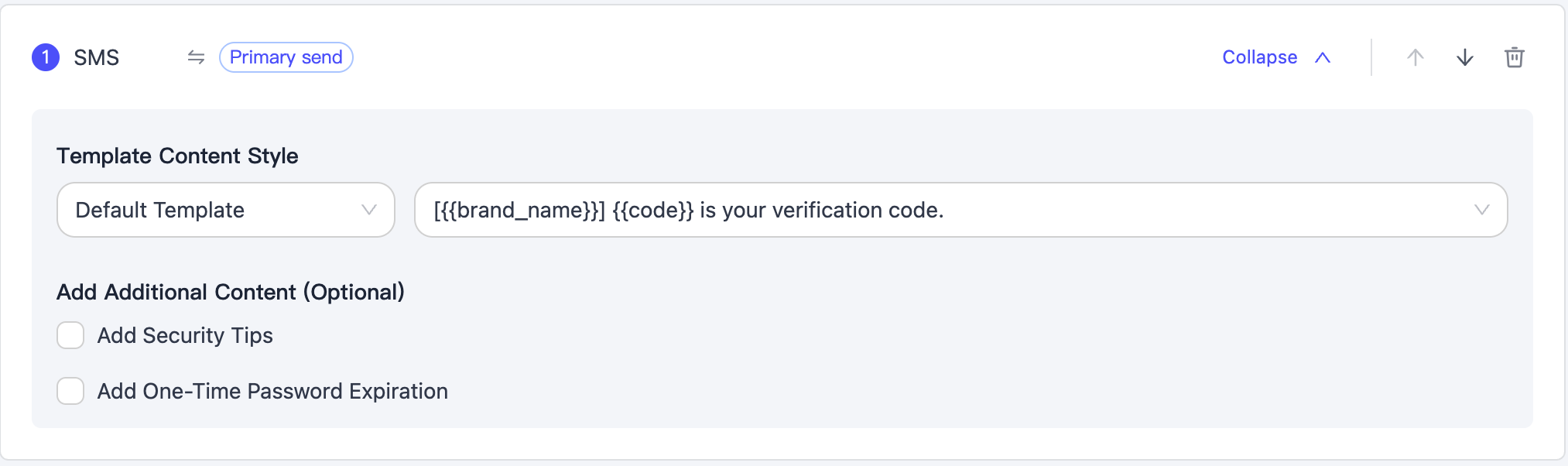
When configuring the SMS channel, you need to select a template first; we provide default templates. You can also choose to add:
- Security Tip: The system will append a security prompt at the end of the OTP message for you, such as "Do not share this code with anyone."
- OTP Expiration Tip: The system will append the validity period of the OTP message at the end of the OTP message for you, such as "It expires in 6 minutes."
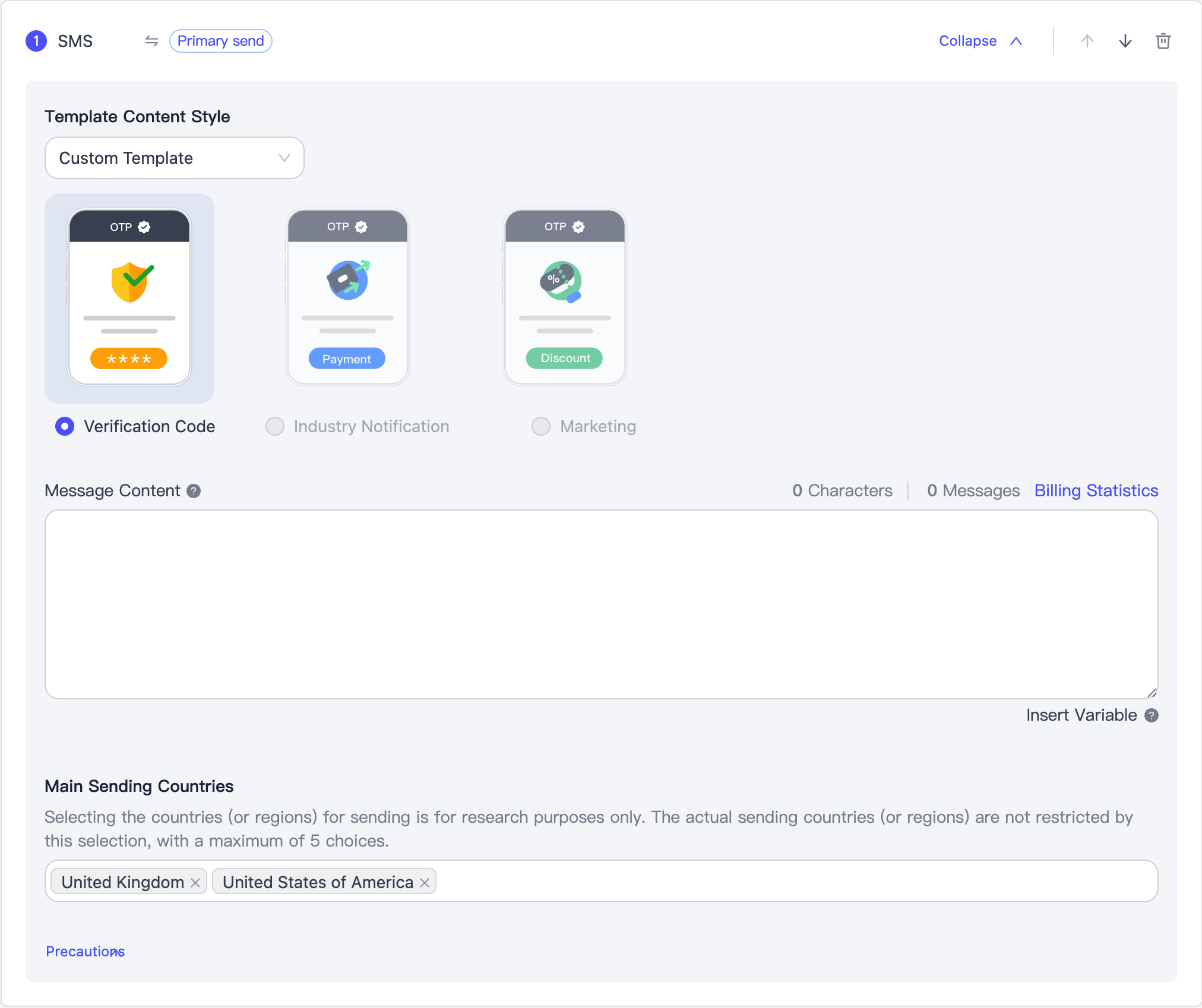
You can also customize the template content by entering it in the text box.
You can use the format {{variable_name}} to customize template variables.
For custom templates, you need to select up to 5 countries/regions as sending targets.
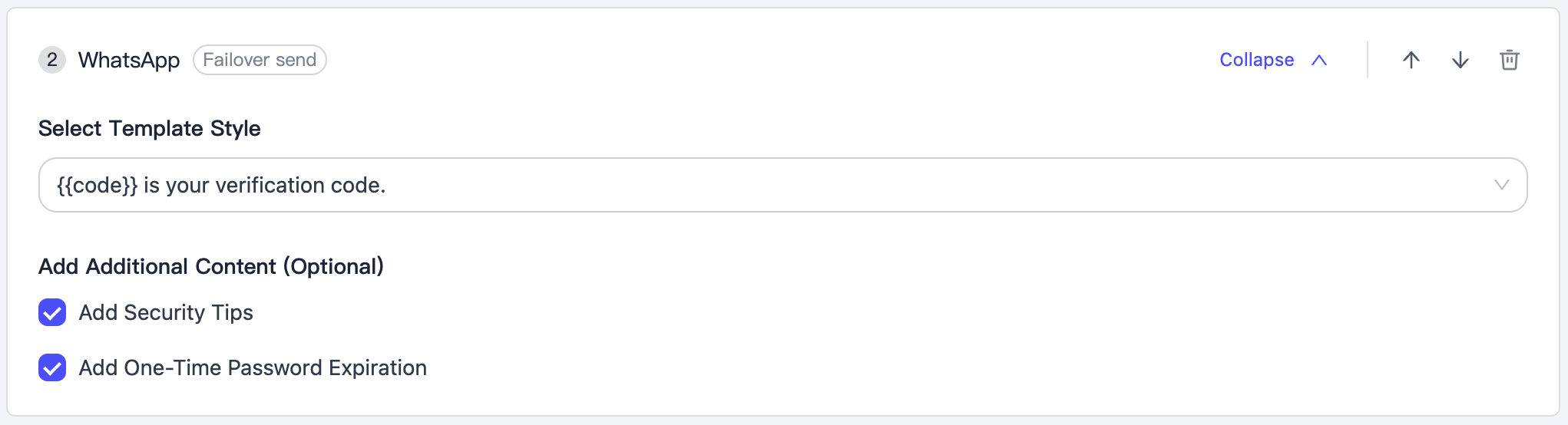
When configuring the WhatsApp channel, you need to select a template, and then optionally add a security tip and an OTP expiration tip.
Zalo
When configuring the Zalo channel, you need to select a template. The system provides a default template.
Viber
When configuring the Viber channel, you need to select a template. The system provides a default template.
Voice
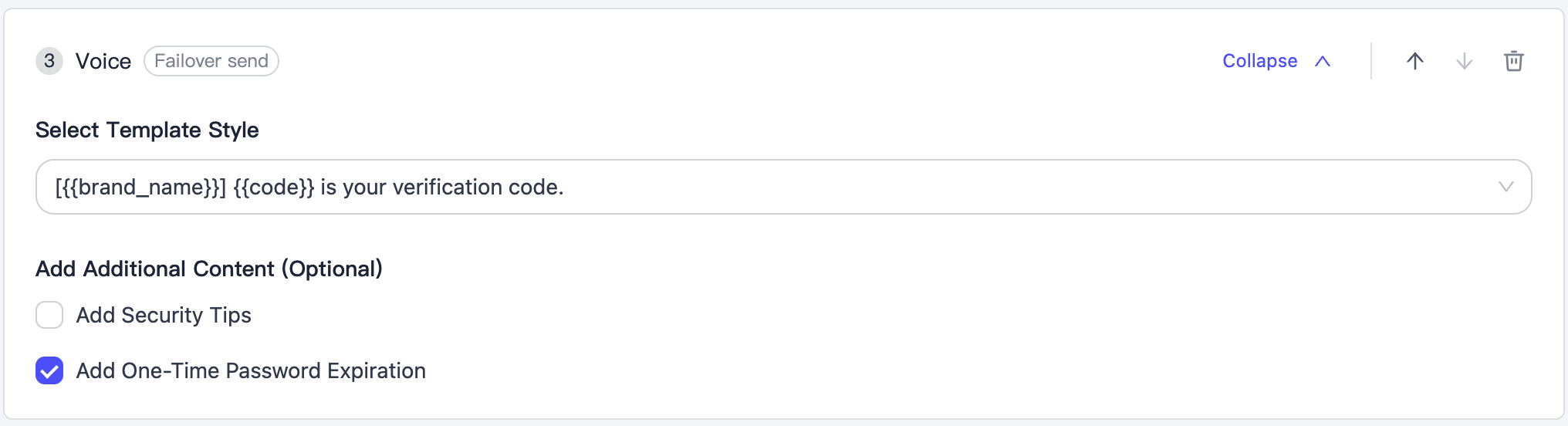
When configuring the Voice channel, you need to select a template, and then optionally add a security tip and an OTP expiration tip.
Email Channel
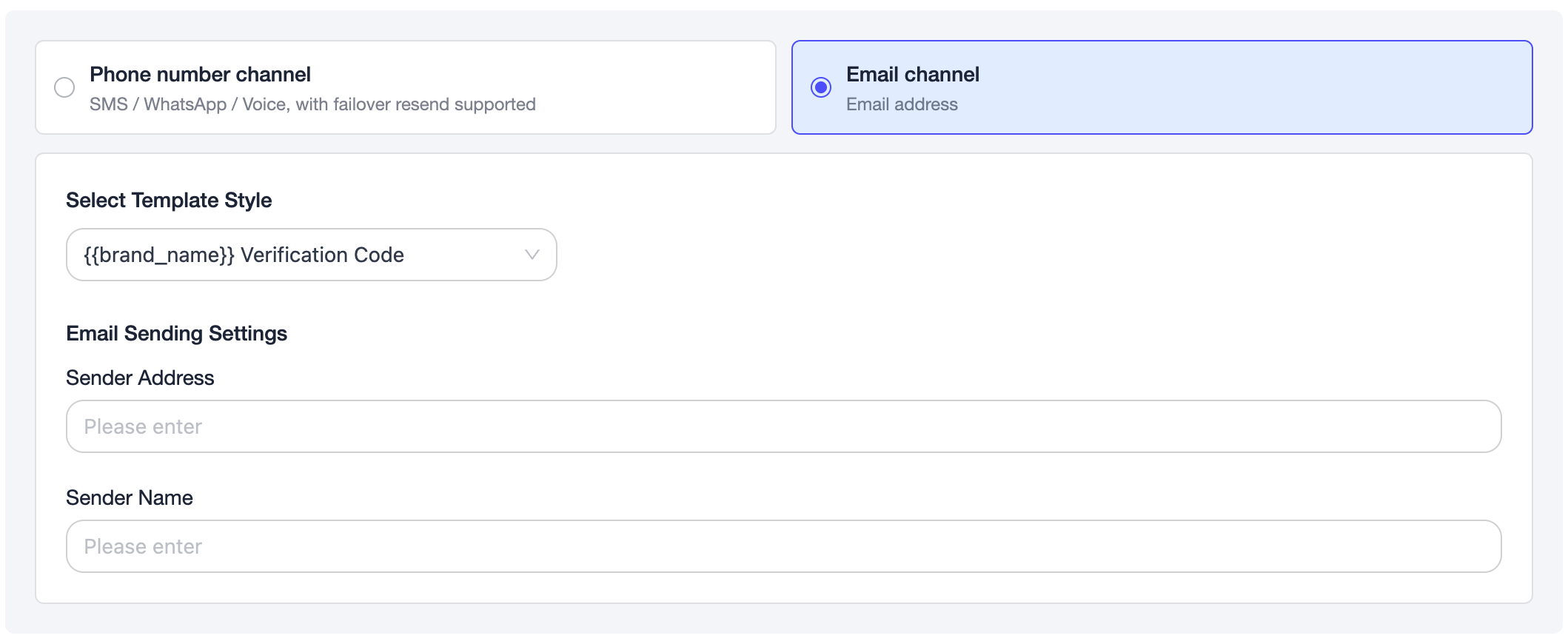
The Email channel means the system delivers OTP messages via Email addresses.
Here you need to:
- Select a template
- Fill in the sender's Email address and name
Template Variables
In the template, you can customize variables, and the system also provides some preset variables for you to use directly. Please note that your custom variables cannot have the same names as these system variables.
| Variable Name | Type | Description | Filling Method |
|---|---|---|---|
{{code}} |
System Variable | Verification code content | Automatically generated and filled by the system |
{{ttl}} |
System Variable | Code validity period (minutes) | Taken from template configuration |
{{brand_name}} |
System Variable | Brand name | Taken from template configuration |
Email Template Variables
When you enable the Email channel in the sending strategy, it supports highly customized email subjects and body content. Through variable placeholders {{variable_name}}, you can automatically fill in verification codes, brand information, etc., to achieve a flexible and personalized email experience.
For detailed advanced usage of Email template variables (such as dynamically overriding the sender, email subject, etc.), please refer to Email Template Variables Advanced Usage in the API documentation.
Template Review
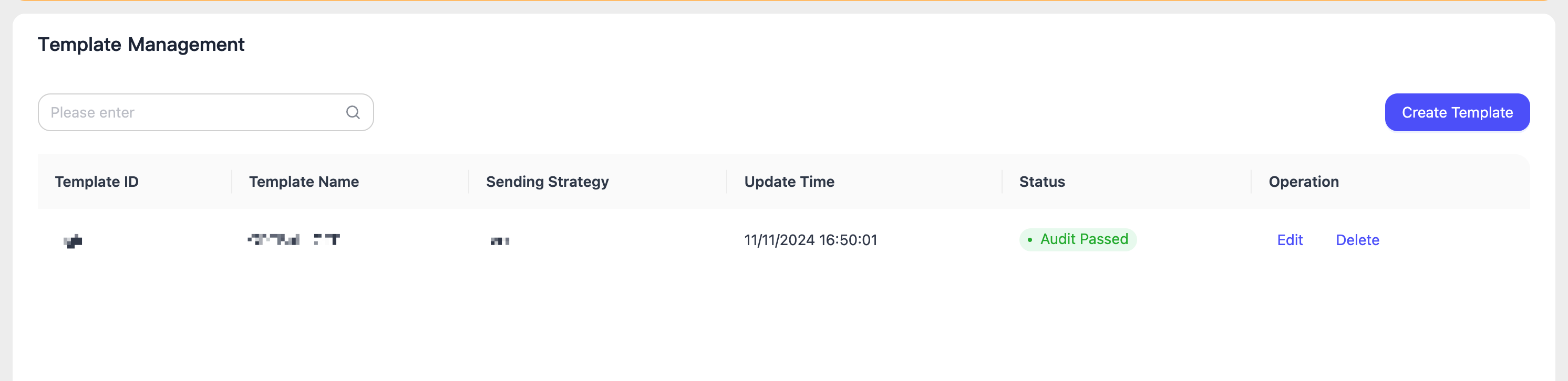
After the template is created and submitted, it will enter a pending review status. The template will be reviewed by EngageLab's professional operations staff, and can only be officially used after approval.
