


WhatsApp Business App Coexistence
Overview
WhatsApp Business App Coexistence connects your existing App number to EngageLab. Use the same number to talk to customers in the mobile App and send and receive messages through the platform or API, without deactivating your App account.
Coexistence suits teams already using WhatsApp Business App who want to retain their number and mobile workflow while adding campaigns, conversation management, or API integrations. If you do not need the mobile App, choose API onboarding.
- Keep your number and App: Continue using your existing Business App account to stay in touch with customers.
- Use the App and platform together: Supported one-to-one messages can synchronize between them.
- Share history as needed: Choose history sharing during onboarding, then initiate synchronization within the required window.
See Meta documentation for coexistence capabilities and restrictions.
Before you connect
| Item | Requirements and details |
|---|---|
| Active Business App number | The number must work in WhatsApp Business App. Personal WhatsApp Messenger and API-only numbers cannot directly use this flow. Meta determines eligibility and regional availability during signup. |
| Primary phone and App | Keep the phone on which the number is registered. Use WhatsApp Business App 2.24.17 or later, preferably the latest version. Keep it open and online during onboarding and sync. |
| Facebook account and asset access | Sign in and authorize with a Facebook account allowed to manage the relevant business assets. Confirm the business portfolio, WABA, and management permissions. |
| Business details | Prepare and review the account name, time zone, and other signup details. |
| History sharing | Decide whether to import earlier chats. Skipping history sharing does not affect subsequent coexistence messaging. |
Read the feature and device restrictions below first. Existing companion devices are unlinked during onboarding. If the App has greeting or away messages, decide how they will work with platform automation.
Onboarding
1. Initiate the connection on the platform
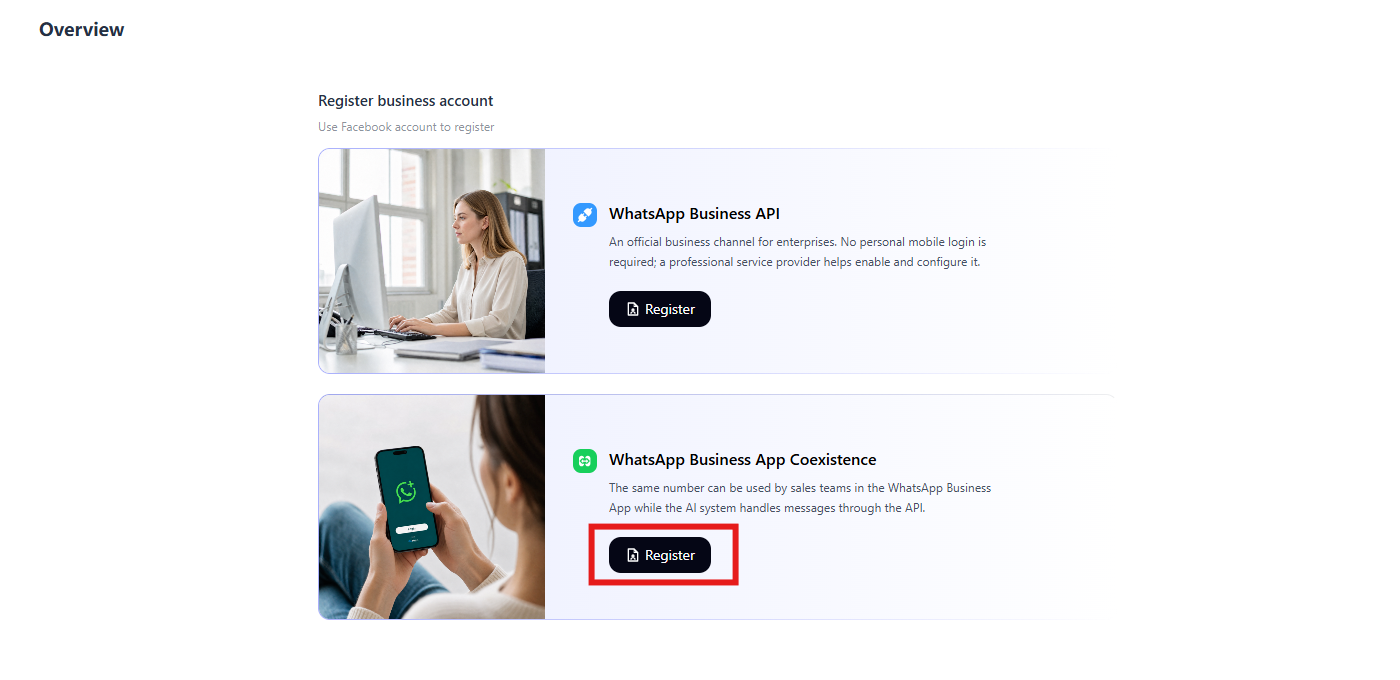
Sign in to EngageLab, open the WhatsApp service, and select App mode as the registration method.
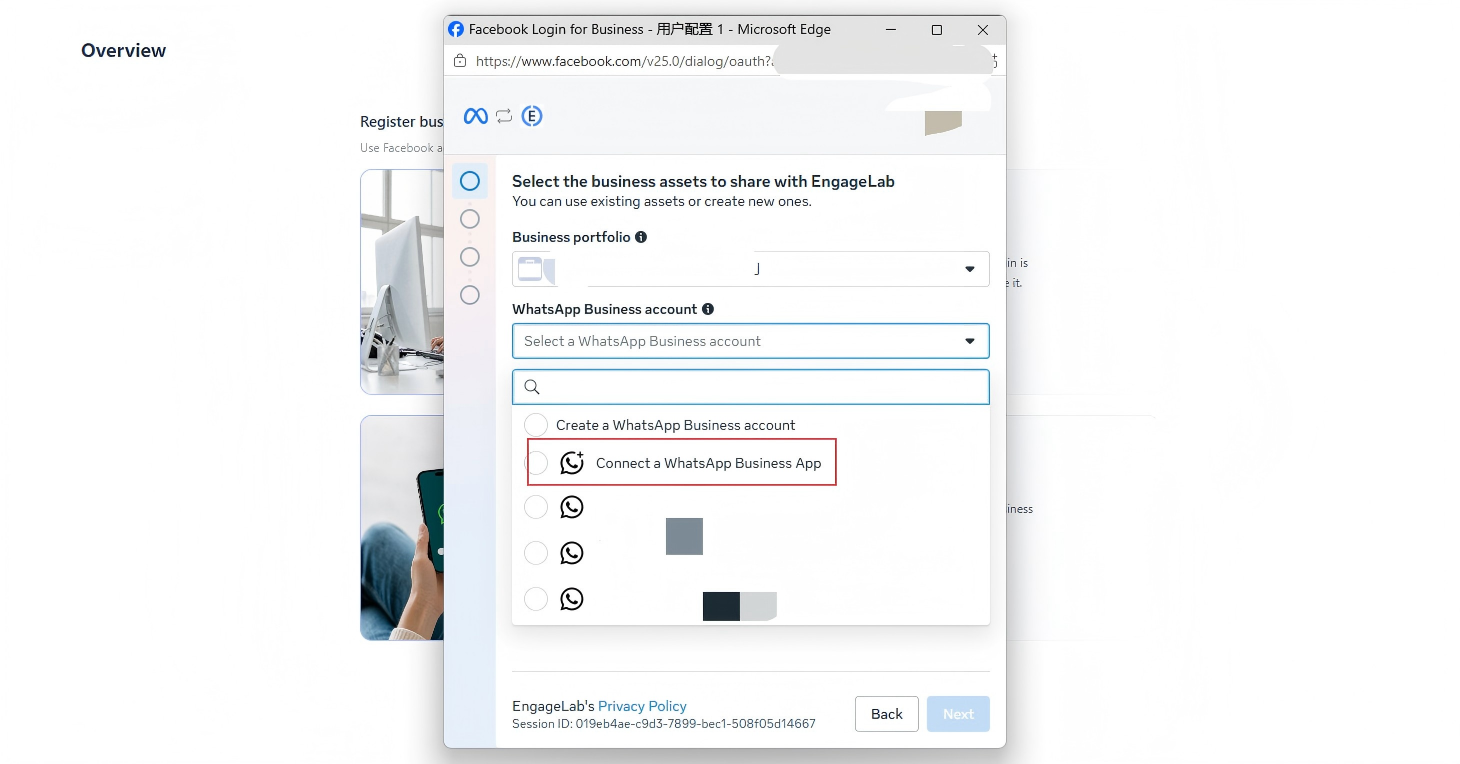
2. Enter the number and review account details
Enter the phone number you currently use in WhatsApp Business App.
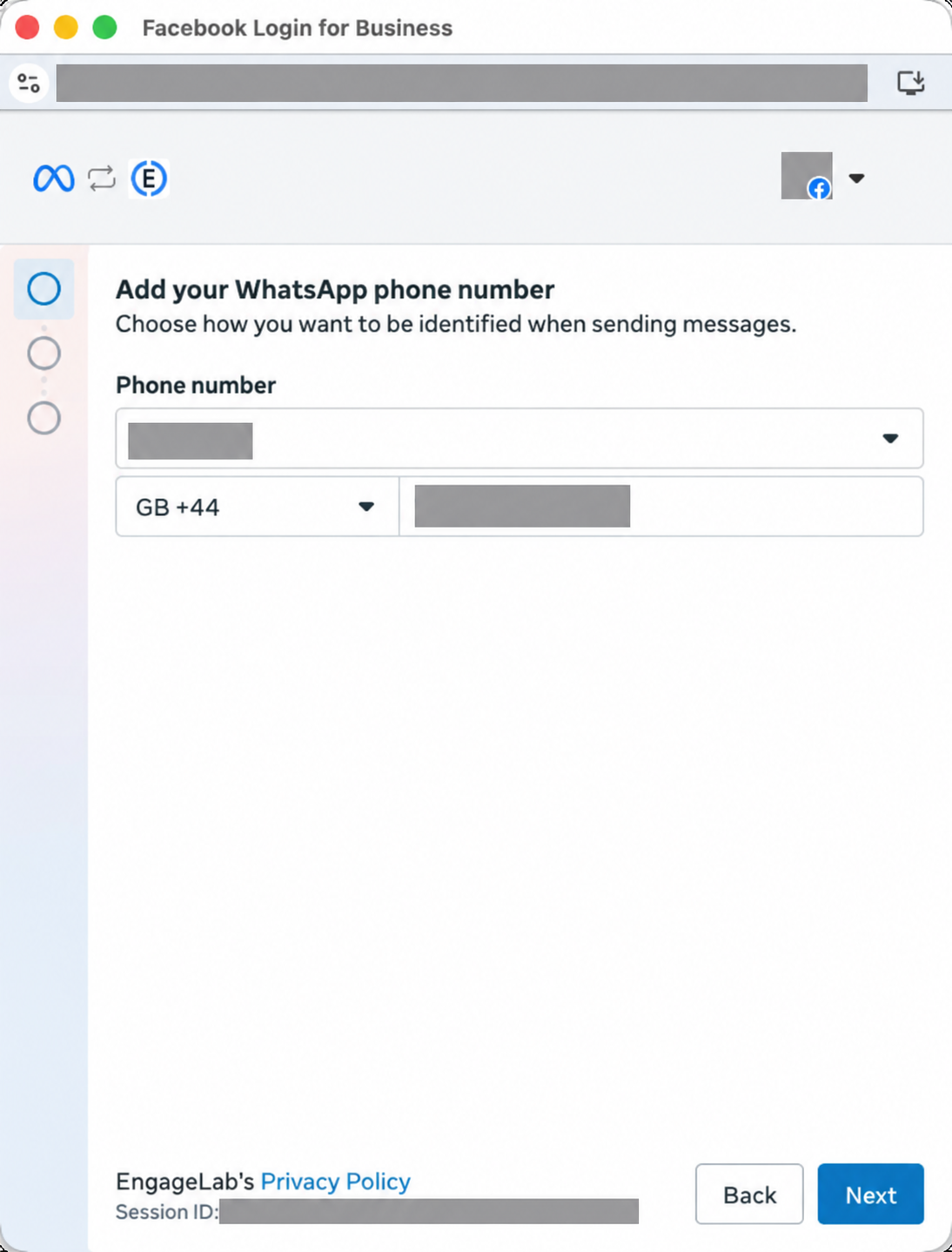
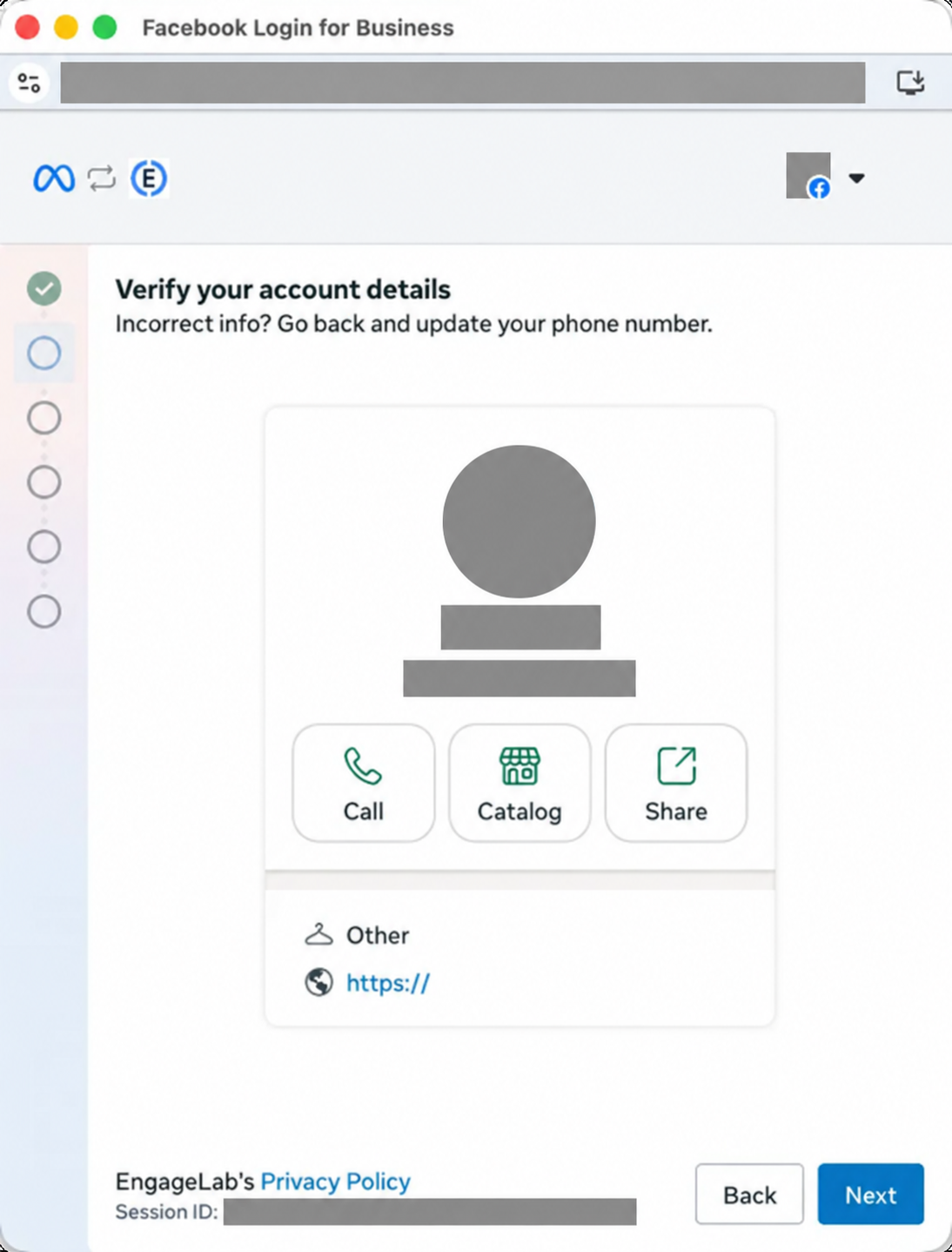
Review the account name, phone number, and other details shown. Correct the phone number if the details are wrong.
Confirm the business portfolio to use for this connection.
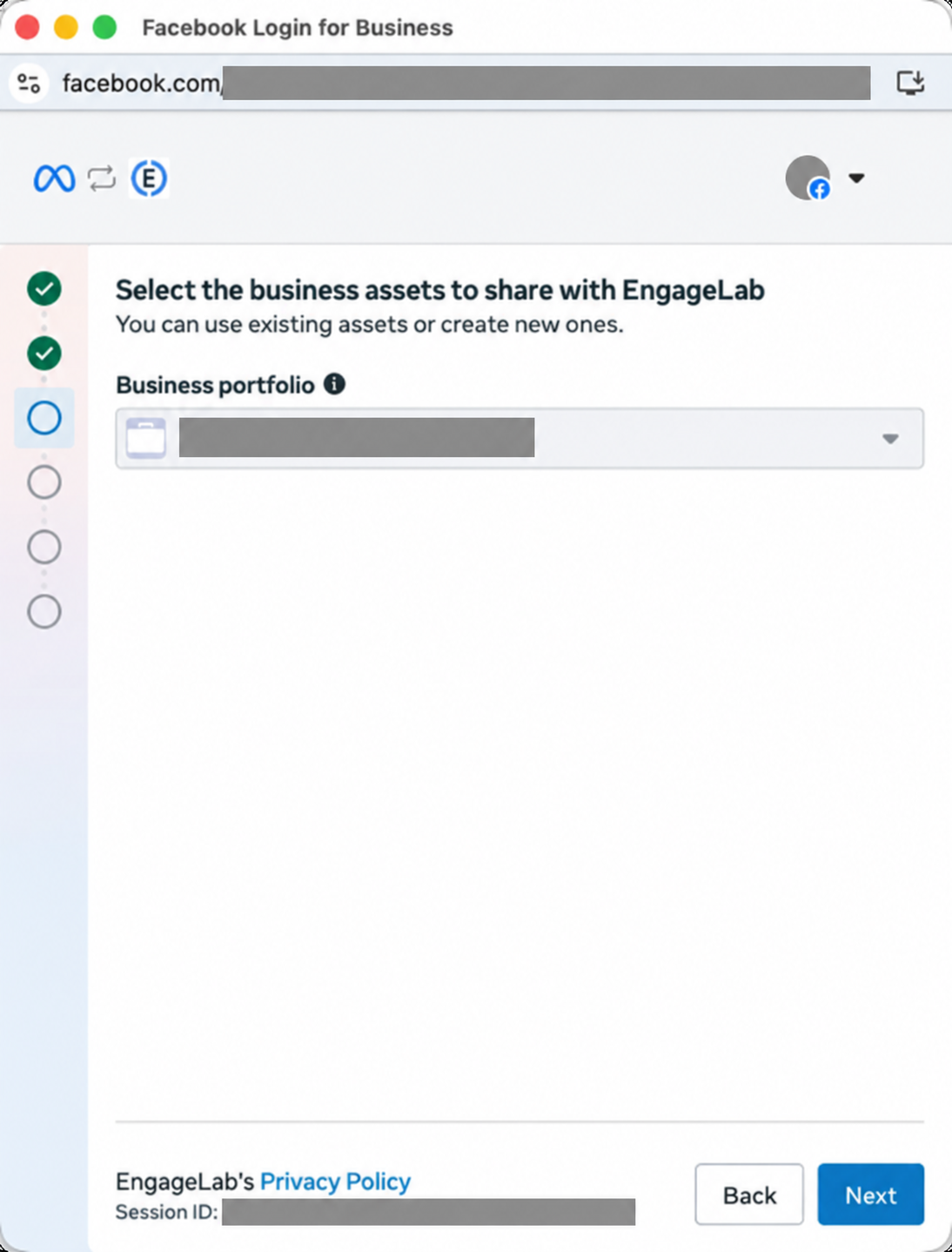
If the system reports an error, check that the number is already in use in WhatsApp Business App.
3. Complete the connection in the WhatsApp Business App
When the QR code appears, scan it with WhatsApp Business App on your phone to connect.
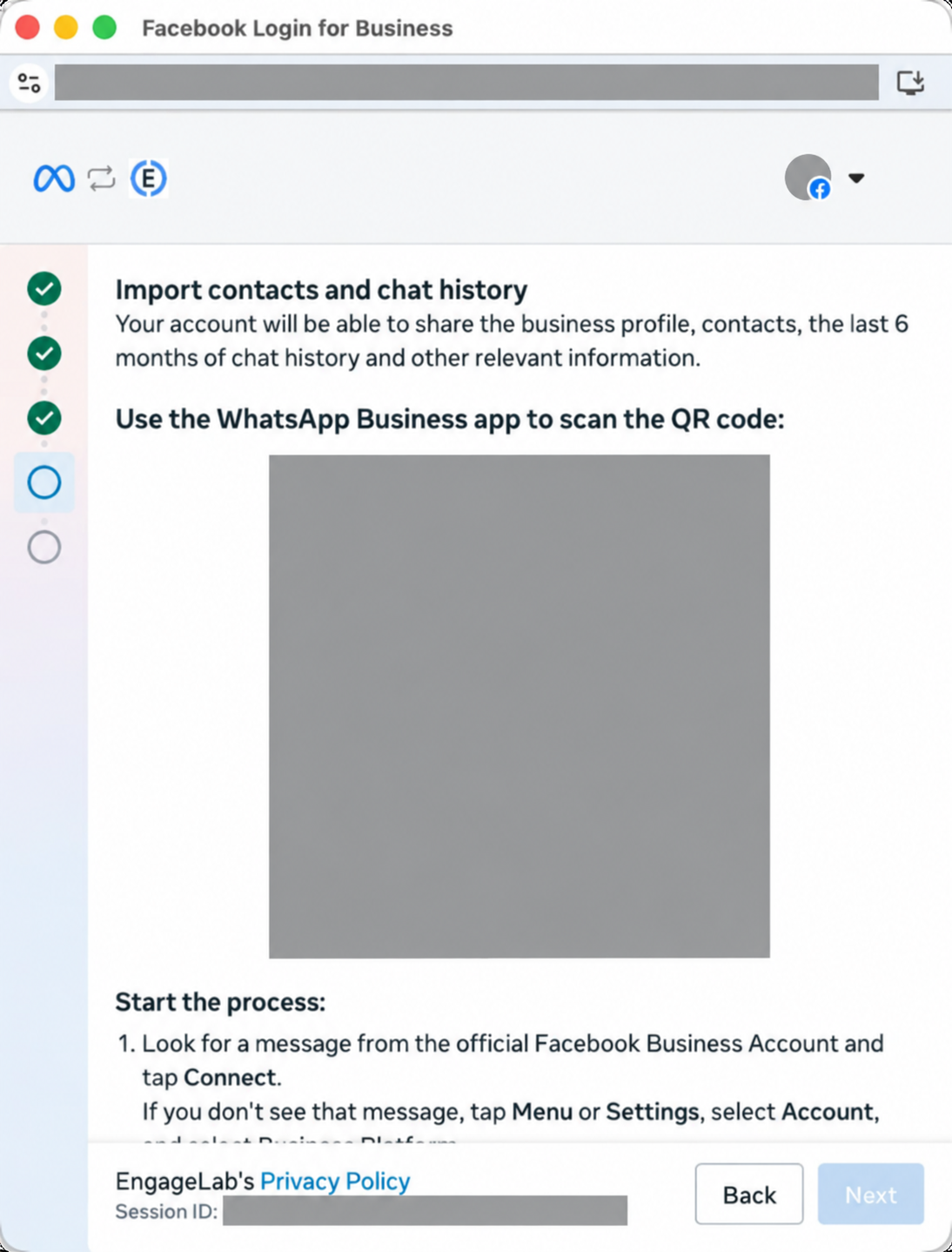
Scan the QR code shown on your actual onboarding page.
In WhatsApp Business App, use the message from the official Facebook business account to connect to the business platform and choose whether to share your chat history:
- Share: The platform can sync your message history from the last 180 days.
- Do not share: The platform will not obtain your chat history.
4. Review the account and grant access
Return to the registration page and review the WhatsApp business account name and time zone.
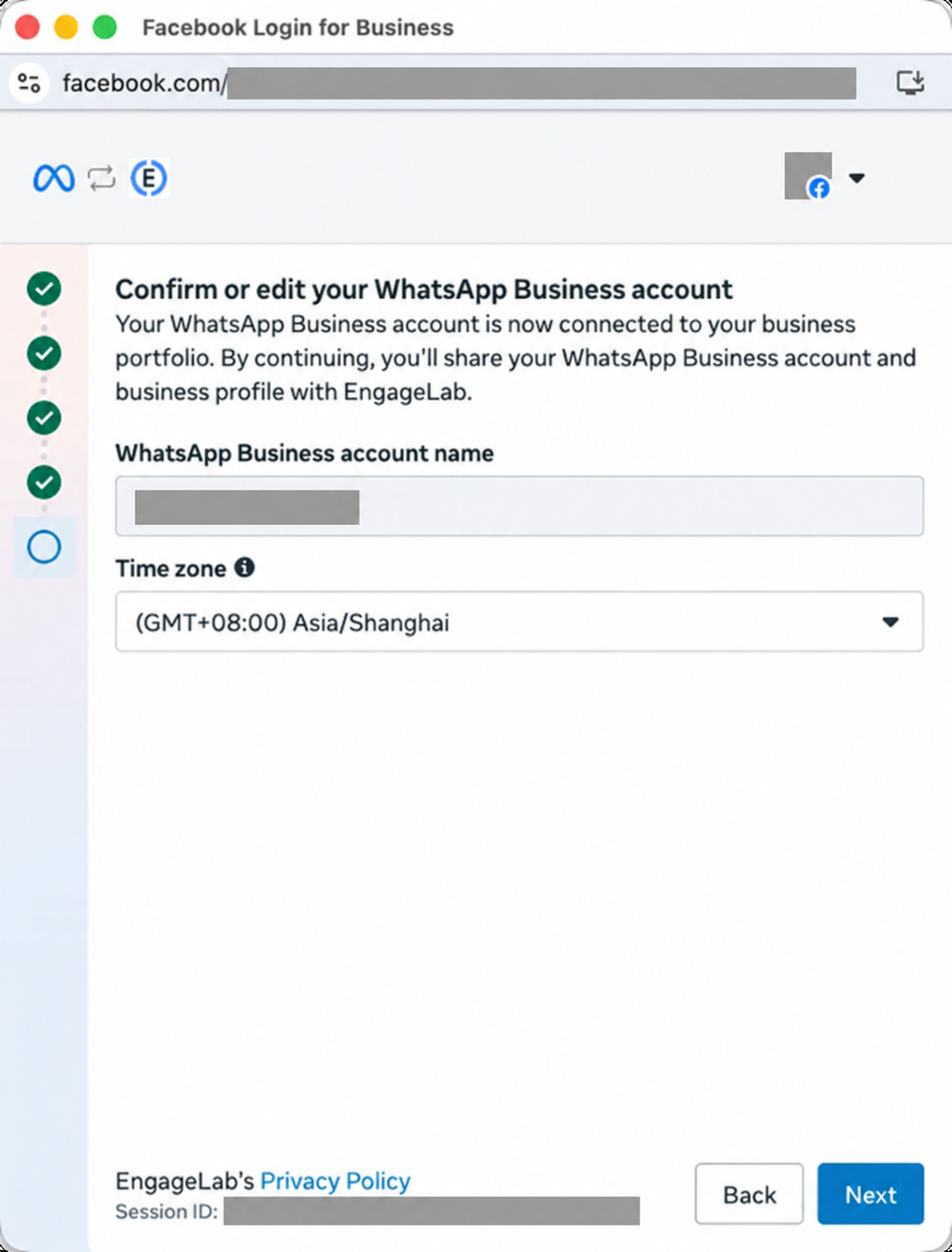
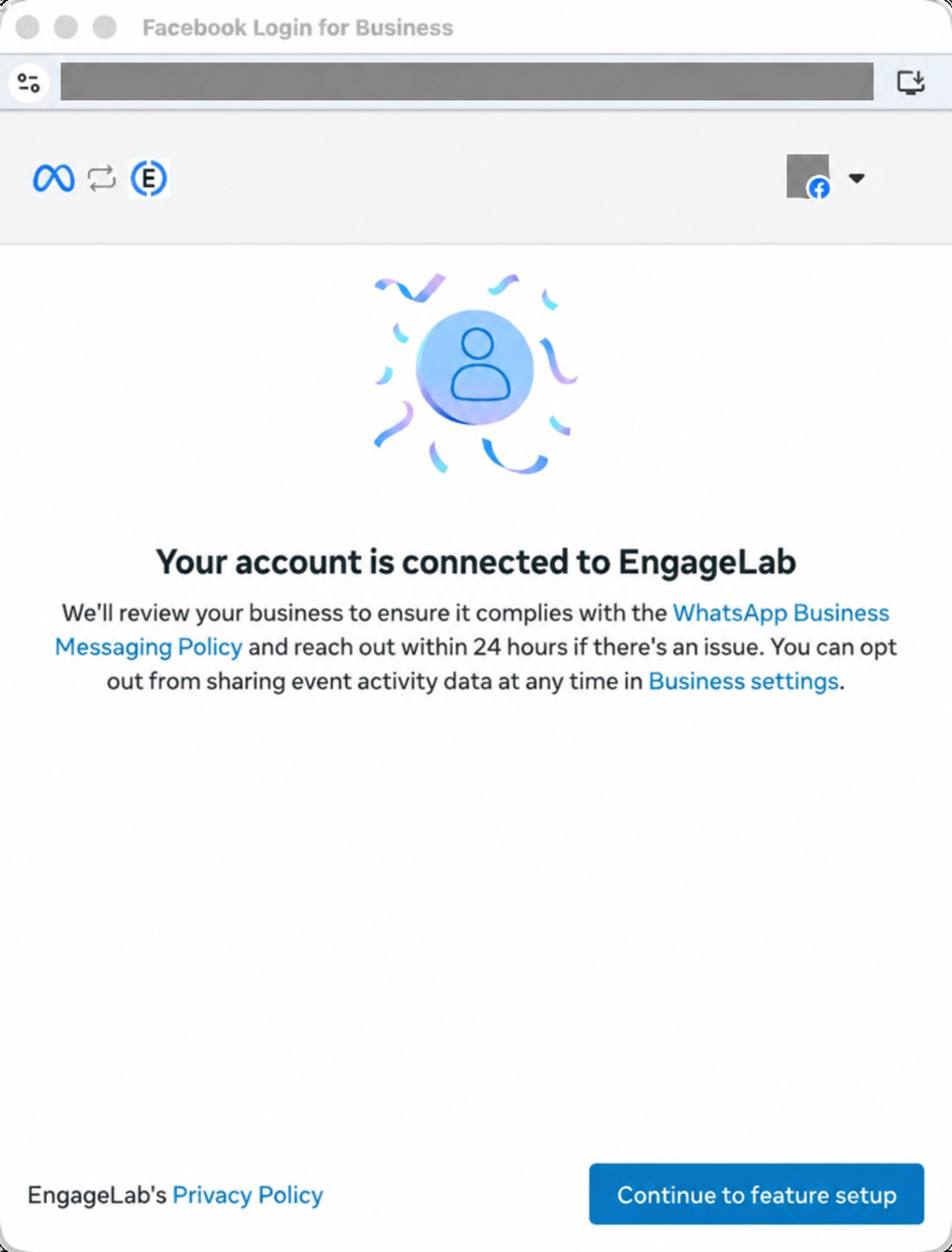
Review the business assets and permissions to share with EngageLab, and grant access.
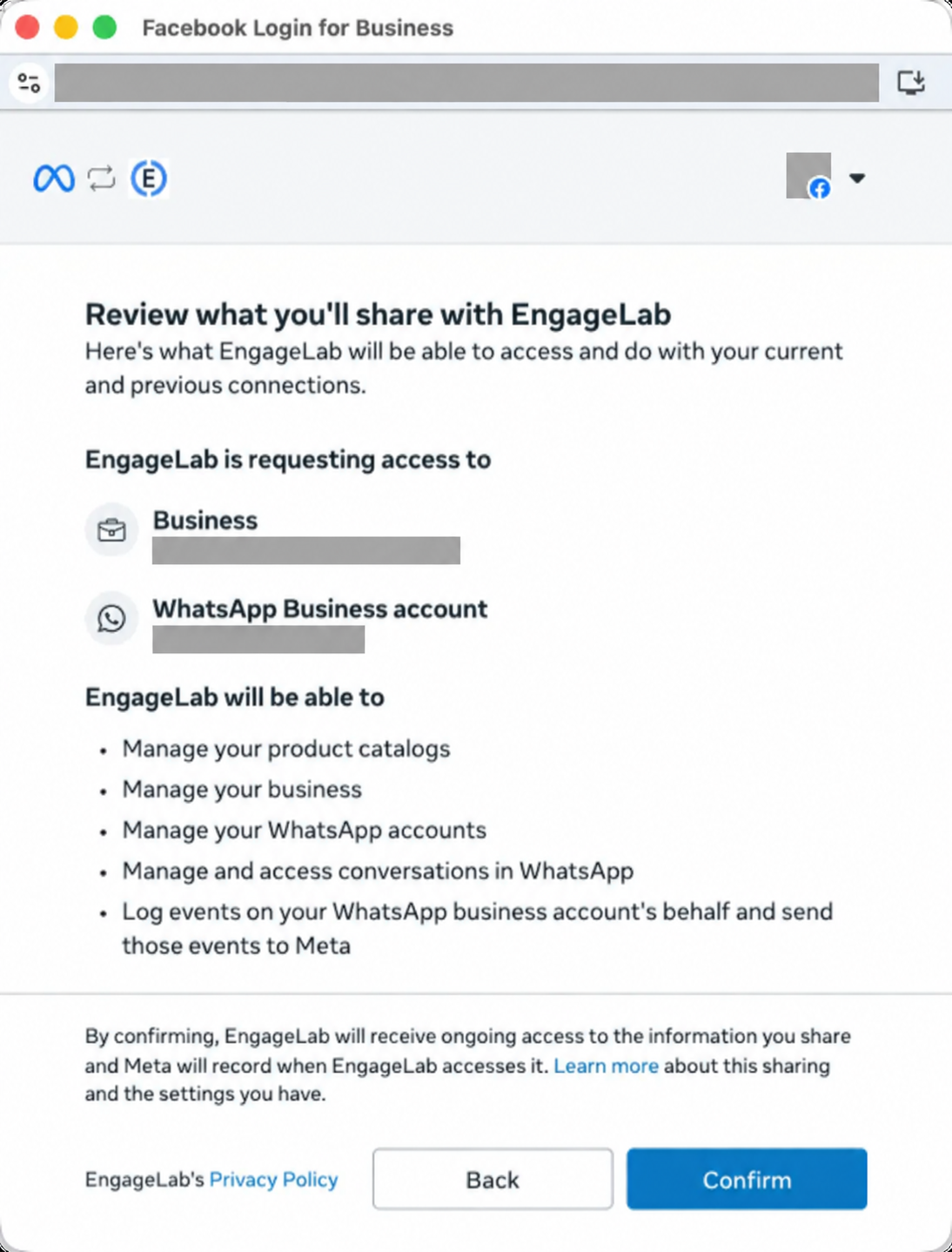
Once access is granted, the page shows that your account is connected to EngageLab.
5. Start history sync and verify readiness
After onboarding, the platform synchronizes contacts. If you agreed to share chat history, open Configuration Management > Sending Numbers and select History Sync within 24 hours.
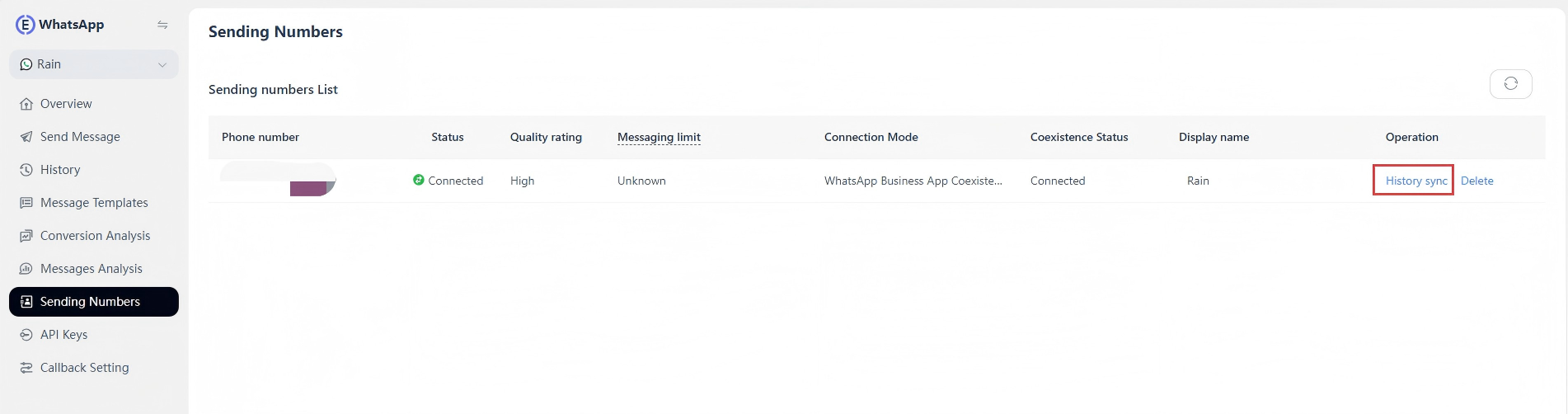
Keep WhatsApp Business App open and online during sync. Completion time depends on history volume and network conditions; see Data synchronization for coverage. Check the coexistence status in Sending Numbers, then test customer messages, App replies, and platform/API replies before starting operations.
Usage and limitations
Feature changes
The table distinguishes changes in the mobile App from Cloud API support. A feature remaining available in the App does not mean the platform or API supports it.
| Original WhatsApp Business App feature | Change in the App after connecting to the Cloud API | Whether the feature is supported on the Cloud API |
|---|---|---|
| One-to-one (1:1) chat | Message editing/recall is now supported | Supported. All chat messages from the last 6 months can be synced; sent and received messages are mirrored between the Cloud API and the App |
| Contacts | No change | Supported. All contacts with a WhatsApp number can be synced |
| Group chat | No change | Not supported; group chats will not be synced |
| Disappearing messages | This feature will be turned off for all 1:1 chats | Not supported |
| View once messages | This feature will be disabled for all 1:1 chats | Not supported |
| Live location messages | This feature will be disabled for all 1:1 chats | Not supported |
| Broadcast lists | Will be disabled; you cannot create new ones, and existing broadcast lists become read-only | Not supported |
| Voice/video calls | No change | Not supported |
| Business tools (such as catalog, orders, status) | No change | Not supported |
| Messaging tools (such as marketing messages, greeting messages, away messages, quick replies, labels) | No change | Not supported |
| Business profile (such as name, address, website) | No change | Not supported |
| Channels | No change | Not supported |
Data synchronization
Ongoing one-to-one message synchronization and historical import are different capabilities. Supported messages after onboarding can synchronize between the App and platform; importing earlier history requires agreeing to share and initiating History Sync.
| Data | Coverage |
|---|---|
| Contacts | Contacts with WhatsApp numbers can synchronize to the platform |
| Historical one-to-one messages | The last 180 days (about 6 months) before onboarding |
| Historical media resources | Downloadable images, videos, files, and other media from the 14 days before onboarding; downloadable older media is not guaranteed |
| Group chats | Not synchronized; continue using them in the mobile App |
Start History Sync within 24 hours of agreeing to share. Refreshing cannot reopen an expired window. History not shared or outside this window cannot be imported through this entry.
Messaging and pricing
- Throughput: Coexistence Cloud API numbers have a fixed limit of 20 messages per second (20 mps); they cannot receive throughput upgrades like regular API numbers.
- Service window: Only a new customer message after onboarding opens the API's 24-hour window. Imported history and business replies from the App do not open or extend it. Outside the window, use approved templates.
- App replies: One-to-one Business App replies are not subject to the API service window.
- Pricing: Business App messages remain free; platform/API messages follow the applicable Cloud API pricing.
Linked devices
The primary phone is where the number is registered. Companion devices use the same account with that phone's authorization. Linking a companion is not a primary-phone change. Onboarding unlinks existing companions; link supported devices again afterward.
| Device type | Support and details |
|---|---|
| WhatsApp Business App on the primary Android phone | Supported. Keep the original primary phone and latest App; open it at least every 14 days. |
| WhatsApp Business App on the primary iPhone | Supported. Keep the original primary phone and latest App; open it at least every 14 days. |
| WhatsApp Web (computer browser) | Supported. Scan with the primary phone to link and exchange one-to-one messages. Works in browsers on Windows and Mac. |
| WhatsApp Desktop for Mac | Supported. Scan with the primary phone to link and exchange one-to-one messages. |
| WhatsApp Desktop for Windows | Not supported. Messages from this client do not synchronize normally under coexistence; use WhatsApp Web on Windows instead. |
| Companion phone | Supported. Select Link as companion device; do not re-register the number as a primary account. |
| WhatsApp for Wear OS (smartwatch) | Not supported. Outside the supported companion-client scope; messages may not synchronize. |
Up to 4 companion devices are supported, excluding the primary phone. Each independently linked client or browser session uses one slot. At capacity, log out an old device on the primary phone before adding another. Display the QR code on the computer, then scan it from Business App > Linked devices > Link a device. On iPhone, enter through Settings; on Android, use the top-right ⋮ menu. On a secondary phone, select Link as companion device. See the official WhatsApp linking guide.
Unsupported clients may cause missing platform messages or placeholders directing users to the primary device. The general WhatsApp linking guide is not a coexistence compatibility list. Mobile browsers are not a recommended access method.
Automated replies and teamwork
Review greeting and away messages in the App and automated replies in the platform or connected support system. Decide which tool responds. A customer message may trigger multiple systems; coexistence does not automatically prevent duplicate replies. Test App replies, platform replies, and automation handoffs before production use.
Maintaining the connection and offboarding
Maintaining the connection
Keep WhatsApp Business App on the primary phone and open it at least every 14 days. The phone does not need to stay continuously online, but using computer companions does not replace primary-App activity.
Replacing the primary phone, reinstalling the App, re-registering or changing the number, moving to WhatsApp Messenger, or disconnecting the business platform may interrupt coexistence. Retain the original primary phone and assess the impact on platform messaging before making changes.
Offboard
Offboarding disconnects WhatsApp Business App from the business platform. Complete Meta's flow in the primary phone App; no offboarding operation in EngageLab is required:
- Open WhatsApp Business App on the primary phone and go to Settings > Account > Business Platform.
- Select Disconnect Account and confirm as prompted. Labels depend on the App version.
Once disconnected, platform/API messaging and synchronization through that connection stop. You can continue using the mobile App. When EngageLab detects that the associated WhatsApp Business Account (WABA) is invalid, it automatically hides the account on the platform; no separate deletion is required.
Offboarding is different from deleting a WhatsApp account or logging out a computer companion. Stop dependent sending tasks before disconnecting, and arrange to handle subsequent customer messages in the mobile App.
Frequently asked questions
Can I keep using my original number and WhatsApp Business App?
Yes. Use the same number on the original primary phone and through EngageLab platform/API. No App-account deletion is required, but some features change; see Feature changes above.
Do messages sent in the App become chargeable?
Business App messages remain free. Platform/API sends follow applicable Cloud API pricing. Coexistence does not turn App messages into API sends or make API messaging free.
Will I lose existing chats? Can all history be imported?
You can retain the App account and view existing chats there. Platform import requires history sharing during onboarding and History Sync within 24 hours. It covers the last 180 days of one-to-one messages and eligible media, excluding groups. See Data synchronization.
Can I use groups, calls, and broadcast lists on the platform?
App functionality does not automatically become platform/API functionality. App groups and voice/video calls are not enabled as API features by coexistence. Broadcast lists cannot be created or sent; existing lists become read-only. See Feature changes.
Why is my number ineligible for coexistence?
This flow requires an active Business App number, not personal WhatsApp Messenger or an API-only number. New, insufficiently active, restricted, or regionally unsupported numbers may be ineligible. Meta decides during signup. Check the App version, registration type, asset ownership, and error; avoid repeatedly deleting or re-registering.
Why is the account or number missing after Meta authorization?
After authorization, confirm the account and number appear in EngageLab, the coexistence status is normal, and test messaging. If missing, pending, or showing an error, give support the number, time, and error details. Do not repeatedly create accounts or substitute API-only registration.
Why are some messages or history missing?
Check initial sync completion, history-sharing choice, the 24-hour window, history age, and message types. Groups, unsupported-client messages, and media may fall outside coverage; first inbound messages can briefly lag. Check the original on the primary phone and connection status. Missing messages do not necessarily mean disconnection.
Why do platform replies require a template when chat history exists?
Imported history and business App replies do not open or extend the API 24-hour service window. A new customer message after onboarding opens it. Outside the window, platform/API sends require approved templates. App and API messaging follow different rules.
Why were my linked devices logged out? Can I link them again?
Onboarding automatically unlinks existing companions. Re-link supported devices with the original primary phone. Web and Mac are supported; Windows Desktop and Wear OS are not. See Linked devices for slots and instructions. Companion logout and coexistence disconnection are different issues.
How do I stop coexistence, and why did my account disappear?
Disconnect the business platform in the primary Business App using Meta’s flow; no EngageLab offboarding operation is needed. API messaging and sync stop. EngageLab hides the account after detecting its WABA is invalid; the mobile App remains usable. See Offboard above. If disappearance was unexpected, preserve the details and contact support.
Can a number linked to another provider connect directly to EngageLab?
Existing partner authorization, asset ownership, or credit lines may block onboarding. Removing the old connection does not guarantee immediate access. Check with both providers before switching; do not delete a WABA, move to personal WhatsApp, or repeatedly register as a workaround.
Can a coexistence account retain Meta Verified?
Meta Verified subscription and Official Business Account (OBA) are different certifications. Retention and eligibility depend on Meta’s actual account result. Do not disconnect, delete, or re-register the number just to reactivate certification.
