API Keys
To generate verification codes or perform verification with the EngageLab OTP API, you need to create an API Basic Authentication key. You can create one on the "API Keys" page in EngageLab OTP.
Note: Anyone or any system with your API key can use your OTP service data. Do not share it with third parties.
Create a Key
If you have not created a key yet, click "Create Now" to create one.

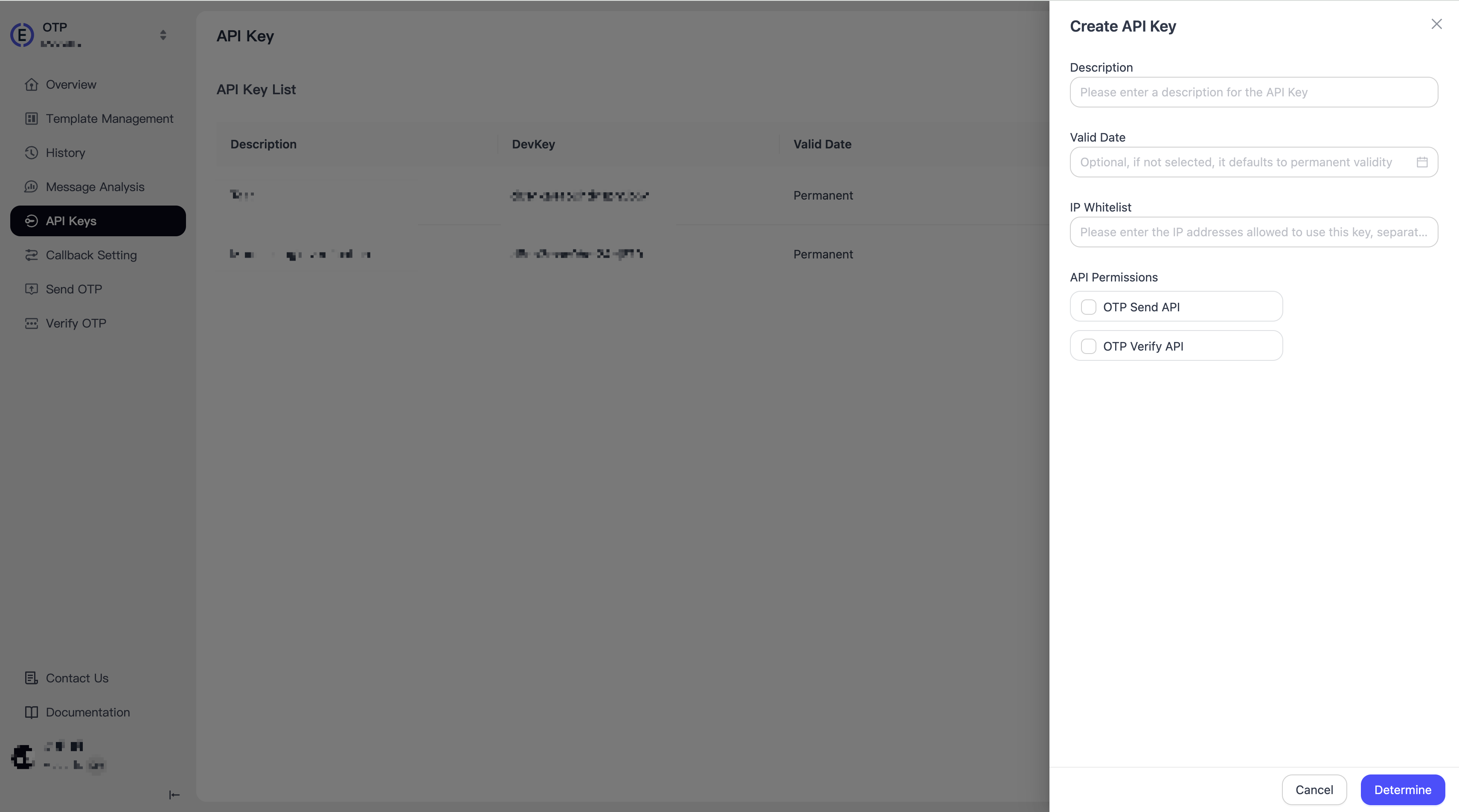
Follow the prompts to enter the API key description, expiration date, IP whitelist, and API permissions.
- If the expiration date is left blank, the key will remain valid permanently by default.
- The IP whitelist can be left blank. If it is blank, the request IP will not be validated. After it is configured, only IPs in the specified list will be allowed to send API requests; otherwise, the system will reject the request.
- API permissions control whether this key supports the "Send API" and "Verify API".

After the key is created successfully, the system automatically generates a DevKey and DevSecret.

Click anywhere on the data row to open the details page, where you can view the DevKey and DevSecret and copy them for your developers.

Edit a Key
If you need to edit an API key, click "Edit" to open the Edit API Key page.

You can modify the key description, reset the DevSecret, change the expiration date, update the IP whitelist, and adjust API permissions.

Disable a Key
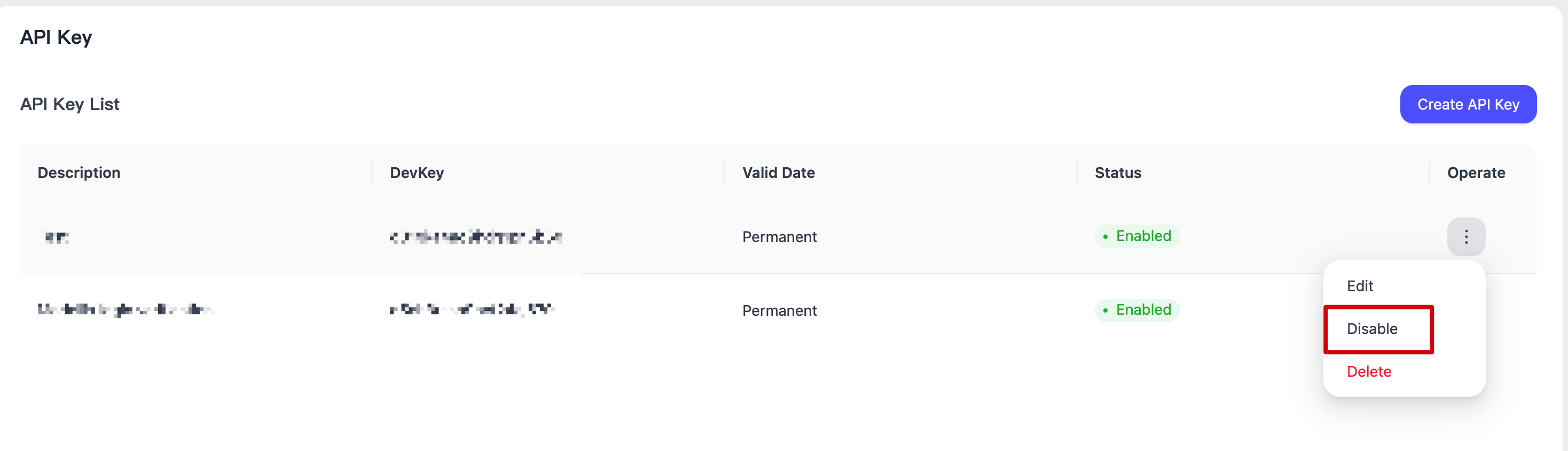
If you need to disable a key, click "Disable":

When you check the OTP key status, you can see that the API key status for the EngageLab OTP application has changed to "Disabled".

Enable a Key
If you need to enable a disabled EngageLab OTP key, click "Enable":

When you check the OTP key status, you can see that the API key status for the EngageLab OTP application has changed to "Enabled".

Delete a Key
If you need to delete a key from EngageLab OTP, click "Delete" and confirm again to complete the deletion.