logoDokumen
Cari

Callback Settings

Overview

EngageLab OTP supports a callback mechanism, allowing you to automatically push relevant data to your business system when critical events occur, enabling automated operations, anomaly monitoring, and business closure.

After configuring the callback address, the system will actively push event data to your interface in the following scenarios:

  • Message lifecycle status changes
  • Business alerts such as insufficient balance or low verification rate
  • Receiving upstream messages
  • System-level event notifications such as account login, template changes, API calls

For more detailed configuration instructions on callback events, please refer to Callback Configuration.

Callback Configuration Process

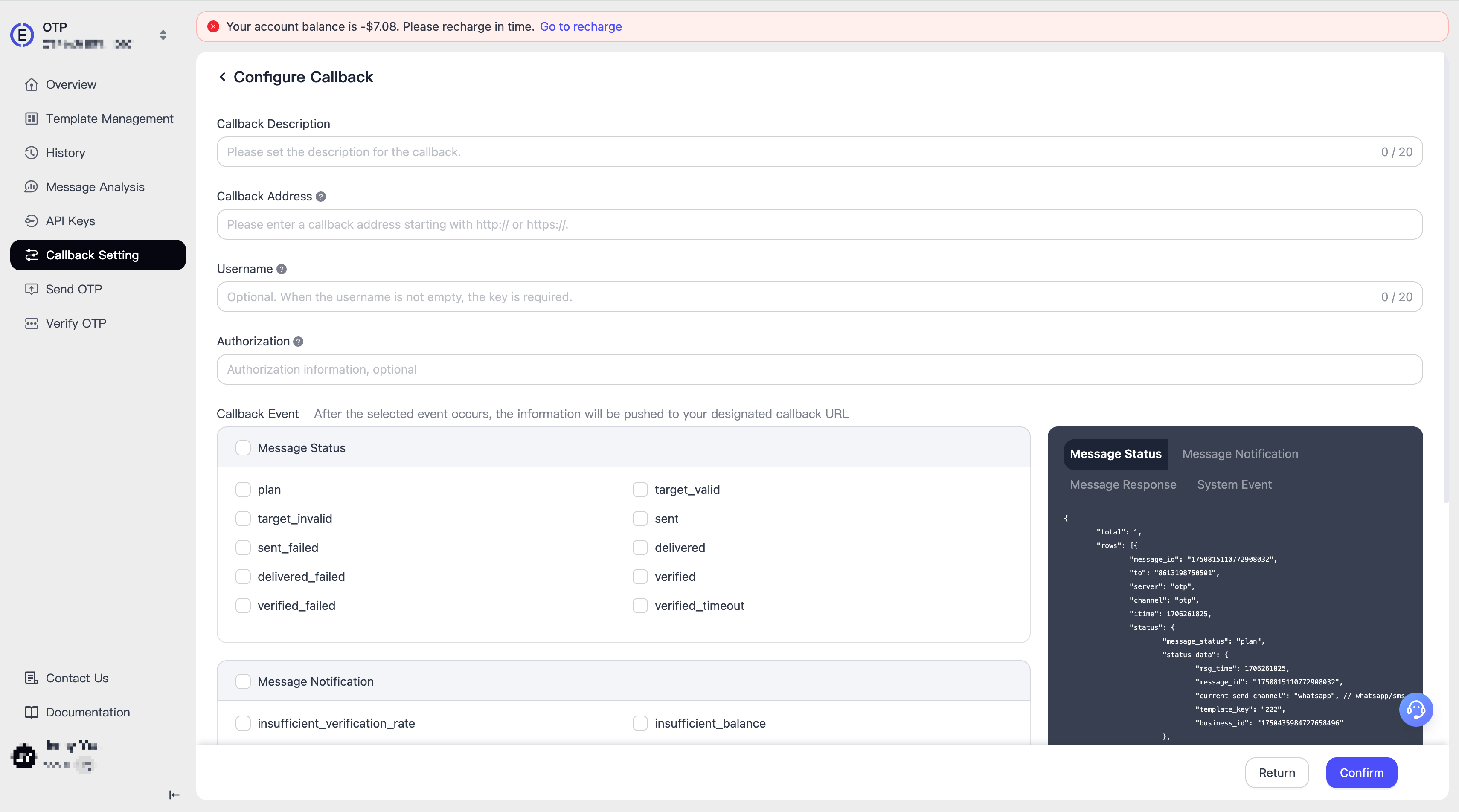
  1. On the Configuration Management - Callback Settings page, click "Configure Now" or "Configure Callback Address" to configure the callback for EngageLab OTP services. alt text alt text

  2. Fill in the following information:

    • Callback Description: Customize the description of the callback for easier differentiation of different callback purposes.
    • Callback Address: Must be a publicly accessible HTTPS address.
    • Username: Optional, recommended for configuring callback security verification.
    • Authorization: If your interface requires authentication, you can choose to configure this field. alt text
  3. Select the types of callback events to subscribe to, and click on the message status and message response on the right to view corresponding examples. alt text

  4. After saving, the system will automatically push the selected event data to your callback address. alt text

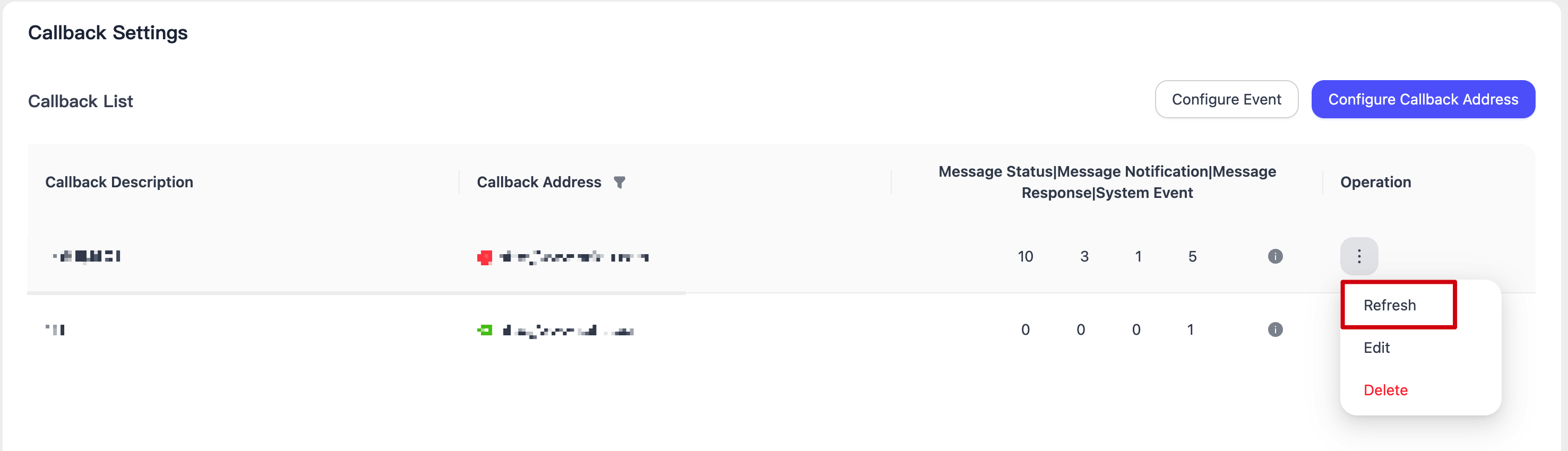
Callback List

alt text

  • Callback Address Status: The identifier below the callback address indicates whether the address is currently enabled. You can quickly switch to display callback addresses with normal or abnormal status using the filter button on the right.
  • Event Statistics: Displays the number of various events received by the callback address. Hover over the statistics to view a detailed list of event identifiers.
  • Refresh: Click the "Refresh" button to immediately initiate a connectivity test for the callback address, updating its real-time status on the interface.
  • Delete: Click the "Delete" button to remove the current callback address. After deletion, the address will no longer receive any event notifications.

Configure Events

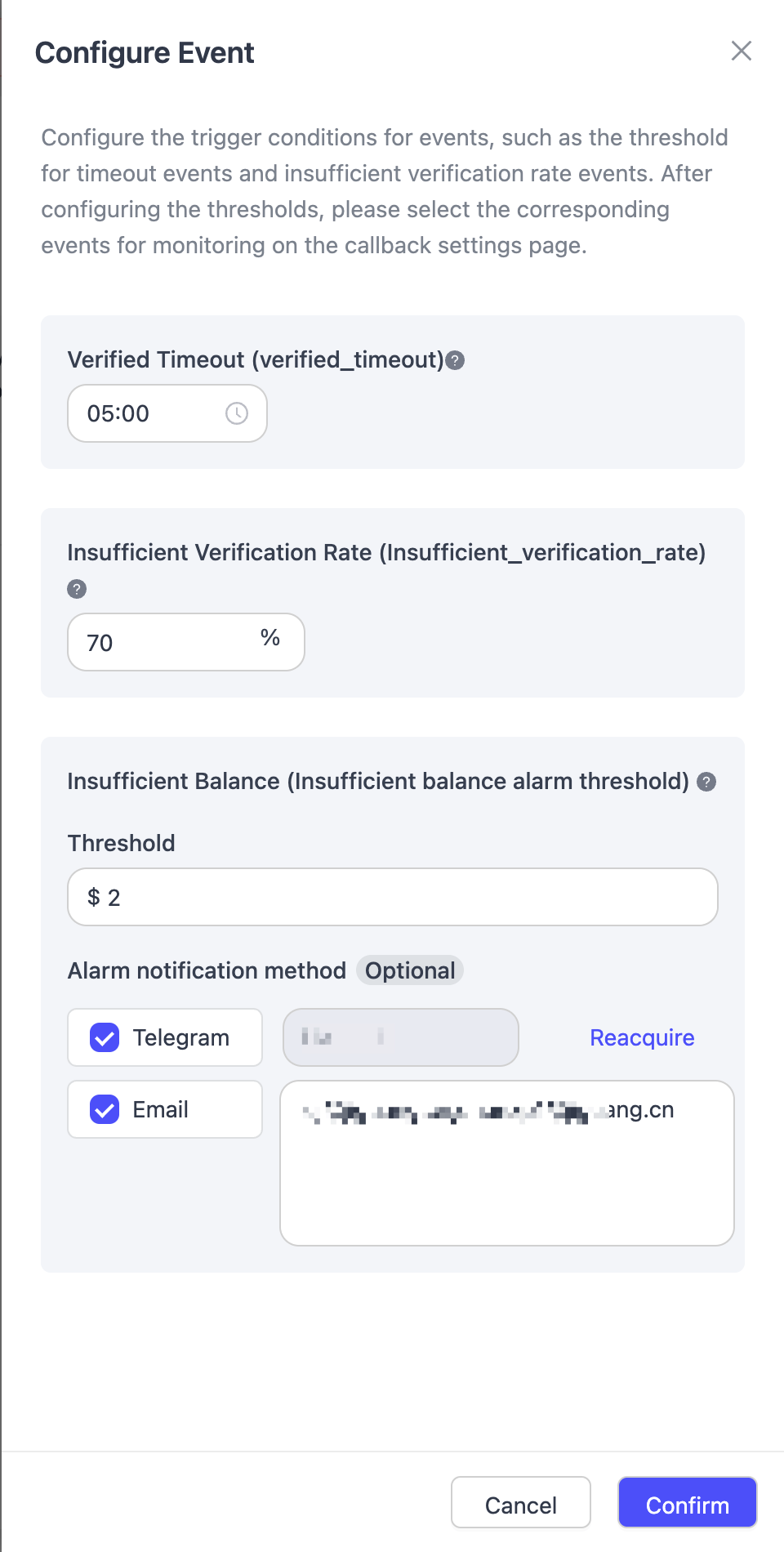
Click "Configure Events" to set up balance alert configurations for EngageLab OTP services. alt text This page allows you to customize the triggering conditions for various events. You can set thresholds for events such as timeout without verification, low verification rate, and insufficient balance.

Note: Before performing this operation, you need to configure the callback address.

Set Alert Thresholds

  • Timeout Without Verification: Set the time period within which a user must complete verification (e.g., 5 minutes). If the user fails to verify within this time, the system will consider it a timeout and trigger the event.
  • Low Verification Rate: Set the minimum acceptable verification rate percentage (e.g., 70%). If the actual verification rate falls below this threshold, the system will trigger a "Low Verification Rate" event.
  • Insufficient Balance: Enter the alert trigger threshold (e.g., $10). When the account balance falls below the set threshold, the Bot will automatically send a reminder. Note: The unit is USD, and only positive integers are supported.

alt text

Alert Receiving Methods

  • Select the channel through which you wish to receive alerts:
    • Telegram:

      • Click the "Telegram" checkbox: alt text

      • In the pop-up window, click the "START BOT" button to complete the binding: EngageLab OTP Bot Start Button

      • After binding is complete, the result will be displayed as follows: EngageLab OTP Bot Binding Success

      • If you need to change the Telegram account receiving the alerts, you can also click the "Reacquire" button to reset: alt text

    • Email:

      • Enter the email address(es) to receive alerts. Up to 5 addresses can be set, separated by commas (,). alt text

Save Settings

  • Ensure all configurations are completed, then click the "Confirm" button at the bottom of the page.
  • The system will notify you that the settings have been successfully saved.
Icon Solid Transparent White Qiyu
Hubungi Sales