Elena Rodriguez
Updated: 2026-11-09
It is past 10pm in Taipei, and your LINE Official Account has twelve unread messages. They ask the same three things: what time you close, where an order is, and whether a booking can move.
Your team will see them in the morning. By then, half of those customers have gone quiet. A chatbot for LINE answers the moment each message lands, and pulls in a person when the question needs one.
Here is what a good one does, and how to put one on your own account without a developer.
Part 1: What a Chatbot for LINE Is (and What It Should Do for Support)
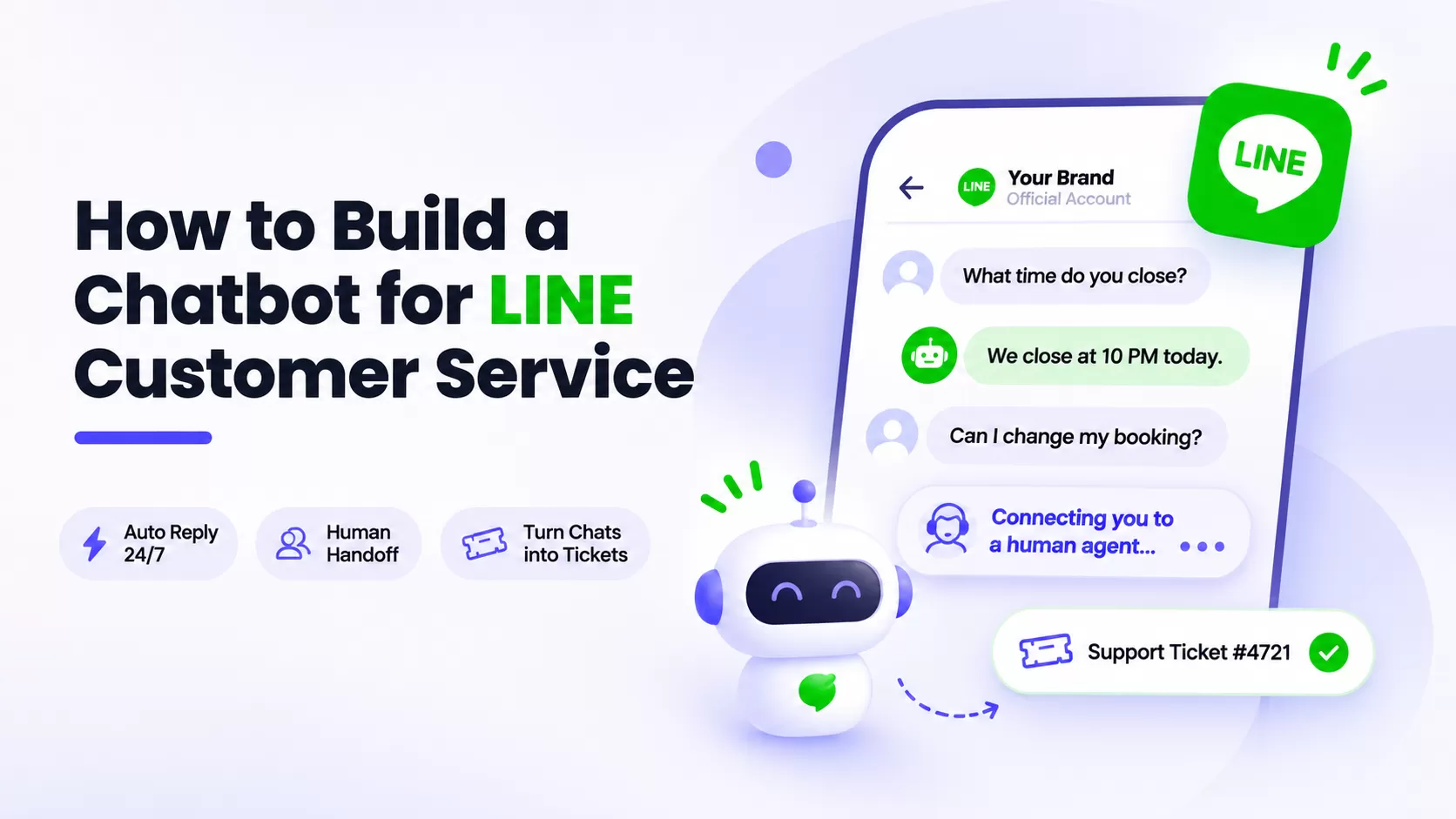
A LINE chatbot connects to your LINE Official Account and answers customers inside the chat they already use. The useful ones read the question, reply on their own when they can, and pass it to a person when they can't.
Most guides stop at "it auto-replies." For customer service, a LINE helper earns its place by doing four jobs well:
- Answers instantly: handles the common questions (hours, order status, bookings) day or night, in the customer's language.
- Hands off to a human: escalates the sensitive or high-value case to an agent instead of guessing.
- Keeps the context: remembers the conversation when a customer also reaches you on another channel.
- Turns chats into tickets: logs a request that needs follow-up so nothing falls through.
That is the customer-service type of bot. If your main goal is blasting promotions to followers, that is a different tool, and this guide is not about it.
Part 2: Why Put a Chatbot on LINE
In much of Asia, LINE is not a side channel. Its operator, LY Corporation, reported 194 million monthly active users in March 2025, including 98 million in Japan, as compiled by Business of Apps (2025) .
It is the default messenger in Japan, Taiwan, and Thailand, and one of the largest in Indonesia. Those four markets account for roughly three-quarters of LINE's users.
If your customers live in LINE, your support has to as well. That is the case for line automation: the repetitive questions get instant answers, and your agents keep the ones that need judgment.
The payoff is concrete:
- No wait at 2am: customers get a reply at the hours your team is offline.
- Lower cost per contact: the bot absorbs the volume you would otherwise hire for.
- A record of what customers ask: the questions the bot sees tell you which policy or page to fix.
Part 3: How the Bot and Your Team Share a LINE Conversation
Connecting a bot is the easy part. The support value shows up in what happens after the first message.
Say a guest messages your hotel's LINE account at midnight: "the AC in room 507 isn't working." The bot reads it, recognizes a maintenance issue, and replies that help is on the way.
Behind that reply, the conversation follows a set order.
It checks your routing rules first. A rule can send billing questions straight to a person, or keep after-hours chats with the bot.
If no rule matches, the AI agent takes it, answering from your knowledge base or, here, logging the maintenance request.
When the bot can't resolve it, or the guest asks for a person, it hands to a human agent
who picks up with the full history in view.
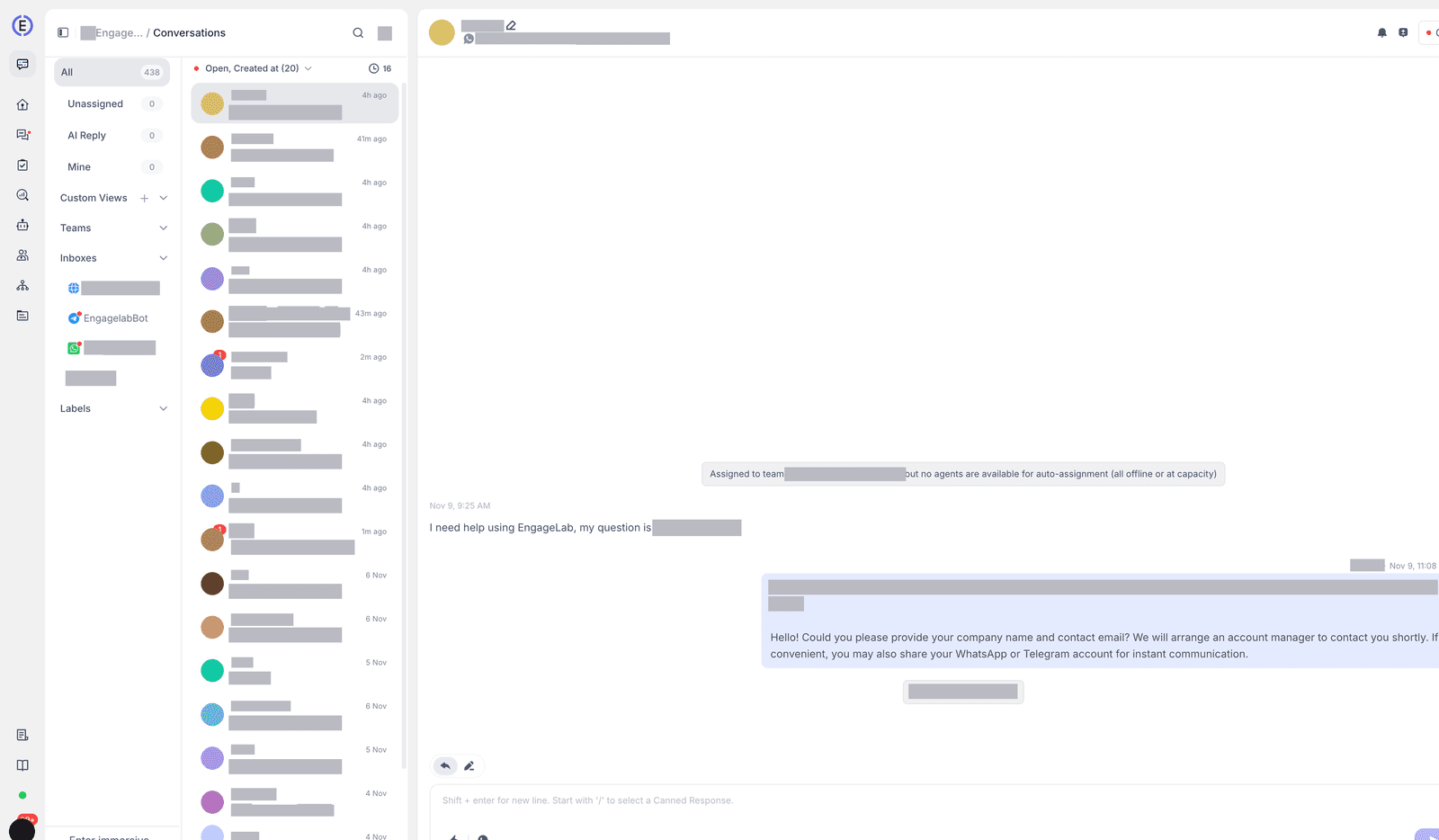
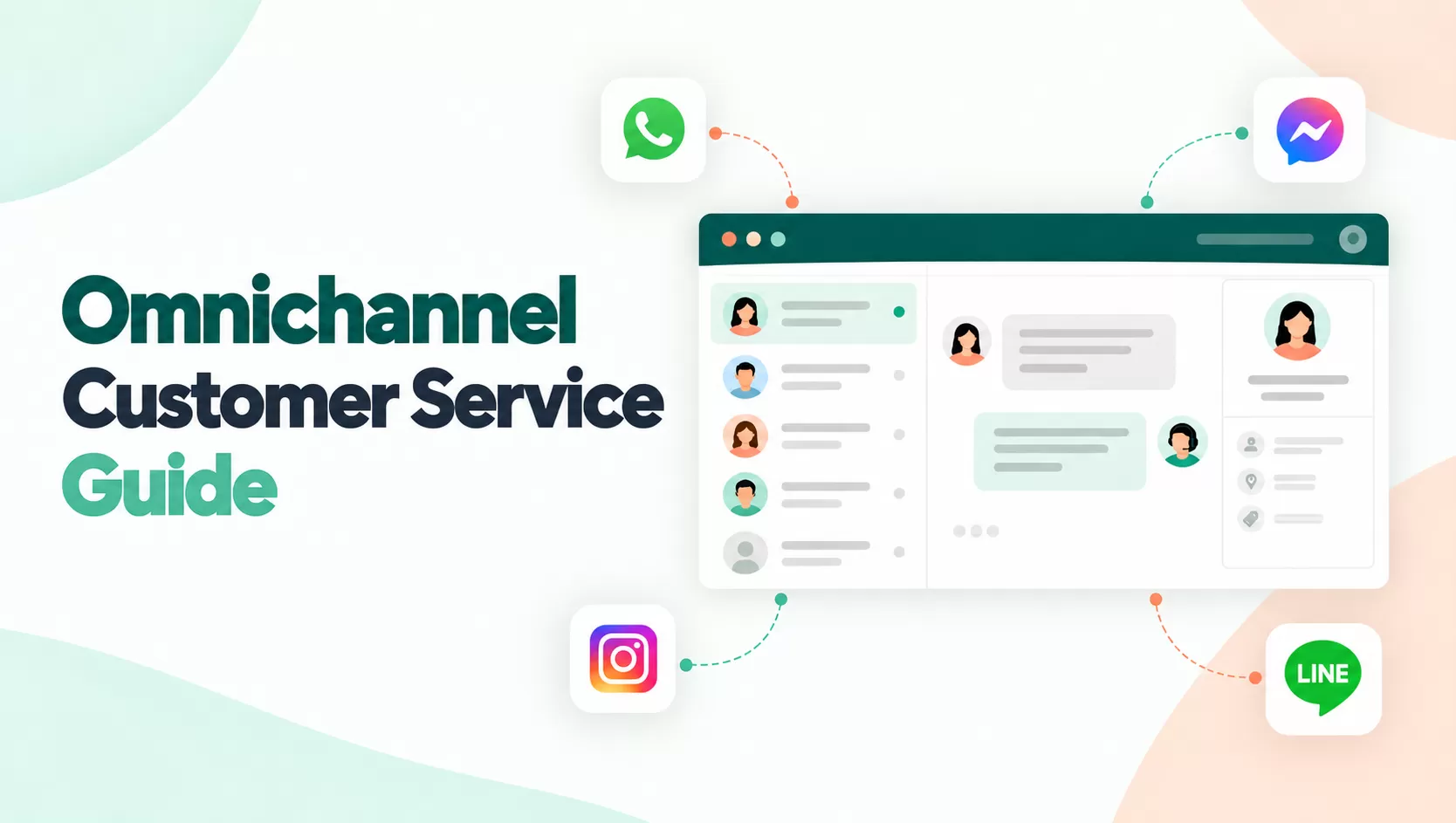
That history spans channels. If the same guest messaged you on your website earlier, the agent sees both threads in one place, so the customer never repeats themselves.
The order that matters: In LiveDesk, a LINE conversation is assigned by routing rules first, then the AI agent, then a human. That priority is what keeps the bot from answering something it shouldn't.
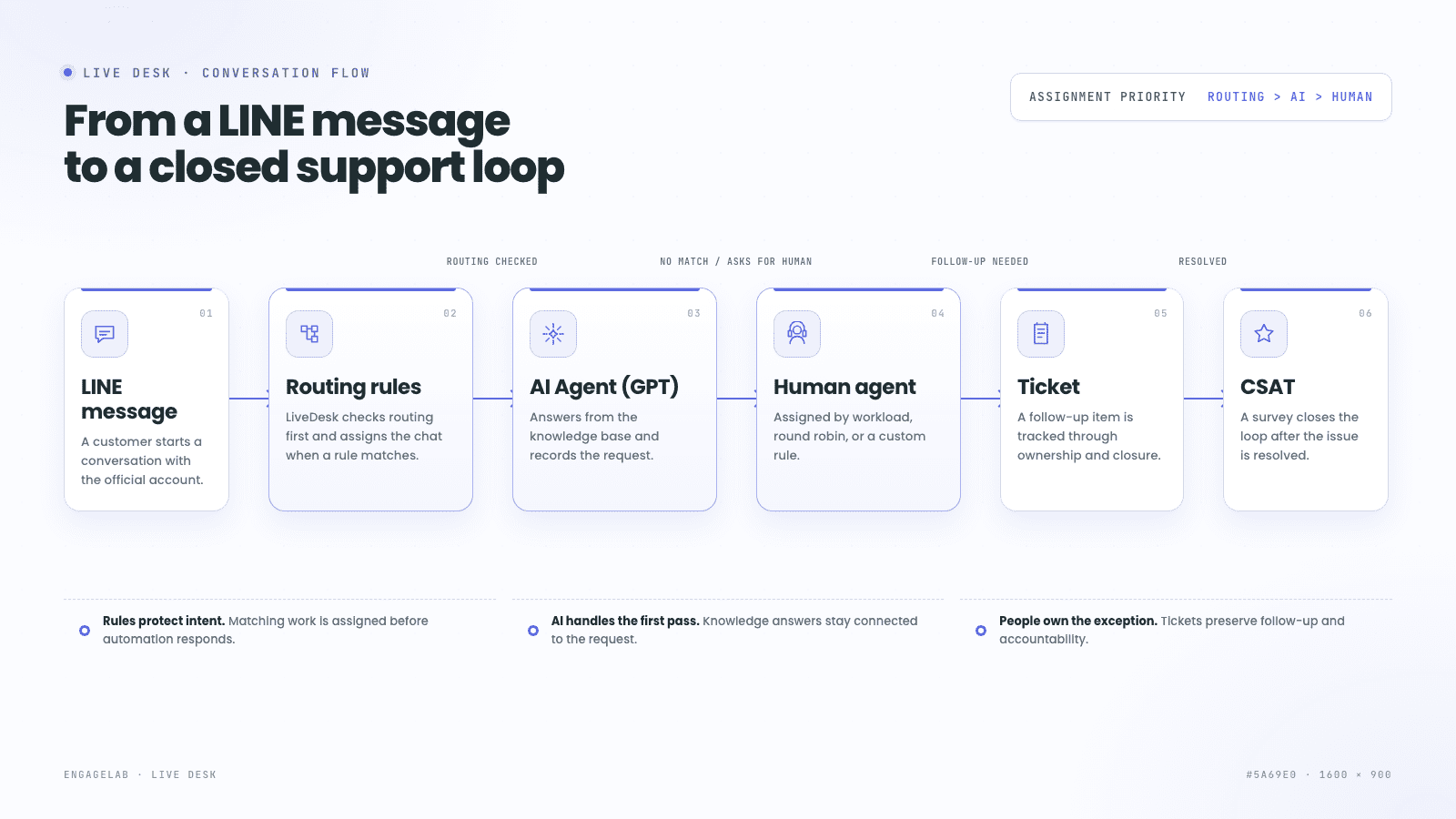
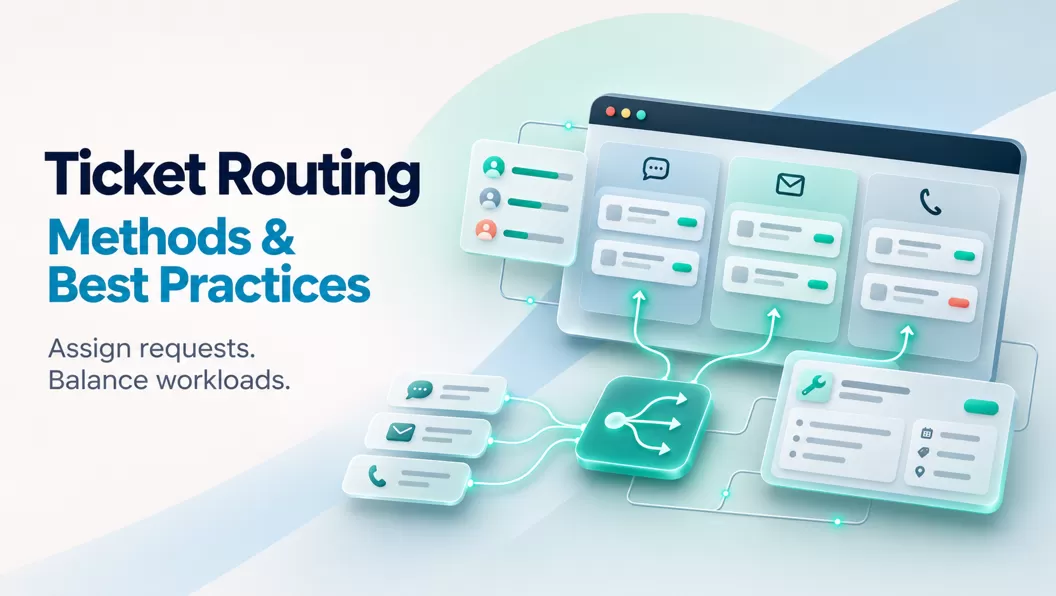
You decide how handoffs land: to whoever has the lightest workload, a simple round-robin, or custom limits per agent.
If the issue needs follow-up, like a technician visit or a refund, the chat becomes a ticket that stays open until it is closed. When it is resolved, a short CSAT survey can go out so you see how the LINE channel is performing.
That mix, bot first and a human on standby, is what good line support live chat looks like on LINE.
Part 4: How to Set Up a Chatbot for LINE Step by Step
You have two ways to run a chatbot on LINE. Wire the LINE Messaging API to your own code, or connect LINE to a customer-service platform that handles the operations layer for you.
| What you handle | Wiring the LINE API yourself | A support platform (LiveDesk) |
|---|---|---|
| Connecting LINE | Build and host a webhook server | Paste your channel keys in the console |
| Answering | Train and host your own model | Add a GPT AI agent, trained on your docs |
| Human handoff | Code the escalation logic | Built in: routing, then AI, then human |
| Tickets & routing | Build a ticketing system | Built in, with assignment rules |
| Upkeep | Ongoing developer time | Managed by the platform |
The API route gives you full control and a codebase to maintain. A platform gets you the answering, handoff, and tickets without building them. The steps below use EngageLab LiveDesk , which lists LINE as a native channel.
Before you start, have three things ready:
- A LINE Official Account (you can create one during setup if you don't have one yet).
- Admin access to the LINE Developers Console to generate the channel keys.
- Your FAQ and policy content ready to train the AI agent on.
-
Create your LINE Messaging API channel
In the LINE Developers Console , create a Provider , then Create a Messaging API channel . If you don't have a LINE Official Account yet, LINE walks you through making one.
Open the channel's Basic settings and copy the Channel ID , Channel secret , and Channel access token . You will paste these into LiveDesk next.
-
Add the LINE channel in LiveDesk
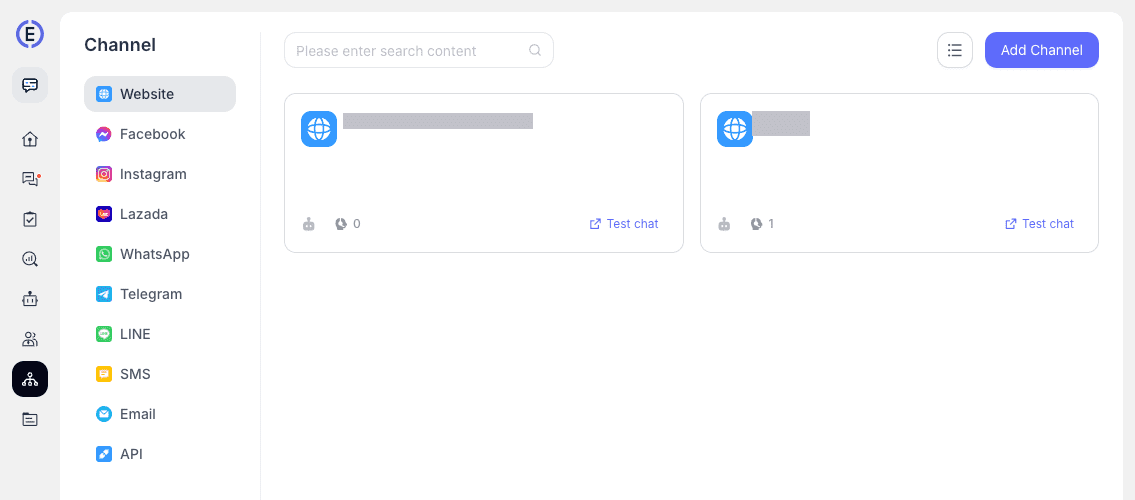
In LiveDesk, go to Add Channel and choose LINE . Name the channel, then paste the LINE Channel ID, password, and token from the previous step.
Click Confirm to create the channel.
-
Set and verify the webhook
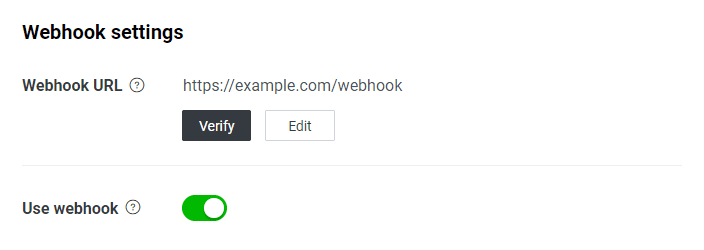
The console generates a Webhook URL for the channel. Copy it, return to the LINE Developers Console, and open the Messaging API settings.
Paste the address into the Webhook URL field, then enable and verify it so LINE starts forwarding messages.
-
Add and train your AI agent
In the channel settings, open AI Agent and add a GPT agent. Train it on your own content, such as FAQs, policies, and product docs, so it answers in your voice.
Test it in preview before you point real traffic at it.
-
Set routing and human agents
Add your Human Agents to the channel. Under Conversation assignment , order the flow as routing rules, then AI, then a person.
Choose how conversations spread across the team: by workload, round-robin, or custom limits per agent.
-
Turn on greeting, hours, and CSAT
Set a greeting message so customers get an instant hello. Define your business hours with an out-of-hours reply, and enable CSAT to collect a rating when an issue is resolved.
Send a test message to your LINE account and follow it through the bot, the routing, and a human handoff before you go live.
Connect LINE, add an AI agent, and set the handoff. Free to start, no card needed.
LINE Chatbot FAQs
Is there an AI chatbot for LINE?
Yes. You connect an AI agent to your LINE Official Account through the Messaging API, either with your own code or through a platform like LiveDesk that manages the answering and handoff for you.
How is a chatbot different from LINE's built-in auto-reply?
LINE's Official Account has a basic keyword auto-reply that matches fixed words and sends canned responses. An AI chatbot reads the question in plain language, answers from your own content, and can pass the chat to a human when it matters. Keyword rules do none of that.
Can a LINE chatbot transfer to a human agent?
Yes, and a good setup expects it to. The bot answers first, then hands off when it can't resolve the issue or the customer asks for a person. In LiveDesk, conversations are assigned by routing rules, then AI, then a human.
How do I add a chatbot to my LINE Official Account?
Create a Messaging API channel in the LINE Developers Console, then copy the channel ID, secret, and access token. Paste them into your chatbot platform and set the webhook so LINE forwards messages to it.
Does a LINE chatbot work in Japanese, Thai, and Chinese?
Yes. AI agents handle multiple languages, which matters on LINE, since most of its users are in Japan, Taiwan, Thailand, and Indonesia.
Is a LINE chatbot free?
The LINE Messaging API includes a free message tier; the chatbot platform is the main cost. LiveDesk starts at $99 per month, billed by conversation volume with AI credits included, and you can open an account and test it before you pay.
Conclusion
A chatbot for LINE is worth it when your customers already message you there and your team can't keep up by hand. The setup is short: create a Messaging API channel, connect it to LiveDesk, then add an AI agent, routing, human agents, and tickets.
LINE is rarely the only place customers reach you, though. They also message on WhatsApp, Instagram, and your website, and answering fast across all of them gets costly once you pay per agent.
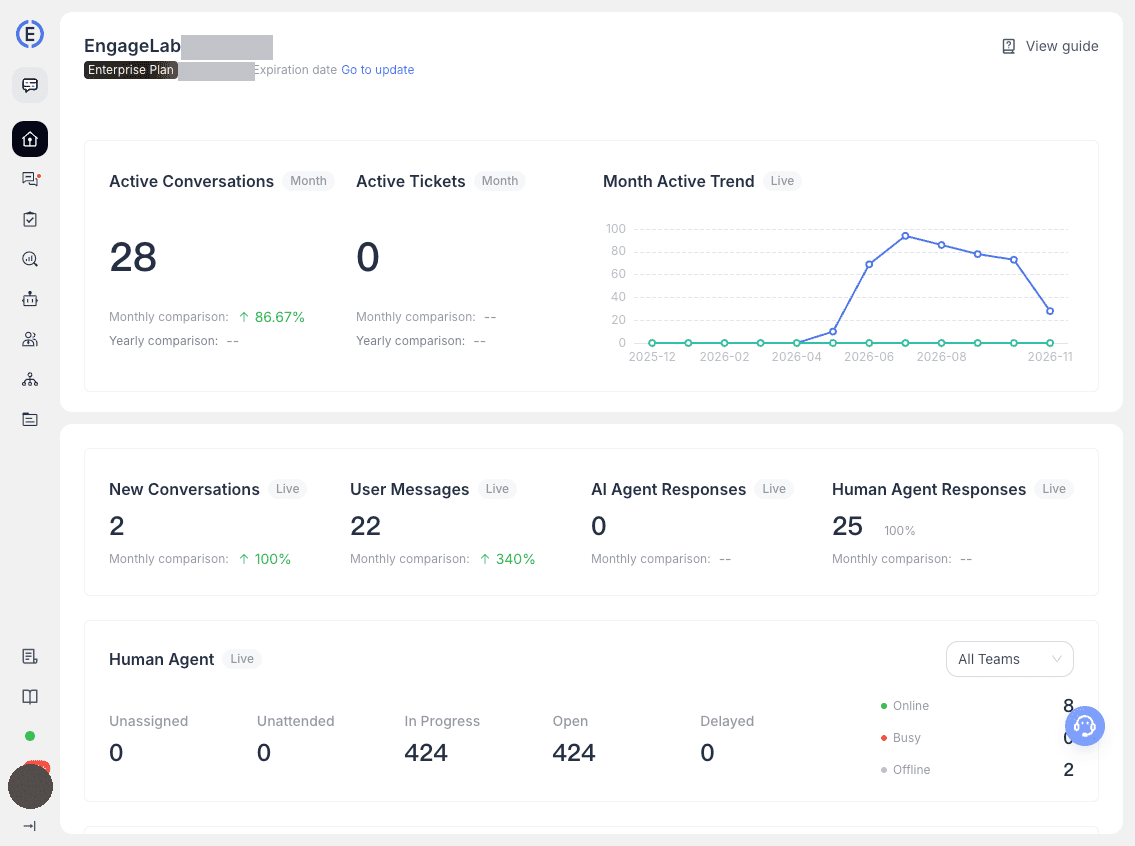
However, if you want to cut that cost and use AI to keep satisfaction high across WhatsApp, Telegram, Instagram, LINE, and the web, look at EngageLab LiveDesk . It brings every channel onto one customer-service desk: an AI agent up front, human agents on standby, billed by conversation, with analytics on what customers keep asking.
Bring LINE into an AI-and-human support desk with routing and tickets built in. Start free and test a real conversation.