


Google Admin
This document describes how to use Google Workspace (Google Admin) as the identity provider to configure SAML single sign-on for EngageLab. Follow it together with the four-step process in SSO Configuration: this document covers "Step 1: Configure EngageLab in IdP" and "Step 2: Enter Information Returned by IdP".
Prerequisites
- Administrator permissions for Google Workspace.
- An EngageLab account with an organization created, and the organization has SSO benefits. If not, please contact sales.
- Each member's Google primary email (Primary email) matches their EngageLab account email.
Note: Google Workspace uses the user's primary email (Primary email) as the SSO email. Multiple SSO emails cannot be configured for the same user.
Step 1: Create a Custom SAML App
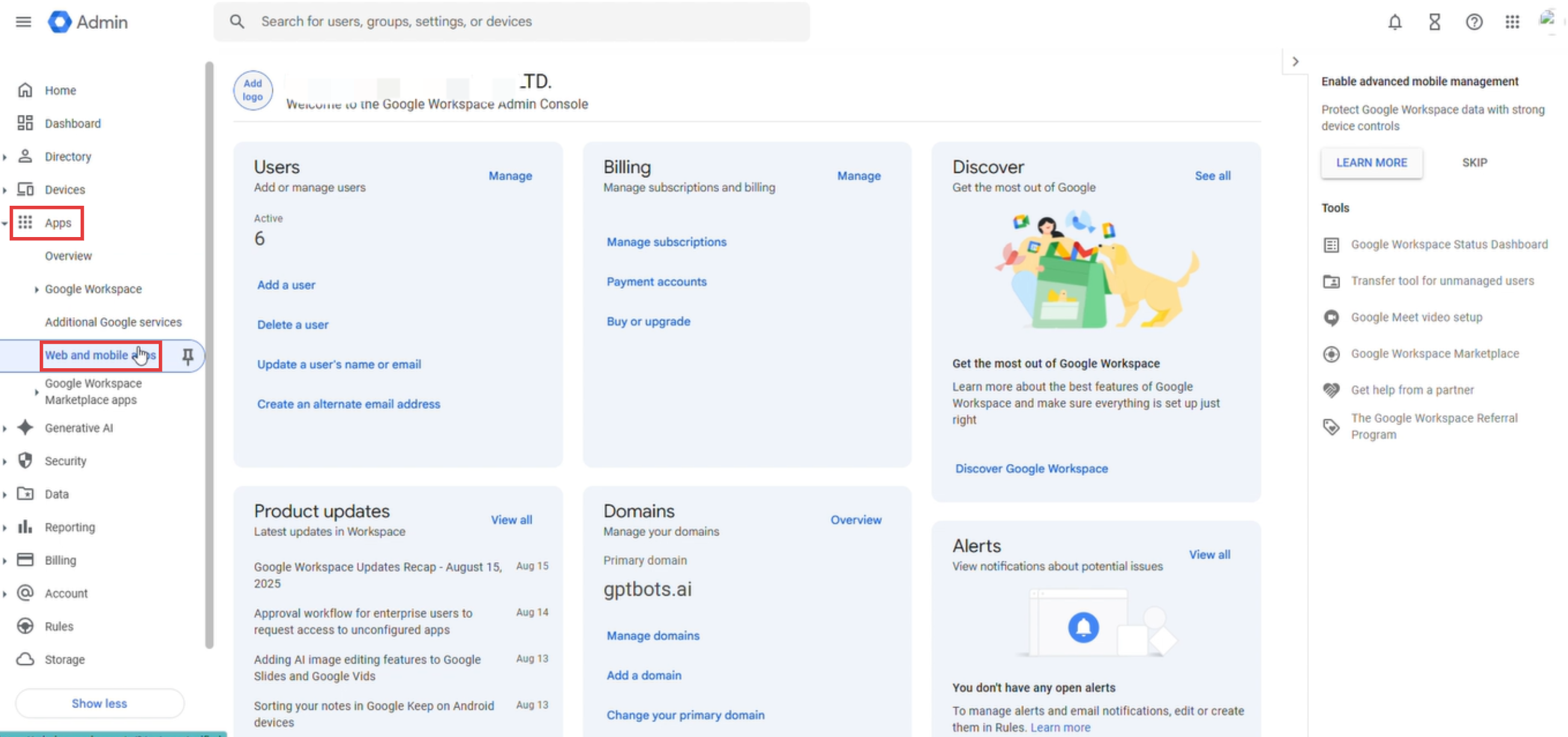
Log in to the Google Admin console, and click Apps > Web and mobile apps in the left menu.
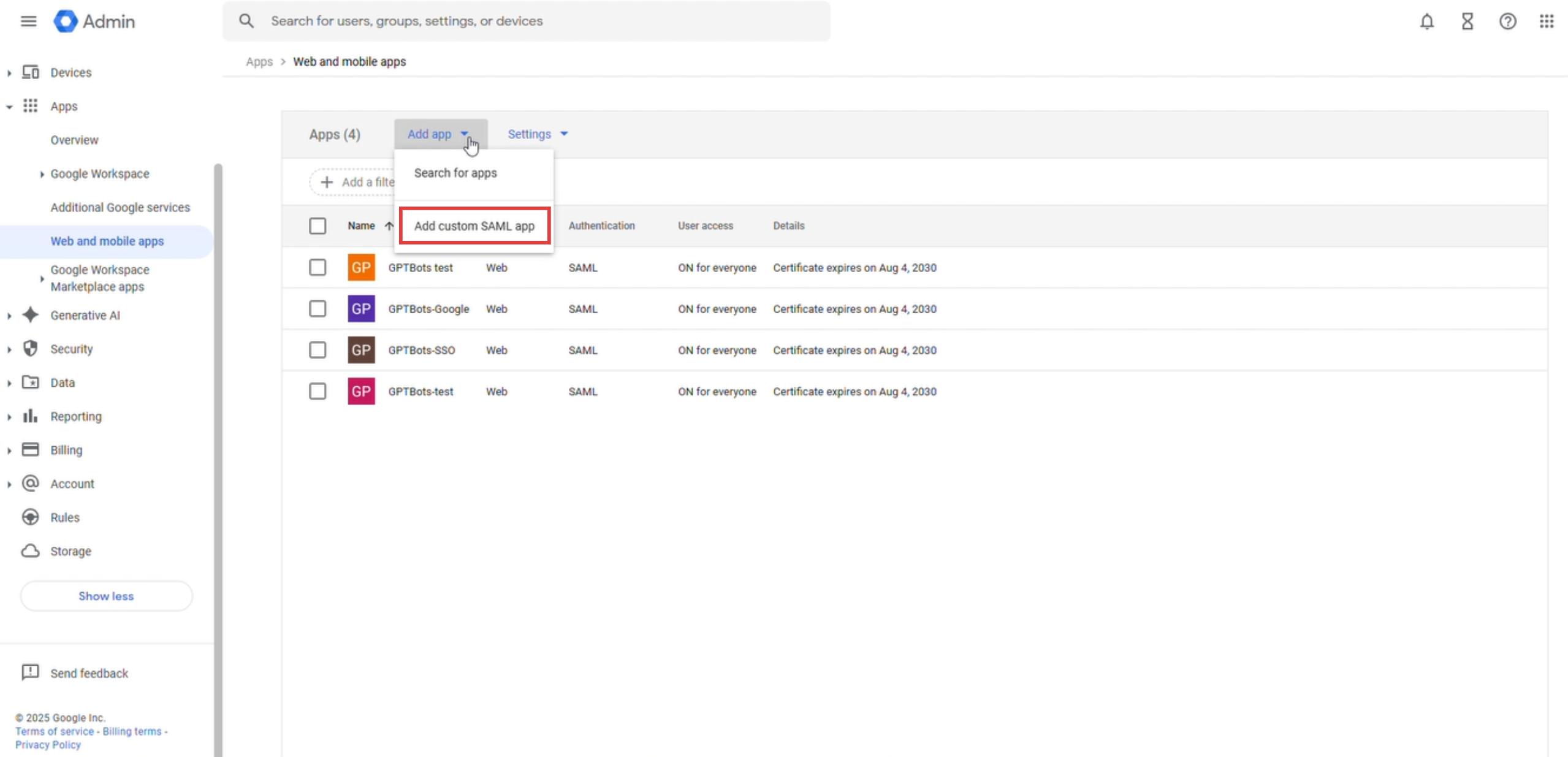
Click Add app and select Add custom SAML app.
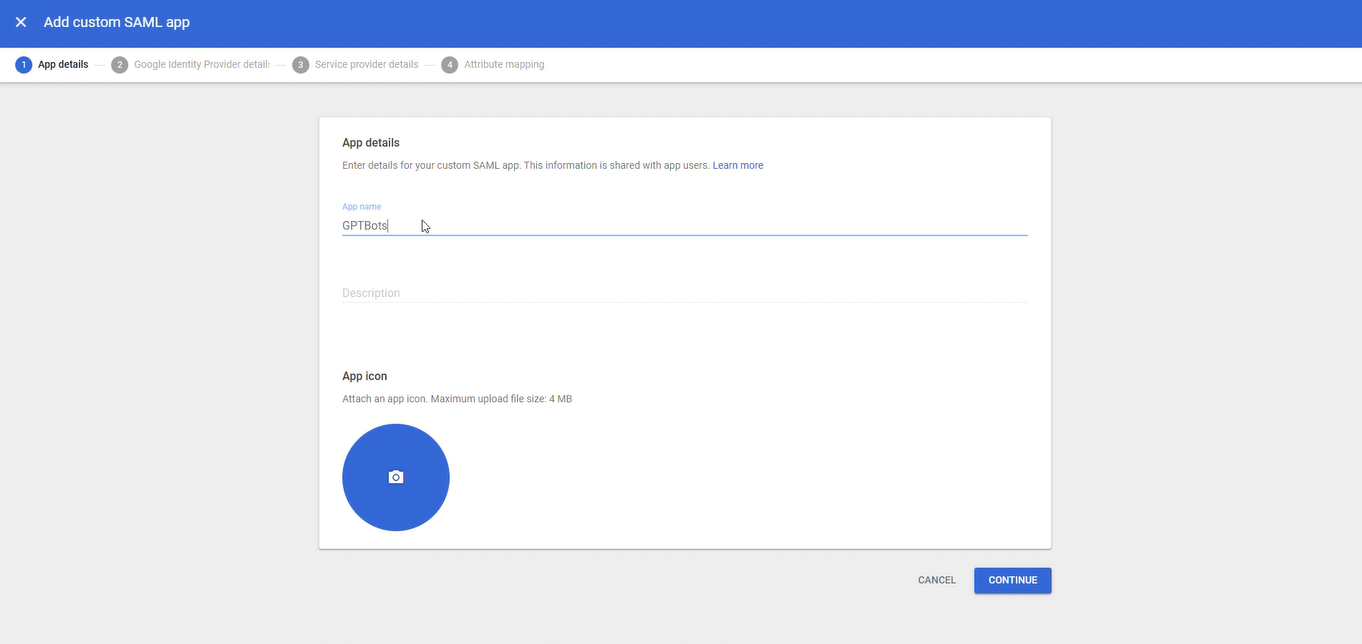
Enter the App name (for example, EngageLab) and Description, and click Continue.
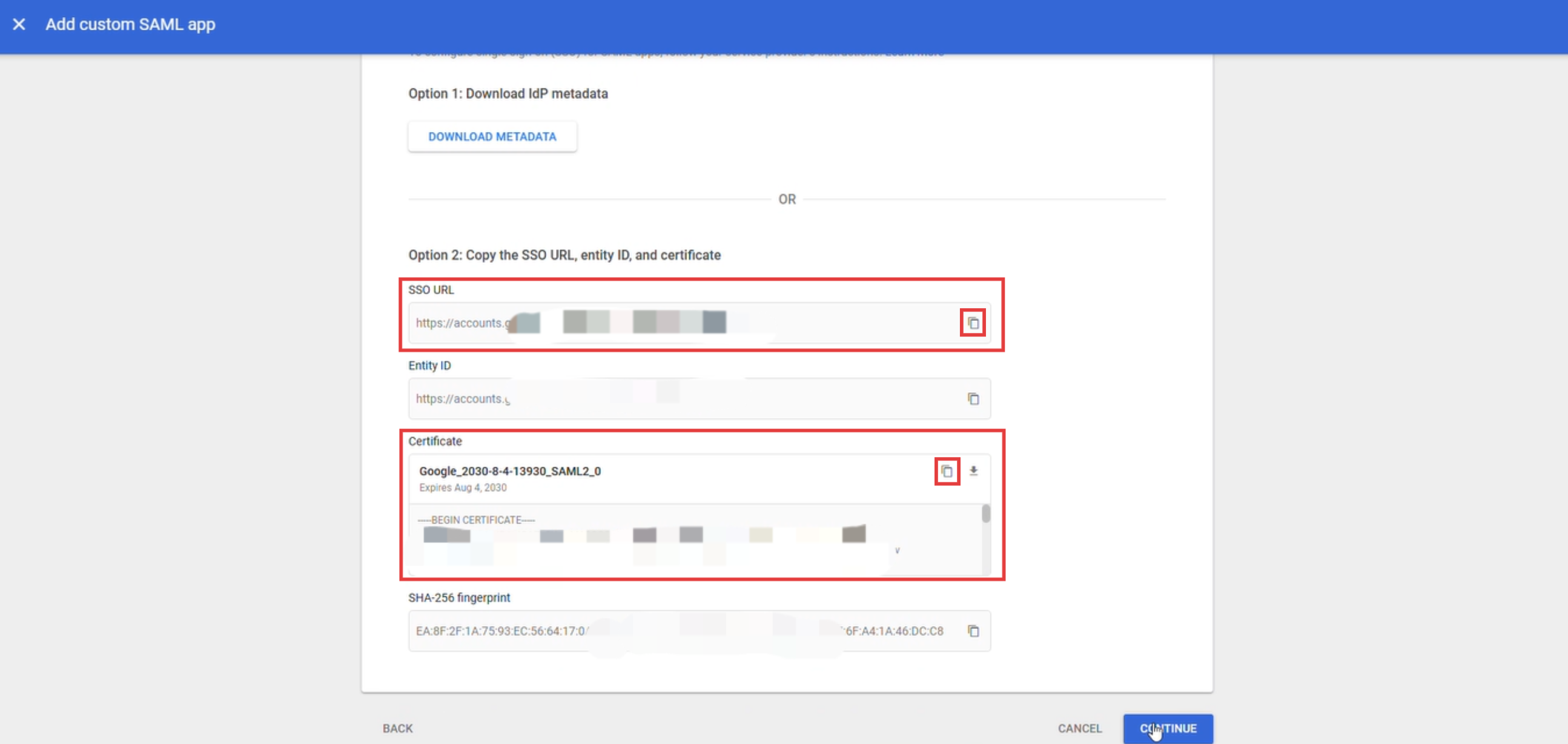
On the Google Identity Provider details page, copy the SSO URL and Certificate and keep them safe for use in step 4. Click Continue.
Step 2: Enter Service Provider Details
Copy the SP information in step 1 of the EngageLab configuration wizard.
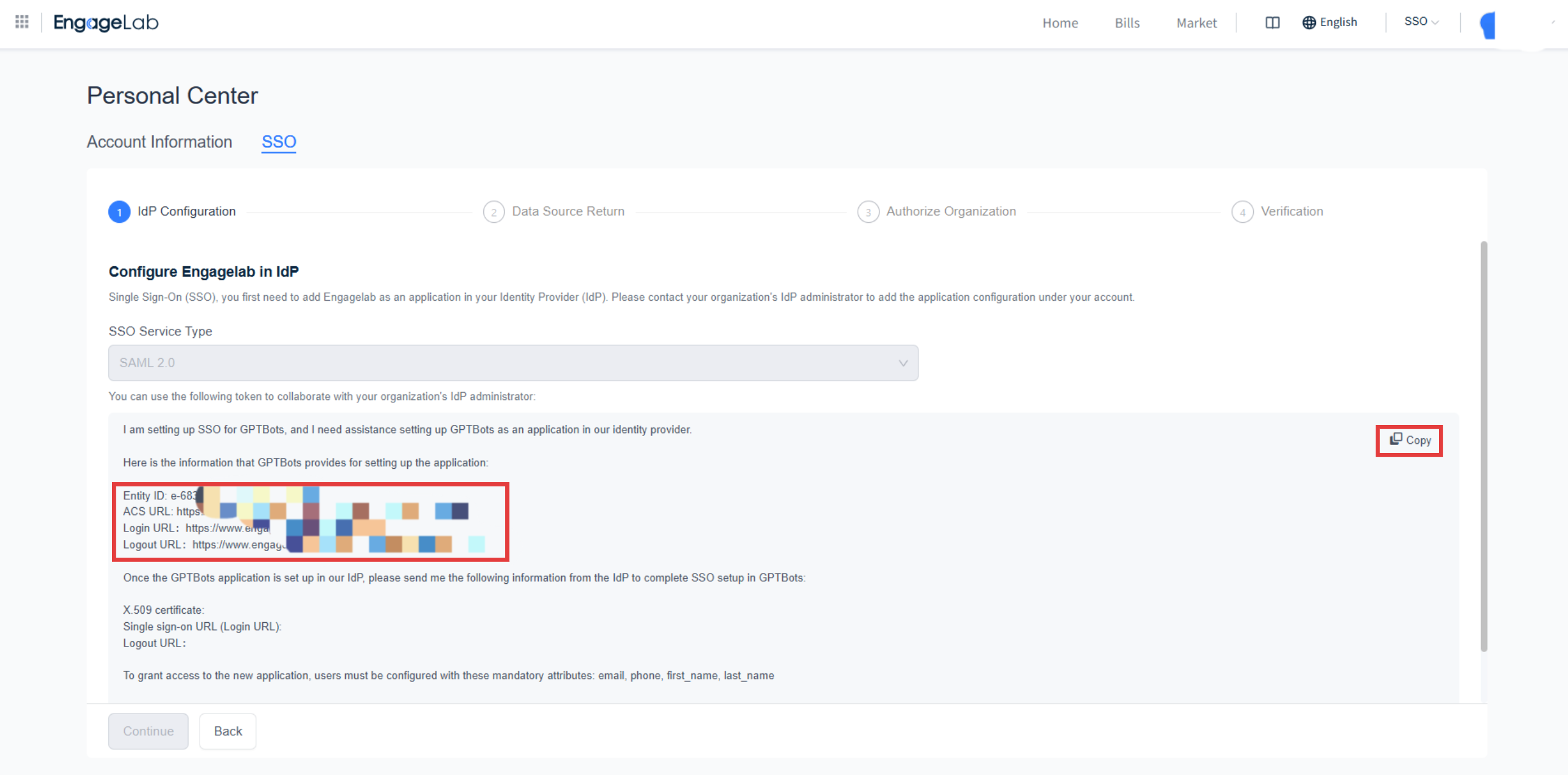

On the Google Service provider details page, fill in the fields according to the table below:
Google field Value ACS URL EngageLab's ACS URL Entity ID EngageLab's Entity ID Name ID format EMAIL Name ID Basic Information > Primary email 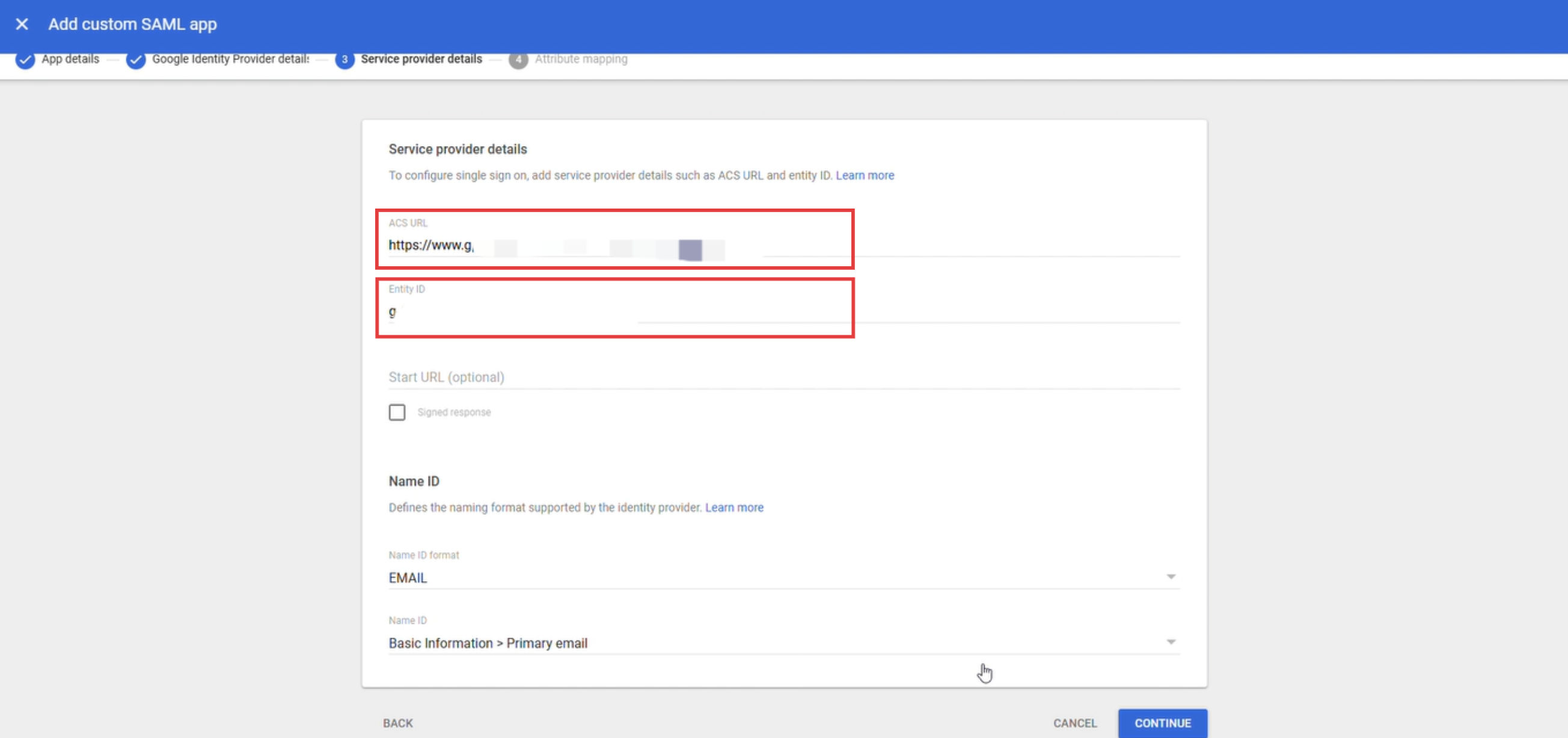
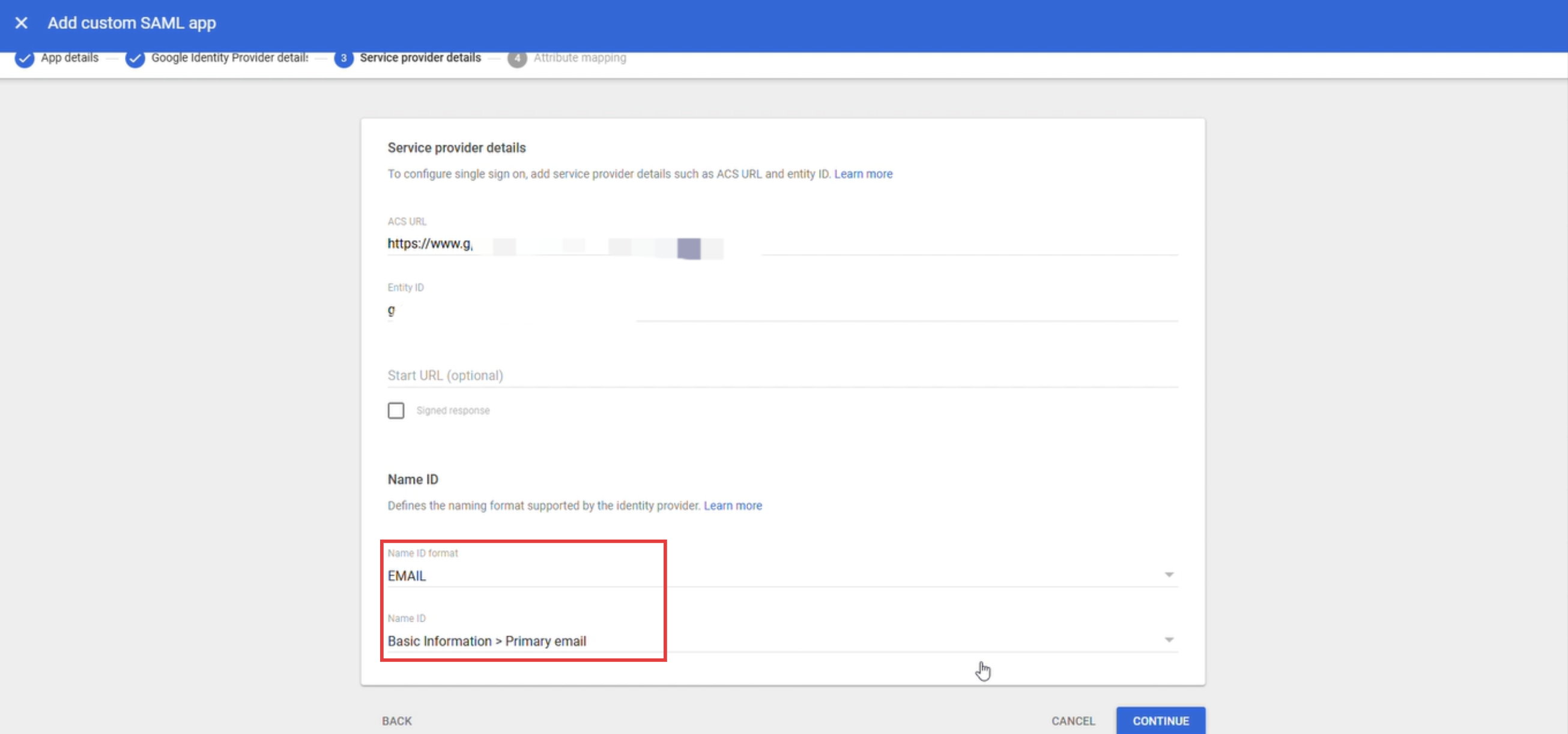
Click Continue.
Step 3: Add the Email Attribute Mapping
By default, Google Workspace does not return an email attribute in the SAML assertion. You need to add one on the Attribute mapping page.
Click Add mapping and fill in the fields according to the table below:
Google Directory attributes App attributes Basic Information > Primary email emailThe app attribute can also be the standard email attribute name
http://schemas.xmlsoap.org/ws/2005/05/identity/claims/emailaddress. EngageLab recognizes both. Apps already configured this way do not need to be changed.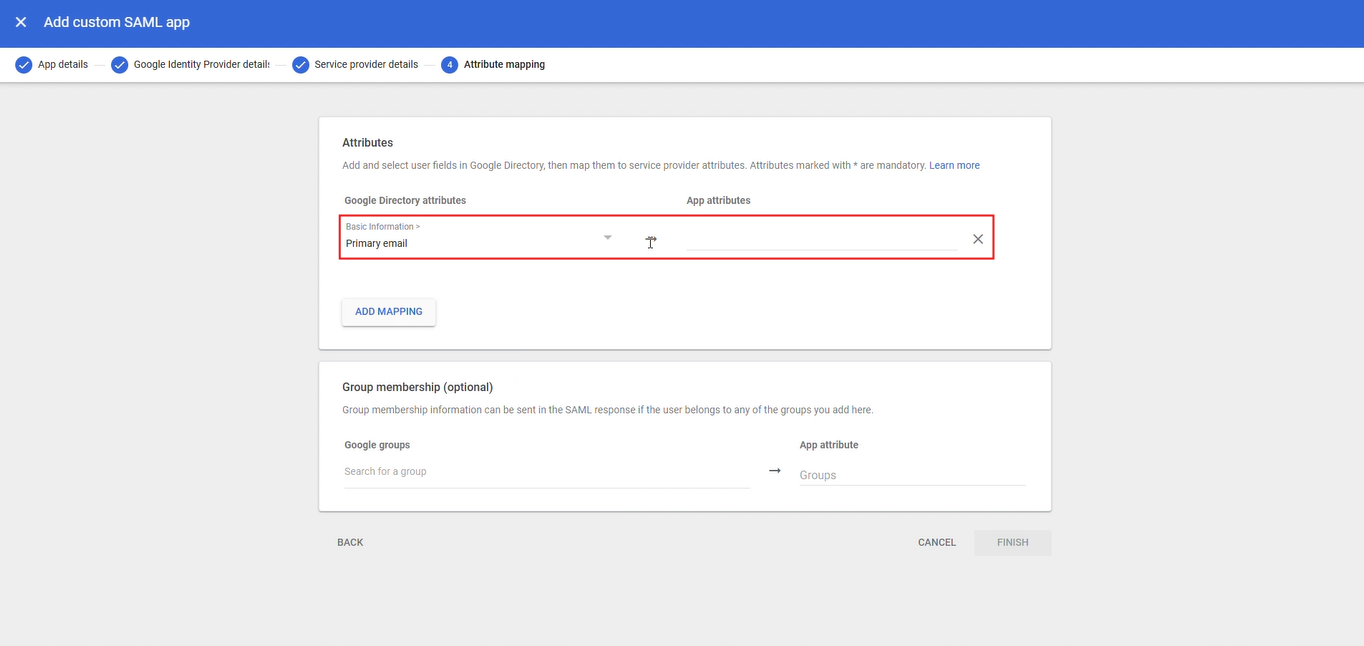
Note: The app attribute in the image above uses the standard email attribute name. Entering
emailhas the same effect.Click Finish.
Step 4: Enter Google Information in EngageLab
In step 2 of the EngageLab configuration wizard, fill in the following:
| EngageLab field | Enter Google's |
|---|---|
| x509 Certificate | The certificate content saved in step 1 |
| IdP Login URL | The SSO URL saved in step 1 |
| IdP Logout URL | The SSO URL saved in step 1 |
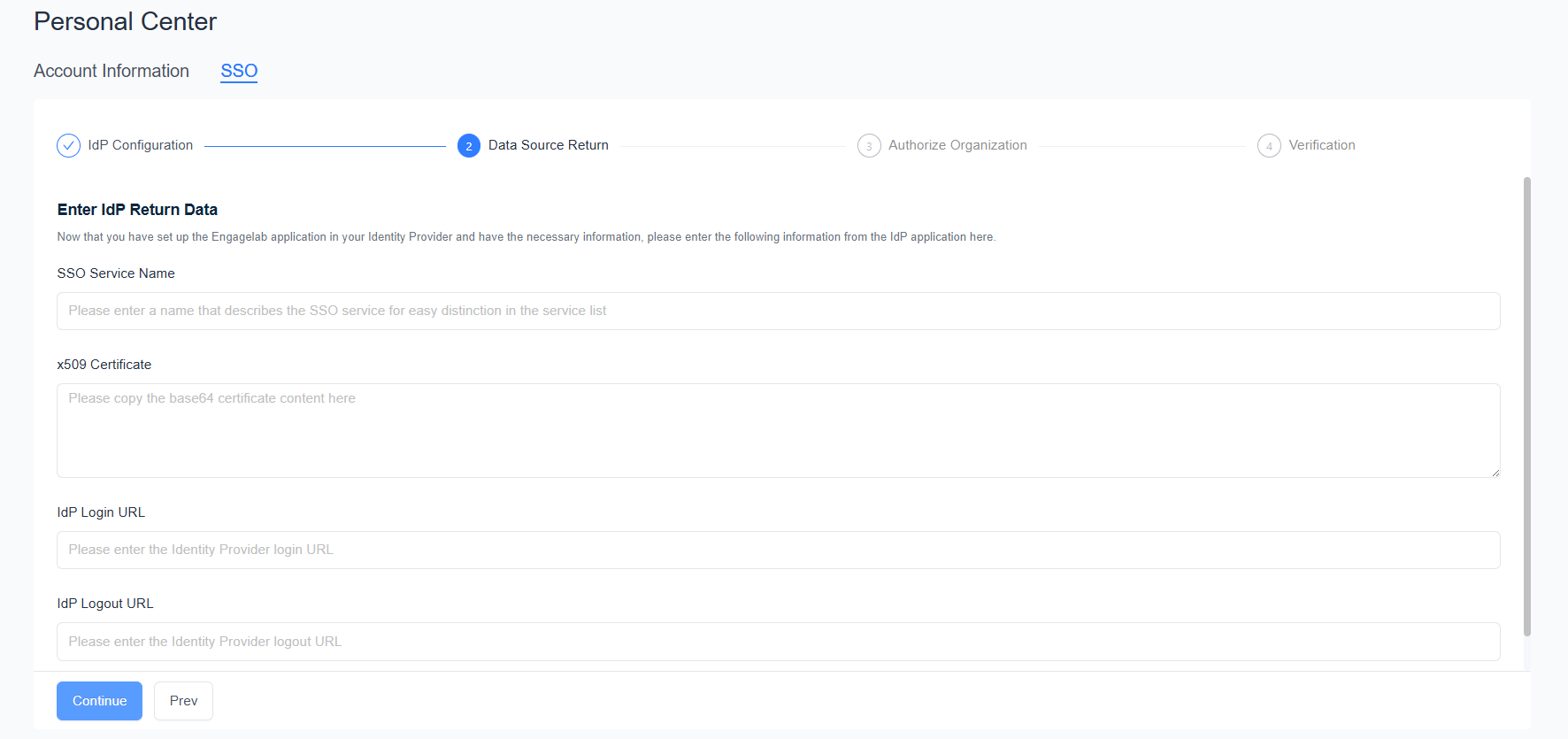
Enter the SSO Service Name, click Continue, and then complete organization authorization and verification according to SSO Configuration.
Note: Google Workspace does not support single logout. You can enter the same SSO URL in IdP Logout URL as in IdP Login URL. For how to log out, see FAQ below.
Step 5: Turn On User Access
A newly created custom SAML app is off for users by default and must be turned on manually.
In Apps > Web and mobile apps, click the app you just created, then click the User access panel (not the links inside it).
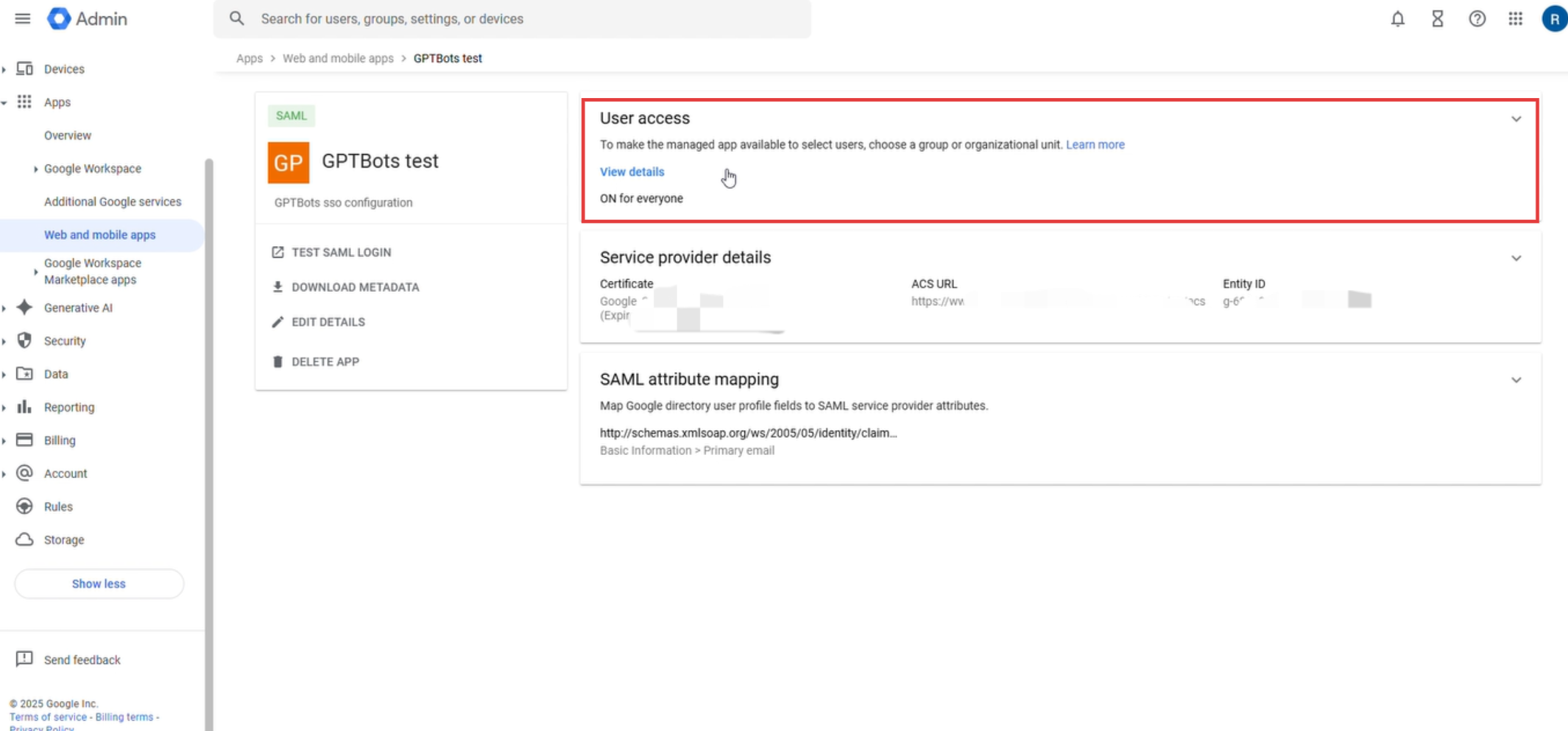
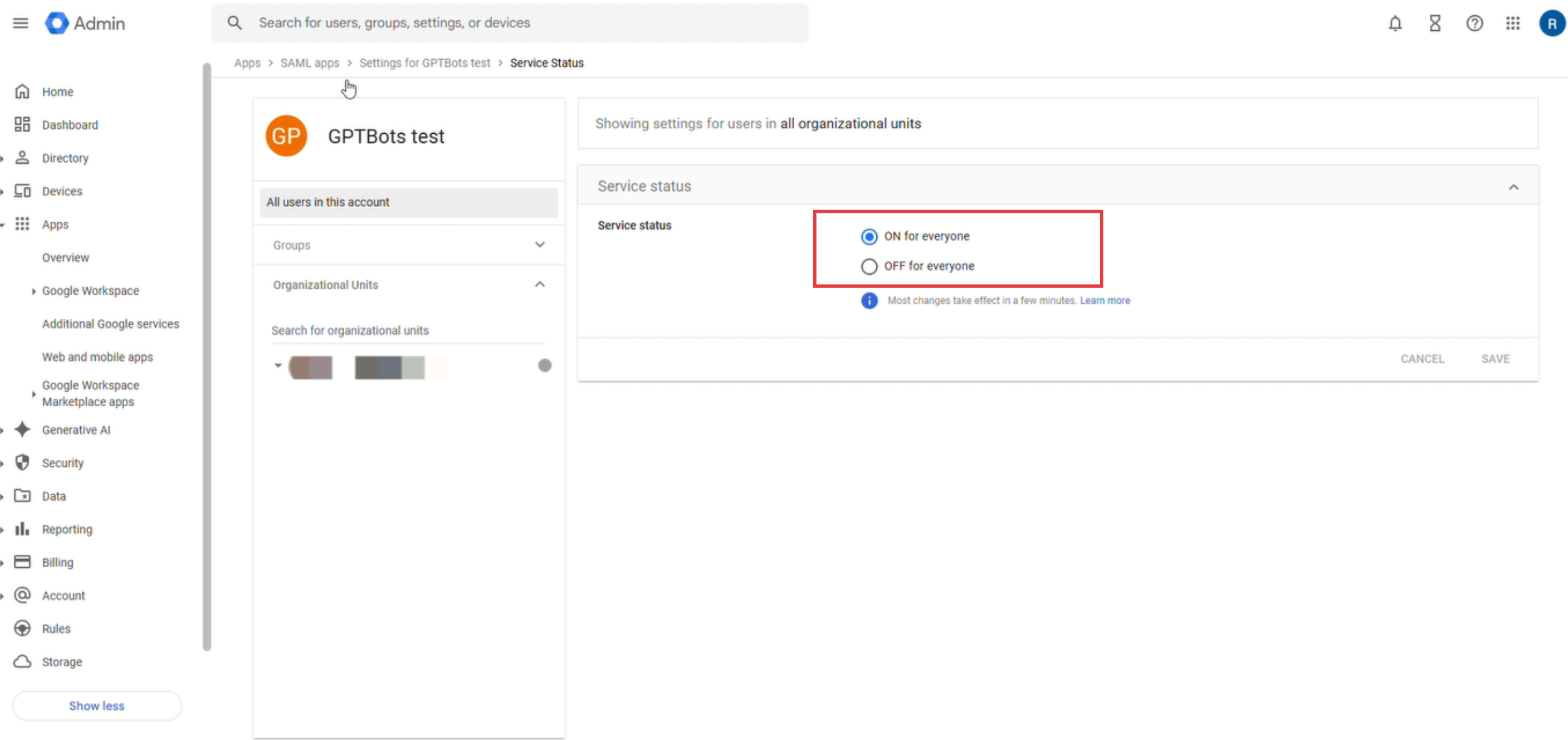
Under Service status, select ON for everyone, or turn it on only for specific organizational units or groups, and click Save. The setting may take a few minutes to take effect.
Account Check When Logging In with Google
When you log in through SSO Login on the EngageLab login page or through a dedicated SSO login link, Google checks the Google account signed in to the current browser:
| Google account in the browser | Result |
|---|---|
| Signed in, and matches the SSO login email | SSO login completes directly |
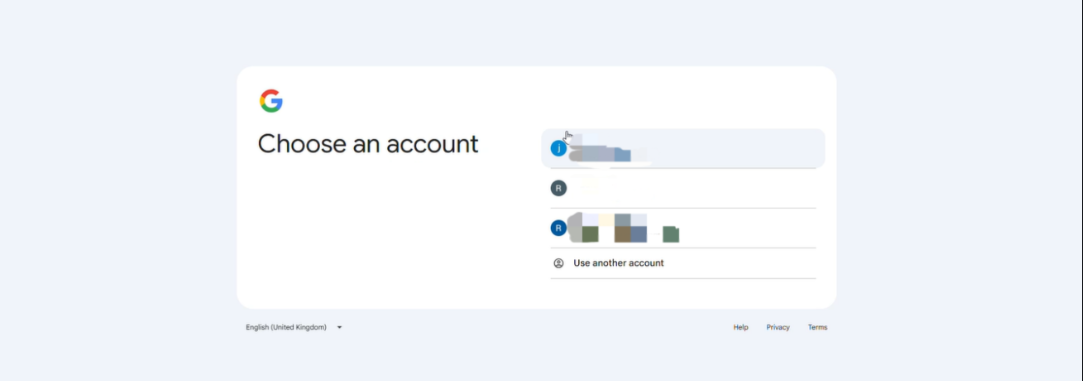
| Multiple accounts signed in | An account selection window appears. Select the account that matches the SSO login email |
| Not signed in | You are redirected to the Google sign-in page. Sign in with the account that matches the SSO login email |
| Signed in, but does not match the SSO login email, or user access to the app is not turned on for this account | A 403 error (app_not_configured_for_user) is displayed and login is denied |
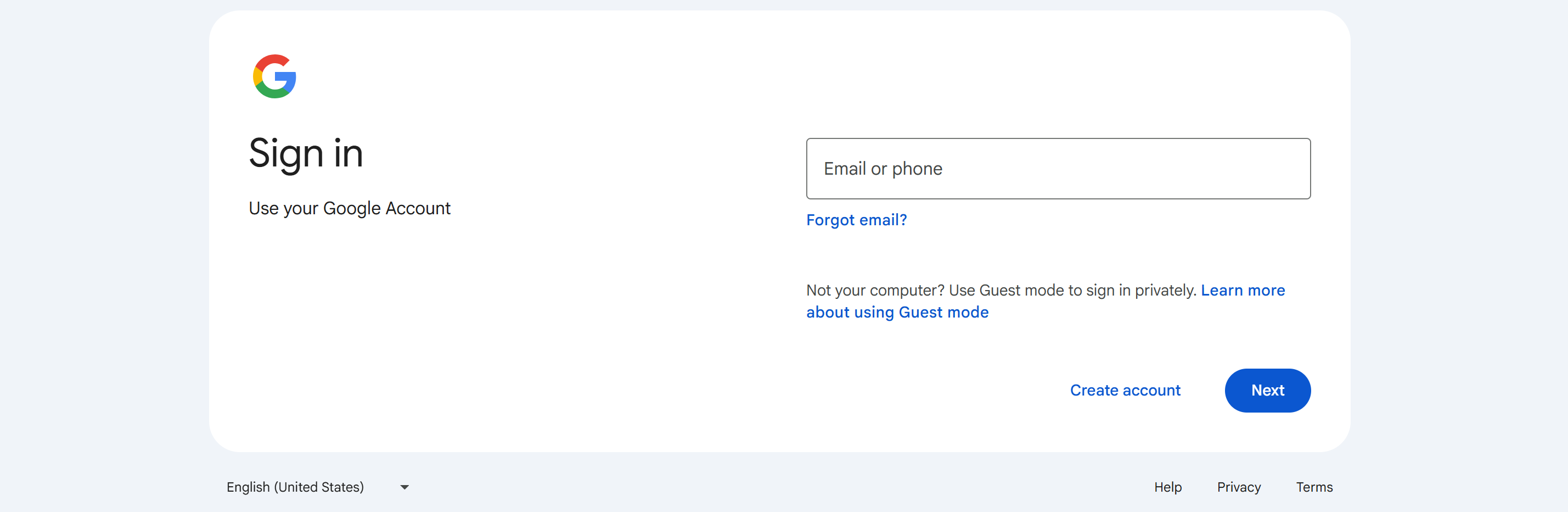

Switch Google Accounts
If a 403 error occurs, confirm that access has been turned on for this Google account in step 5, then switch to the correct account and log in again. Using Chrome as an example:
Click the profile icon in the upper-right corner of the browser and select Manage Chrome profiles.
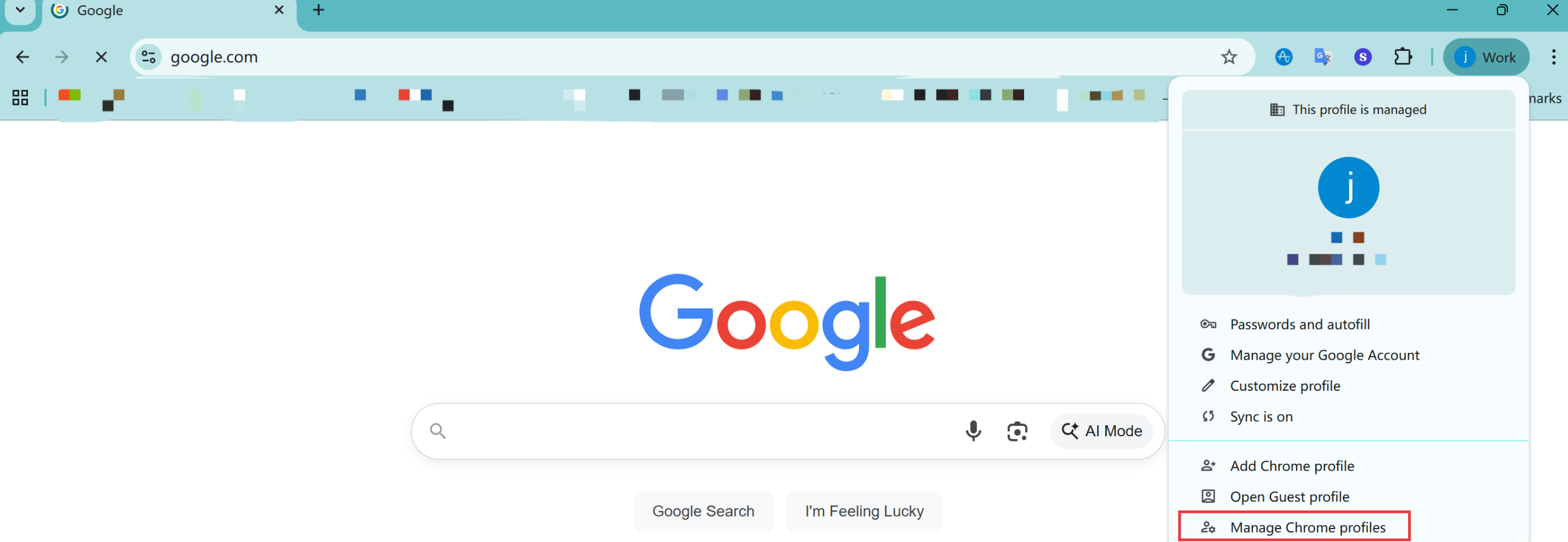
Add or switch to the Google account used to log in to EngageLab, then perform SSO login again.
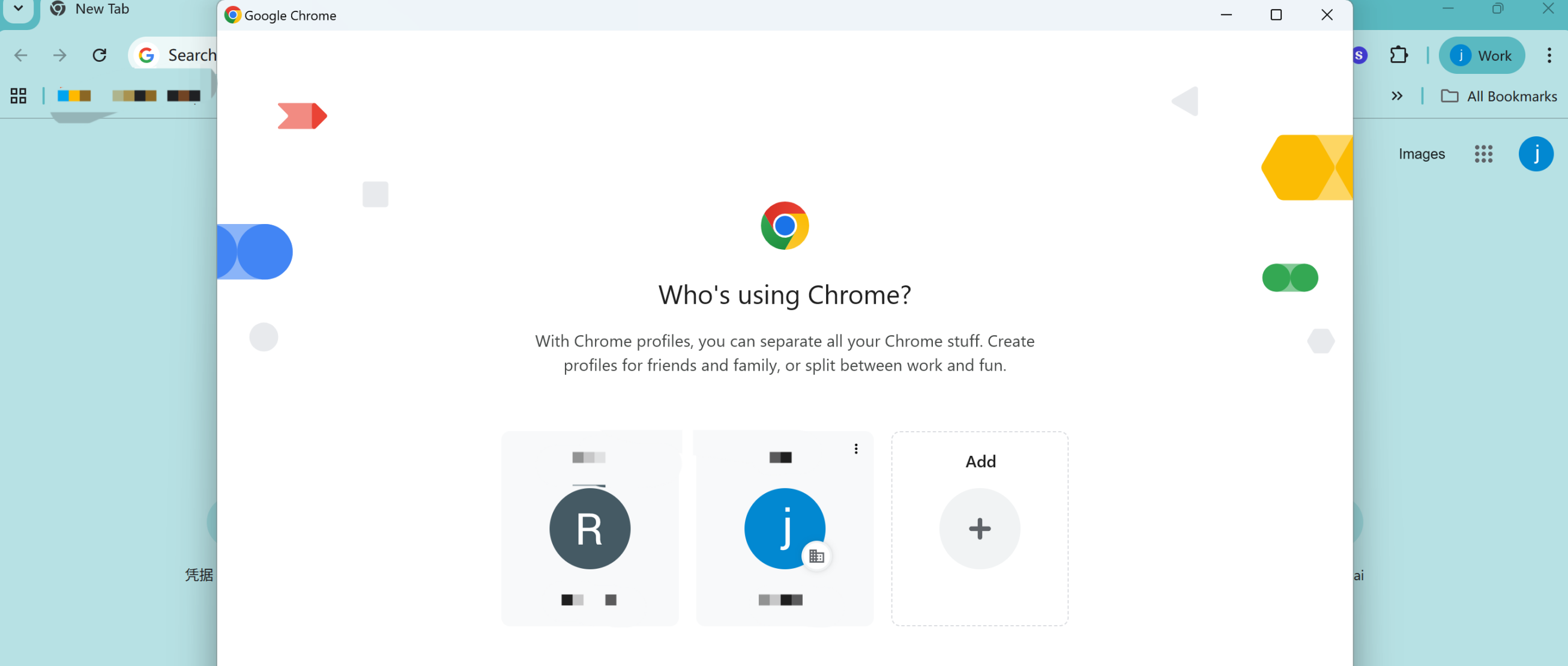
You can also log in using the browser's incognito mode. The system will guide you to sign in to a Google account, avoiding conflicts with other signed-in accounts.
FAQ
Q: After logging out of EngageLab, a 400 error appears when selecting an account.

A: Google Workspace does not support single logout (SLO), so you cannot sign out of your Google account using the EngageLab logout button. To sign out, do so manually from the Google account menu in your browser.
Q: Google authentication succeeds, but EngageLab login fails.
A: Check the attribute mapping in step 3: confirm that a mapping with the Google Directory attribute Primary email has been added, that the app attribute is email or the standard email attribute name, and that this email matches the EngageLab account email.
