


Microsoft Azure
This document describes how to use Microsoft Azure (Microsoft Entra ID) as the identity provider to configure SAML single sign-on for EngageLab. Follow it together with the four-step process in SSO Configuration: this document covers "Step 1: Configure EngageLab in IdP" and "Step 2: Enter Information Returned by IdP".
Prerequisites
- Administrator permissions for Microsoft Entra ID in Microsoft Azure (able to create enterprise applications).
- An EngageLab account with an organization created, and the organization has SSO benefits. If not, please contact sales.
- The configuration wizard is open in EngageLab Personal Center > SSO > Configure SSO, so you can copy the SP information.
Step 1: Create an Enterprise Application
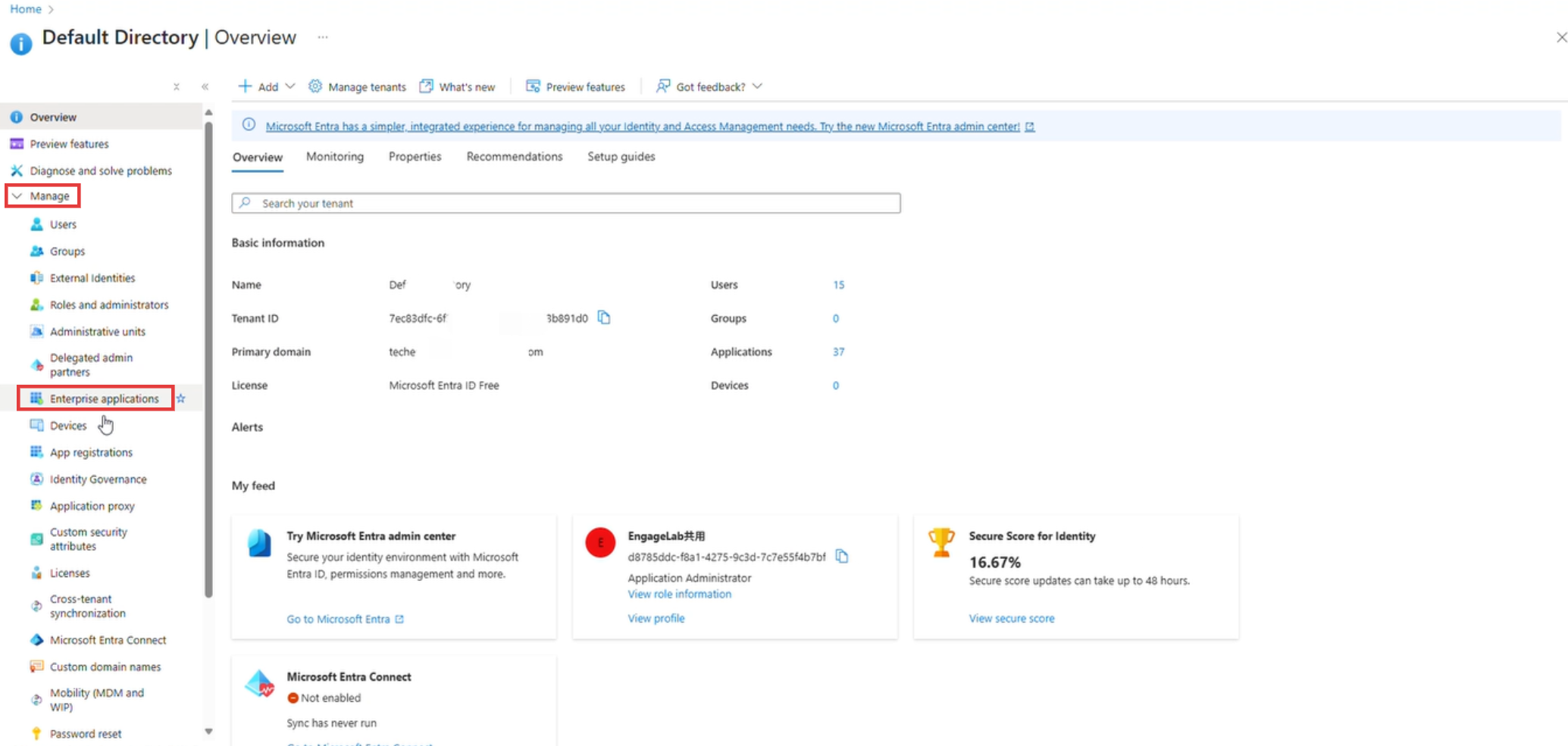
Log in to the Microsoft Azure portal and go to Microsoft Entra ID.

Go to Manage > Enterprise applications.
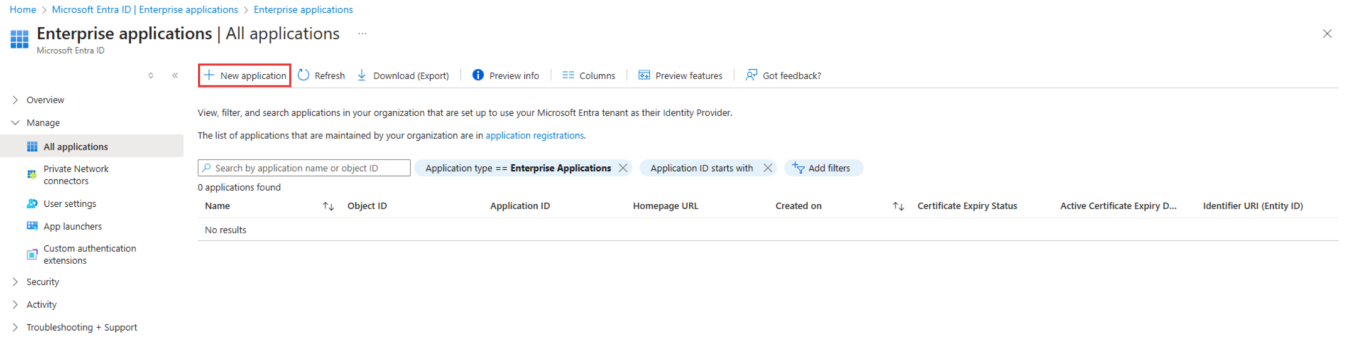
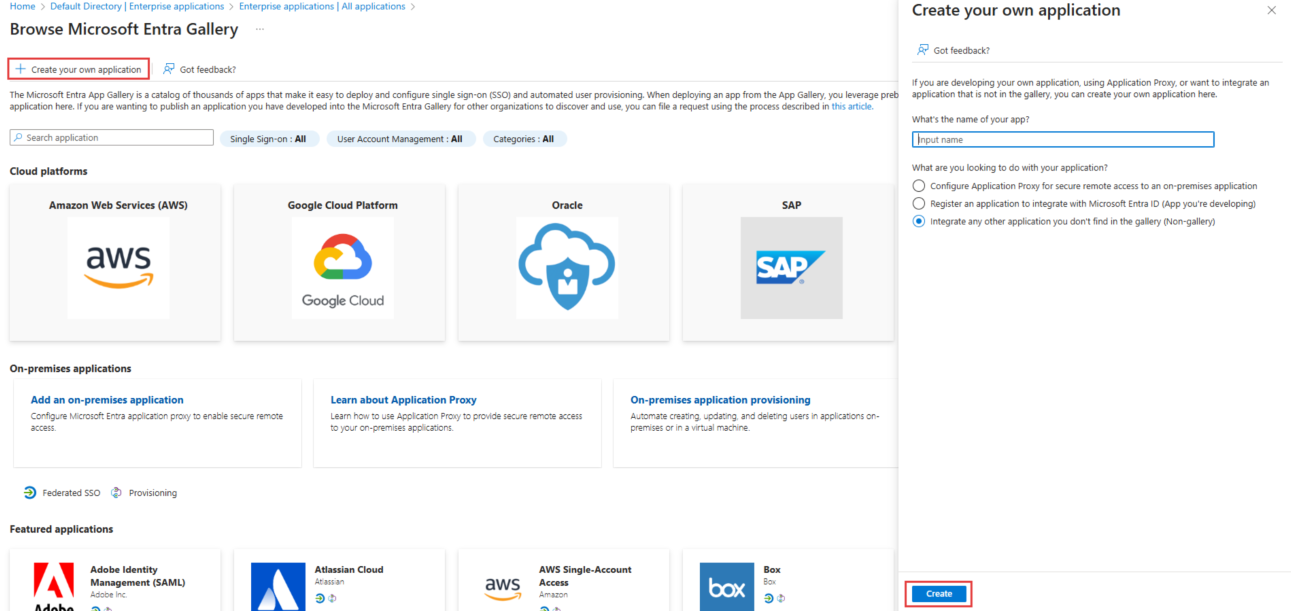
Click New application, then click Create your own application.
Enter an application name (for example, EngageLab), select Integrate any other application you don't find in the gallery (Non-gallery), and click Create. Creation takes a few seconds.
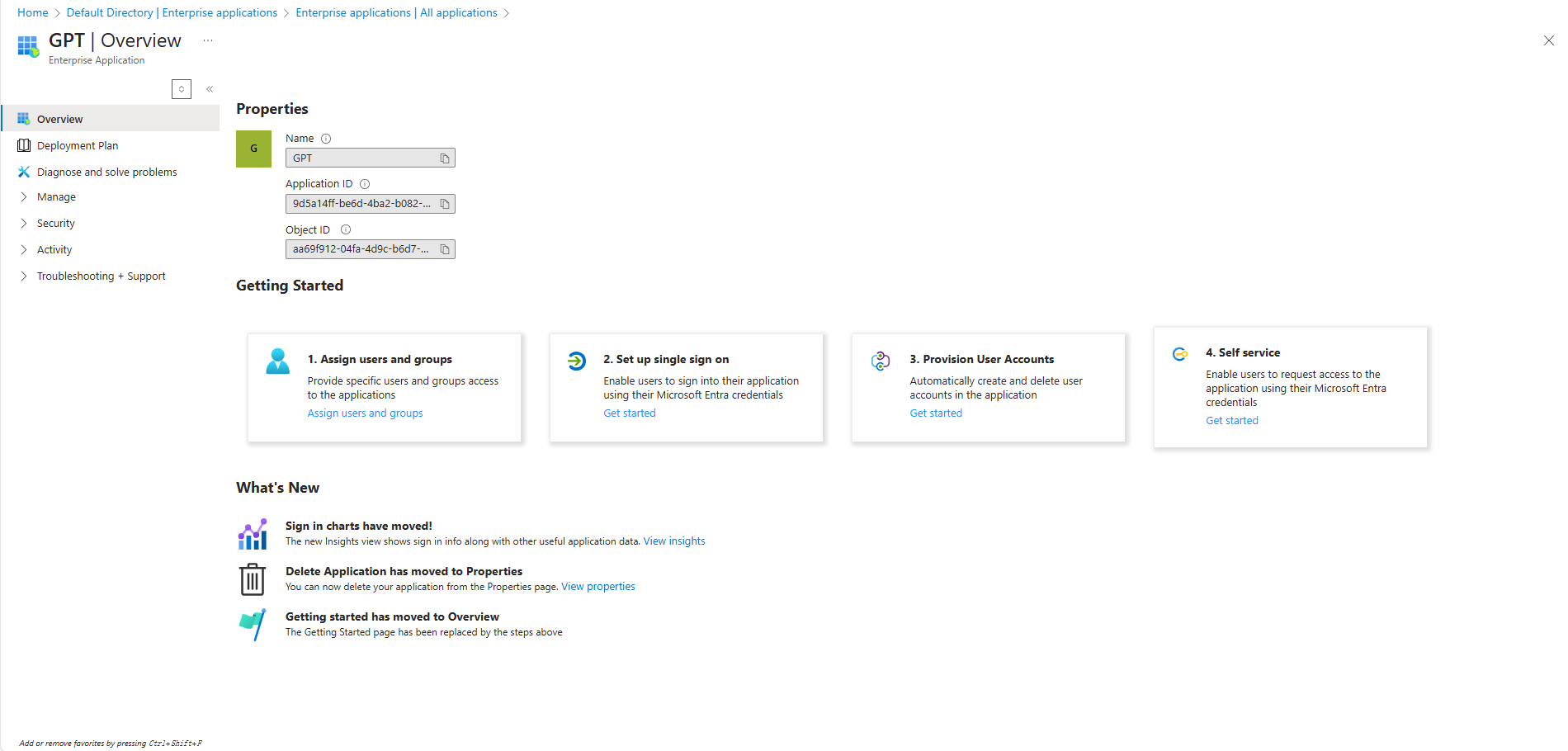
After creation, the application's overview page opens.
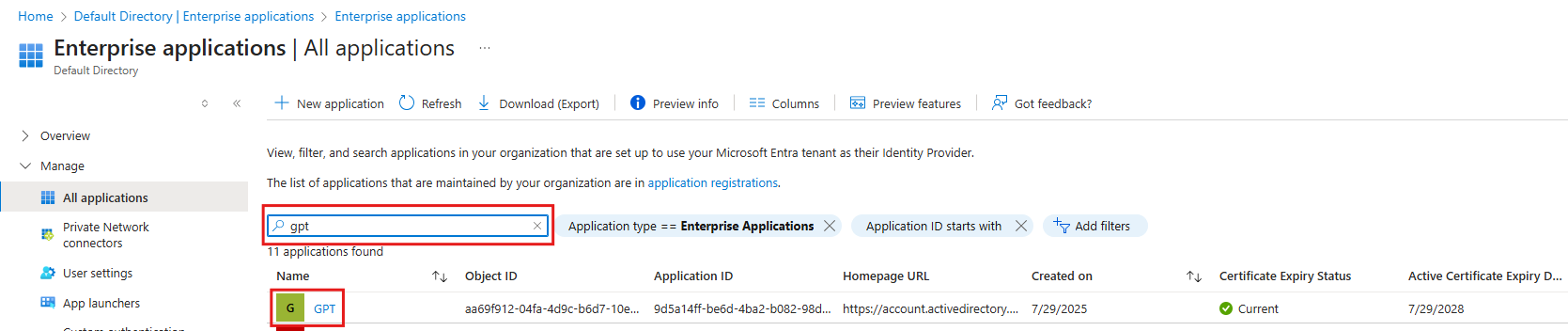
To modify the application later, search for it by application name or object ID in Enterprise applications > All applications.
Step 2: Assign Users and Groups
Only users assigned to the application can log in to EngageLab through Azure. You can add or remove members here at any time.
Important: EngageLab matches the email in the member's Azure profile (the
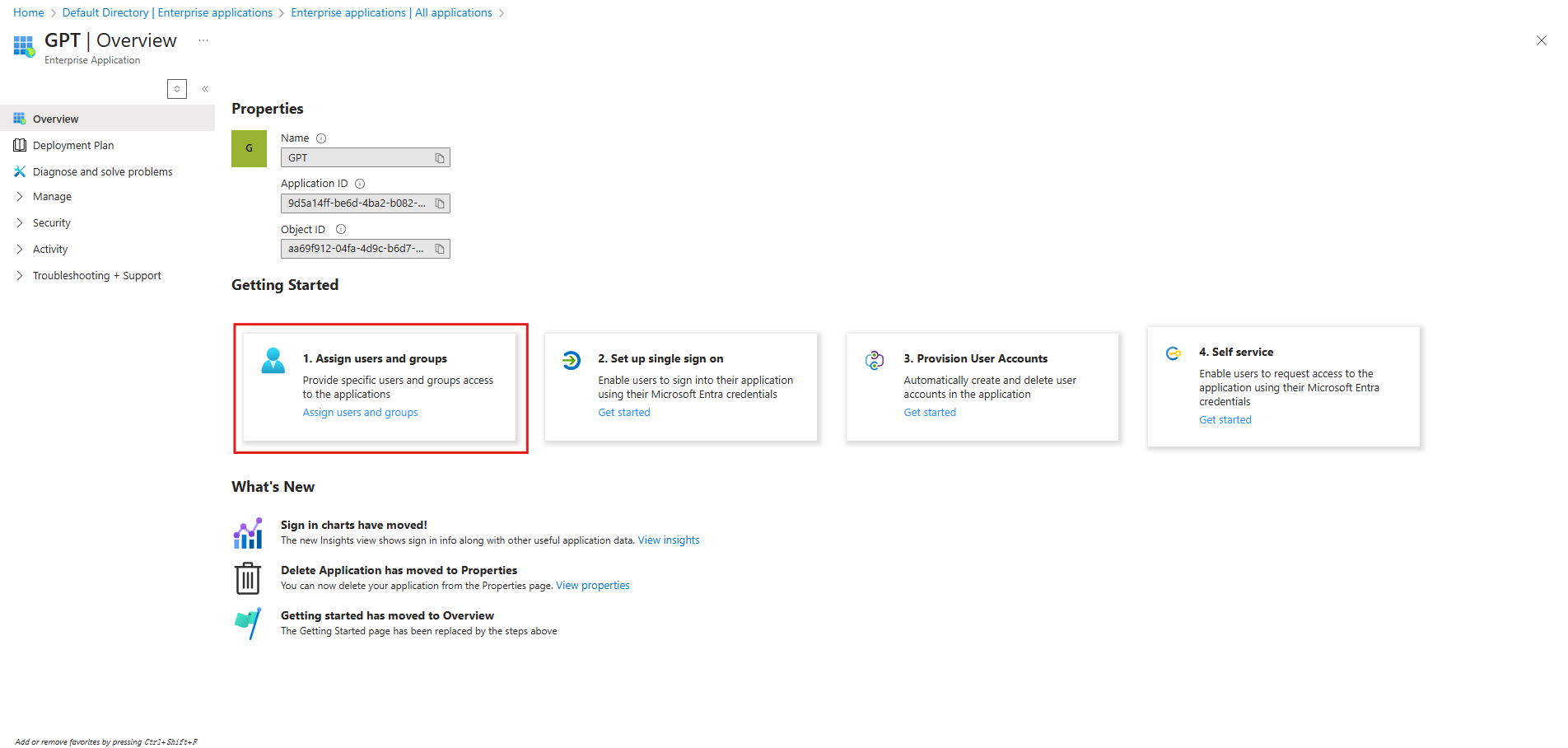
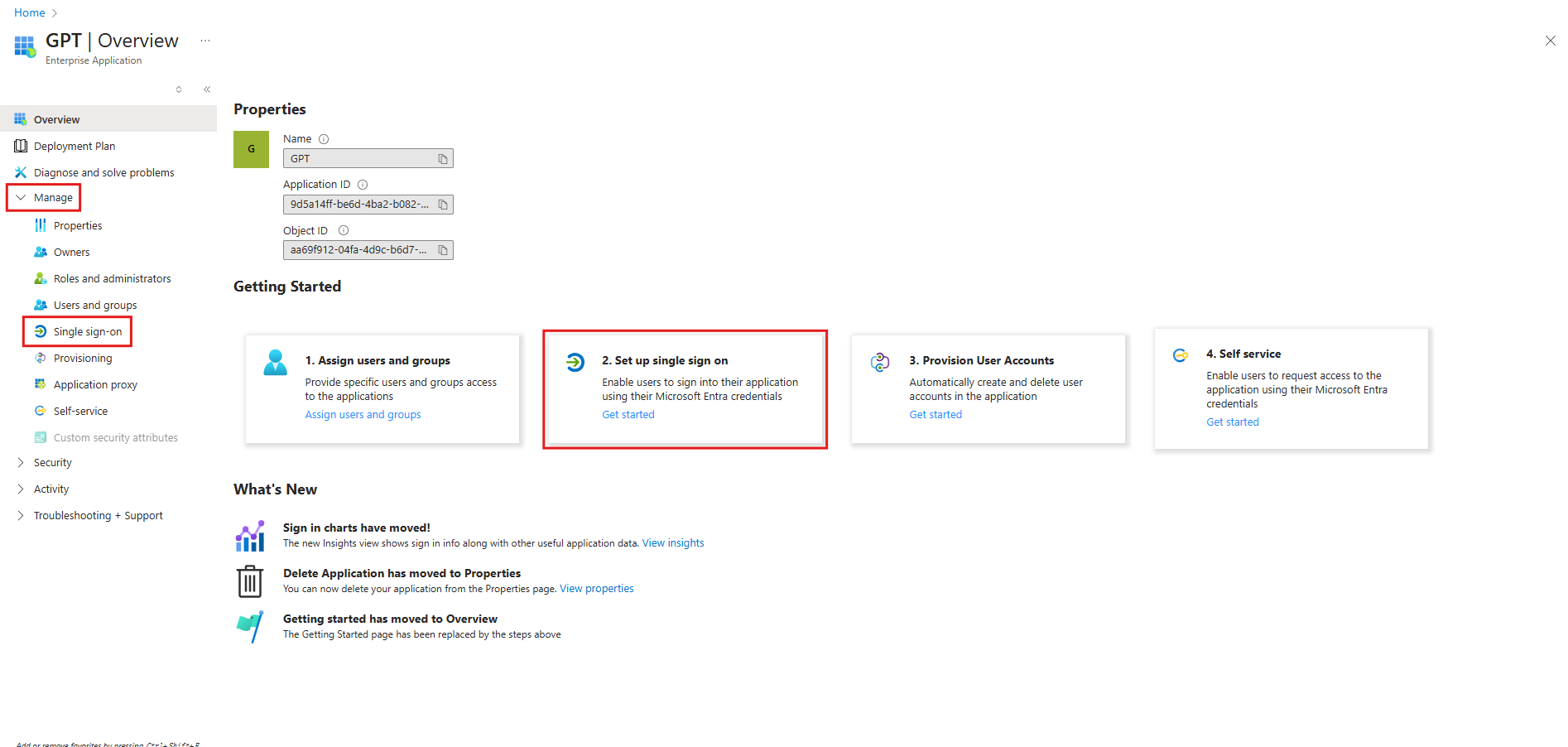
On the application overview page, click Assign users and groups.
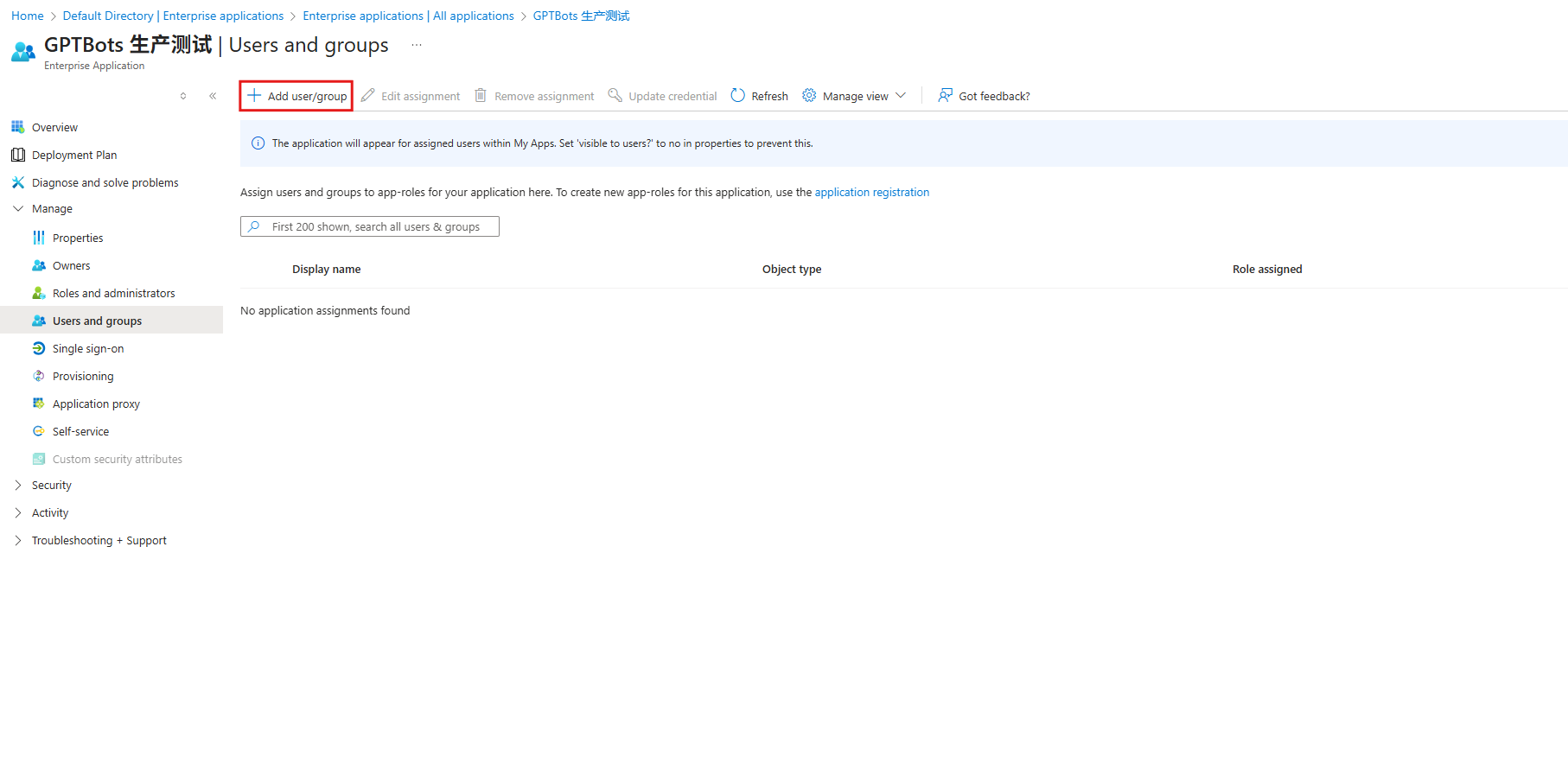
Click Add user/group, then click None Selected under Users.
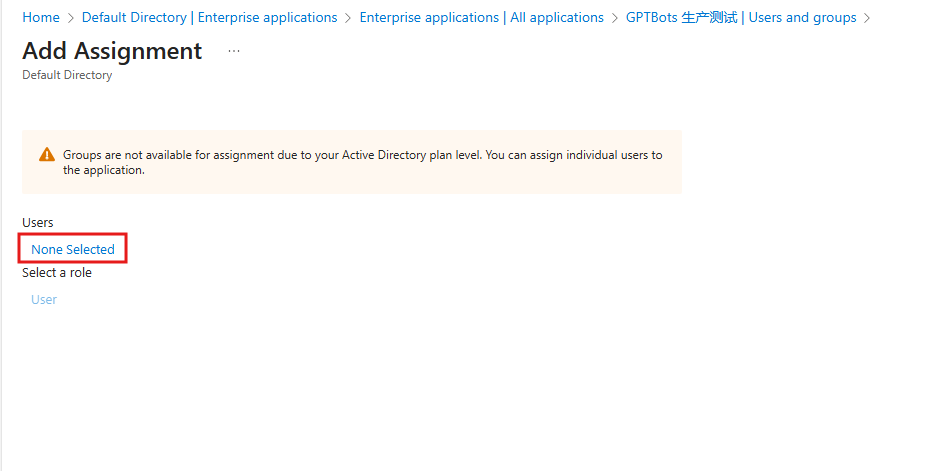
Select the users who need to log in to EngageLab, click Select, then click Assign.
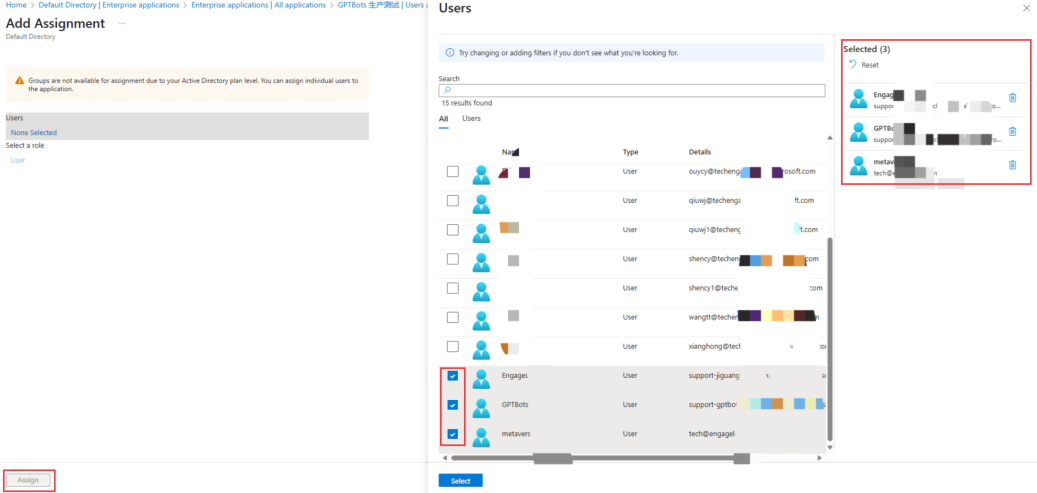
After assignment, you return to the application overview page.
Step 3: Enable SAML Single Sign-On
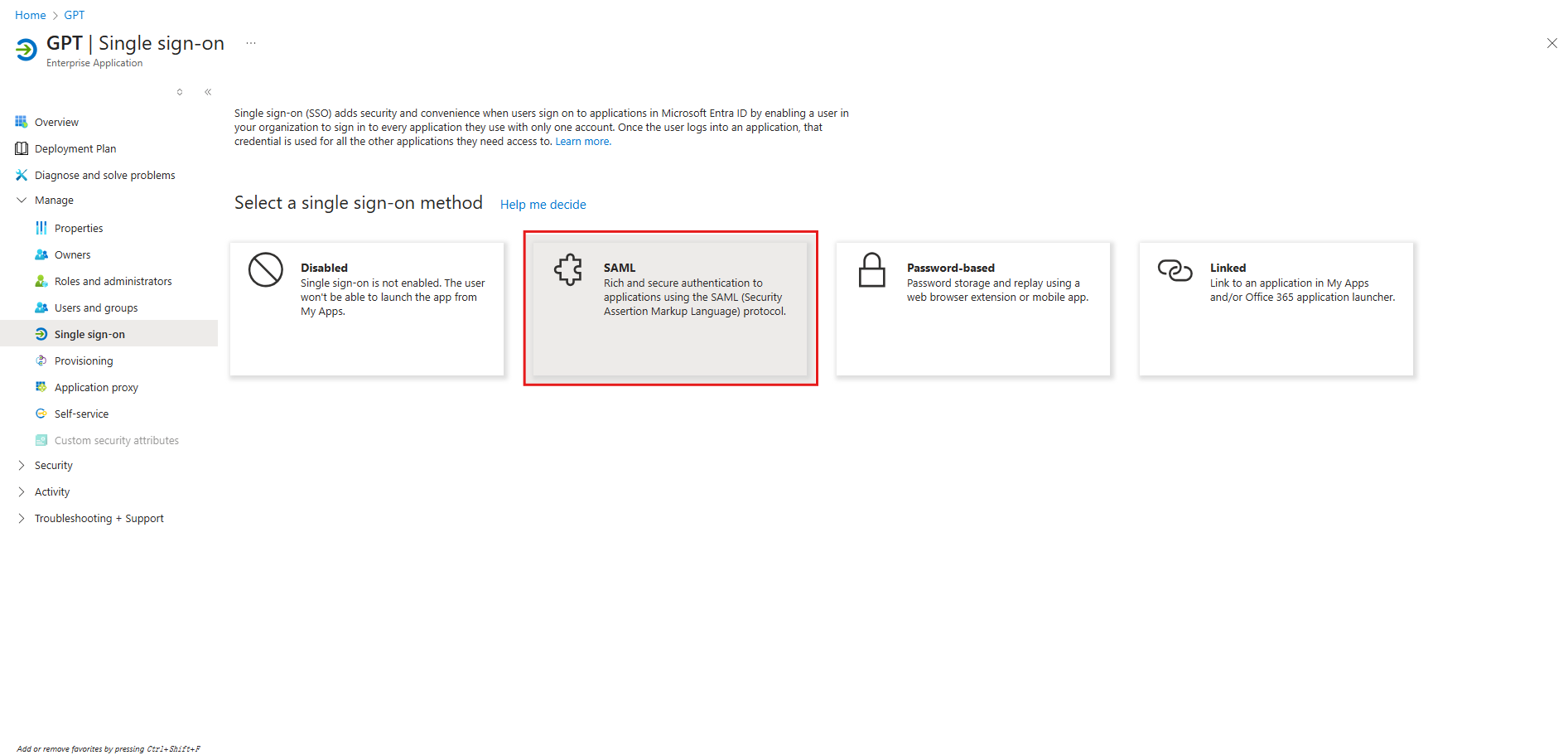
On the application overview page, click Set up single sign on, or click Manage > Single sign-on in the left menu.
Select SAML.
Step 4: Enter EngageLab SP Information
Copy the SP information in step 1 of the EngageLab configuration wizard.
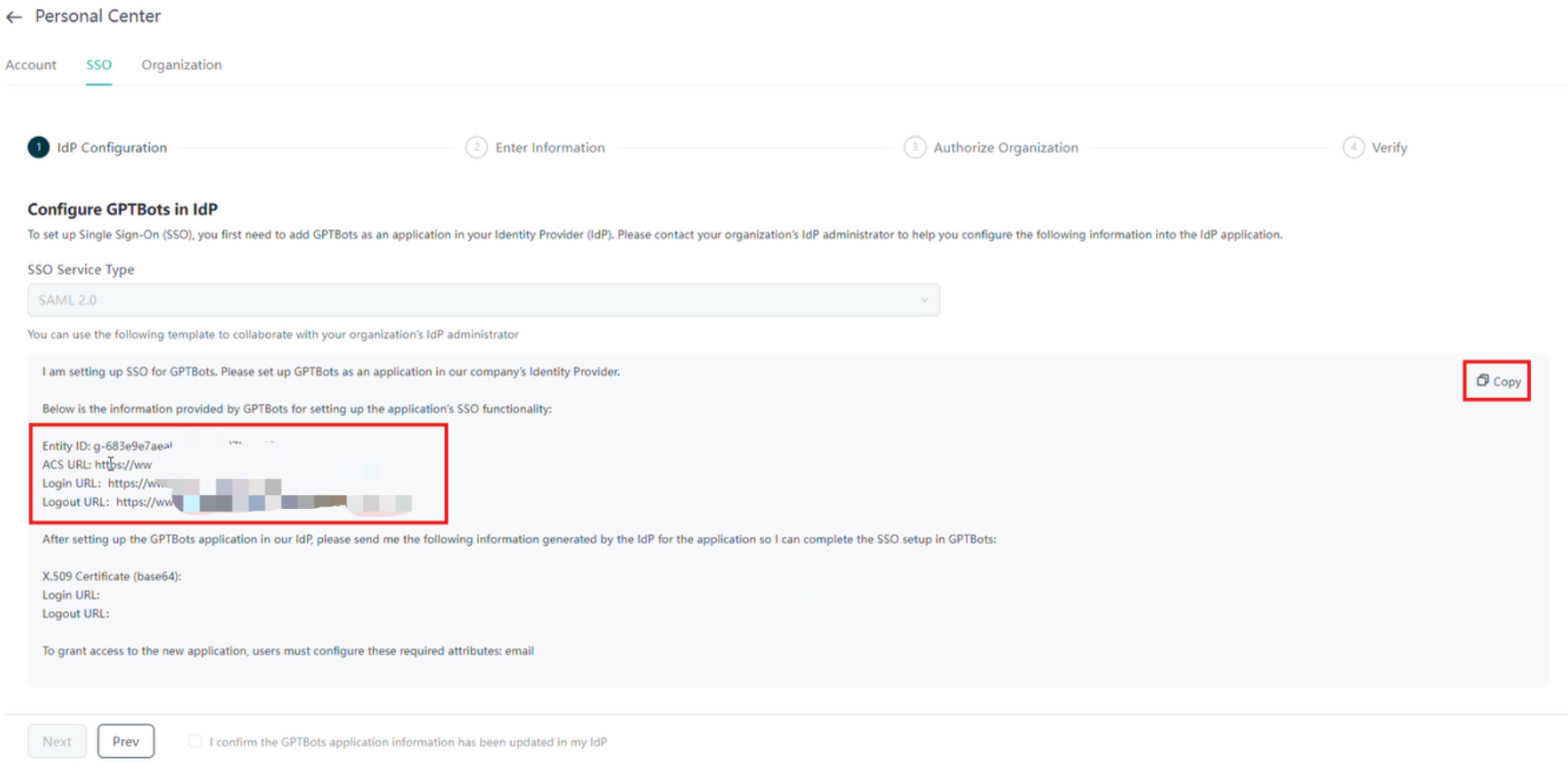

In the Basic SAML Configuration section in Azure, click Edit, fill in the fields according to the table below, and click Save.
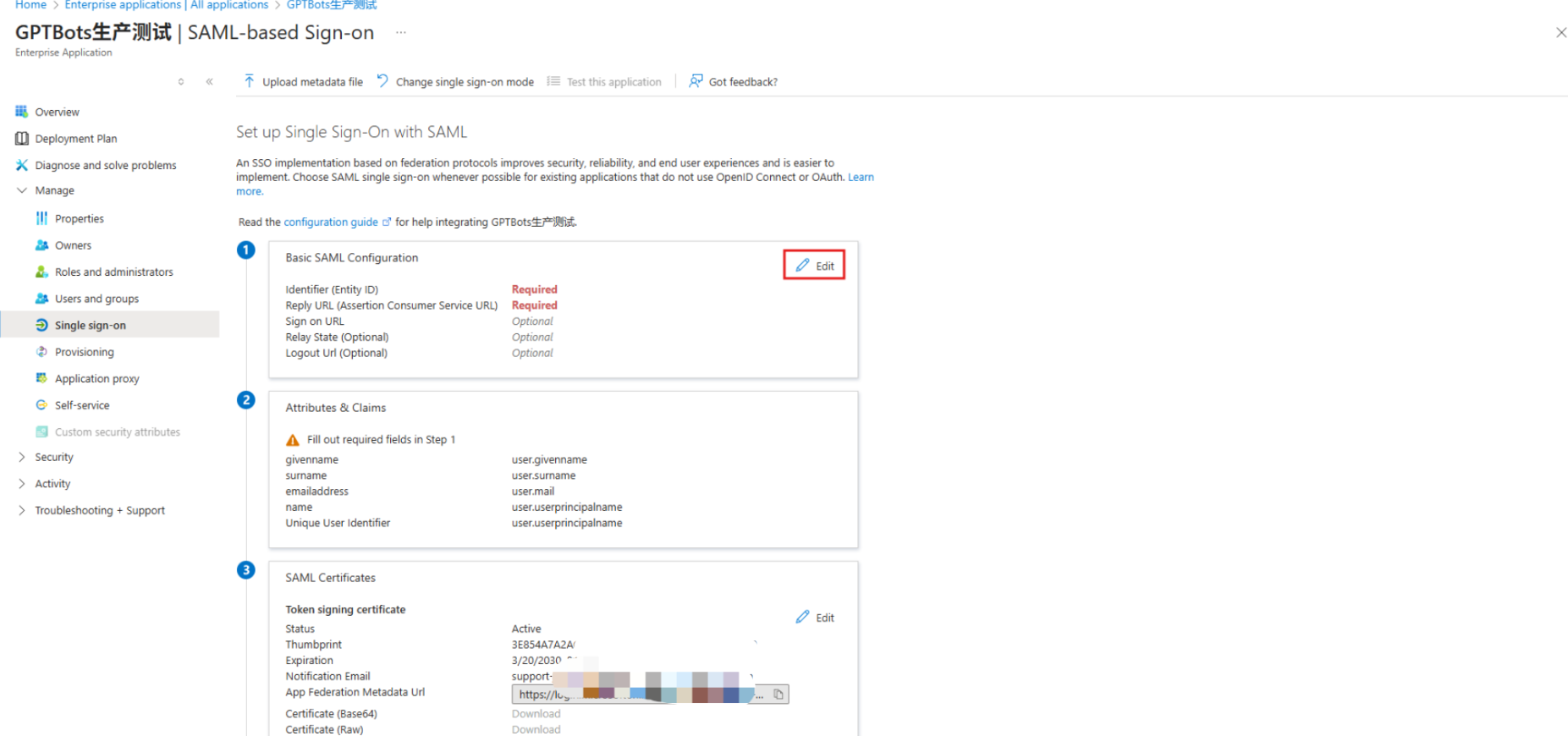
Azure field Enter EngageLab's Identifier (Entity ID) Entity ID Reply URL (Assertion Consumer Service URL) ACS URL Sign on URL Login URL Logout Url Logout URL 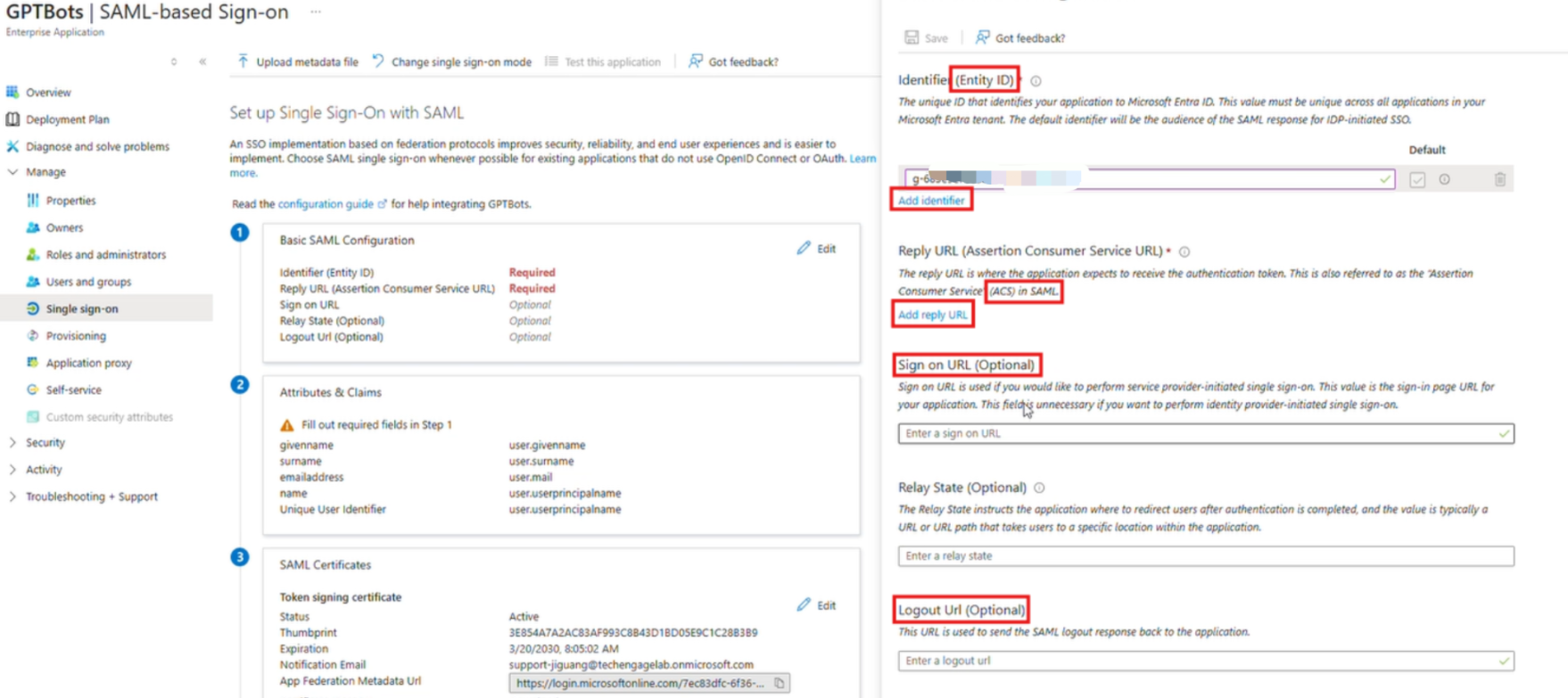
Step 5: Check the Email Claim
EngageLab identifies users by the email read from the SAML assertion. Azure's default claims already include the standard email attribute, so usually no changes are needed. Confirm it with the following steps.
In the Attributes & Claims section of the SAML configuration page, confirm that the following claim exists:
Claim name Value http://schemas.xmlsoap.org/ws/2005/05/identity/claims/emailaddressuser.mailIf this claim has been deleted or modified, click Edit > Add new claim, add it according to the table below, and click Save:
Field Value Name emailNamespace Leave blank Source Attribute Source attribute user.mail
Tip: Also set Unique User Identifier (Name ID) to
user.mail, with the format Email address, to make troubleshooting easier.
Step 6: Enter Azure Information in EngageLab
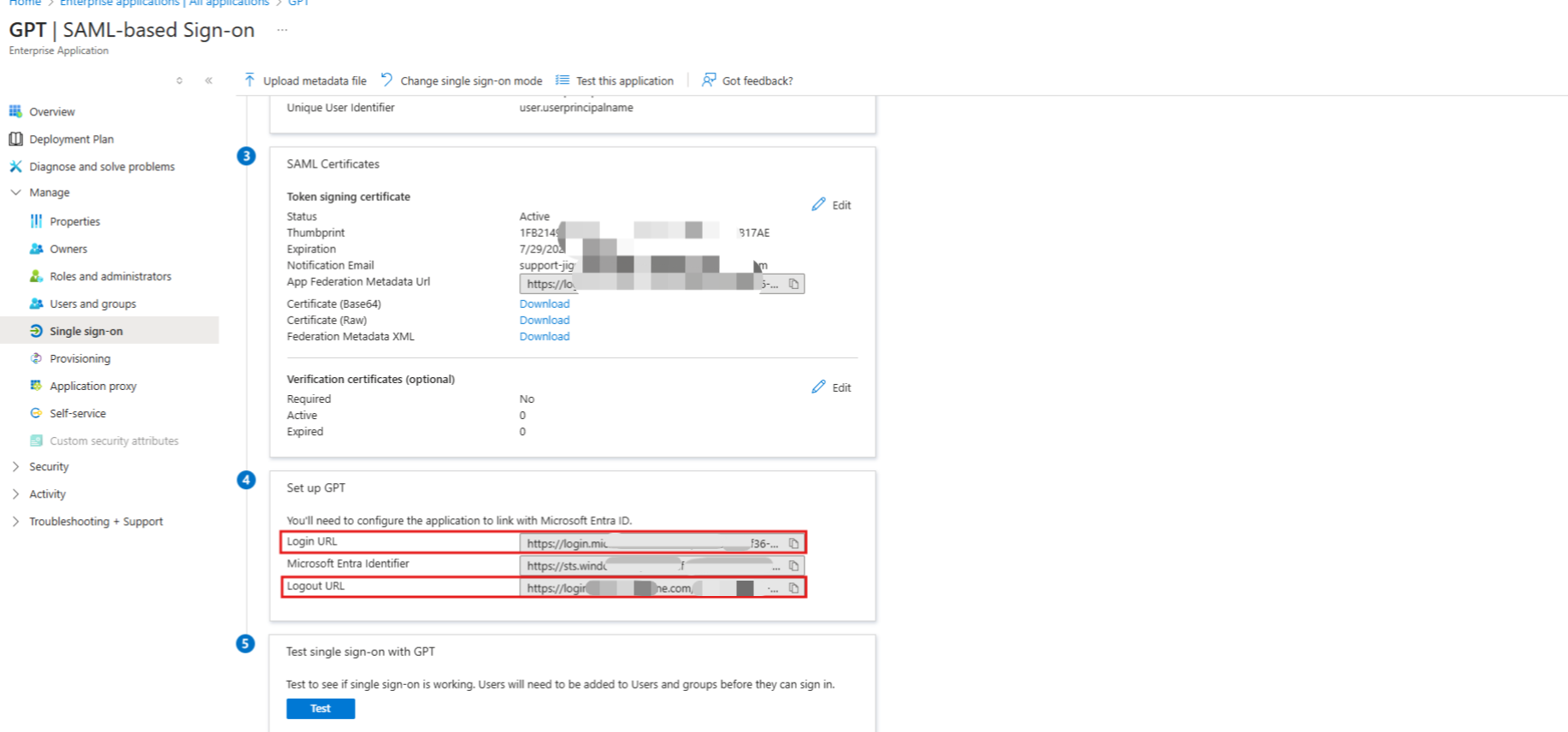
In the SAML Certificates section of the SAML configuration page, download Certificate (Base64).
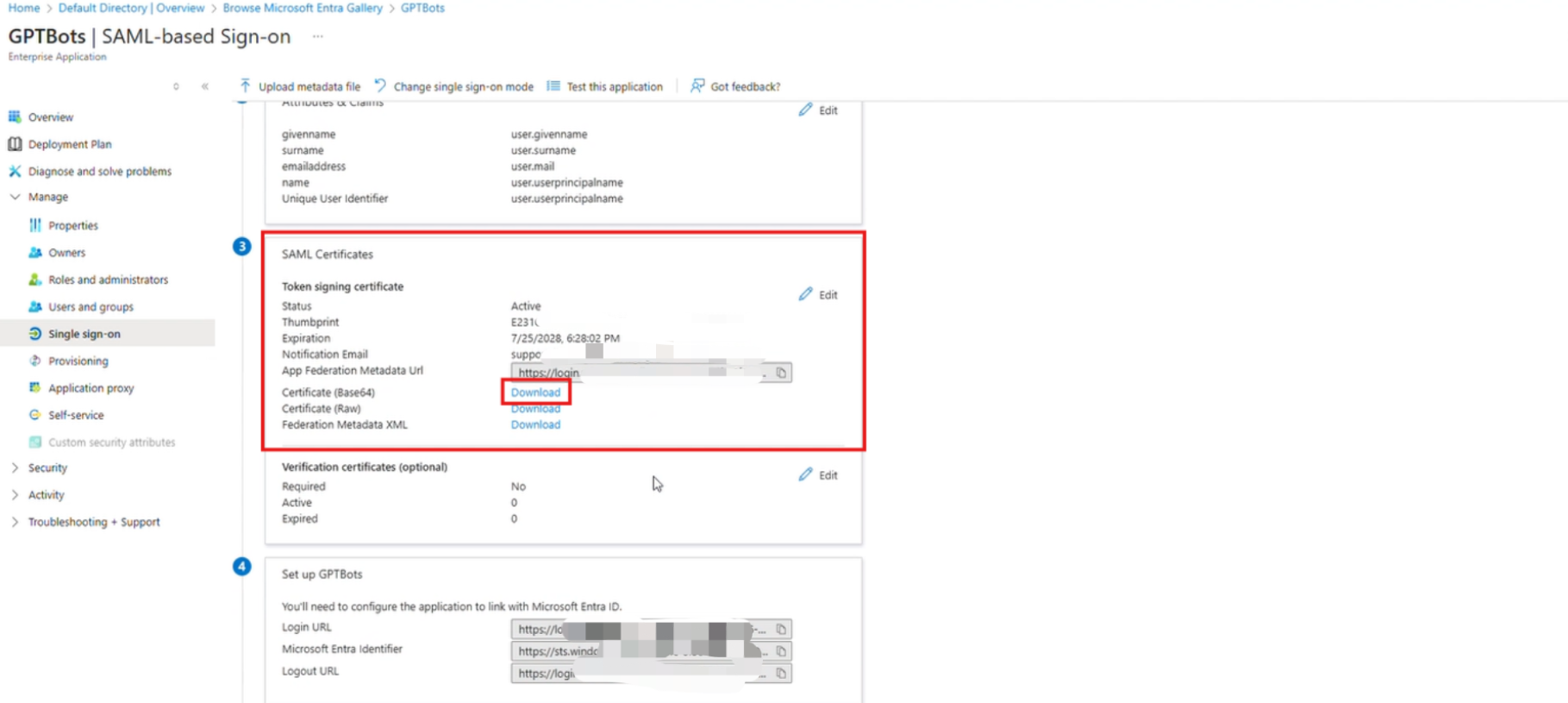
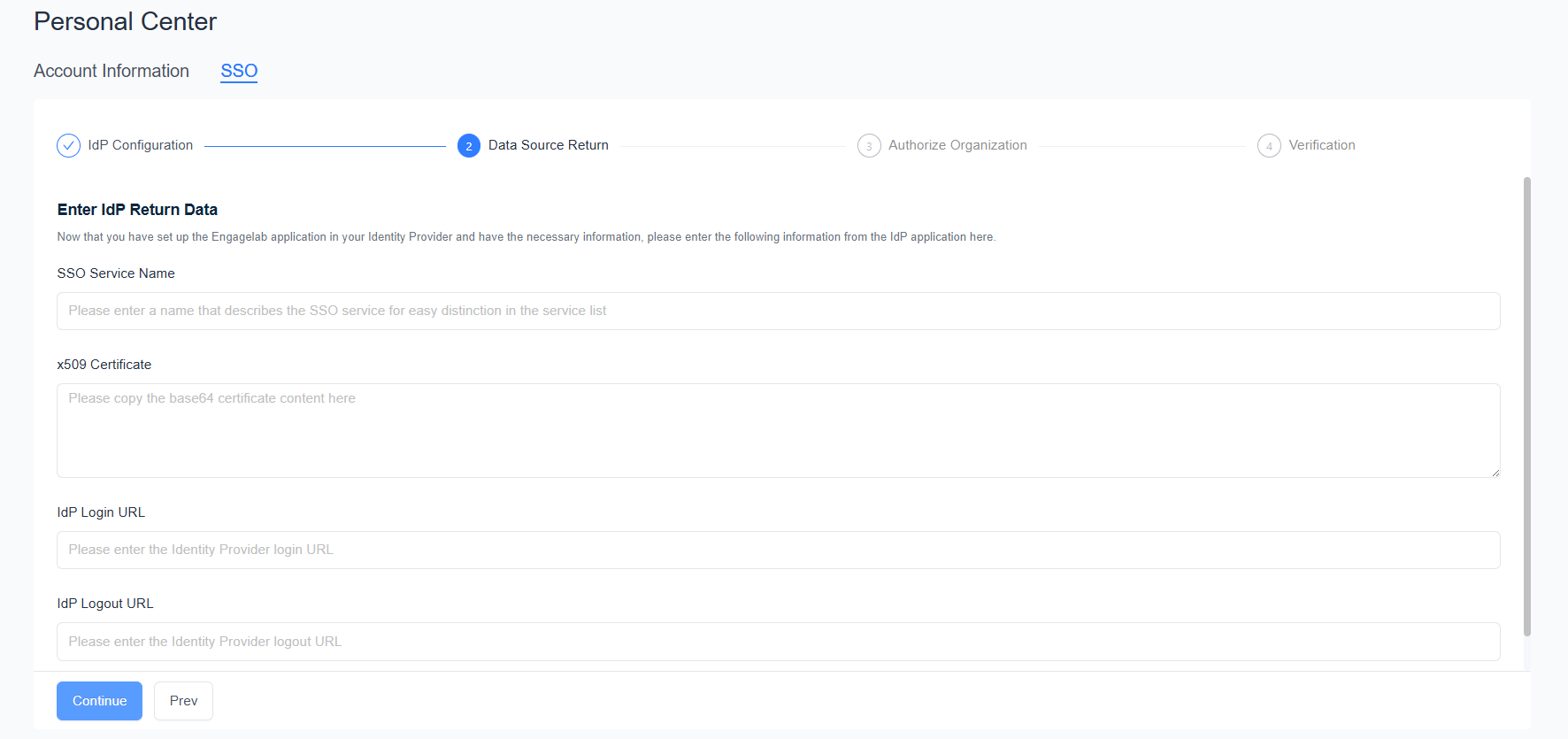
Open the certificate file in a text editor, copy all of its content, and paste it into x509 Certificate in step 2 of the EngageLab configuration wizard.
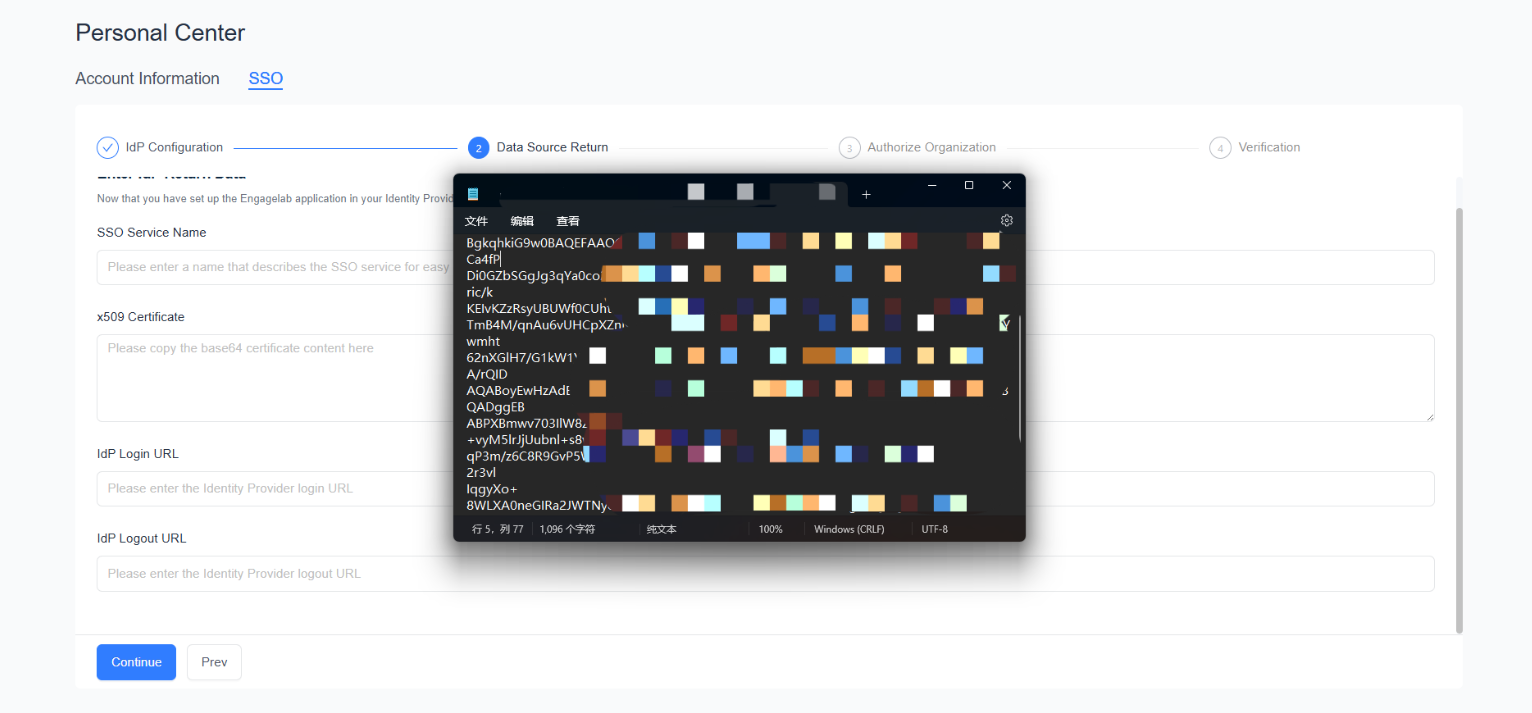
In the Set up <application name> section of the SAML configuration page, copy Login URL and Logout URL, and enter them into IdP Login URL and IdP Logout URL in EngageLab respectively.
Enter the SSO Service Name in EngageLab, click Continue, and then complete organization authorization and verification according to SSO Configuration.
Step 7: Test in Azure
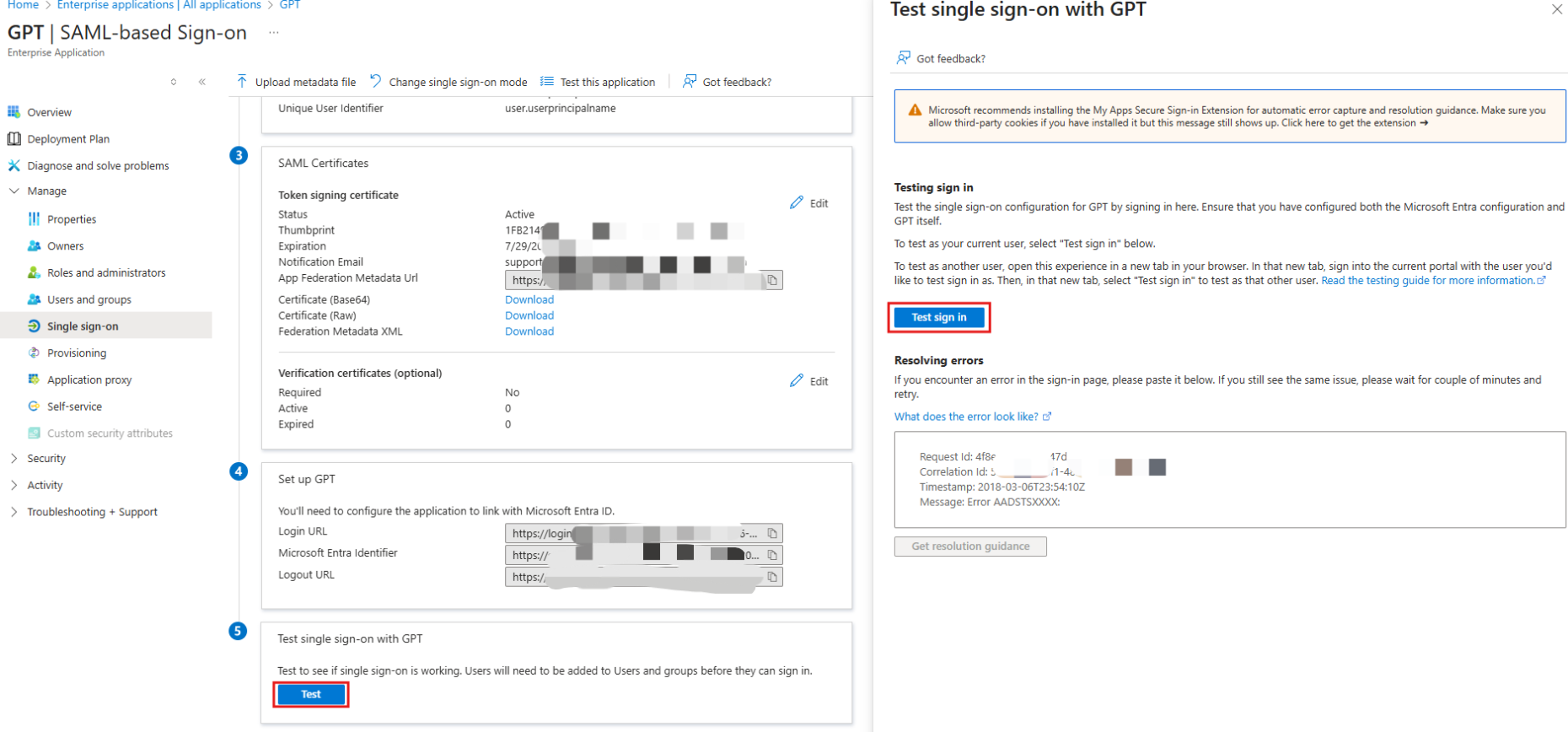
After configuration, you can click Test on the SAML configuration page in Azure to test single sign-on as the current user. The test account must be assigned to the application and must have joined an organization in EngageLab that is authorized for the SSO service.
FAQ
| Symptom | Solution |
|---|---|
| Azure authentication succeeds, but EngageLab login fails | Check whether Attributes & Claims contains an email claim with the value user.mail (standard email attribute name or email), and whether the user's mail is empty |
| Email mismatch | Check whether the email in the user's Azure profile (mail) matches the EngageLab account email. If mail is empty, the claim does not return an email |
| Azure reports that the user is not assigned to the application | Add the user in Assign users and groups |
| Members cannot log in after a period of time | The Azure certificate has expired or been replaced. Download the new certificate and update it in the SSO service details in EngageLab |
