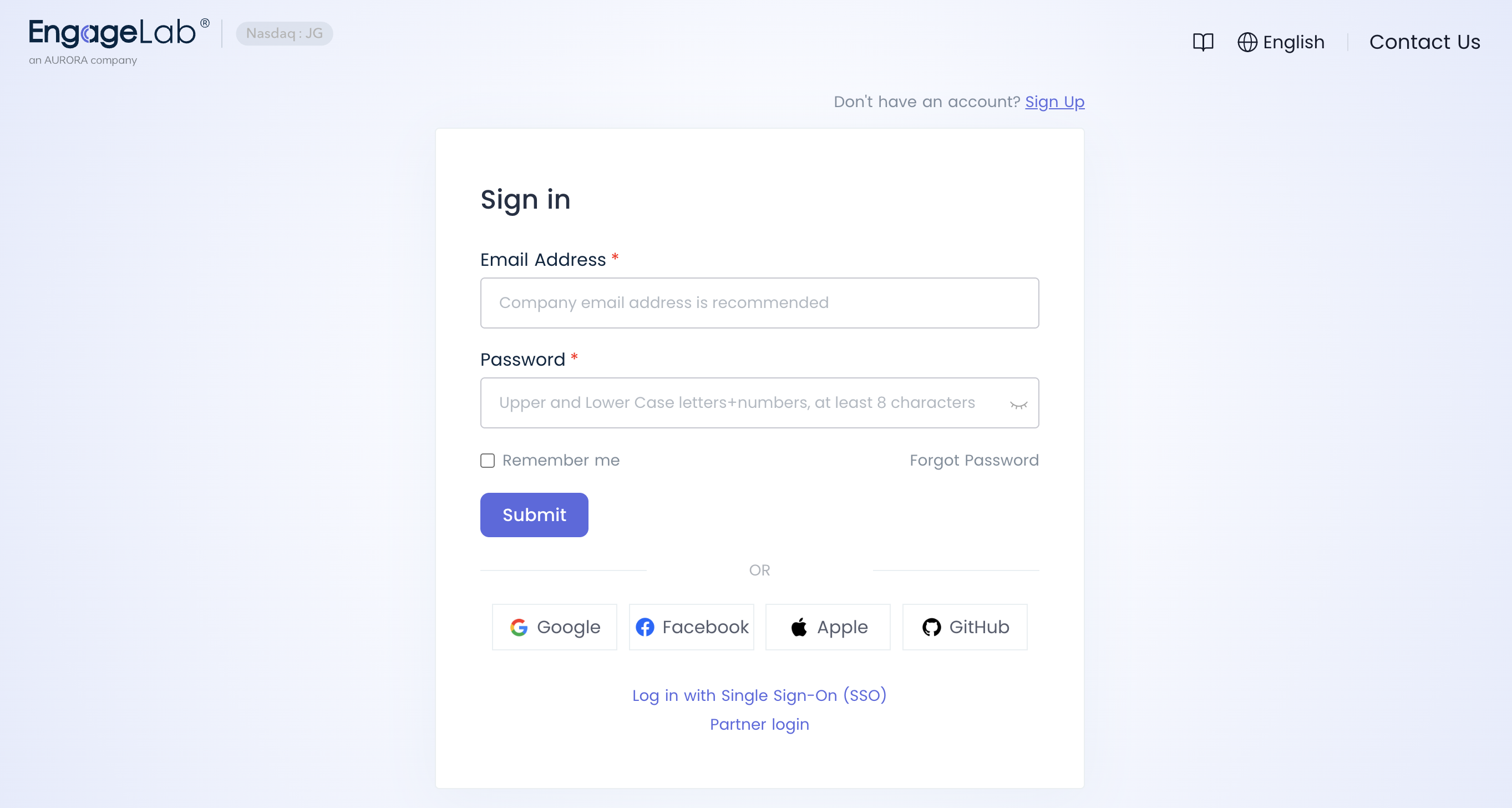
Activate Service
1.Go to the Engagelab sign-up page, enter your email address and password, and click "Create Account".
 2.After entering the email verification code, fill in the organization name and website name, and select the organization time zone.
Note: Once the time zone is selected, it cannot be changed!
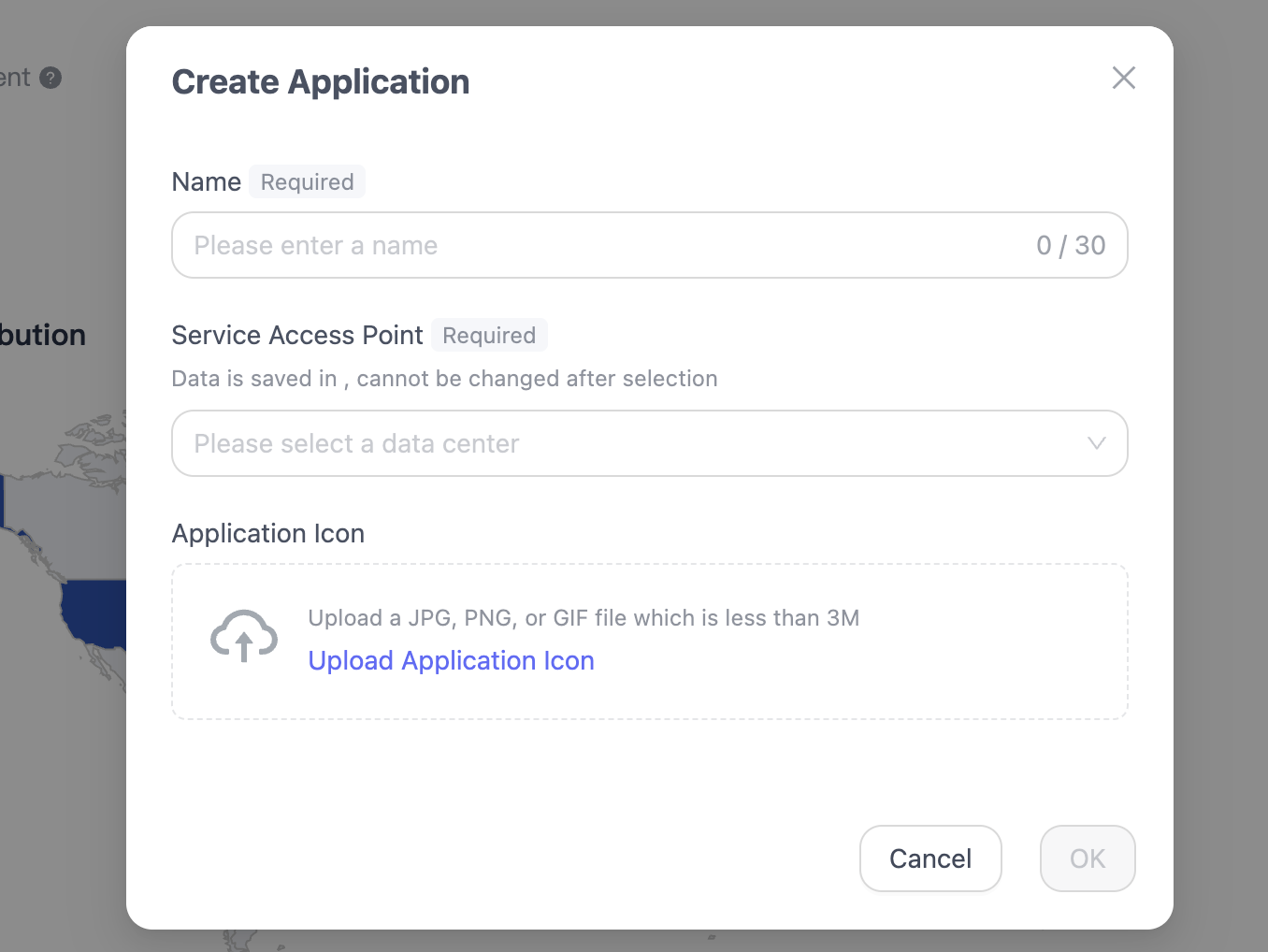
Create an Application
- Enter the application name. Note that application names cannot be duplicated within the same organization.
- Select the data center node to connect to. Currently available nodes include Singapore (Singapore), Hong Kong China (HongKong)
Once the application's data center node is selected, it cannot be changed. Please consider factors such as user location when choosing the data storage region. If the user location differs from the data storage region, you must ensure compliance with all relevant privacy and data protection regulations. Please choose carefully. Pricing for DAU scale varies by data center. For details, please contact the sales manager at: sales@engagelab.com