


Push History
This document provides a detailed introduction to the common features of the Push History page in the EngageLab console, as well as the differences in display for various push types, including notification messages, custom messages, real-time event messages, in-app messages, and A/B tests. It helps users efficiently search, reuse, and analyze historical push tasks.
Page Structure and Access
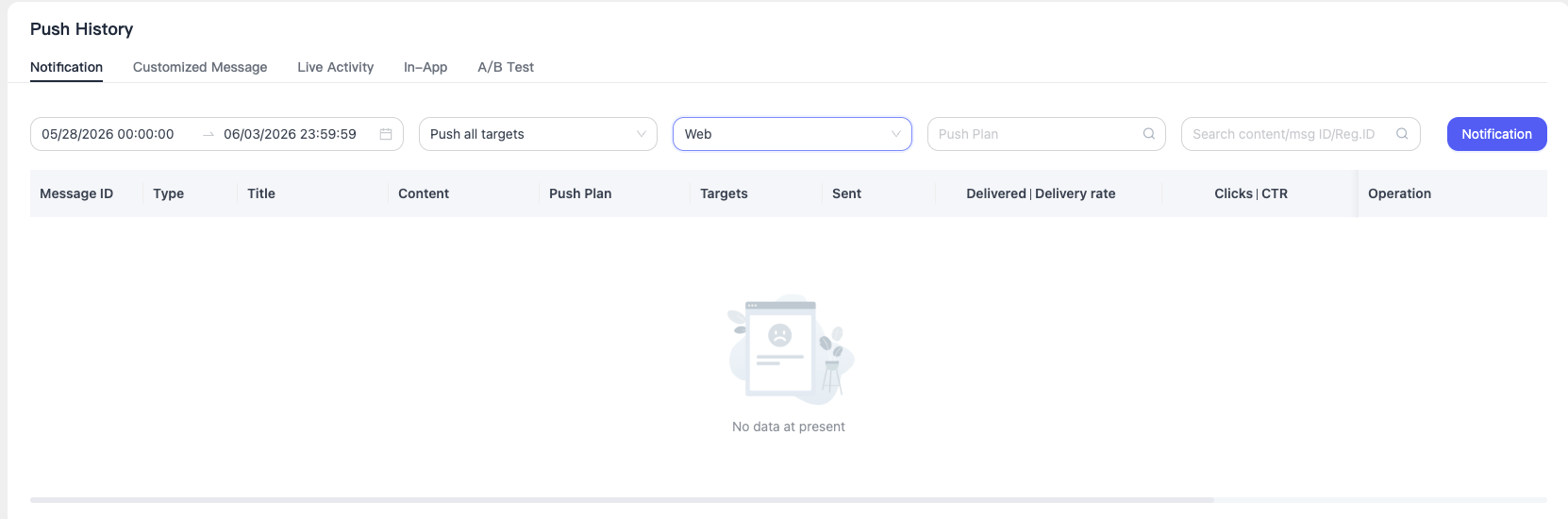
Go to [Push] - [Push History]. At the top of the page, tabs distinguish different types of push history records, including:
- Notification Messages
- Custom Messages
- Real-Time Event Messages
- In-App Messages
- A/B Tests
Each message type supports independent search, filtering, and data display.
General Features
List Browsing and Field Display
Core fields for each type of push history are displayed in table form, for example:
| Field Name | Description |
|---|---|
| Message Name/Message ID | The title or unique identifier of the push message |
| Type/Content/Event Identifier | The message type, content, or event identifier |
| Push Plan | The associated push plan |
| Valid Target Count | The actual number of targets involved in the push |
| Sent Count | The actual number of messages sent |
| Delivered Count/Delivery Rate | The number successfully delivered and the percentage |
| Click Count/Click-Through Rate | The number of user clicks and the percentage |
| Sending Platform | The target platform for the push |
| Sending Time | The actual sending time |
| Actions | Supports forwarding, recycling, and message troubleshooting |
Search and Filtering
- Supports searching by content, Message ID, and Reg ID to quickly locate target records
- Supports multi-condition filtering by sending time, push target, platform, push plan, and more
- Search content and push targets must be consistent with the actual push configuration
Actions
- Forward: On the push history page, clicking Forward takes you back to the create push page and reuses all configurations from the original push message.
The forwarding feature is supported only for console pushes. API pushes are not currently supported.
- Message Troubleshooting: Go to the details page to view detailed push link statuses and failures
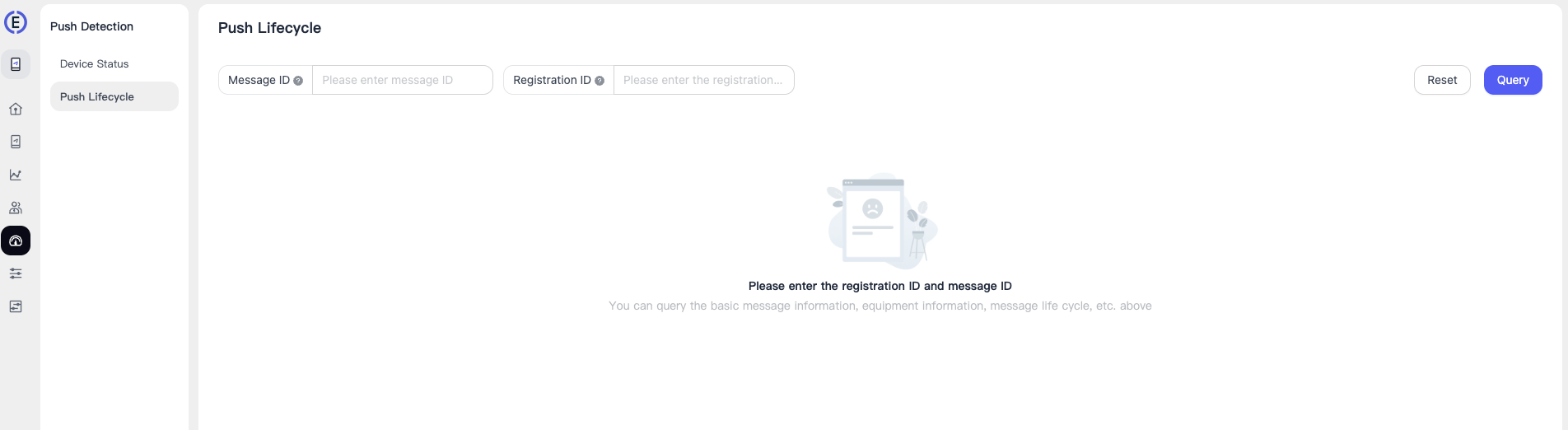
- Create Message: On the page for any message type, clicking the create button in this location takes you to the Create Push page.
View Details
Click any message row to enter the push details page.
The message details page includes basic notification information, push details for different platforms (delivery count and click count), and pie charts comparing the causes of message drop-off.
Basic Information
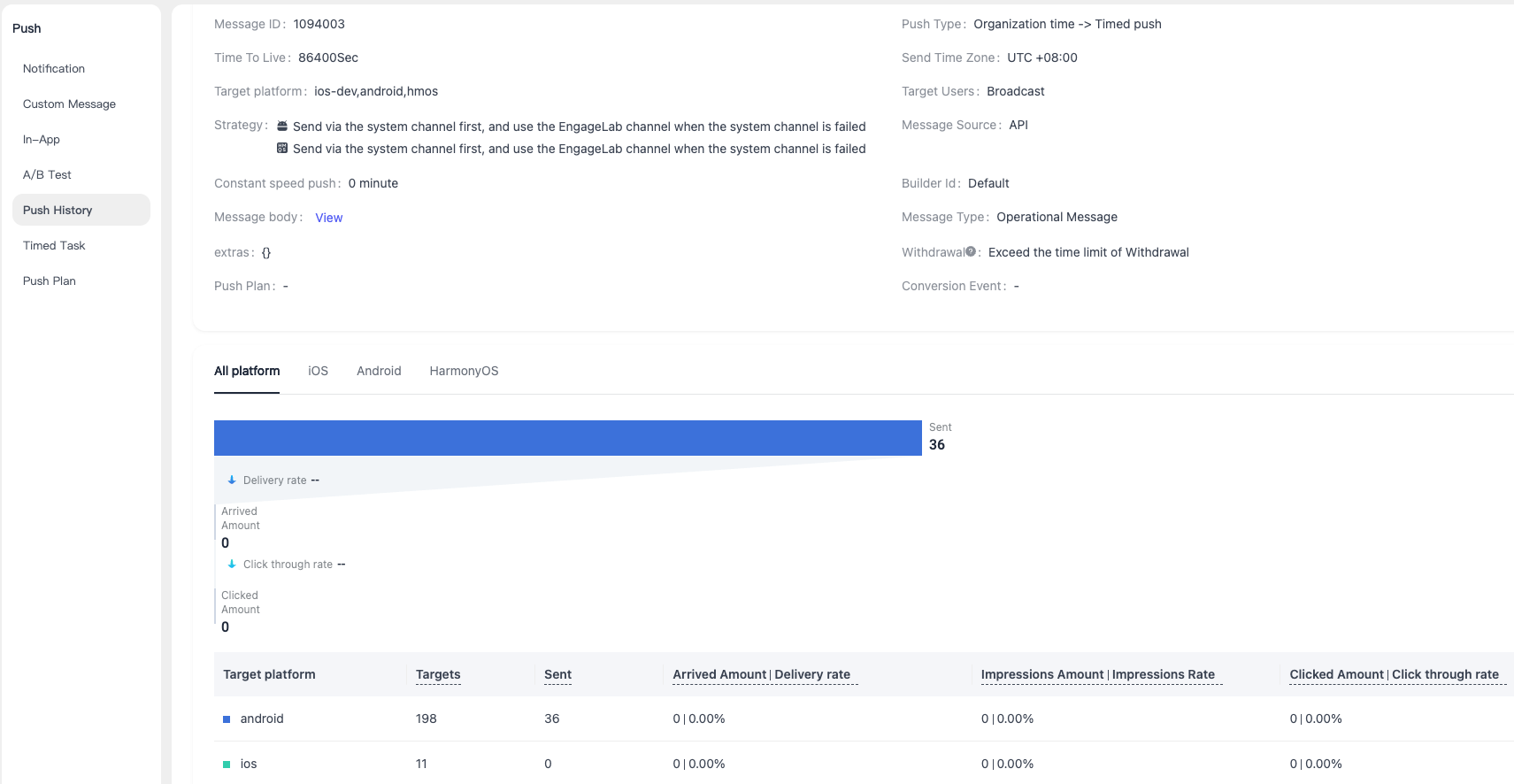
- Basic push information (title, content, additional fields, etc.)
- Message ID (for lifecycle tracking)
- Message body (in JSON format for easier troubleshooting)
- Notification source, notification bar ID, and message type
- Offline retention period, target platform, delivery strategy, rate-controlled sending, push method, sending time zone, target users, etc.
- Quick actions in the upper-right corner: reuse message and message troubleshooting
Push Performance and Drop-Off Analysis
All push types support statistics for core metrics such as delivered count, click count, delivery rate, and click-through rate
Supports distribution display by platform, such as EngageLab, Chrome, Firefox, and Edge, for target count, sent count, delivered count, display count, click count, and ratios
Supports an intuitive chart-based display of delivery and click trends
Hover over the bar chart to view the sent and delivered counts for different platforms.
- Drop-off analysis: Filter by channel and stage, and use donut charts plus detailed lists to quickly identify the causes of delivery or click loss
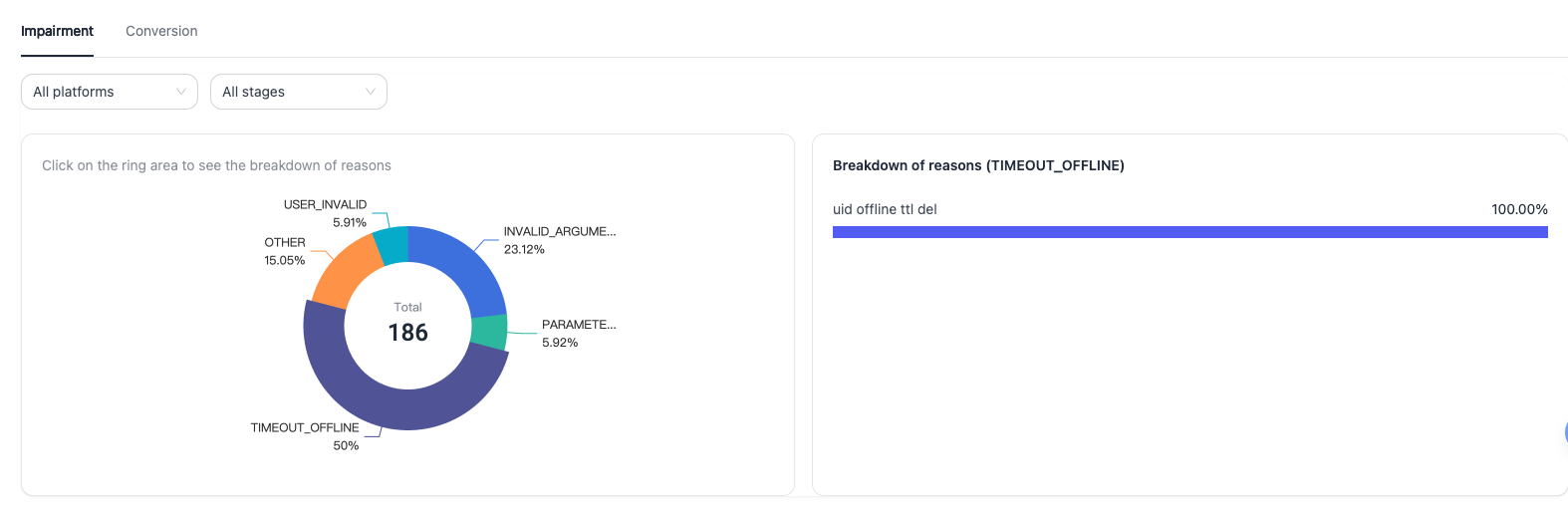
Hover over the chart to view the specific number for each type of dropped message.
Special Notes for Each Push Type
Notification Messages, Custom Messages, In-App Messages, and Real-Time Event Messages
- Basic functions are consistent, with slight differences in fields, such as event identifier and event type
- Supports the full set of actions, such as forwarding and message troubleshooting
- Click the tabs at the top of the page to switch between push history pages for different message types
A/B Tests
Basic functions are consistent with other message types. All included features support grouped comparisons of push content, targets, delivery, clicks, and other data between group A and group B
Unlike other message types, the list fields for A/B test messages, such as message name, Message ID, valid target count, sent count, delivered count, and click count, are all marked with (A/B) for distinction.
Message Details
The top of the page displays the basic push content for groups A and B. The displayed content is generally consistent with other message types. Notification Title, Notification Content, and Additional Fields can be switched between groups A and B for display, making it easier to compare differences in push copy between the two groups.
Test Data Analysis
- Delivered Count/Click Count/Delivery Rate/Click-Through Rate: Displays the core metrics of groups A and B in both charts and data, allowing intuitive comparison of the push performance of the two groups.
- Target Platform Distribution: Counts the target count, sent count, delivered count, display count, click count, and corresponding ratios for each platform, such as EngageLab, Firefox, Edge, and Chrome.
You can switch between groups A and B to compare the data.
Drop-Off Cause Analysis
- Supports filtering by channel and stage to view the total number and detailed causes of message drop-off for groups A and B, respectively
- Quickly identify possible issues during the push process through donut charts and detailed lists
You can switch between groups A and B to compare the causes of message drop-off.
