















Omni-Channel Customer Engagement Expert
EngageLab provides enterprises with an all-in-one highly integrated platform that covers a full range of functions. Integrating multiple customer interaction channels and capabilities simplifies customer interaction, centralizes platform management, and ensures service and security.
Marketing Automation
LiveDesk
AppPush
WebPush
SMS
Email
WhatsApp
OTP
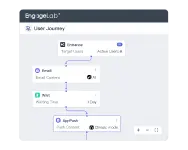
Marketing Automation
Our platform integrates cross-channel data to create complete user profiles.
The platform seamlessly manages 5 messaging channels for better collaboration & performance.
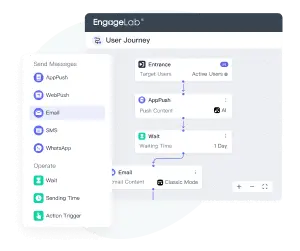
Quickly design customer journeys through intuitive visual tools to maximize campaign effectiveness.
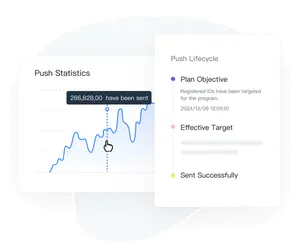
AI-powered analytics provide real-time tracking of revenue conversions and marketing ROI.
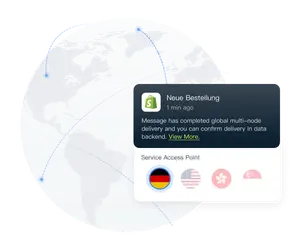
Global High Delivery Rate
EngageLab's global multi-channel, multi-data nodes support channel complementation, real-time smart replenishment, and multiple points of service backup, ensuring full delivery of messaging across technical architecture, infrastructure, and more.Try EngageLab for free. Enjoy the world's leading delivery rate.
Tailored Solutions for Your Industry
EngageLab provides enterprises with an all-in-one highly integrated platform that covers a full range of functions. Integrating multiple customer interaction channels and capabilities
Financial
E-commerce
News & Media
Travel Industry
Gaming
OTP security authentication ensures worry-free transactions, AppPush data tagging to accurately identify the user's investment preferences, and crowd-sourcing to create customised push messages, and real-time alerts on high-concurrency stock, option, and crypto-asset quotes.
0
M
Stable Concurrencies
0
%
Increase in Delivery Rate
0
%
Open Rate

Industry-Leading Technology and Service
With 13 years of experience and industry-leading technology serving hundreds of thousands of developers, EngageLab makes global customer interaction easy.
0
B
Chosen by 1/3 of the world's applications end users.
0
M
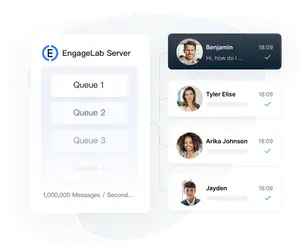
Send your messages/second and quickly.
0
+
Sending IPs for smooth and efficient business.
0
%
Stable operating time for monitoring and alarms.
24/7 Professional Support
Technical manager available anytime/anywhere to answer questions.
Highly Reliable & Available System
Automatic fault transfer and system recovery.
GDPR & DPPA Compliance
Strict compliance with local security and privacy laws.
High-Level Security for Every Message


Unlocking More EngageLab Possibilities
Customer Success Stories
SMS Short Code Service Provider – A Comprehensive List
WhatsApp Marketing Campaign with Examples [Updated 2025]
Deliver Every Email at Its Most Effective Moment
New & Improved! Try Smarter Marketing Automation!

Trusted by Businesses Worldwide
EngageLab has gained the confidence of businesses thanks to its cutting-edge technologies and professional customer service.
Elena
Bank, Account Manager
We love EngageLab! It's been a real game-changer for us. It helps us integrate automated workflows and customers love being able to apply for new cards and change account info. We're thrilled with EngageLab's omnichannel messaging solution –the bank's best way of staying in touch with our customers!
Chuan Leekpai
SEA Online Grocery Company, CEO
EngageLab allows us to find ways to make customer contact easier. It's so simple to communicate with customers through SMS and push notifications. This is very helpful for some of our target audience (e.g. full-time mums) who don't use email or the latest technology and usually don't have time to call.
Jerry Abego
Vice President of News App
User engagement in the App is very important for the news and media industry. Surprisingly, EngageLab offers a complete set of data analysis tools! The statistics are easy to query and export, helping us to refine our distribution strategies.
Carlos Ramirez
Director of Operations, Travel Services Platform
We know how important it is to be able to get help quickly when you're traveling, EngageLab is secure and stable. We're always ready to respond to our lovely clients' all needs. After using our service for a while, our customers tell us that we've made their experience much smoother.