

How to Configure the Wait Component to Precisely Control Message Delivery Timing?
1. Steps to Use
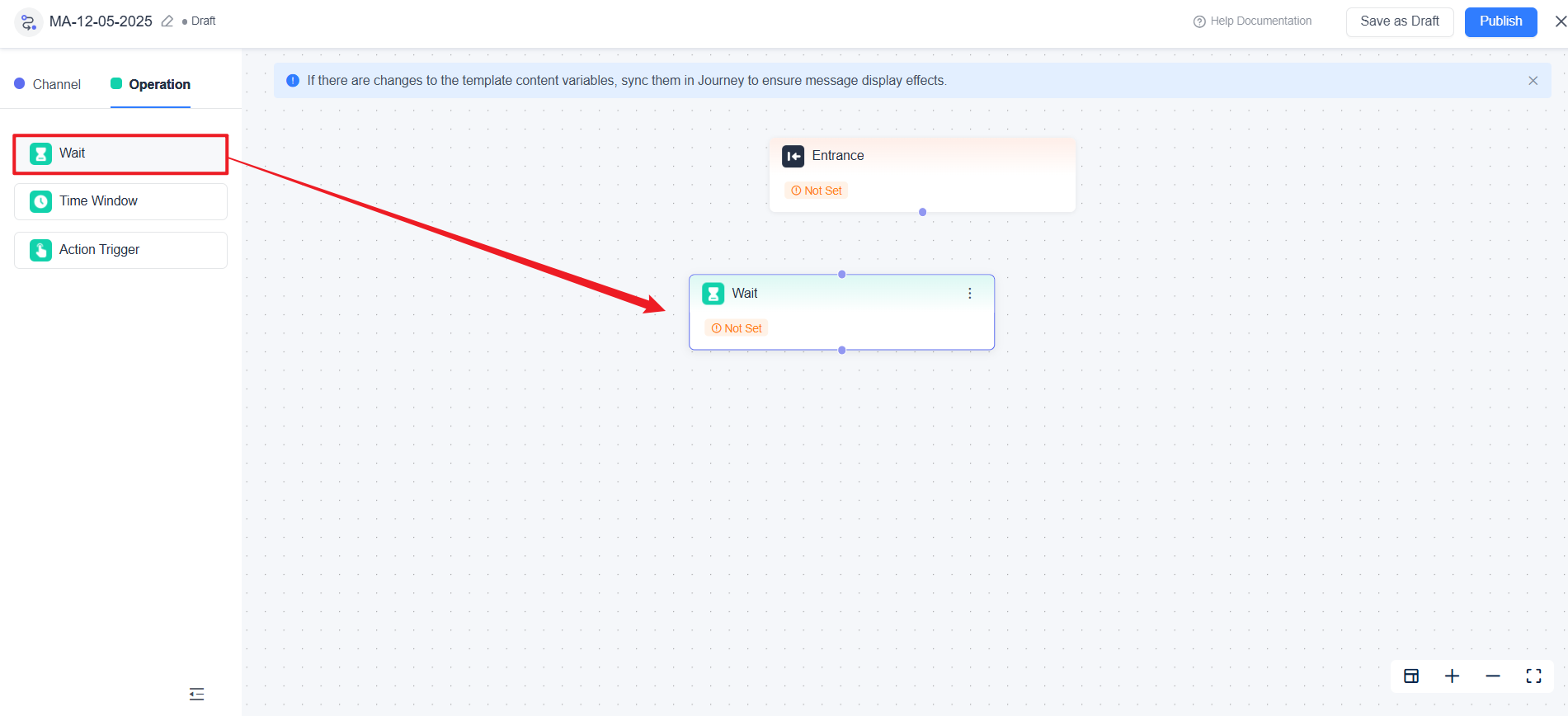
Select the "Wait" component under the "Operation" category and drag it onto the journey canvas.
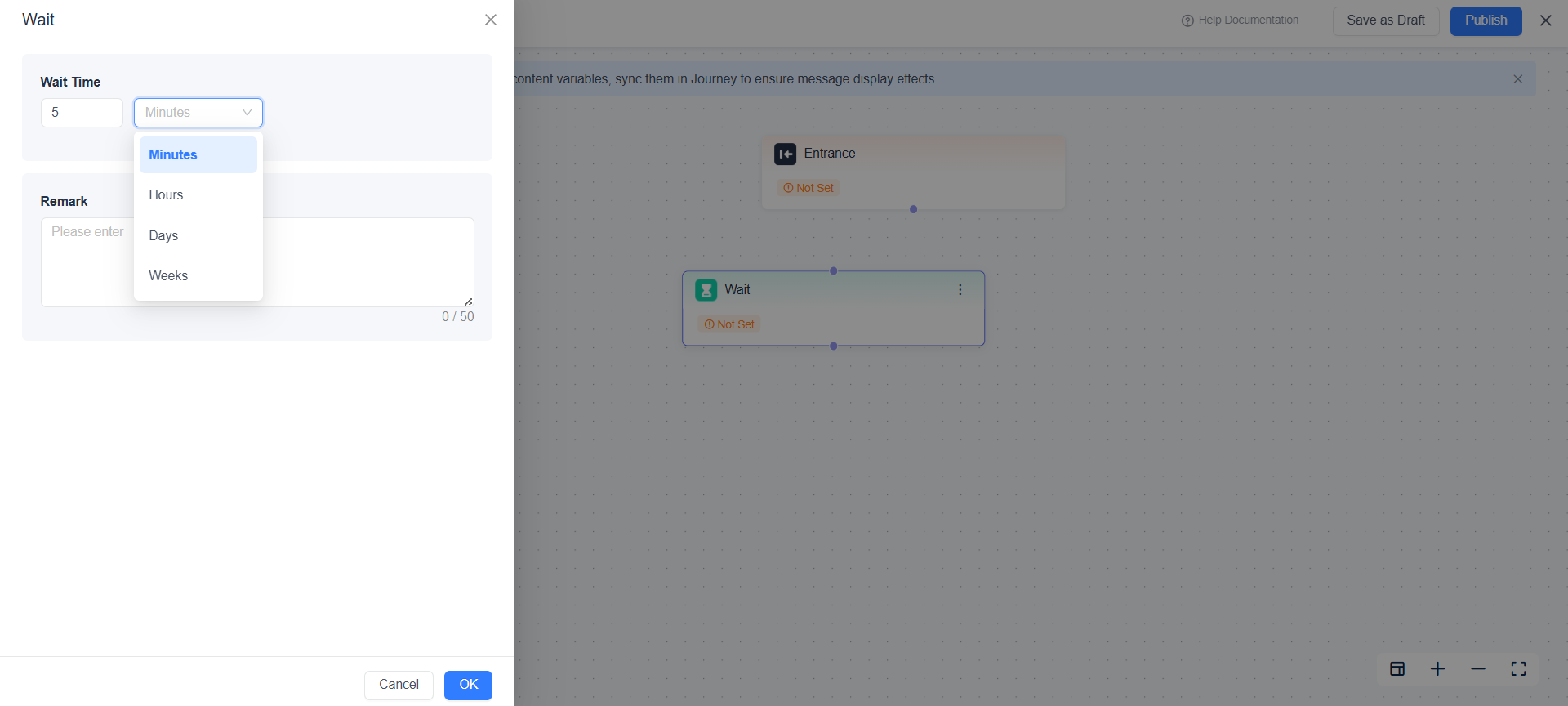
Set the specific wait time (supports minutes, hours, days, etc.).
Connect it to the subsequent "Message Send" component.
2. Application Examples
- New User Nurturing: Wait 24 hours after registration, then send a product introduction email.
- Cart Recovery: Wait 2 hours after a user adds items to cart, then push a payment reminder with a discount offer.
- Membership Renewal: Send a renewal promotion notification 7 days before the subscription expires.
3. Recommended Waiting Durations
- Immediate Feedback: 10–30 minutes (suitable for operation confirmations, verification reminders).
- Short‑Term Nurturing: 1–3 days (suitable for content guidance, light‑touch re‑engagement).
- Long‑Term Planning: 7–30 days (suitable for membership renewals, dormant‑user reactivation).
By setting appropriate waiting times, EngageLab MA helps you reach users at the optimal moment, boosting message conversion efficiency.
If you require configuration advice for a specific industry scenario, please get in touch with our Technical Support team. We will provide tailored waiting‑strategy solutions.

Still Have Questions?
Can't find what you're looking for? Our experts are here to provide personalized assistance. Ask your question now and get a timely response.

