

EngageLab MA SMS Configuration Guide
I. Overview
The SMS channel is used to reach users via text messages, commonly applied in scenarios such as identity verification, order confirmations, and promotional campaigns. Once configured, you can add SMS touchpoints in Marketing Automation (MA) journeys to enable automated message delivery. This channel must be bound to the EngageLab SMS Platform and authorized via the creation of an SMS API user.
II. Configuration Steps
Step 1: Create an SMS API User
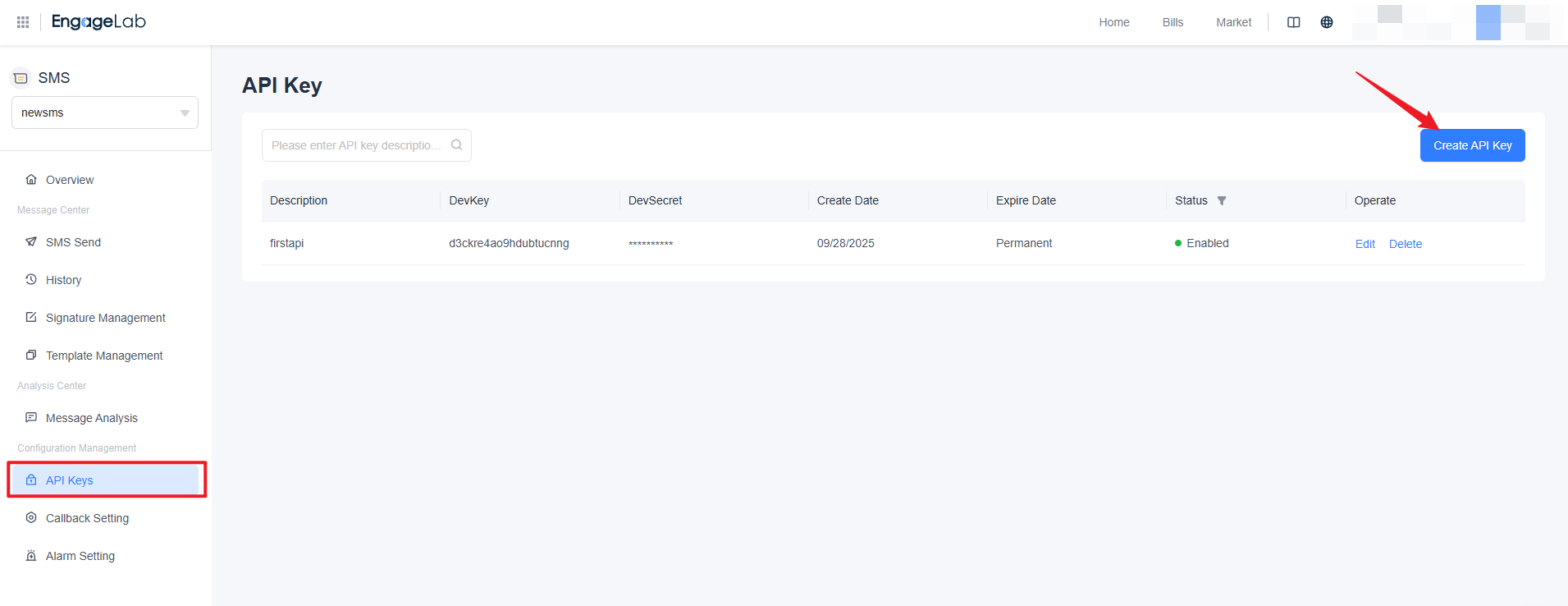
- Log in to the EngageLab Console → Navigate to the SMS Platform.
- Go to the Overview Page and create a new
SMS_USER.
Step 2: Add an SMS Channel
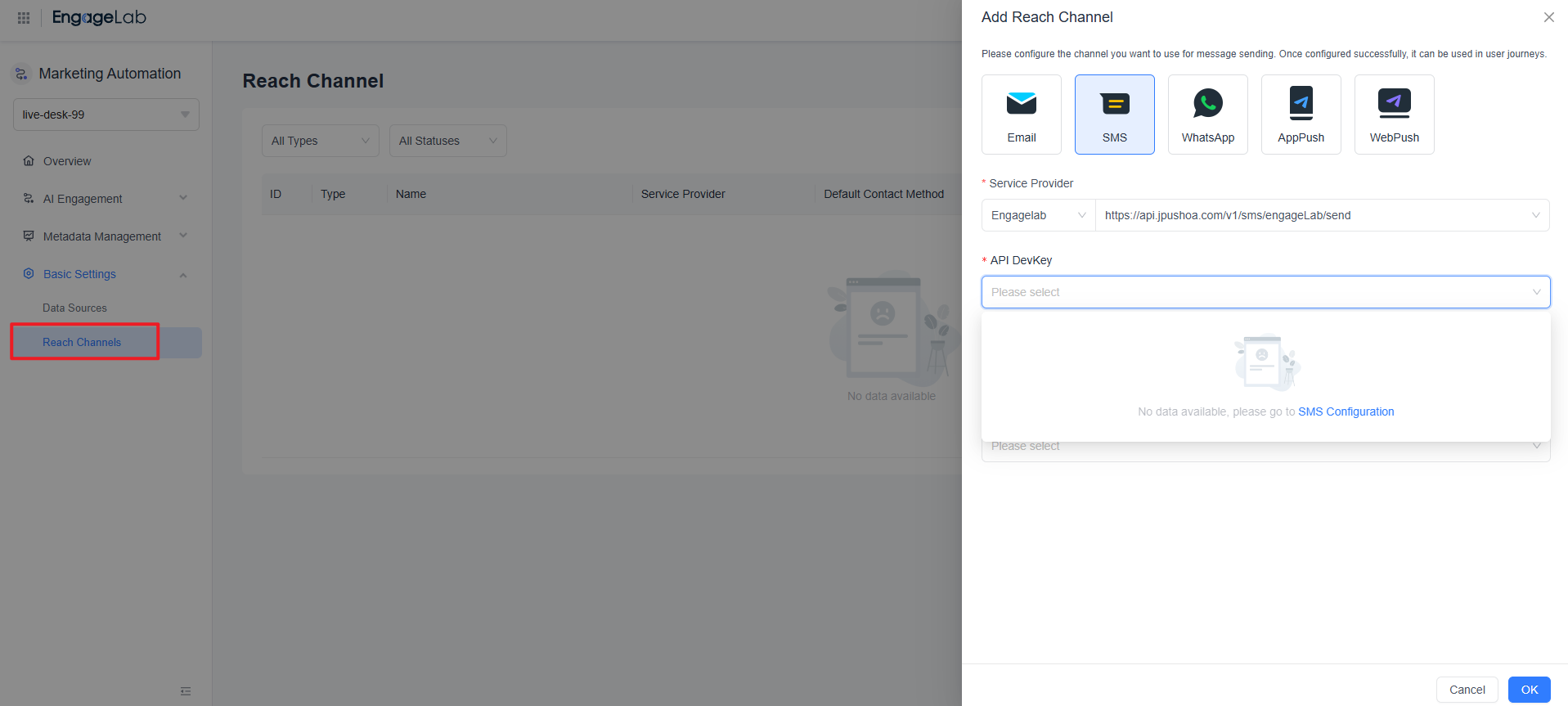
- Open the EngageLab Console → Go to Marketing Automation → Basic Settings → Reach Channels.
- Click "Add Channel".
- Select the channel type as SMS.
- Fill in the following information:
- Service Provider: Select EngageLab.
- API Devkey: You must configure this in the SMS backend in advance.
- SMS Signature / Sender ID:
- For Mainland China: Enter a registered signature from the SMS platform (e.g., 【FoodDelivery】).
- For overseas regions: Use a Sender ID (e.g., BrandX).
- Default Contact Field: The field used to match the mobile number in user attributes (typically
phone_numberormobile).
Tips:
- Phone number formats must comply with the E.164 international standard (e.g., starting with +86).
Step 3: Verify Channel Status
- After saving, return to the Reach Channels list.
- Confirm that the newly created SMS channel status is Enabled.
- If the status is "Disabled" or "Abnormal", check the following:
- Whether the API user is valid.
- Whether the signature or template has been approved on the SMS platform.
- Whether there are balance or quota limitations.
Step 4: Use the SMS Channel in a Journey
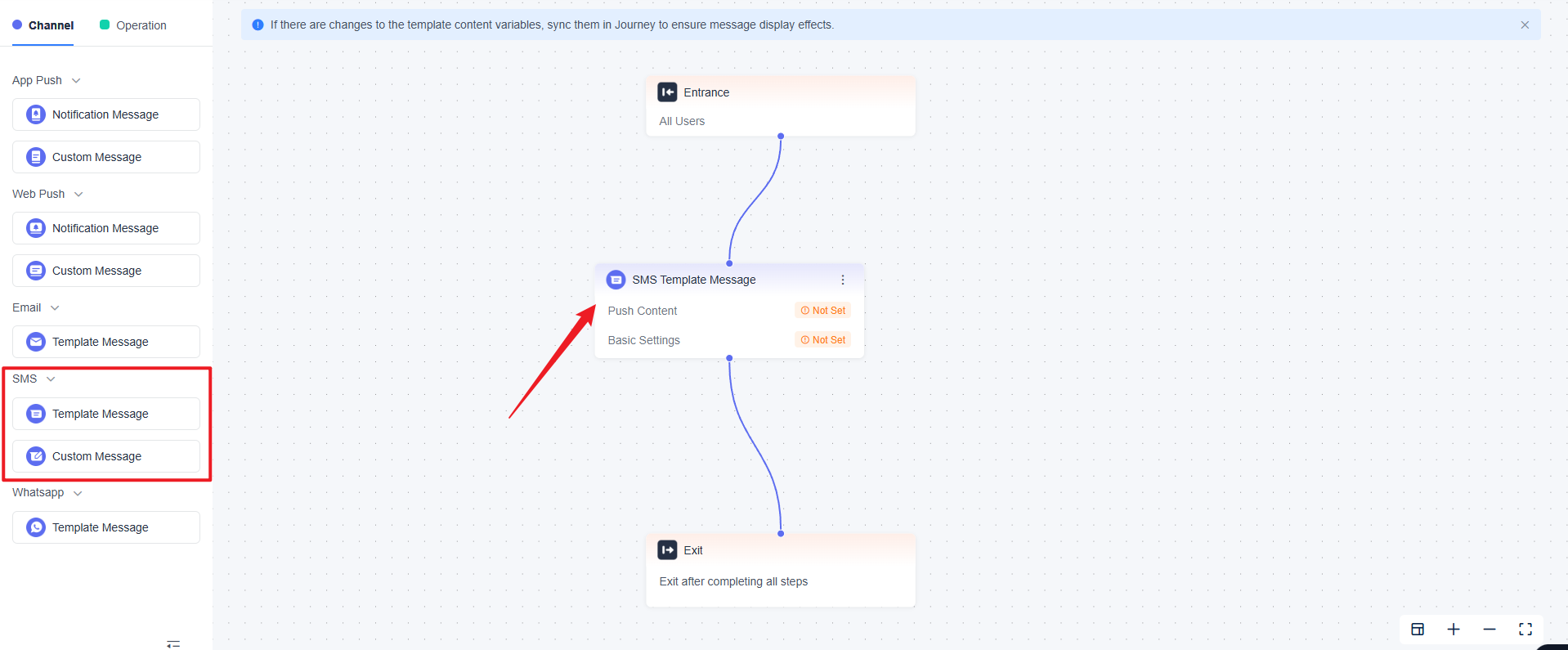
- Open Marketing Automation → Journey.
- Add a "Send Message" node in the journey canvas.
- Select SMS as the reach channel.
- Edit the SMS content:
- Select an SMS template.
- Support variables (e.g.,
{{user_name}},{{order_id}}). - Pay attention to SMS length and character count (excess content will be split into multiple messages and billed accordingly).
- Save and publish the journey.
III. Field Descriptions
| Field Name | Description |
|---|---|
| SMS_USER | Authorized identity for the EngageLab SMS Platform. The channel relies on this user for message sending. |
| SMS Signature / Sender ID | Brand identifier displayed before the SMS content. Must match the template. |
| Contact Field | The field corresponding to the mobile number stored in user data. |
| Service Provider | Currently only EngageLab is supported. |
IV. Additional Information
- SMS signatures and templates must be approved on the EngageLab SMS Platform.
- Each channel is bound to one signature. To use multiple signatures, create multiple channels.
- It is recommended to combine SMS with segmentation conditions in journeys, such as sending SMS reminders only to "users who have not installed the App".
- Overseas SMS channels may be subject to carrier Sender ID restrictions. Please ensure that corresponding regional permissions have been enabled before sending.

Still Have Questions?
Can't find what you're looking for? Our experts are here to provide personalized assistance. Ask your question now and get a timely response.

