


Elena Rodriguez
Updated: 2026-09-10
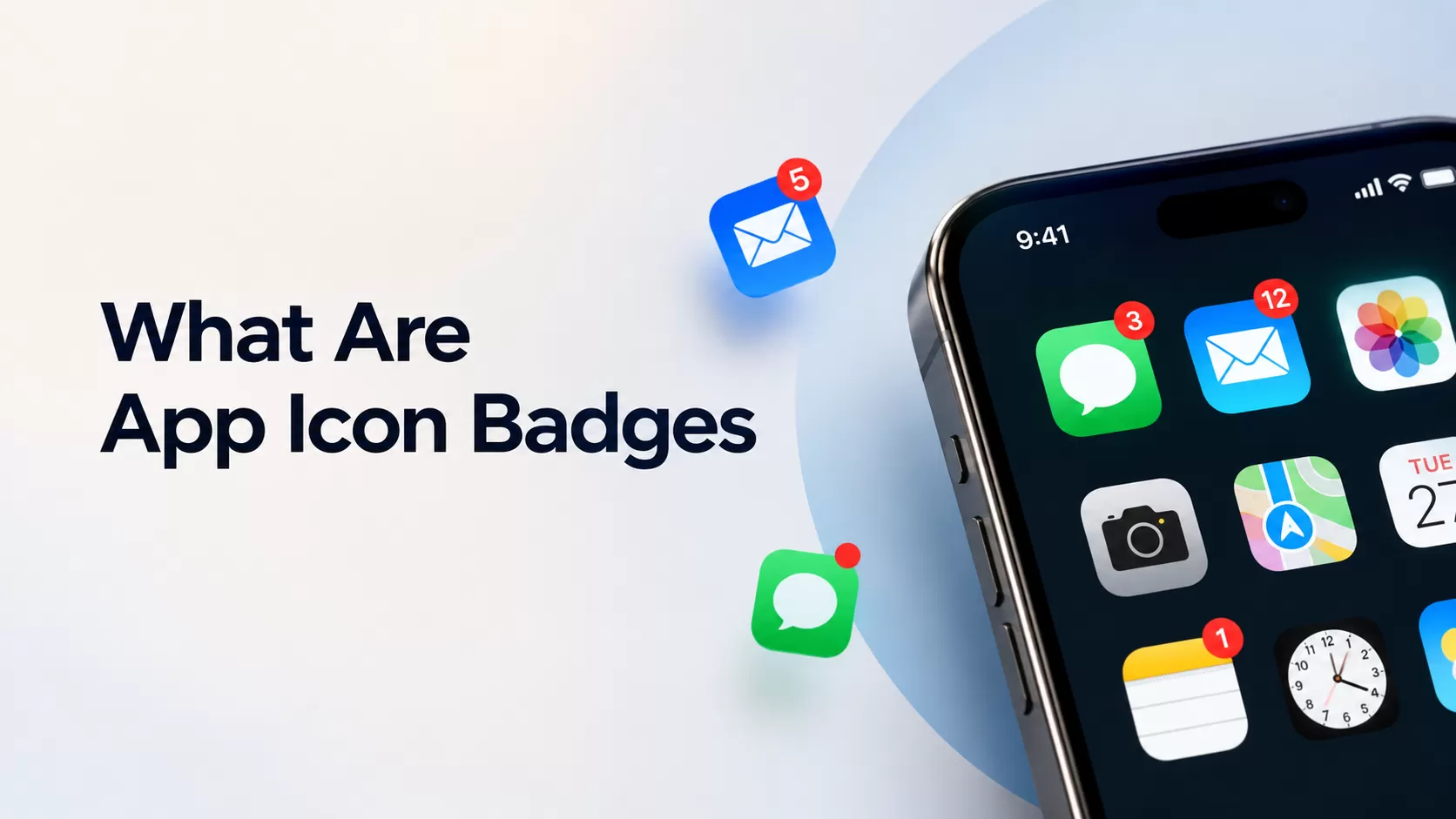
App icon badges are small indicators on an app icon that signal unread notifications, new content, or pending actions. On iPhone, a badge usually displays a number; on Android, it often appears as a notification dot, depending on the launcher and device manufacturer.
The meaning of an app icon badge depends on what the app counts. A messaging app might show unread conversations, while a work app might show approvals waiting for attention. A numeric badge should have a clear source of truth and a clear event that changes or removes it.
- Notification: the message itself, which may appear as a banner, lock screen alert, or notification-center entry.
- Badge: an indicator on the app icon, often summarizing unread or unresolved items.
- Notification dot: Android's standard badge style on supported launchers, indicating an active notification.
A badge does not explain what happened. The notification supplies that context, and the app should take users to the relevant message, order, or task when they return.
Part 1: App Icon Badges on iOS vs. Android
App icon badges behave differently on iOS and Android. They have different assumptions about what a badge is for, so treating them identically would lead to inconsistent results.
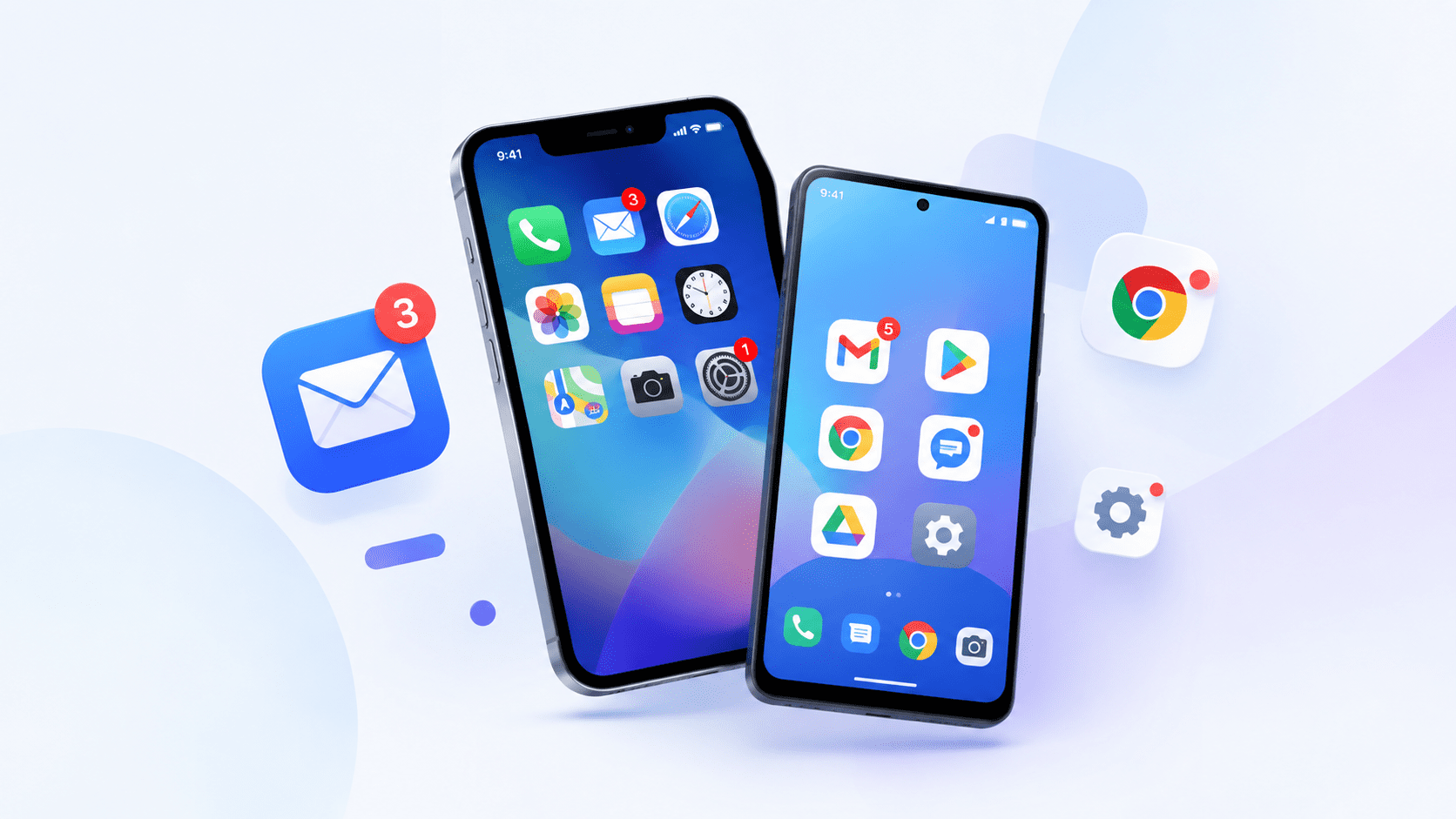
On iOS, the app controls a numeric value. In a native APNs payload, a positive integer sets the count, zero clears it, and omitting the badge field leaves it unchanged. Display also depends on the user's badge authorization. See Apple's badge reference .
On Android, the standard behavior since Android 8.0 is a dot on supported launchers when an app has an active notification. Developers can attach a number with setNumber() , but that does not guarantee a number on the home-screen icon. Launcher behavior, notification-channel settings, and manufacturer extensions still matter. Android's badge documentation explains these controls.
This fragmentation is why badge configuration becomes an infrastructure problem once an app operates across multiple Android ecosystems. The same unread state may need different channel parameters, and some devices cannot display the intended numeric count at all.
| Channel | Badge behavior | EngageLab handling and limits |
|---|---|---|
| iOS / APNs | Numeric | Set, increment, decrement, or clear through AppPush; native APNs receives a numeric value. |
| FCM | Standard Android notification dot | Follows supported launcher and notification-channel behavior; a numeric icon is not universal. |
| Huawei / Honor | Numeric on supported launchers | Vendor-specific add/set parameters, launcher activity, and badge permission. |
| Xiaomi | System-managed numeric count | MIUI's documented behavior adds on receipt and clears when the app opens; not an arbitrary unread counter. |
| OPPO | Vendor numeric badge | Vendor increment/overwrite parameters; badge capability requires approval from OPPO. |
| vivo | Vendor channel and SDK support | Vendor add-badge configuration plus SDK set/reset methods, subject to device support and permissions. |
These are channel capabilities, not a promise that every handset will show the same badge. Use EngageLab's current Badge guide to check your target manufacturers, OS versions, and required permissions before choosing a count strategy.
Part 2: How to Use App Icon Badges to Improve Push Notification Open Rates
A meaningful badge gives users a persistent reason to return when the original push is no longer in view, where the platform allows it to remain. When the count represents something concrete—an unread message, pending order, or required action—the app icon becomes another place to notice it.
The useful question is what the user can resolve after opening the app. Sending more notifications does not necessarily create more work worth counting.
| Use case | What the number means | When it changes |
|---|---|---|
| Messaging | 3 unread messages | Decrease as messages are read; clear when none remain. |
| E-commerce | 1 order needs attention | Clear when the user completes the required action, not after each shipping update. |
| Productivity | 4 pending approvals | Update when requests are approved, rejected, or withdrawn. |
These examples describe app-owned counts on platforms that support them. A system-managed Android badge may instead count notifications. Keep the in-app list accurate even where the home-screen indicator cannot match it exactly.
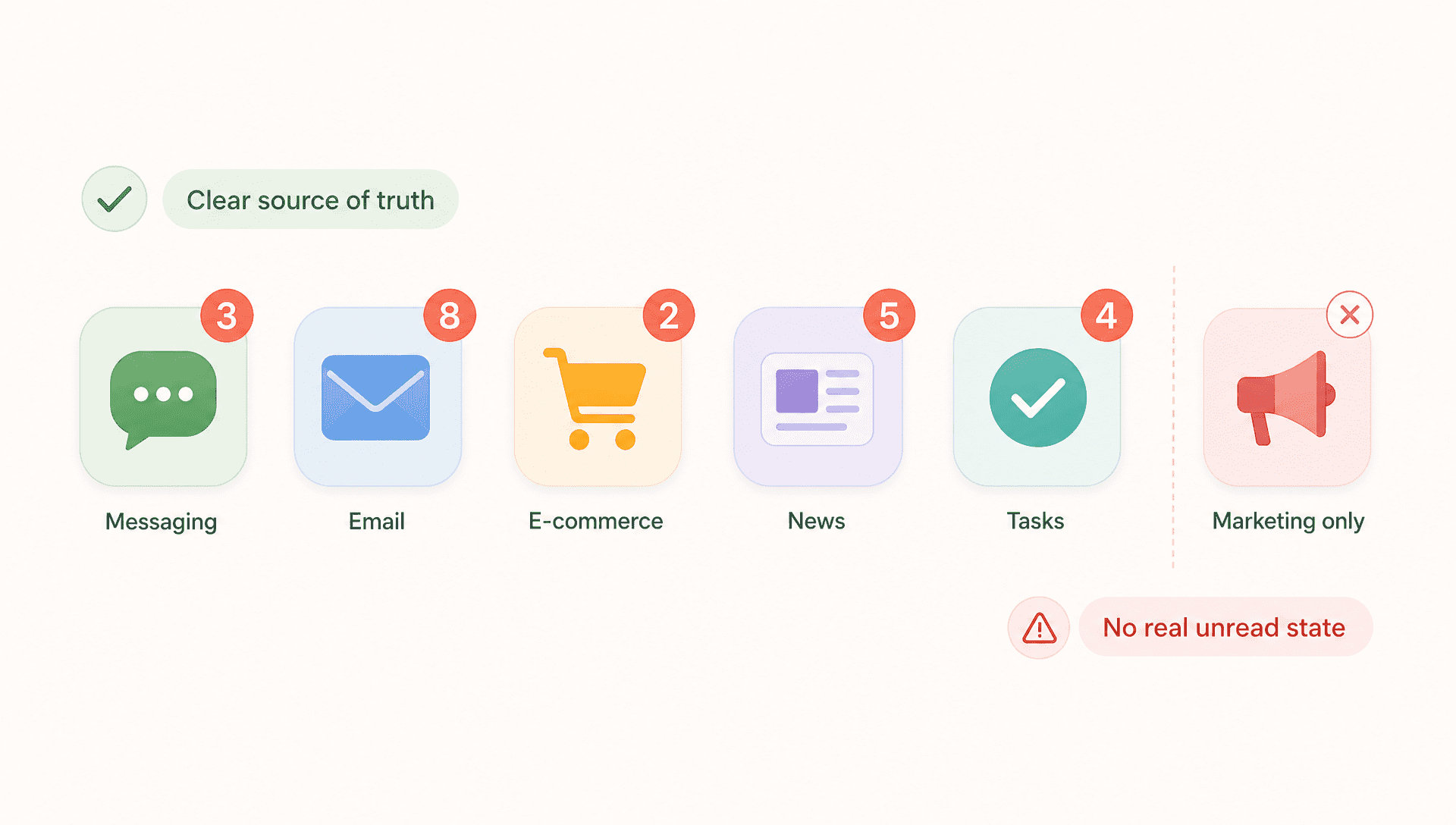
Choose one meaning and stay consistent. A badge that climbs constantly over low-value updates turns into visual noise fast. Users can disable badges, so essential information must also be easy to find inside the app. This makes badges one part of an app engagement strategy , with the notification and destination screen supporting the same action.
Higher push open rates are a goal to test, not an automatic result of adding a badge. Decide which return action matters before implementation; a notification click, an app launch from its icon, and a completed approval are different events. The challenge is keeping that state accurate across iOS and fragmented Android push channels. This is where the push infrastructure matters.
Part 3: How to Configure App Icon Badges and Drive App Engagement
Configuring badges around meaningful activity gives users a reason to return to your app and pick up where they left off. A mobile push service with cross-platform badge controls and reporting helps your team manage that experience across devices, with less work coordinating separate push channels. You can connect each reminder to a useful in-app action and test which approach brings users back to read, respond, or complete a task.
In EngageLab mobile push notification service , badge settings live inside the same workflow used to create the push. Open Push → Create Push → Notification Message , select the target platforms, and enter the notification content. Under the advanced iOS Configuration settings, find Badge Number .

For iOS, you can use the default badge setting or specify a custom value. Choose the value according to what your app counts, and confirm the resulting behavior on a test device. For Android, check the relevant manufacturer configuration; an iOS badge value does not replace Huawei, OPPO, or vivo settings.
The Create Push documentation covers the Console workflow. Before sending, confirm that the AppPush SDK is integrated, platform credentials are configured, and the device can receive the selected channel's notifications. A successful API request alone does not prove that its launcher can display a badge.
Manage badge behavior across iOS and major Android push channels from one AppPush workflow.
Test badge strategy instead of assuming it works
Start with a controlled comparison: A uses the push without a badge change; B uses the same push with a badge reflecting unread state. Keep the message, audience eligibility, timing, and destination comparable. Randomly assign non-overlapping groups and record their starting badge state so an existing count does not distort the comparison.

AppPush provides an A/B Test workflow, but confirm that your chosen badge field can vary independently between groups. If it is shared by both groups, use separate cohort-targeted sends with the appropriate API or SDK controls. Copying a message into two variants by itself does not isolate the badge's effect.
Compare delivered counts, clicks, delivery rate, and click rate in EngageLab Push History , including the A/B and iOS/Android breakdowns where available. Review each platform separately: a numeric badge and a notification dot are different treatments.
Notification clicks do not capture every return through the app icon. Use app analytics to measure return sessions and the target action over the same observation window. EngageLab's guide to tracking push notifications helps distinguish the metrics; do not label a click-rate change as a proven badge-driven open-rate increase.
Part 4: How to Keep Badge Counts Accurate Across Devices
A wrong badge count usually means the displayed value has fallen out of sync with the app's actual unread or pending state. Common causes include duplicated events, missed notifications, multiple devices, offline periods, or clearing the badge at the wrong point in the user journey.
Prefer absolute values when the backend knows the count
An absolute value sets the current total. An increment adds to a stored count. Absolute values are usually easier to reconcile: if the backend has 12 unread items and the user reads five, the next count is 7, regardless of how many notifications reached that device.
Incrementing by one works only when each event should add one and duplicate processing is controlled. A retry can add twice; a missed update can leave the count behind. Sending the current absolute value can repair that drift, although an older update arriving later can still overwrite it. Reconcile again when the app resumes.
| Channel control | Implementation choice |
|---|---|
| iOS through AppPush | The badge field supports an absolute value, +N, or -N; zero clears. Relative values are AppPush syntax, not native APNs badge values. |
| Huawei / Honor | Use badge_set_num for an absolute count or badge_add_num for an increment, with the required badge_class and permissions. |
| OPPO | badge_operation_type selects increment or overwrite; badge_message_count supplies the overwrite value. Confirm approved badge access. |
| vivo | Vendor add_badge and SDK badge methods serve different delivery/update paths; validate the intended combination on supported devices. |
Use the Create Push API reference for each field's nesting and accepted values. Do not copy one manufacturer's parameters into another channel or assume all channels support arbitrary numeric totals.
Keep one source of truth and an explicit clearing rule
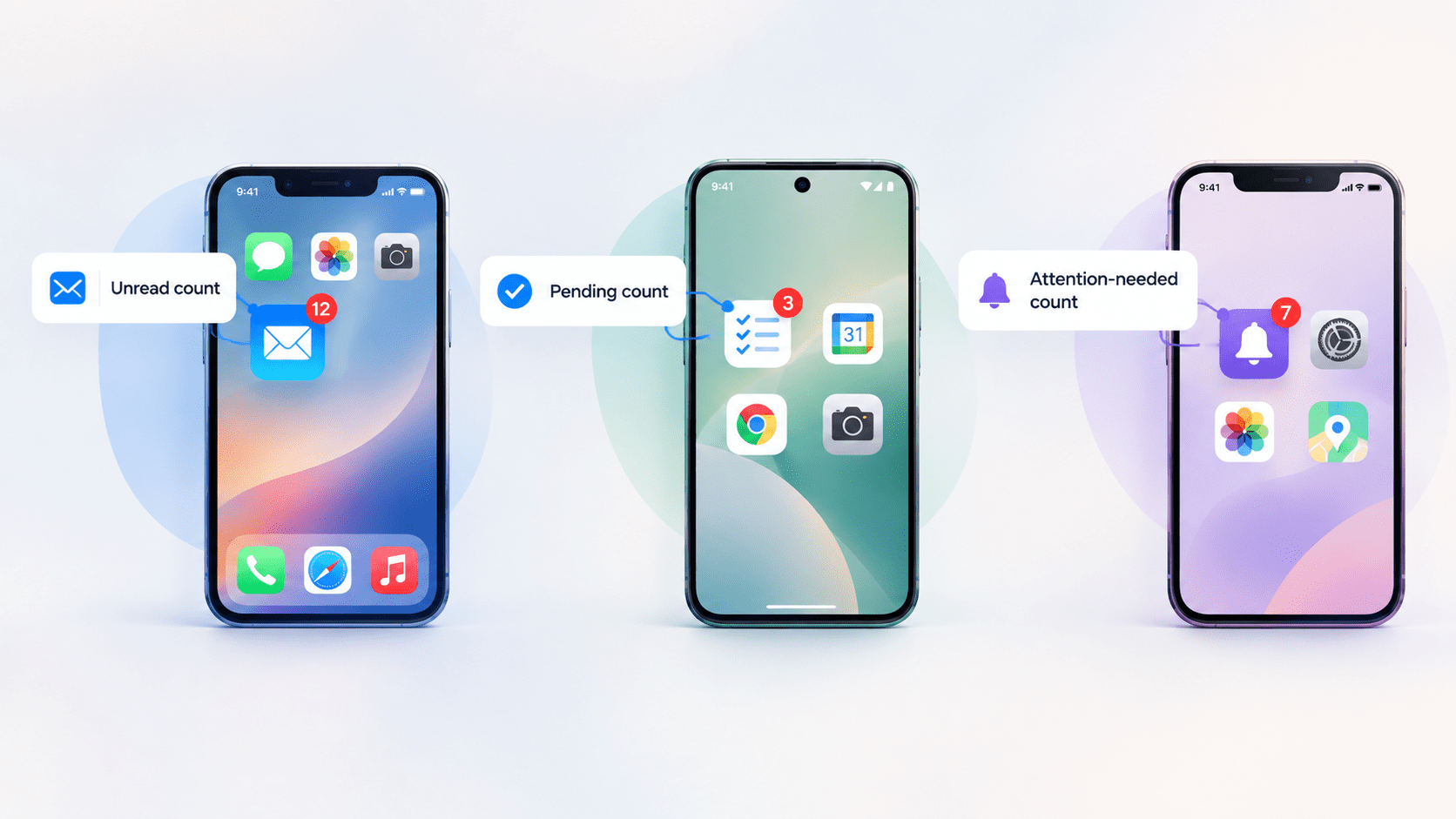
For app-owned counts, keep the backend as the source of truth. When a user handles an item on one device, update that state first, then refresh other devices as they reconnect or resume. A push can carry the new value, but delivery should not be the only opportunity to reconcile it.
Clear a badge when the state it represents has been resolved. If it counts unread messages, simply opening the home screen may not be enough. If it counts items awaiting review and the app marks them reviewed on entry, clearing at that point can be appropriate. Document the rule alongside the event that updates the count.
On iOS, EngageLab's setBadge and resetBadge methods update its server-side badge record; they do not by themselves change the local app icon. Update the local badge through the iOS system API as well. The iOS SDK reference describes that distinction. The application remains responsible for account-level unread state across devices.
For system-managed Android badges, follow the platform's notification lifecycle. Xiaomi may clear on app opening, while a standard notification dot follows active notifications. Your in-app count must remain correct even when those launcher rules differ from the product's preferred clearing rule.
Validate the failure cases before launch
| Test case | What to verify |
|---|---|
| Set, update, and clear | A supported numeric badge matches the known total and clears at zero; notification dots follow their lifecycle. |
| Duplicate or out-of-order delivery | Retries do not leave a lasting overcount; a later state refresh corrects stale values. |
| Read elsewhere, then reconnect | Resolve items on device A while B is offline; B reconciles when it reconnects or resumes. |
| Permission and manufacturer differences | Test the target iOS/Android devices with badges enabled and disabled; important content remains accessible in the app. |
If the badge is missing or wrong: Check user permission and launcher support first, then notification-channel and vendor configuration, then the payload and server/local count. Separate a display restriction from an unread-state error before changing the push logic.
A useful badge makes a small, trustworthy promise about what is waiting inside the app. Define that promise, configure the supported channels, and test both count accuracy and user response before expanding the rollout.

Set up your target channels in EngageLab AppPush, verify the count on real devices, and compare notification performance.


![Fintech Push Notifications: Best Practices, Workflows & Use Cases [2026]](https://img.engagelab.net/en/article/fintech-push-notifications-best-practices-use-cases.webp)

