Jacob Morrow
Updated: 2026-10-19
There is no universal best time to send push notifications . The right timing depends on the job the notification needs to do . This determines whether you send it instantly, on a local-time schedule, after a segment test, or at each user’s best moment.
The useful question is what push notification timing gives a specific message the “best” chance of producing its intended action, such as a finished checkout, a booked class, or a returning user. A push that collects plenty of taps and no purchases has not done its job. This guide helps you pick a timing method for each message and check whether it worked.
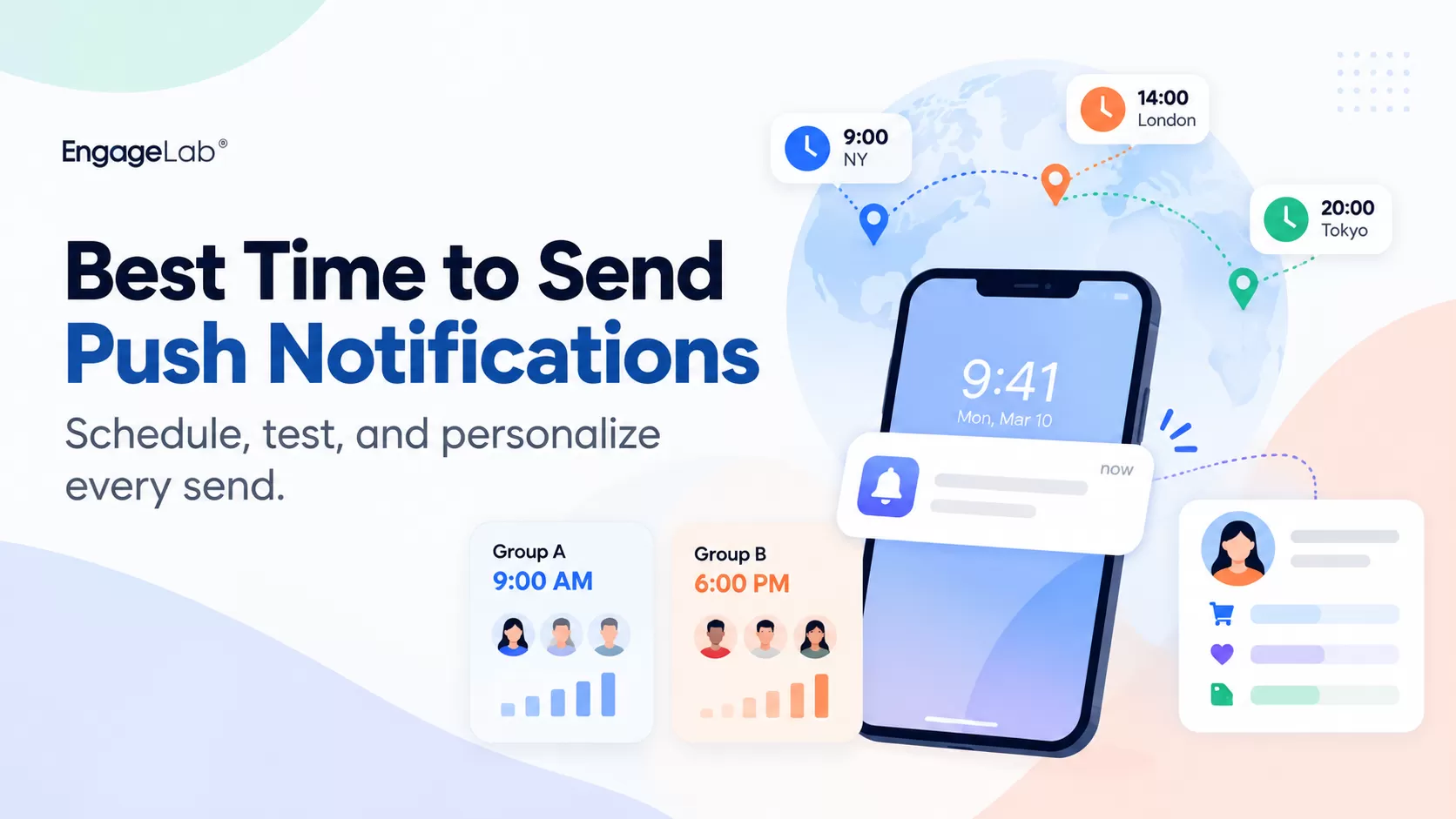
Part 1: Choose the Right Push Timing Strategy for Each Message
Different messages have different jobs, so each one needs its own personalized push notification timing method. The table below covers the four main options.
| Timing Strategy | Best Fit | What You Need | Useful Fallback | Avoid It When |
|---|---|---|---|---|
| Immediate trigger | Security, OTP, order, delivery, or account events | A real event that should prompt the message | Usually none | The message can comfortably wait |
| Local-time schedule | Digests, announcements, promotions, recurring campaigns | User or device time-zone data | A tested standard schedule | The message is urgent |
| Segment timing test | Campaigns where different groups may respond at different times | Comparable groups and a clear conversion event | Previous winning window | Audience volume is too small |
| Individualized timing | Re-engagement, recommendations, recurring content | Reliable user activity history | A predefined local time | Transactional information needs immediate delivery |
Urgent notifications usually belong in the first category. Security alerts, OTPs, payment events, delivery changes, and similar service messages become less useful when delivery is delayed for the sake of engagement optimization.
For planned campaigns , local time is often a better starting point. A notification scheduled for 10:00 AM from one office can reach users elsewhere at inconvenient hours, so aligning delivery with each recipient’s time zone gives the campaign a more consistent experience.
Segment testing becomes useful when you have enough volume to compare different windows. You may find that one audience group responds better earlier in the day while another performs better later. This gives you evidence for separate push notification scheduling approaches.
Individualized timing is the next step in push notifications by time zone when you have useful activity history for each user. It works well for messages with some flexibility, such as re-engagement campaigns, recommendations, recurring content, and promotional reminders.

Tools like EngageLab AppPush support all these methods in one unified push notification management platform. The next two sections show how scheduled and individualized sends work in practice.
Part 2: How to Schedule Push Notifications by Local Time Without Over-Messaging
Sending “at 10 AM” sounds simple, but it will cause issues when your audience spans several time zones.
Push notifications by local time scheduling helps a campaign arrive at the intended hour for the recipient instead of following the sender’s time zone. It is useful for global campaigns, recurring announcements, digests, and promotional messages that do not need immediate delivery.
EngageLab AppPush lets you create the message, choose the target audience, and set the campaign to send according to each end user’s device time zone. This lets a 10:00 AM campaign reach users at 10:00 AM in their own time zone. The scheduled task workflow in EngageLab AppPush looks like this:
- Go to Push > Create Push > Notification Message and prepare the campaign.
- Choose the audience, such as all eligible users, a defined segment, or selected registration IDs.
- Select Send at a scheduled time and choose “End-user time” in the Time Zone Selection option. Also, set the send time.
- Review the campaign details and timing before confirming the task.

You should be careful about one thing with push notifications by local time. If the scheduled time has already passed in a given time zone, the message for that zone is discarded. So, it is recommended to start at least 24 hours in advance . Set the task up the day before. If you create it the same afternoon, users in time zones ahead of yours may miss it entirely.
Two settings keep a schedule from turning into spam. Under EngageLab’s Advanced Settings , Frequency Control Management lets you set push notification frequency capping. This limits how many pushes a single device receives, and sets a permissible time period for delivery. Messages over the limit or outside the window are discarded. The cap protects people from a flood of promotions, and the window keeps notifications from buzzing a phone at 3 AM.

Secondly, keep scheduled sends away from anything urgent. Order updates and security messages should go out the moment the event happens, whatever the quiet-hours window says.
Part 3: How to Personalize Send Time for Each User
Local-time scheduling gives everyone the same clock time. This looks appropriate by geography, but users in the same time zone can still have very different habits. One person may open an app during a morning commute, while another uses it late in the evening. So, individualized send-time optimization becomes useful here.
Smart Push notifications are EngageLab’s option for individualized timing. It tracks each user’s most recent active time through the SDK and sends at an appropriate moment based on the device time zone and past usage patterns. The data collected by the SDK includes last session time, session count, time zone, and more.
The method fits messages that have room to wait for a better engagement window. Promotions, content recommendations, dormant-user reminders, and recurring campaigns are stronger candidates than urgent service updates.
Since not every user will have enough history for individual push notification timing, EngageLab allows a fallback for those cases. This lets you set immediate delivery or a specified time in the user’s local time zone. That way, every recipient has a delivery time.
When you create the push, pick Smart Push in the Sending time settings and fill in the fallback for users without history. Decide on that fallback before launch. A large share of a new campaign’s audience may fall into it.

Keep transactional pushes on the immediate path. Smart Push chooses timing from past activity and does not promise a better result, so compare it against a fixed schedule before you rely on it. The next section covers how.
Part 4: Test Push Timing and Measure What Actually Converts
A timing guide only gives you a starting guess. A short push notification A/B test with your own users settles it, provided you decide up front which action counts as a win. Keep the audience and message fixed, and change only the send time.
Run a Simple A/B Timing Test
- Keep fixed: The audience type, copy, offer, and deep link.
- Change: The send time and nothing else.
- Define before launch: The in-app action that counts as success and its window, such as a purchase within 24 hours of the push.
Say you have shoppers who saved items but never bought. Split them into two comparable groups. Group A gets the reminder at 12:30 local time and group B at 19:30, both linking to the same saved-items screen.

In EngageLab, create the two scheduled pushes and attach both to one Push Plan . You create plans under Push > Push Plans , then select the plan in Advanced Settings when you build each push.
Follow the Chain From Push to Action
Think of the push notification conversion tracking as a short funnel:
Eligible target → Sent → Delivered → Clicked → Intended in-app action
Each stage shows where a campaign loses people, so check them in order.
| Stage | What to check |
|---|---|
| Eligible | Users matching the push conditions |
| Delivered | Messages that reached devices, plus delivery rate |
| Clicked | Users who opened the app from the notification |
| Acted | Purchase, booking, or sign-up |
The first three rows work as diagnostics to find the best time to send push notifications. If delivery is low, fix that before judging the timing. If clicks differ between the groups and purchases match, the send time changes attention only, and the offer or landing screen decides the rest.
EngageLab can help diagnose the first part of that journey with its push notification analytics. Under Statistics > Push Statistics , you get charts and details for valid targets, sent, delivered, displayed, and clicked notifications, with date filtering and data export.

Keep Clicks in Perspective
EngageLab Push Statistics counts notification clicks. It does not show what users did next. Purchases, activations, and retention come from your own analytics, tied to the deep link or a campaign parameter in each push.
The Push Match Comprehensive Analysis tab adds timing context: its Active Time Match Analysis compares when users are active with when you send.

A group with fewer clicks and more orders is the winner. Run the test for at least a full week so weekday and weekend habits both show up, then move the better time into your regular schedule.
Part 5: Push Notification Timing Examples for 4 Common Campaigns
The timing method changes with the job of the message. These four examples show how to move from the campaign goal to the right delivery path without relying on a generic “best hour.”
1 Order and Shipping Updates
- Message job: Tell the buyer that something changed with their order.
- Timing method: Immediate, triggered when your order system records the event. This message skips send-time optimization entirely.
- Fallback: EngageLab can retain an offline push until the device reconnects; the Push API default is one day.
- Deep link: The relevant order or tracking screen.
- Business event: A tracking-page view or completion of the next required order action.
- EngageLab path (Immediate Push): Send through the Push API with immediate delivery and classify the notification as a system message where appropriate. Check your permissible push-time settings so an important service message is not discarded.
2 Abandoned Cart Reminder
- Message job: Bring a shopper back to an unfinished checkout.
- Timing method: Test a short post-abandonment delay against another suitable window while keeping the message and audience conditions consistent.
- Fallback: Suppress the reminder in your campaign logic if the shopper completes the purchase before the send.
- Deep link: The saved cart.
- Business event: A recovered checkout or completed purchase within the measurement window you define.
- EngageLab path (Scheduled Push): When the reminder becomes eligible, send it to the relevant user or segment through AppPush and associate related reminders with a Push Plan for combined performance review.
3 Weekly Content Digest
- Message job: Give subscribers a reason to return to new content each week.
- Timing method: Use Smart Push when enough activity history exists, so delivery can reflect each user’s device time zone and previous usage pattern.
- Fallback: For users without enough activity history, send immediately or at a predefined time in their own time zone.
- Deep link: The digest or featured-content screen.
- Business event: Meaningful content consumption, such as reading a second article during the session.
- EngageLab path (Smart Push): Target the digest audience, use Smart Push for individualized timing, and group recurring sends under a Push Plan when you want to review them together.
4 Dormant-user Re-engagement
- Message job: Give an inactive user a useful reason to return.
- Timing method: Use Smart Push where historical activity is still sufficient to guide delivery.
- Fallback: Set a deliberate local-time fallback for users without usable activity history.
- Deep link: A relevant return point, such as saved items, unfinished content, or another useful in-app destination.
- Business event: A return session followed by the reactivation action you defined before launch.
- EngageLab path (Smart Push + Push Plan): Target the lapsed audience with a segment or appropriate targeting rule. Use Smart Push where sufficient history exists and group related re-engagement sends under a Push Plan. Use your app or analytics events to confirm whether those users actually reactivated.
There Is No Universal Best Time—Build the Right Timing System
The optimal time to send push notifications depends on what each message needs to achieve. Send urgent updates immediately, use local-time scheduling for predictable campaigns, test timing windows when different audience segments may behave differently, and use Smart Push when non-urgent messages can benefit from individualized delivery.
Then measure the business action behind the campaign. Delivery and click data can help diagnose performance, but the final decision should come from outcomes such as purchases, bookings, content engagement, or reactivation.

![Fintech Push Notifications: Best Practices, Workflows & Use Cases [2026]](https://img.engagelab.net/en/article/fintech-push-notifications-best-practices-use-cases.webp)
![Firebase Cloud Messaging Alternatives: 7 Platforms Compared for Multi-Channel Scale [2026]](https://img.engagelab.net/en/article/fcm-alternatives-cover.webp)