


Security Center
Security Center limits application usage and authentication initiation attempts to help reduce abnormal calls. In the Silent Auth console, select the application and open Security Center to configure Usage Protection and Authentication Initiation Limits.
All settings apply to the selected application. Check and configure the rules separately when switching applications.
To understand the complete authentication flow, from SDK initialization and obtaining an authentication Token to server-side verification, see Business Process.
How the two limits differ
| Page | Purpose | Supported limits |
|---|---|---|
| Usage Protection | Limits authentication requests entering the billing stage and blocks further requests before billing when a limit is reached | Application total, country/region, and individual phone number; daily and monthly limits |
| Authentication Initiation Limits | Limits the number of authentication initiation attempts per day to reduce abnormal calls | Device and country/region; daily limits |
Daily limits reset at 00:00 UTC each day, and monthly limits reset at 00:00 UTC on the first day of each month.
Usage Protection
On the Usage Protection page, you can enable the following three rules separately.
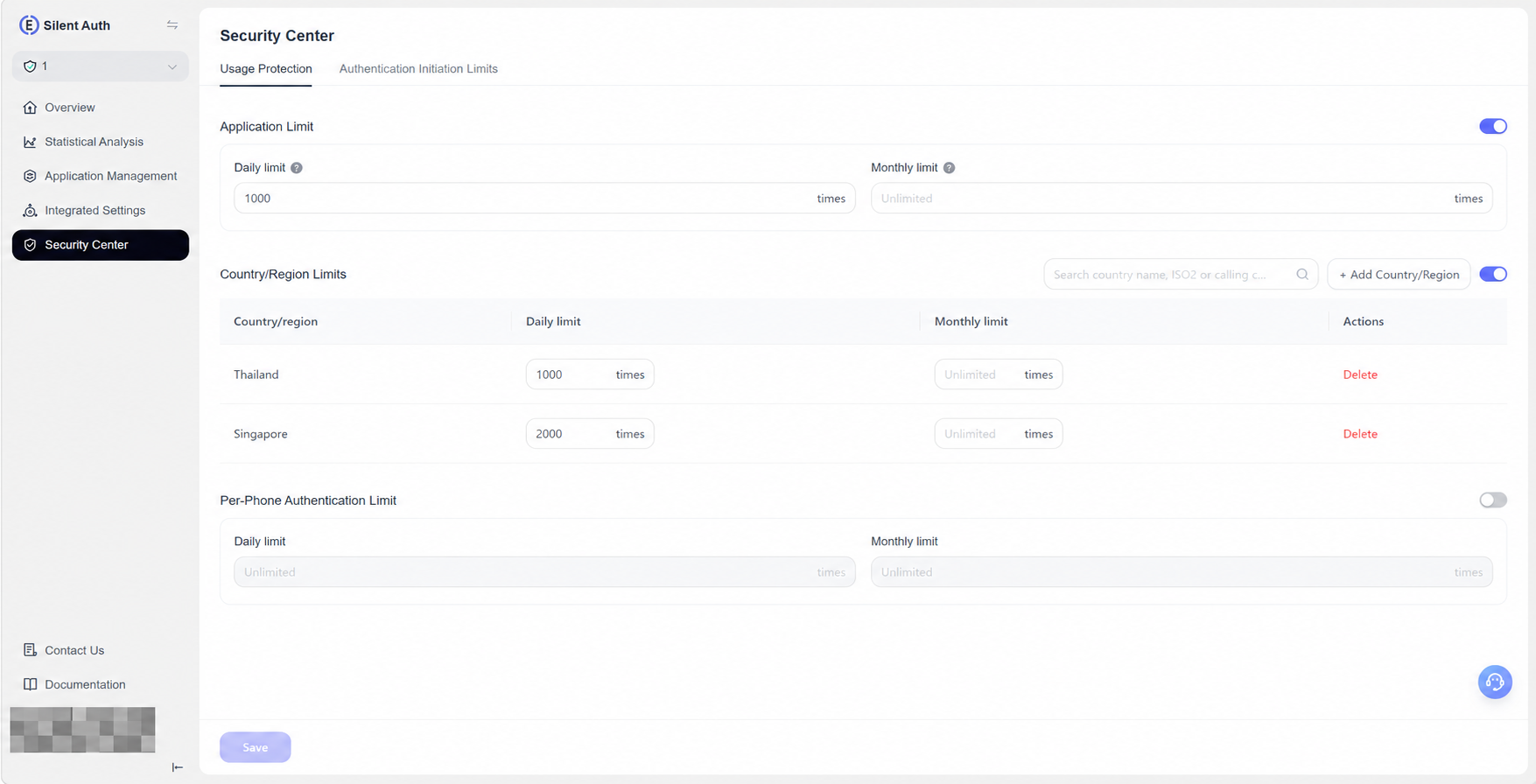
| Setting | Description | Available limits |
|---|---|---|
| Application Limit | Limits the total authentication requests entering the billing stage for the application | Daily limit, monthly limit |
| Country/Region Limits | Limits authentication requests entering the billing stage in each specified country/region | Daily and monthly limits for each country/region |
| Per-Phone Authentication Limit | Limits authentication requests entering the billing stage for the same phone number in the application | Daily limit, monthly limit |
How to configure
- On Usage Protection, enable the rules you need: Application Limit, Country/Region Limits, or Per-Phone Authentication Limit.
- Enter the Daily limit and Monthly limit as numbers of requests. For country/region limits, click Add Country/Region first, then enter limits for each country/region.
- When finished, click Save at the bottom of the page to submit your changes.
Search records by country/region name, ISO code, or calling code, or delete records you no longer need. No country/region limit is applied if none is added. Turning a rule off retains its saved settings; turn it on and save again to reuse them.
Note: After changing switches or limits, or adding or removing countries/regions, you must click Save at the bottom of this page. Unsaved changes do not take effect.
Authentication Initiation Limits
On Authentication Initiation Limits, you can configure device and country/region limits.
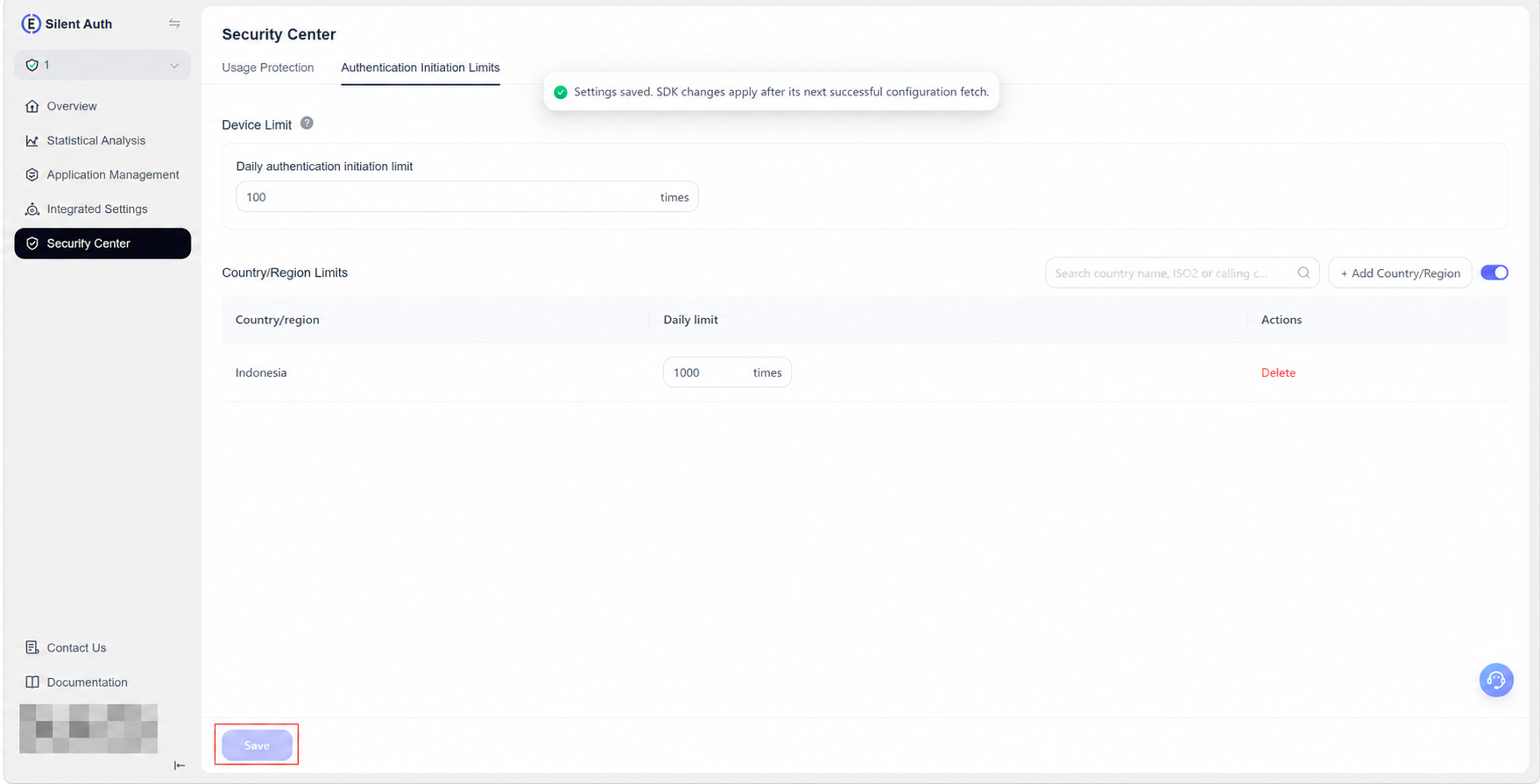
| Setting | Description | Available limits |
|---|---|---|
| Device Limit | Limits daily authentication initiation attempts from the same device for the application; the default is 100 attempts per day if not set | Daily authentication initiation limit |
| Country/Region Limits | Limits daily authentication initiation attempts in each specified country/region | Daily limit for each country/region |
How to configure
- On Authentication Initiation Limits, enter the device’s Daily authentication initiation limit as a number of attempts. No switch is required. If not set, the same device can initiate authentication up to 100 times per day.
- To limit initiation attempts by country/region, enable Country/Region Limits, click Add Country/Region, and enter a Daily limit for each country/region.
- When finished, click Save at the bottom of the page to submit your changes.
Search records by country/region name, ISO code, or calling code, or delete records you no longer need. No country/region limit is applied if none is added. Turning country/region limits off retains saved settings; turn them on and save again to reuse them.
Note: After changing switches or limits, or adding or removing countries/regions, you must click Save at the bottom of this page. Unsaved changes do not take effect. After saving, SDK-related changes take effect the next time the SDK successfully fetches its configuration.
