Quick Start
Follow the steps below to create a Silent Auth application and complete the required service setup.
Step 1: Log in or sign up
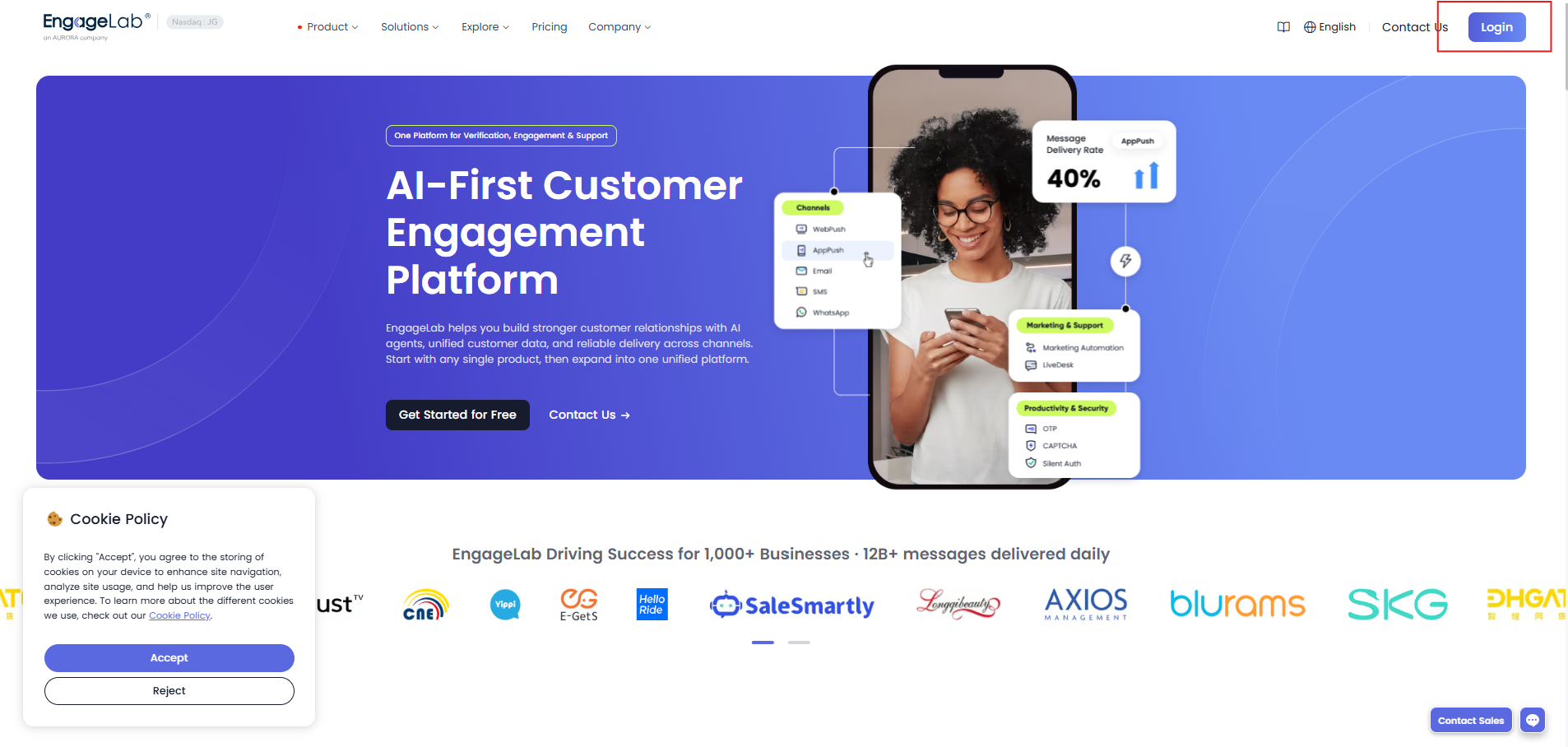
Visit the EngageLab homepage and click Log in in the upper-right corner.
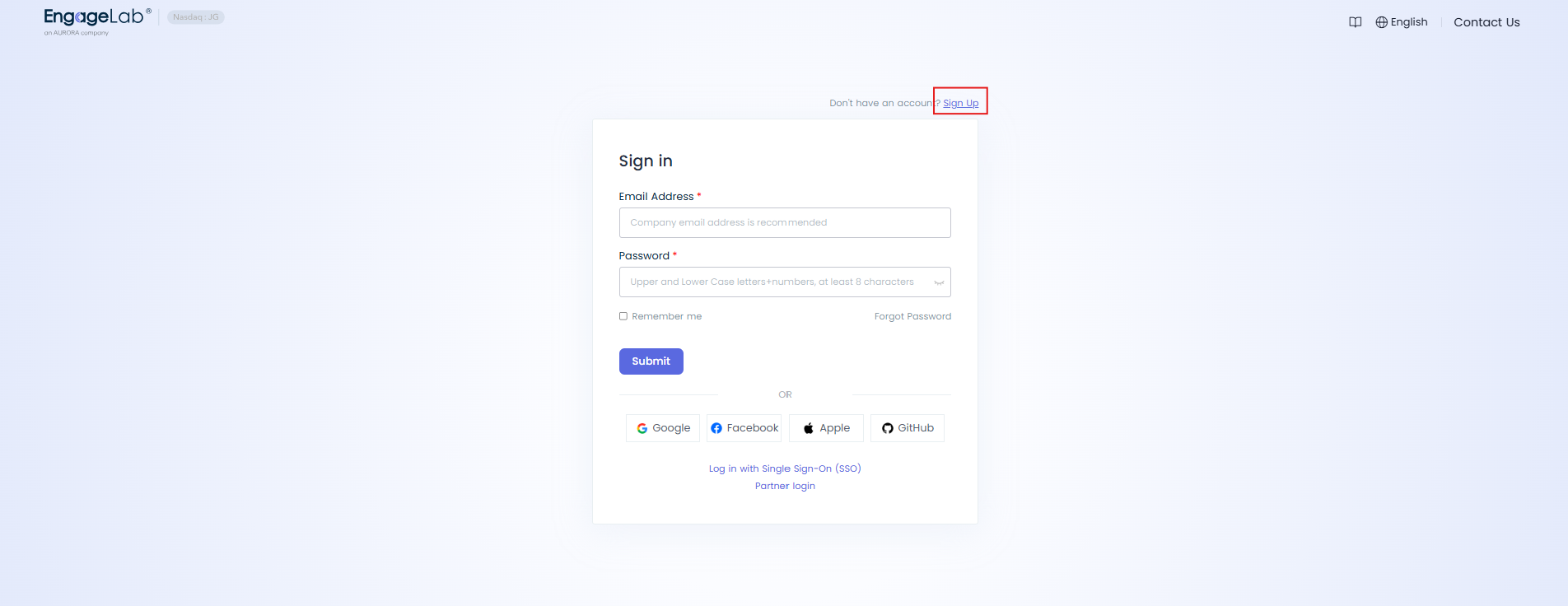
Sign in with your EngageLab account. If you do not have an account, click Sign Up on the sign-in page. For registration and sign-in details, see the Sign-up and login guide.
Step 2: Create a Silent Auth application
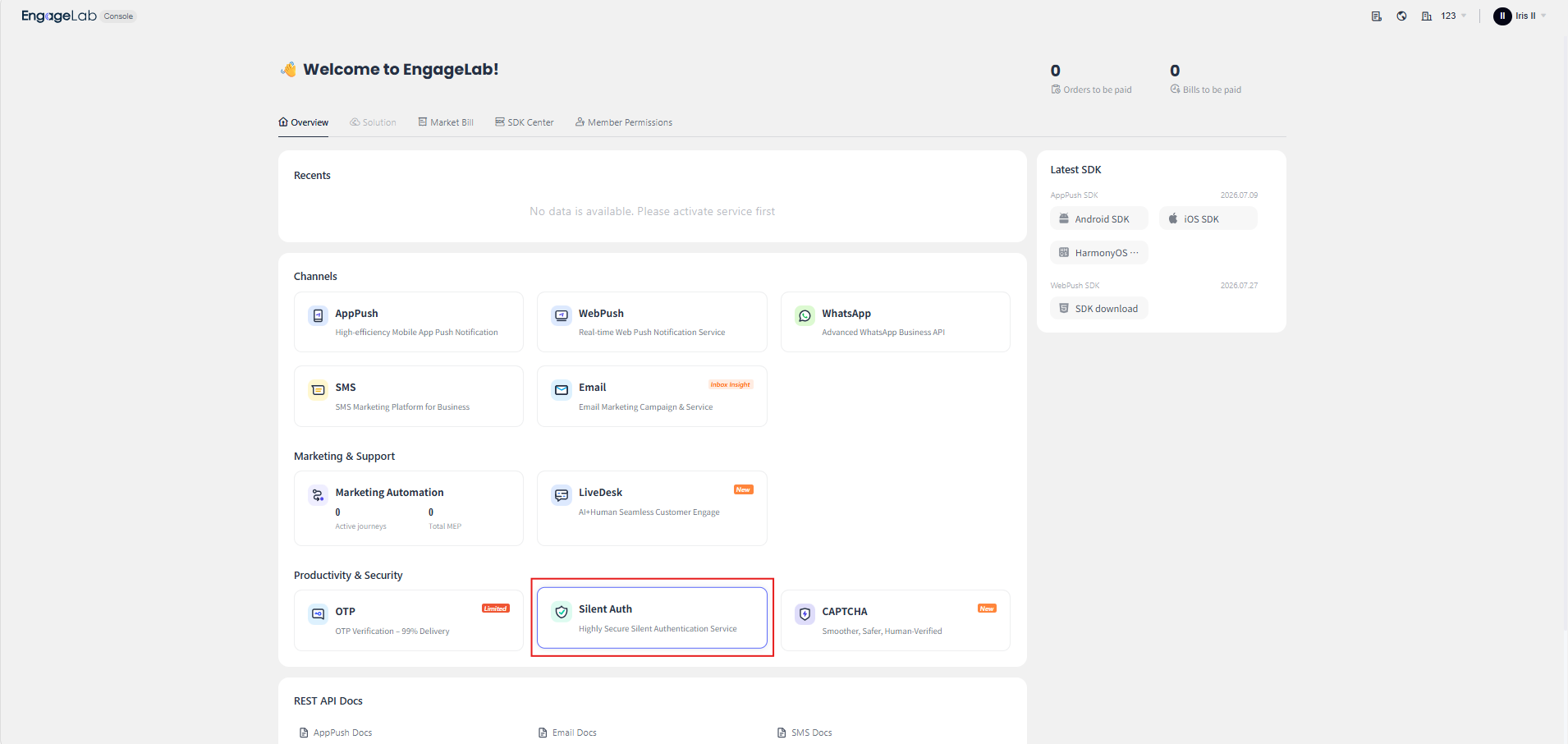
After entering the EngageLab console, find Silent Auth under Productivity & Security and select it.
On the Silent Auth welcome page, enter a unique application name and click Confirm to create the application. Using your business or project name is recommended.
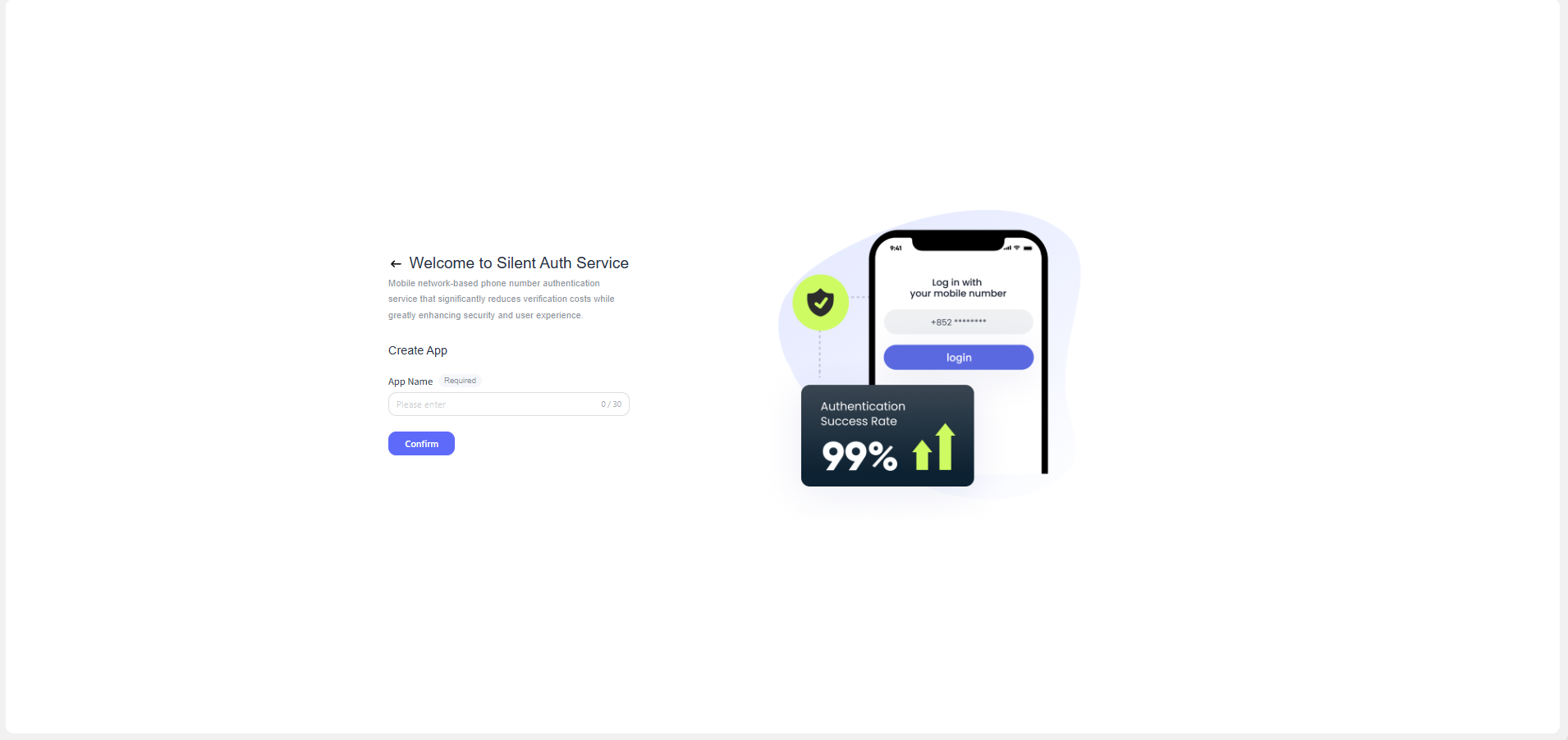
You can change the application name later from Application Management.
Step 3: Complete the service setup
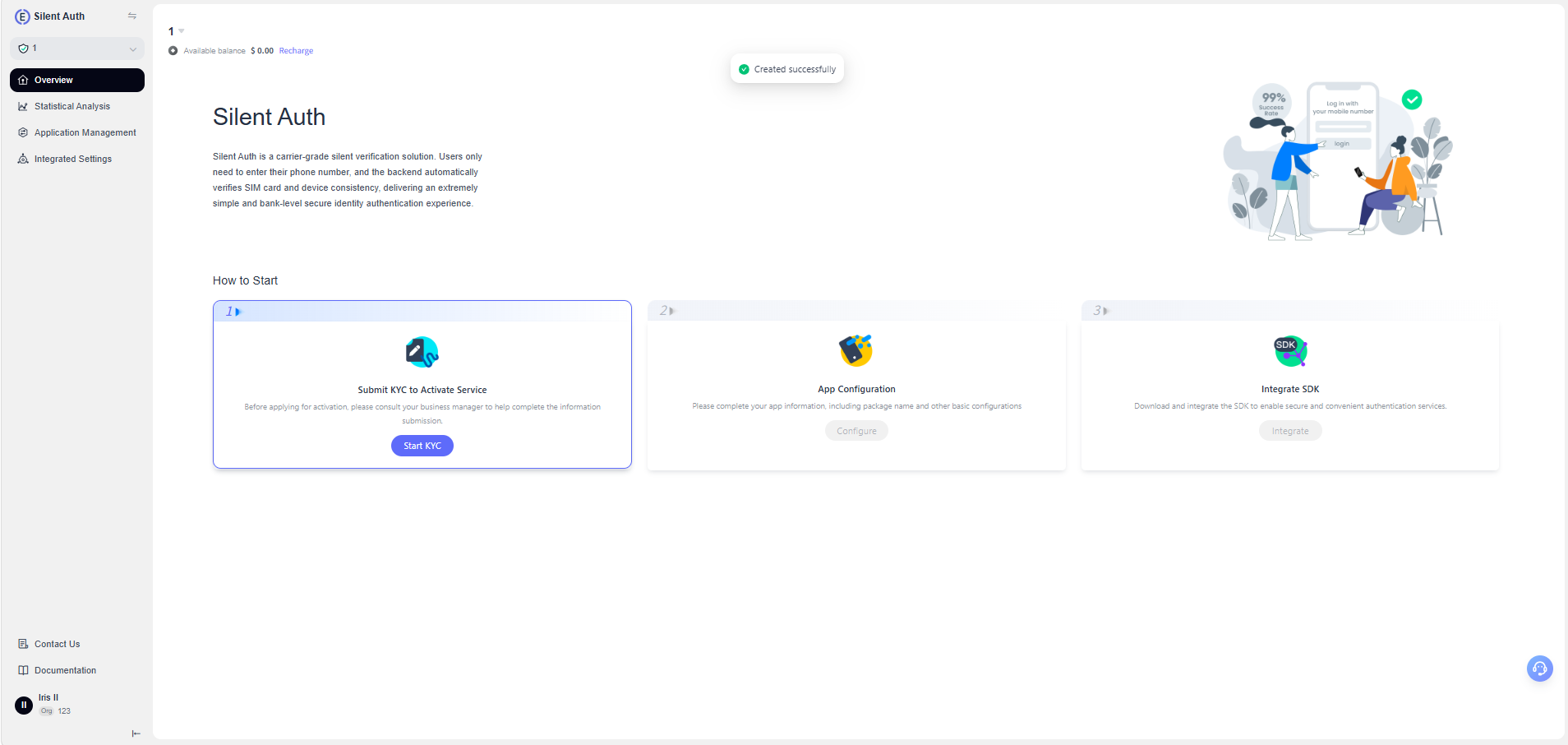
After the application is created, the Overview page opens and displays the following setup steps:
- Submit KYC to Activate Service: Submit the required business information for review. For detailed instructions, see KYC Application.
- App Configuration: Complete the application information, including the package name and other basic settings.
- Integrate SDK: Download and integrate the SDK to enable Silent Auth in your application.
Complete the steps in order. The next step becomes available after the preceding requirements are completed.