


Integration Settings
Use this page to configure application package names and signatures and download the SDK for each platform. The system now records package-name and signature information without strict validation. Submitted information cannot be changed, so verify it carefully before saving.
Integration Settings becomes available only after new-user onboarding is complete. You cannot access this page before the review is approved.
Procedure
- Open the console and select Integration Settings.
- Select Android or iOS.
- Enter the production application package name (Application ID or Bundle ID) and the Android application signature (SHA256 or SHA1).
- Click Save. The system validates the format and asks for confirmation.
- After saving, all information is locked and cannot be modified.
- The Download SDK button is disabled until the information is saved; it then becomes available for the selected platform.
Android settings
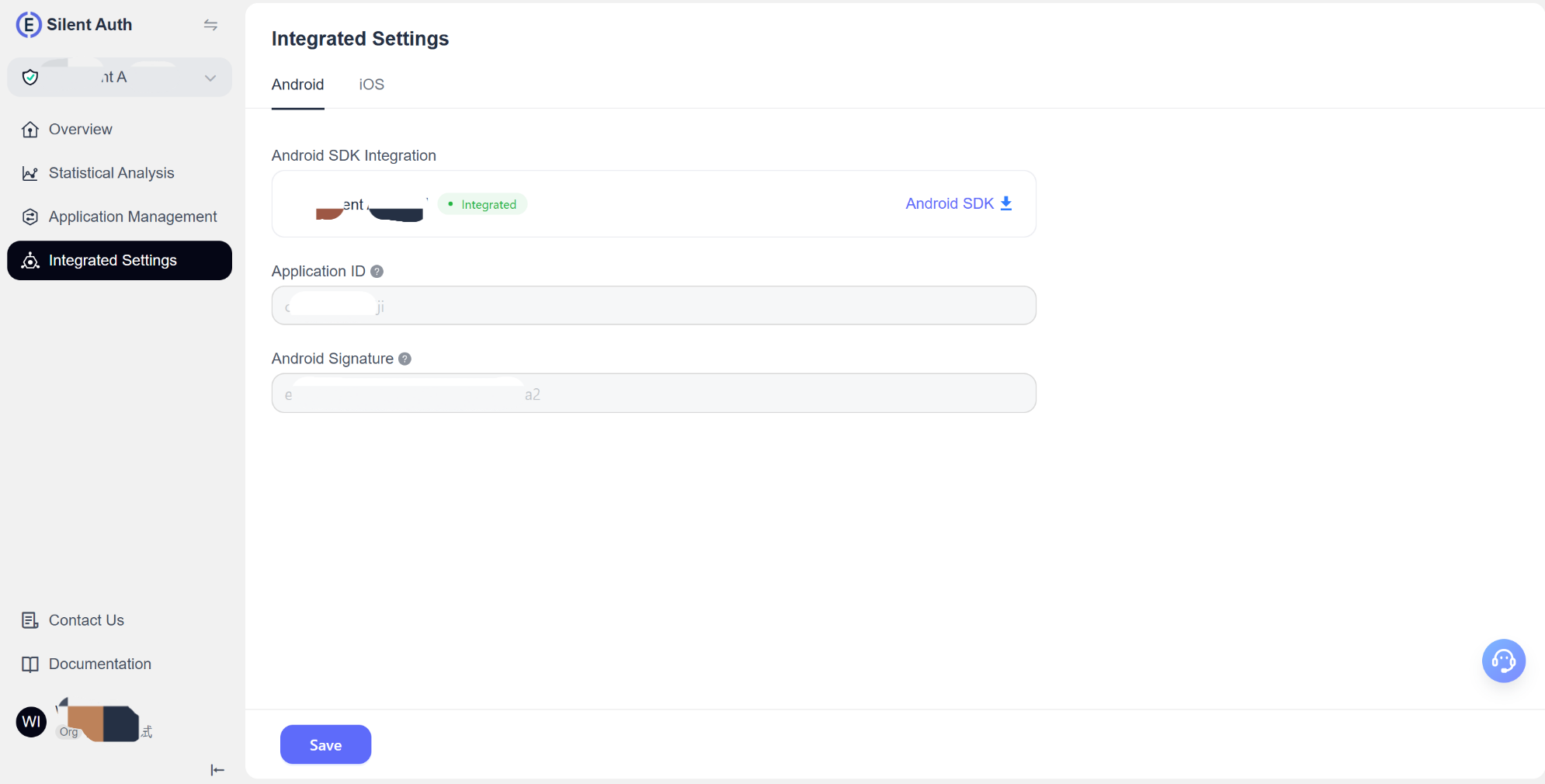
Application package name
The package name (Application ID) uniquely identifies your Android application and should match the actual application.
Recommended format: 5–80 characters; lowercase letters, numbers, and periods only; starts with a letter; does not end with a period; contains no special characters or test terms; reverse-domain format is recommended.
Application signature
Enter the Android application signature. The release signature is recommended, with SHA256 preferred and SHA1 supported for compatibility.
Recommended format: Release signature, preferably SHA256: 64 characters for SHA256 or 40 for SHA1, using lowercase letters and numbers separated by colons.
iOS settings
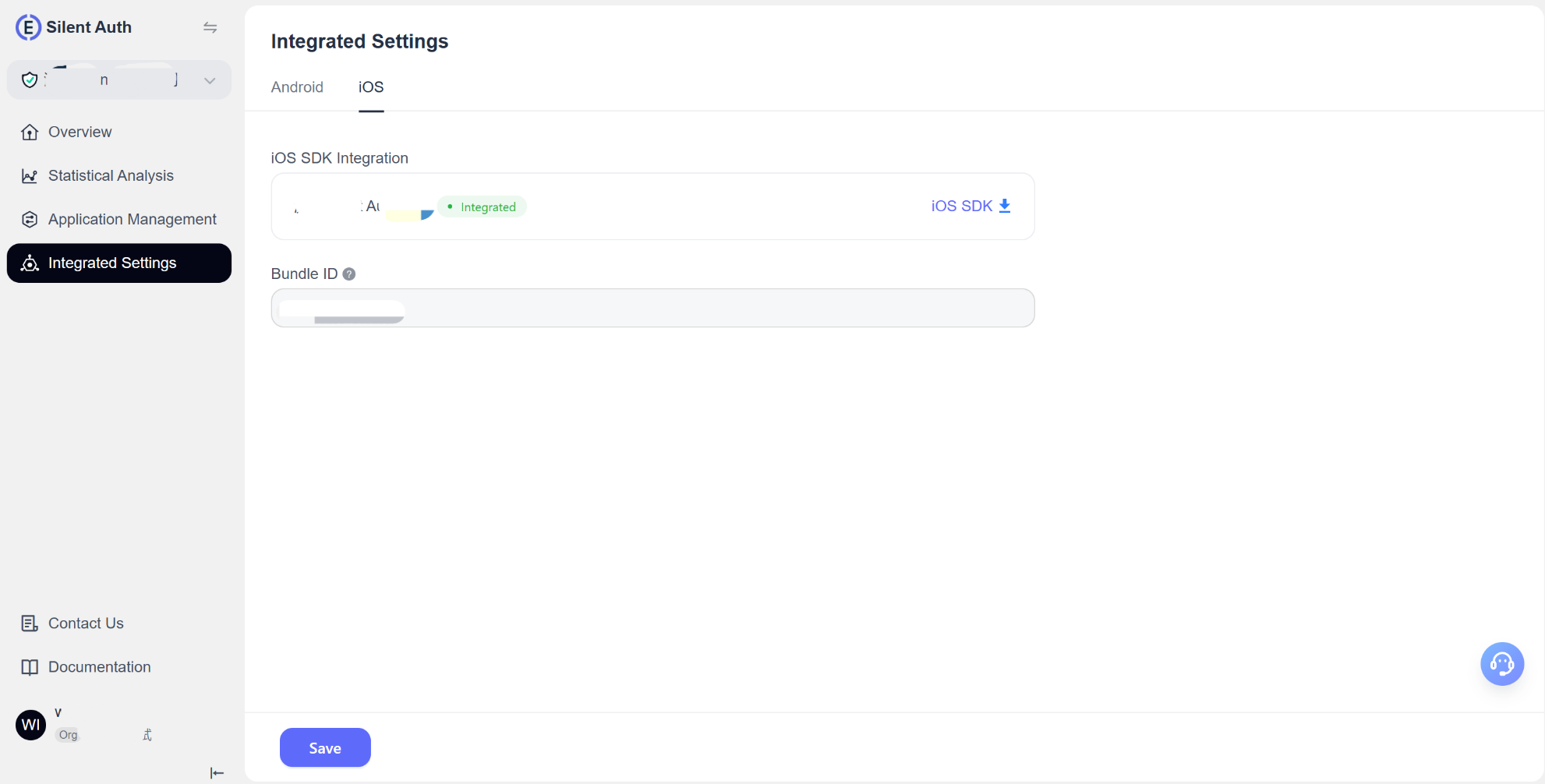
Application package name
The Bundle ID uniquely identifies an iOS application in the Apple ecosystem and should exactly match the value registered in App Store Connect. Enter an Explicit App ID without wildcards.
Recommended format: 5–80 characters; lowercase letters, numbers, and periods only; starts with a letter; does not end with a period; contains no special characters or test terms; reverse-domain format is recommended.
Frequently asked questions
Q: Can I change the package name or signature after entering it? A: No. All information is locked after it is saved, so verify it before saving.
Q: Why does SDK initialization report that the application is unauthorized? A: Check whether the AppKey is correct, or contact technical support for troubleshooting.
Q: How do I obtain the Android application signature?
A: Use the Android Studio signingReport task to obtain SHA256 or SHA1 for the release variant.
Q: Does iOS require a signature? A: No. You only need to enter the Bundle ID accurately.
For further assistance, contact EngageLab technical support.
