


Vendor Parameter Application Guide
This document is intended to help users obtain push parameters for vendor channels and complete the vendor parameter configuration on the EngageLab console.
Obtaining HarmonyOS Parameters
Register a Huawei Developer Account
Visit Huawei Developer and register a Huawei developer account. For details, refer to Account Registration.
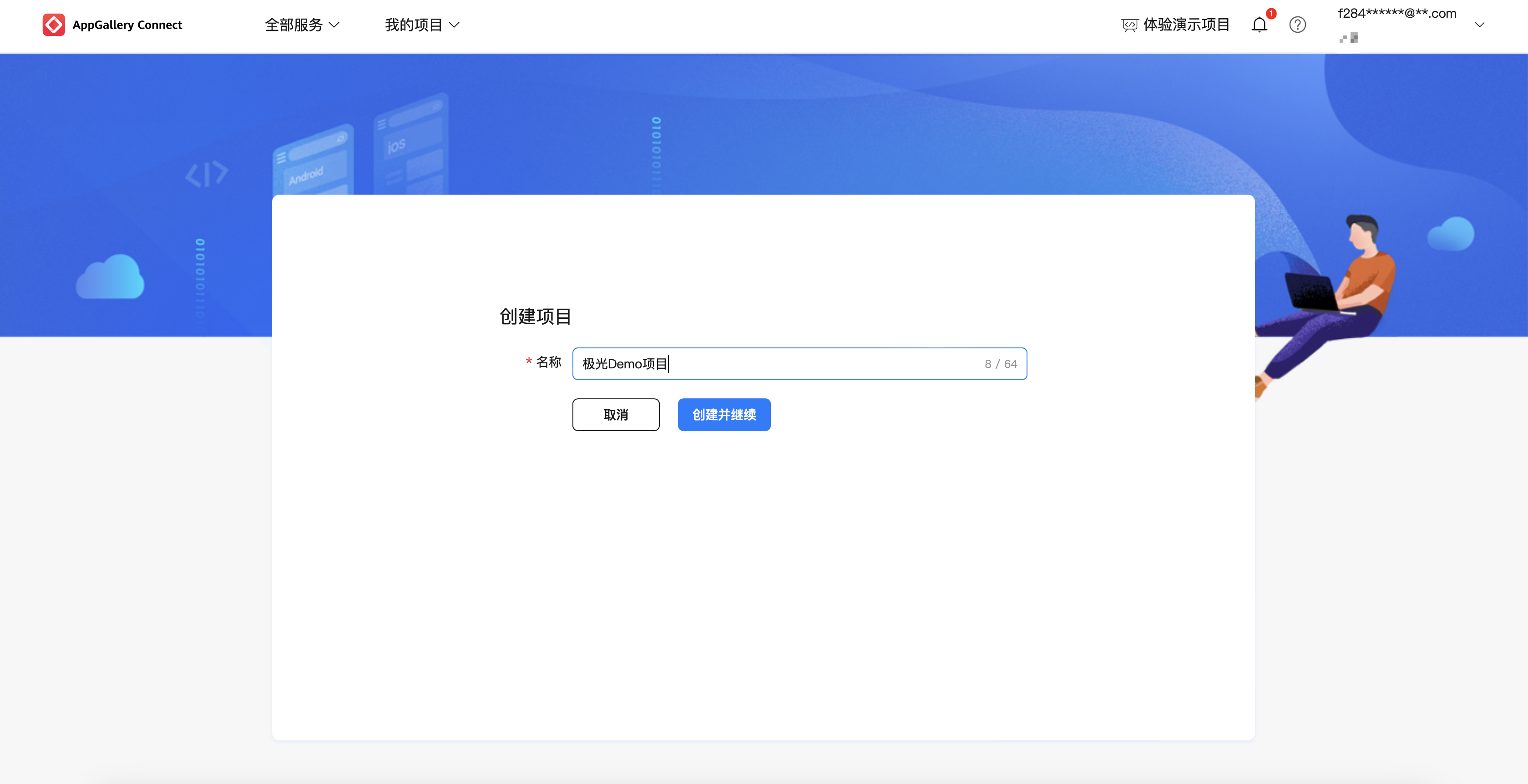
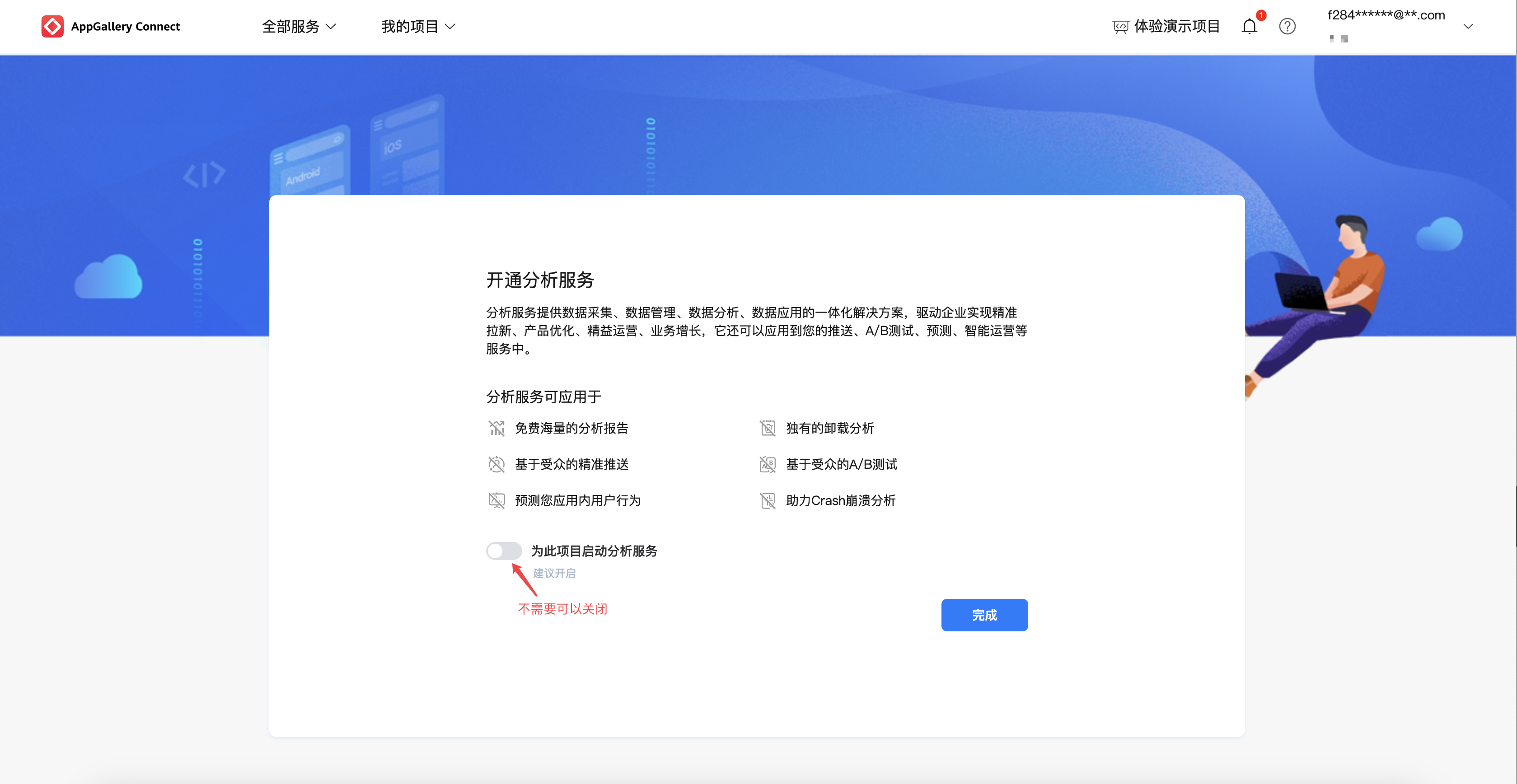
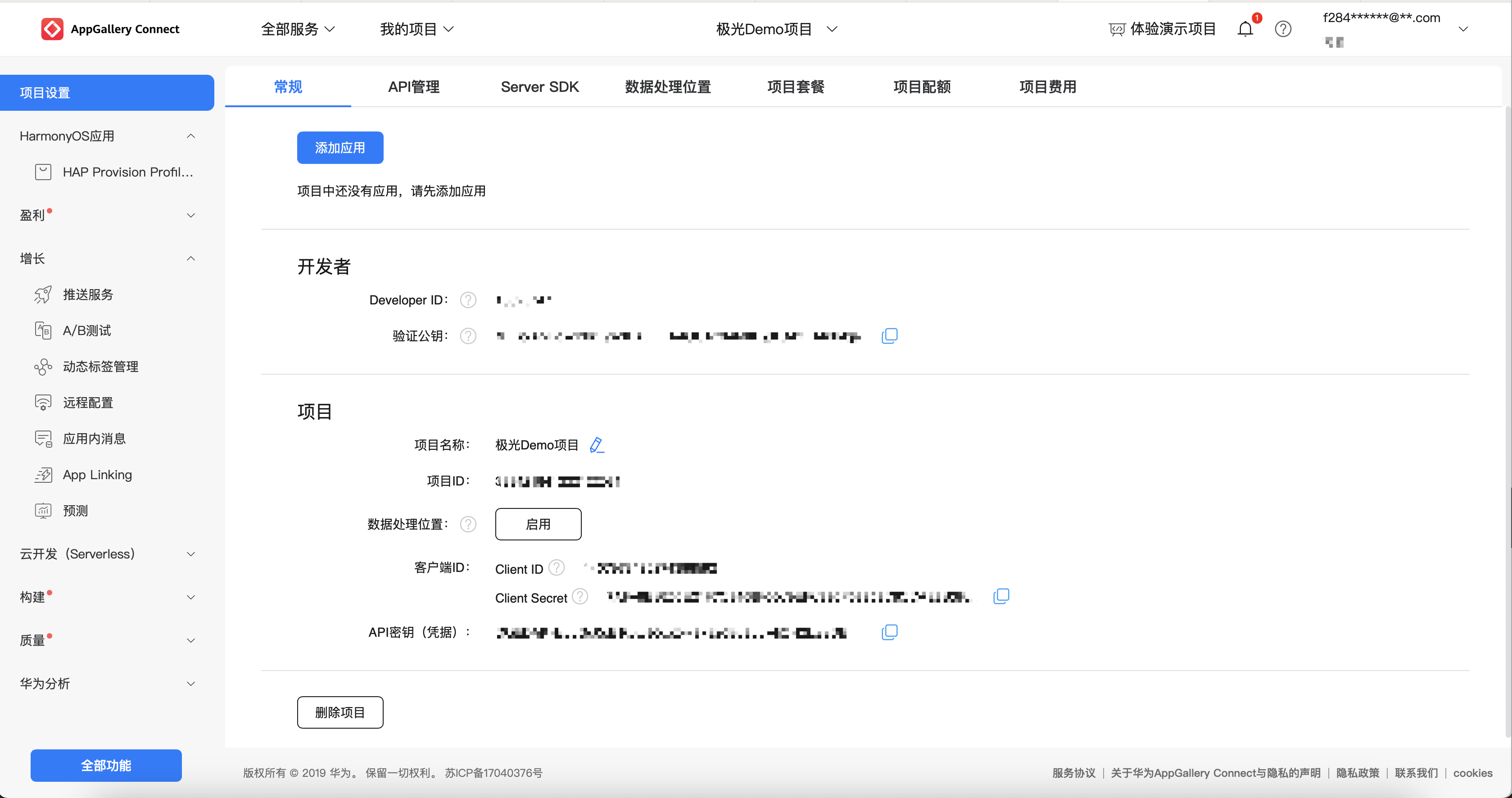
Create a Project
Whether to create a new project depends on your actual business situation. If you do not need to create a new project, proceed directly to the following steps.
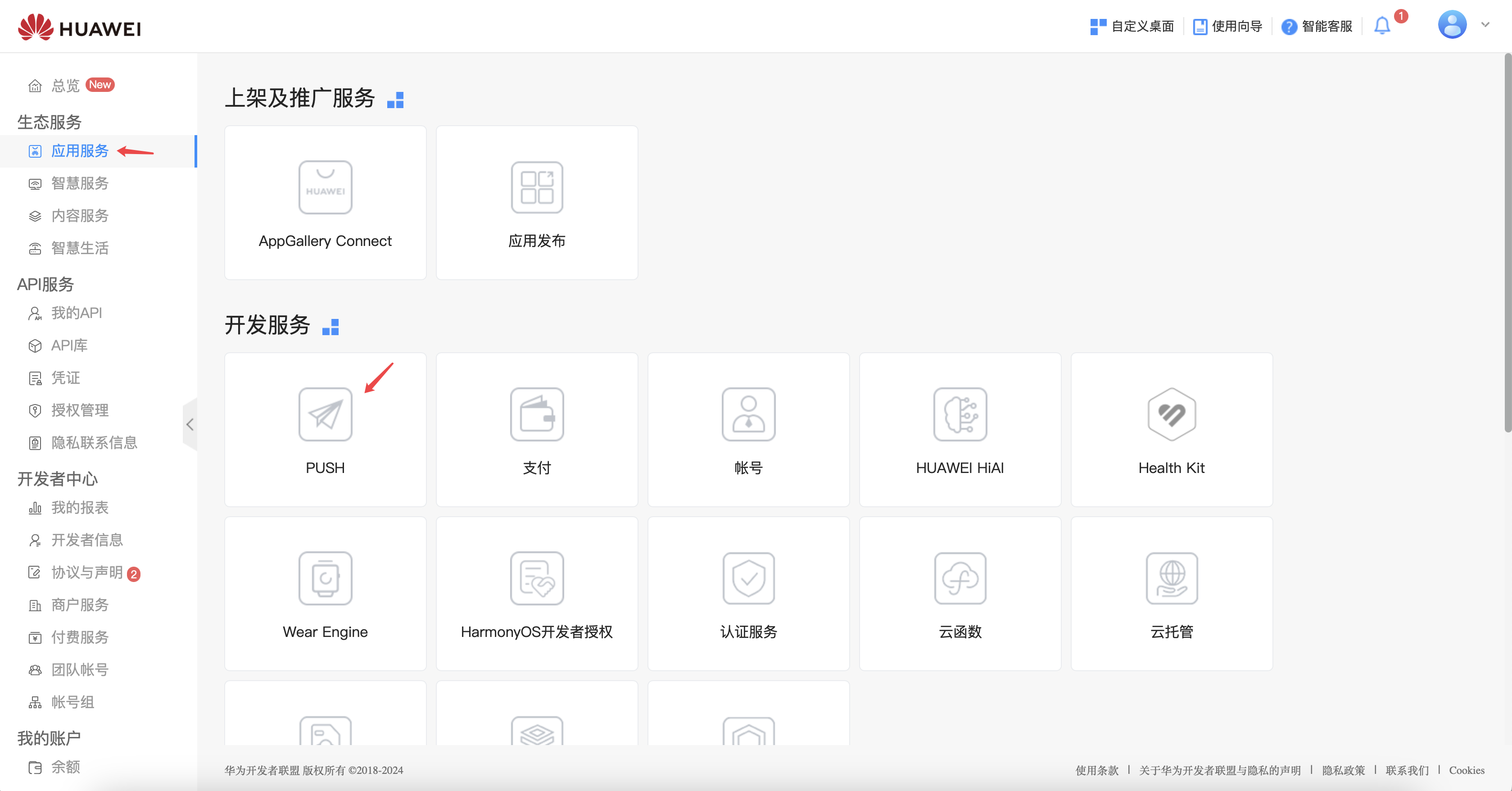
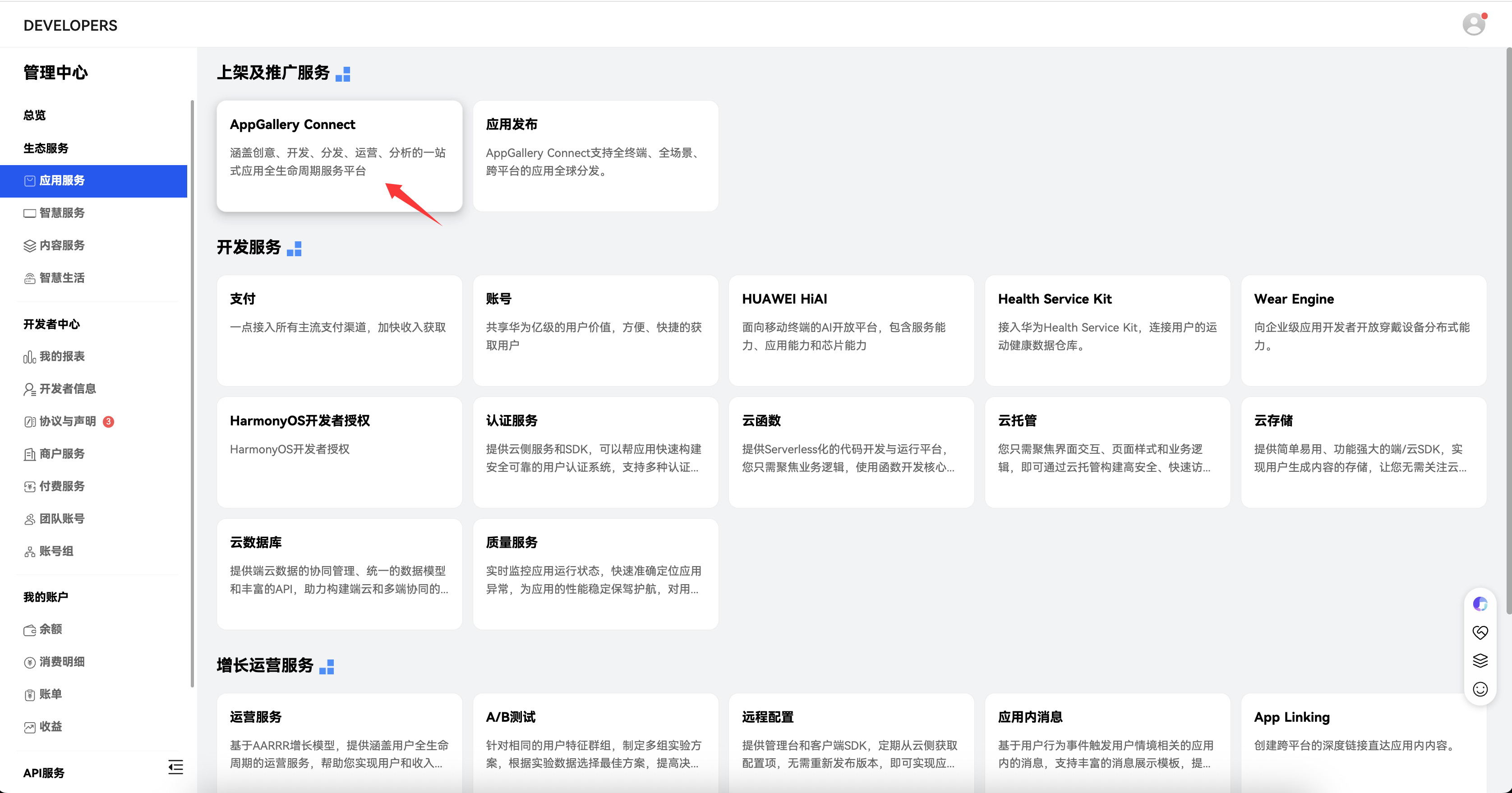
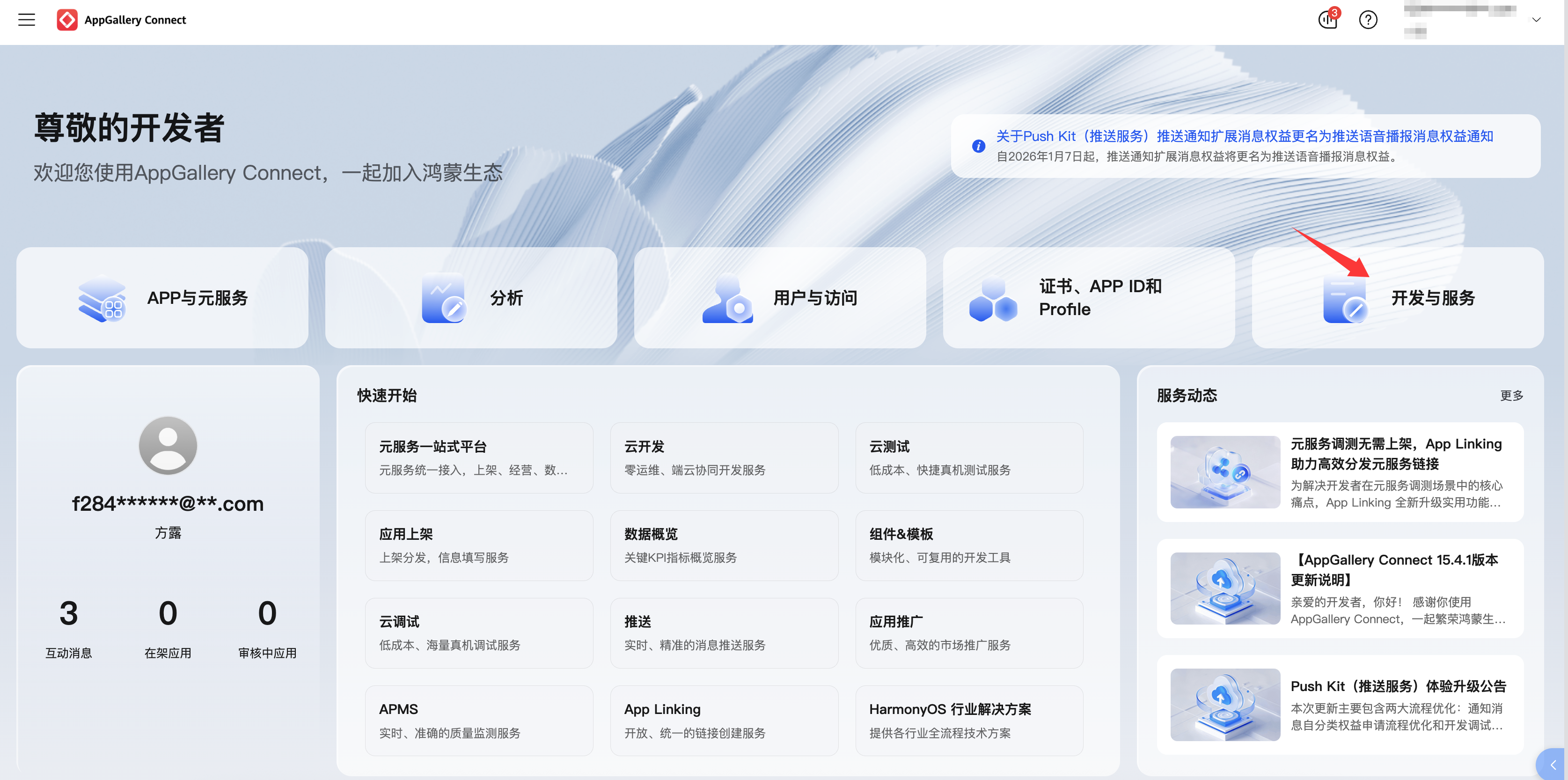
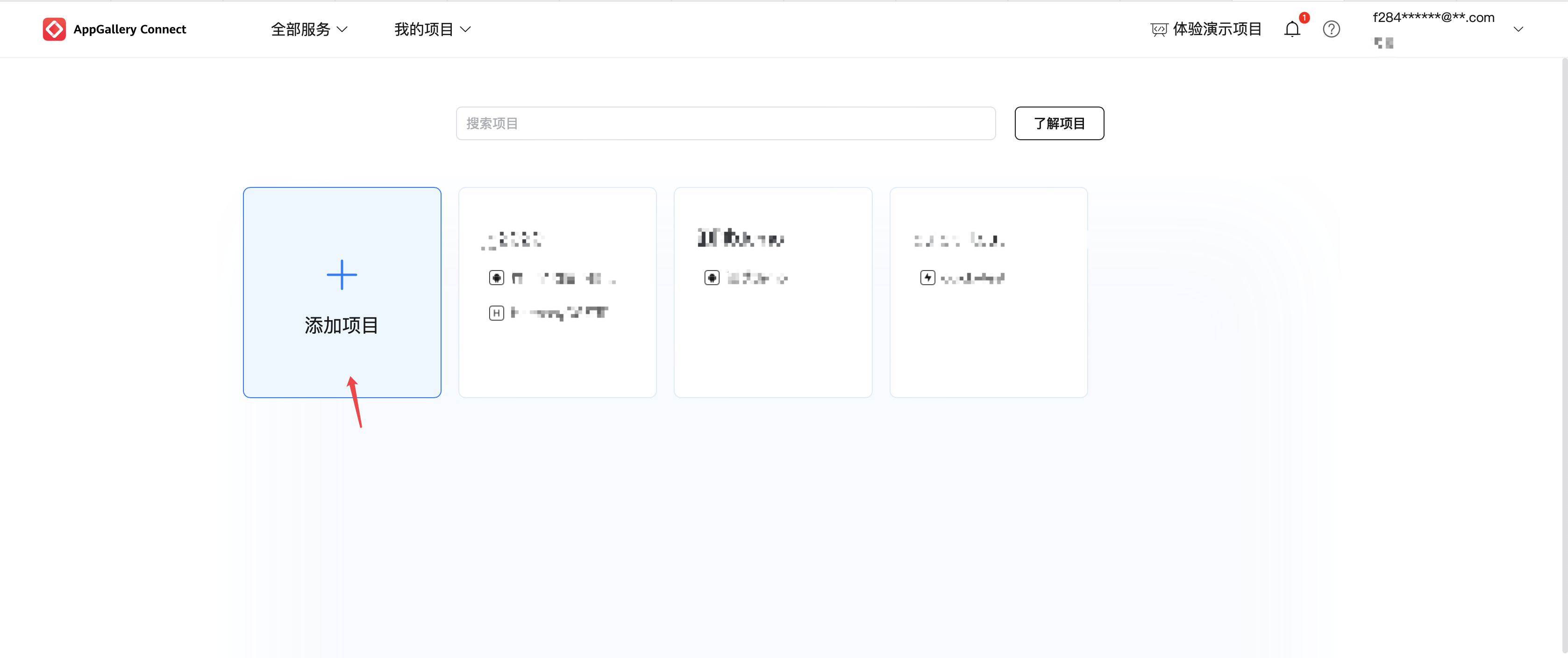
As shown above, if you do not see the "PUSH" entry, you can also go to App Distribution & Promotion Services > AppGallery Connect, then choose My Projects > Add Project. The actual entry may vary depending on your account and current Huawei page layout.
Enable Push API Service
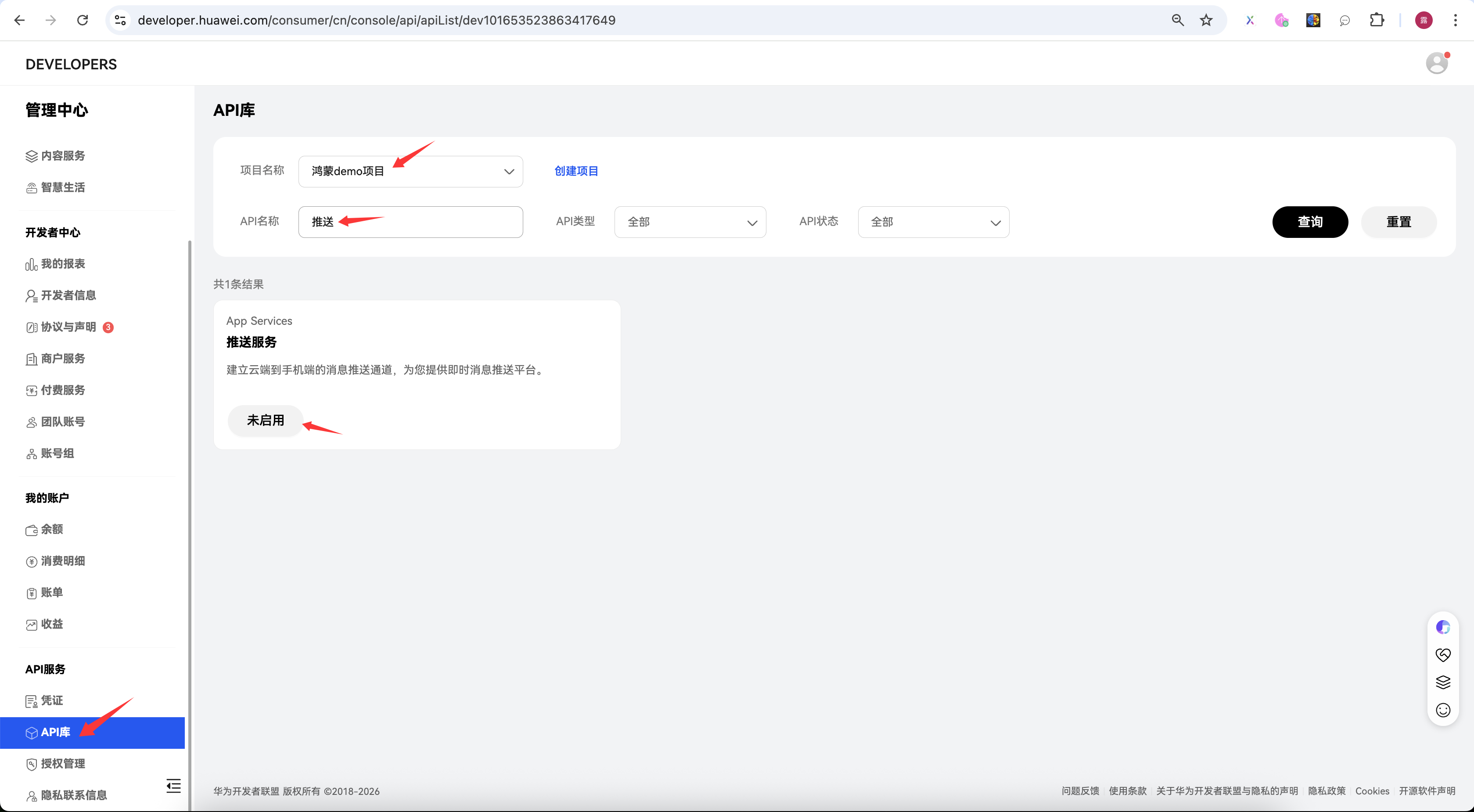
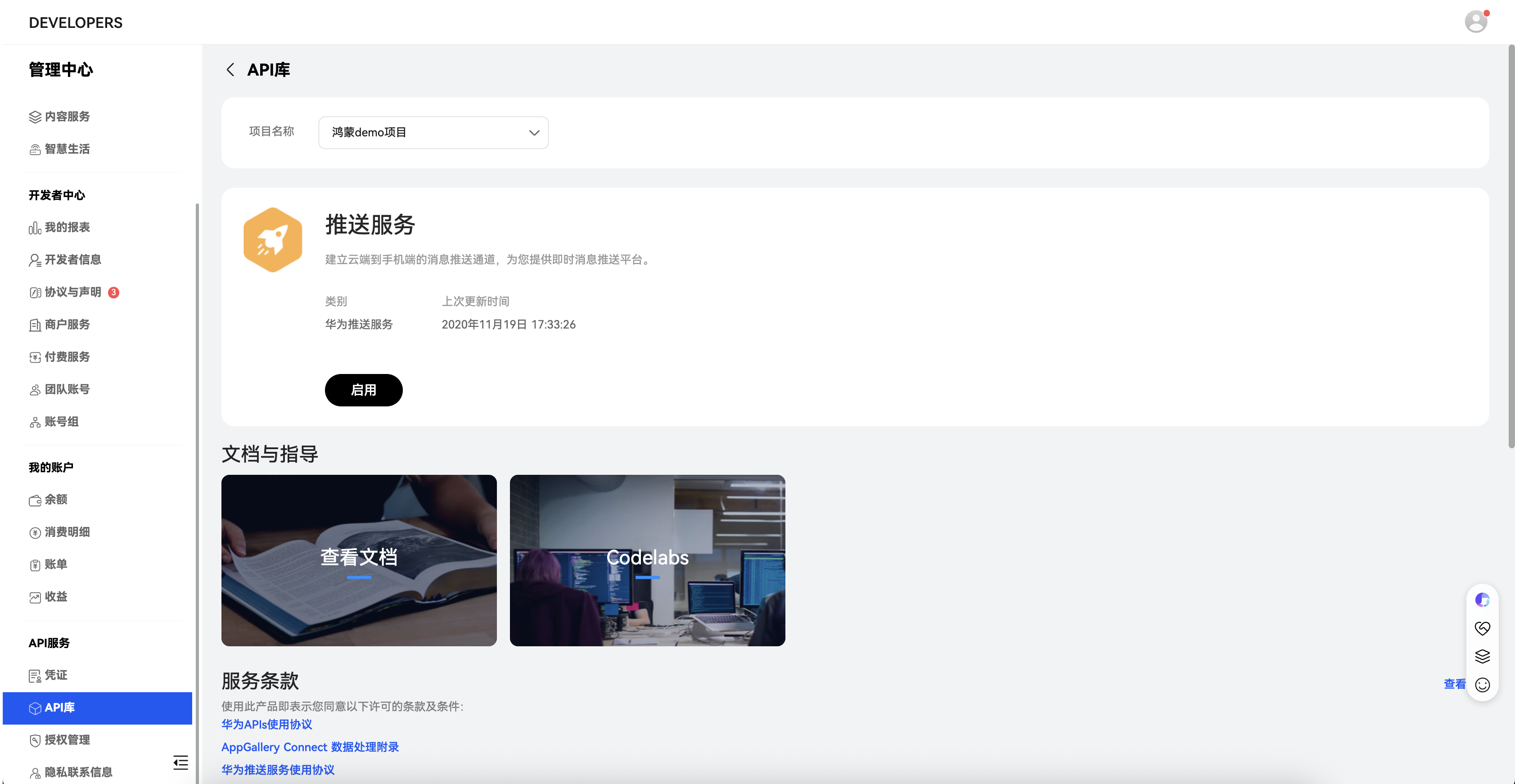
Go to My Projects > Development and Services > API Management and enable the service from the following entry.
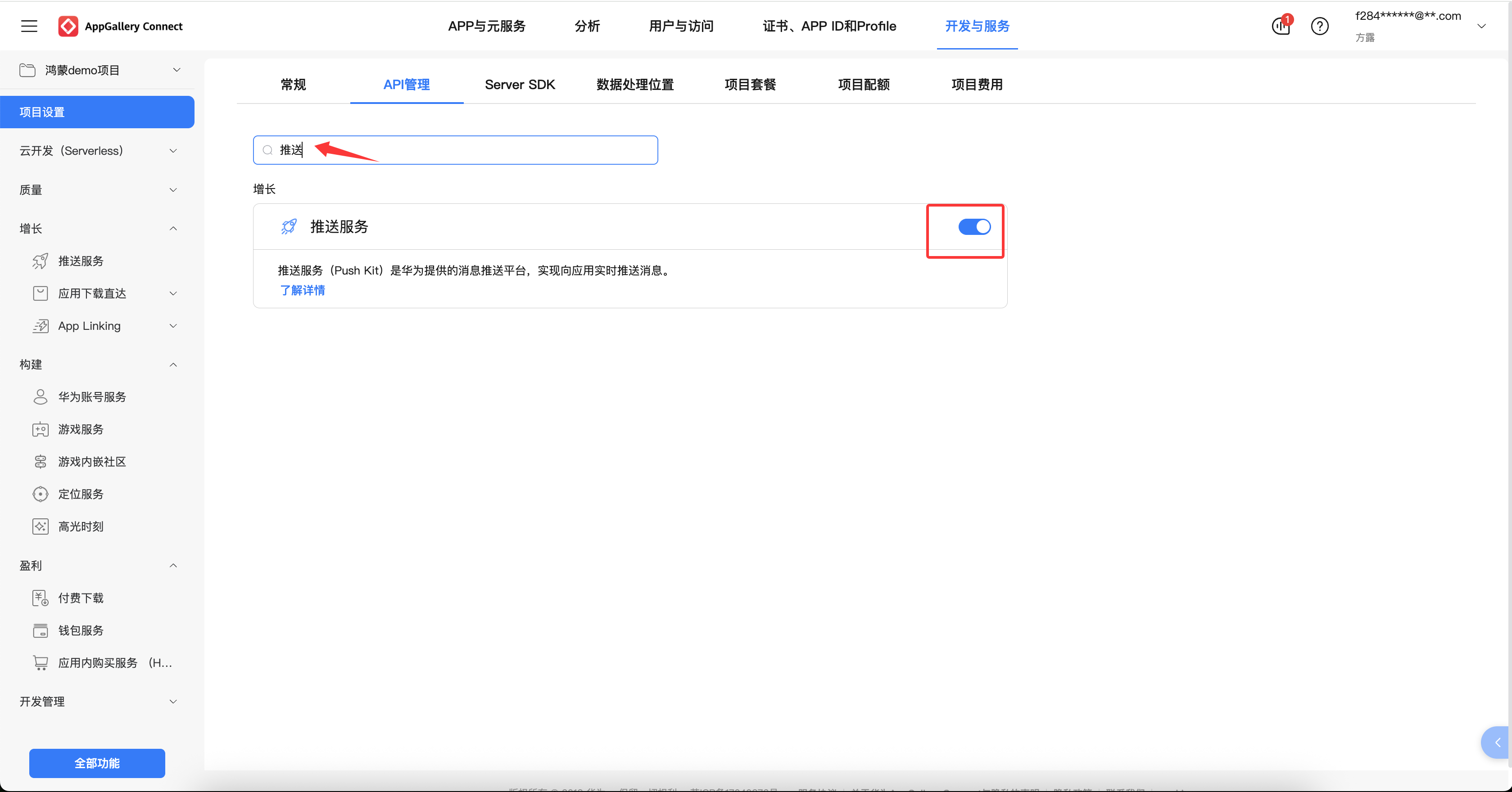
You can also visit the Huawei Developer Console Overview, choose API Services > API Library, select the project you created, search for "Push", and enable Push Service.
Obtain the Service Key
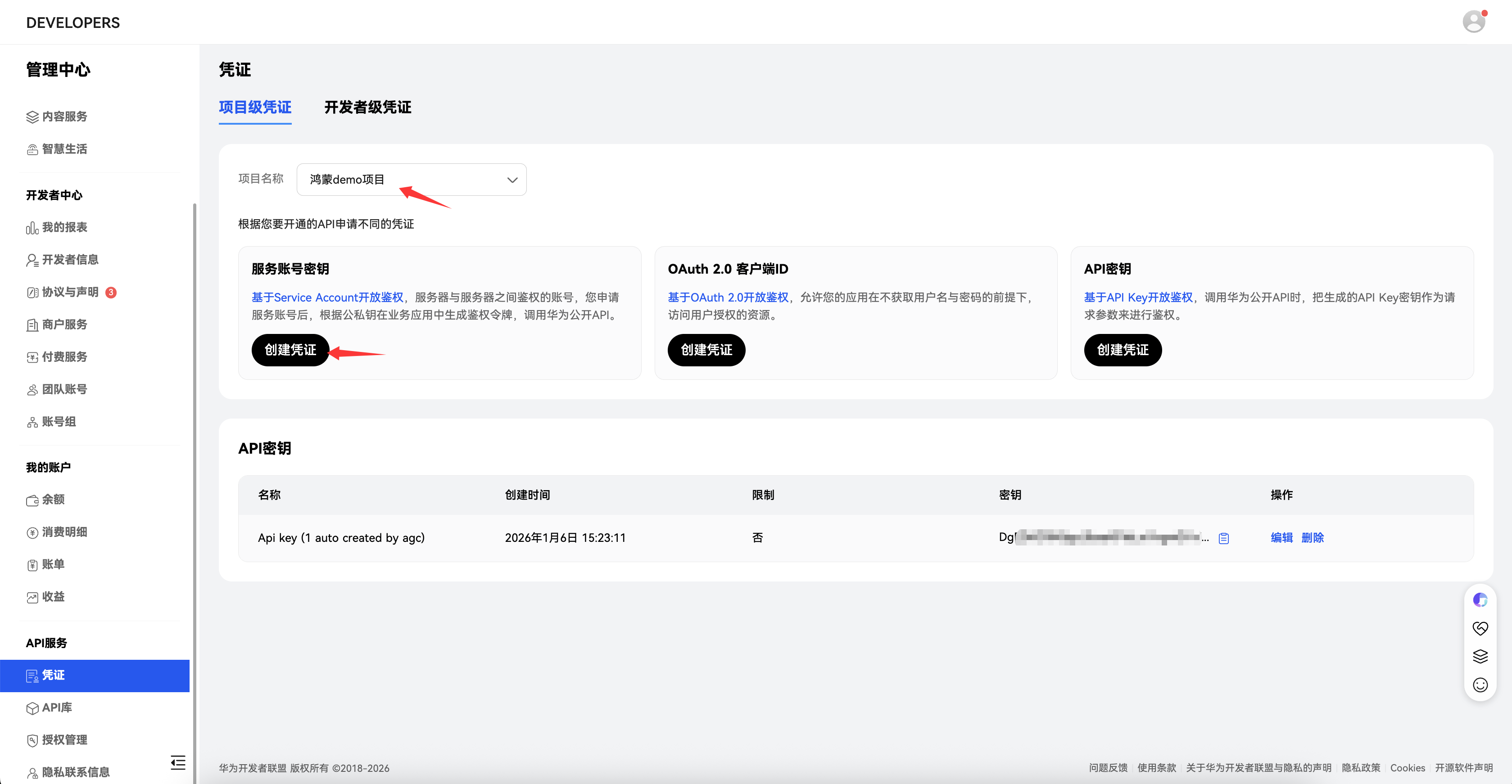
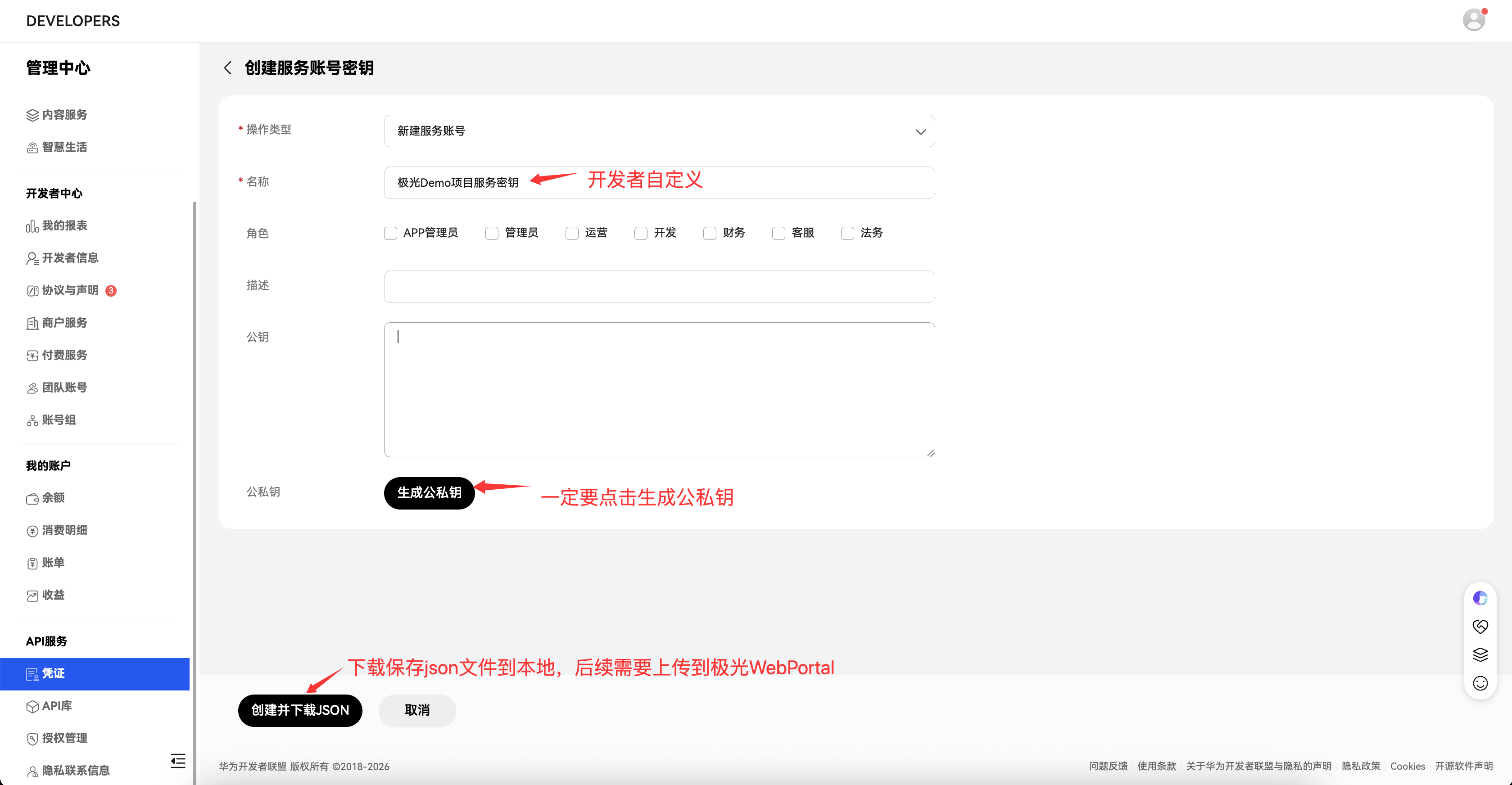
Visit the Huawei Developer Console Overview, choose Credentials, create a Service Account Key, and download the JSON key file.
Create a HarmonyOS App Under the Project
If you have not yet created a project on Huawei's platform, please create one first. See Create a Project.
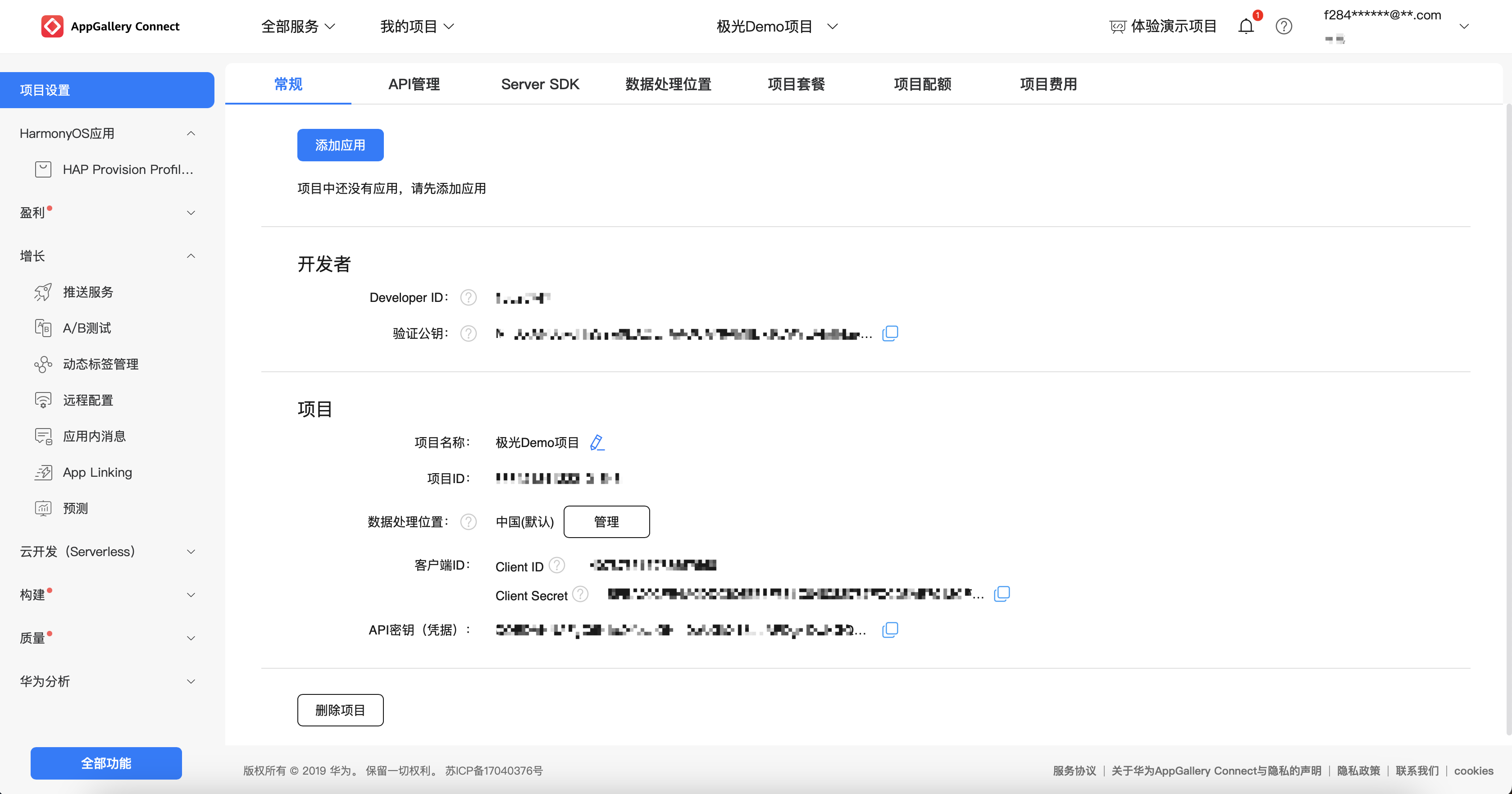
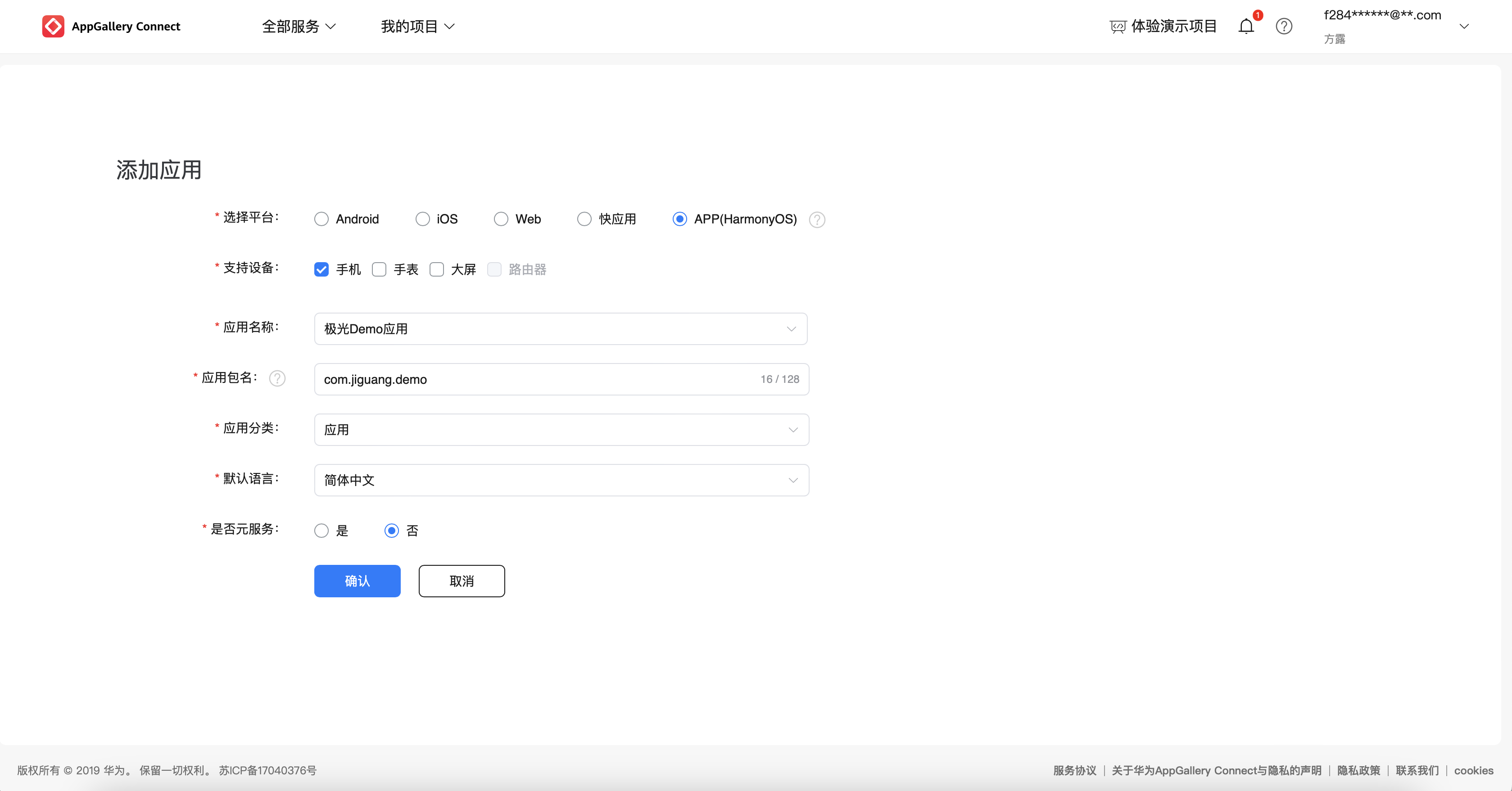
Visit the Huawei Developer Console Overview, go to App Distribution & Promotion Services > AppGallery Connect, select your project, then go to Project Settings > Add App. Follow Huawei's official steps to create the HarmonyOS app, and make sure to enable the push service for the newly added app.
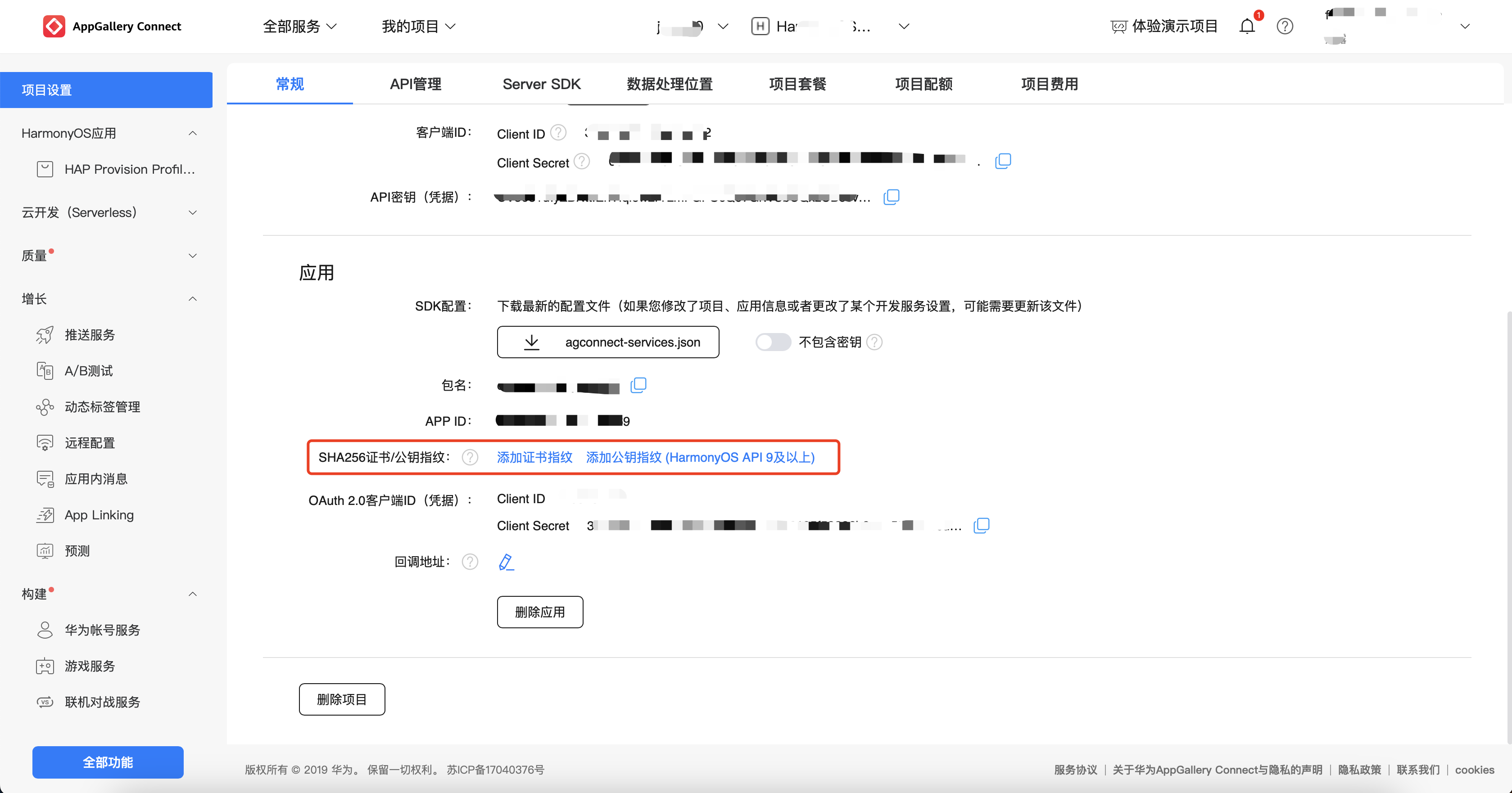
Important: After creating the HarmonyOS app, make sure to configure the app's SHA256 certificate/public key fingerprint. Click Add public key fingerprint (HarmonyOS API 9 and above) and select the certificate file corresponding to Signing Configuration when integrating the SDK.
Configure HarmonyOS on the EngageLab Platform
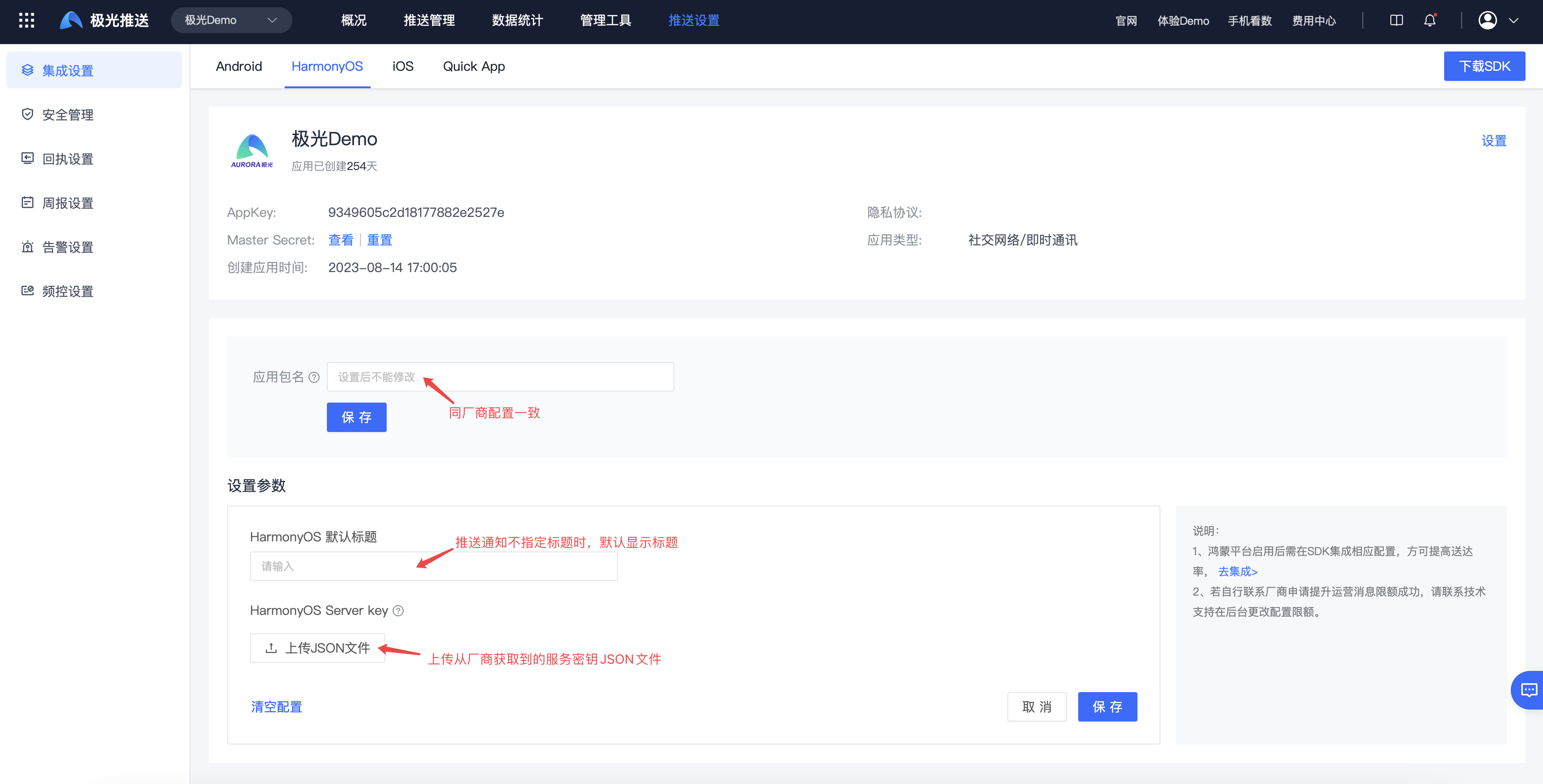
On the EngageLab Console > Push > Push Settings > Integration Settings page, select the HarmonyOS platform, fill in the package name, upload the service key JSON file, and save the configuration.
Enable the HarmonyOS Vendor Channel on the EngageLab Platform
On the EngageLab Console > Push > Push Settings > Integration Settings page, select the HarmonyOS platform and enable the HarmonyOS channel.
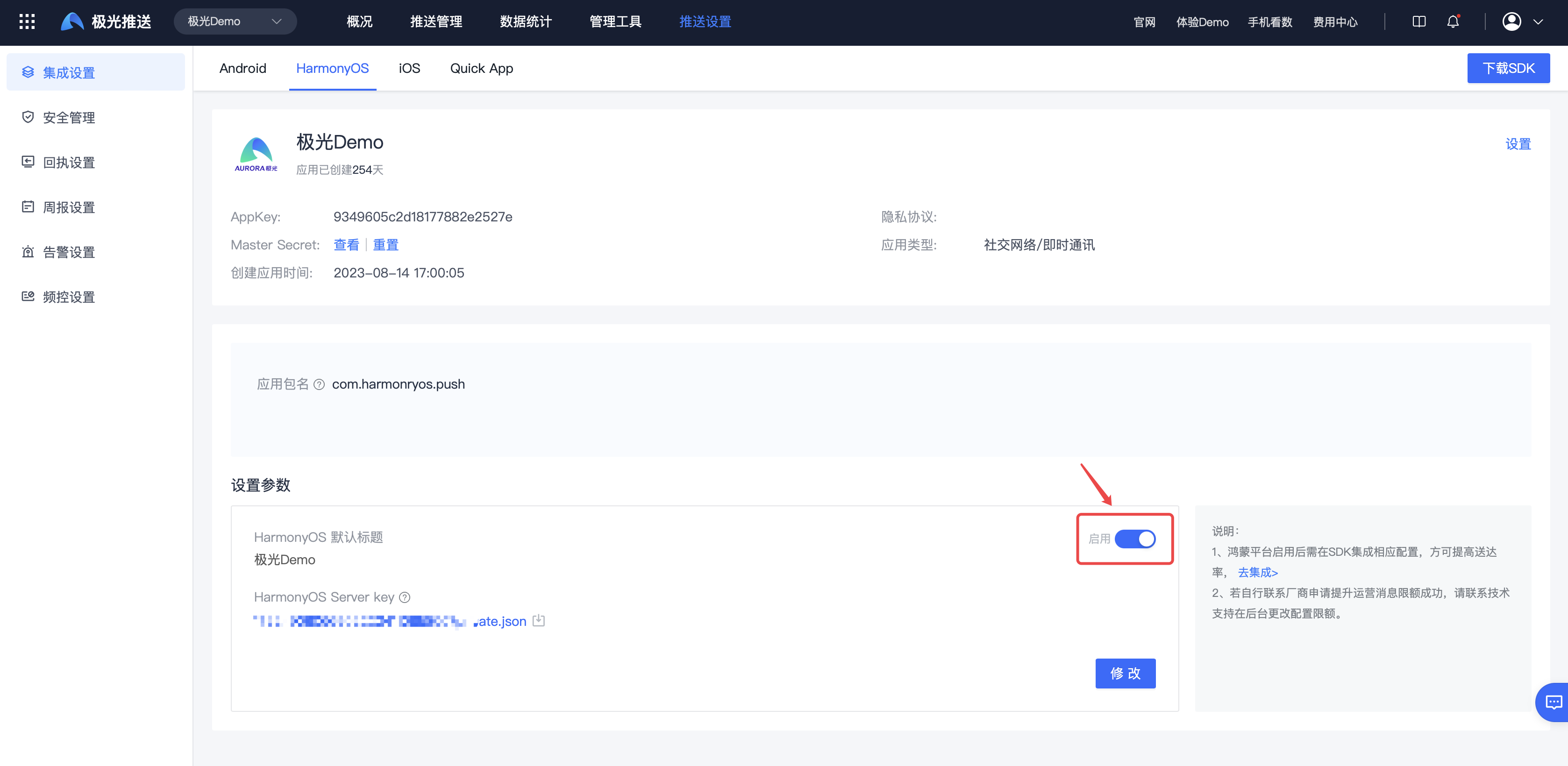
HarmonyOS Channel Receipt Callback Configuration Guide
After integrating the HarmonyOS vendor channel SDK, developers need to enable and configure message receipts on the Huawei platform so that delivery statistics and related data can be callbacked to the EngageLab platform.
- Log in to AppGallery Connect.
- Click My Projects, find your project, and navigate to Growth > Push Service > Configuration.
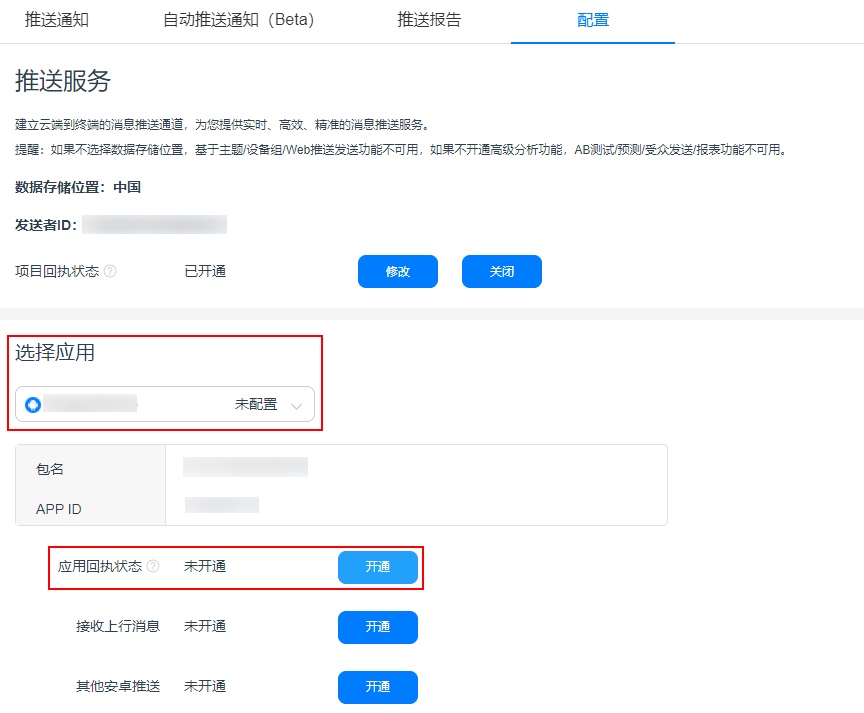
- On this page, you can configure either a project-level receipt or an app-level receipt. The project-level callback URL applies to all apps under the project. If both are configured, the app-level receipt URL takes precedence.
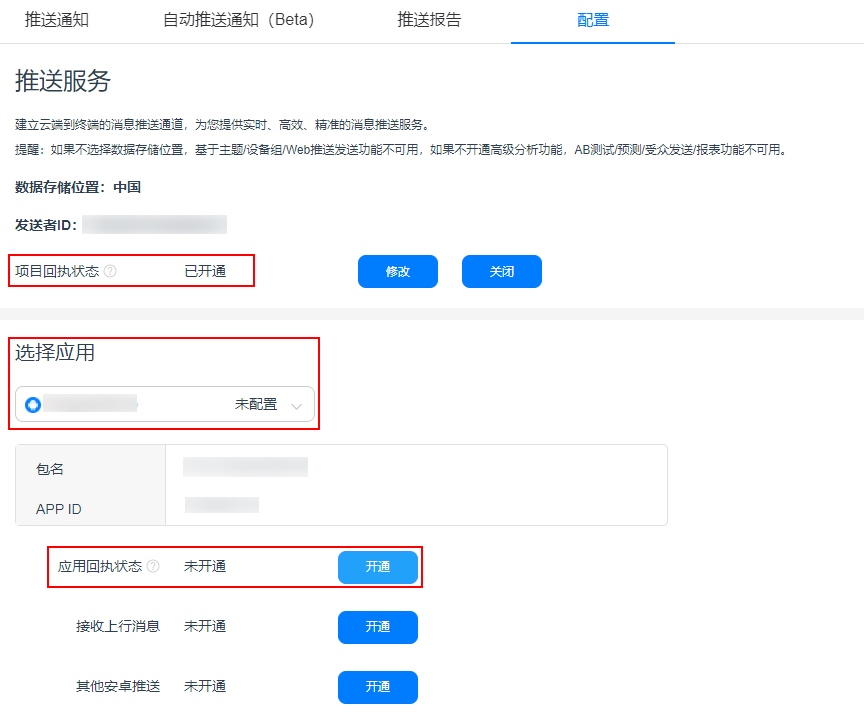
- Here, app-level receipt is used as an example. Select the app you want to configure and enable the app receipt status.
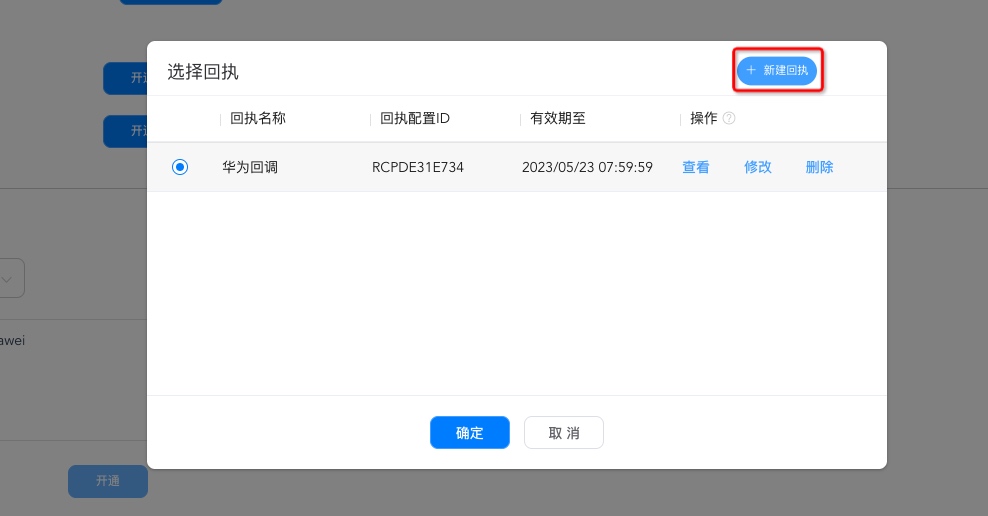
- Enter the receipt parameter configuration page and create a new receipt.
- After clicking Create Receipt, configure the following parameters.
- Receipt Name: Enter a custom name.
- Callback URL: Select the corresponding URL based on your business region.
- Singapore:
https://pushcb-sgp.engagelab.com/callback/hmos - Hong Kong, China:
https://pushcb-hk.engagelab.com/callback/hmos - US Virginia:
https://pushcb-usva.engagelab.com/callback/hmos - Germany Frankfurt:
https://pushcb-defra.engagelab.com/callback/hmos - Japan Tokyo:
https://pushcb-jpn.engagelab.com/callback/hmos - Brazil Sao Paulo:
https://pushcb-bra.engagelab.com/callback/hmos
- Singapore:
- Supported Version: Be sure to select Huawei V2.
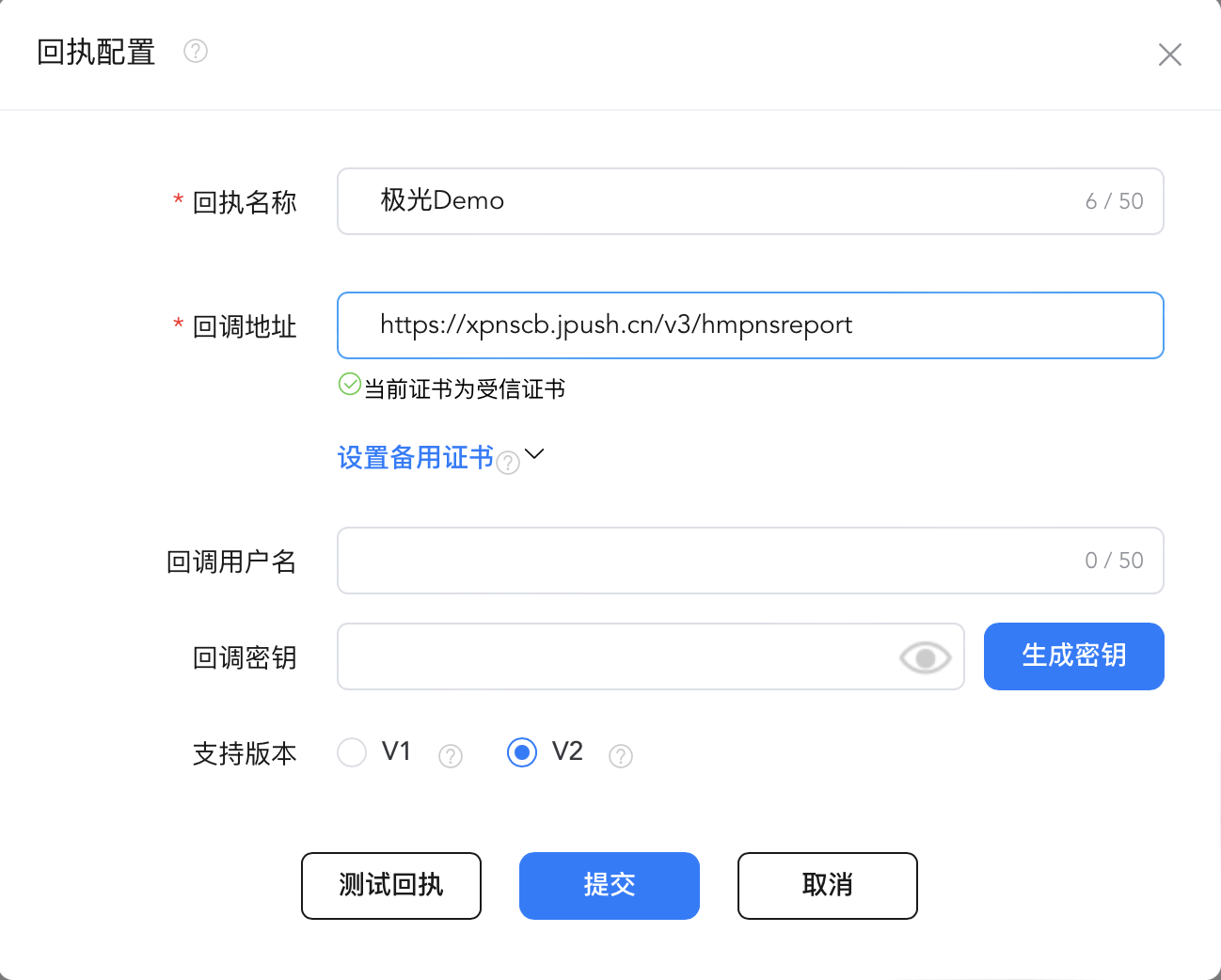
- Click Test Receipt to verify the callback URL, then click Submit to complete the creation.
