


Console Management
This article introduces the functional modules for organization management, account settings, member permissions, and application management, helping customers quickly understand the console's features.
Organization Management
One account can create multiple organizations, and the services of different organizations are independent. You can create organizations with corresponding time zones for different businesses based on your business needs.
Create an Organization
Click "Create Organization", fill in the organization name and organization website, and select the time zone.
Note: Once the time zone is selected, it cannot be changed.
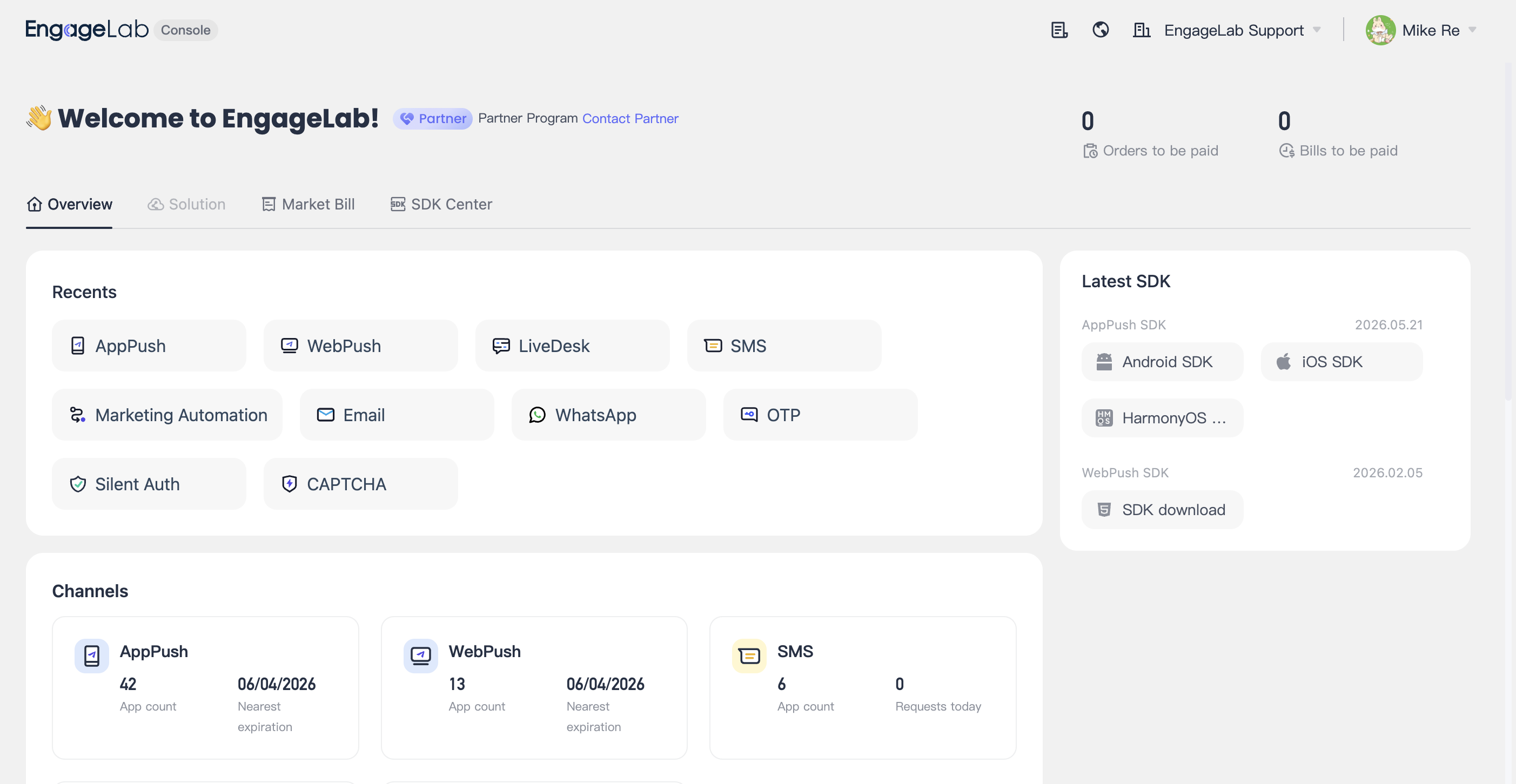
View an Organization
Click "Enter" to go to the organization's main page.
Edit an Organization
Click "Edit" to modify the organization's name and website address.
Delete an Organization
If you need to delete an organization, click "Delete" and enter the email verification code before the organization can be deleted.
Warning: Deleting an organization is irreversible and will permanently delete users, businesses, balances, bills, orders, entitlements, and other data and information within the organization, while also stopping all related services.
Account Settings
Click [Account] - [Account Settings] to go to the account settings page, where you can fill in personal information, reset your password, configure single sign-on, and delete your account.
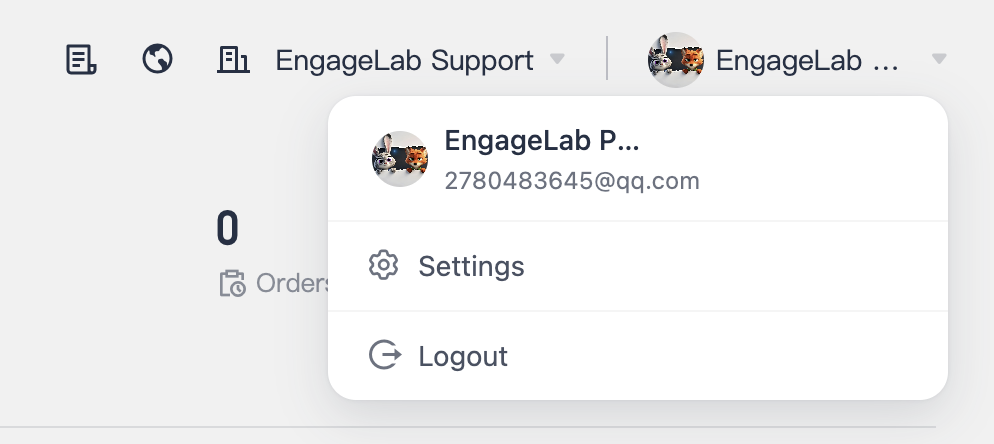
Edit Personal Information
You can fill in your first name, last name, and mobile phone number, and you can also reset your password. We may use the phone number you provide to send verification codes, bills, business alerts, and other information.
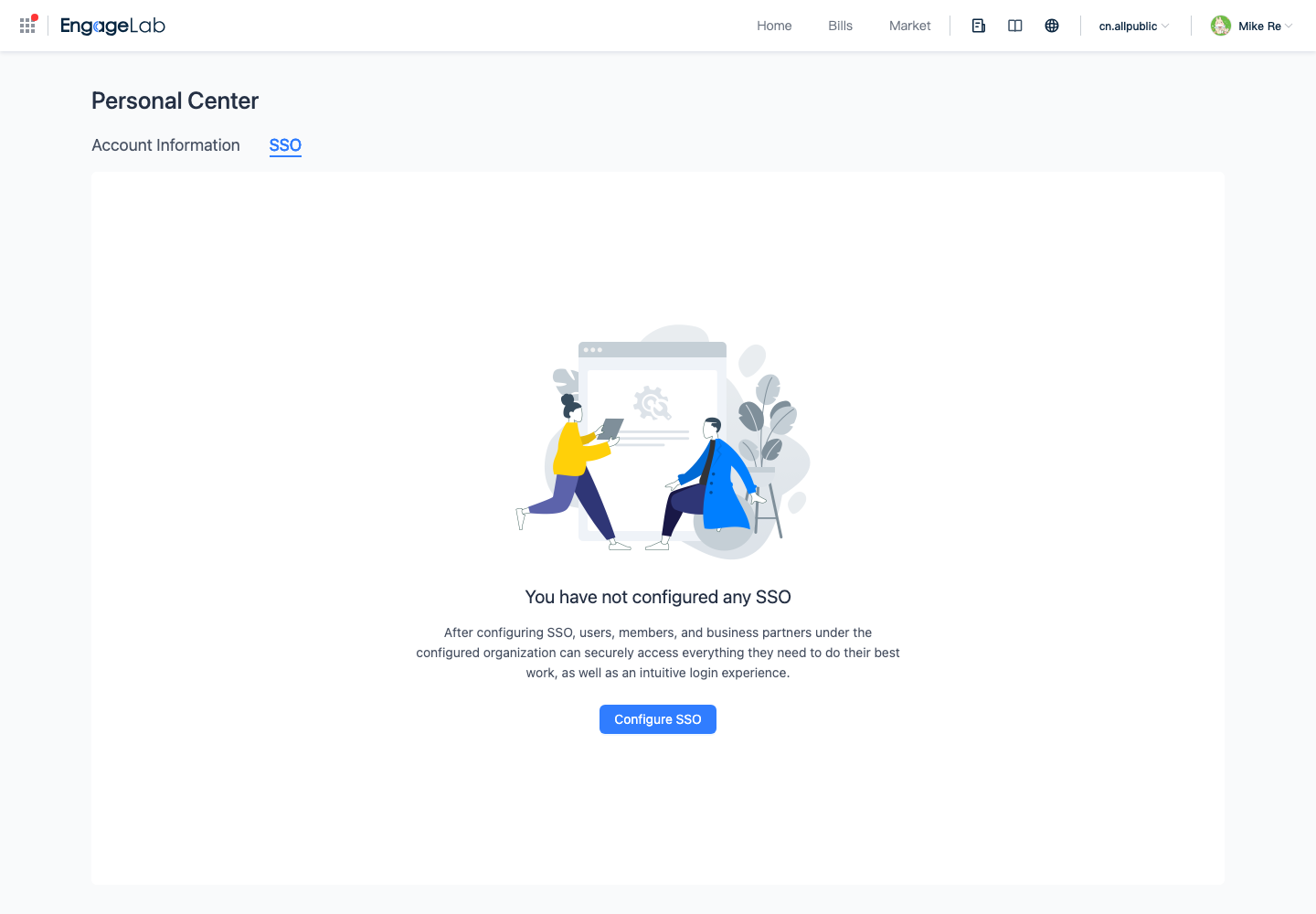
Enable Single Sign-On
It is recommended to enable single sign-on to improve security and reduce the risk of account theft, avoid frequent account creation by enterprise employees when using different business systems, and simplify identity verification by using the enterprise's internal employee account system.
Delete Account
If you need to delete your account, click "Delete My Account" and enter the email verification code before the account can be deleted.
After the account deletion operation, EngageLab will permanently delete your account, as well as all user information, business information, order information, and other related data associated with the account. Once deleted, your account and data cannot be recovered.
Member Permissions
Member permissions are independent for each organization. Member permissions include member management and role management functions. You can assign different product permissions to each role and invite members to use a specific role, making it easier for project personnel to manage the businesses they are responsible for while also ensuring secure data isolation.
Member Management
Go to the [Member Permissions] - [Member Management] page to view all created members. Searching by username/account ID is supported.
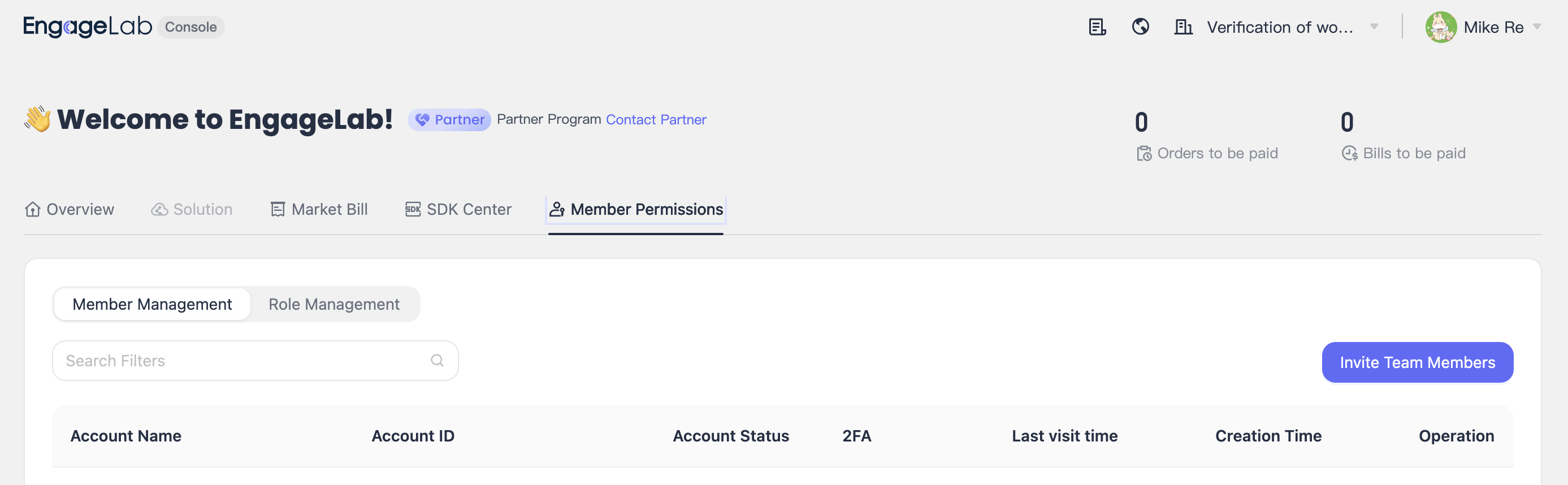
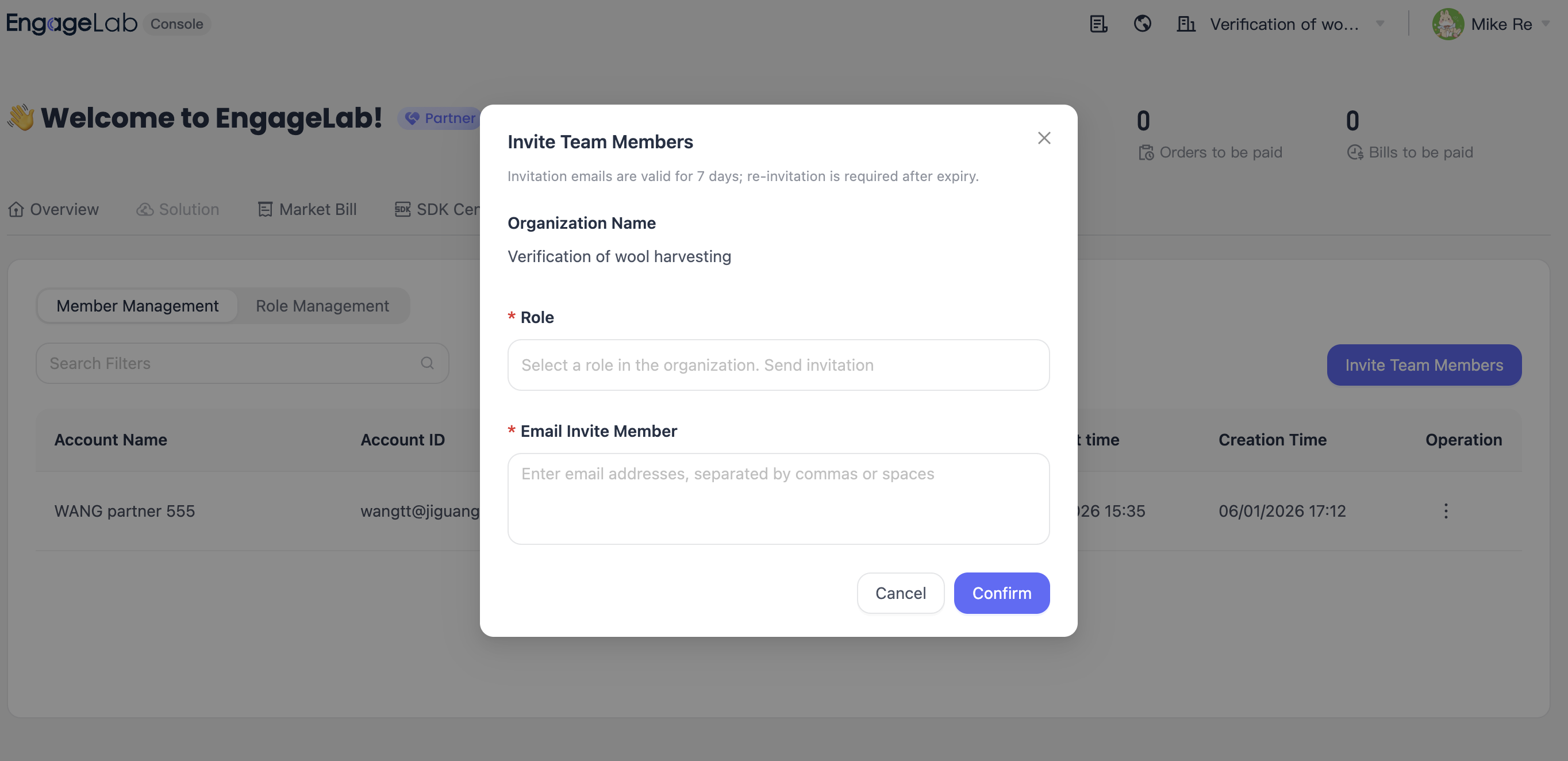
Invite Team Members
- Click "Invite Team Members" to go to the Invite Team Members page.
- Fill in the first name, last name, email, and role, then click Confirm to complete creation.
Edit a Member
- On the Member Management page, select a member and click "Edit".
- On the Edit Account page, you can modify the account's role. The changes will take effect after you click Save.
Disable a Member
If you need to disable a member, click "Disable" on the right side of that member on the Member Management page. After secondary confirmation, the member will be disabled.
Accounts with disabled status cannot be used to log in to the developer service platform. Please use this function with caution.
Delete a Member
If you need to delete a member, select the member you want to delete on the Member Management page, click "Delete", and complete the deletion after secondary confirmation.
Role Management
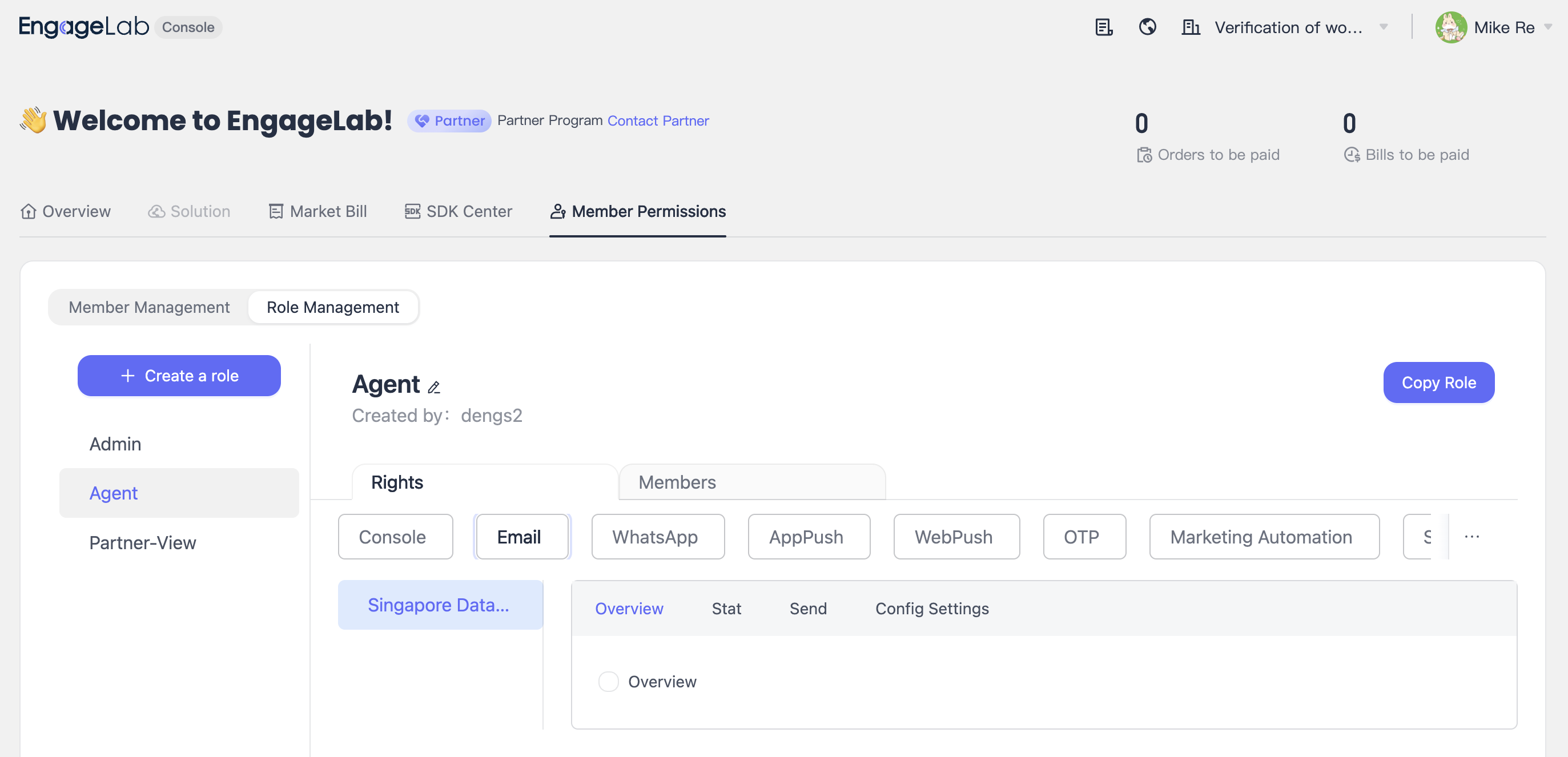
Go to the [Member Permissions] - [Role Management] page to view all roles, role permission details, and role member lists. The Admin role is generated by default and supports all permissions.
Add a Role
- Click "Add Role" and fill in the role name.
- Select the functional permissions corresponding to each product.
Permission Details
Click any role to view the permissions for each product on the Permission Details page.
- You can reselect product permissions and click Save for the changes to take effect.
- Click "Delete" to delete the role. After the role is deleted, associated members will be removed from this role.
Role Members
- Click any role and select the Role Management page to view the list of all members using this role. Filtering by username and account ID is supported.
- Click "Remove Role" and confirm again to remove it. After the role is removed, the account will no longer have the permissions of this role.
Application Management
Applications under each service are independent. You can create corresponding applications under different services according to your business needs.
Application List
Click [Switch Application] - [Select View All Applications] in the upper-left corner to go to the application list page.
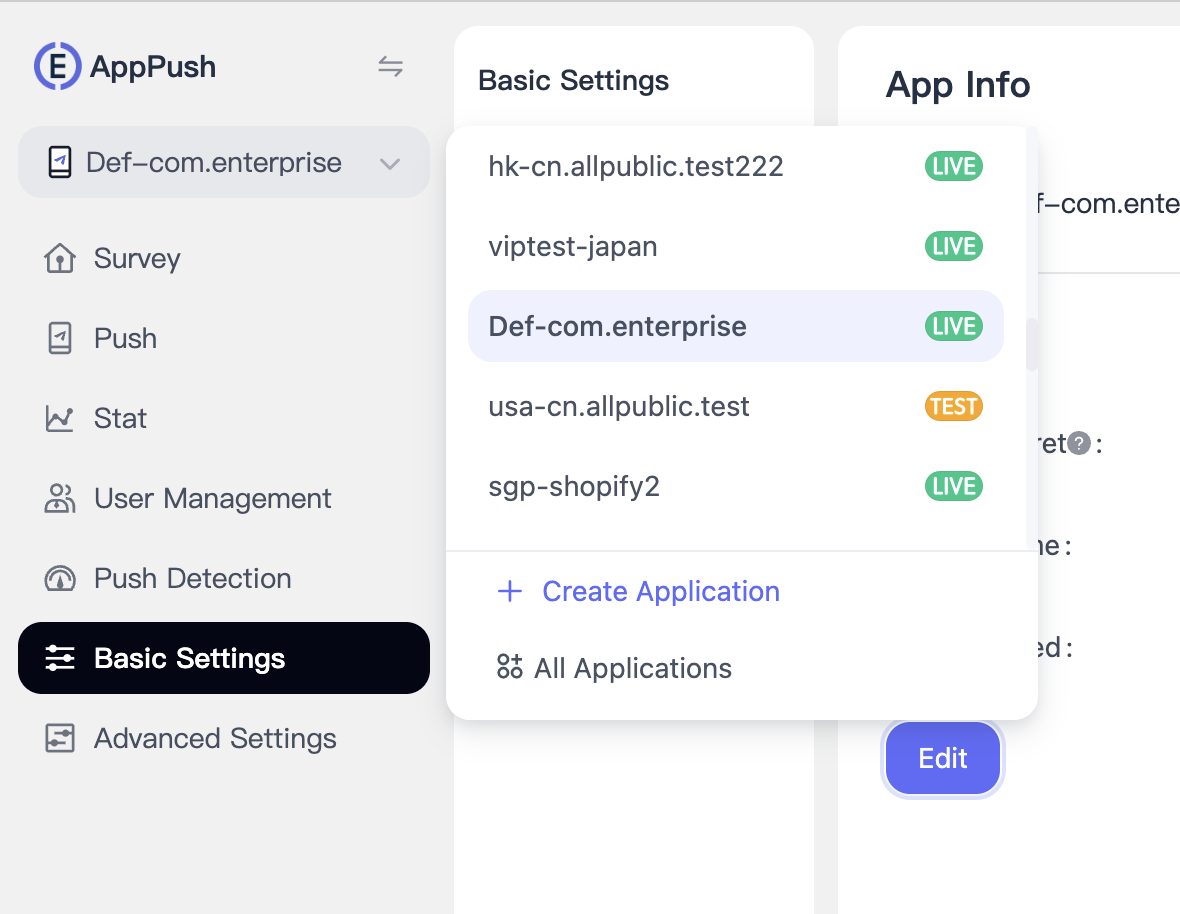
On the application list page, you can view the available platforms, total users, and today's new users.
- Supports searching for applications by application name.
- Supports adding and deleting applications.
Create an Application
Click "Create Application" in the upper-right corner, enter the application name, and click Save to complete creation.
Use an Application
Click "Enter" to access the AppPush functional module of the application.
Delete an Application
If you need to delete an application, click "Delete" and complete the deletion after secondary confirmation.
Deleted applications cannot be recovered. Please use this function with caution.
