Elena Rodriguez
Updated: 2026-09-21
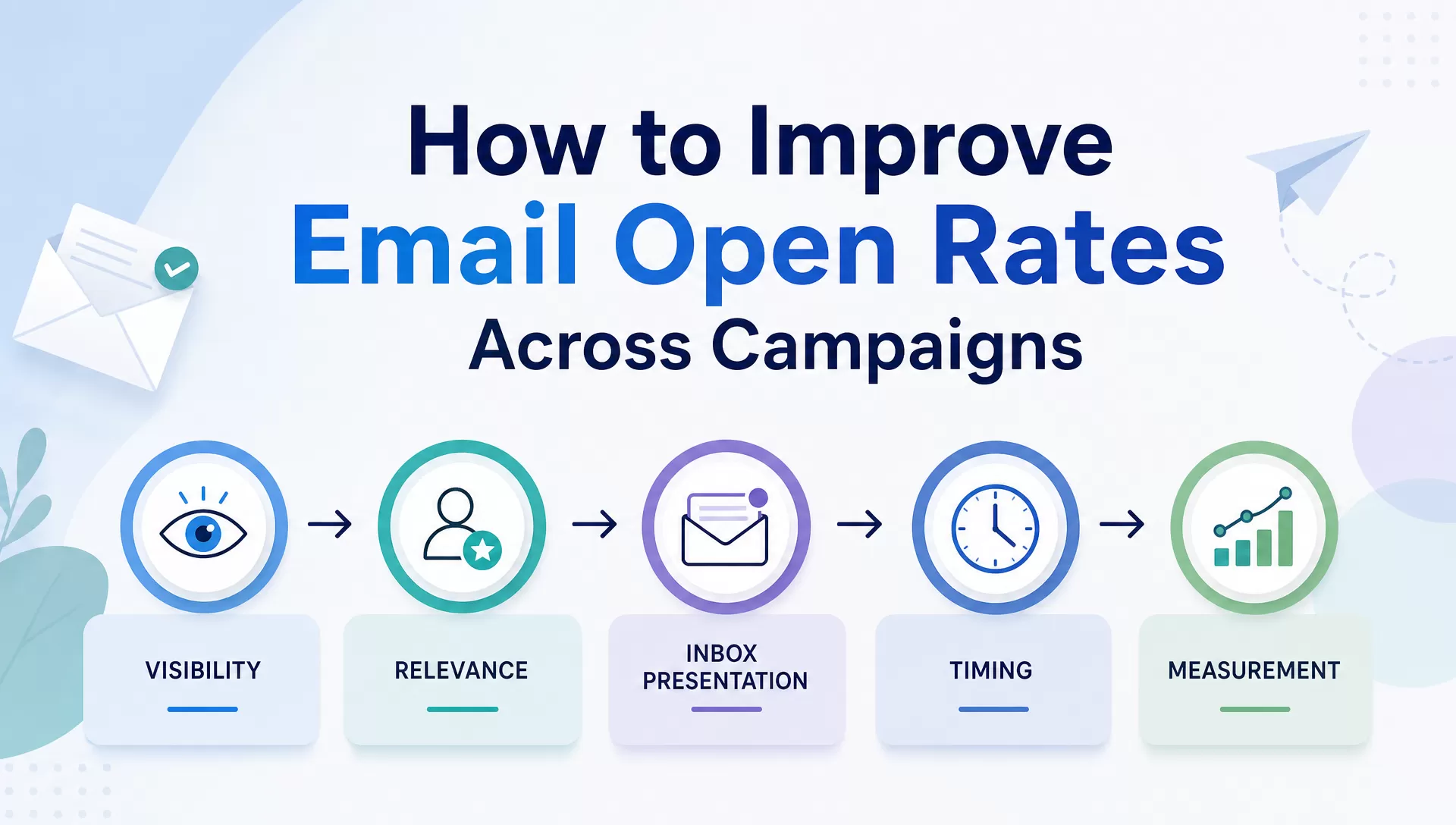
Your campaign open rates slipped from 28% to 18%, and the team is arguing about subject lines. That argument may not be wrong, but the team shouldn’t ignore segmentation, deliverability, and Apple MPP measurement noise. The simplest workflow for how to improve email open rates is to fix five things in order: inbox visibility, audience relevance, inbox presentation, send time, and measurement. Subject lines matter, but they are just near the end of that list.
Note that open rate is no longer a perfect indicator of campaign performance. Apple Mail Privacy Protection (MPP) pre-fetches email content and fires tracking pixels on Apple devices regardless of whether the recipient actually reads the message. According to Stripo Research (2026), reported open rates on Apple-heavy lists can be inflated by 15–20 percentage points. Similarly, blocked images or disabled image loading can prevent tracking pixels from firing.
In this guide, open rate is a directional signal, but we are also considering more reliable indicators of real engagement, including click-through rate (CTR), click-to-open rate (CTOR), conversion rate, inbox placement, and bounce/spam complaint rate.
Email open-rate repair order
- Inbox visibility: confirm authentication, sender reputation, warm-up status, and placement before rewriting copy.
- Audience relevance: split contacts by lifecycle stage, behavior, role, and region instead of mailing one broad list.
- Inbox presentation: make the sender name, subject line, and preview text work together on mobile and desktop.
- Timing: compare scheduled sends, triggered sends, and Smart Sending once enough engagement data exists.
- Measurement: read open rate alongside CTR, CTOR, conversion, bounces, complaints, and inbox placement.
Boost Opens with Subject Lines and Preview Text
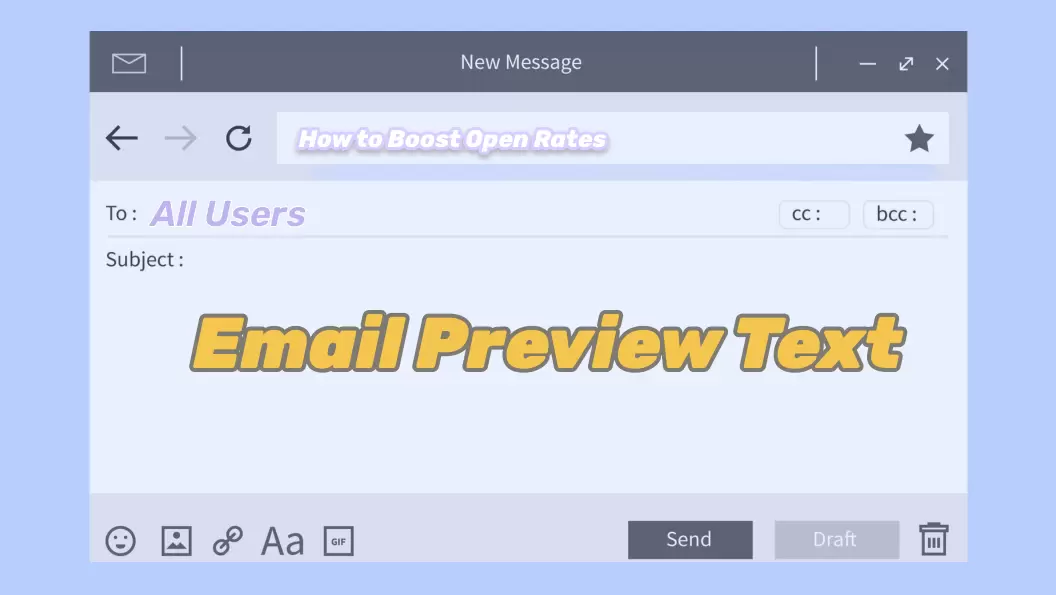
Your subject line, sender name, and preview text form the first screen a recipient sees in their inbox. These three elements work together to create the first impression, whether someone is using Gmail/Outlook/Apple Mail or a mobile email app. A compelling subject line can lose its impact if the sender name is unfamiliar, or the preview text just repeats the subject without adding context.
When writing subject lines, focus on clarity before creativity. Readers should understand the value of opening the email within a few words. Subject lines usually display 30-40 characters on mobile before truncating, while desktop clients give 60-80 characters. So, write the most important words into the first 30–40 characters.
Email preview text adds roughly 40–90 more characters of decision space. If you don’t set it explicitly, most clients pull the first body line, which could be “View this email in your browser,” “Hi John,” or other low-value content that wastes valuable inbox space.
Follow these practical rules to improve email subject line open rates:
- Use clear benefits, curiosity, urgency, or specificity, but avoid clickbait.
- Keep the sender name recognizable and consistent with your brand.
- Use one emoji at most, and only if it matches your brand voice.
- Avoid deceptive prefixes such as “Re:” or “Fwd:” when the email is not part of an existing conversation.
- Don’t rely on ALL CAPS, excessive punctuation (!!!), or symbols that imitate security or verification badges.
- Write preview text that expands on the subject line with additional context or a clear next step.
Use the examples below as in-campaign writing guidance. To skip the blank page, EngageLab Email Templates ships these verticals as pre-built layouts you can reuse in one click, then edit the subject line, preview text, and CTA in minutes.
| Vertical | Subject Line | Preview Text | Why It Works |
|---|---|---|---|
| Retail | Your saved items are back in stock | Checkout is open, but sizes are moving fast | Clear relevance, low-pressure urgency |
| B2B SaaS | Your trial workspace is ready for step 2 | Invite your team and open the reporting view today | Lifecycle-specific next action |
| Nonprofit | Your April gift report is here | See the programs your donation supported | Trust and impact proof |
| Local services | Your estimate window opens tomorrow | Confirm the time before crews are assigned | Practical and time-bound |
| HR/recruiting | Interview reminder: tomorrow at 10 AM | Here is what to prepare and who you will meet | Transactional clarity, no fluff |

Here is how that structure works in practice. If you are sending a transactional payment reminder, avoid a generic subject like “Payment Reminder.” Make the purpose immediately clear:
- Subject line: Your invoice #28491 is due tomorrow
- Preview text: Complete your payment by July 10 to avoid service interruption
This pairing adds useful context and creates urgency without sounding misleading. That’s the reason automation/transactional emails have a 30.63% average open rate as per Brevo 2026 Marketing Orchestration Benchmark. However, the best copy still underperforms when sent to the wrong segment, which is the next problem to solve.
Drive Relevance with Segmentation and Personalization
Better subject lines are only part of the solution. Relevance has a much bigger impact: a timely, relevant email outperforms a polished one sent to the wrong segment.
Segmentation and personalization are the mechanisms that create that relevance. They match every campaign to the recipient’s interests and stage in the customer journey, which is what lifts opens consistently across sends.
Start by building audience segments rather than sending every campaign to a single broad list. Build your framework across three dimensions:
- Behavioral segmentation: Group contacts based on actions such as product views, email clicks, purchases, cart abandonment, or inactivity.
- Lifecycle segmentation: Separate subscribers into stages like new subscriber, onboarding, active customer, at-risk customer, and dormant user.
- Firmographic or role-based segmentation: Target recipients by company size, industry, job function, department, or geographic region for B2B campaigns.

Personalization should also go beyond inserting a recipient’s first name. Modern email campaigns use dynamic content to deliver information that is relevant to each audience segment, such as:
- A customer who purchased a DSLR camera receives recommendations for camera lenses and tripods, while someone who bought a laptop sees laptop sleeves and wireless mice.
- A webinar invitation is sent at 10:00 AM in each recipient’s local time zone, with English content for US subscribers and Spanish content for customers in Mexico.
-
An ecommerce email shows running shoes to customers who recently browsed the sports category, while another subscriber sees wireless headphones based on their browsing history, all from the same
campaign.
- A customer who abandons their cart receives a reminder after 2 hours, while another who completes a purchase automatically receives an order confirmation and review request based on their actions.
| Lifecycle Stage | Audience Signal | Email Goal | Subject Line Angle | CTA | Expected KPI | Watch-out |
|---|---|---|---|---|---|---|
| Onboarding (days 1–14) | New signup, no activation | Drive first key action | Step 1 is ready: here’s how to start | Complete setup or activate account | Open 35%+, CTR 8%+ | Sending too many emails too quickly |
| Active Customer | Regular purchases or product usage | Maintain engagement and encourage repeat actions | New features, personalized recommendations, exclusive updates | Explore or buy again | CTR and repeat conversions | Over-emailing loyal users |
| At-Risk / Reactivation (dormant 90+ days) | No open or click in 90 days | Confirm interest or suppress | Still interested? Here’s what’s new | Return or reactivate | CTOR and unsubscribes are the signal | Continuing to email unresponsive contacts indefinitely |
| Transactional | Purchase or payment event | Confirm action, set expectations | [Order 12345] confirmed, ships Thursday | Complete the required action | Delivery rate and completion rate | Mixing promotional content into transactional messages |
Platforms like EngageLab support fields, tags, and segments so marketers can send by audience attributes and behavior rather than one broad list. According to EngageLab documentation, you can create up to 50 custom contact fields and build audience segments using multiple conditions, which makes it easier to personalize campaigns at scale.
Note that relevance only matters if your emails actually reach the inbox. The next step is improving email deliverability, sender reputation, and technical authentication, so your carefully targeted campaigns have the best chance of being seen.
Fix Deliverability, Sender Reputation, and Technical Setup
Even the best subject line and personalization are wasted if the message never reaches the inbox. That is why email deliverability is the foundation of every open rate. Mailbox providers have to trust your sending domain, or your campaigns land in spam.
Every email campaign follows the same path: inbox placement → visibility → open rate. First, mailbox providers decide whether your message belongs in the inbox, promotions tab, spam folder, or should be rejected altogether. If it reaches the inbox, the recipient sees your sender name, subject line, and preview text, which determine whether they open it. That’s why improving open rates starts with deliverability and sender reputation.
According to Google’s Email Sender Guidelines , senders should authenticate their domains with SPF, DKIM, and DMARC, keep spam complaint rates low (ideally below 0.3%), support one-click unsubscribe for bulk marketing emails, and increase sending volume gradually when using new domains or IPs to establish a positive sender reputation. These practices help improve inbox placement and email open rates.
The recommended strategy is to start with these technical essentials:
- SPF (Sender Policy Framework): Specifies which mail servers are authorized to send emails on behalf of your domain.
- DKIM (DomainKeys Identified Mail): Adds a cryptographic signature so receiving servers can verify that the message hasn’t been altered.
-
DMARC (Domain-based Message Authentication, Reporting & Conformance):
Builds on SPF and DKIM by telling receiving servers how to handle messages that fail authentication.
- BIMI (Brand Indicators for Message Identification): Allows eligible senders to display their verified brand logo in supported inboxes to improve brand recognition.
- TLS encryption: Protects emails while they are transmitted between mail servers.
- Reverse DNS (PTR) records: Help verify that your sending IP address matches your domain.
- Domain alignment: Ensure the From domain aligns with your SPF or DKIM domain so DMARC checks pass.
- Google Postmaster Tools: Monitor domain reputation, spam rates, authentication, and delivery issues.
- Bounce and spam complaint monitoring: High complaint or bounce rates quickly damage sender reputation.
- List-Unsubscribe headers: Bulk marketing emails should support one-click unsubscribe in addition to a visible unsubscribe link. Google requires this for senders sending more than 5,000 emails per day to Gmail accounts.
Verify Your DNS Records
Run these verification commands from your terminal to check current status:
- DNS checks:
dig TXT example.com
· dig TXT selector._domainkey.example.com · dig TXT _dmarc.example.com · dig MX example.com · dig -x <sending-ip>

Replace example.com with your sending domain and selector with your DKIM selector. A clean DMARC result looks like: v=DMARC1; p=quarantine; rua=mailto:reports@example.com. No result means the record is missing.
If SPF, DKIM, or DMARC records are missing or misconfigured, mailbox providers may send your emails to spam or reject them altogether.
Suggested Warm-Up Schedule for New Domains
| Week | Daily Send Volume | Monitor |
|---|---|---|
| 1 | 200-500 | Delivery rate, bounce rate, complaint rate |
| 2 | 500-1,000 | Inbox vs. spam placement for Gmail, Outlook, Yahoo |
| 3 | 1,500-5,000 | Open rate trend, engagement-rate distribution |
| 4+ | Scale if delivery rate stays above 95% | Spam complaint rate below 0.1% |
Start with your most engaged contacts. If delivery rate drops below 90% or complaint rate crosses 0.1%, slow down rather than push through.
Many email platforms, including EngageLab, provide Warm-up Sending features that gradually increase sending volume based on delivery performance instead of sending large batches immediately. This helps establish a positive sender reputation before scaling campaigns.
US compliance sidebar: Under the FTC’s CAN-SPAM guide , all commercial emails must use truthful headers, non-deceptive subject lines, a physical postal address, a clear opt-out mechanism, and honor opt-out requests within 10 business days. For transactional emails, the primary purpose of the message must be transactional, so embedding promotional content inside a receipt or shipping confirmation crosses a compliance line.
When your authentication, sender reputation, and inbox placement are stable, you can begin testing variables that influence open rates. The next section explains how to design A/B tests and measure results without being misled by Apple Mail Privacy Protection or small sample sizes.
Boost Confidence with Testing and Measurement Playbooks
After your emails consistently reach the inbox, the next step is optimizing what recipients see and how you measure success. Changing multiple variables at once makes it impossible to know which change actually improved performance. Structured email A/B testing helps you make decisions based on data.
Follow an A/B Testing Checklist
Run controlled A/B tests where only one variable changes at a time. Everything else (your audience segment, send date, and email content) should remain as consistent as possible.
Common variables to test and their priority order are as follows:
- Subject line
- Preview text
- Sender name
- Send time
- CTA wording
- Email layout
- Personalization strategy
Create a Repeatable Testing Workflow
Build a testing playbook your team can repeat for every campaign. For each test:
- Define one hypothesis (for example: a benefit-focused subject line will increase opens versus a curiosity-gap version)
- Select a single variable, change nothing else
- Split the audience randomly into comparable holdout groups
- Send both versions under the same conditions and time window
- Set your decision threshold before looking at results
- Wait until enough data has accumulated before declaring a winner
- Record the result and apply the winning variation.
The brief math for sample size is:
- Minimum detectable lift:
new open rate - baseline open rate
A 2-point lift requires a much larger sample than a 5-point lift to reach significance. Smaller lists can still run tests, but treat a 1-point change on a small list as directional, not decisive.
Use a conversion-safe read as the confirmation step:
- Conversion-safe read:
open rate lift confirmed by CTR, CTOR, or downstream conversion
If the lift doesn’t appear in at least one of those, it may be noise.
Measure More Than Open Rate
Our guide on what is a good open rate for email explains how open rates vary by industry, audience, and email type. Over the past few years, email open rate measurement has become less reliable since Apple Mail Privacy Protection (MPP) began automatically loading tracking pixels for Apple Mail users regardless of whether the recipient actually read the message. In fact, some email clients now block images entirely. All these behaviors can inflate or distort reported open rates.
Evaluate campaigns using a combination of metrics:
- Open Rate: Percentage of delivered emails that register an open.
- Click-Through Rate (CTR): Percentage of delivered emails that receive at least one click.
- Click-to-Open Rate (CTOR): Percentage of opened emails that generated a click.
- Conversion Rate: Percentage of recipients completing the desired action.
- Inbox Placement Rate: Percentage of emails reaching the inbox instead of spam.
- Bounce Rate: Percentage of emails that could not be delivered.
- Spam Complaint Rate: Percentage of recipients marking the email as spam.
Also track reply rate and revenue per send for campaigns where they are relevant because they are unaffected by MPP and give a clean signal on real engagement.

One thing to check before you commit to a testing workflow is: where will you actually track the results? You shouldn’t stitch together open rates from one tool, click data from another, and bounce reports from a third.
EngageLab’s Campaign Reports and Analytics give you opens, clicks, bounces, spam complaints, domain stats, and failure details in one dashboard. You also get GA parameters on links so conversions trace back to the right variant.
Common A/B Testing Mistakes to Avoid
Even well-designed A/B tests can produce misleading results if the methodology is flawed. Watch out for these common mistakes:
- Testing multiple variables: Change only one element at a time.
- Using biased audiences: Split recipients randomly within the same segment.
- Ending tests too early: Wait until the full send window has passed before comparing results.
- Ignoring time zones: Schedule emails based on recipients’ local time whenever possible.
- Trusting Apple-heavy open rates: Apple MPP can inflate opens, so confirm results with CTR, CTOR, conversions, and inbox placement.
Better testing reveals what works and leads to better decisions, but keeping it working requires clean data and consistent delivery.
Retain Inbox Attention with Creative, Timing, and List Hygiene
After you have optimized deliverability, segmentation, and testing, the next challenge is to maintain strong engagement over time. High-performing email programs can see declining open rates if subscribers lose interest or receive emails too frequently.
Consistent results come from balancing engaging content, thoughtful send timing, and healthy list management. Let’s look at these three layers separately:
Keep Your Email Creative Inbox-Friendly
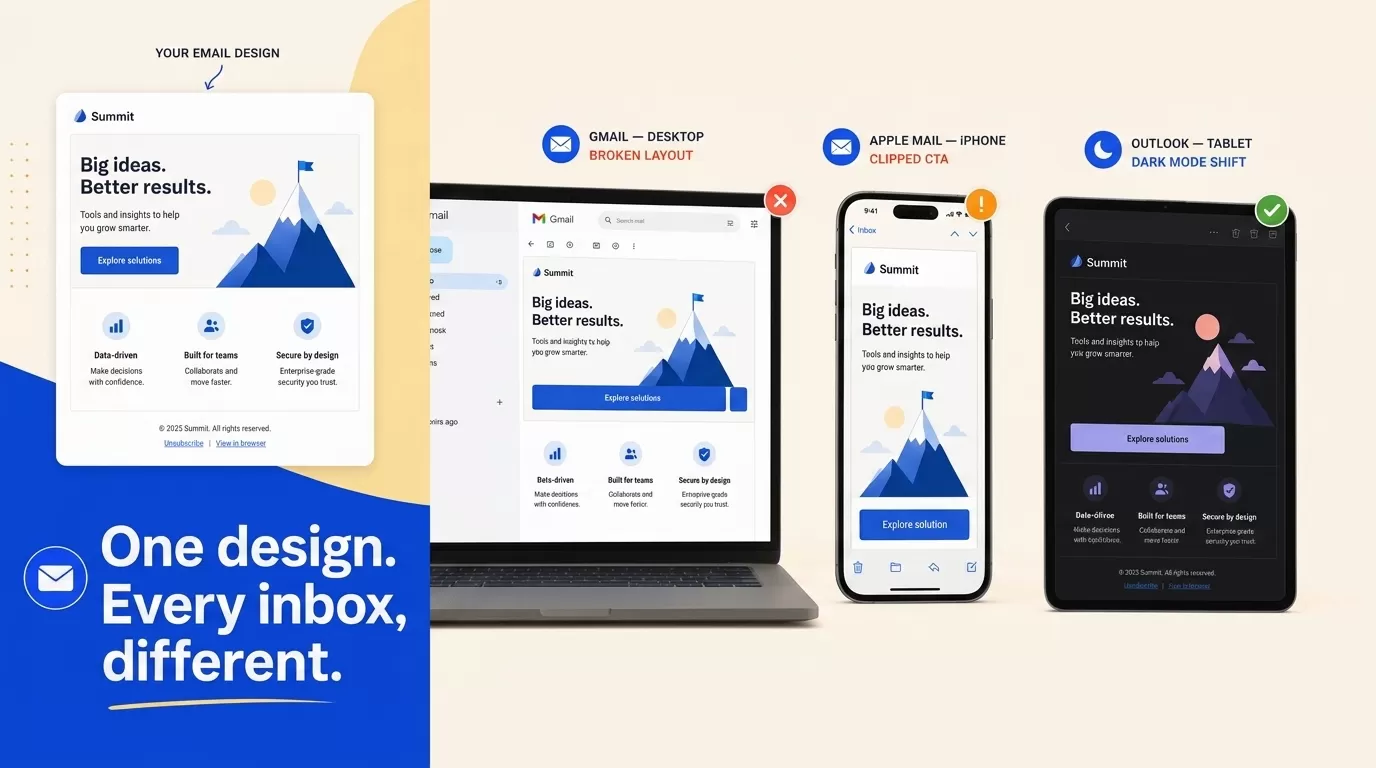
Good email creative should render correctly across the inboxes your subscribers actually use.
- Design for mobile first: Most marketing emails are opened on mobile devices, so use a single-column layout and readable font sizes with tap-friendly buttons.
- Make the first screen text-first: Place your key message and CTA near the top. If the opening visual relies on images loading, it fails on image-blocked clients.
- Add descriptive alt text: If images are blocked, recipients should still understand the email’s purpose.
- Preview in dark mode: Test colors and transparent PNGs to ensure they remain readable in dark mode.
- Avoid Gmail clipping: Gmail clips emails larger than 102 KB, which can hide content and tracking elements. Keep HTML lightweight.
- Test across major email clients: Preview campaigns in Gmail, Outlook, Apple Mail, the Gmail mobile app, and iOS and Android email apps, as each renders HTML a bit differently.
EngageLab’s Inbox Preview shows mobile email rendering across Gmail, Outlook, Apple Mail, iPhone, Android, and dark mode before a campaign goes out.
Send Time Optimization
According to Brevo’s (2025) analysis, B2B sendouts perform best on weekday mornings, when recipients are at their desks. Similarly, Twilio SendGrid (2025) data found that the best send time depends on the email type. For example, newsletters perform best on Tuesday mornings, promotional emails during mid-morning or early afternoon, while welcome emails should be sent immediately and abandoned cart reminders within 1–4 hours.
Basically, there is no universal best send time, so let your own data guide your send time optimization schedule.
- Test weekly vs. monthly sending frequency to find the cadence your audience prefers.
-
Compare event-based emails (welcome emails, abandoned carts, renewals) with scheduled calendar campaigns such as newsletters. Triggered emails often generate higher engagement
because they match customer intent.
- Adjust schedules during holiday seasons , when inbox competition increases and subscriber behavior changes.
- If appropriate, resend a campaign to non-openers only once using a new subject line and a different send time. Avoid repeatedly sending the same email.
- Where available, use behavior-based Smart Sending or send-time optimization to automatically deliver emails when each subscriber is most likely to engage.
EngageLab’s Smart Sending calculates optimal send time per recipient based on behavioral data, useful for evergreen campaigns after enough send history exists.
Maintain Good List Hygiene
A healthy email list protects sender reputation and improves long-term open rates.
- Tag inactive subscribers after 30, 60, and 90 days without engagement.
-
Move inactive contacts into a re-engagement email
workflow
before considering removal.
- Suppress hard-bounce addresses immediately , as they can damage deliverability.
- After a final re-engagement or confirmation campaign, remove chronic non-openers who still haven’t engaged to maintain a healthier, more responsive mailing list.
These three layers set the conditions. Now, the next step connects them into a repeatable campaign workflow.
Turn open-rate advice into a campaign workflow
Reuse a template in one click, then add segments, Smart Sending, warm-up controls, Inbox Preview, and reports, all in one workspace. Free to start, no credit card.
Step-by-Step Guide: Improve Email Open Rates with an Email Marketing Service
The right platform turns these best practices into a repeatable workflow. The steps below use EngageLab email to organize contacts, build targeted campaigns, protect deliverability, and measure results:
Step 1. Import and Organize Your Contacts
First, create a free EngageLab account, no credit card required. The free plan includes 50 emails per month, which is enough to set up your contacts, build a segment, and send your first test campaign before you scale.
Once you are signed in, go to Marketing > Audience > Add Contacts and import your contact list. Make sure the required contact fields are populated, including email address, lifecycle stage, and any business-relevant field your segments depend on (role, region, language, subscription plan, last purchase date, or trial start date). EngageLab supports up to 50 custom fields. These fields become the foundation for the precise targeting used in the later steps.

Step 2. Build Tags and Segments
Navigate to Audience > Tags to organize broad groups.

Next, open Segments to build rule-based audiences. For example:
- Tag: Retail Customers
- Segment: Active Buyers (Purchased in the last 30 days)
- Segment: Dormant 90 Days (No opens or clicks in 90 days)
- Segment: Trial Day 3
- Segment: Payment Failed
- Segment: High-LTV Customers

This will help you select the most relevant segment for each campaign.
Step 3. Create or Select an Email Template
Open EngageLab Email Templates , reuse a pre-built template in one click, and edit it in the drag-and-drop editor, or start from scratch. Before saving, confirm that your subject line, preview text, mobile-first layout, first visible screen, and primary CTA follow the practices covered earlier in this guide.

Step 4. Configure the Campaign
Select Campaigns , click Create , and complete the campaign settings.
- Choose the target List, Tag, or Segment.
- Select your authenticated sender domain.
- Configure the From Name and From Address.
- Choose the email template.
- Enable Google Analytics (GA) parameters if campaign traffic will be tracked in GA.
- Configure API_USER and API_KEY when sending emails through the Email API.

Step 5. Choose Your Timing Strategy
For newsletters, promotions, or event-based campaigns, use Scheduled Send to deliver emails at a specific date and time. For evergreen campaigns, use Smart Sending after sufficient engagement history has been collected so the platform can optimize delivery for each recipient.

According to EngageLab documentation, Smart Sending cannot be used together with A/B Testing or Warm-up Sending, so select the strategy that best matches your campaign objective.
Step 6. Protect Deliverability
Before scaling large campaigns, configure SPF, DKIM, and DMARC authentication for your sender domain. Enable Warm-up Sending for new domains to gradually increase sending volume and monitor Inbox Insight to identify delivery issues before expanding to larger audiences.

Step 7. Preview Before Sending
Select Inbox Preview to review how your email appears in Gmail, Outlook, Apple Mail, the Gmail app, iPhone, Android, and Dark Mode. Correct any rendering or image issues before launching the campaign.

Step 8. Measure and Iterate
Open Campaign Reports and Analytics to review delivery rate, invalid addresses, soft bounces, spam complaints, opens, clicks, unsubscribes, domain statistics, tracking details, and failure logs. Use these insights to refine your segments, subject lines, send times, and content for the next campaign.

FAQ: Diagnose and Improve Email Open Rates Without Guesswork
What are the most effective strategies to increase email open rates for US-based marketing teams?
Start by improving inbox placement before changing creative. Verify that SPF, DKIM, and DMARC are configured correctly, then check your spam complaint rate in Google Postmaster Tools. Once deliverability is stable, segment audiences by lifecycle stage and behavior instead of sending every campaign to your entire list. Subject line and send-time testing become far more reliable after these foundations are in place, since poor inbox placement can produce misleading test results.
What are the common reasons email open rates drop, and how can I diagnose the root cause?
A sudden drop in open rates often points to a deliverability issue, such as a spike in spam complaints, a blocklist listing, or an email authentication problem. Start by reviewing Google Postmaster Tools for domain reputation, IP reputation, spam rate, and delivery errors. If deliverability appears healthy, examine recent changes to your audience, such as adding inactive contacts or increasing send frequency. Also consider Apple Mail Privacy Protection (MPP), which can make performance shifts appear larger or smaller than they actually are.
How should I structure A/B tests for subject lines, and what sample size and statistical thresholds should I use?
Test one variable at a time and randomly split recipients into comparable groups before sending. Detecting a 2–3 percentage-point improvement in open rate typically requires several thousand recipients per variation, while smaller lists can only identify larger differences with confidence. Wait until the full send window has passed, then confirm the winning version using CTR or CTOR, not open rate alone, to reduce the impact of Apple MPP.
How do SPF, DKIM, DMARC, and BIMI affect deliverability and open rates, and what are the step-by-step checks?
SPF authorizes sending servers, DKIM verifies message integrity, and DMARC tells receiving providers how to handle emails that fail authentication. BIMI can display a verified brand logo in supported inboxes. It is seen that authenticated senders achieve higher inbox placement than unauthenticated ones. Before sending, verify your SPF, DKIM, DMARC, and BIMI records and confirm authentication is passing.
How does Apple Mail Privacy Protection change the meaning of open rates, and what alternative metrics should I track?
Apple Mail Privacy Protection (MPP) preloads tracking pixels through Apple’s privacy proxy, which allows many emails to register as opened even when recipients never view them. This can inflate reported open rates by 15–20 percentage points or more on Apple-heavy lists. Track CTR, click-to-open rate (CTOR), conversion rate, inbox placement, spam complaint rate, and revenue per send alongside open rate for a more accurate view of campaign performance.
What list hygiene and re-engagement workflows reliably improve opens without violating CAN-SPAM or state privacy laws?
Tag subscribers after 30, 60, and 90 days of inactivity, then send a two- or three-email re-engagement campaign. Suppress contacts who remain inactive and remove hard bounces immediately. Honor unsubscribe requests within 10 business days, as required by the CAN-SPAM Act, and retain suppression records. Also, ensure your email practices comply with applicable state privacy laws.
Bottom Line
How to improve email open rates is less about one perfect tactic and more about following a repeatable process. Start with reusable EngageLab Email Templates to build campaigns faster, then customize the subject line, preview text, audience segment, and CTA for each campaign.
Next, use the email A/B test template and sample-size checklist to structure your experiments, then run a deliverability health check by reviewing your SPF, DKIM, DMARC, and BIMI records, along with Inbox Preview and Inbox Insight, before launching your next campaign.
Ready to improve email open rates without guessing?
- Start from reusable EngageLab Email Templates, then adapt the subject line, preview text, segment, and CTA for each campaign.
- Run SPF, DKIM, DMARC, BIMI, Inbox Preview, warm-up, and reporting checks before the next major send.
- Build segmented campaigns, test timing, preview rendering, and track delivery performance from one console.
Compliance note: If collecting leads for downloads or audits, include consent language and link to the privacy policy. Do not enroll download leads into marketing sends without the appropriate opt-in flow.