

How to Configure Frequency Control to Avoid Over‑Messaging Users?
1. Steps to Configure
- Navigate to the journey settings page and click "Frequency Control".
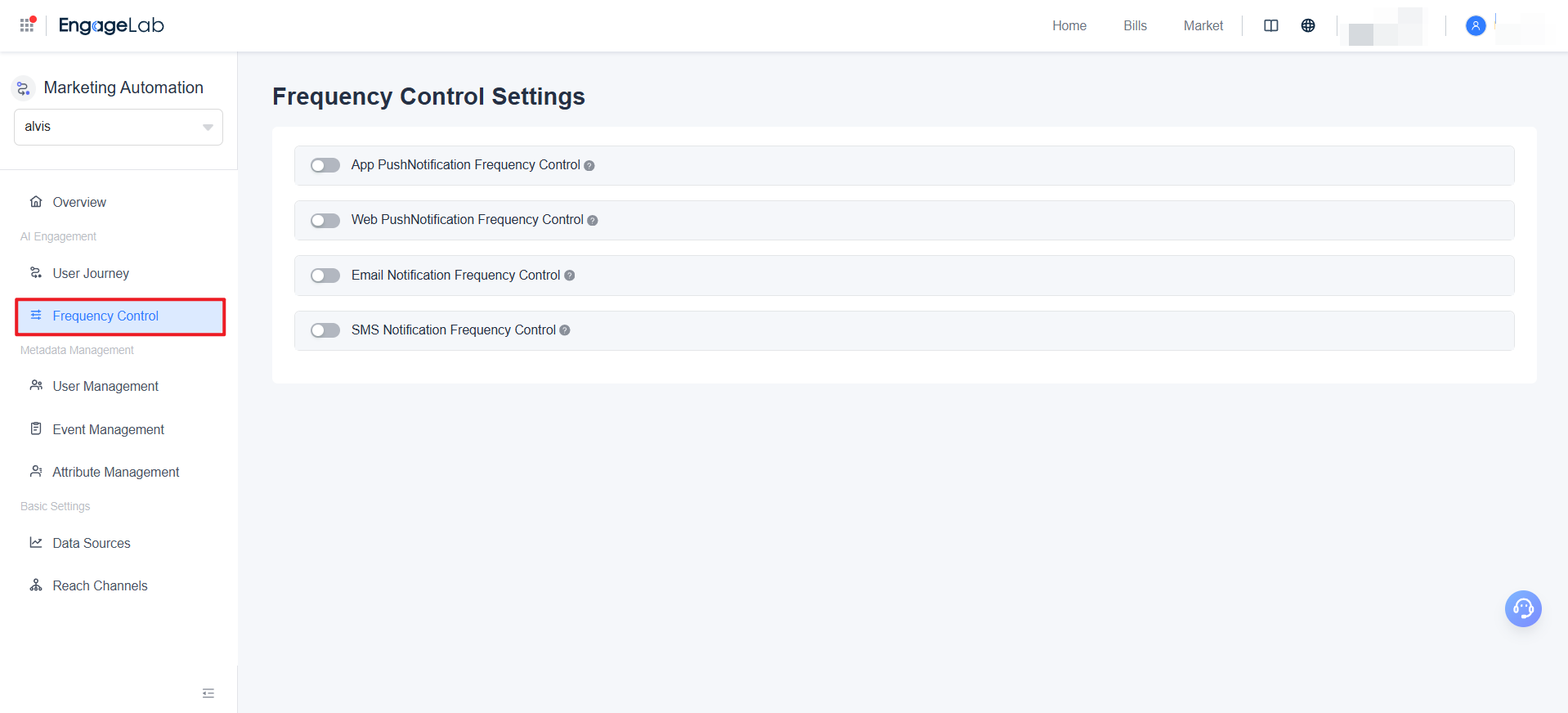
- Set sending limits for each channel type:
- App Push: Maximum number of messages per user per hour/day/week
- Web Push: Maximum number of messages per user per hour/day/week
- Email: Maximum number of messages per user per hour/day/week
- SMS: Maximum number of messages per user per hour/day/week
- Click "Save" to apply the settings immediately.
2. Frequency Recommendations
- App/Web Push: 1–3 messages per day to avoid over‑notification.
- Marketing Emails: 2–5 emails per week to maintain user engagement.
- Marketing SMS: 1–2 messages per week, reserved for important notifications.
- Promotional Periods: Frequency may be increased appropriately, but a daily limit is recommended.
3. Execution Rules
- Frequency control applies only to messages sent via Journeys.
- All journeys are treated equally—limits are counted based on the chronological order of message sends.
- Once the limit is reached, subsequent messages are automatically blocked.
If you require tailored frequency‑setting recommendations for specific industries or scenarios, please contact our Technical Support team for a detailed proposal.

Still Have Questions?
Can't find what you're looking for? Our experts are here to provide personalized assistance. Ask your question now and get a timely response.

