


"Add Channel" - "Email"
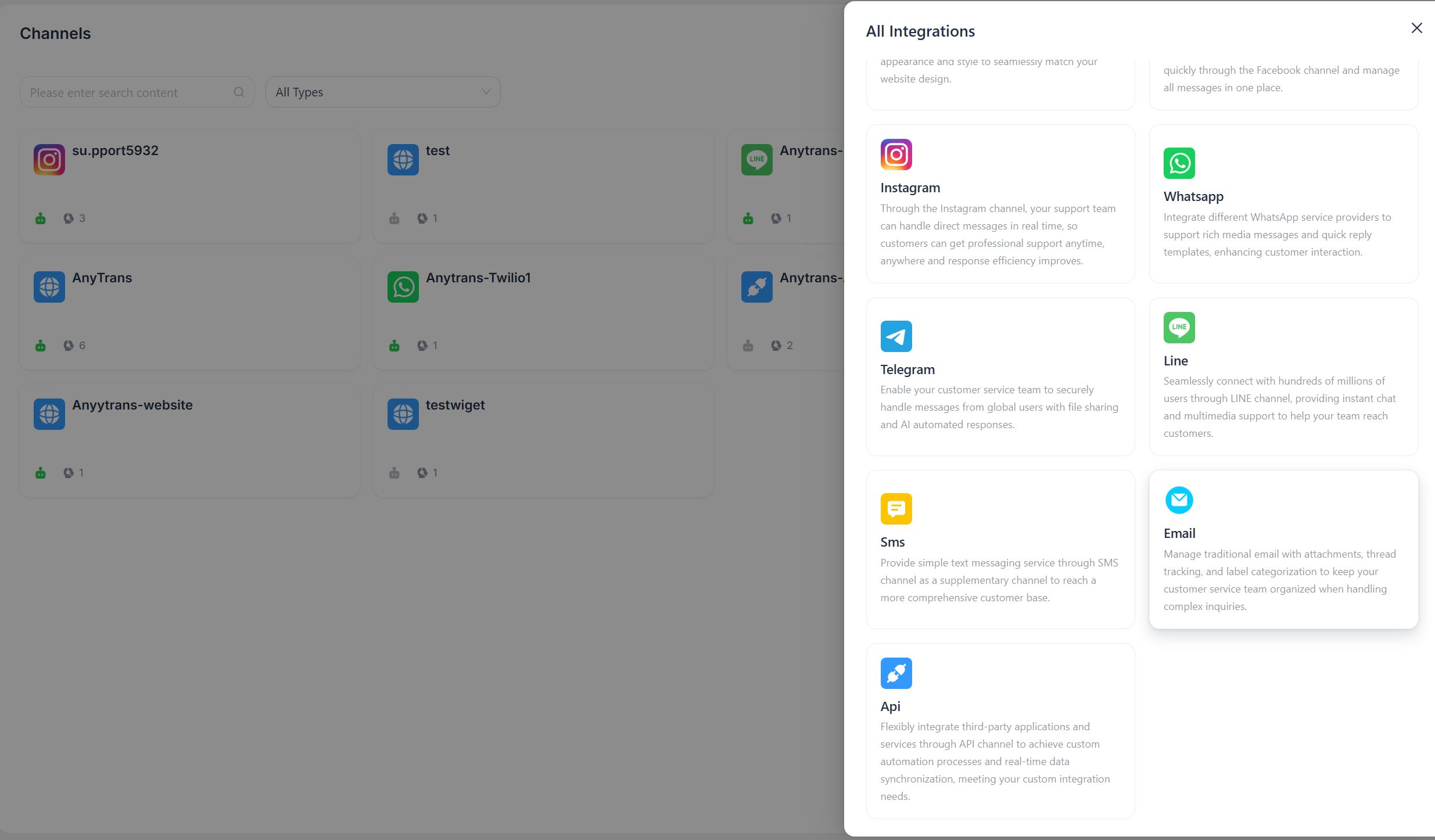
Enter configuration information
Fill in the configuration information according to the prompts in the interface, then click "Confirm" when finished.
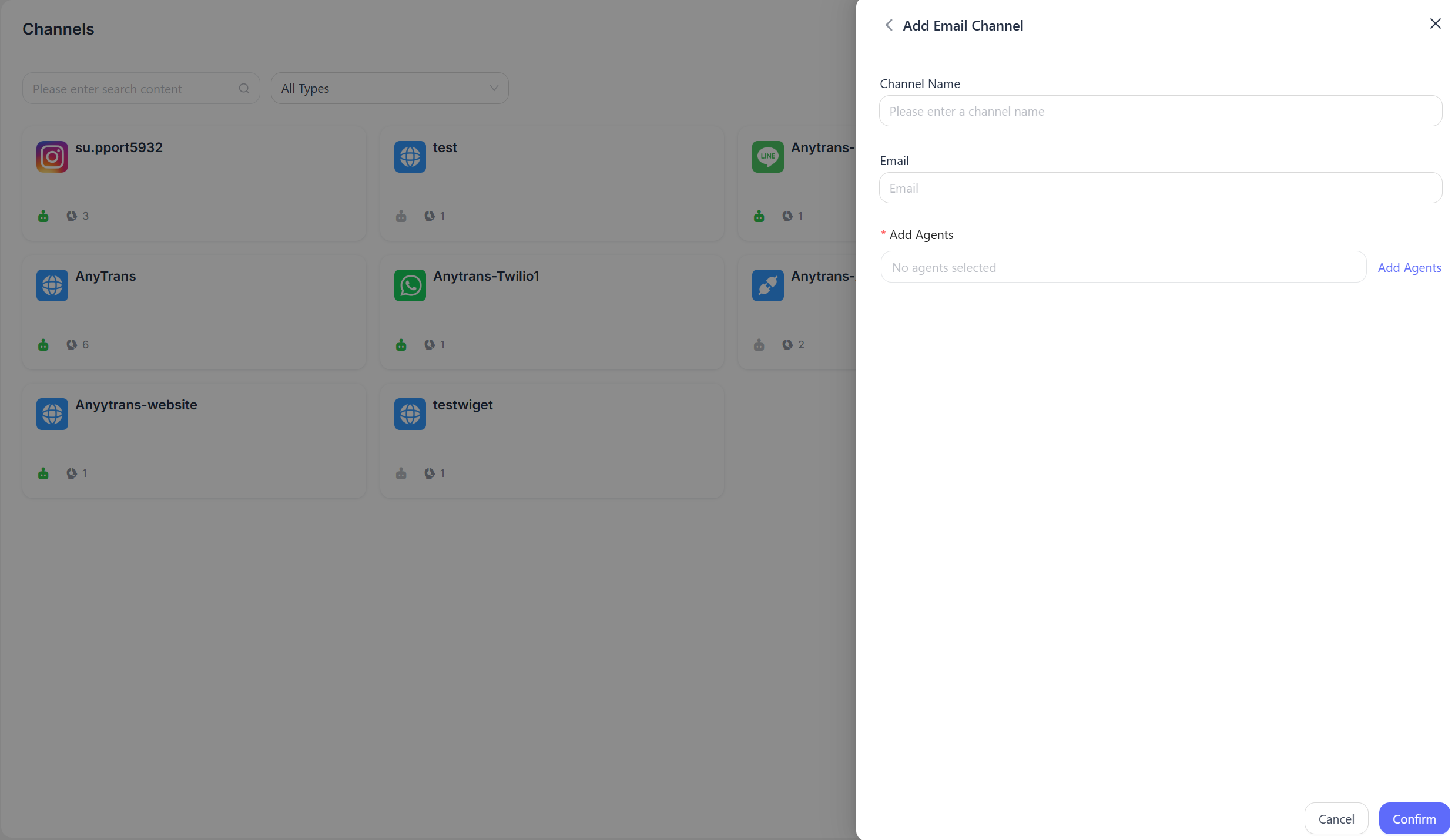
- Channel Name: Enter the channel name.
- Email Address: Enter the email address used to receive customer messages.
Detailed settings
After creating the channel, you can configure detailed settings for the corresponding channel.
Settings
Set channel greeting message
Disabled by default. Enter a custom greeting message, which will be sent automatically to customers when they start a conversation.
Enable CSAT
After enabling this feature, a customer satisfaction survey will automatically start each time an issue is resolved. CSAT scores can be viewed later in the Reports section.
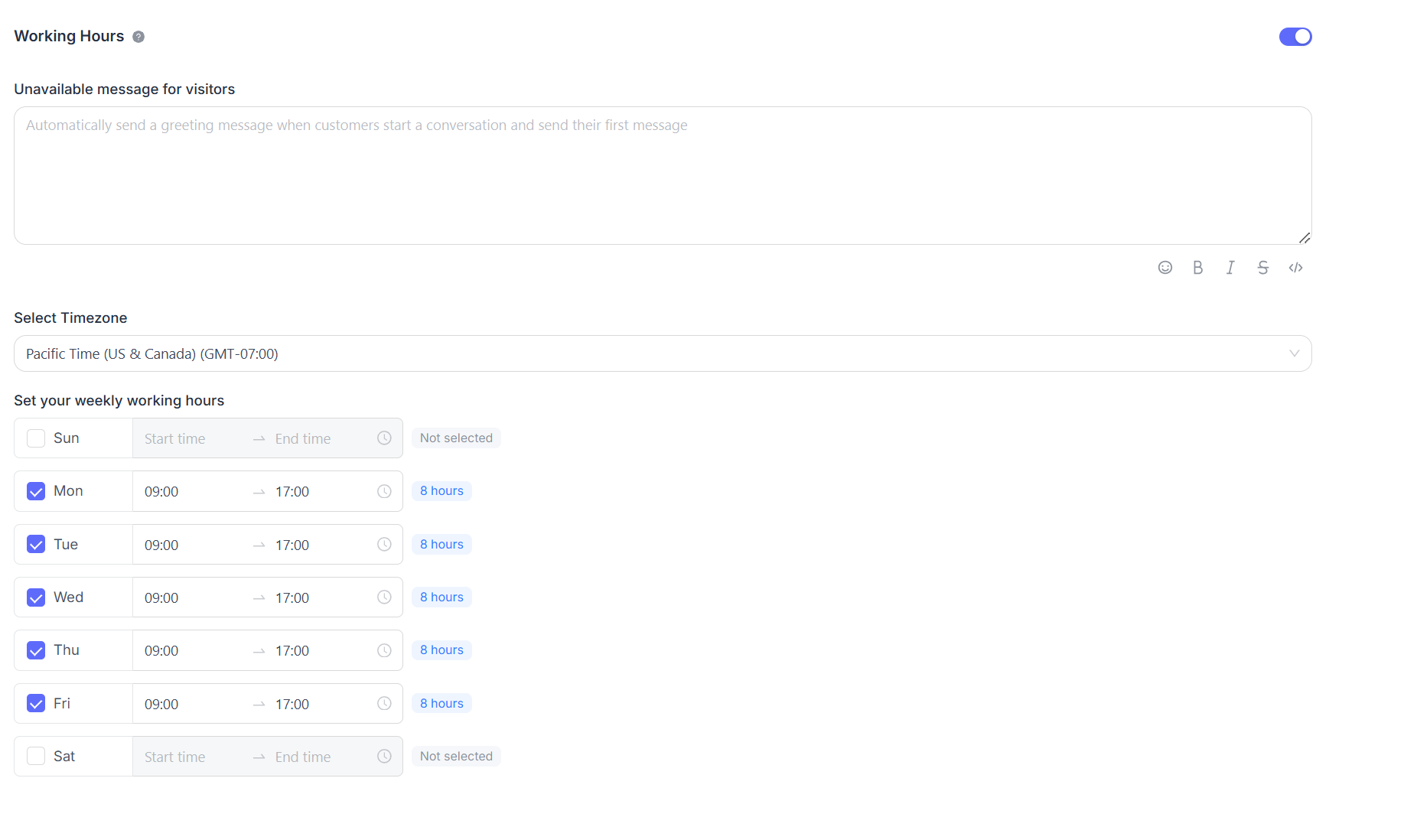
Working hours
You can configure the team's working hours.
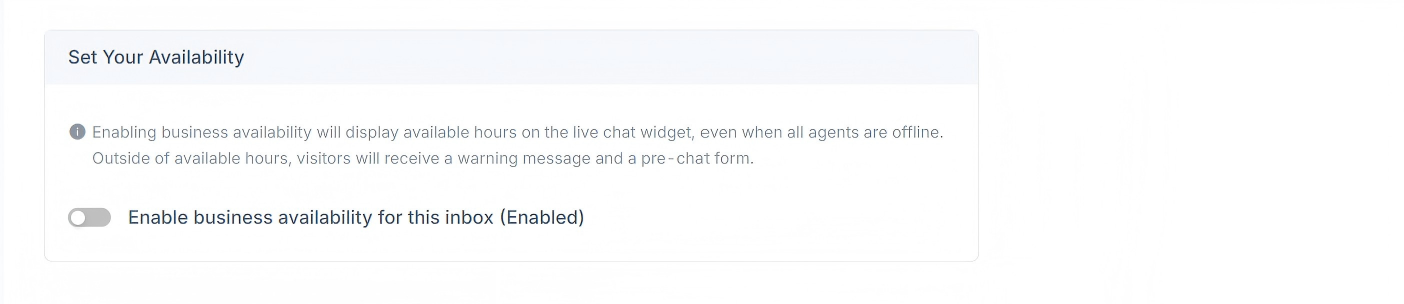
If there are clearly defined business hours, select the "Enable business availability for this inbox (enabled)" checkbox. After selecting this checkbox, the corresponding parameter settings will be displayed below. You can set an unavailable message for visitors outside working hours. Business hour intervals and the corresponding time zone can be configured for each day.
Configuration
Configure detailed settings such as IMAP and SMTP.
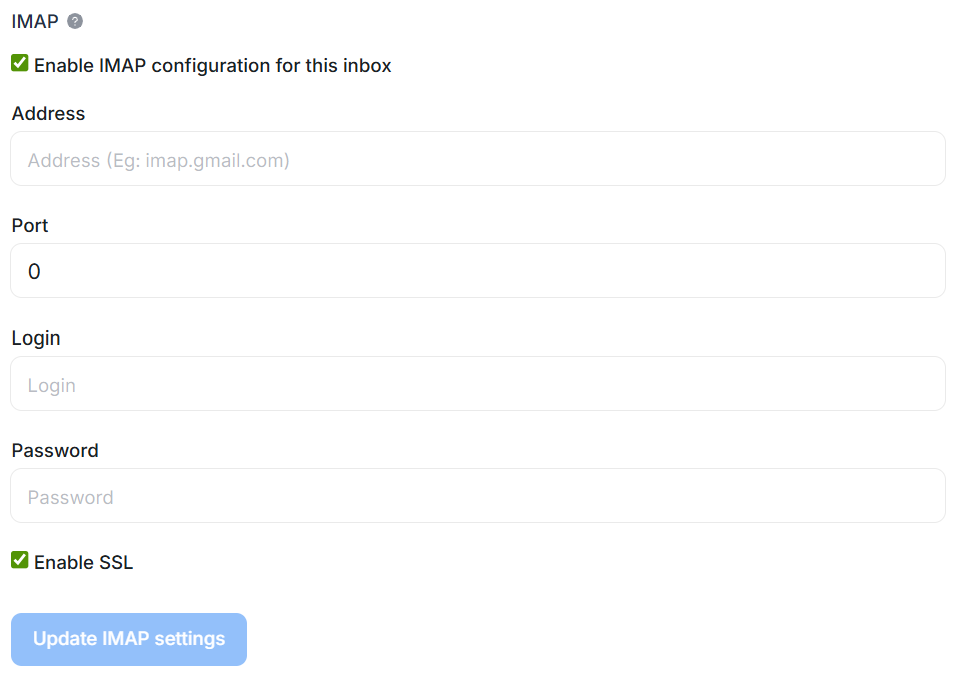
Configure IMAP
Enter the address, port, login, and password information for the mailbox used to receive messages. If you do not choose to receive emails through forwarding, you can also choose to retrieve emails through the IMAP protocol. Authorize LiveDesk to access the email content in your mailbox through IMAP.
Configure SMTP
LiveDesk replies to emails in the conversation contact's mailbox through the SMTP protocol. Therefore, you need to configure the corresponding SMTP parameters here according to your mailbox settings.
