


SMS
SMS in LiveDesk allows users to add SMS channels to communicate with customers. Two API provider options are available: Twilio and Bandwidth.
"Add Channel" - "SMS"
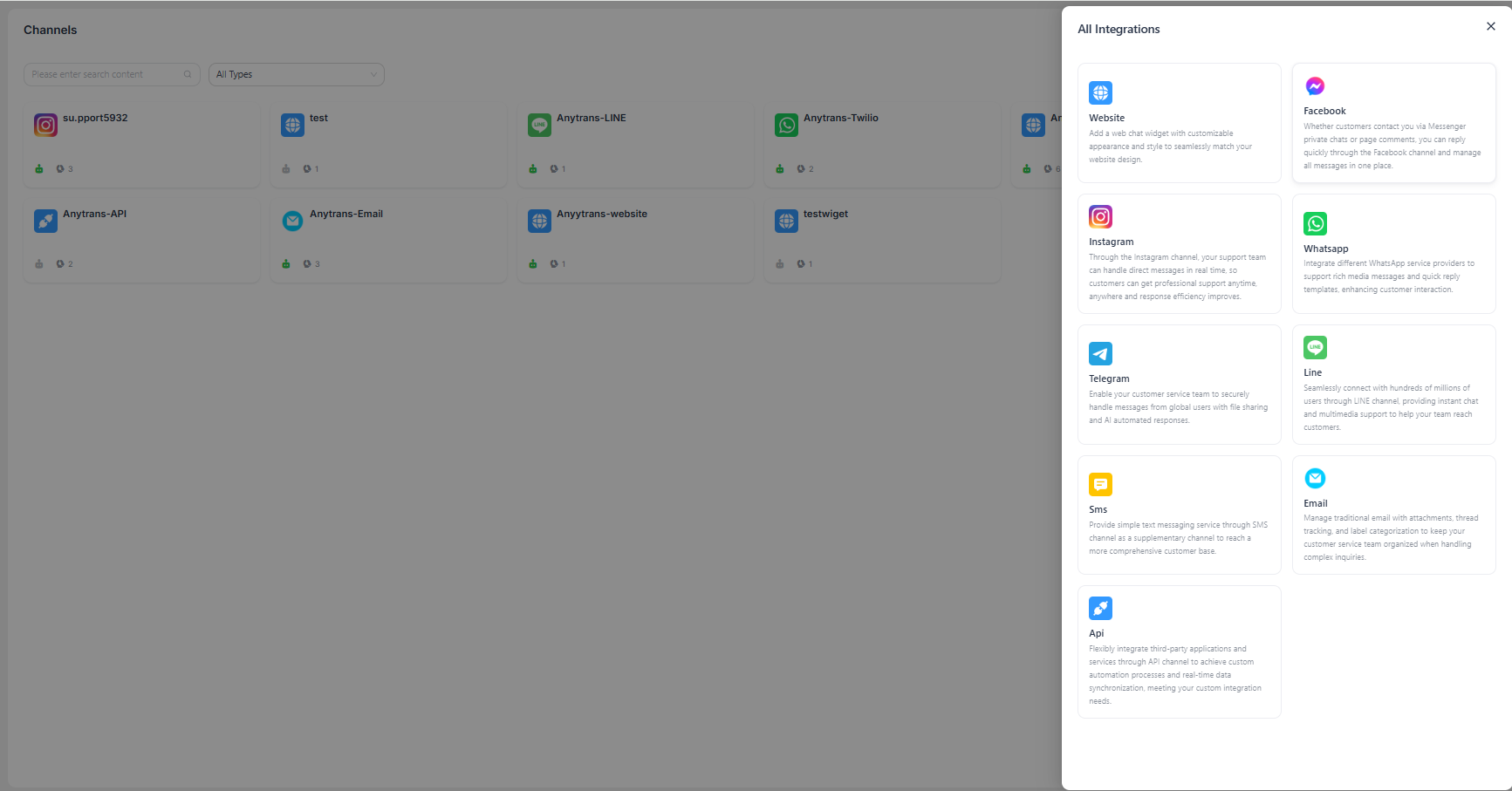
Enter Configuration Information
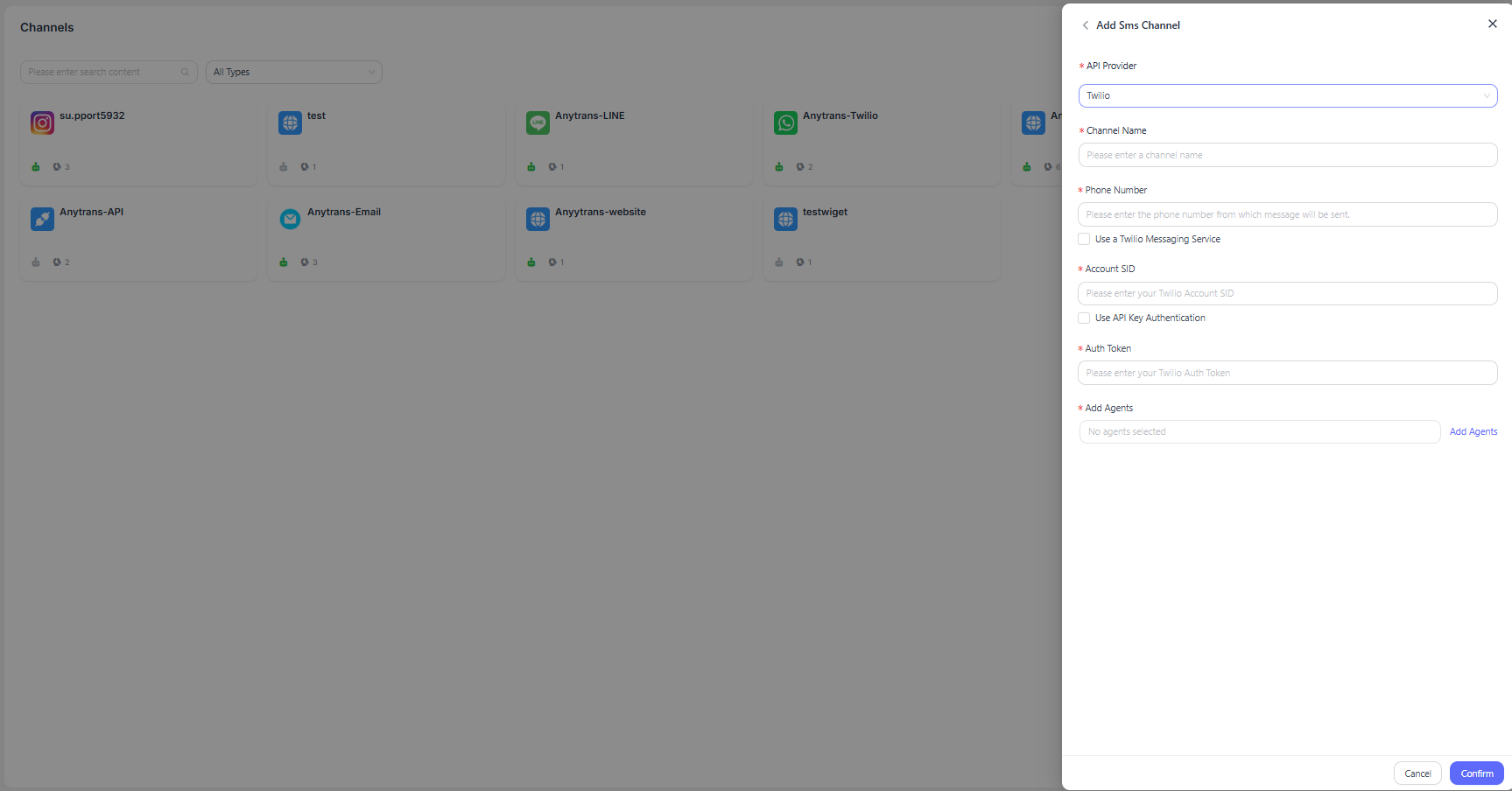
Fill in the configuration information according to the on-screen prompts, then click "Confirm" to complete the setup.
Twilio
- Channel Name: Enter the channel name.
- Phone Number: The phone number used to send messages.
- Use Twilio Messaging Service: Optional.
- Account SID: Twilio account ID.
- Use API Key Authentication: Optional. After selecting this option, the API key below will take effect.
- API Key: Enter the Twilio token (required when using API key authentication).
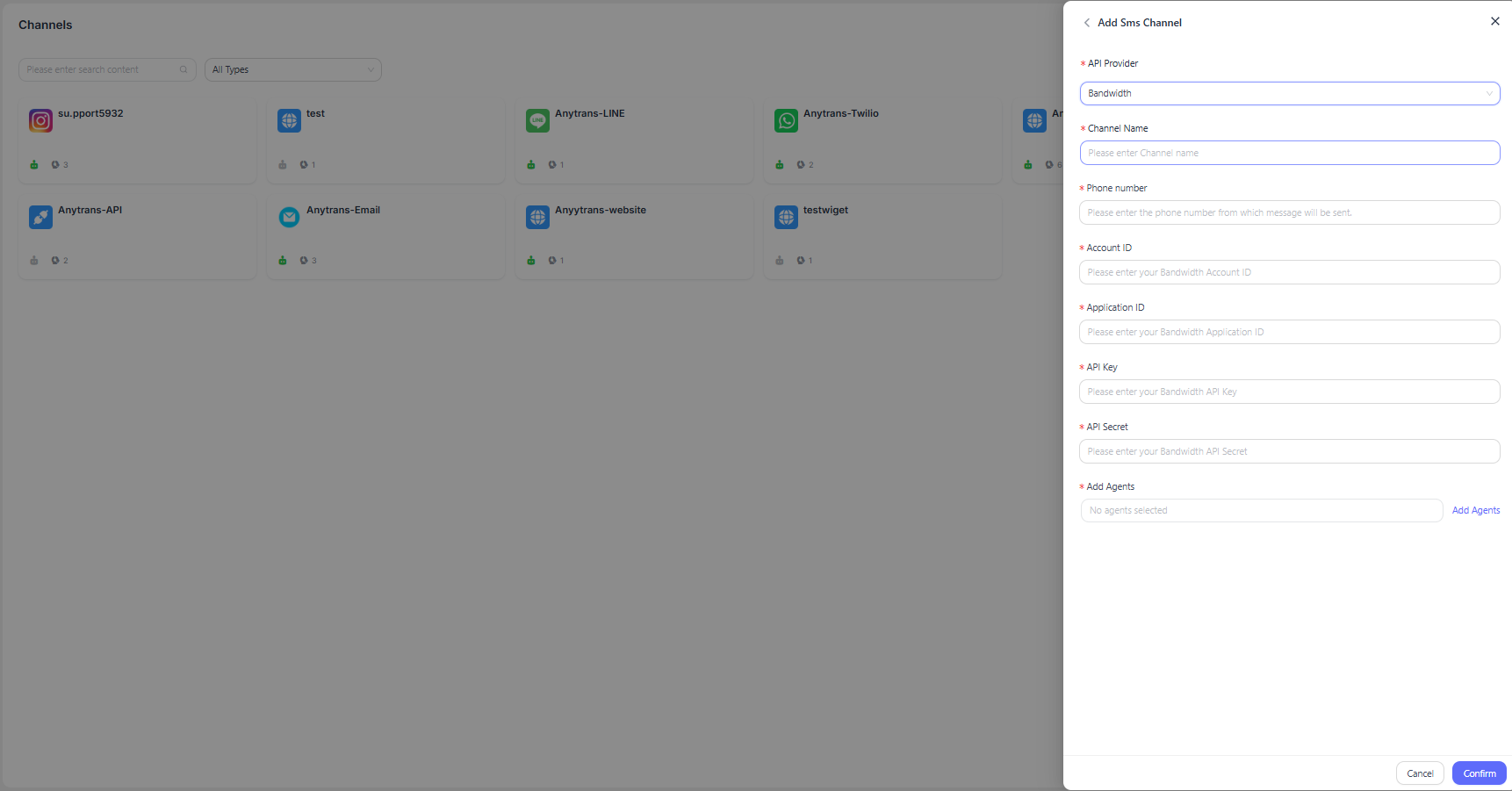
Bandwidth
- Channel Name: Enter the channel name.
- Phone Number: The phone number used to send messages.
- Account SID: Bandwidth account SID.
- API Key: Enter the Bandwidth API key.
- API Secret: Enter the Bandwidth API secret.
Detailed Settings
After the channel is created, you can configure detailed settings for the corresponding channel.
Settings
Set Channel Greeting Message
Disabled by default. Enter a custom greeting message, which will be sent automatically to the customer when the customer starts a conversation.
Enable CSAT
After this feature is enabled, a customer satisfaction survey will be launched automatically each time an issue is resolved. CSAT scores can be viewed later in the Reports section.
Working Hours
You can set the team's working hours.
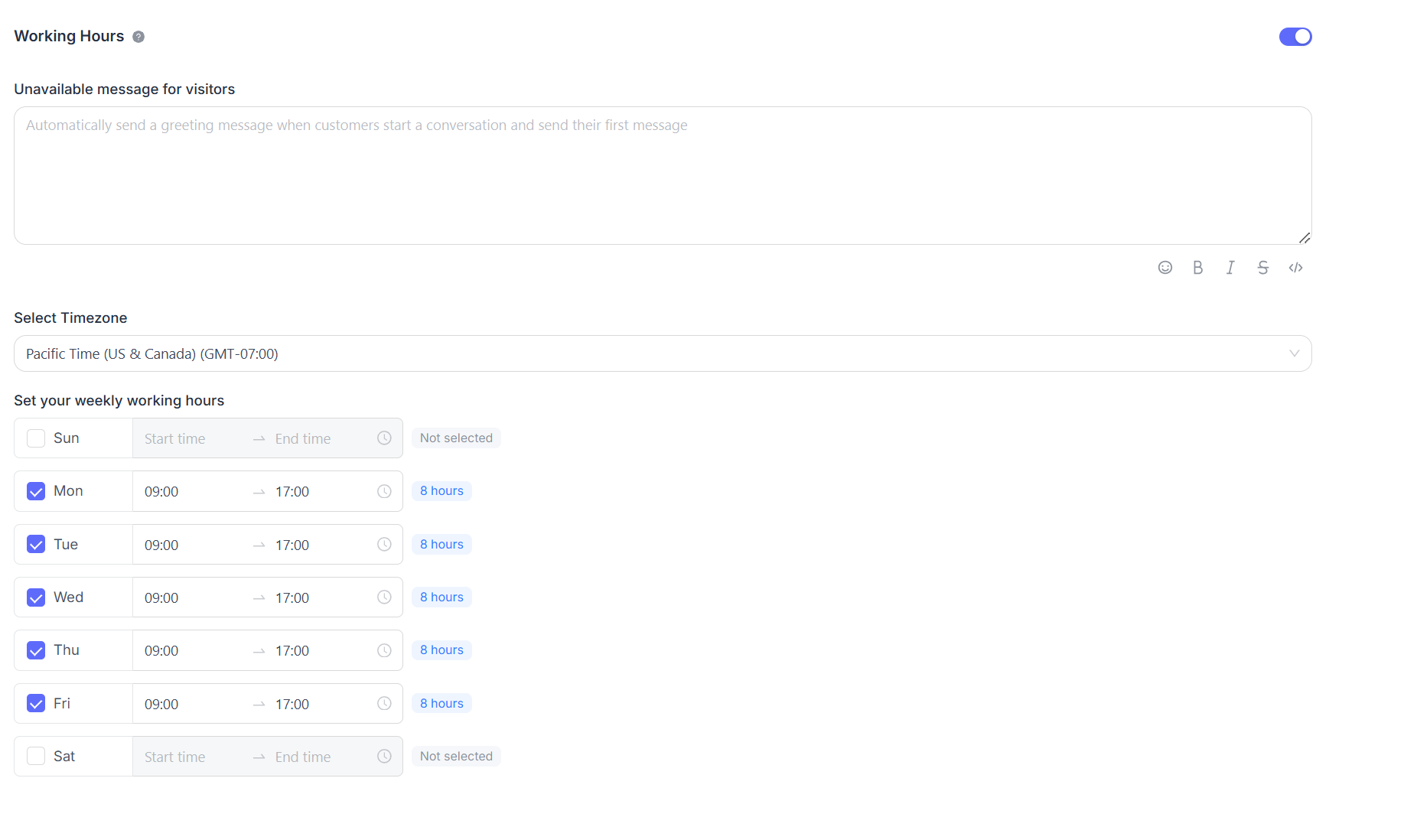
If there are clearly defined business hours, select the "Enable business availability for this inbox (Enabled)" checkbox. After selecting it, the corresponding parameter settings will be displayed below. You can set an unavailable message for visitors during off-hours. You can also select business hour time ranges and the corresponding time zone for each day.
