Telegram Personal Account
LiveDesk supports adding a Telegram channel to communicate with users. With this feature, you can:
- Automatically receive messages from Telegram and assign them to the appropriate team or customer service agent.
- View detailed profile information about users who send messages.
- View, manage, and reply to all messages in conversation or ticket lists.
LiveDesk provides two ways to create a Telegram channel: connecting a Telegram Bot or a Telegram personal account. The following section explains how to add a Telegram channel using a Telegram personal account.
Preparation
LiveDesk connects to Telegram personal accounts through the Unipile Messaging API. Before creating a channel, you need to create an account on the Unipile platform and connect your Telegram account. The specific steps are as follows:
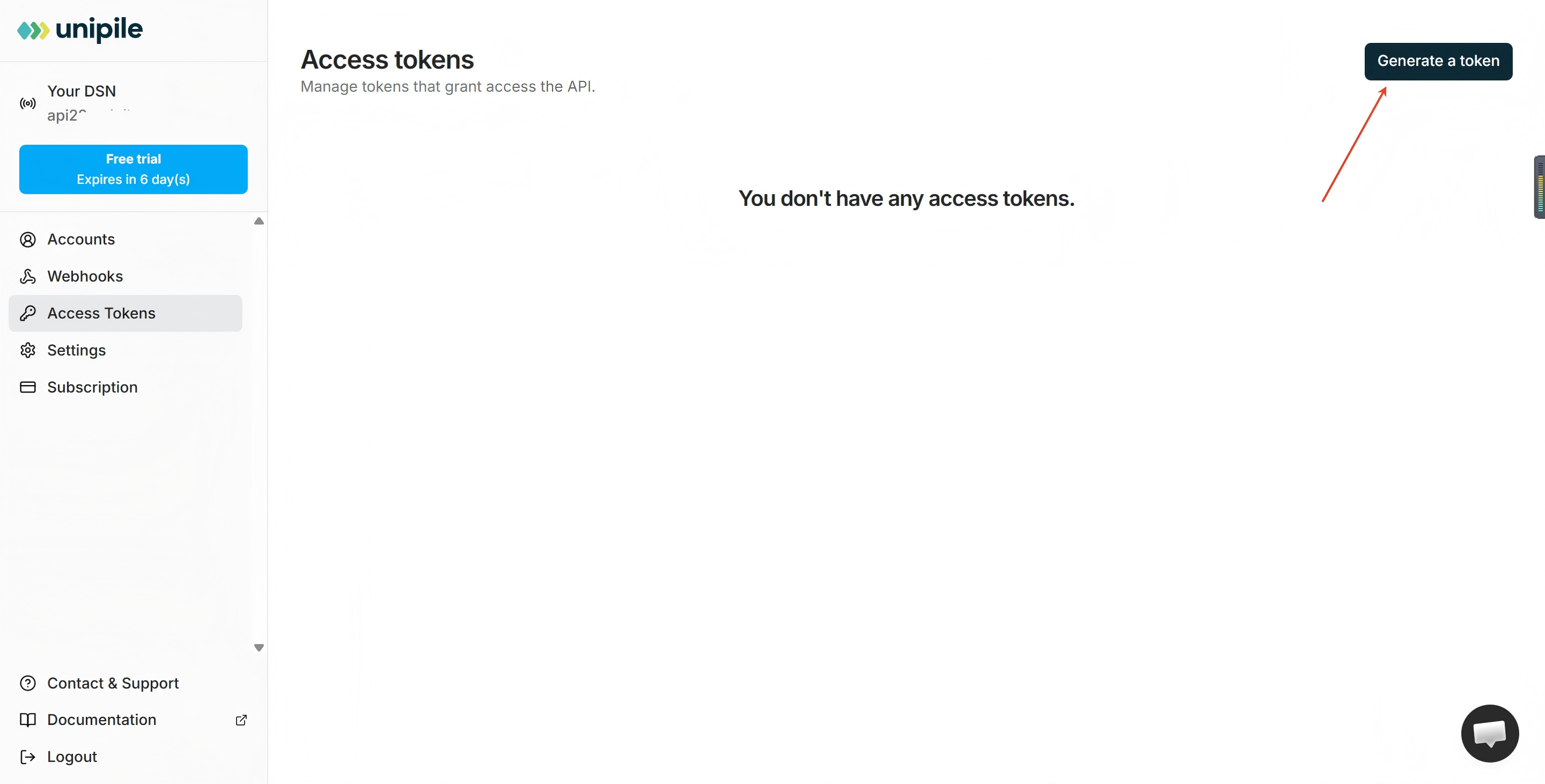
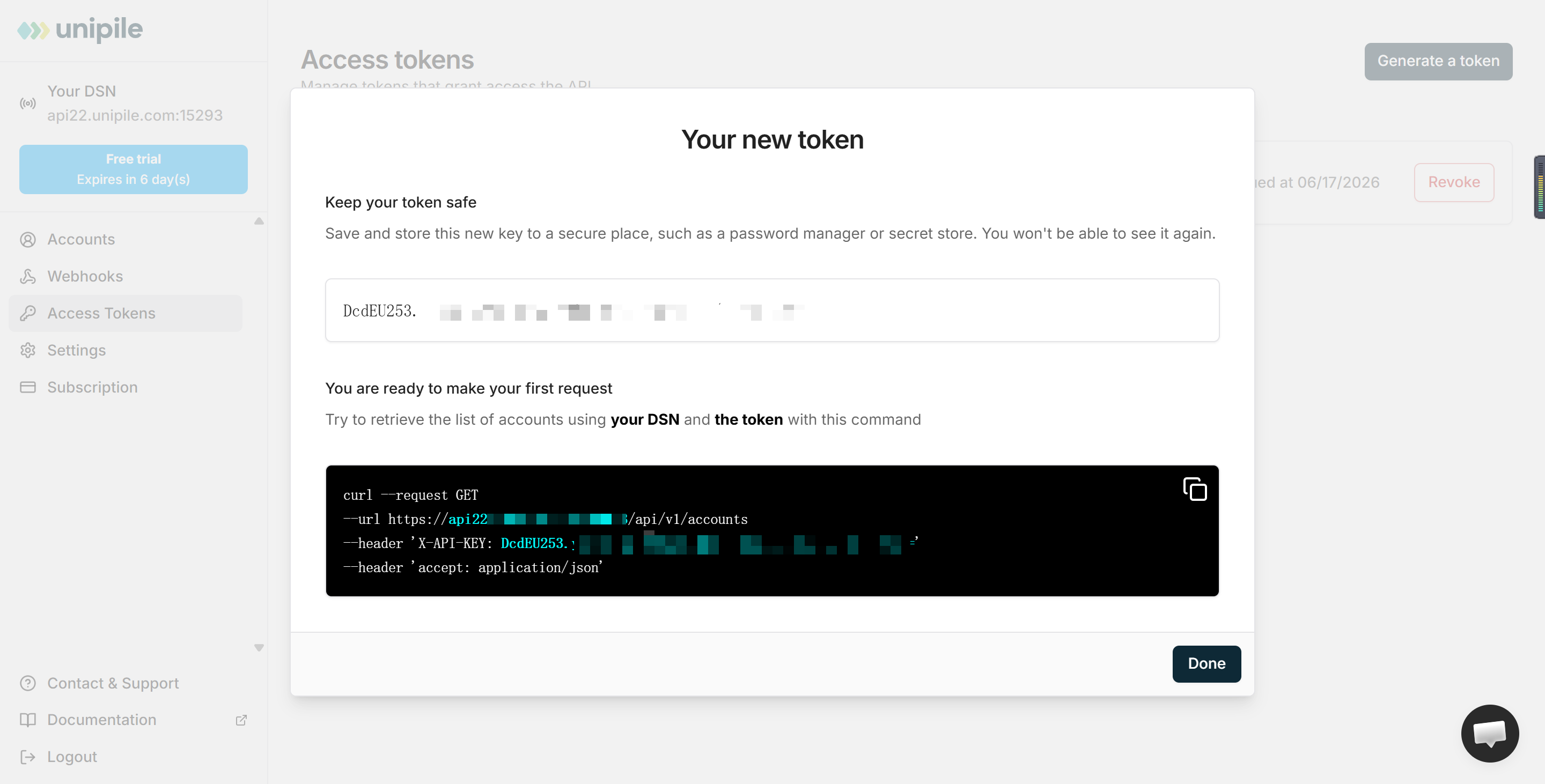
- Visit the Unipile platform. If you do not have an account, register first. After logging in, go to the console. First, create a Token. After creating it, save your DSN and Token information for configuring the channel later.
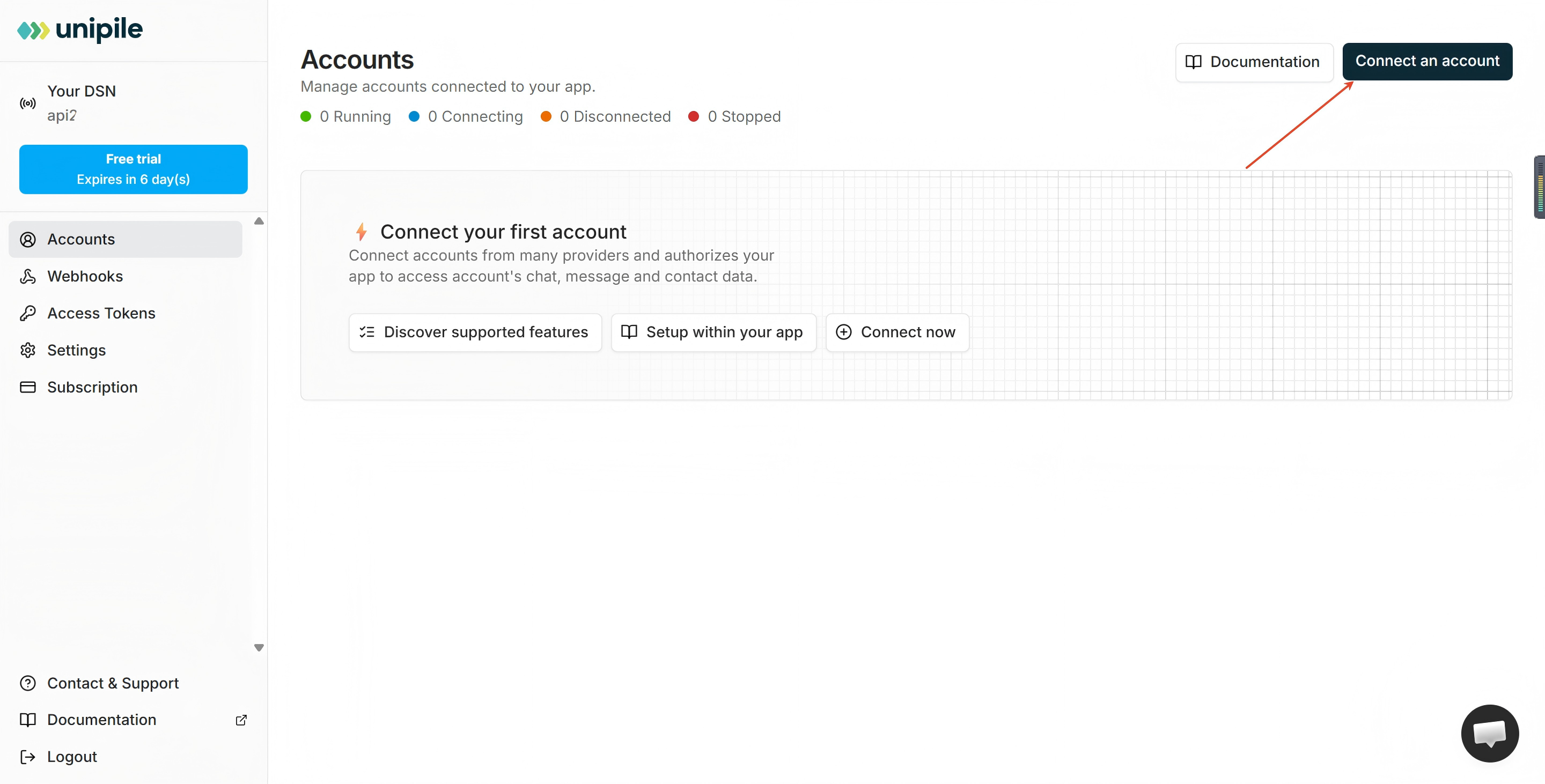
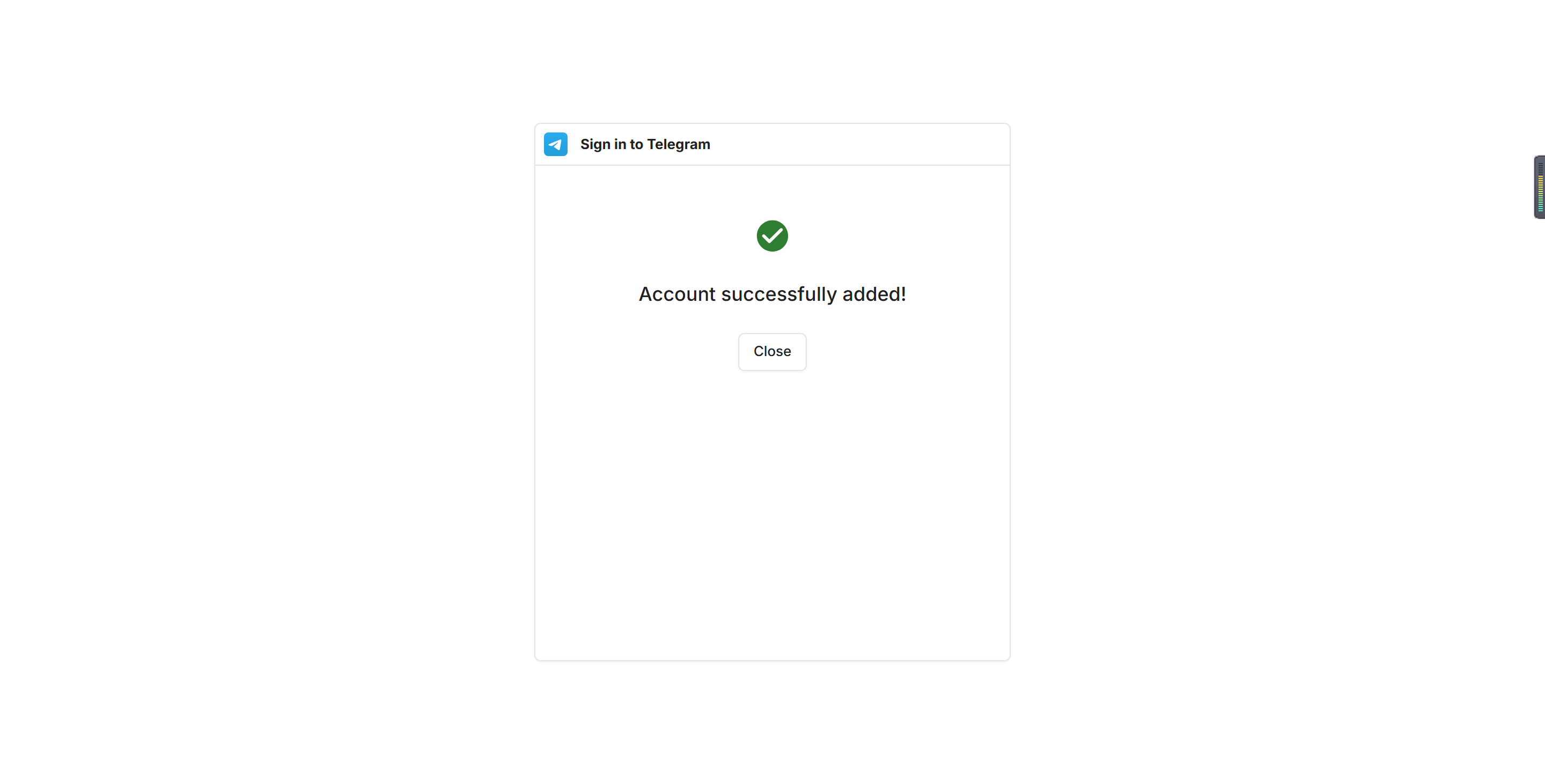
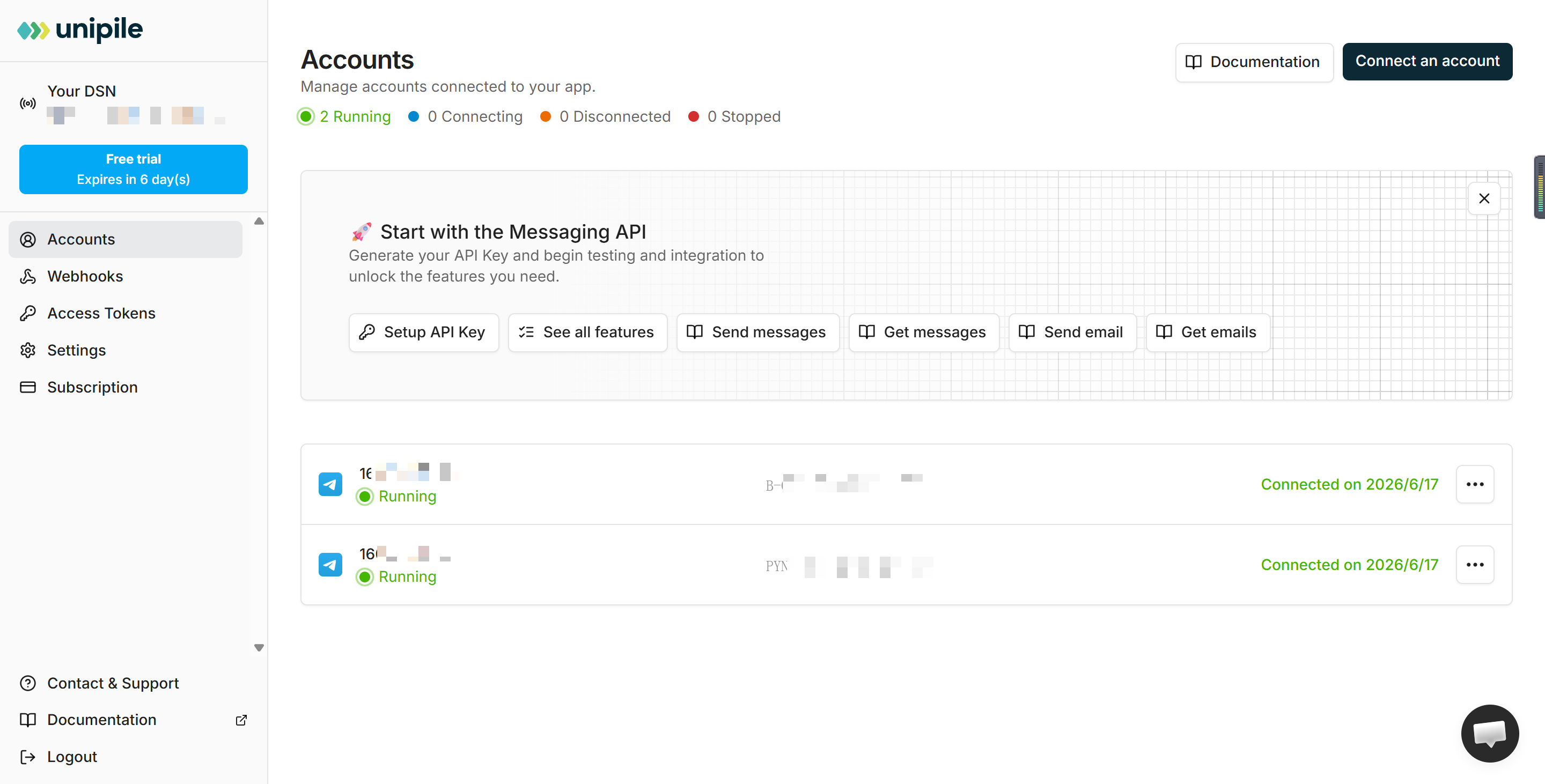
- Connect your personal Telegram account. After creating the Token, you also need to authorize your personal Telegram account in Unipile. Follow the instructions to complete the authorization and connection process. After the connection is successful, the list of authorized personal Telegram accounts will appear in your Unipile account.
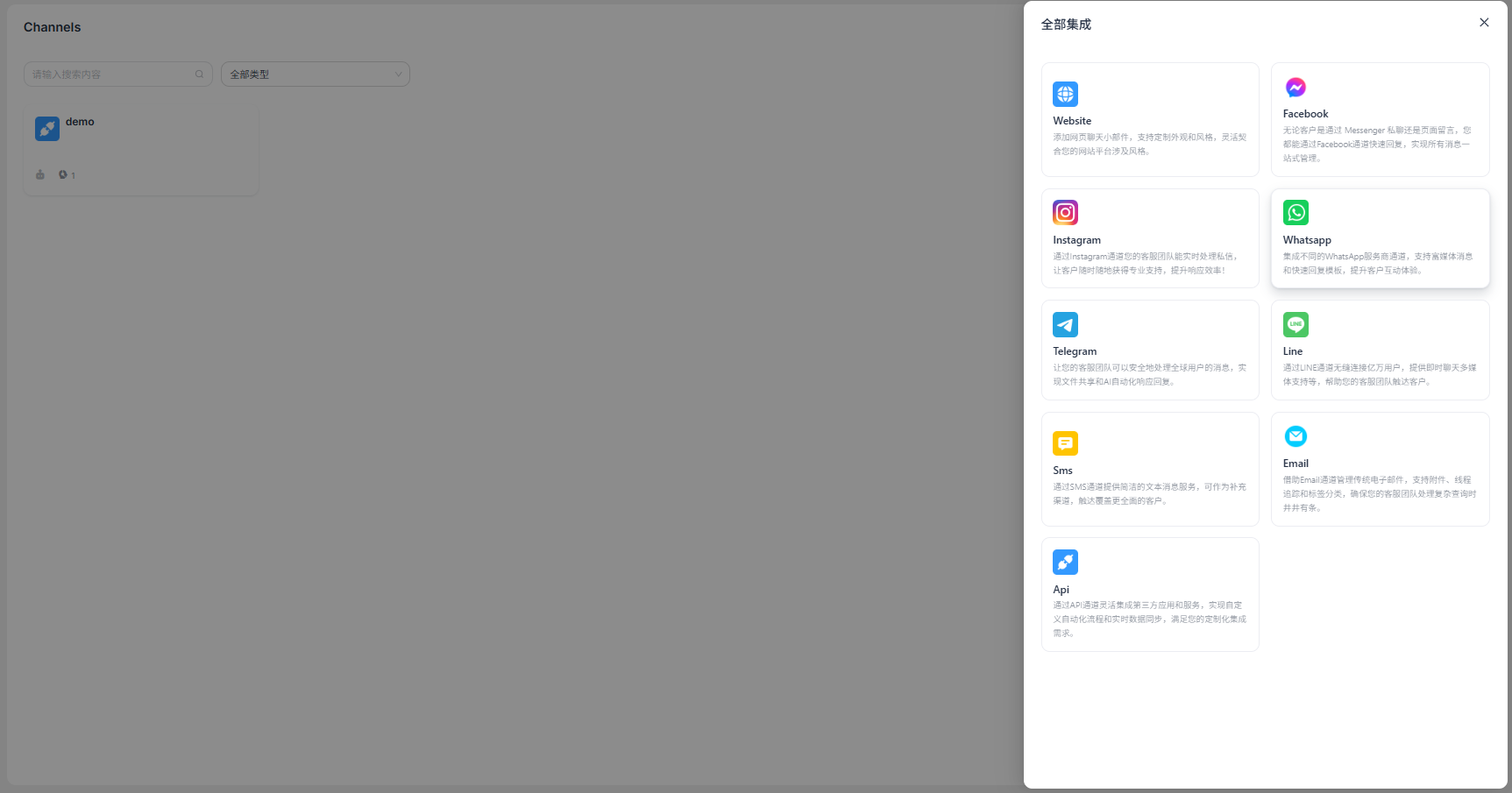
"Add Channel" - "Telegram"
Select Add Channel, then select Telegram personal account to create a channel.
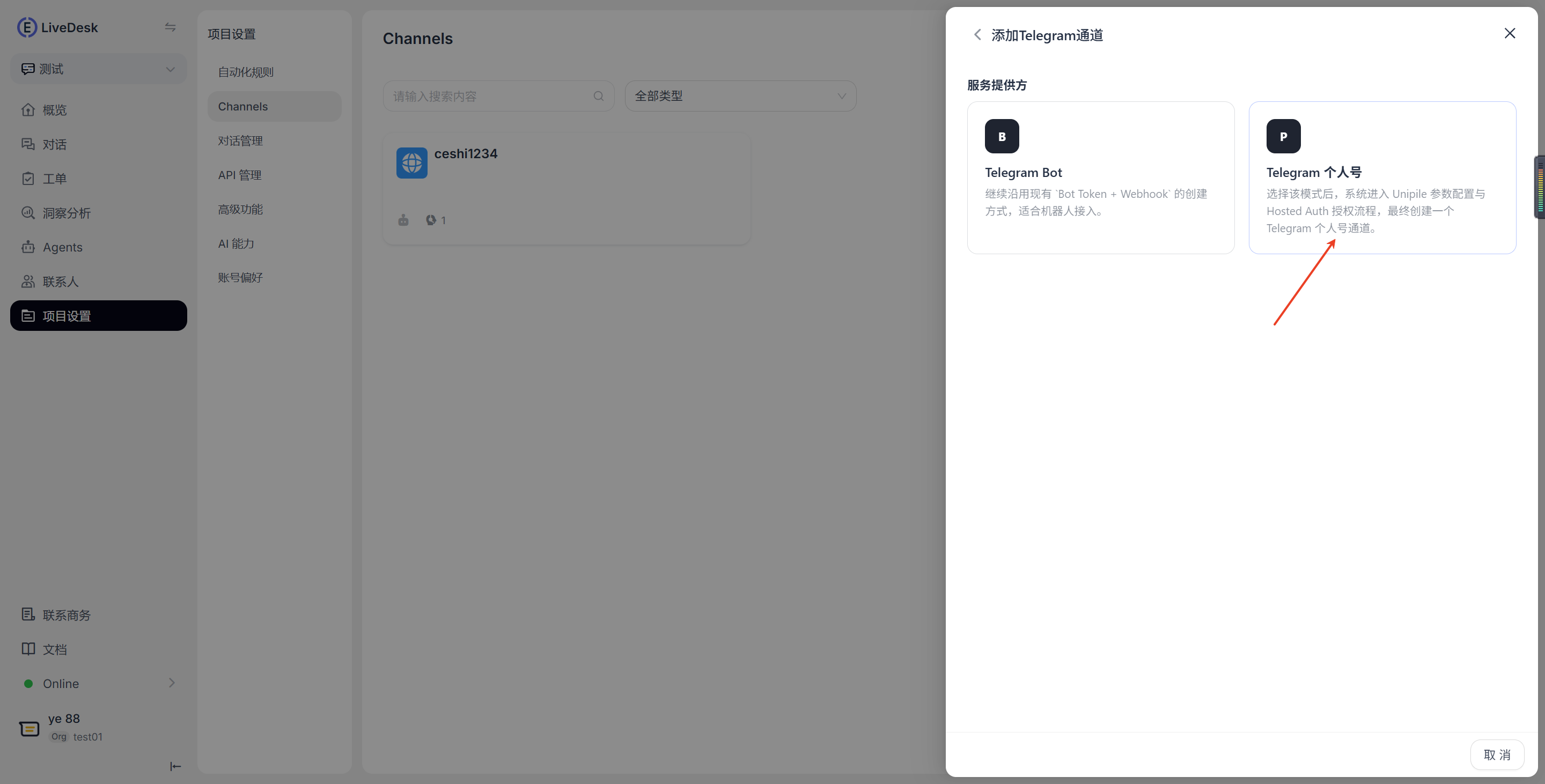
Enter Configuration Information
Enter the configuration information according to the on-screen instructions. You can customize the channel name. Enter the DSN address obtained from Unipile as the API address, for example, api22.unipile.com:xxxxx, and enter the generated Token as the API Key.
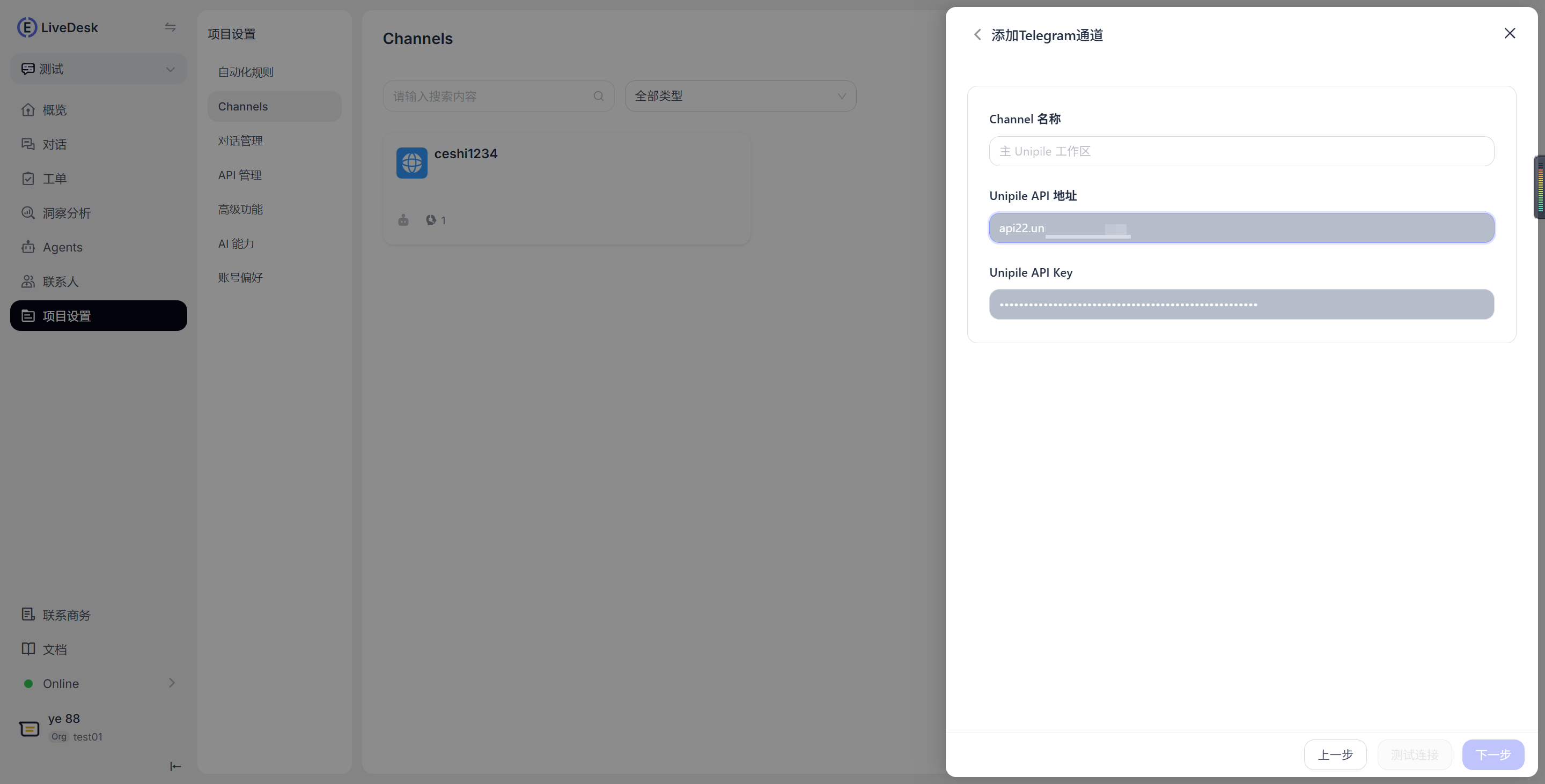
After entering the information, click Test Connection. Once the test passes, a confirmation message will appear, and you can proceed to the next step.
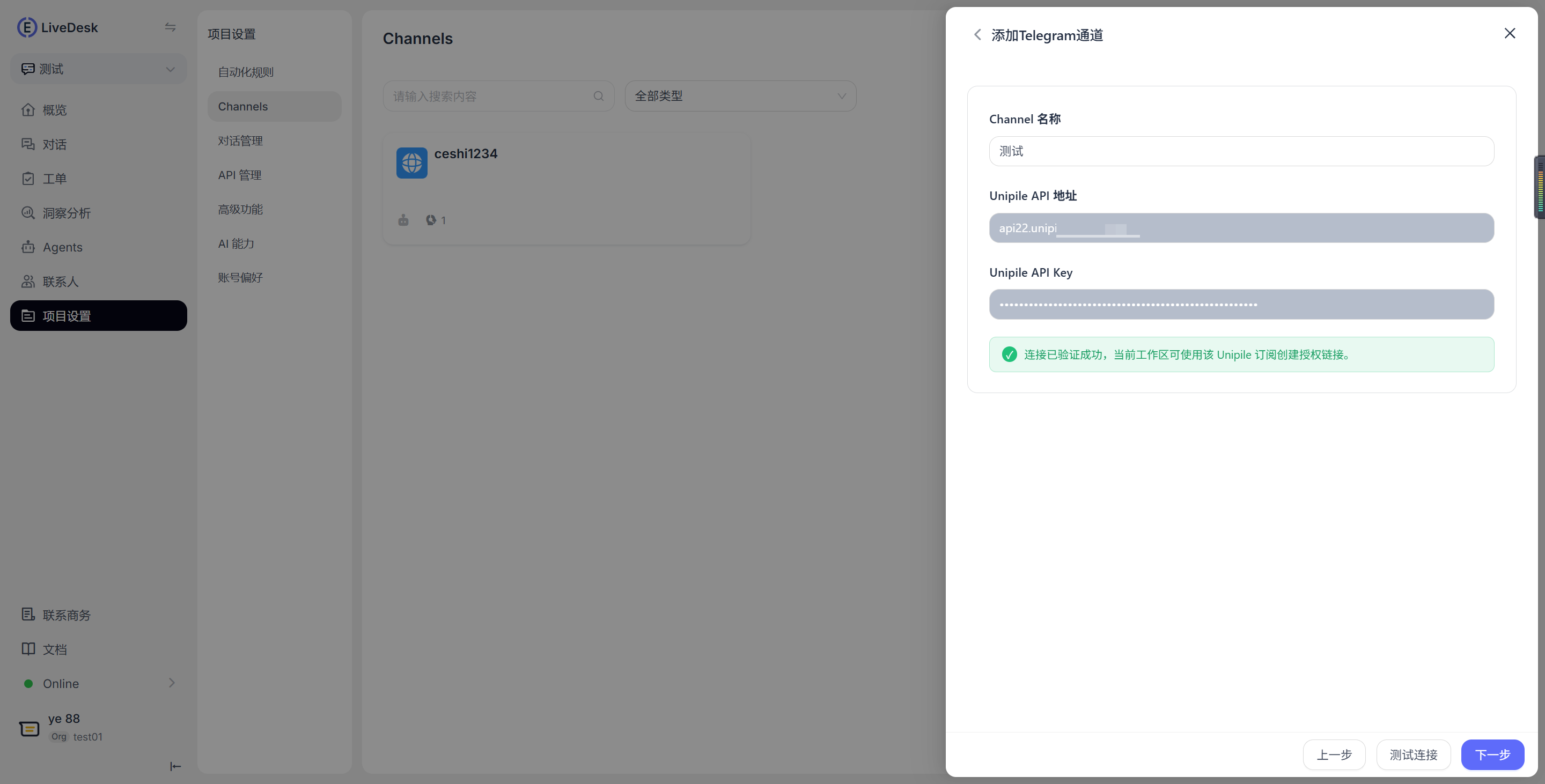
If your Unipile account already has an authorized Telegram account, the relevant account list will be displayed. Select the Telegram account you want to connect. If you need to authorize another account, select Go to Unipile for Authorization.
Select an account, assign customer service agents to the channel, and click Confirm to complete channel creation.
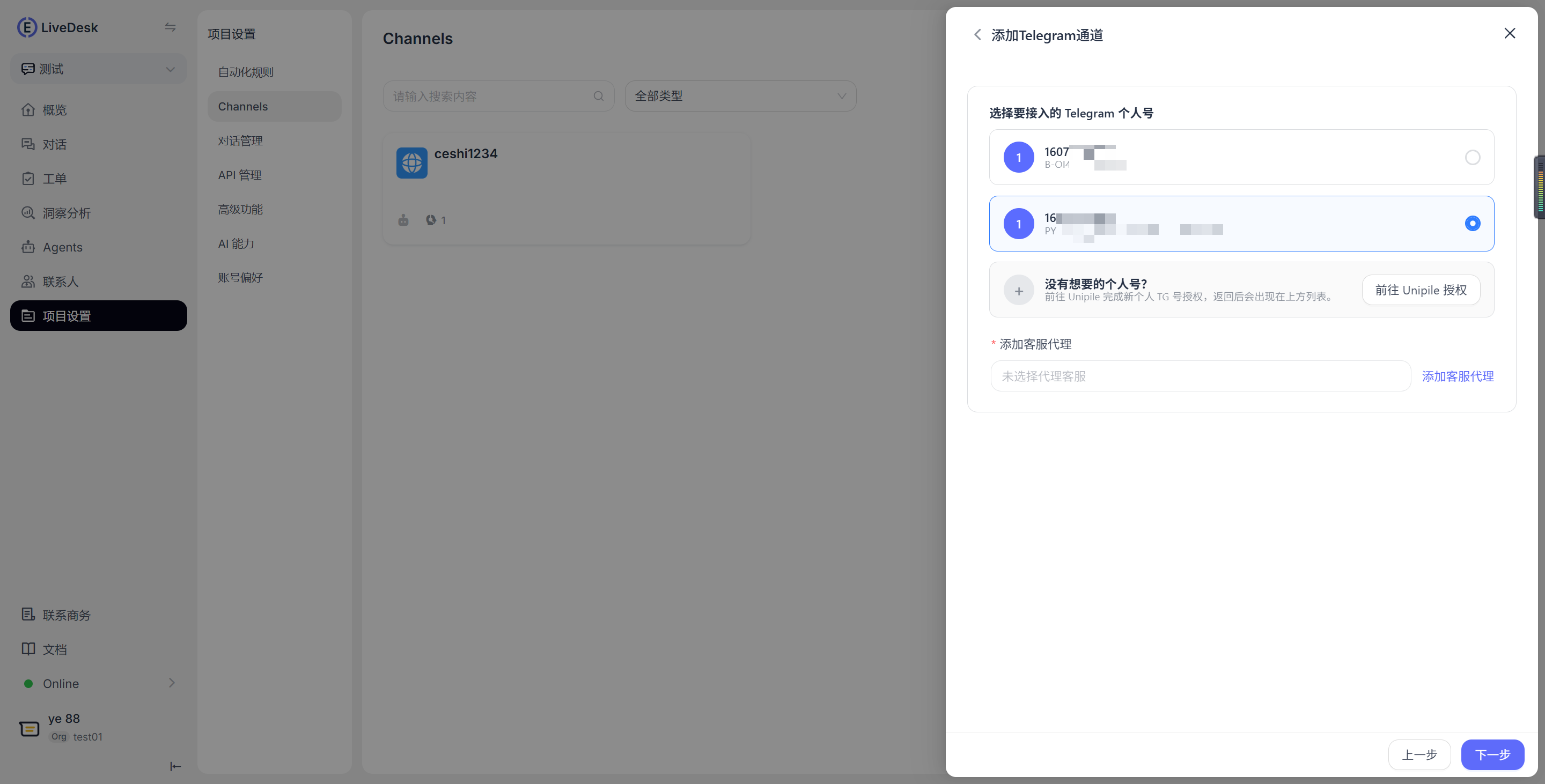
Detailed Settings
After creating the channel, you can configure detailed settings in the corresponding channel.
Integration
- Personal account type: The type of connected personal account, which is Telegram by default.
- Authorized personal account: The ID of the authorized personal Telegram account associated with the channel.
- Unipile account ID: The unique ID assigned by Unipile to the personal account.
- Unipile API address (DSN): Displays the Unipile DSN address configured when the channel was created.
- Unipile API Key: Displays the Token configured when the channel was created.
- Unipile Webhook URL: Displays the Webhook address associated with the channel. Messages are sent and received through Webhook pushes.
Settings
Set a channel greeting message
Disabled by default. Enter a custom greeting message, which will be automatically sent to customers when they start a conversation.Enable CSAT
After this feature is enabled, a customer satisfaction survey will automatically start after each issue is resolved. CSAT scores can be viewed in the Reports section.
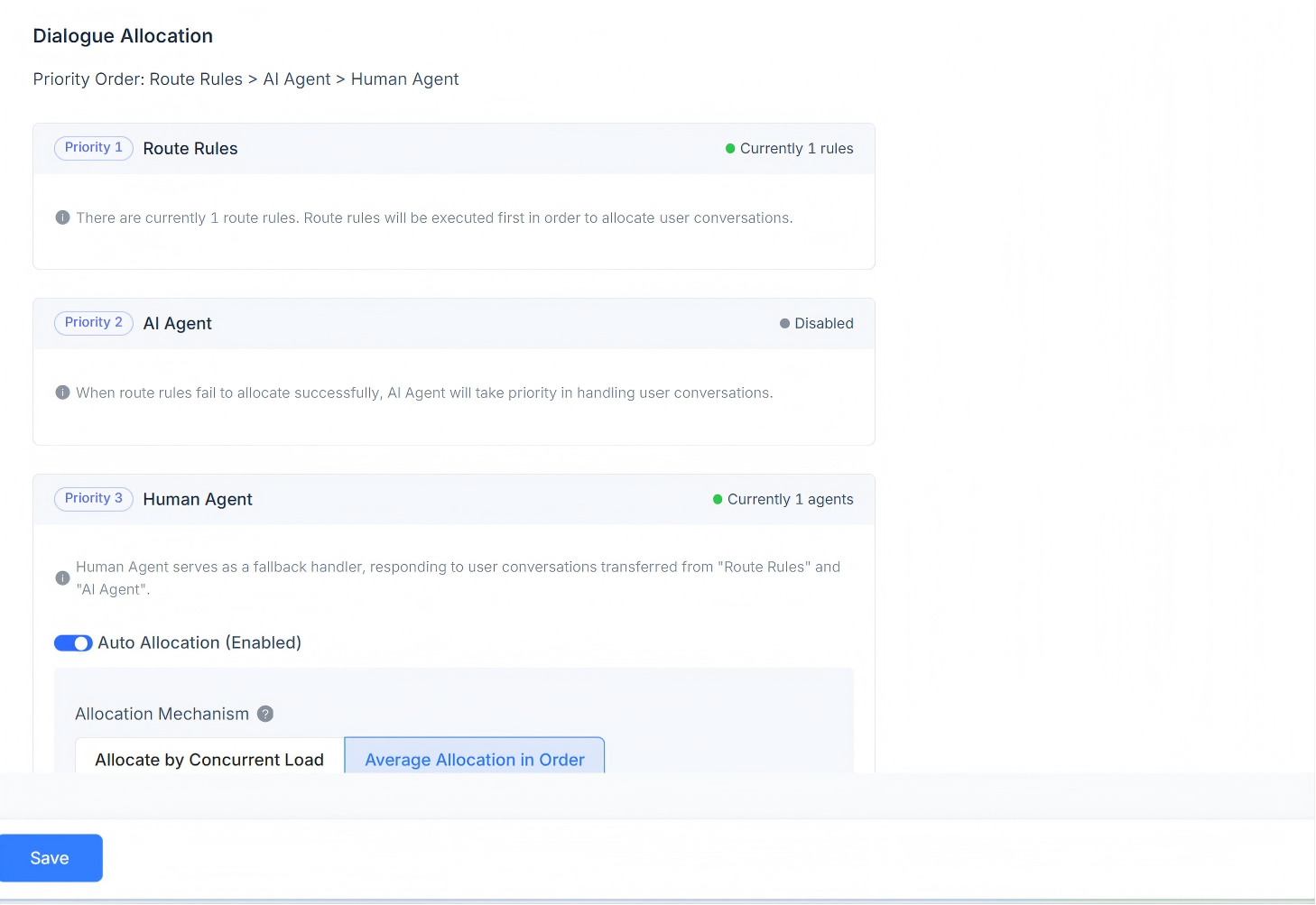
Business Hours
You can configure the team's business hours.
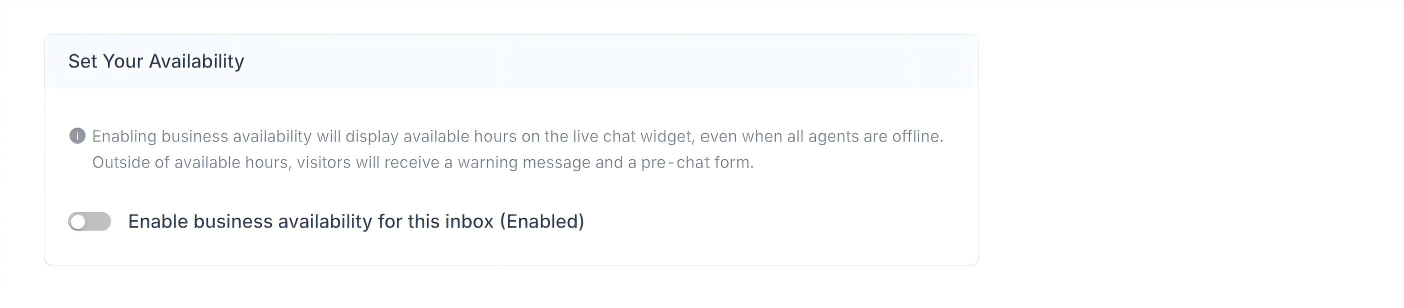
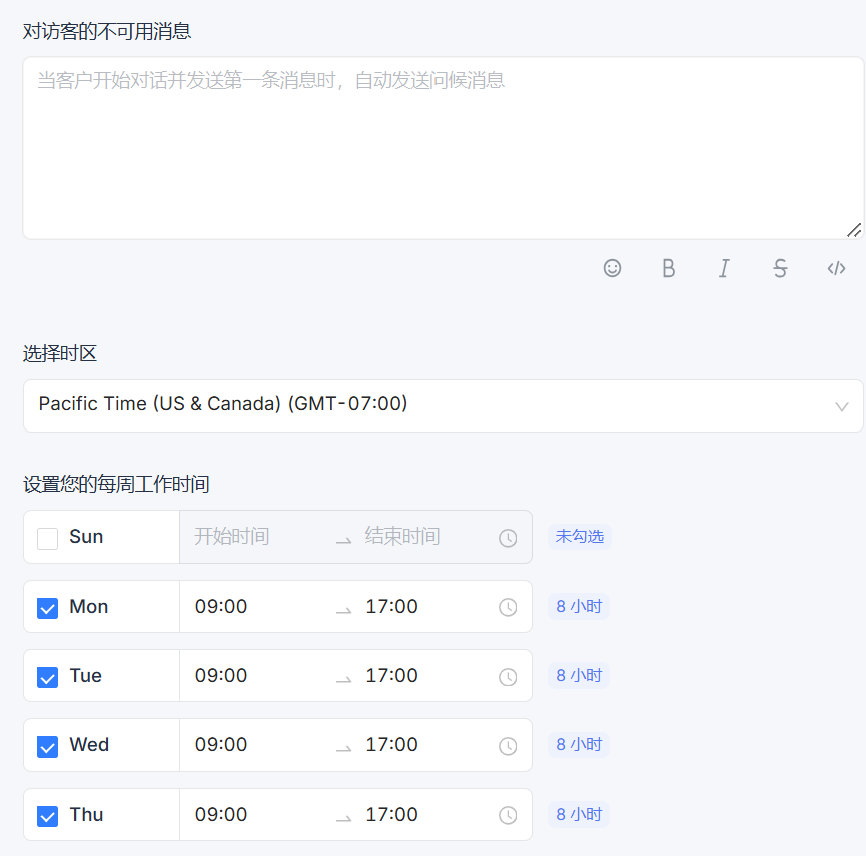
If business hours have been clearly defined, select the Enable business availability for this inbox (Enabled) checkbox. After selecting it, the corresponding parameter settings will appear below. You can configure an unavailable message for visitors outside business hours. You can also select business hour intervals and the corresponding time zone for each day.