Telegram Bot
LiveDesk supports adding a Telegram channel to communicate with users. You can use this feature to:
- Automatically receive messages from Telegram and assign them to the appropriate team or customer service agent.
- View the profile details of users who send messages.
- View, manage, and reply to all messages in conversation or ticket lists.
LiveDesk provides two ways to create a Telegram channel: by connecting a Telegram Bot or a personal Telegram account. The following section describes how to add a Telegram channel using a Telegram Bot.
Preparations
LiveDesk supports receiving user messages through a Telegram Bot and creating conversations in LiveDesk. When an agent replies to messages in LiveDesk, the replies are displayed in the customer's Telegram chat window through the Telegram Bot. Therefore, you need to create a Telegram Bot in Telegram before creating the channel.
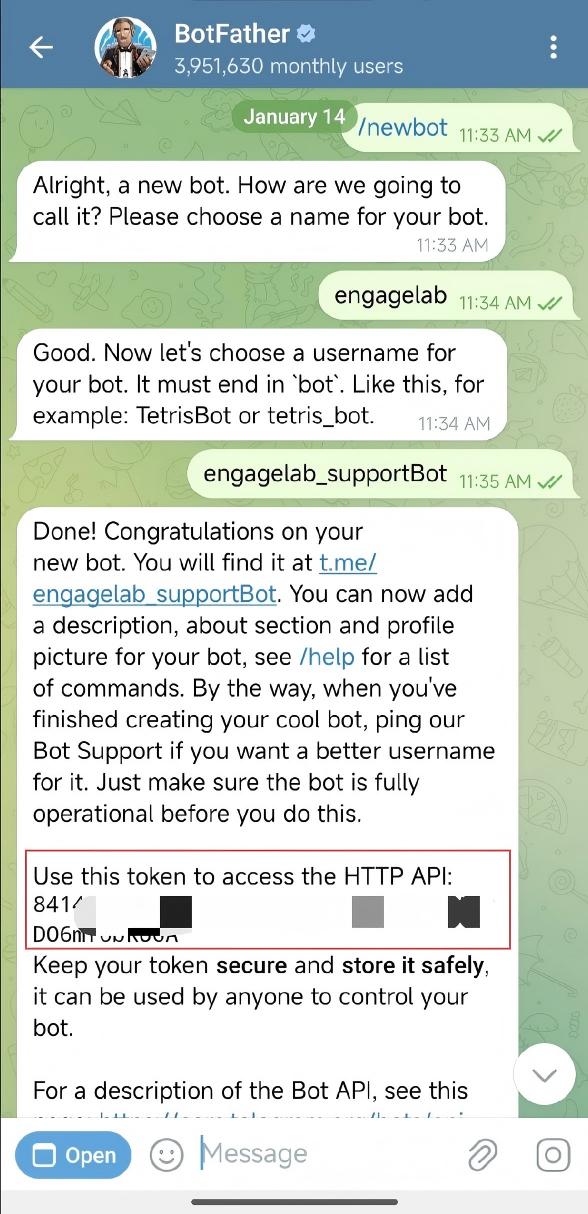
- Visit BotFather, enter the
/newbotcommand, and follow BotFather's instructions to create a Telegram Bot. After creation, you can obtain the bot link (Telegram agent link) and token.
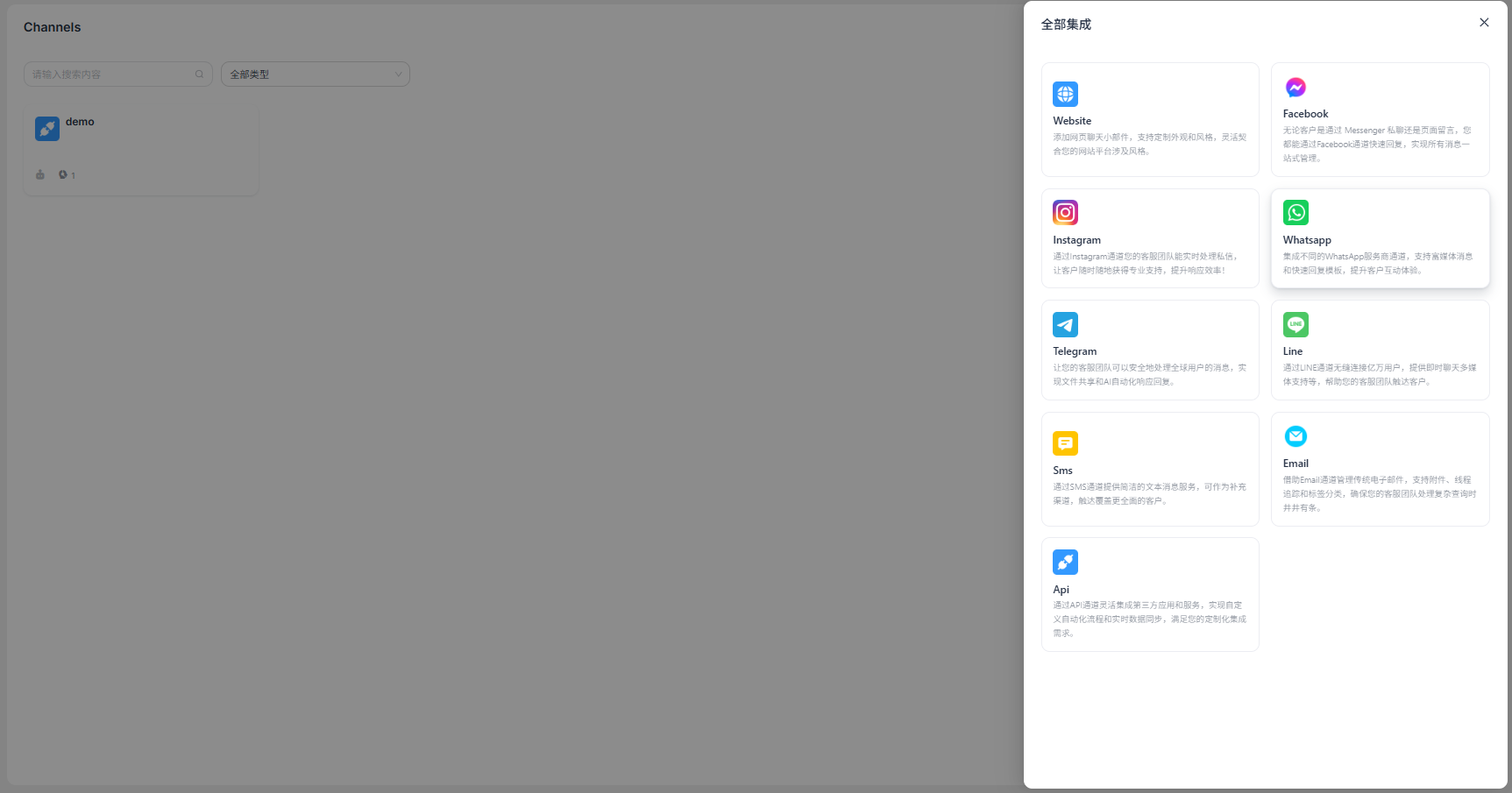
"Add Channel" > "Telegram"
Select Add Channel, then select Telegram Bot to create a channel.
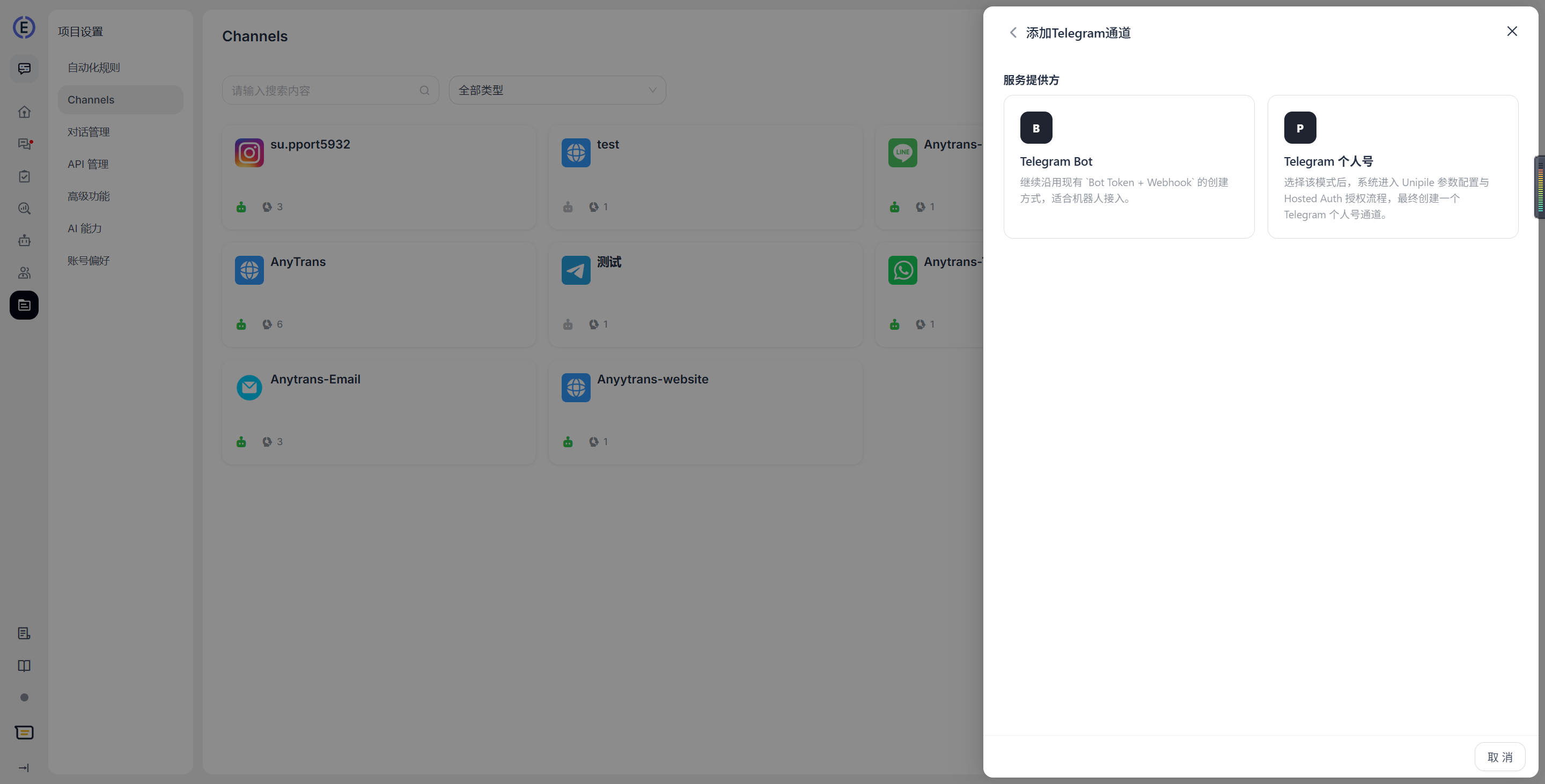
Enter Configuration Information
Enter the configuration information as prompted in the interface, then click Confirm when finished. This channel provides three modes: private chat, group chat, and GPTBots group chat mode.
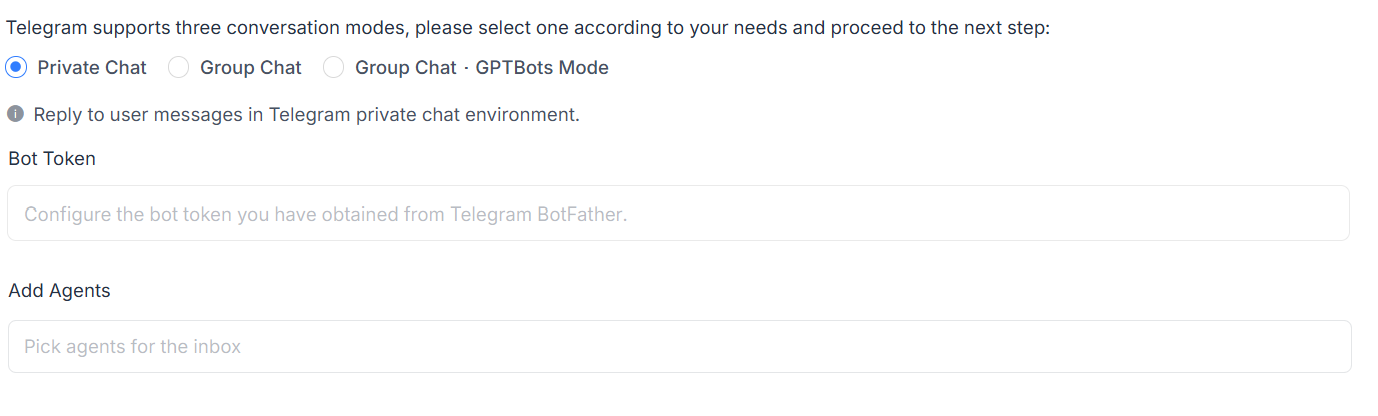
- Private chat: The agent replies to user messages in a private Telegram chat. The user sends a message directly to the Telegram Bot, and the agent replies to the user in the corresponding private chat through LiveDesk.
- Group chat: Messages sent by users in the group where the Telegram Bot is located can be received and replied to. This corresponds to Telegram's group chat mode.
- GPTBots group chat mode: LiveDesk and GPTBots share messages from the Telegram group chat. GPTBots processes Telegram group chat messages first, and LiveDesk obtains the group chat records from GPTBots.
- Bot Token: Enter the bot token obtained from Telegram BotFather.
- Add Agent: Specify the customer service agent who will handle messages from this channel.
Detailed Settings
After creating the channel, you can configure detailed settings for the corresponding channel.
Settings
Set channel greeting message
Disabled by default. Enter a custom greeting message, which will be automatically sent to the customer when they start a conversation.Enable CSAT
After this feature is enabled, a customer satisfaction survey will automatically start after each issue is resolved. CSAT results can be viewed later in the Reports section.
Business Hours
You can set the team's business hours.
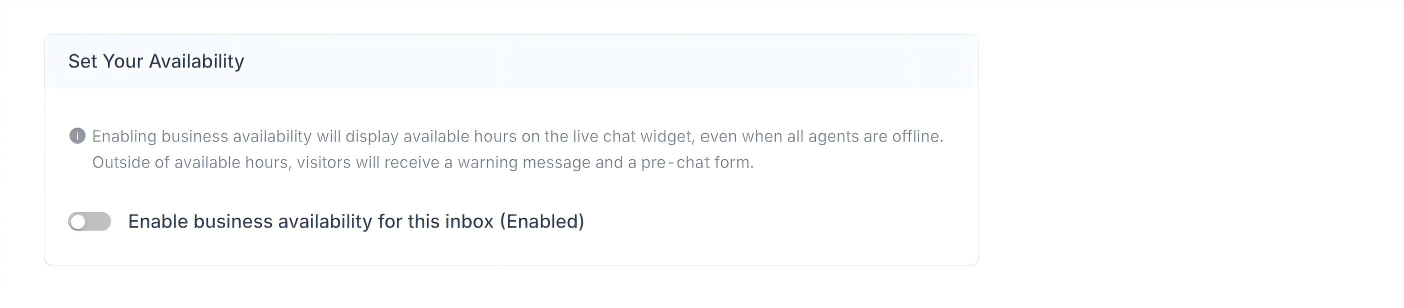
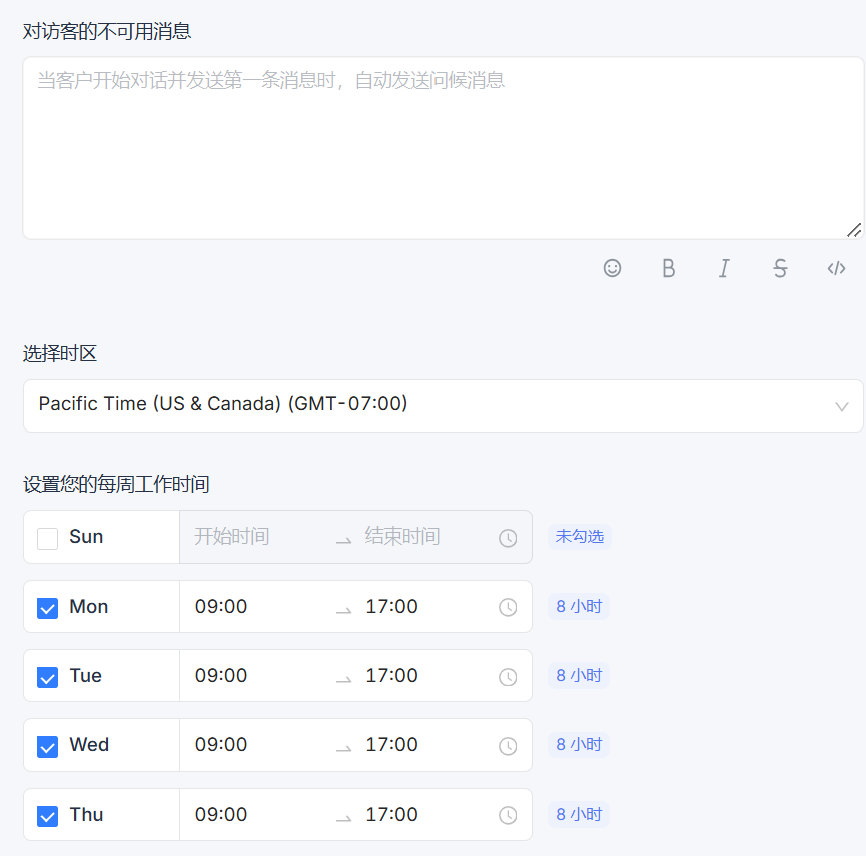
If business hours are clearly defined, select the Enable business availability for this inbox (Enabled) checkbox. After selecting this option, the corresponding parameter settings will appear below. You can set an unavailable message for visitors outside business hours. You can also select business hour ranges and the corresponding time zone for each day.
Frequently Asked Questions
How to Add a Telegram Bot to a Group Chat
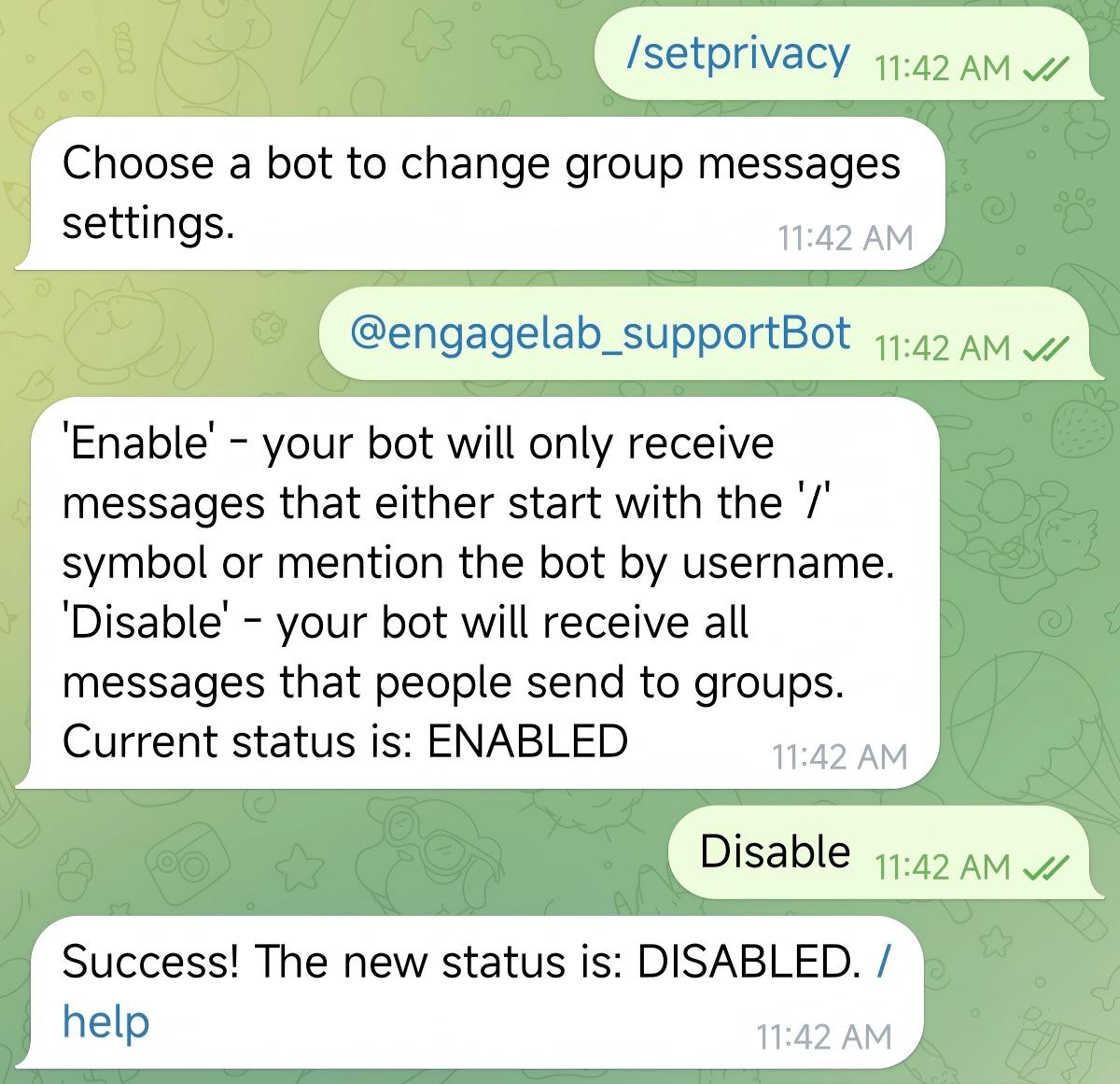
First, enter the
/setprivacycommand in BotFather to enable group chat permissions for the corresponding Telegram Bot.If the current status is displayed as
/Enabled, the permission has not yet been enabled. Enter/Disableto enable it.
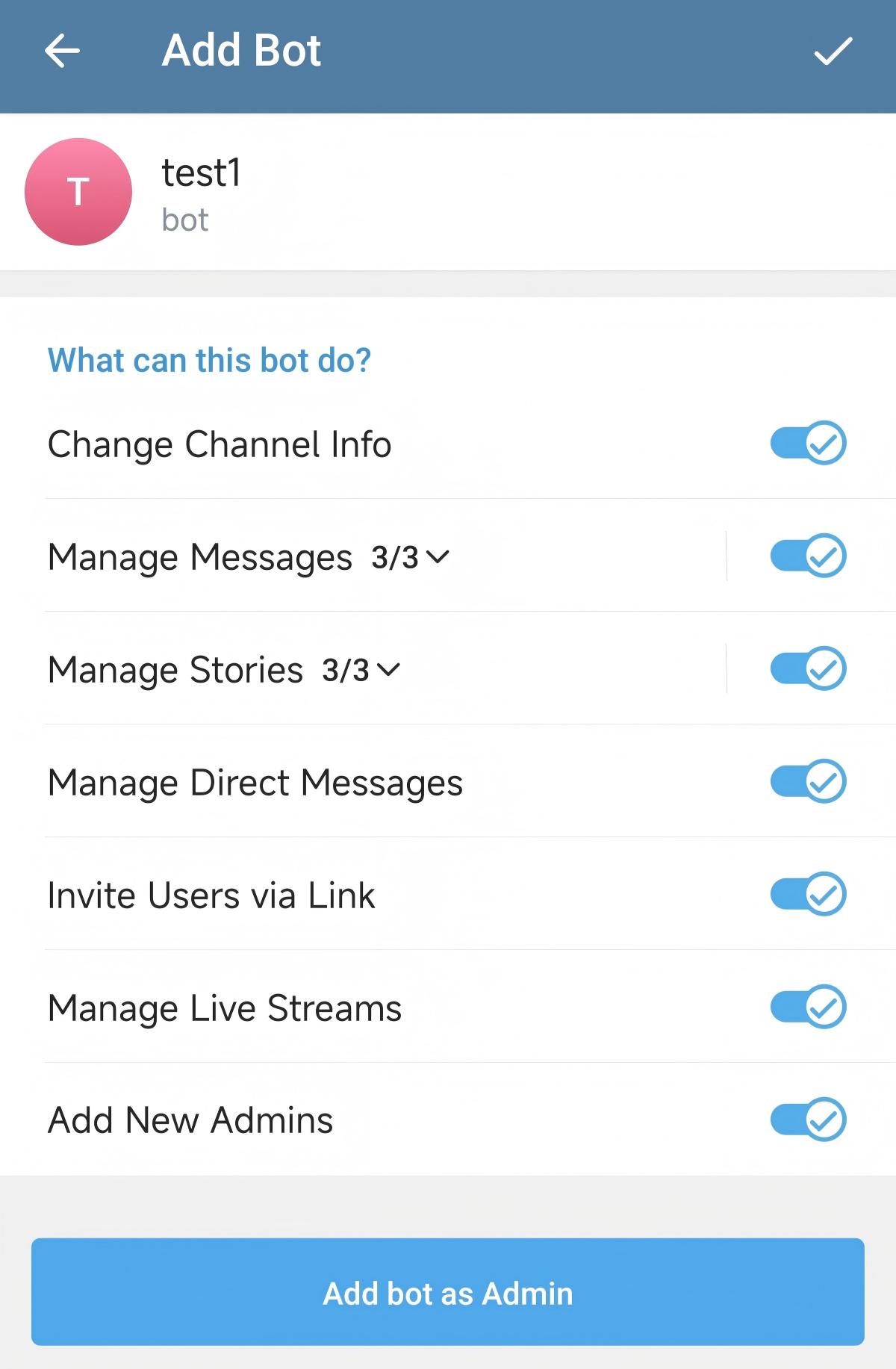
- Add the Telegram Bot to the group chat. On the profile page, select Add to Group or Channel. Then add it to the specified group chat.
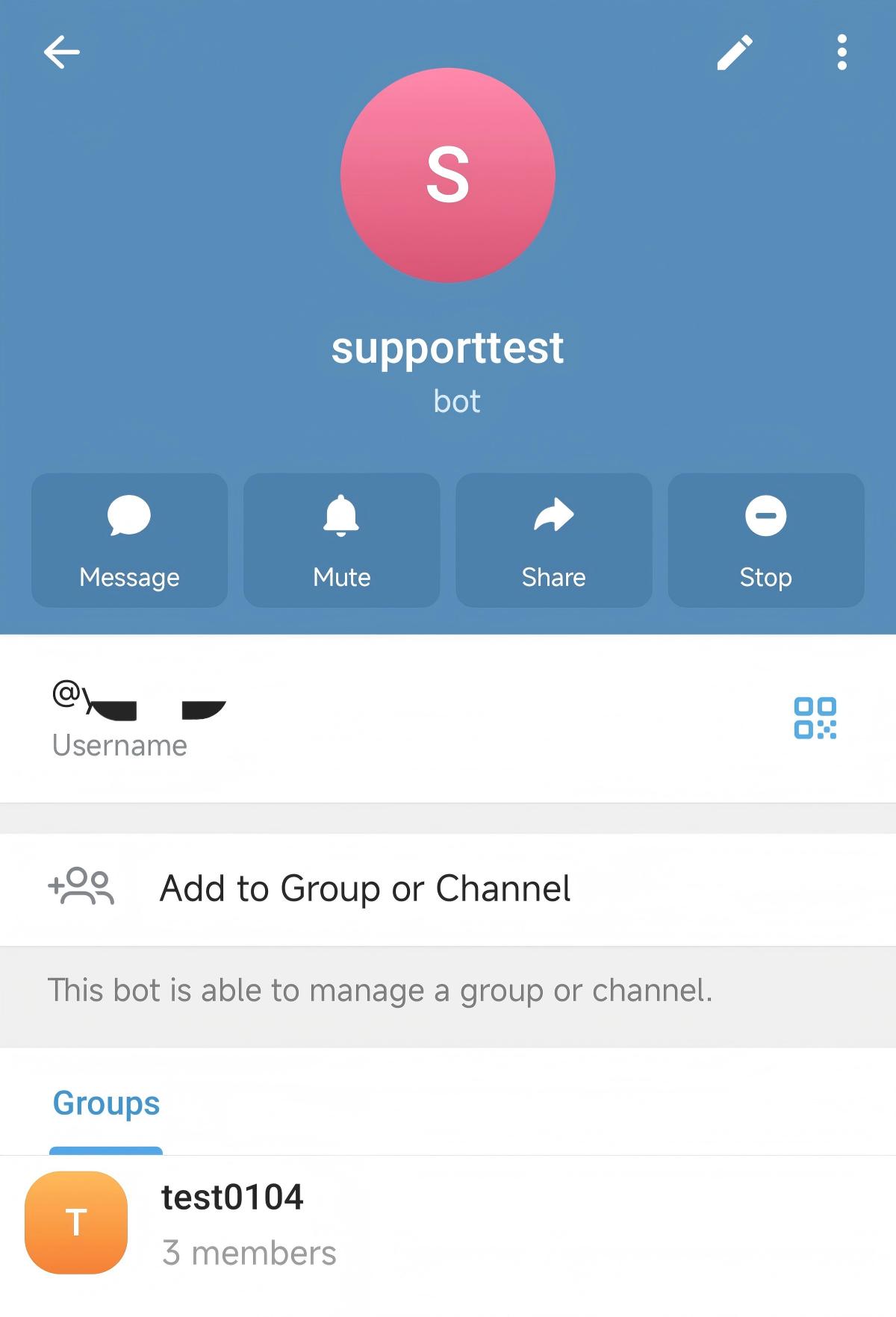
- Configure Admin Rights to allow the Telegram Bot to obtain full permissions, then click Add Bot as Admin to add the Telegram Bot to the group chat.