App User Journeys: Post-Signup Activation | EngageLab
Two people sign up for a project management app on Monday. One creates a project before lunch. The other names a project, closes the app, and leaves without saving. By Tuesday, an email that opens the project editor could help the second person. The first person has already done what the email asks.
This guide walks through an app onboarding workflow in EngageLab MA for a fictional collaboration app. It uses the first successful project save to decide who still needs help. Eligible users can receive up to two reminder emails.
1. Define the first key action after signup
An app user journey connects the steps someone takes to reach a useful outcome. Here, the first milestone is a project that the user can reopen and work on. Count it when the app successfully saves a project and records that person as its creator. Opening the editor, submitting a form that fails, or joining a teammate’s project all leave this particular task unfinished.
Start with new users whose role allows them to create a project. Someone invited with view-only access would land on a screen where they cannot act. Check that a newly registered user can follow the email link, sign in if needed, and reach the editor with permission to save.
2. Prepare the user data and email channel
Use an event to learn when someone creates a project and a user attribute to check whether they have ever done so. This covers a common timing gap. A user can finish the task in the app before the journey starts watching for it.
The names below are examples. Map each one to the data your project actually collects.
| Data | Example | What to verify |
|---|---|---|
| User identity | user_id |
Registration, project creation, and the email address resolve to the same person in your customer data platform (CDP). |
| Registration | signup_completed, signup_at |
Record the successful signup and its original time. A later login leaves that time intact. |
| Successful creation | project_created |
Record the event after the save succeeds. Use the creator’s identity and the time the action occurred. |
| Completion history | has_created_project, first_project_created_at |
Initialize the flag to false for a confirmed new user. On first success, set it to true and keep the earliest timestamp, even if the project is later deleted. |
| Email contact and eligibility | Mapped address, subscription and suppression status | Confirm the address and permission to send this type of email. Apply opt-outs and suppressions before each reminder. |
A blank flag means the completion state is unknown. Exclude that profile until the data is reliable. If the flag says false and a first-project timestamp exists, resolve the discrepancy before sending. Keep event IDs and arrival times where available so you can investigate duplicate or late reports.
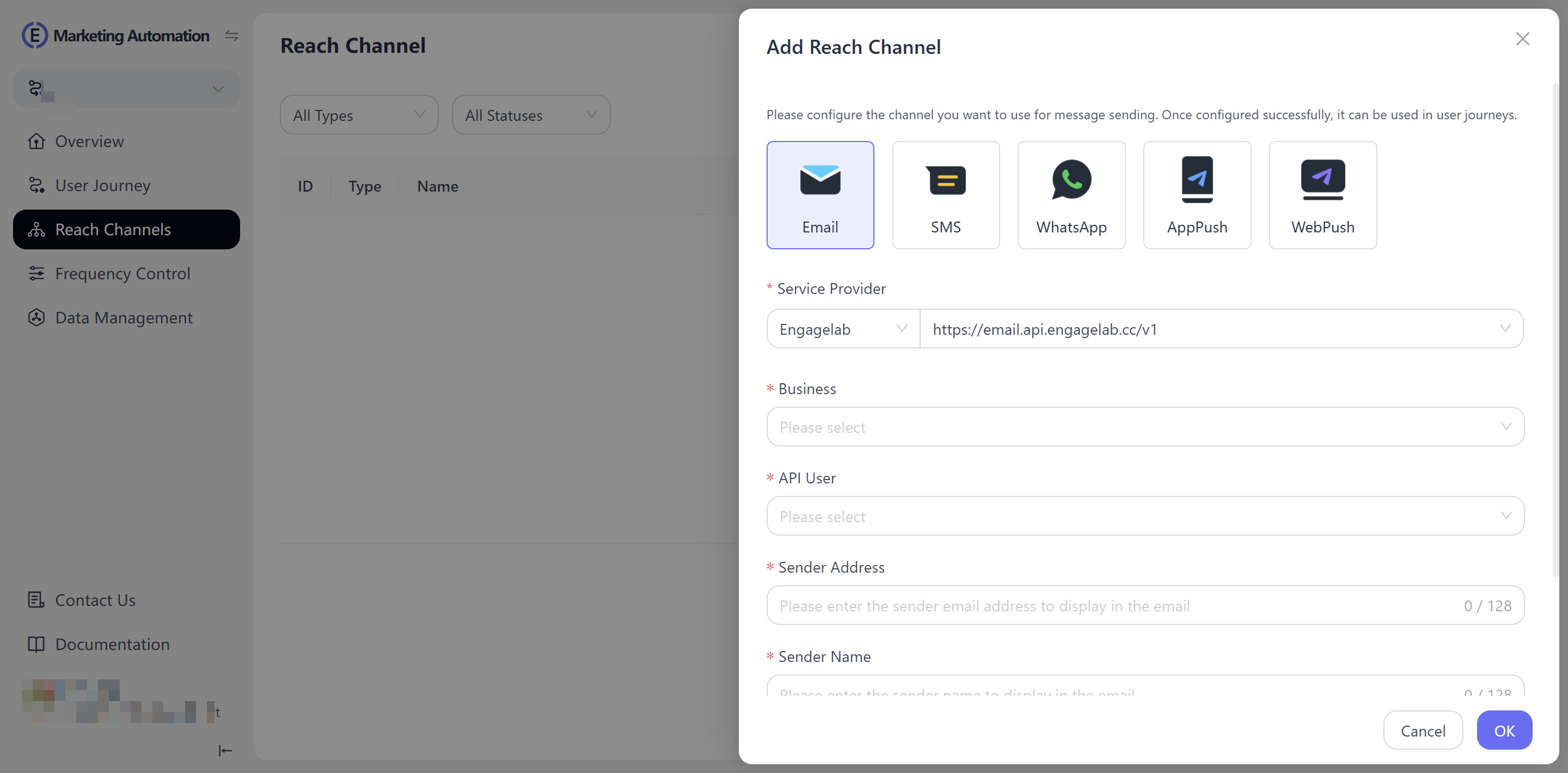
In EngageLab MA, check that the Email channel is enabled, the sender uses a verified domain, and the selected contact field contains the recipient’s address. Follow the guide to configure the Email channel.
3. Map the app onboarding workflow
Use two observation windows in this example. The first lasts up to 24 hours from arrival at the first Action Trigger. Receiving the creation event sends the user to the exit. If time runs out, check the latest completion state, role, and email eligibility before sending reminder one.
The second window lasts up to 48 hours from arrival at the second Action Trigger. Completion again leads to the exit. If the window expires and the user still qualifies, send reminder two and end the journey. As a separate cutoff for this example, stop offering reminders once seven days have elapsed since signup. Check that deadline immediately before each send.
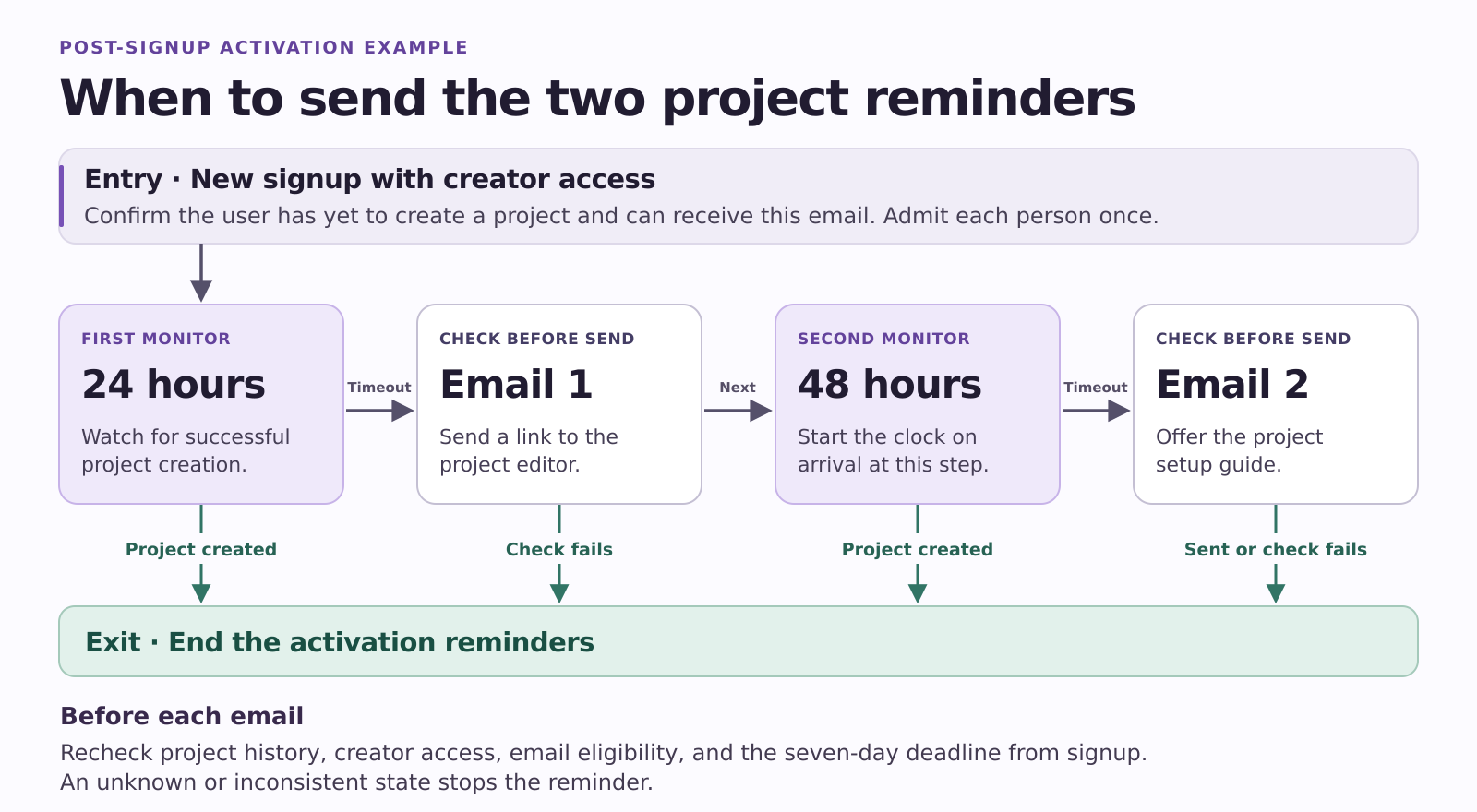
Suppose the first window starts at 10 a.m. Monday and the second starts at 10:10 a.m. Tuesday. The second window closes at 10:10 a.m. Thursday. If the user creates a project on Wednesday using a bookmark, the same creation event should stop the second reminder. Opening the first email has no bearing on that decision.
4. Build the workflow in EngageLab MA
Set up one entry per person
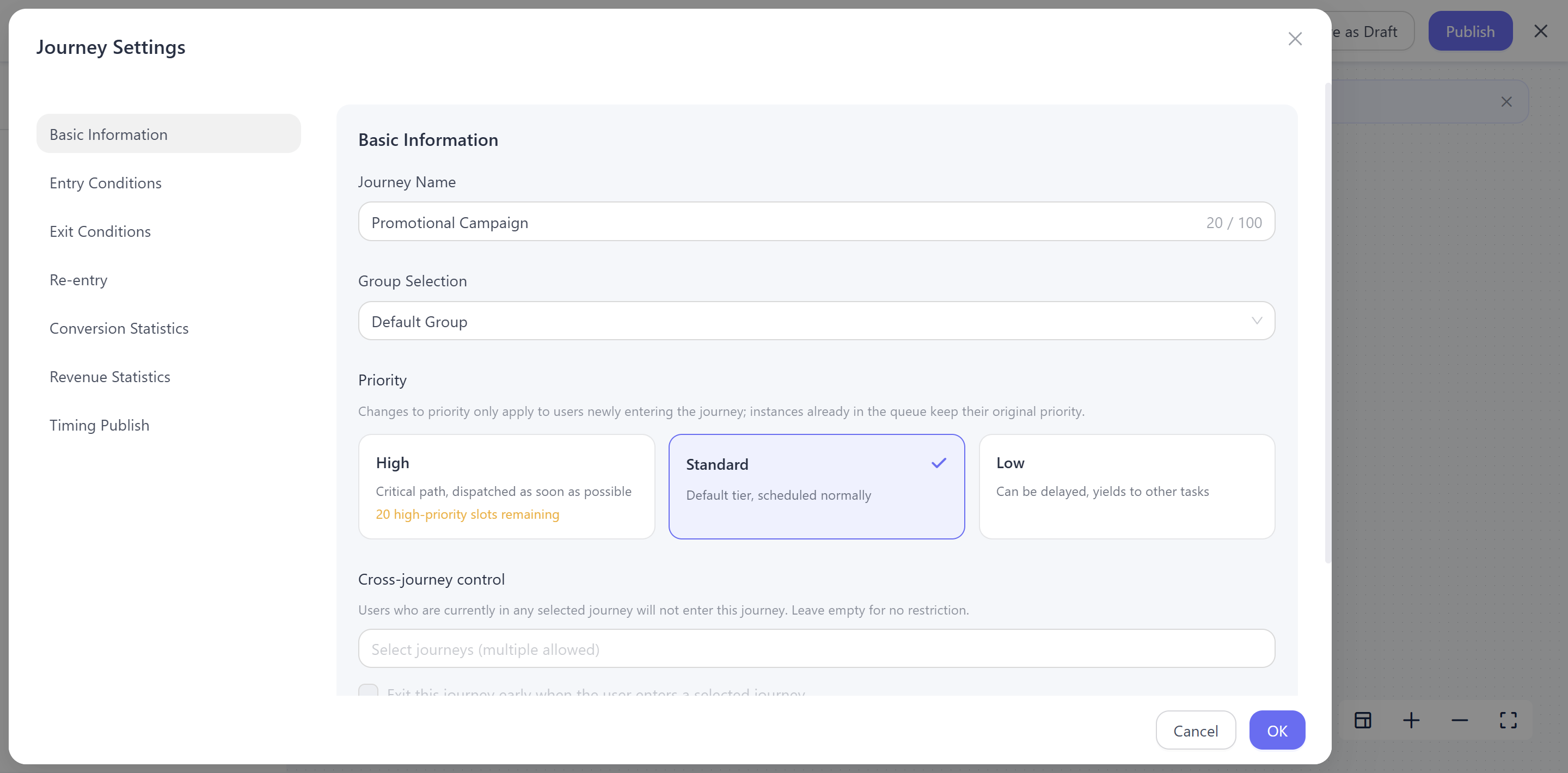
Open the journey list in your MA project. Start a draft from the Onboarding template or a blank canvas. Connect the routes to a single exit. If you are new to the canvas, follow the steps to create a user journey.
At the entrance, select signups from your intended launch period. Require a role that can create projects, a confirmed incomplete state, and an eligible email contact. Check when a matching profile actually enters and whether people who qualified before launch are included. A signup timestamp tells you when registration happened. The configured entry rule determines when monitoring begins.
Allow one entry per person for this campaign. Use the participation settings available in your project or a reliable record of prior enrollment. Replay the same signup with a test identity and check for a second entry before using the rule with customers.
Connect each event branch and its timeout
Add an Action Trigger, select the event for successful project creation, and choose the waiting trigger method. Set the first period to 24 hours. Connect the event path to the exit and the timeout path to your first send decision. The trigger itself observes the event during that period. Adding a separate 24-hour Wait first would postpone the start of monitoring. See how to use Action Trigger for journey branching.
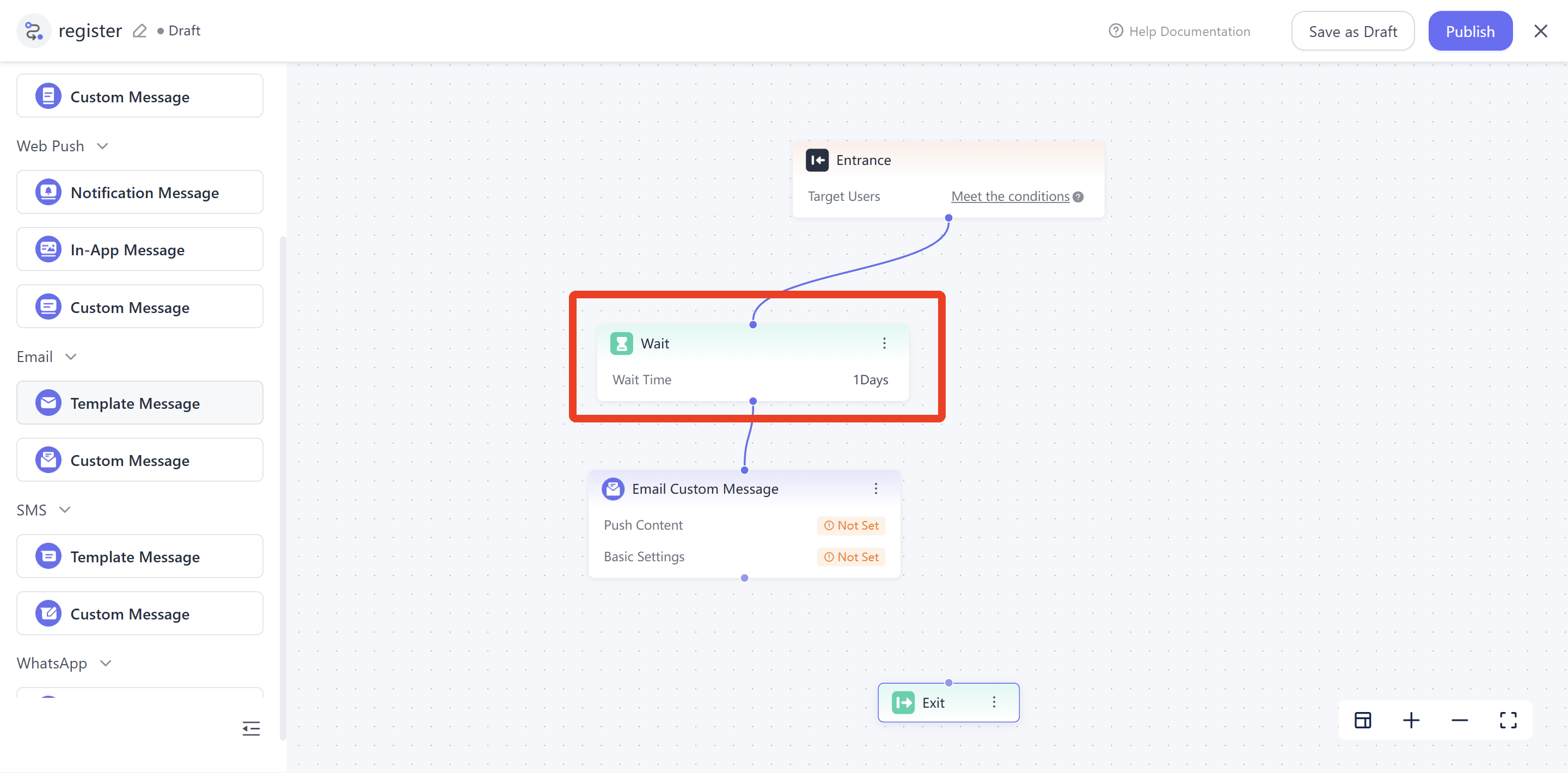
At each send decision, let a user proceed only while the current data confirms all four conditions. They still have permission to create a project, have never created one, can receive this email, and are within the seven-day deadline. Use the current-state checks supported in your project. Route completed, ineligible, inconsistent, or unknown records to the exit. If your setup cannot check fresh state before sending, keep the reminder disabled until that check is available.
After the first Email step, add the second Action Trigger with a 48-hour period and the same event. Connect its completion path to the exit. On timeout, repeat the send decision, connect the second Email step, and finish at the exit.
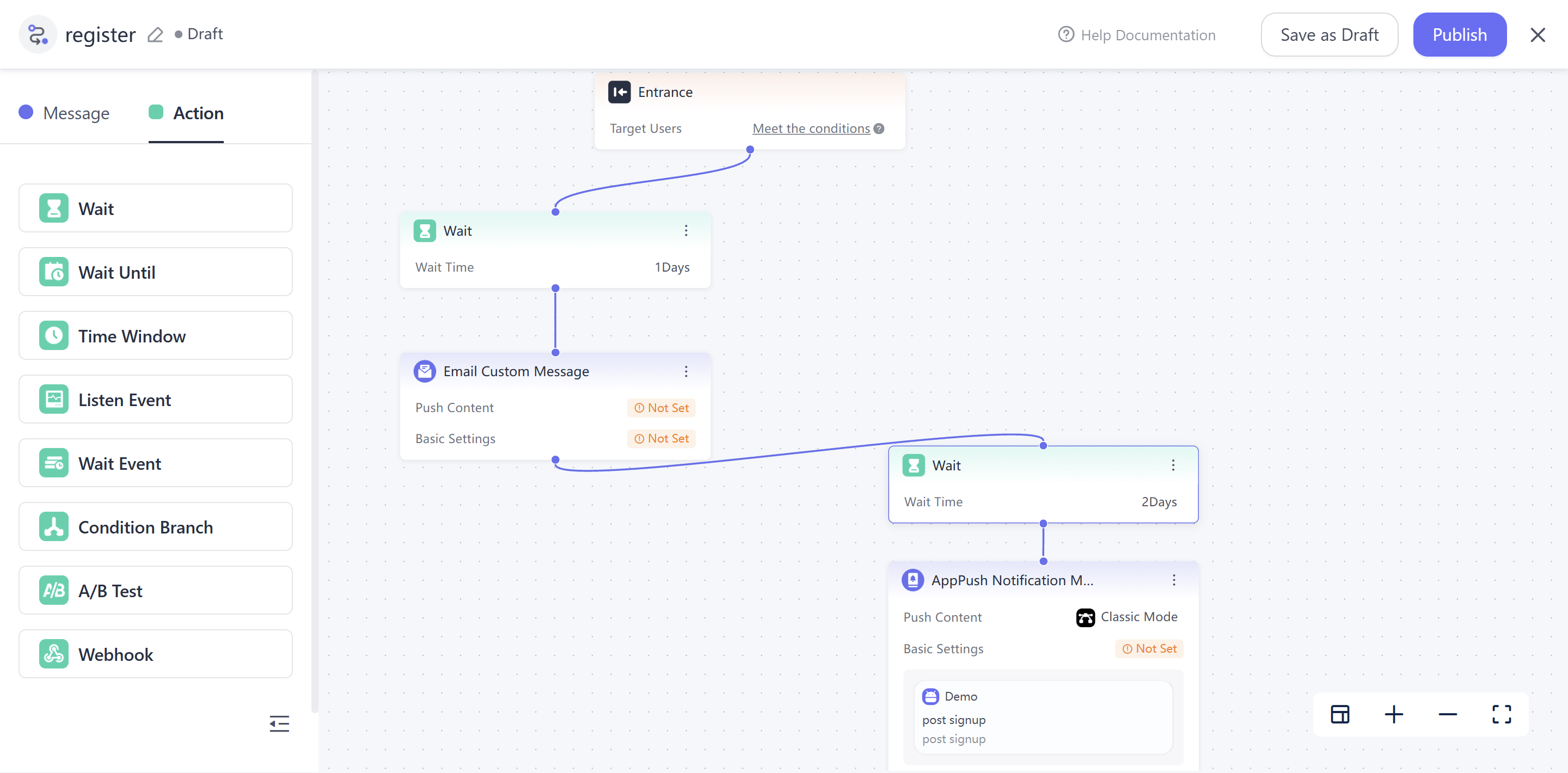
Give each email a different job
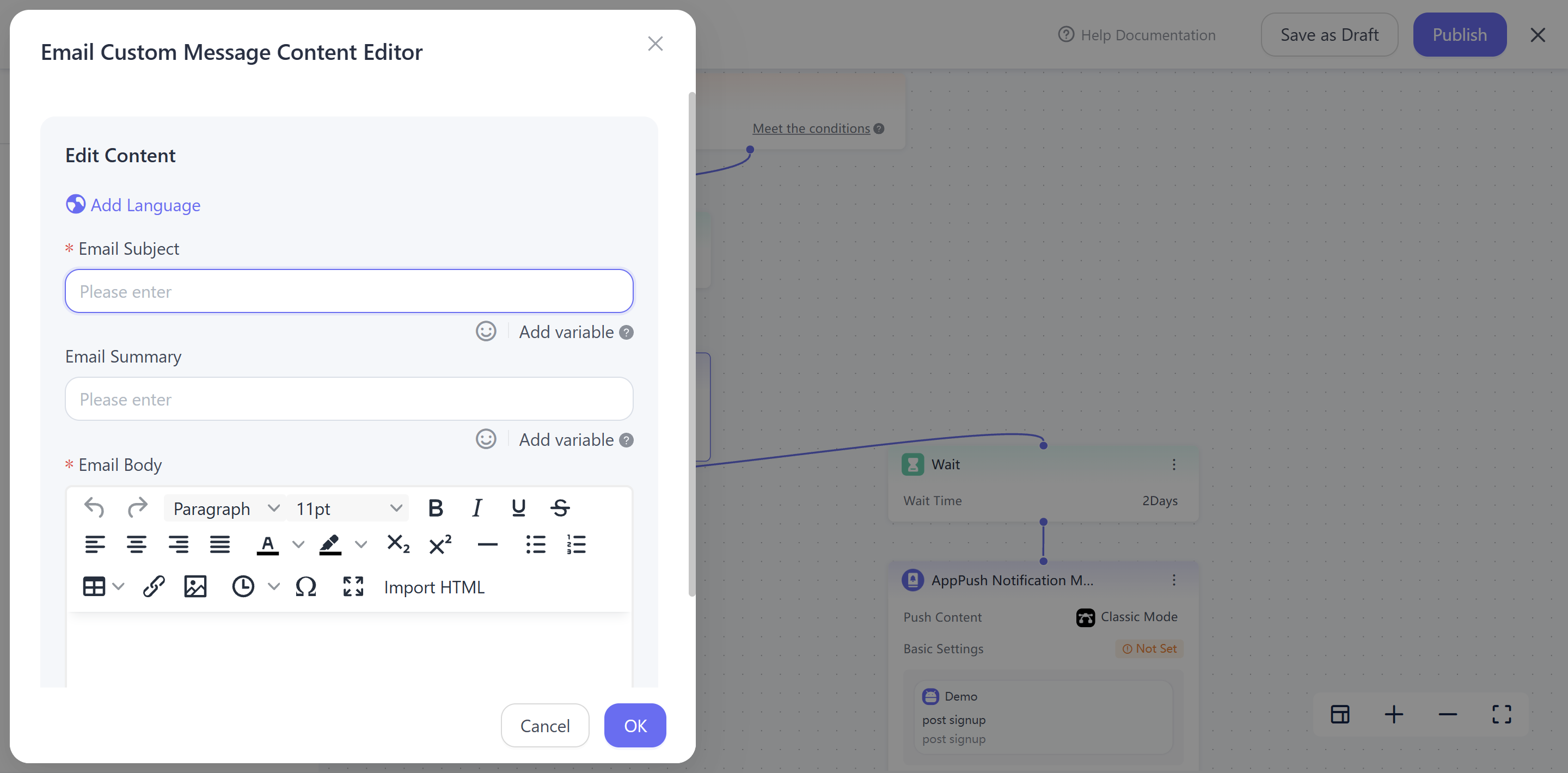
The first message takes the user straight to the editor. The second offers help with the same task. These sample messages belong to the fictional app.
| Subject | Body | Button and destination | |
|---|---|---|---|
| Reminder 1 | Create your first project | Give your project a name and save it. You can add tasks whenever you’re ready. | Create a project → project editor |
| Reminder 2 | Need a hand with your first project? | This short guide shows you where to start a project, how to save it, and where to find it afterward. | View the setup guide → project creation guide |
Check other journeys that can email the same person. A channel frequency limit can block an otherwise eligible reminder. Plan for at most two sending opportunities and check how your project handles a blocked send before considering a retry. Review overlapping journeys when you configure frequency controls.
If a user unsubscribes or complains, suppress further activation emails to that person. If complaints reach your team’s review threshold, pause the workflow and investigate.
5. Test who receives each reminder
Restrict a test version to accounts and inboxes you control. Combine the test-identity condition with your actual audience rules using AND. That lets you test both an eligible new user and someone who should be excluded. Use a shorter observation period in the test copy if your console supports it, then verify the intended production periods. Follow the steps to test the journey before launch.
| Test case | Expected outcome | Evidence to inspect |
|---|---|---|
| Eligible signup stays incomplete | With both sends allowed, one copy of each email, then exit. | Both Email records, inbox and button destinations. |
| Project created before entry | Zero reminders, even if the event predates monitoring. | Creator ID, first-project timestamp and sending records. |
| Project created in either window | In window one, zero reminders. In window two after the first send, only reminder one. | Event occurrence and arrival times against both Email records. |
| User unsubscribes, loses the creator role, or passes the deadline during a delay | Suppress the next reminder. Run each change separately. | Updated eligibility, role or cutoff time at the send decision. |
| Missing address, unknown completion state, or conflicting data | No reminder goes to that profile. | Contact mapping, business record, CDP attributes and sending records. |
| Signup event is replayed or an older profile already matches at launch | One enrollment for the intended new user. Older signups outside the launch period receive zero reminders. | Compare registration time, enrollment history and Email records by identity. |
| Completion is reported late, or occurs after timeout while an email is queued | Record whether the last check sees completion and whether a queued email can still be suppressed. | Event occurrence, arrival, decision and actual send times. |
| Another journey uses the available Email allowance | The applicable frequency rule blocks the affected send. Record what the workflow does next. | Channel limit, overlapping sends, message status and any later attempt. |
For the queued-email case, identify the last point at which your configuration can stop a message. If a test user receives an obsolete reminder, move the check closer to dispatch or use a sending route that can enforce it. Repeat that case before expanding the audience. An empty inbox also deserves investigation. Match the test identity to the Email component’s sending record to distinguish exclusion, a blocked send, and a delivery problem.
6. Measure first-project completion
Group users by signup date and give every member a full seven days of observation. Here, the cohort includes everyone who had creator access at signup, including people who could not receive email. The seven-day first-project completion rate is the number of distinct people in that cohort who saved their first project from signup up to the 168-hour cutoff, divided by the total number of people in the cohort. Count each person once and exclude actions at or after the cutoff.
For example, take 120 new users with creator access. If 36 create a project within seven days, the rate is 30%. Anyone who created a project before the first reminder still counts. To measure the effect of the emails themselves, compare equivalent eligible groups with and without the workflow, ideally using random assignment.
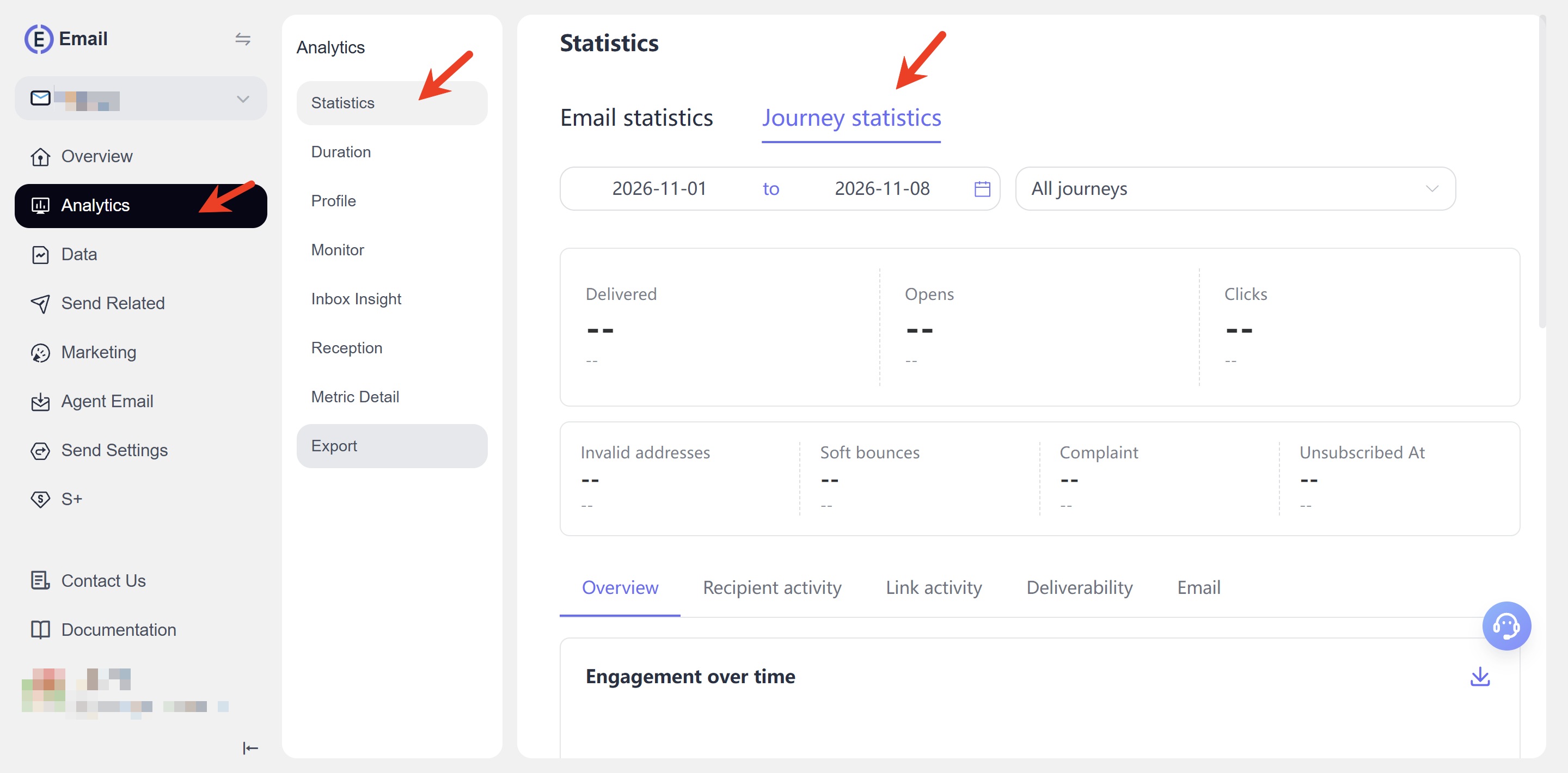
Use Journey participation and Email sends, deliveries, and clicks to explain execution. EngageLab counts repeat entries in participation totals. Use distinct product identities for the signup denominator and the successful creation event for the outcome. The reporting definitions appear in Journey Analysis.