


Report Center
The Report Center lets you combine data from Insights and Overview into reusable reports based on your business needs. You can use existing templates or create your own reports, view details, process conversations in batches, and export results.
Get Started
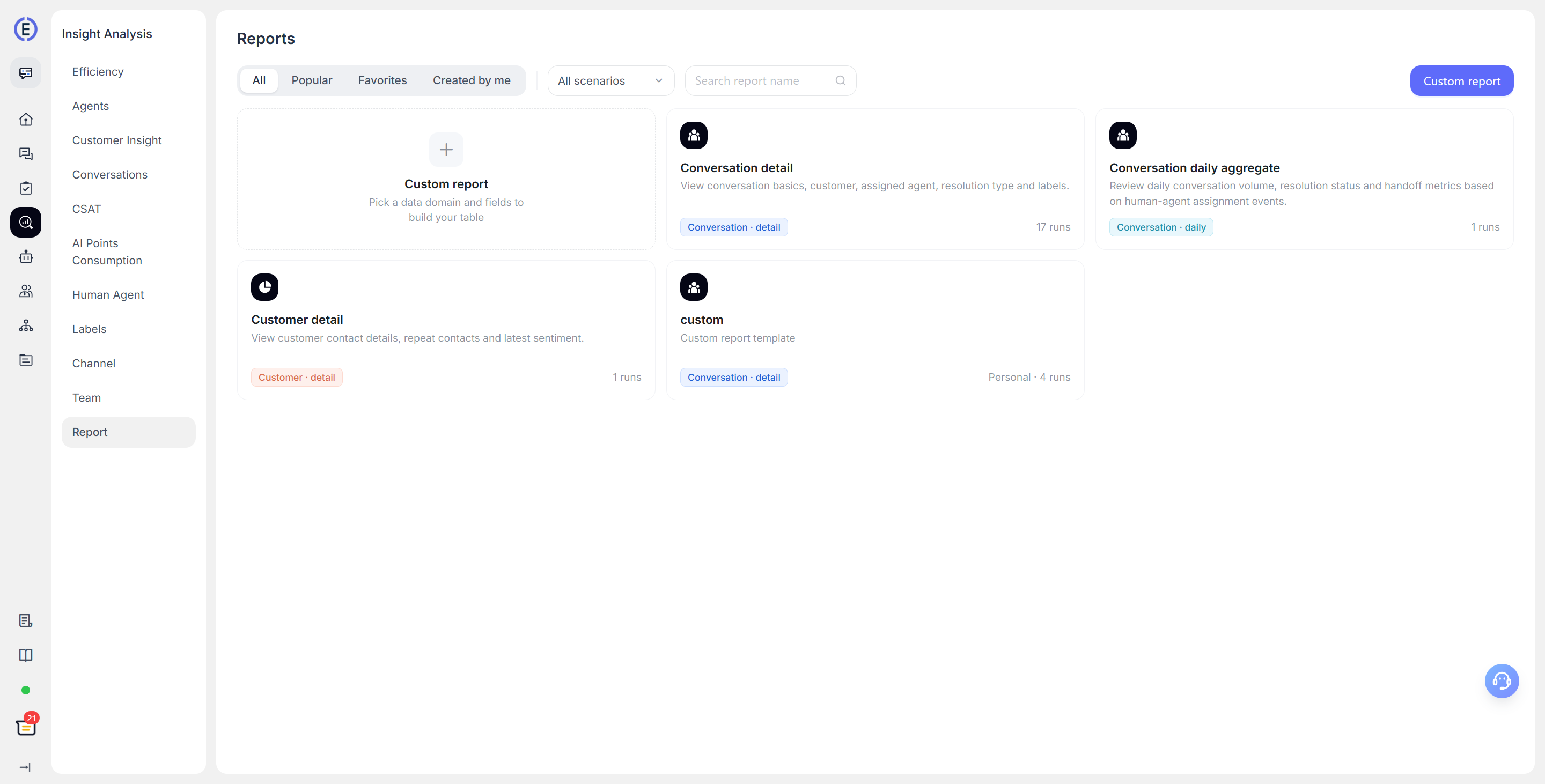
After entering the Report Center, you can browse reports in the template library. The template library supports:
- All: View all reports you have permission to use;
- Popular: View frequently used reports;
- Favorites: View reports you have marked as favorites;
- My Reports: View reports you created.
You can filter by report scenario or search by name and description. Click the star icon to favorite reports you use frequently.
If your account has the required permissions, you can also create, edit, and delete report templates or export reports. If you cannot see a particular action, contact your project administrator to confirm your permissions.
Use Templates to View Data
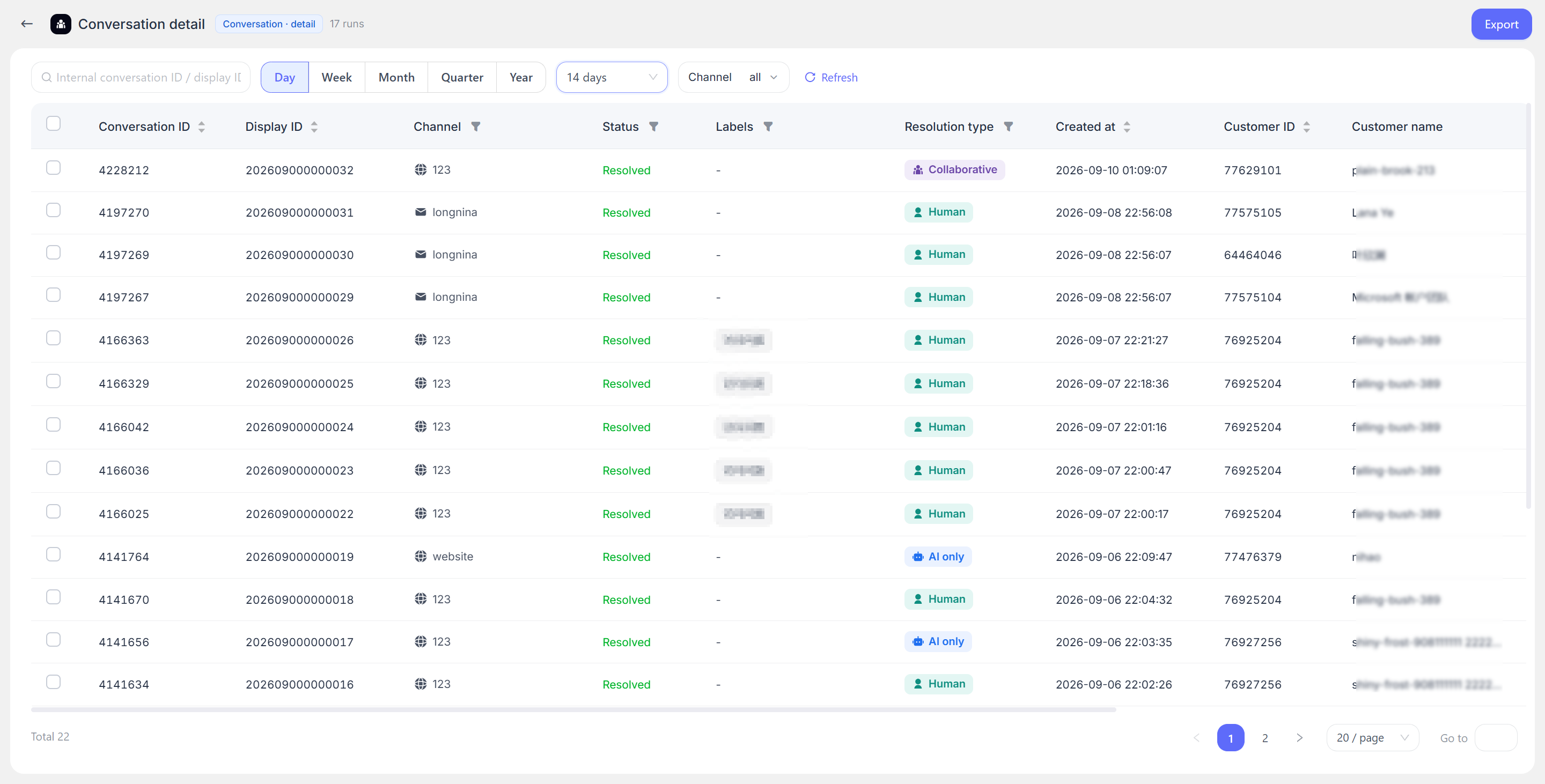
After opening a template, you can:
- Select a time range and channel;
- Filter data based on the fields displayed in the current report, such as team, agent, tags, status, or resolution method;
- Search, sort, paginate, and refresh data;
- Click a conversation row to view conversation details;
- Export the current query results or export selected conversations.
The number of times a template is opened is recorded, making it easier to find commonly used team reports under Popular.
Create Custom Reports
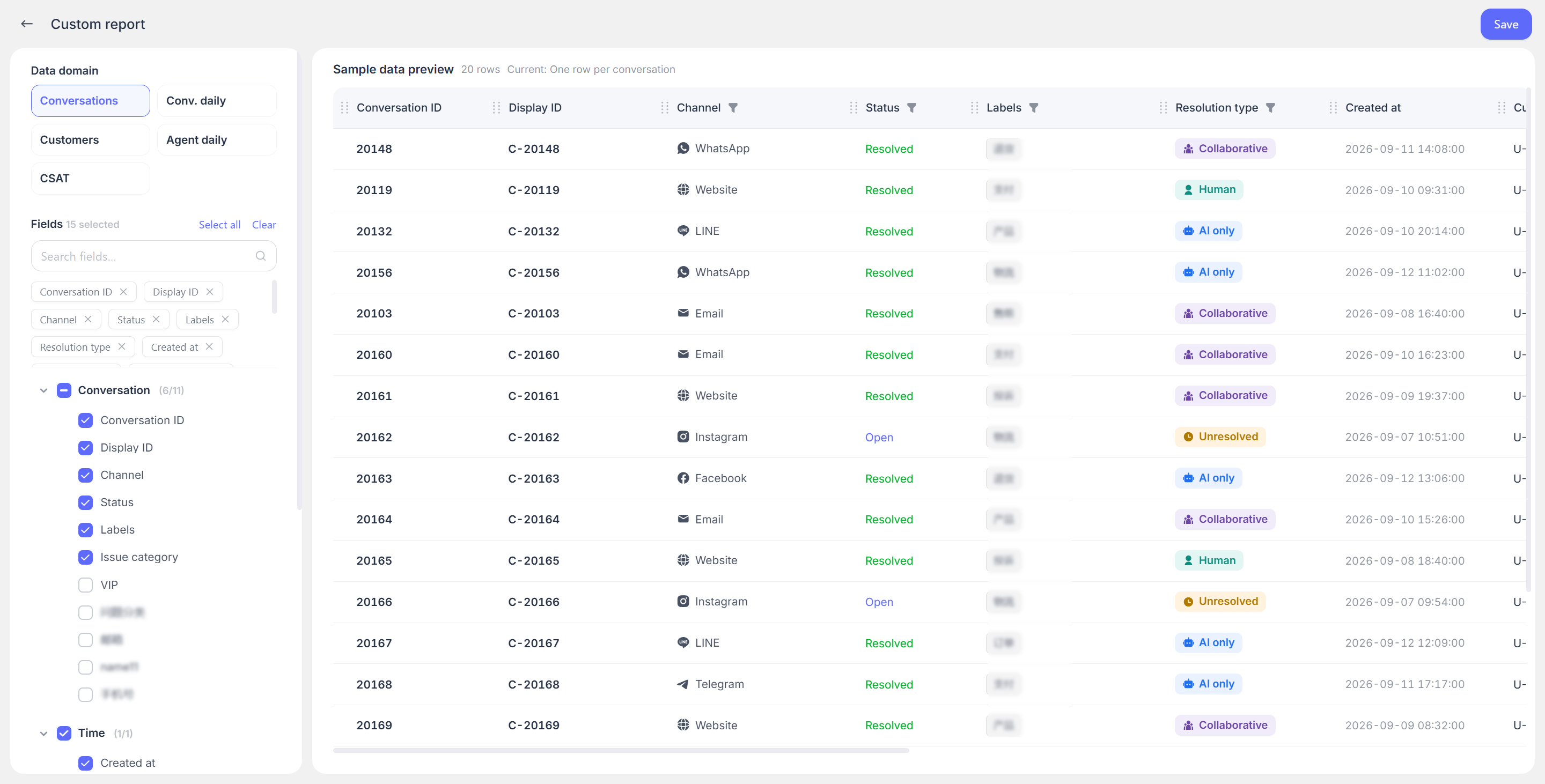
When creating a report, first select a data scope, then select the fields to display. After configuring the required fields on the left, the data table on the right displays the selected field columns in real time.
| Data Scope | Suitable Content |
|---|---|
| Conversation Details | The channel, status, tags, agent, customer, first response time, resolution time, and more for individual conversations |
| Daily Conversation Aggregation | Daily new, resolved, and unresolved conversations, response efficiency, and resolution methods |
| Customer Details | Customer profiles, contact information, conversation and message counts, satisfaction, efficiency, and more |
| Daily Agent Aggregation | Agents’ daily replies, resolved conversations, assigned conversations, response efficiency, and more |
| Customer Satisfaction Details | Customer ratings, rating times, associated agents, teams, and channels |
The available fields vary by data scope. For example, Conversation Details can display status, tags, channel, agent, customer, issue category, first response time, and resolution time. Customer Details can display contact information, conversation count, satisfaction, and most recent contact time.
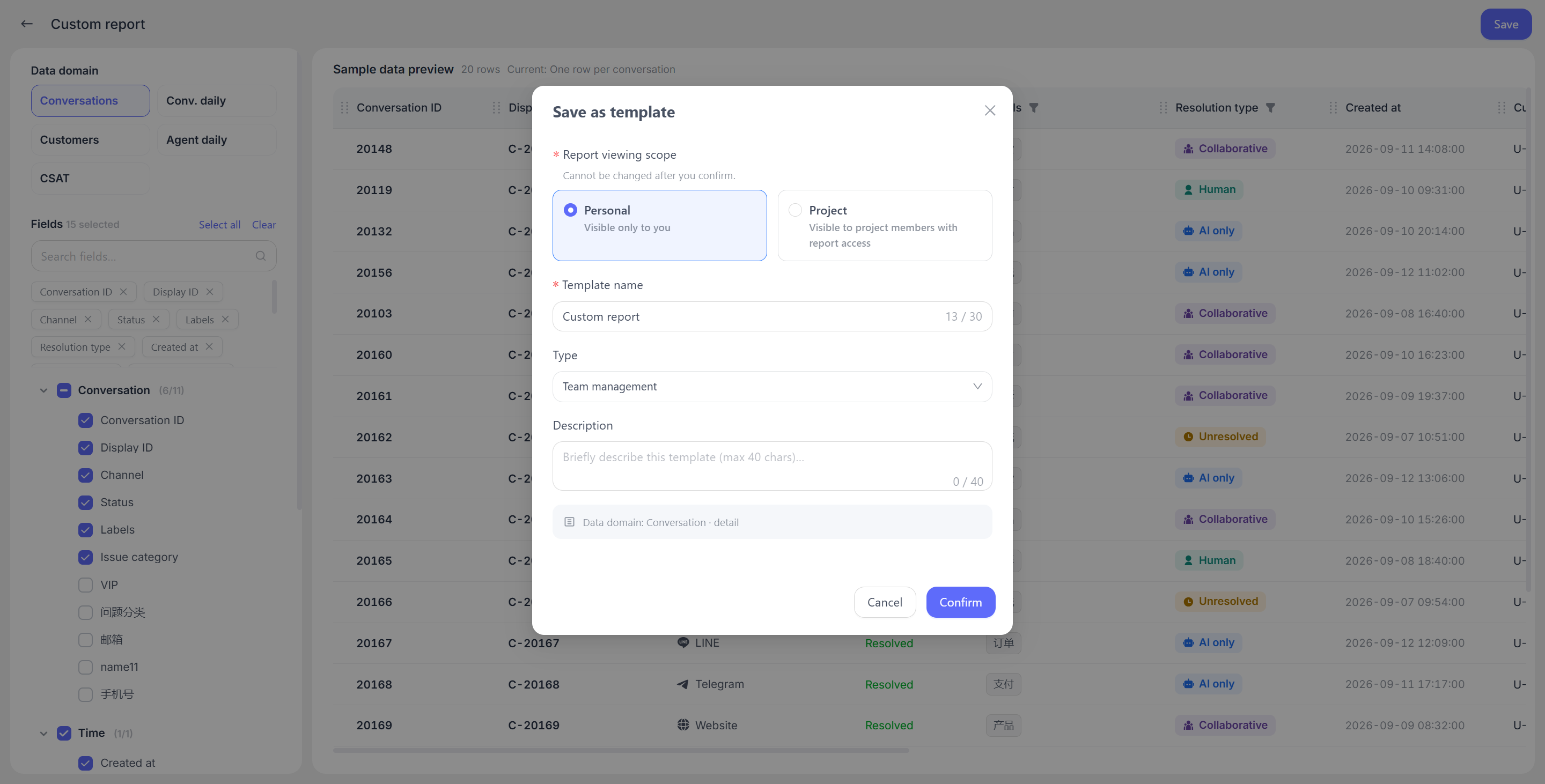
After entering a report name, scenario, description, and visibility scope, you can save the report:
- Personal: Visible only to you;
- Public: Visible to project members who have viewing permissions.
The sample data in the editor is used only to preview the field layout and does not represent your actual project data. After saving, you are taken directly to the report you defined, where you can view real statistical data.
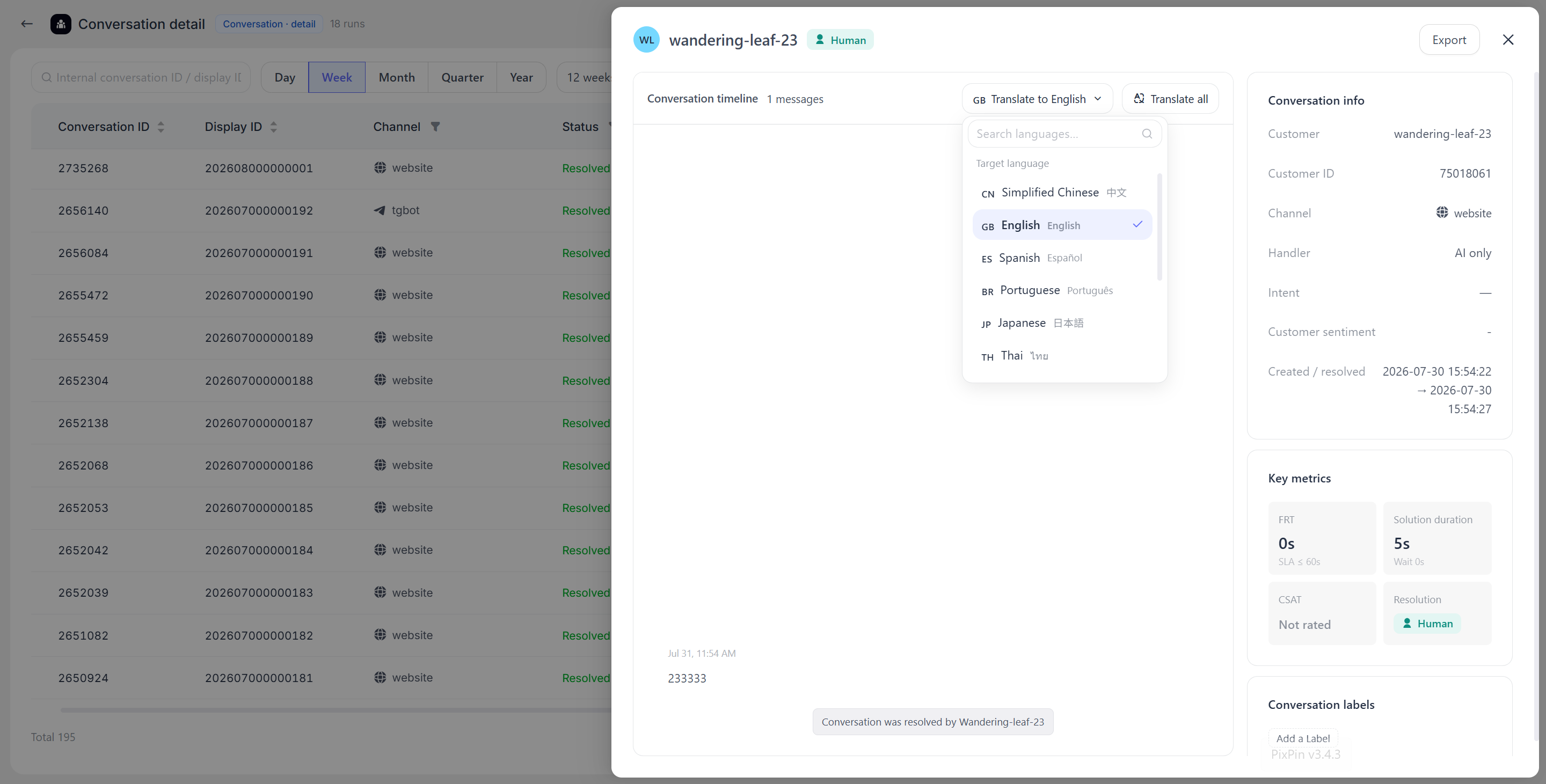
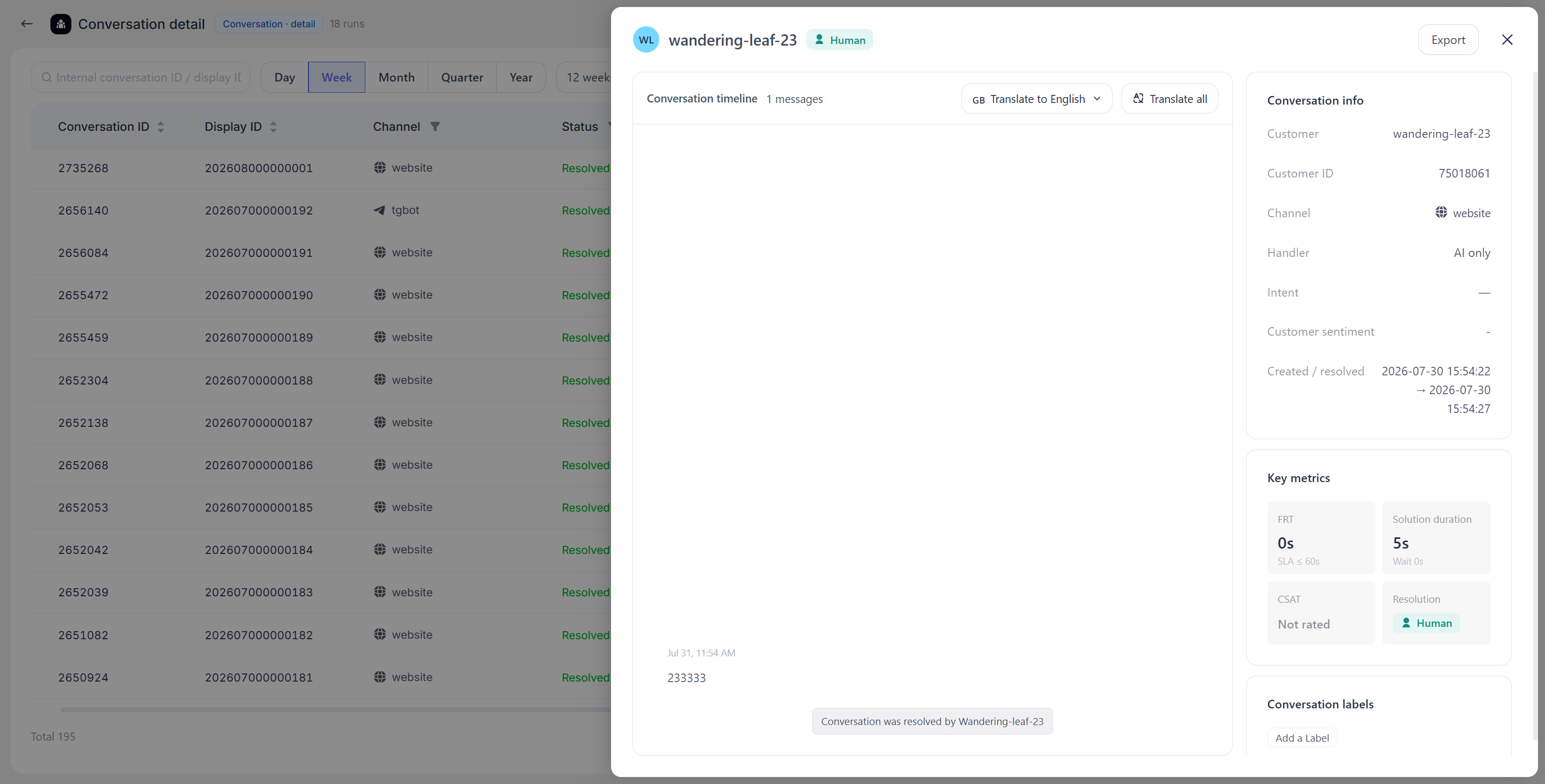
The conversation details page displays basic information about the conversation, including the customer name, customer ID (internal ID), channel, the team or agent assigned to handle the conversation, intent category, customer sentiment, and the times when the conversation was created and moved to resolved status.
A translation feature is available above the conversation and supports translation into a specified language. Translated content can be exported.
View Conversation Details and Perform Batch Operations
In the Conversation Details report, you can open an individual conversation to view the customer, channel, status, service information, and message history.
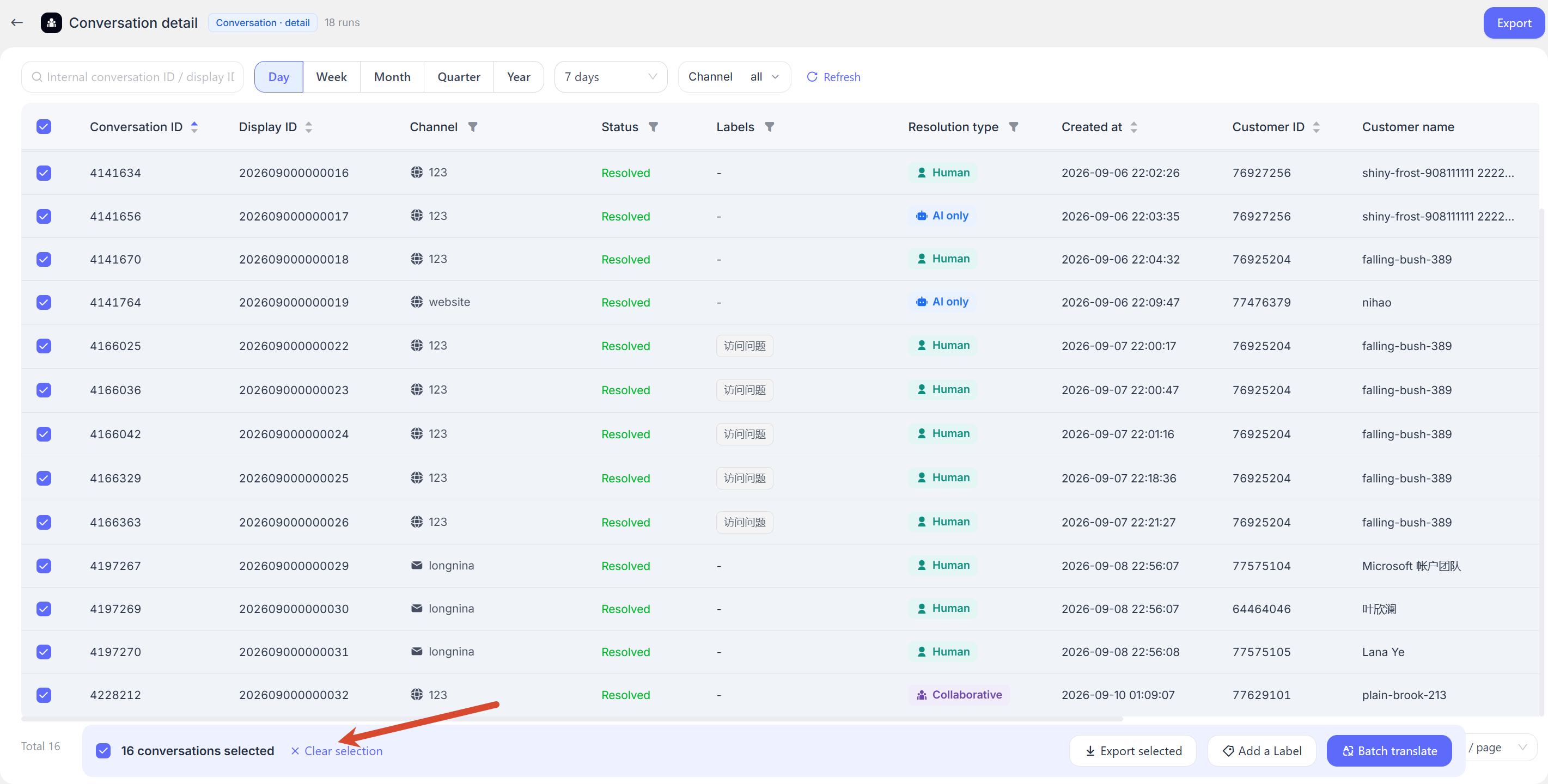
After selecting multiple conversations, you can perform the following operations:
- Batch Translation: Select a target language and decide whether to translate agent messages at the same time;
- Batch Add Tags: Add or manage tags for the selected conversations;
- Export Selected Conversations: Export only the currently selected conversations.
Batch translation processes each conversation in sequence. Keep the page open during processing. If a conversation fails to process, the page displays an error, and successfully processed content is not automatically reverted.
Export Reports
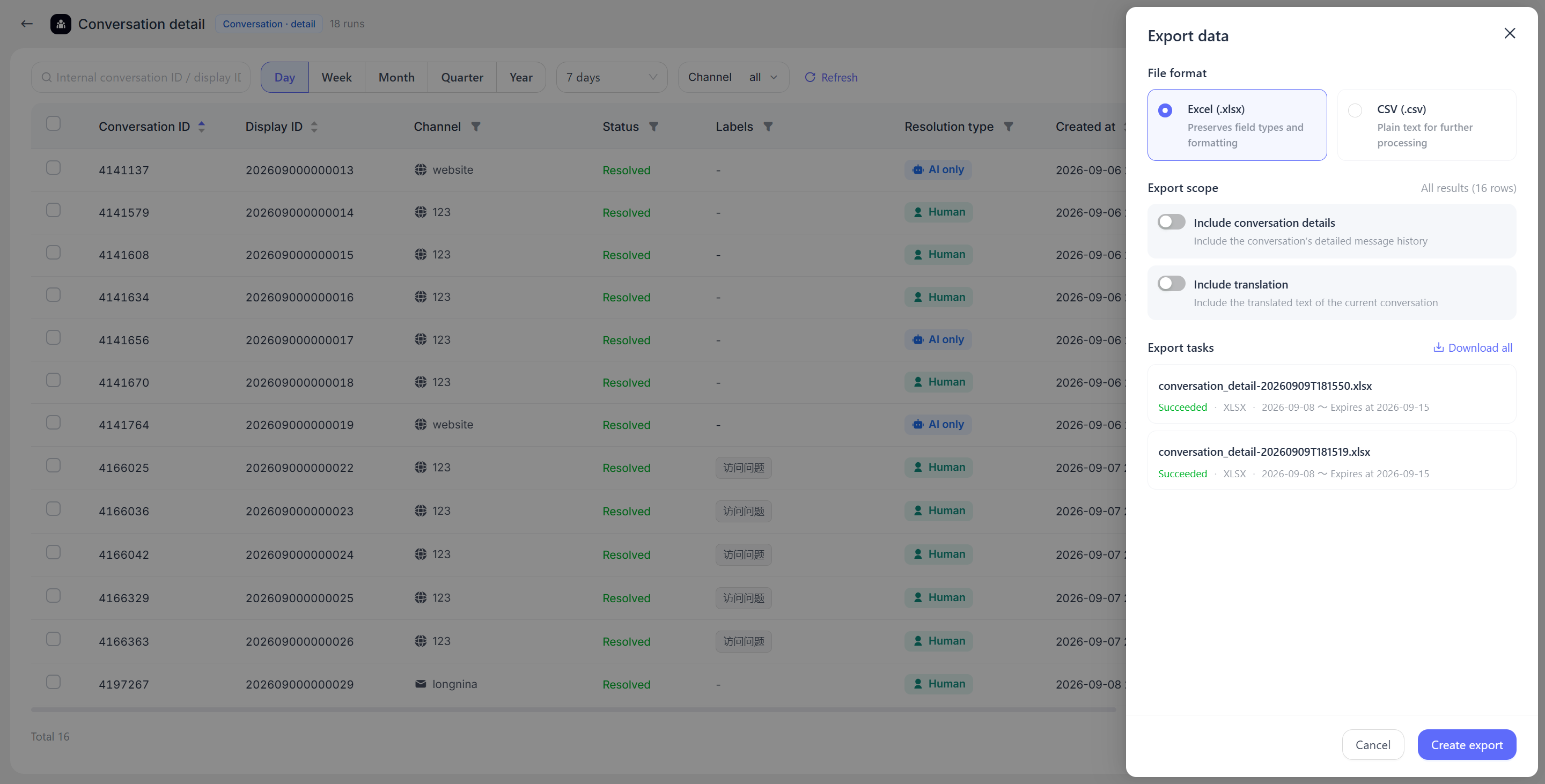
Report exports are processed as tasks. After selecting the format and scope, the system first creates an export task, which can be downloaded once it is complete.
- You can choose to export All Data from the current filtered results or export only Selected Conversations;
- The current page supports CSV and XLSX formats;
- For Conversation Details, you can choose whether to include conversation content and translated content;
- The download is available after the export task is completed. Once the file expires, it can no longer be downloaded.
For reports covering a long time span or containing a large amount of detail, it is recommended that you narrow the time range or channel scope before starting the export so you can get results more quickly.
Recommendations
| Problem You Want to Solve | Recommended Data Scope |
|---|---|
| Find conversations with long handling times | Conversation Details |
| View daily service volume and case resolution performance | Daily Conversation Aggregation |
| Identify frequently consulted or returning customers | Customer Details |
| Create a daily agent report | Daily Agent Aggregation |
| Review low satisfaction ratings | Customer Satisfaction Details |
Customer, agent, team, and tag information in the Report Center changes as business data is updated. When you need to trace information from a specific point in history, it is recommended that you verify it against the relevant conversation records.
