Integration Settings
Android
Go to [App Settings] - [Integration Settings] - [Android] and enter the application package name.
Once the package name is set, it cannot be changed, so please enter it carefully.
If you need to use manufacturer channels, refer to the Manufacturer Channel Parameter Application Guide to obtain the parameters and complete the configuration.
iOS
iOS Certificate Configuration
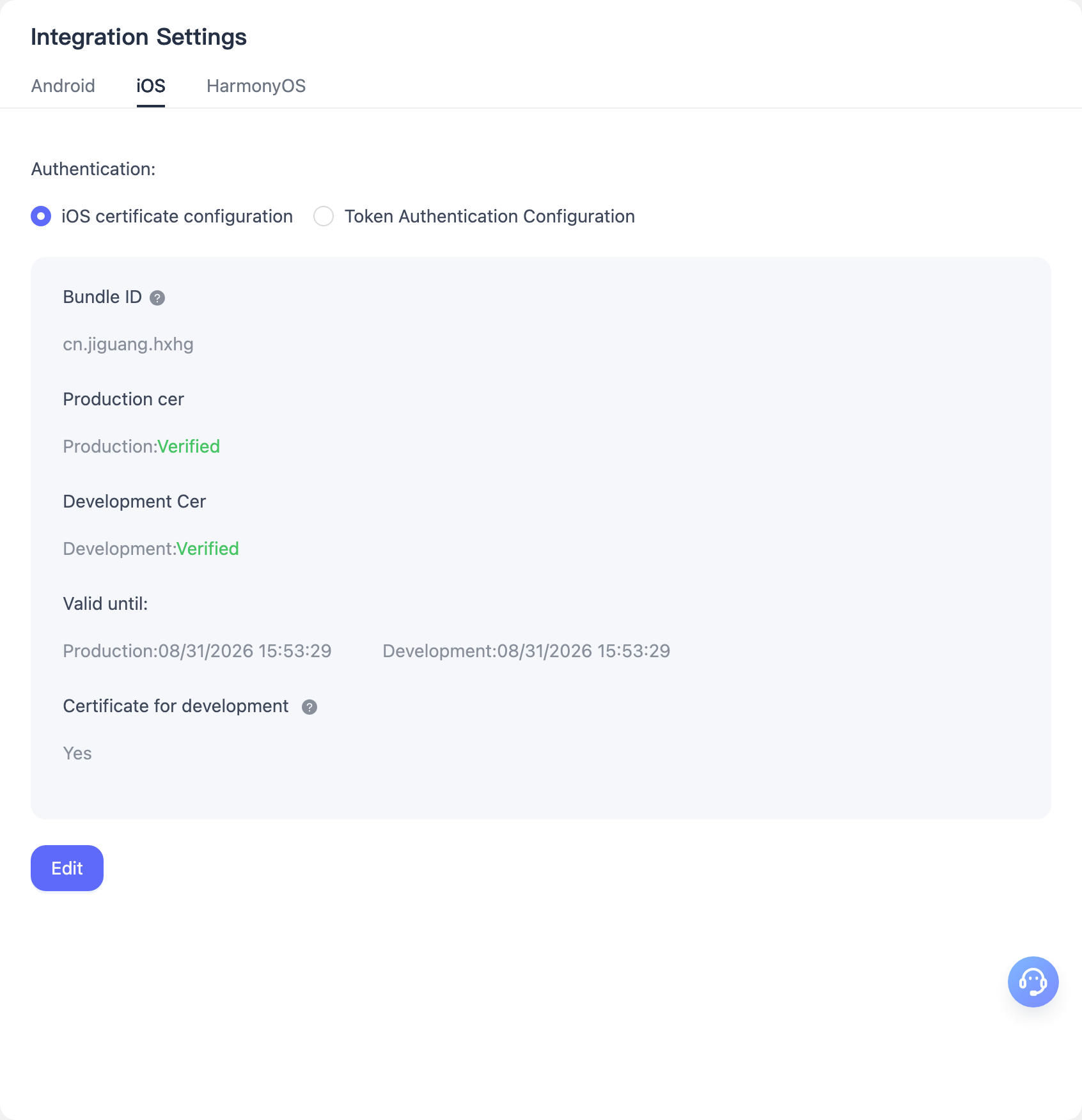
- Go to [App Settings] - [Integration Settings] - [iOS], select "iOS Certificate Configuration" as the authentication method, and upload the
.p12certificate. EngageLab will authenticate your application in the background. For certificate creation, refer to the iOS Certificate Setup Guide. - Apple's production push certificate can be used for pushes in the development environment. By selecting the option to use the production certificate for the development environment, developers only need to upload the production certificate. They can then select the development environment for push delivery on the official push platform without generating and uploading a separate development certificate.
Token Authentication Configuration
Go to [App Settings] - [Integration Settings] - [iOS], select "Token Authentication Configuration" as the authentication method, upload the APNs Auth Key file, and enter your Key ID, Team ID, and the Bundle ID of the specified application. EngageLab will authenticate your application in the background. For instructions on creating an APNs Auth Key file, refer to the iOS Certificate Setup Guide.
HarmonyOS
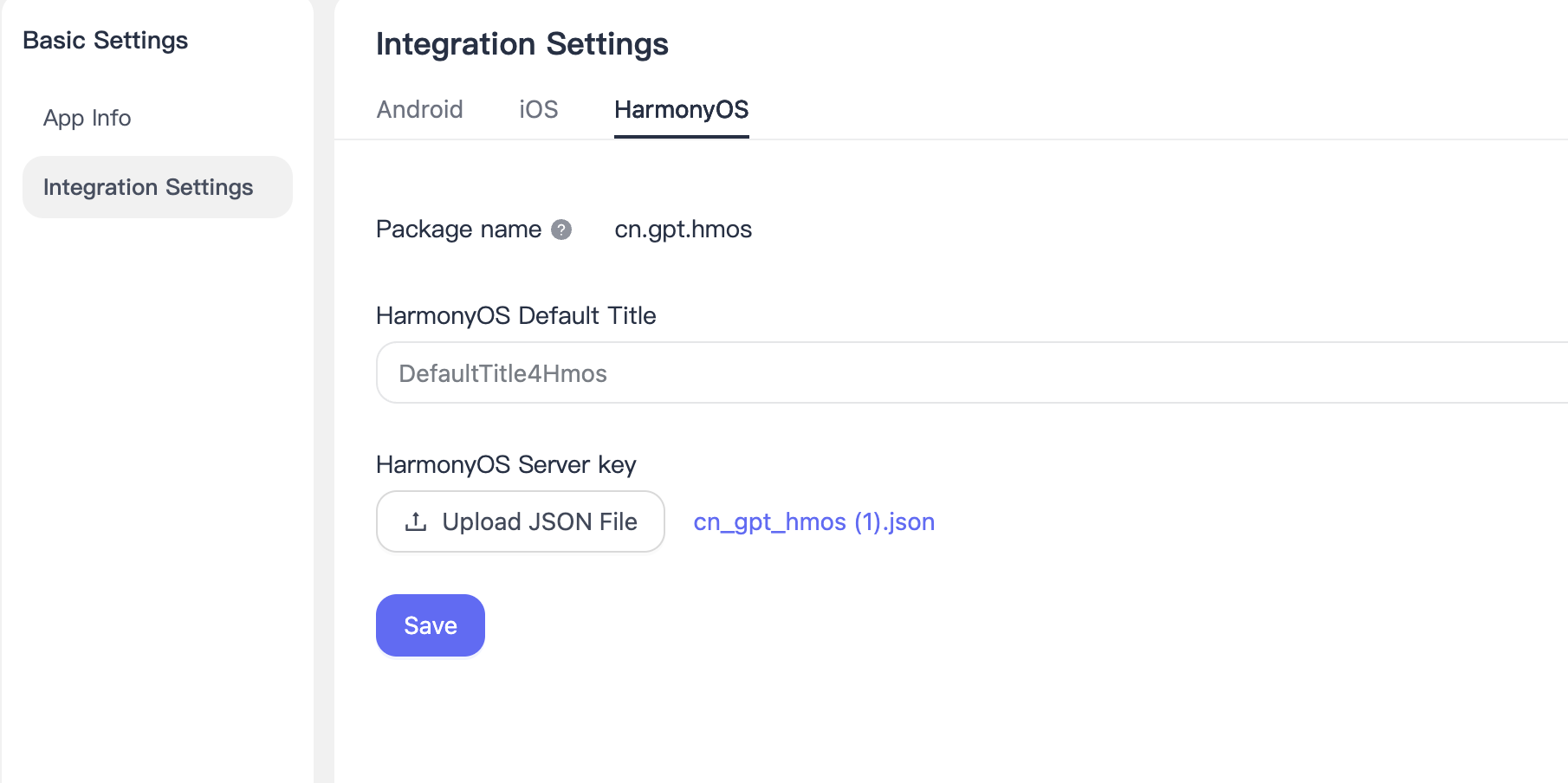
Go to [App Settings] - [Integration Settings] - [HarmonyOS] and enter the application package name.
Once the package name (Package Name) of a HarmonyOS application is set, it cannot be changed.
If you need to use manufacturer channels, refer to the Manufacturer Channel Parameter Application Guide to obtain the parameters and complete the configuration.