LiveDesk supports adding an Instagram channel so users can converse with customers. With this feature, you can:
- Automatically receive messages from Instagram and assign them to the corresponding team or customer service agent.
- View profile details of users who send messages.
- View, manage, and reply to all messages in the conversation or ticket list.
Below, we will explain how to add an Instagram channel.
Preparation
LiveDesk connects to the Instagram channel by accessing your authorized Instagram business account, receiving messages sent to that account, creating corresponding conversations in LiveDesk, and assigning them to agents for response. Before doing this, you need to create your Instagram business account.
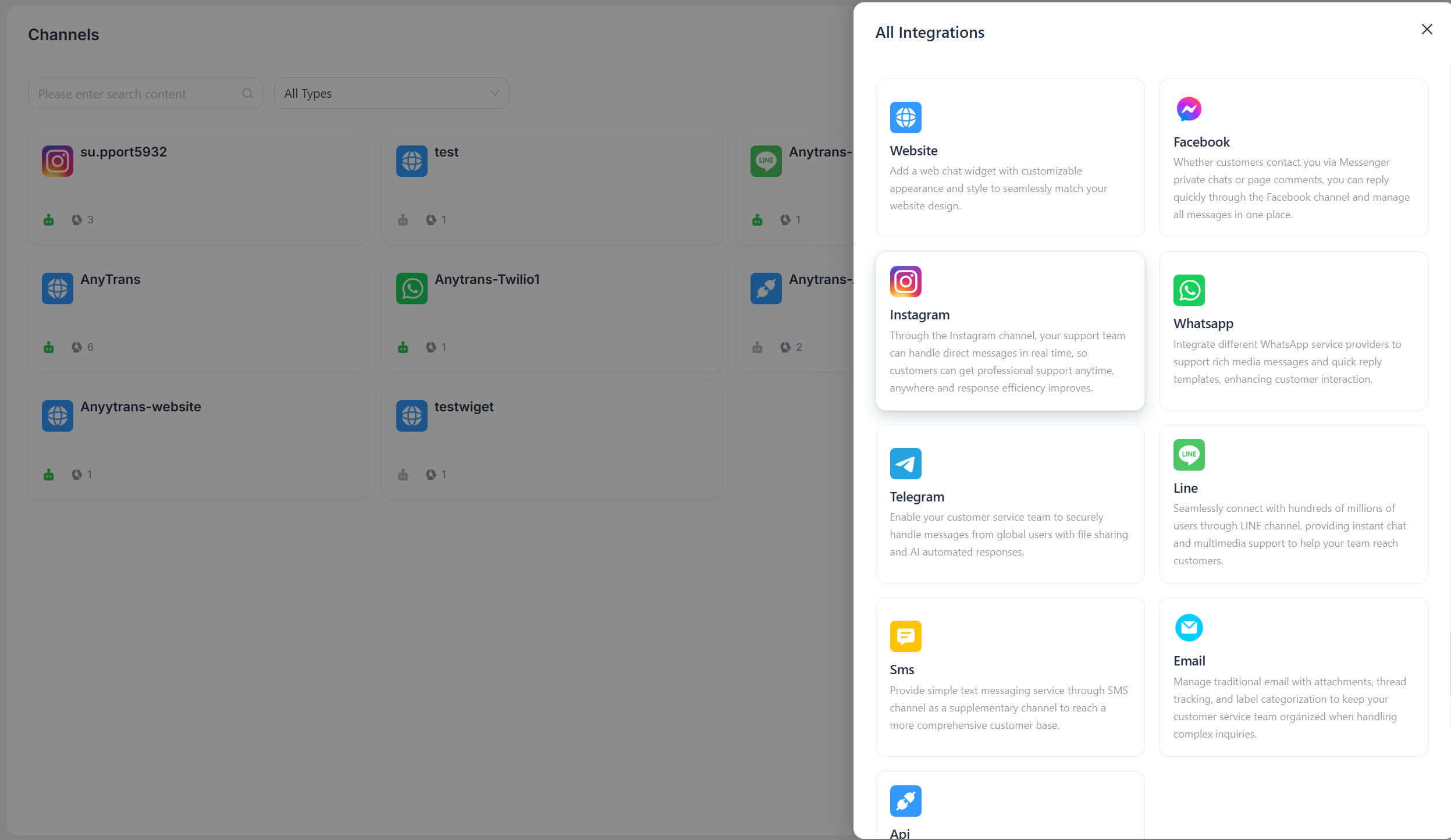
"Add Channel" - "Instagram"
Authorize LiveDesk
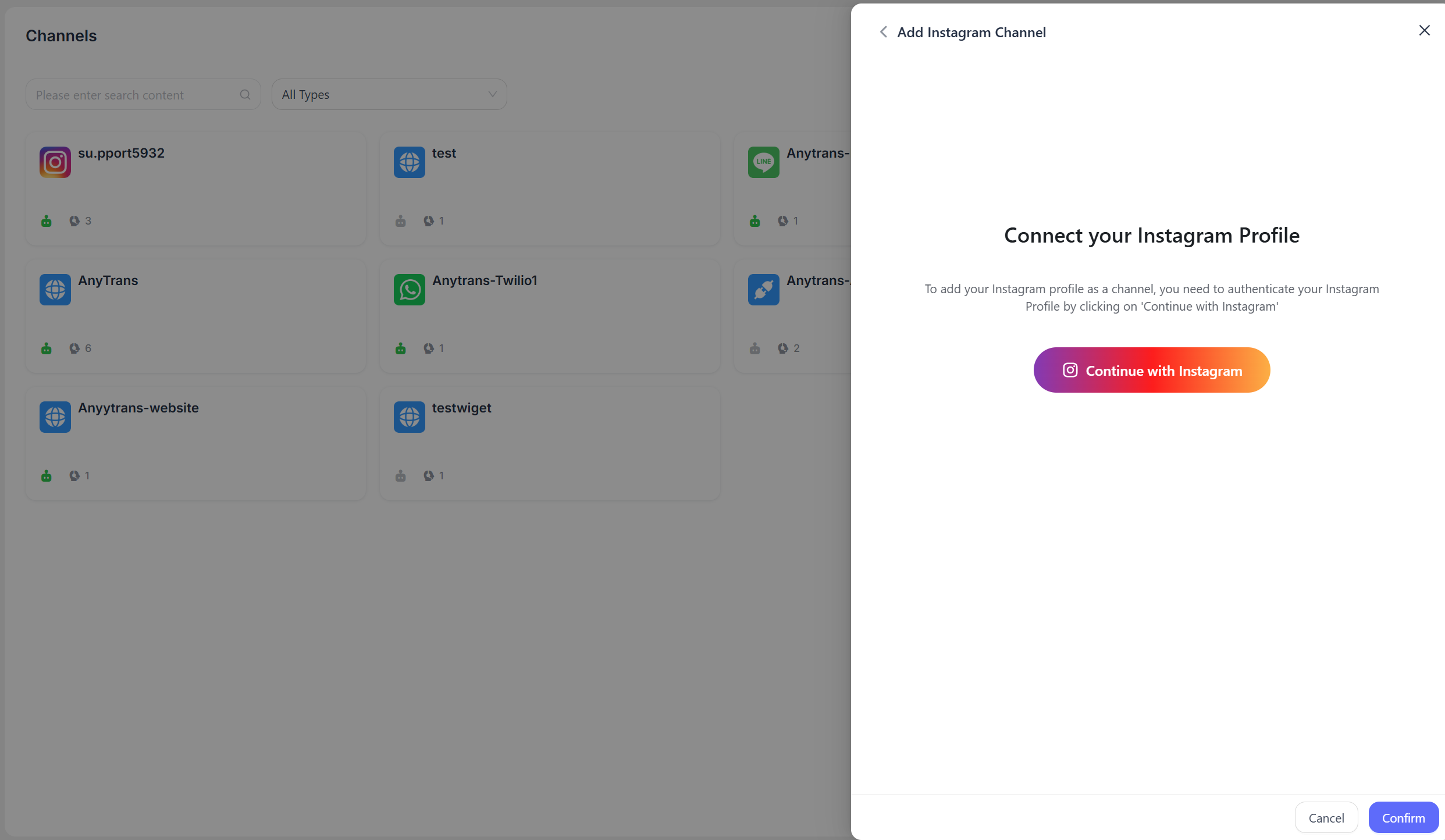
You need to authorize LiveDesk to access your Instagram business account.
- Click "Connect with Instagram," and the page will redirect to the Instagram login screen.
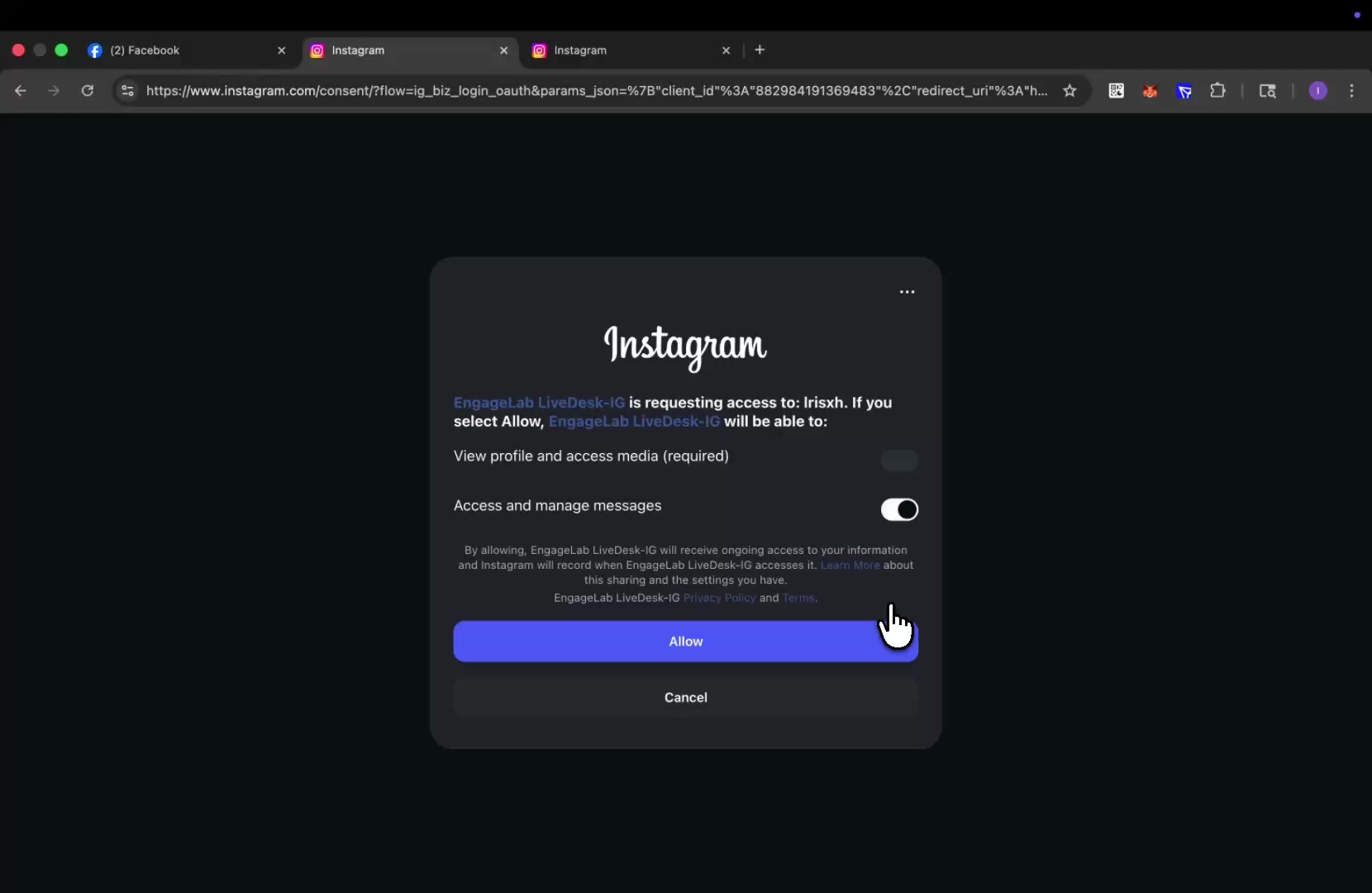
- Log in to your Instagram account for authentication. Agree to grant LiveDesk the necessary permissions so it can successfully perform all required operations.
Complete Creation
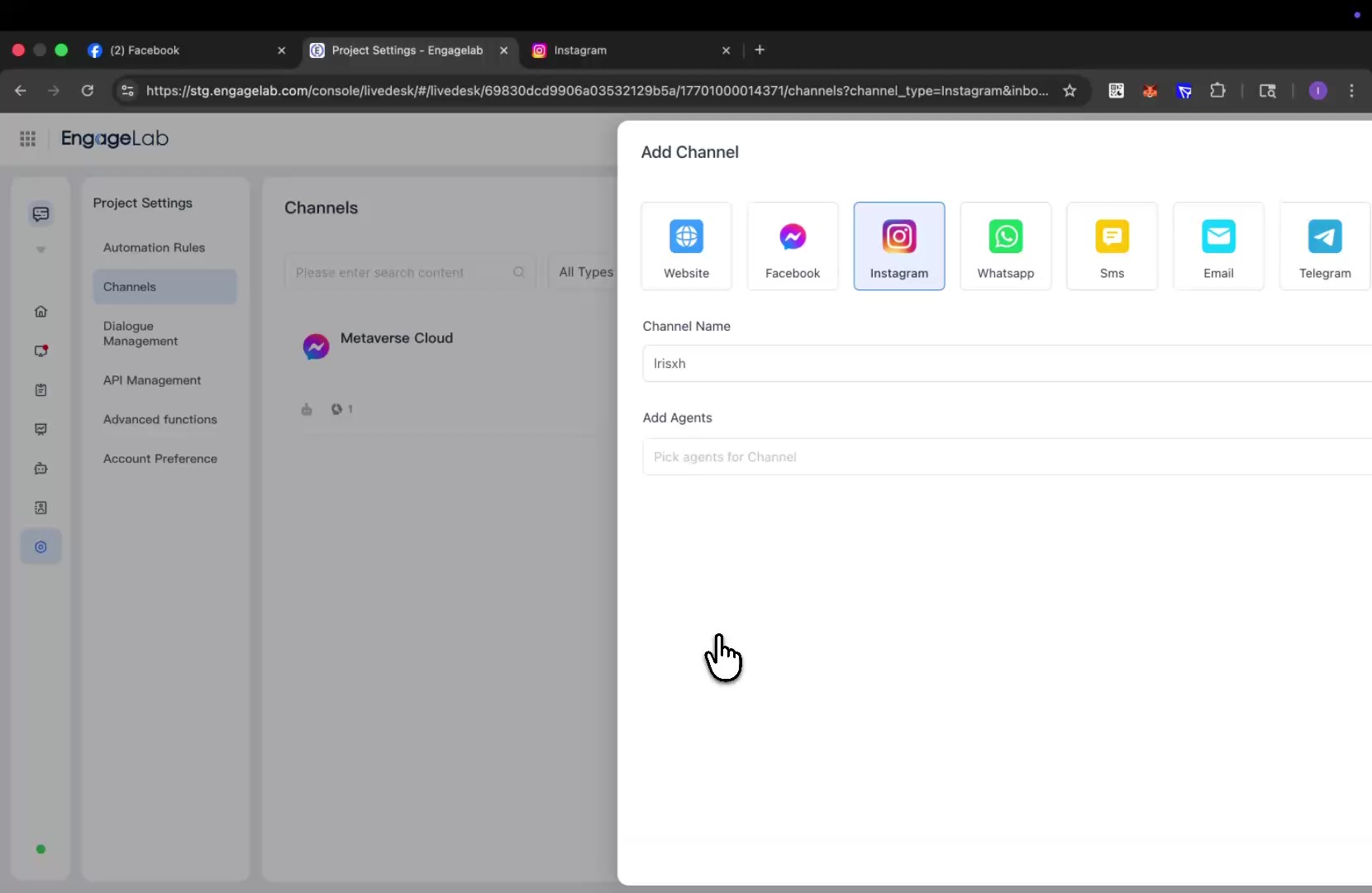
After successful authorization, you will be redirected back to the LiveDesk interface, where you can set the channel name and assign customer service agents to complete setup.
Detailed Settings
After the channel is created, you can configure detailed settings in the corresponding channel.
Settings
Set channel greeting message
Disabled by default. Enter a custom greeting message, which will be automatically sent to the customer when they start a conversation.
Enable CSAT
After this feature is enabled, a customer satisfaction survey will automatically start each time an issue is resolved. CSAT scores can be viewed later in the Reports section.
Conversation Assignment
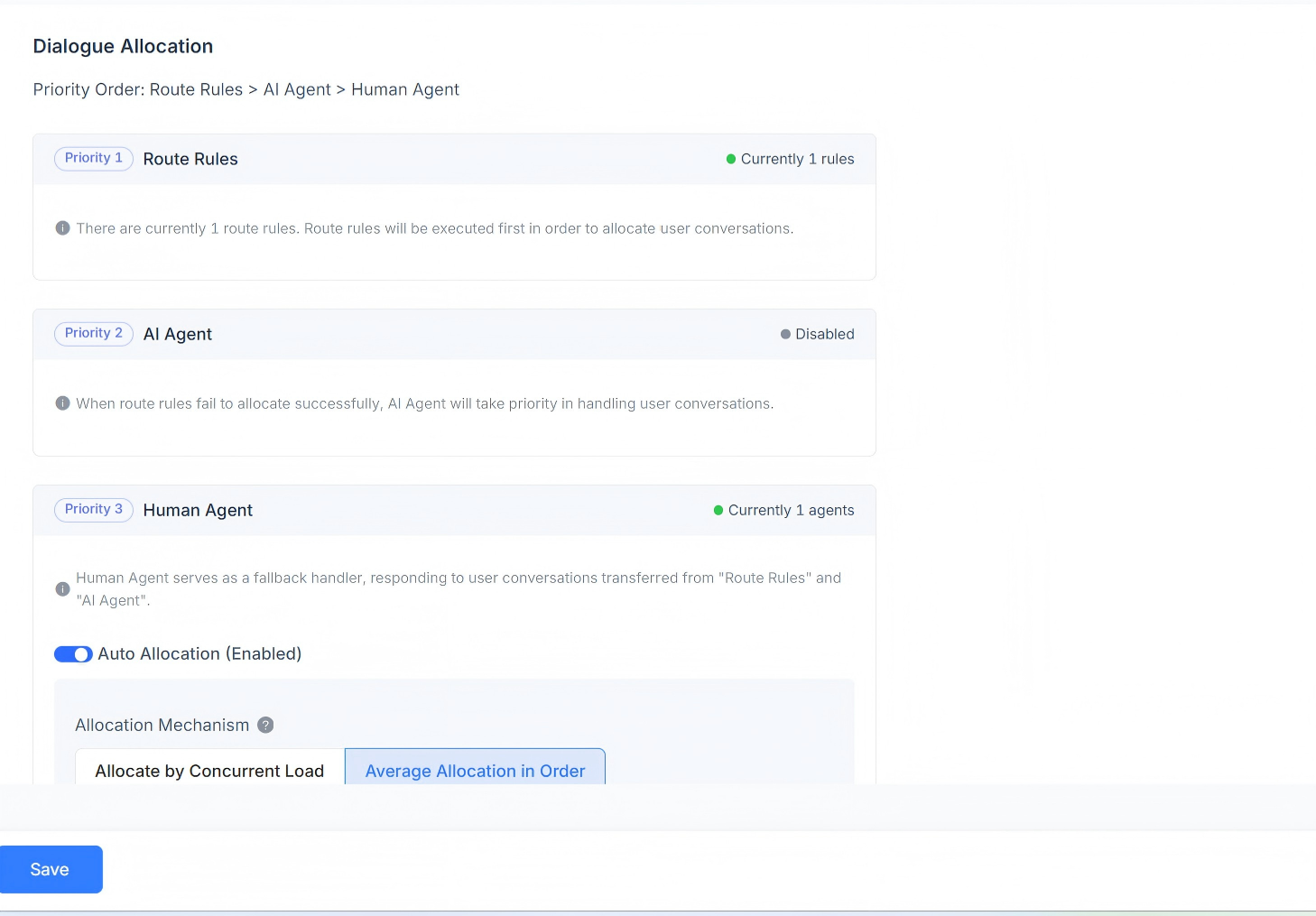
Displays the current conversation assignment rules for the channel. Supports routing rules, AI Agent, and Human Agent responses. Conversation assignment priority order: routing rules > AI Agent > Human Agent.
When routing rules exist, the system first determines whether the conditions of the routing rules are met. If multiple routing rules exist at the same time, they are evaluated in order, and assignments are made according to the first matching rule.
If the current scenario does not meet the routing rule conditions, it will be assigned to the AI Agent first.
If there is no AI Agent, it will be assigned to the corresponding Human Agent. Automatic assignment is supported, including assignment by concurrent workload, round-robin assignment, and custom workload assignment by agent.
Assignment by workload
Assignments are made according to the defined workload quantity, with priority given to agents with lower concurrent workloads.
Round-robin assignment
Regardless of each agent's workload settings, conversations are assigned evenly to each agent in sequence.
Custom workload assignment by agent
Set a custom workload value for each agent individually, with priority given to agents with lower concurrent workloads.
Human Agent
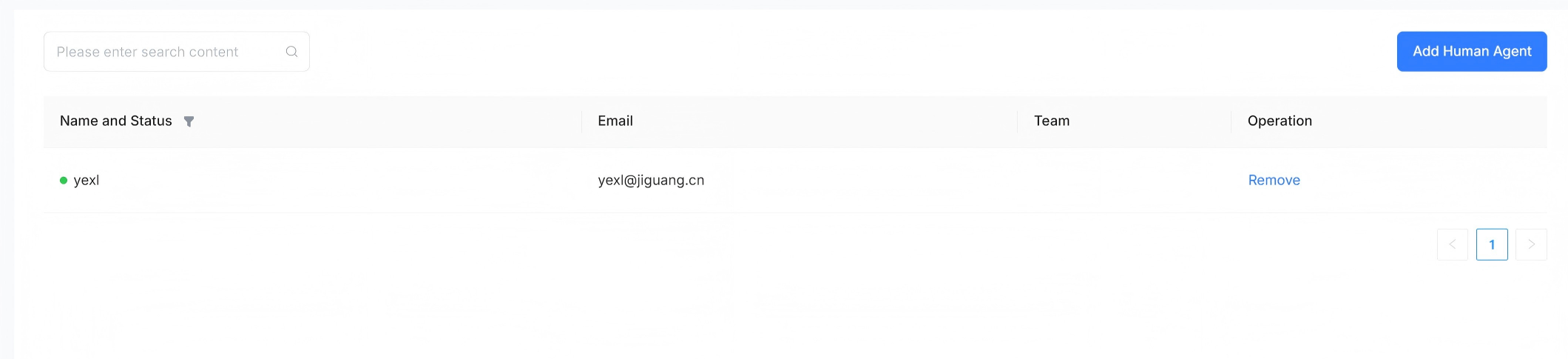
Supports setting human agents to handle conversation messages for this channel. Agents can be added or removed.
AI Agent
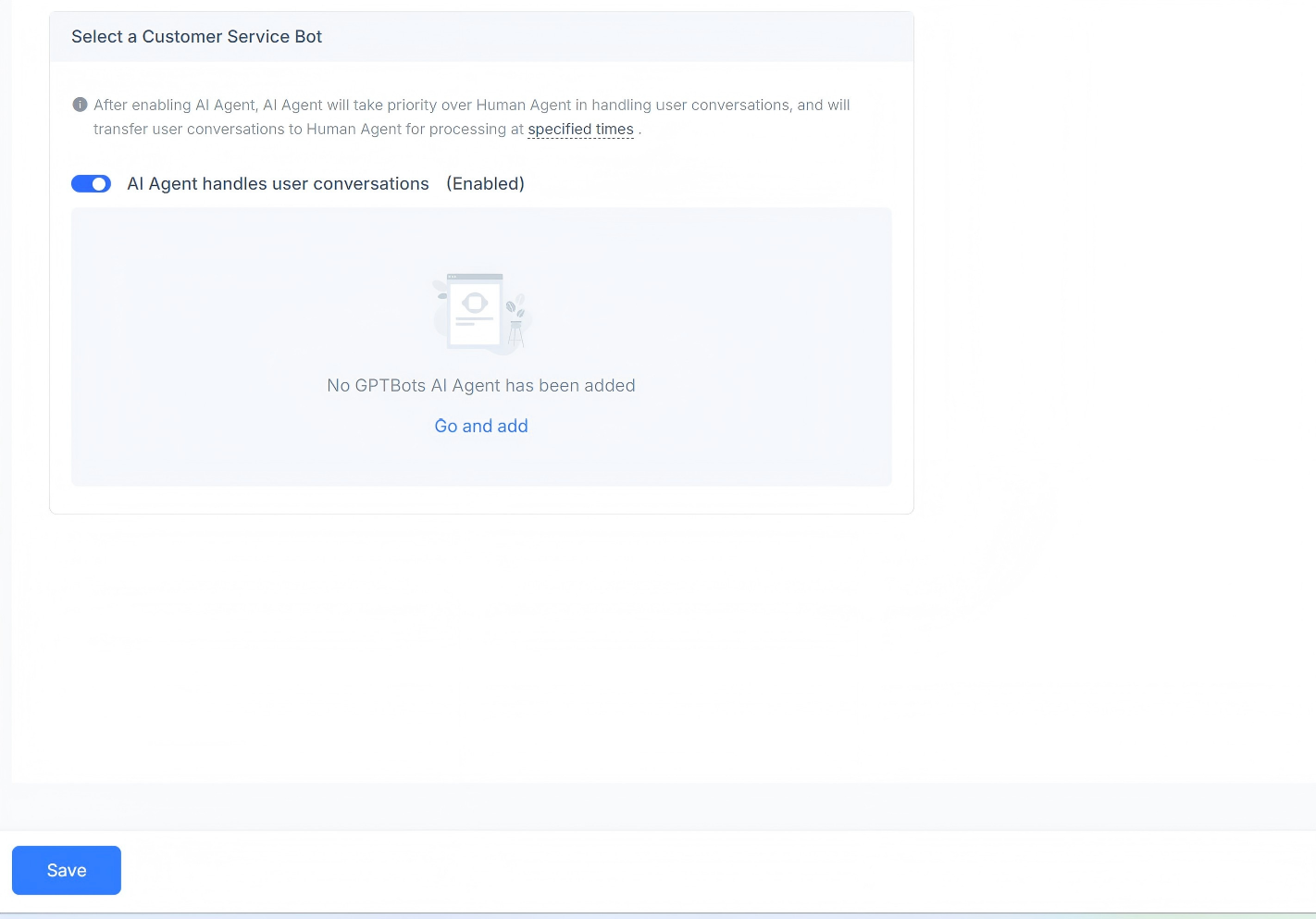
Supports setting AI agents to handle conversation messages for this channel. You can choose to enable or disable usage, and adding a GPT AI Agent is supported.
Business Hours
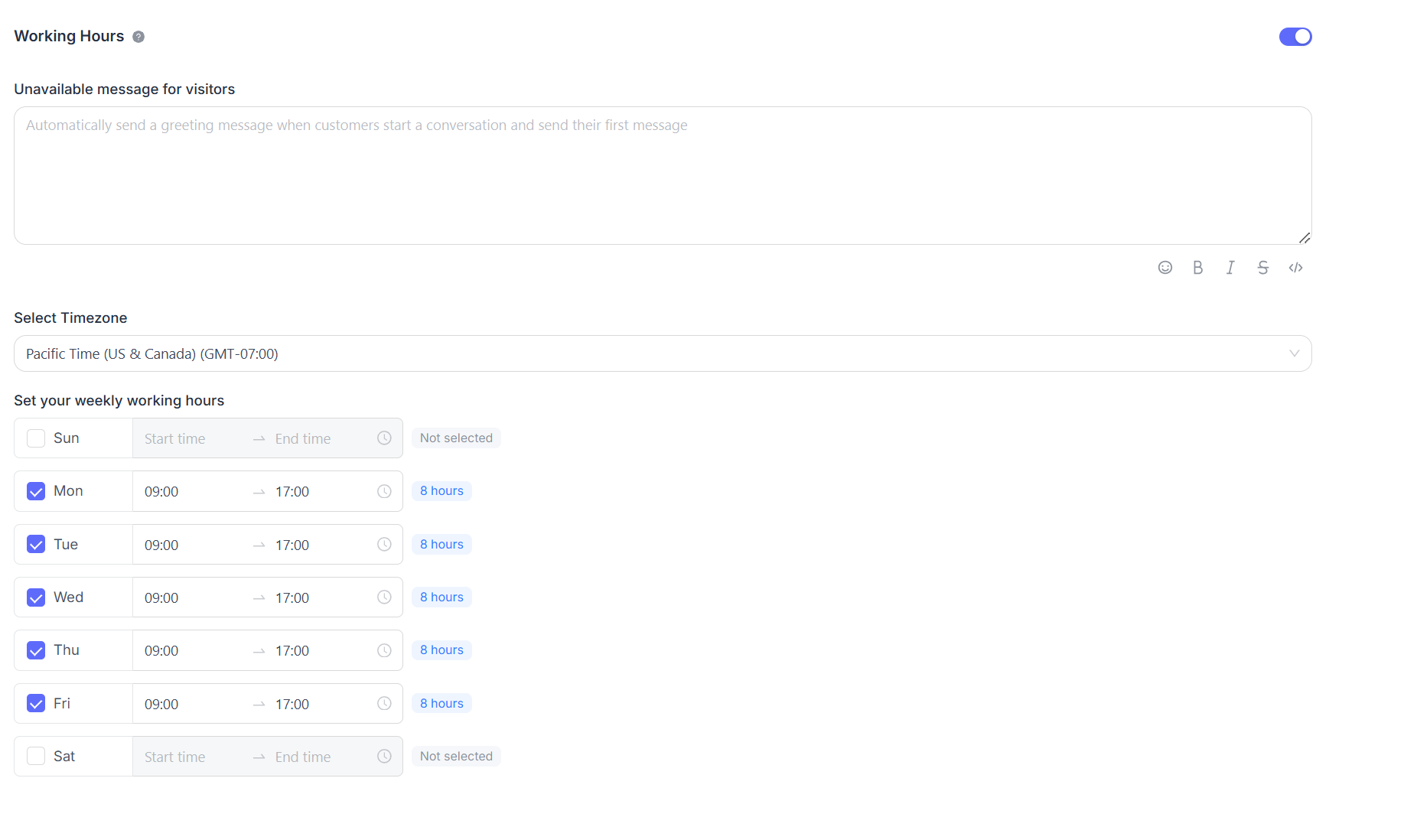
You can set the team's business hours.
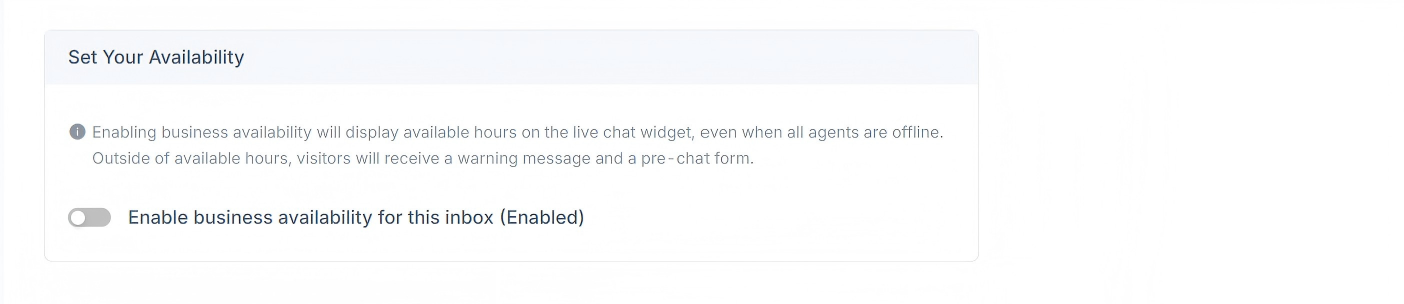
If business hours are clearly defined, select the "Enable business availability for this inbox (enabled)" checkbox. After selecting this checkbox, the corresponding parameter settings will be displayed below. You can set an unavailable message for visitors during off-hours. You can also choose business hour ranges for each day and the corresponding time zone.