Telegram Bot
LiveDesk supports adding Telegram channels so users can communicate through Telegram. With this feature, you can:
- Automatically receive messages from Telegram and assign them to the corresponding team or agent.
- View the profile details of users who send messages.
- View, manage, and reply to all messages in the conversation or ticket list.
LiveDesk provides two ways to create a Telegram channel: connecting a Telegram Bot or a Telegram personal account. Below, we will introduce how to add a Telegram channel using a Telegram Bot.
Preparations
LiveDesk supports receiving user messages through a Telegram Bot and creating conversations in LiveDesk. When an agent replies to messages in LiveDesk, the replies are displayed in the customer's Telegram chat window through the Telegram Bot. Therefore, before creating a channel, you first need to create a Telegram Bot in Telegram.
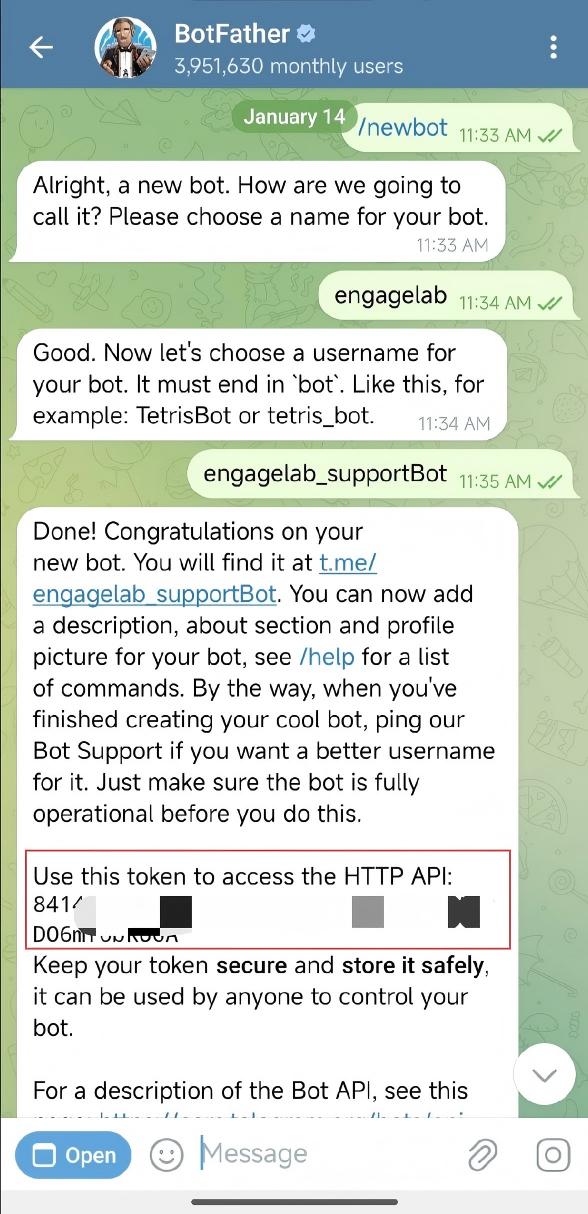
- Visit BotFather, enter the
/newbotcommand, and follow BotFather's instructions to create a TG Bot. After creation is complete, you can obtain the TG Bot link (Telegram Agent Link) and token.
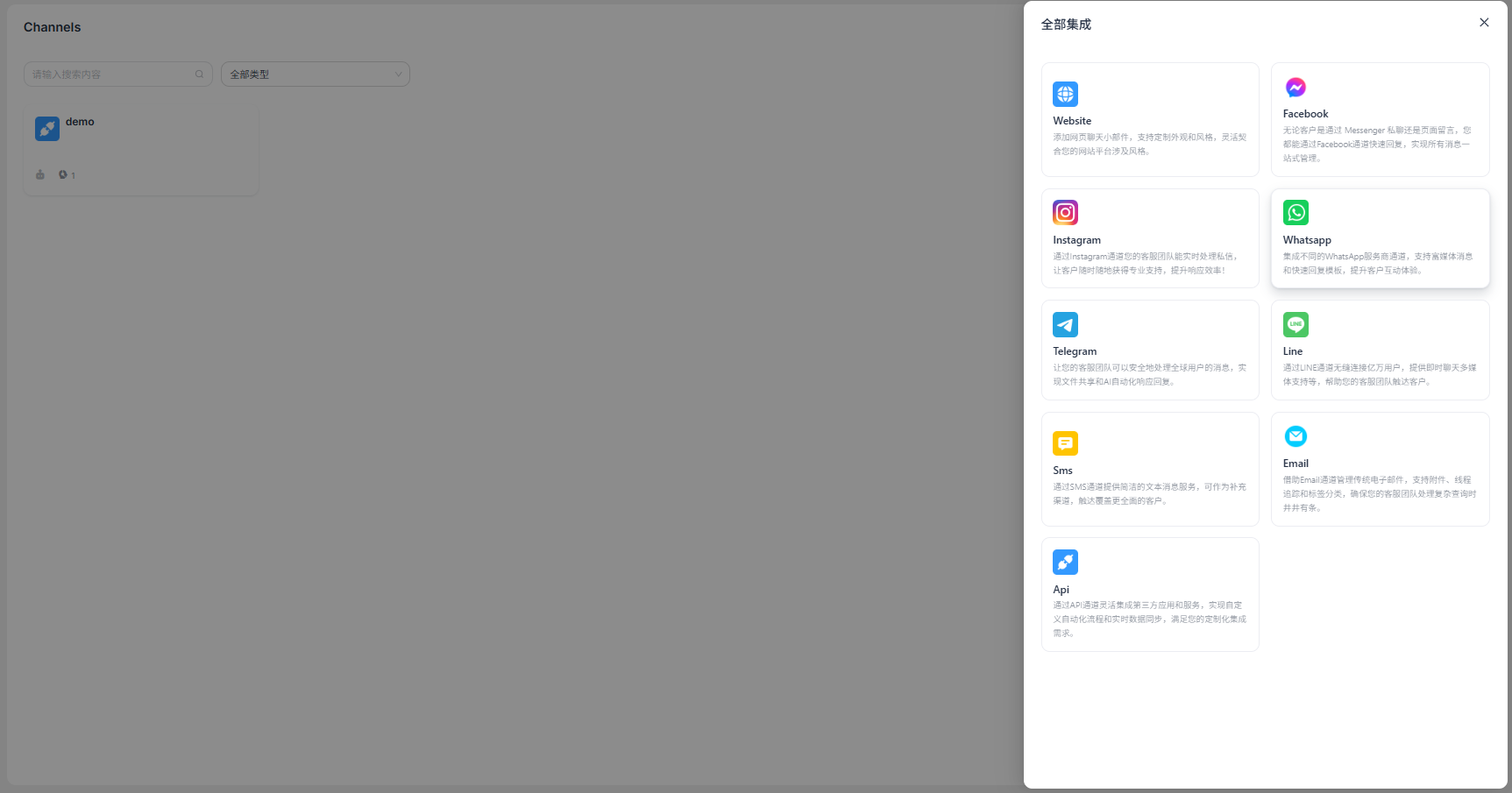
"Add Channel" - "Telegram"
Select Add Channel, then select Telegram Bot to create a channel.

Enter configuration information
Fill in the configuration information according to the interface prompts, then click Confirm when finished. This channel provides three modes: private chat, group chat, and GPTBots group chat mode.
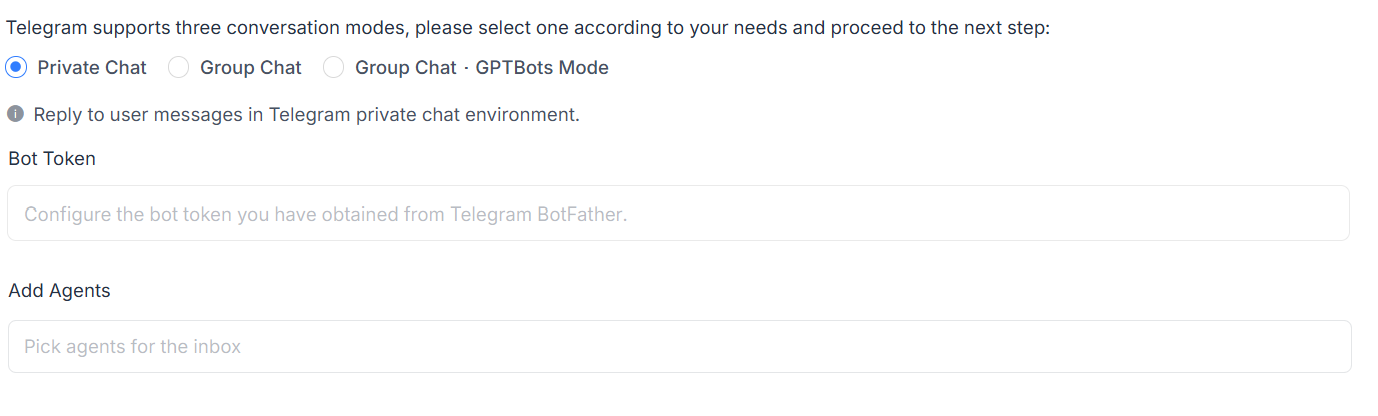
Private chat: The agent replies to user messages in a Telegram private chat environment. Users send messages directly to the Telegram Bot, and the agent replies to users in the corresponding private chat through LiveDesk.
Group chat: This mode can receive and reply to messages sent by users in the group where the Telegram Bot is located. It corresponds to Telegram's group chat mode.
Group chat GPTBots mode: LiveDesk and GPTBots share messages from this TG group chat. GPTBots processes TG group chat messages first, and LiveDesk obtains the group chat records from GPTBots.
Bot Token: Enter the Bot Token obtained from Telegram BotFather.
Add Agent: Specify the customer service agent who will handle messages from this channel.
Detailed settings
After the channel is created, you can configure detailed settings in the corresponding channel.
Settings
Set channel greeting message
Disabled by default. Enter a custom greeting message, which will be automatically sent to the customer when they start a conversation.
Enable CSAT
After this feature is enabled, a customer satisfaction survey will automatically be launched each time an issue is resolved. CSAT scores can be viewed later in the Reports section.
Conversation assignment
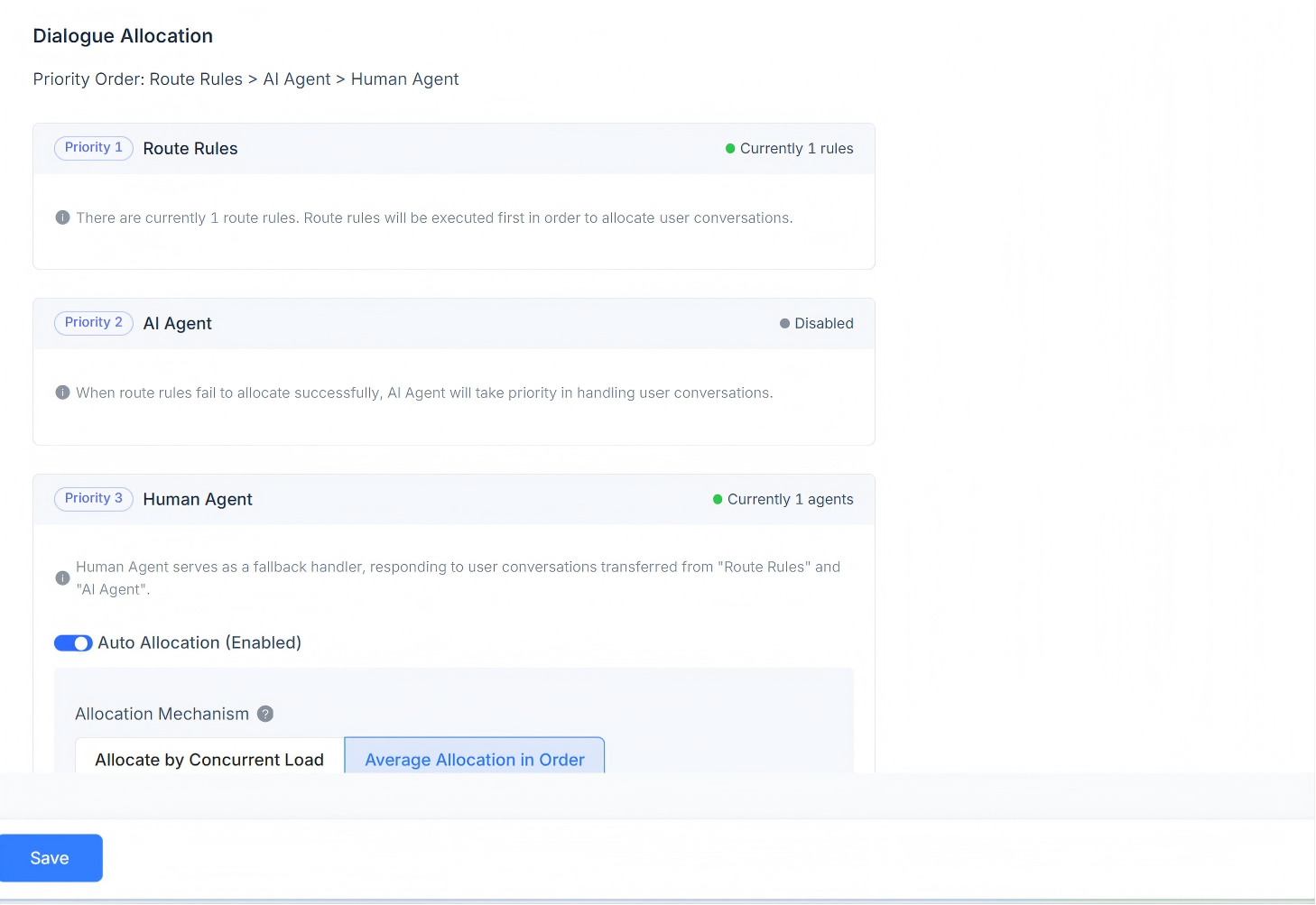
Displays the conversation assignment rules for the current channel. It supports routing rules, AI Agent, and Human Agent responses. Conversation assignment priority order: routing rules > AI Agent > Human Agent.
When routing rules exist, the system first determines whether the routing rule requirements are met. If multiple routing rules exist at the same time, they are evaluated in order, and matching rules are used for assignment.
If the current scenario does not meet the routing rule requirements, it will be assigned to the AI Agent first.
If no AI Agent exists, it will be assigned to the corresponding Human Agent. Automatic assignment is supported, with mechanisms including assignment by concurrent workload, sequential round-robin assignment, and assignment based on custom agent workload.
Assignment by workload mechanism
Assignment is based on the defined workload quantity, with priority given to agents with lower concurrent workloads.
Sequential round-robin assignment mechanism
Without considering each agent's workload settings, conversations are assigned evenly to each agent in sequence.
Assignment based on custom agent workload mechanism
Set a custom workload value for each agent individually, with priority given to agents with lower concurrent workloads.
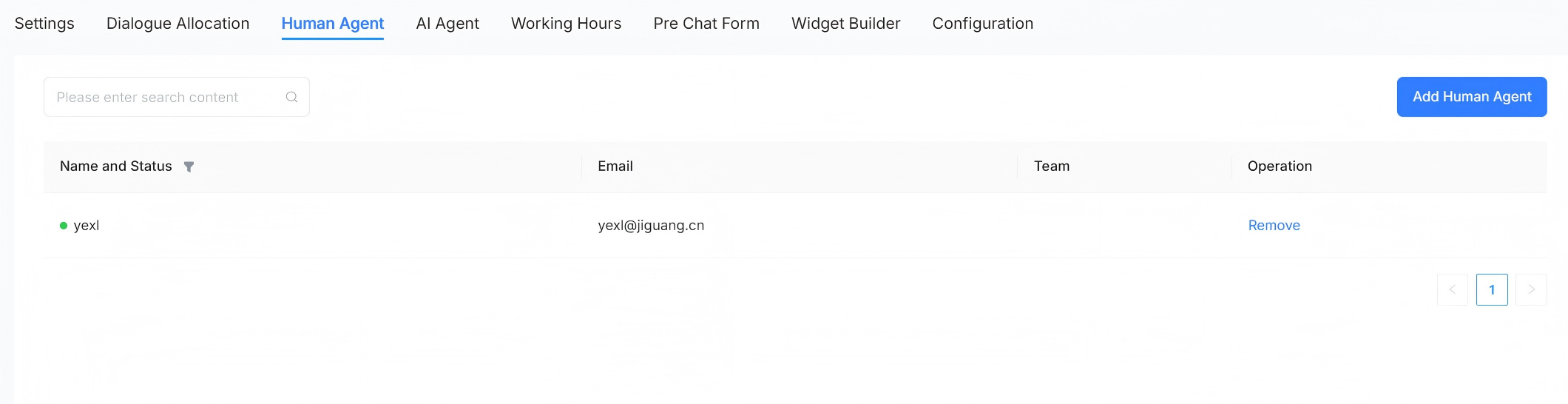
Human Agent
Supports setting the human agents who handle conversation messages for this channel. Agents can be added or removed.
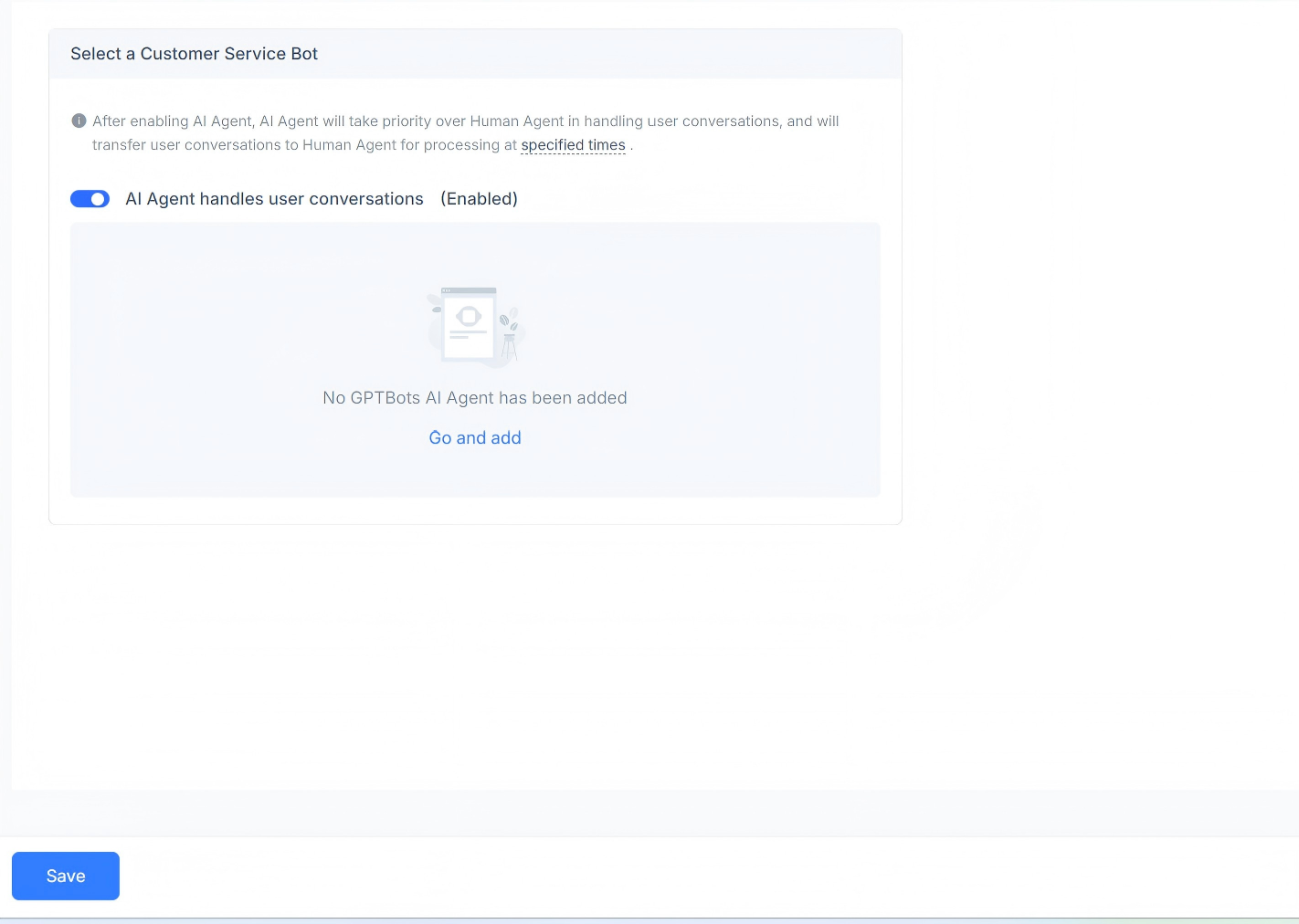
AI Agent
Supports setting the AI agents who handle conversation messages for this channel. You can choose to enable or disable them, and adding a GPT AI Agent is supported.
Business hours
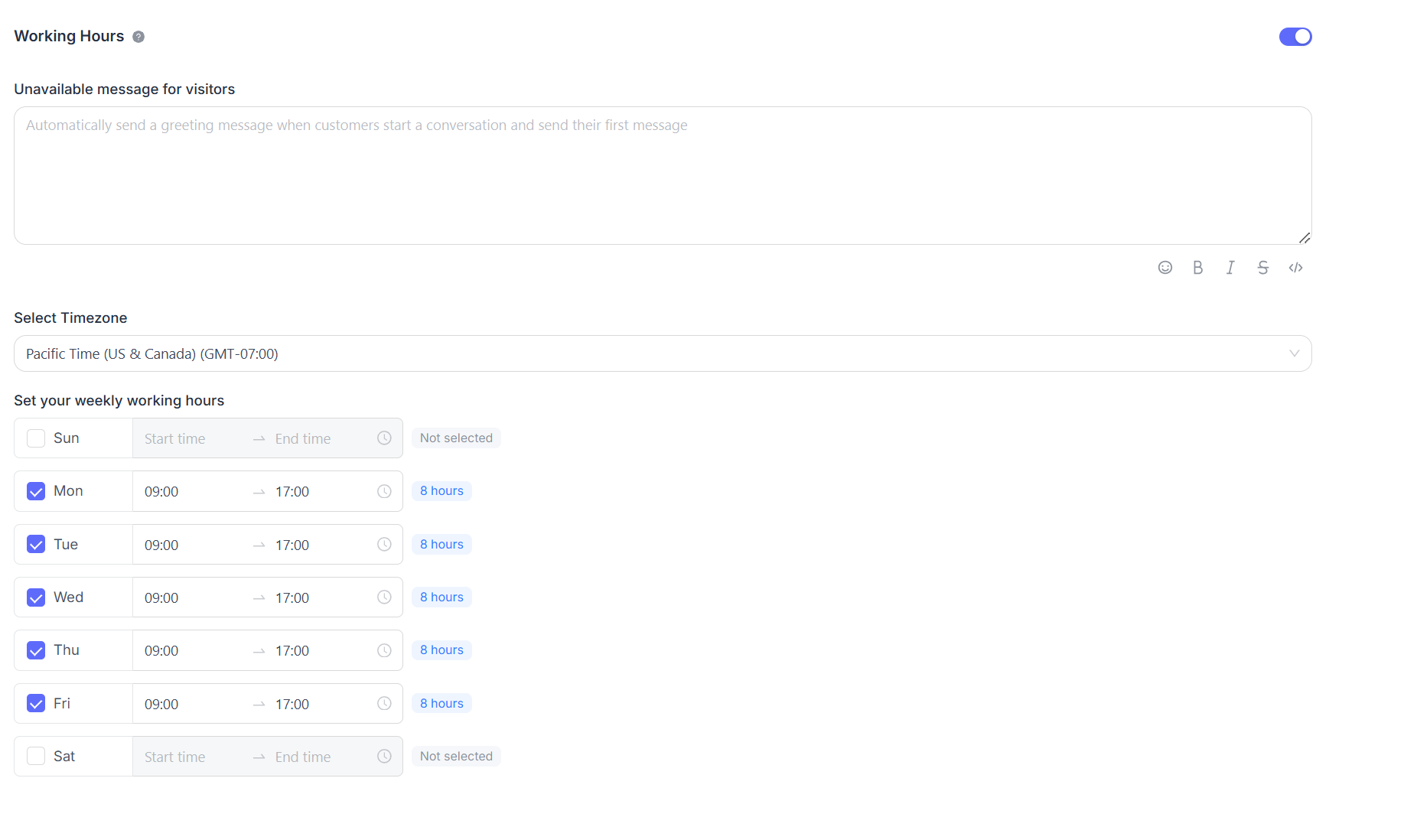
You can set the team's business hours.
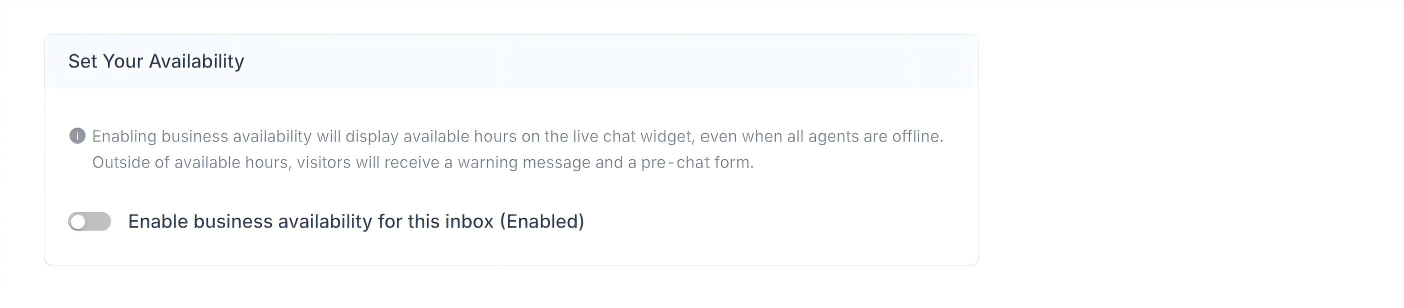
If business hours are clearly defined, select the "Enable business availability for this inbox (enabled)" checkbox. After selecting this box, the corresponding parameter settings will be displayed below. You can set an unavailable message for visitors during off-hours. You can also set the business hours range and corresponding time zone for each day.
FAQ
How to add a Telegram Bot to a group chat
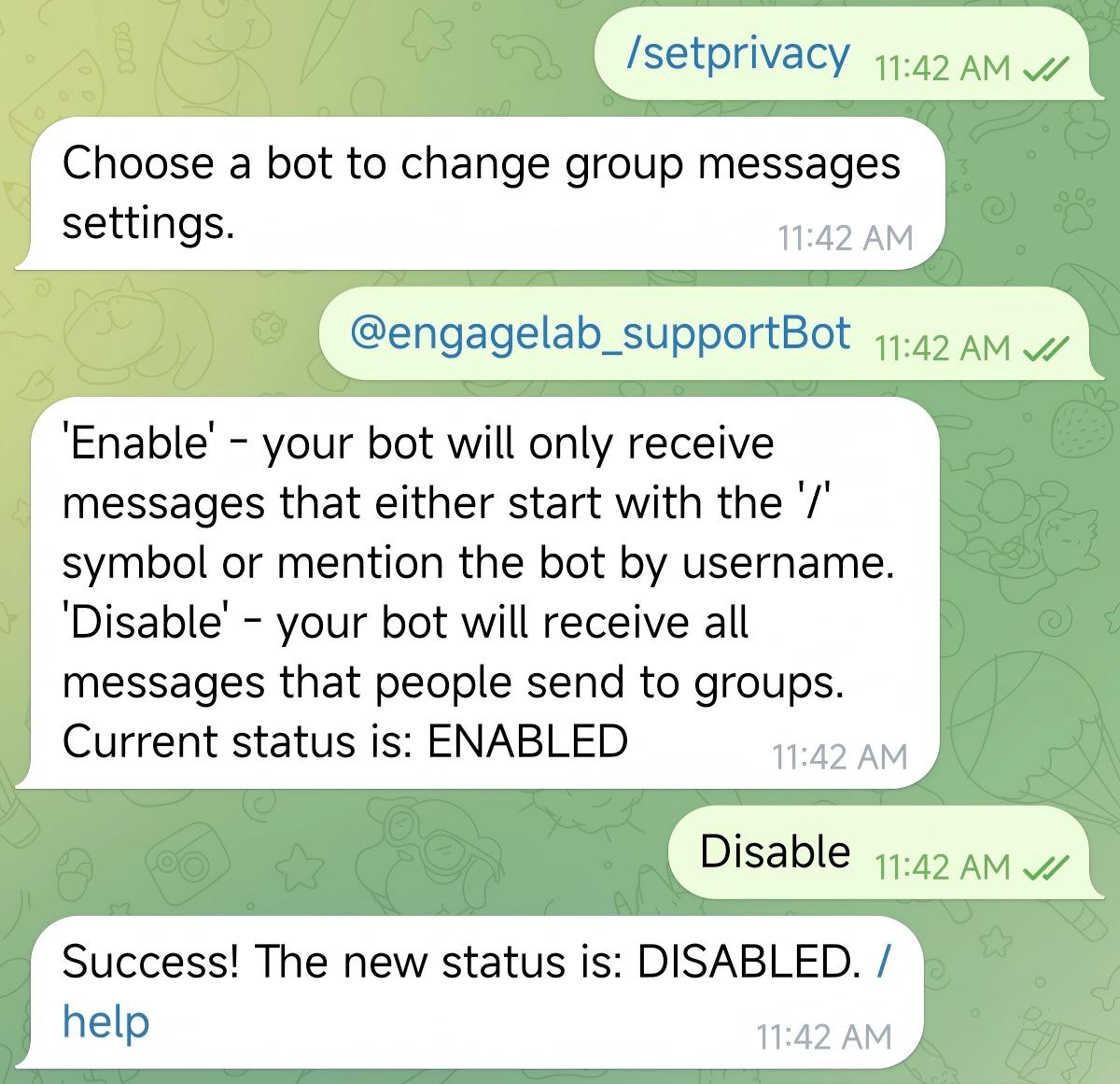
First, in BotFather, enter
/setprivacyto enable the corresponding Telegram Bot's group chat permissions.If Current Status shows
/Enabled, it means the permission has not yet been enabled. Enter/Disableto enable it.
- Add the Telegram Bot to the group chat. On the profile page, select "Add to Group or Channel". Then add it to the specified group chat.
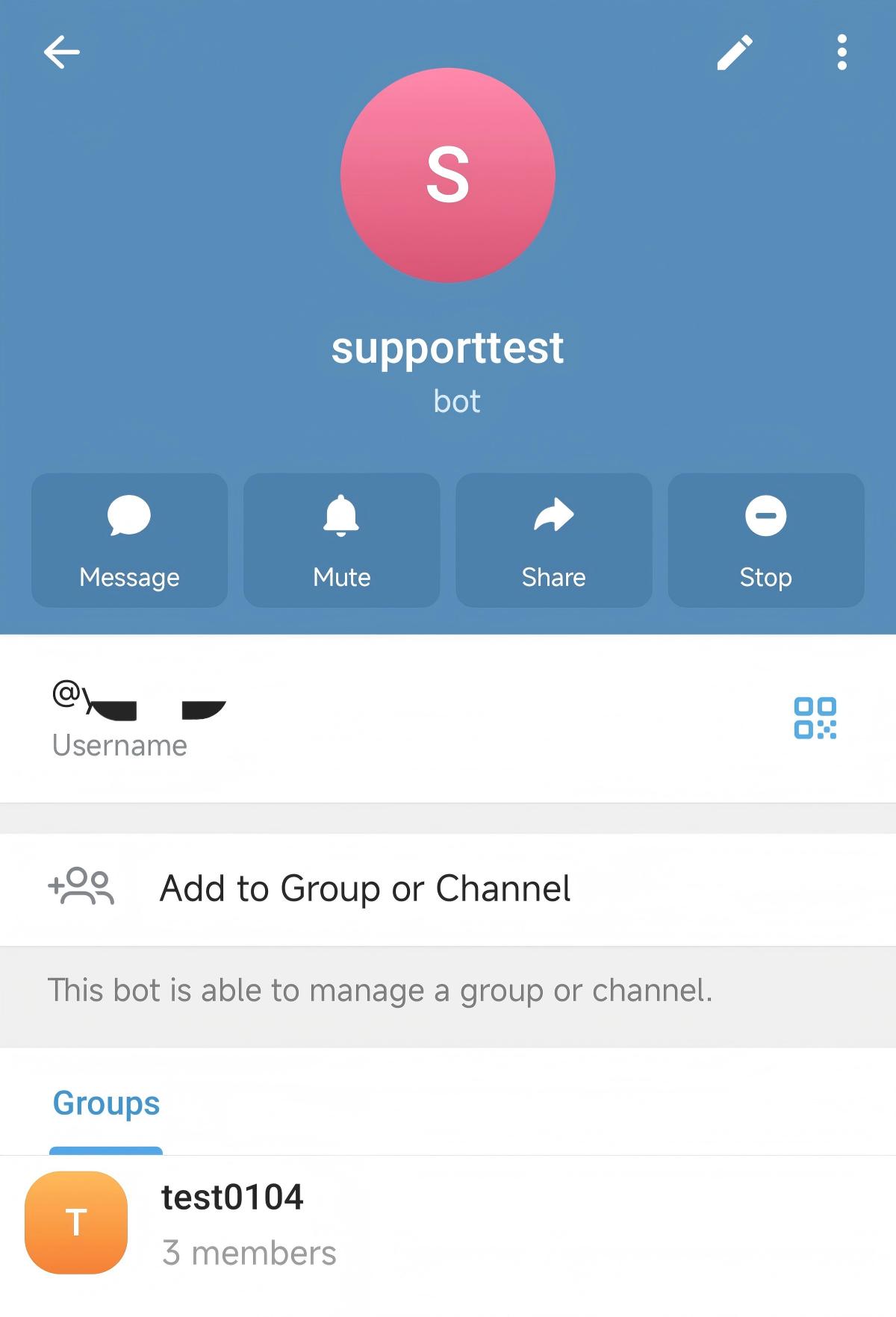
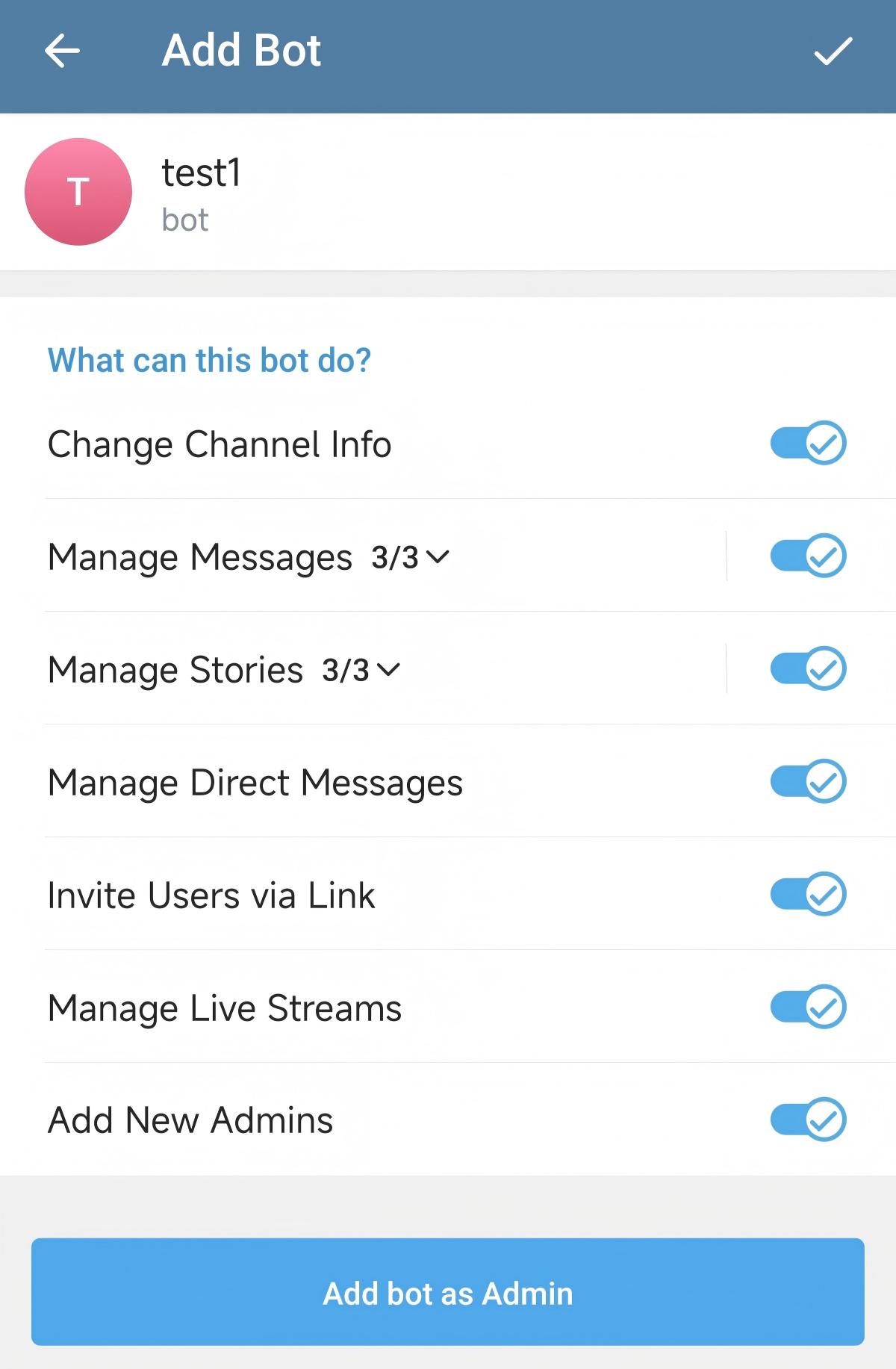
- Set Admin Rights to allow the Telegram Bot to obtain full permissions, then click "Add Bot as Admin" to add the Telegram Bot to the group chat.