


Getting Started with Rule Agent and Configuration
This guide introduces Rule Agent. It explains the problems Rule Agent can solve and walks you through creating, testing, and enabling your first flow. Rule Agent automation can replace and simplify existing manual processes, such as adding labels and assigning conversations to the most suitable agents. This enables support team members to focus on current conversations and tasks while reducing time spent on routine work.
For your first use, follow the steps in this guide in order. To learn about a specific node, see the Rule Agent Node Reference.
Overview: What Is Rule Agent?
Rule Agent is an automated processing agent that integrates different flows. A flow is an automation capability that runs continuously around real conversations.
Unlike a traditional automation rule that ends immediately after it is triggered, a flow can:
- Start when triggered by a Trigger
- Progress continuously with a conversation as its context
- Make decisions and branch multiple times during the flow
- Wait for user actions or a timeout
- Continue with subsequent steps based on the result
You can think of it as a configurable conversation flowchart.
When a user or conversation meets the entry criteria, the flow starts from its beginning and executes node by node until it reaches its goal or ends.
How Flows Differ from Traditional Automation Rules
| Comparison | Traditional automation rule | Flow |
|---|---|---|
| Execution | Runs once immediately after a match | Creates a continuously running process |
| Lifecycle | Short and immediate | Can progress over time |
| Branching | Usually makes one decision | Can branch continuously across multiple nodes |
| Waiting | Limited | Can wait for a reply, a click, or a timeout |
| Testing | Rule-level validation | Flow-level testing, path tracing, and result review |
| Best for | Adding labels, changing statuses, sending notifications | Welcome routing, timeout follow-ups, satisfaction collection, AI fallbacks, and conversion experiments |
Choose the Right Use Case
Use a flow when your business process cannot be completed with a single match and action.
Common use cases include:
- Welcoming and routing new visitors
- Following different reception paths based on country, source, or labels
- Automatically following up or escalating when a visitor does not reply or an agent does not take over
- Sending a delayed satisfaction survey after a conversation ends
- Testing different copy or conversion paths through A/B routing
- Automatically handing off to a human agent and sending an explanatory message when AI handling fails
- Calling external systems, writing back variables, or synchronizing data during a flow
Before You Start: Understand the Core Concepts
Flow
A Flow is an editable, testable automation process that can be enabled or disabled.
Trigger
A Trigger is the entry point of a flow. It determines:
- When the flow starts
- Who can enter it
- How often they can enter it
Node
A node is the smallest functional unit in a flow.
For example, sending a message, branching on a condition, waiting for a reply, assigning an agent, and updating data are all nodes.
Exit
An exit is an output path from a node.
Different nodes can have different exits, such as:
- Continue by default
- Conditional branch
- Success / failure
- Occurred / timed out
- Button branch / not clicked
Audience
An Audience defines the scope of customers or conversations to which a flow applies.
Goal
A Goal is an event used to measure whether the flow has achieved its business objective.
For example, a first message being delivered, receiving a reply, completing a rating, or achieving a conversion.
Create and Publish Your First Flow
1. Choose How to Start
You can start in either of these ways:
- Create a new flow from a blank canvas
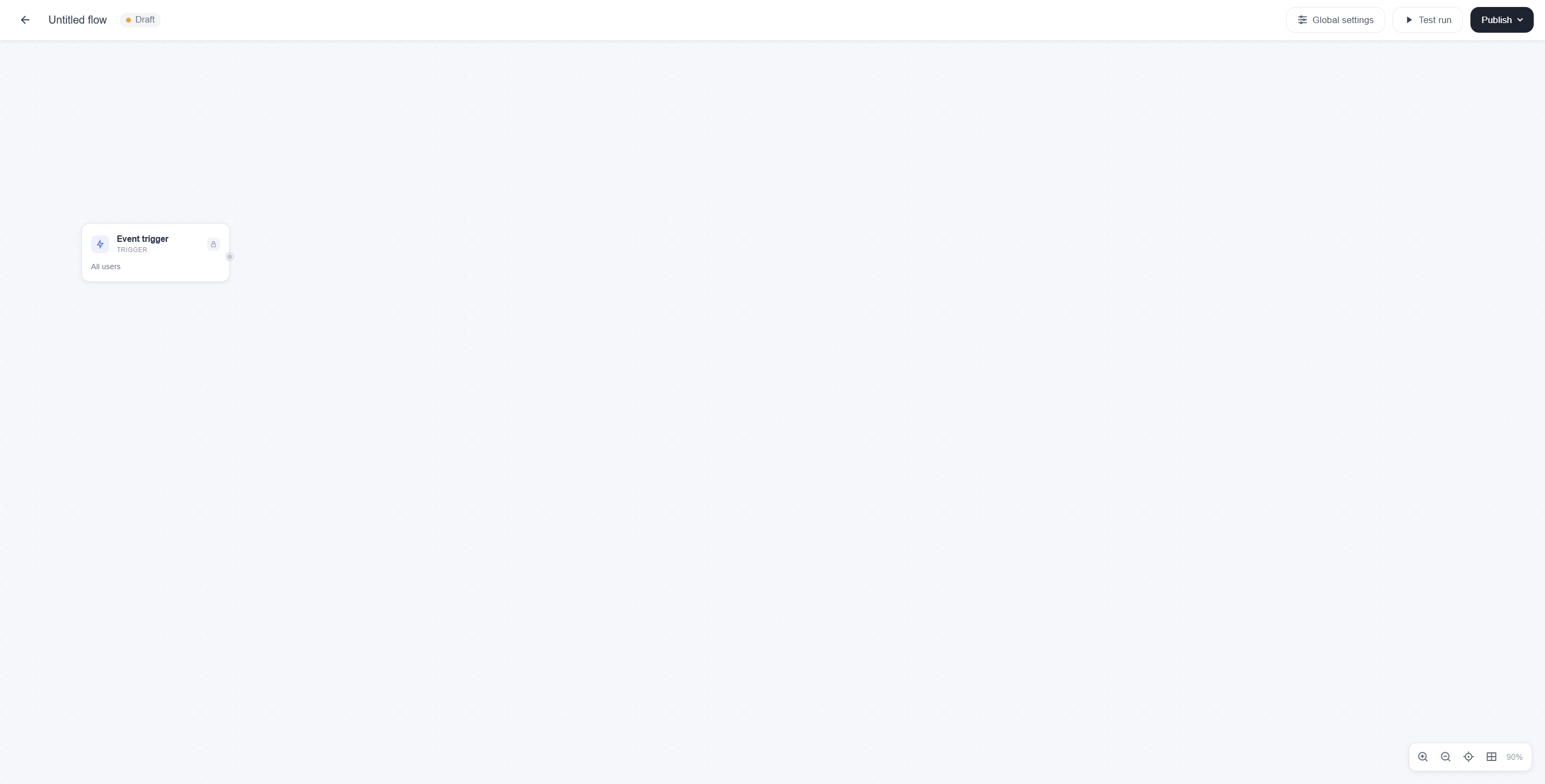
- Start from a scenario template
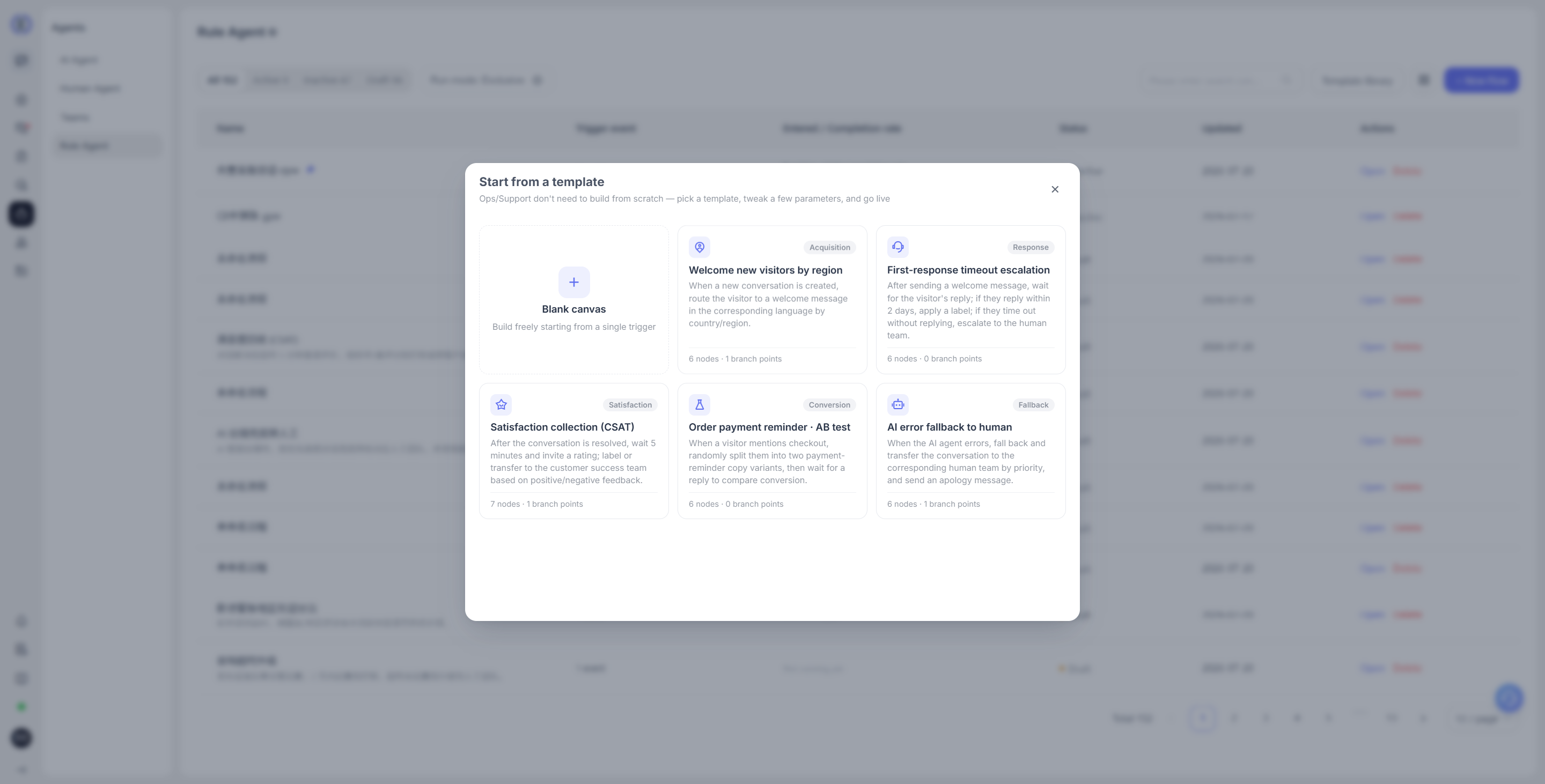
If this is your first configuration, we recommend starting with a template and replacing its parameters with your own business content.
2. Configure Event Triggers
First, define which event starts the flow.
Common entry events include:
- A visitor sends a message
- A conversation is created
- A specified event occurs
- A timeout occurs
- An AI or system event occurs
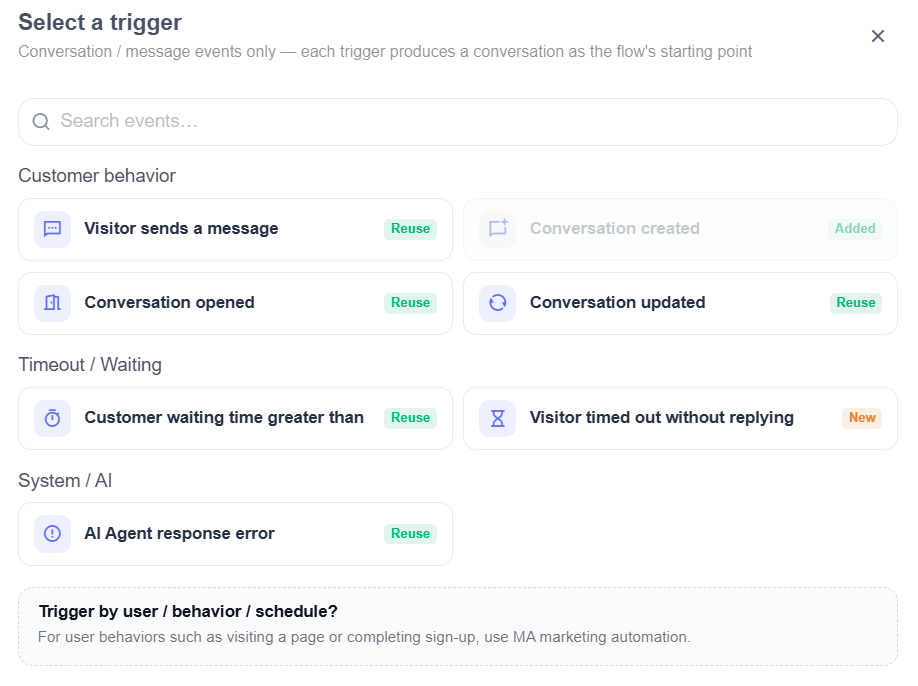
When configuring a trigger, also confirm:
- Target channels
- Target audience
Entry criteria: Any configured event occurs, and both the channel and audience match the specified targets.
3. Orchestrate Flow Nodes
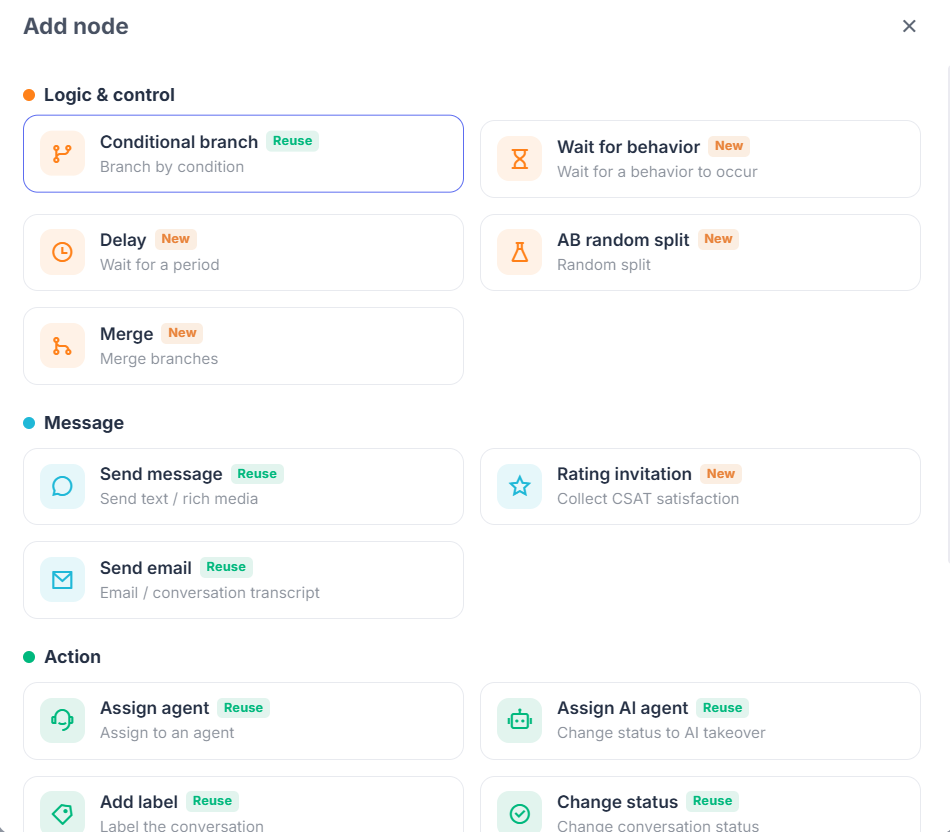
Build nodes on the canvas in business order. Node types are divided into three categories: Decision & Control, Messaging, and Action. When you click a node, its configuration panel opens on the right.
This is where you enter node parameters, configure branches, and view summaries.
A typical approach is:
- Entry nodes define the entry point.
- Decision and control nodes determine the path and timing.
- Messaging nodes reach users or collect feedback.
- Action nodes update data, assign agents, or synchronize external systems.
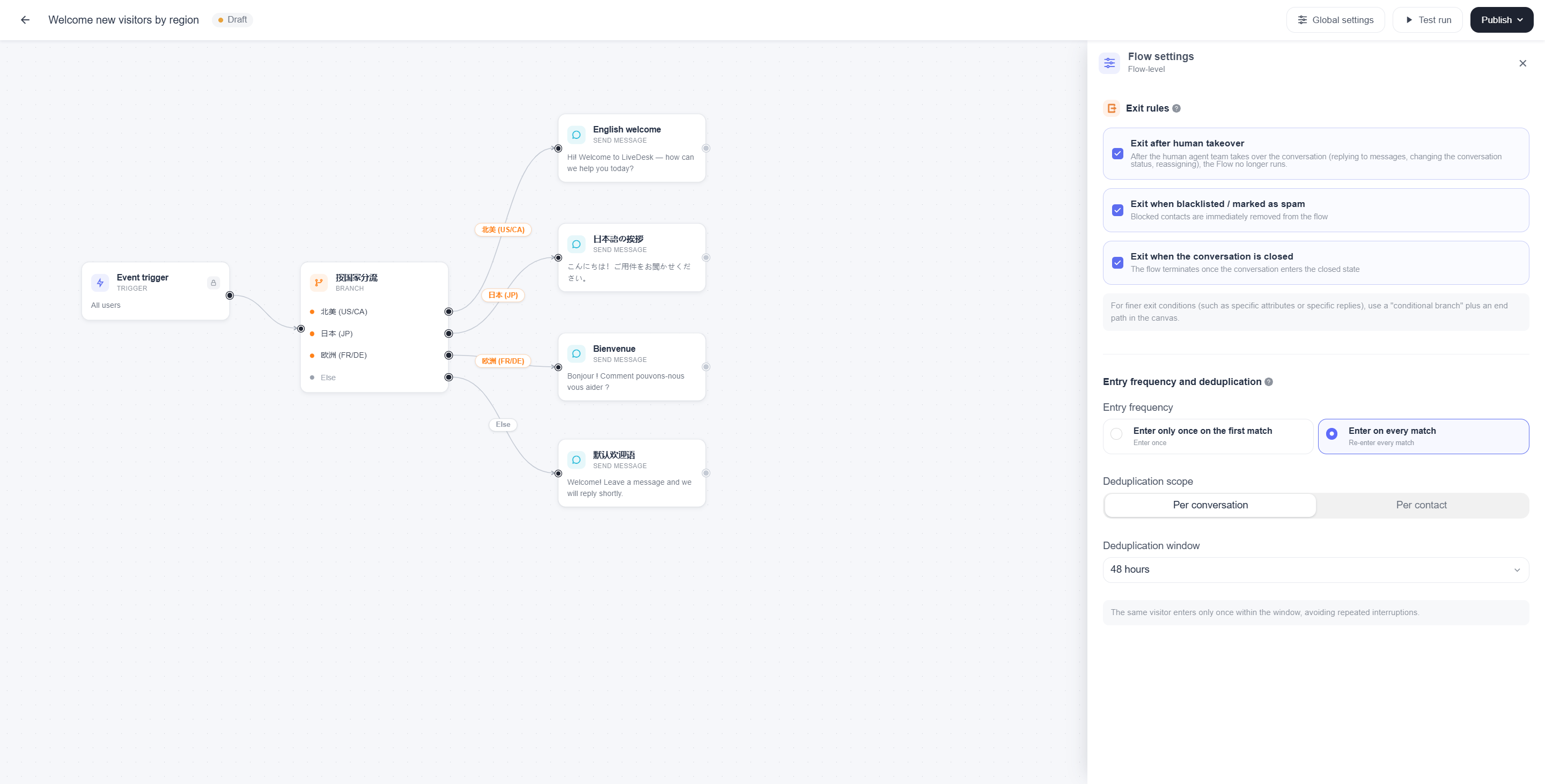
4. Set Flow-Level Rules
In addition to individual nodes, configure flow-level information such as:
- Flow name
- Enablement status
- Exit rules
- Deduplication settings
- Entry frequency
5. Test the Flow
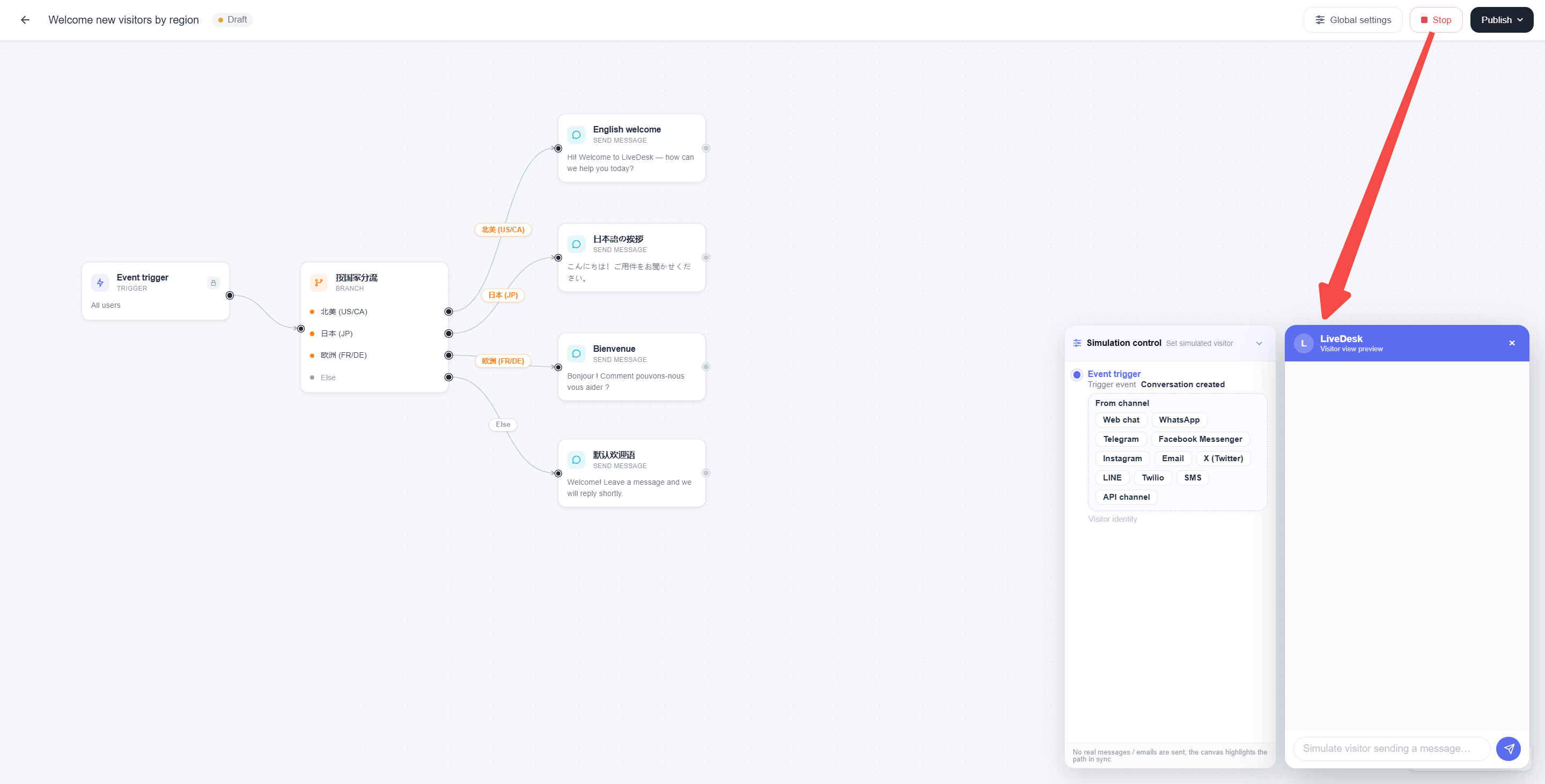
Testing is an important part of using flows. Before publishing, use the testing feature to simulate how an event triggers and executes a flow in the conversation window below. The simulation controls on the left provide condition options, and the conversation window on the right shows the execution result.
Before enabling a flow, verify at least the following:
- The trigger matches correctly.
- Conditional branches follow the expected path.
- Waiting and timeout exits are correct.
- Copy, buttons, and links are correct.
- Data updates, assignments, and external calls are appropriate.
6. Enable the Flow and Monitor Results
After the flow goes live, continue to monitor:
- Whether it receives sufficient matches
- Whether actual paths match expectations
- Whether nodes frequently fail or are skipped
- Whether target events are actually improved
7. Manage Flows
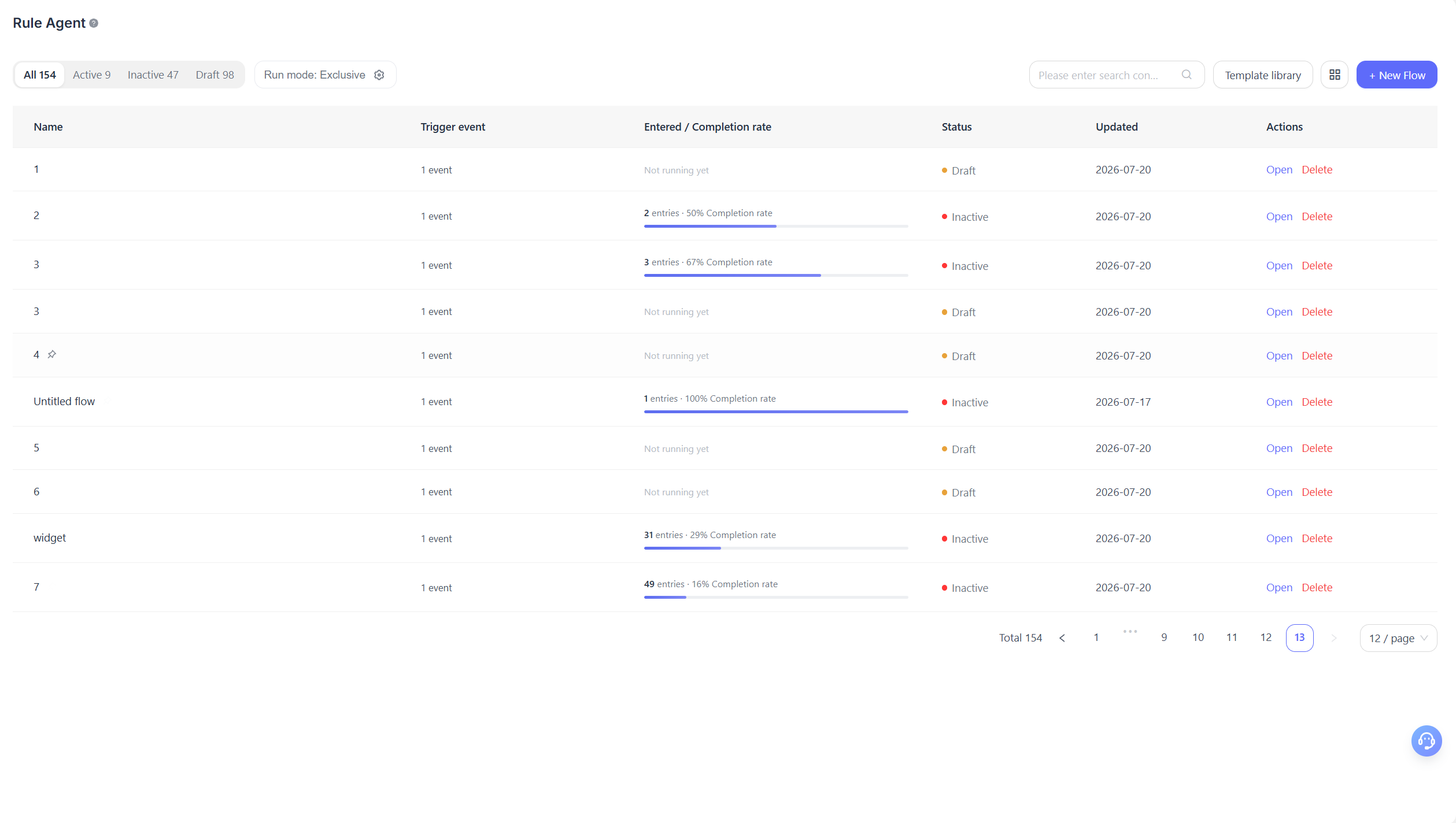
The list page is the management entry point for flows. Use it to:
- View all flows
- Filter by status
- Search for a specific flow
- Create a flow from a template
- Set the run mode: Exclusive Matching and Parallel Matching. In Exclusive Matching mode, the same entry event enters only the highest-priority matching flow. In Parallel Matching mode, the same event can enter multiple matching flows.
How a Flow Runs
From a user's perspective, a flow typically runs in the following order:
- A trigger condition occurs.
- The system determines whether the conversation can enter the flow.
- The flow begins at its starting node.
- During execution, it may send messages, evaluate conditions, update data, or call external systems.
- When it reaches a wait node, the flow pauses.
- When the awaited action occurs or times out, the flow continues.
- The flow ends when it reaches its goal, an endpoint, or an exit path.
It is important to understand that a flow does not calculate all logic at once. Instead, it progresses step by step within the context of a real conversation.
Best Practices and Limitations
Define the Goal Before Configuring the Flow
Do not start by piling up nodes.
A more reliable approach is to first decide:
- What problem the flow solves
- Where you want the user to go
- Which events represent success
Define the Audience and Entry Frequency First
If the audience is too broad or the entry frequency is too high, users may be contacted repeatedly.
Prioritize confirming:
- Which users can enter
- How often the same user can enter
- Whether the same conversation can enter repeatedly
Provide a Fallback Path for Button Branches
When a message node uses branch buttons, consider not only the path after a click, but also:
- What happens if the user does not click
- How long counts as not clicked
- Whether to end, remind, or route elsewhere after no click
Always Consider Timeouts for Wait Nodes
Whether you are waiting for a reply, a click, or an event, we generally recommend configuring a timeout exit.
Otherwise, a flow can remain stuck in the middle and cannot continue.
Capabilities May Vary Across Channels
When a flow targets multiple channels, message capabilities may not be identical across them. For example:
- Supported attachment types may differ
- Rich media may be displayed differently
- Button interaction capabilities may differ
- Copy length or file limits may differ
When configuring a message node, confirm that it applies to all target channels.
Assignment Actions Must Follow Channel Rules
When assigning an agent, team, or AI, the assignment must meet the system's existing scope and business rules.
If the target cannot be assigned to the current conversation, the flow may not complete the handoff as expected.
Distinguish Webhooks from API Calls
- Webhooks are better suited to pushing current event or flow information to an external system.
- API calls are better suited to retrieving data from an external system and using the result in subsequent decisions.
Do not use these two node types interchangeably.
Test Four Types of Paths Before Going Live
- The default primary path
- Failure paths
- Timeout paths
- Paths where the user takes no action
Troubleshooting and FAQs
Why Was My Flow Not Triggered?
Check the following first:
- Whether the trigger event actually occurred
- Whether the current user belongs to the target audience
- Whether the channel is within scope
- Whether entry frequency prevents repeat entry
- Whether another flow's governance rules block it
Why Did It Follow a Different Branch?
Common causes include:
- The current conversation properties differ from what you expected
- The condition order differs
- A fallback branch was matched
- An external result or variable value differs from the test expectation
What Happens If a Button Is Not Clicked?
If a message node has a not-clicked time window configured, the flow continues through the not-clicked path when the timeout expires.
Can a Flow Run for a Long Time?
Yes. However, the longer a flow runs, the more attention you should pay to:
- Entry frequency
- Timeout settings
- Goal events
- Conflict governance with other flows
When Should I Split a Process into Two Flows?
When two business goals, audiences, governance rules, or flow cadences differ significantly, it is usually better to split them into separate flows.
When Should I Avoid Putting All Logic in One Flow?
If one flow simultaneously handles welcoming, conversion, after-sales service, and satisfaction collection, later maintenance and testing usually become more complex.
Build each flow around a single business goal.
