LINE
LiveDesk permite añadir un canal de LINE para que puedas comunicarte con los usuarios. Con esta función, puedes:
- Recibir automáticamente mensajes de LINE y asignarlos al equipo o al agente correspondiente.
- Ver información detallada del perfil del usuario que envió el mensaje.
- Ver, gestionar y responder a todos los mensajes en la conversación o en la lista de tickets.
A continuación, te explicamos cómo añadir un canal de LINE.
Preparativos
Registrar una cuenta
LiveDesk crea un canal de LINE basado en una cuenta oficial de LINE y en la API, que se utilizan para enviar y recibir mensajes a través del canal de LINE. Por lo tanto, antes de añadir un canal, debes solicitar una cuenta de LINE.
Crear un canal de Messaging API
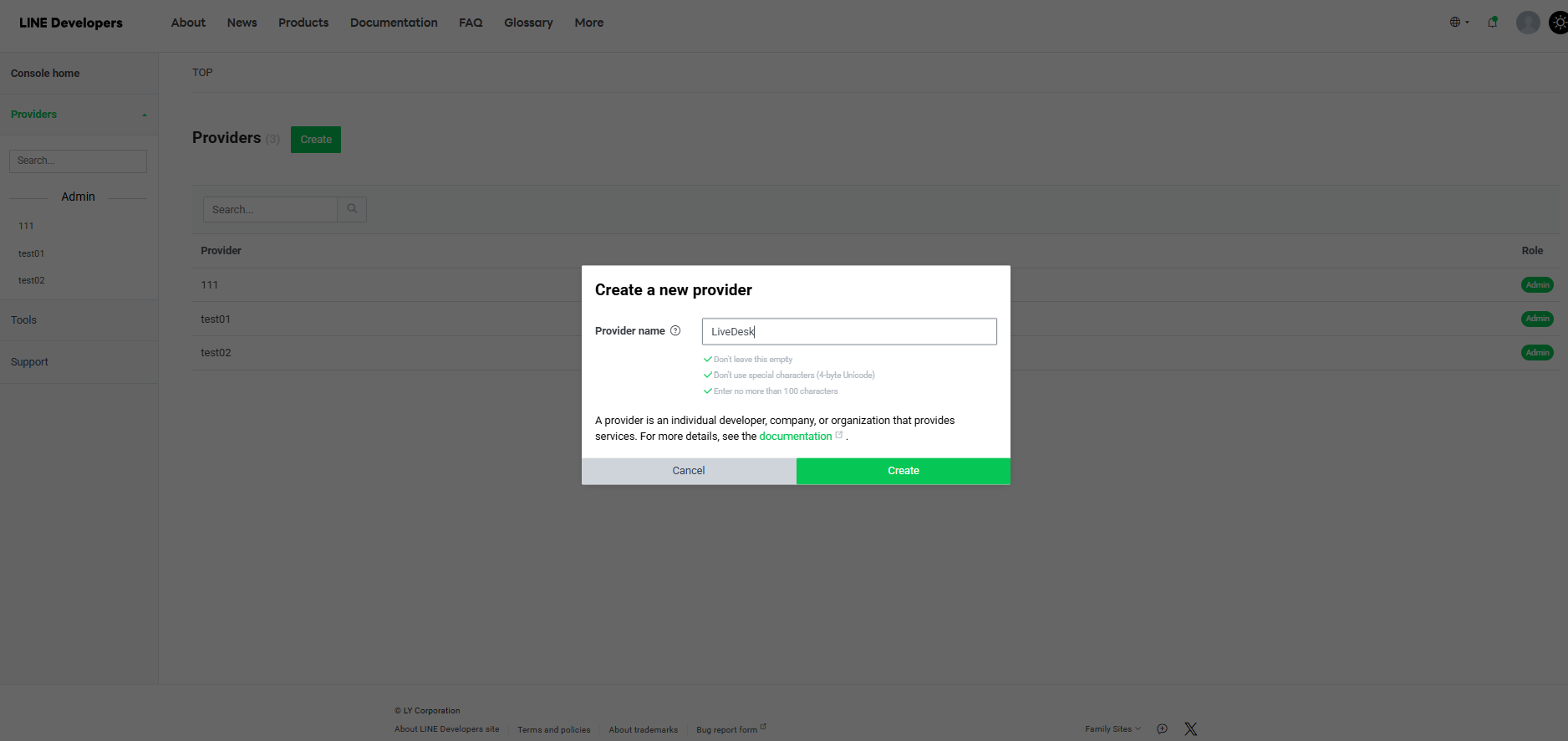
- Crear un proveedor
Inicia sesión en la Consola de LINE y accede a la interfaz de la consola. Crea un proveedor o especifica uno dentro de un proveedor ya existente.
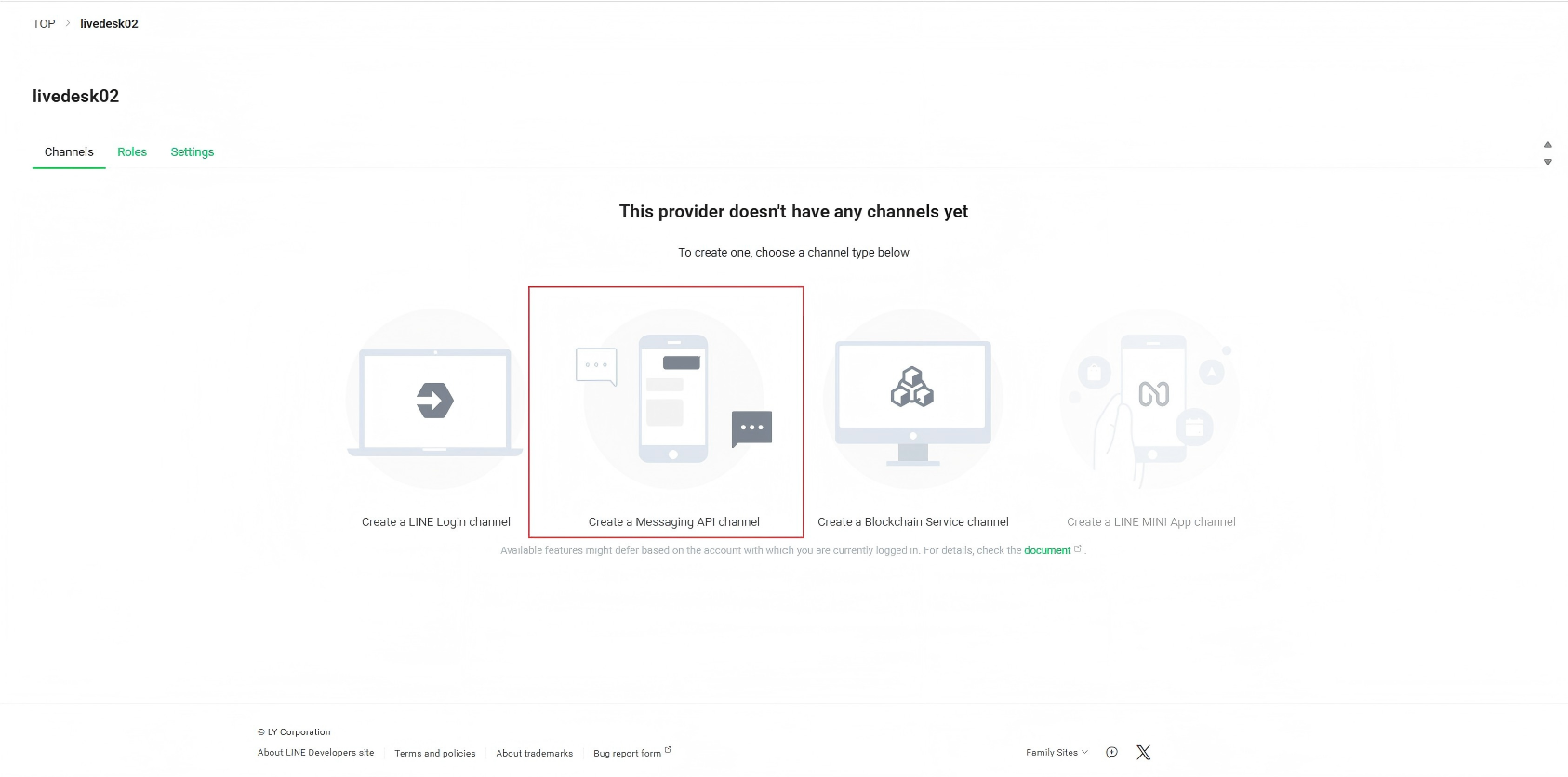
- Configurar el canal
Después de crear un proveedor, ve a la página donde la pestaña Channels se muestra por defecto. Si aún no se ha configurado ningún canal, primero debes crear uno: haz clic en "Create a Messaging API channel". Sigue las instrucciones de la plataforma para completar la creación del canal y, a continuación, accede a la página del canal. Si no tienes una cuenta oficial, sigue las instrucciones para introducir la información requerida y se te redirigirá para crear la cuenta oficial de LINE correspondiente.
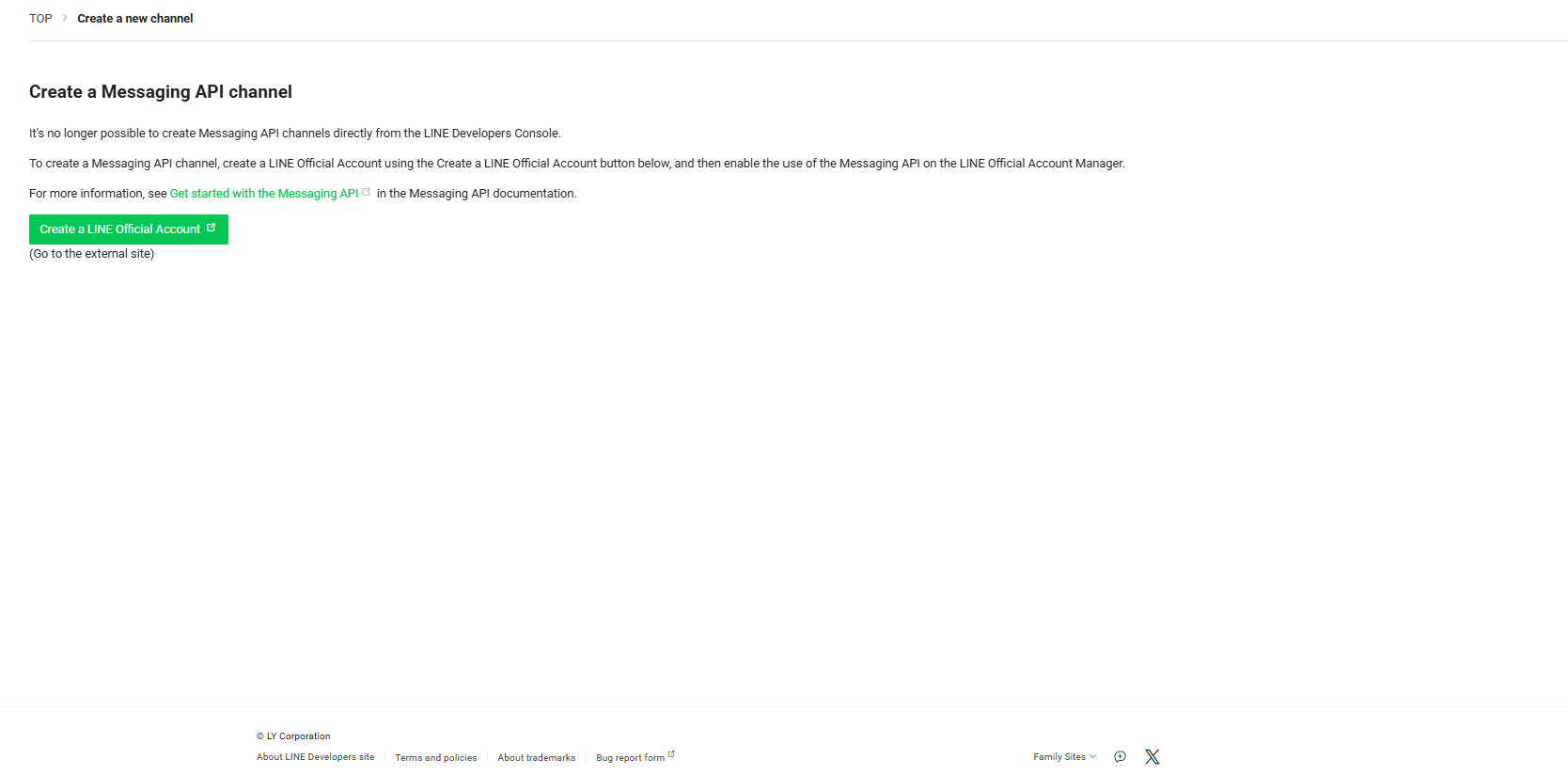
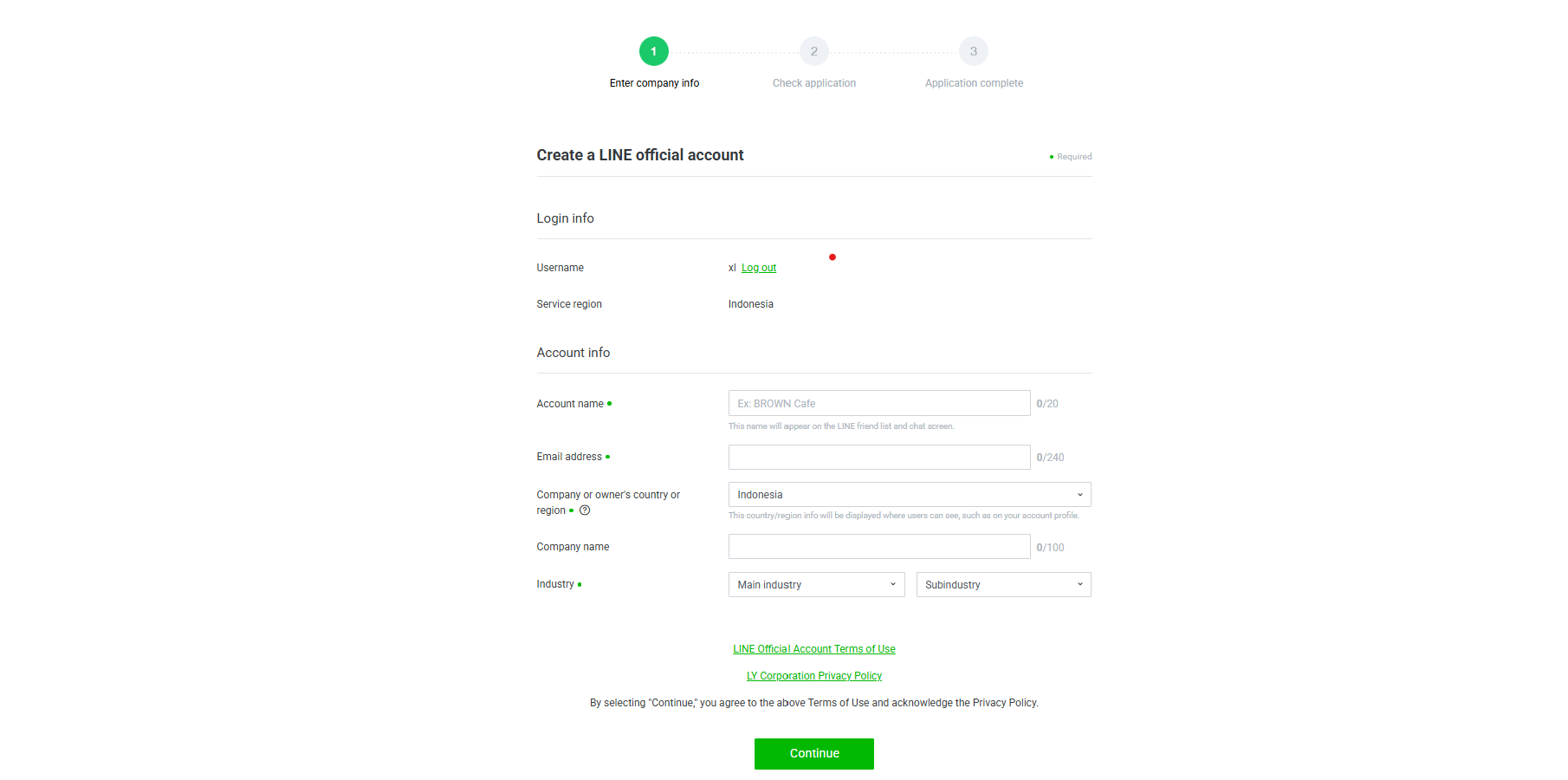
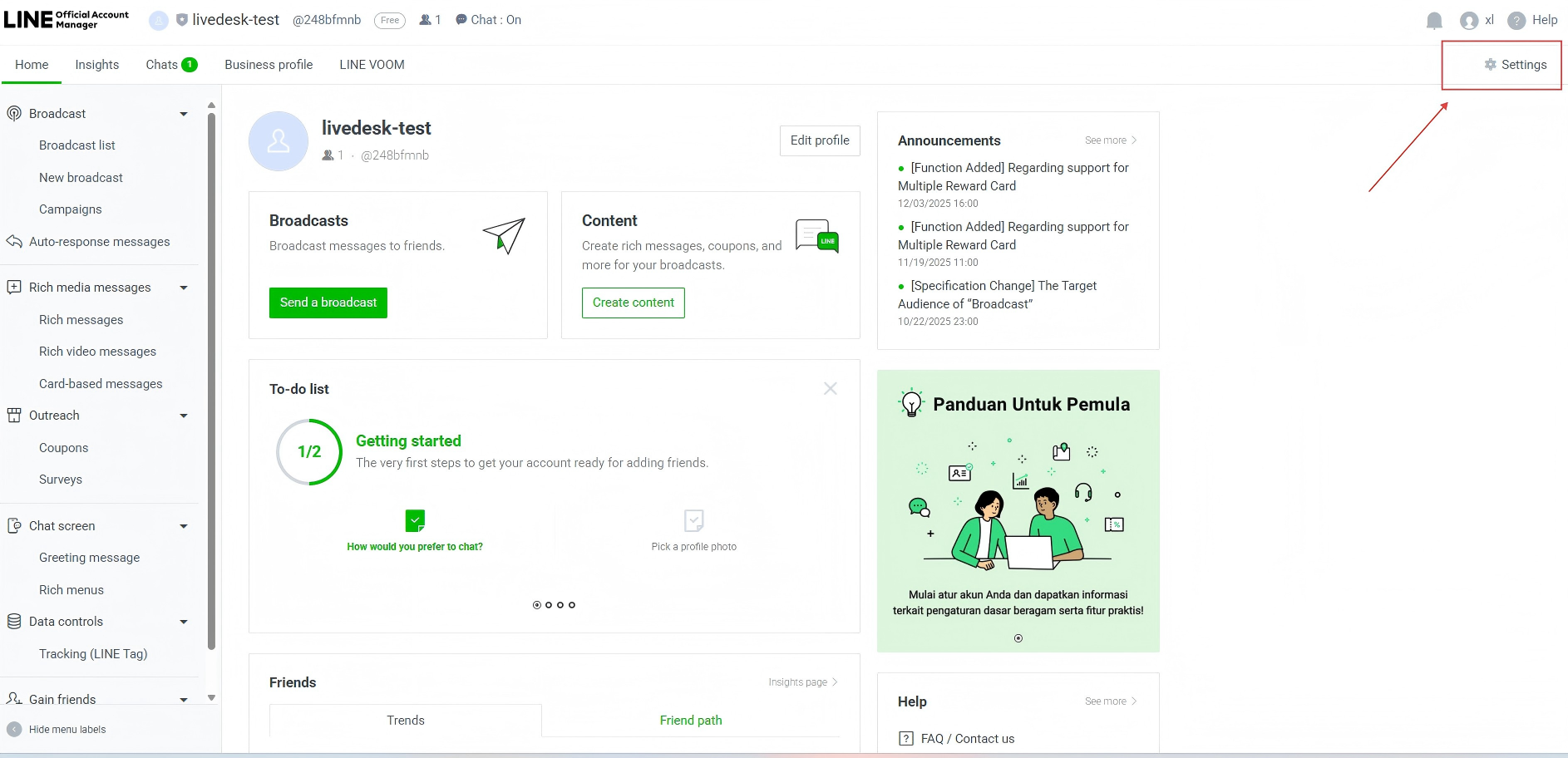
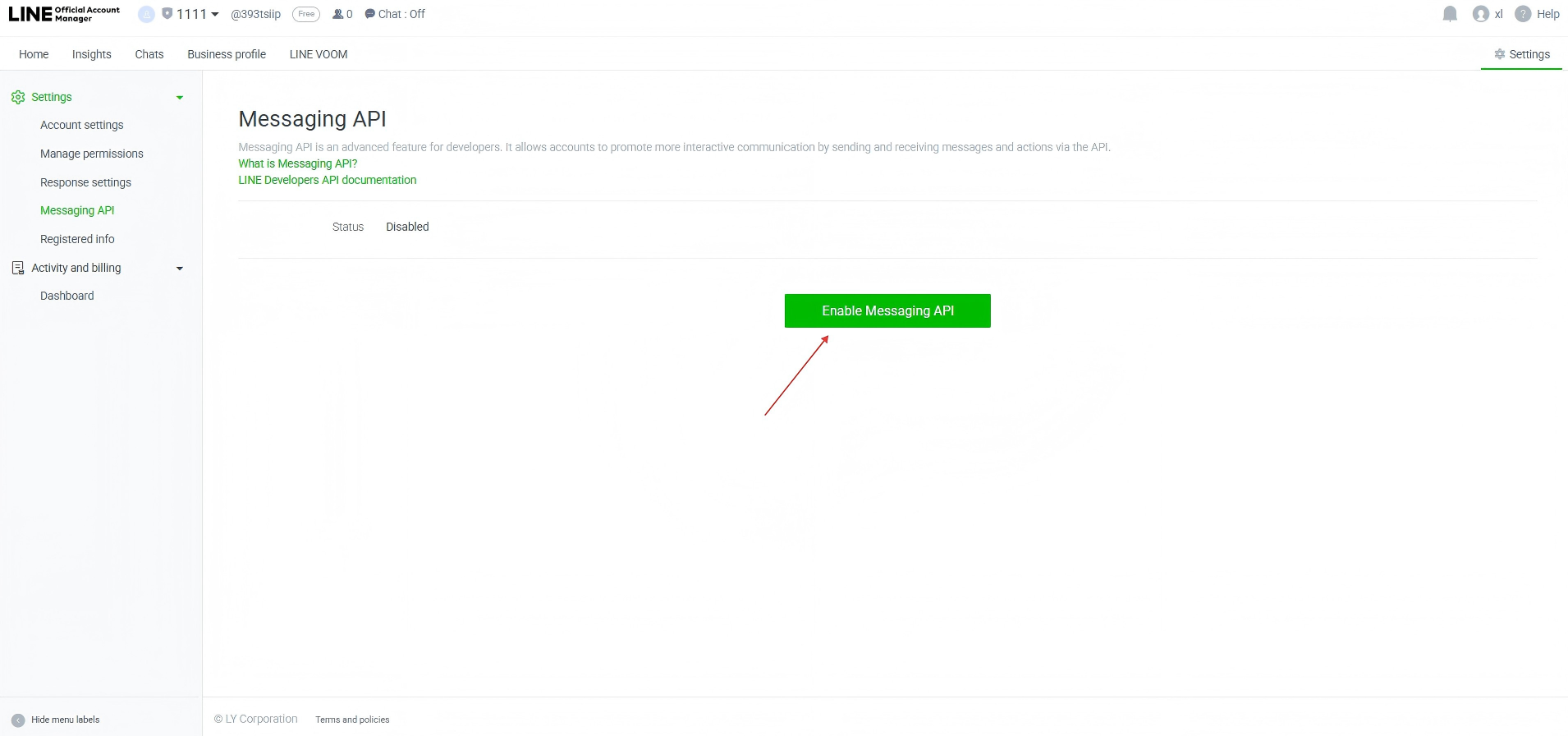
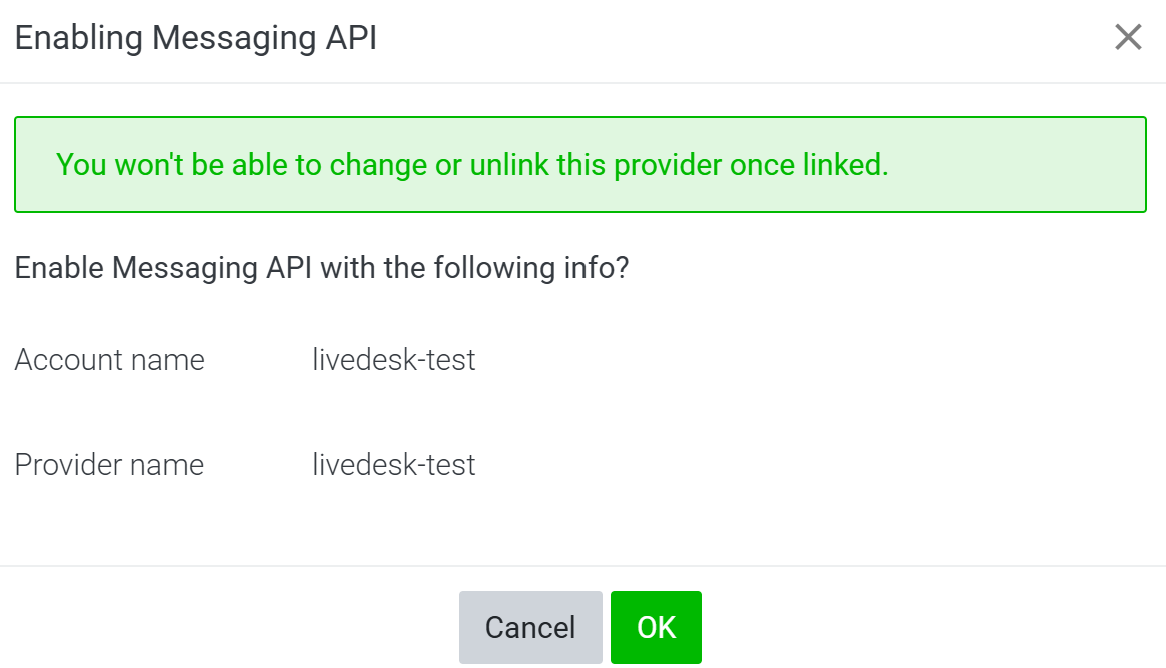
Una vez completada la creación, accederás a LINE Official Account Manager. Selecciona Setting --> Messaging API y, a continuación, "Enable Messaging API" para habilitar la Messaging API. Después de habilitarla, especifica el proveedor vinculado a este canal de API y haz clic en Confirm para completar la configuración.
- Obtener el token y otra información de configuración
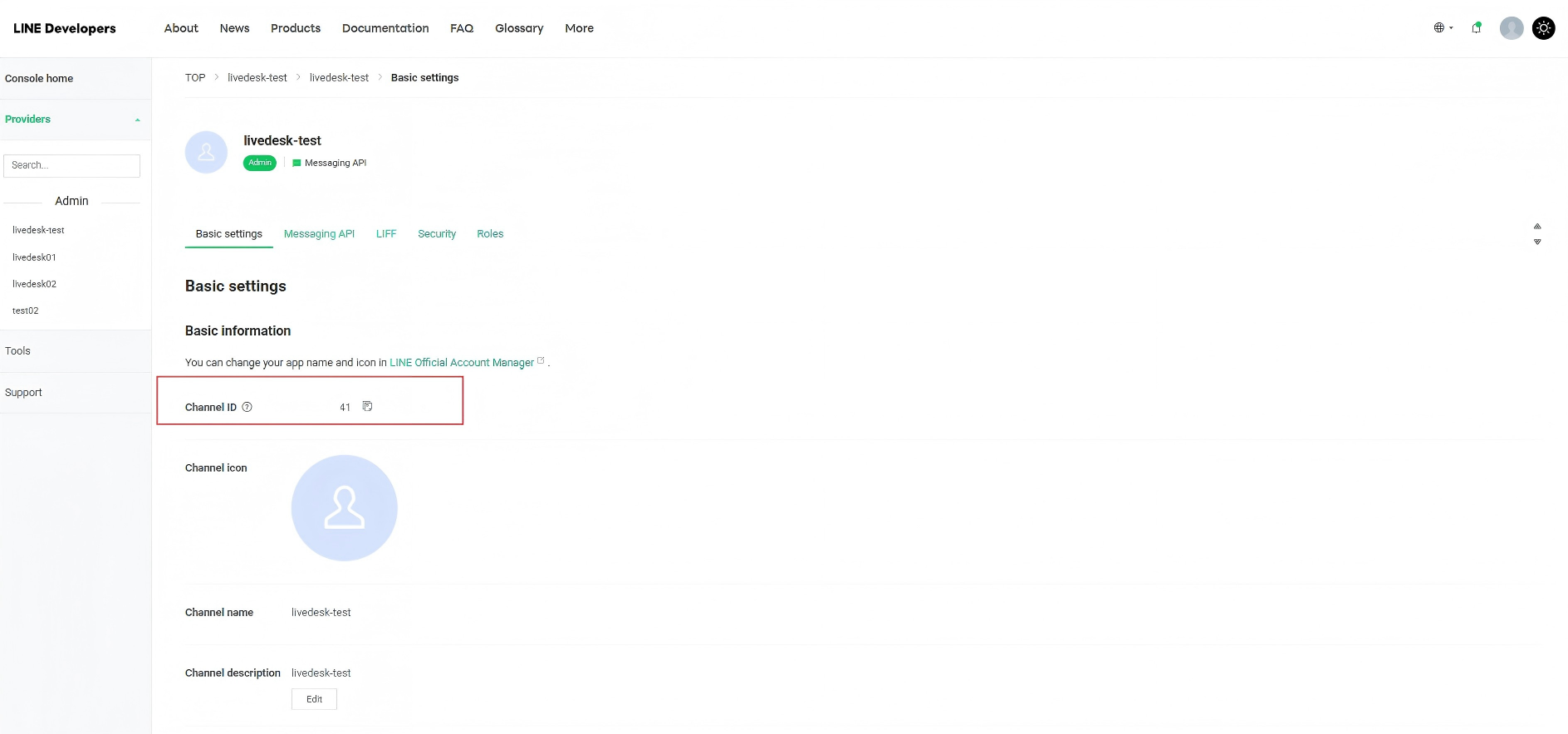
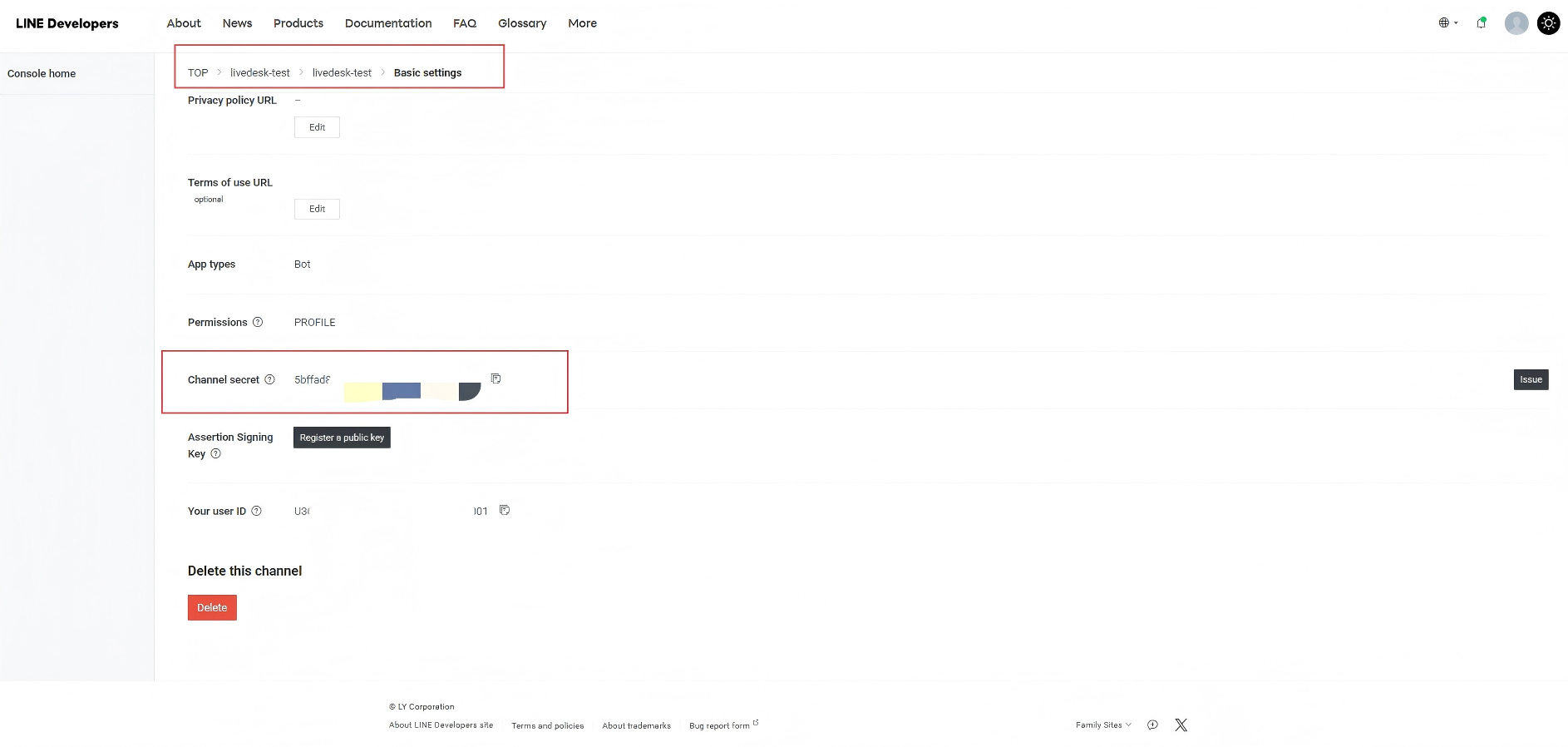
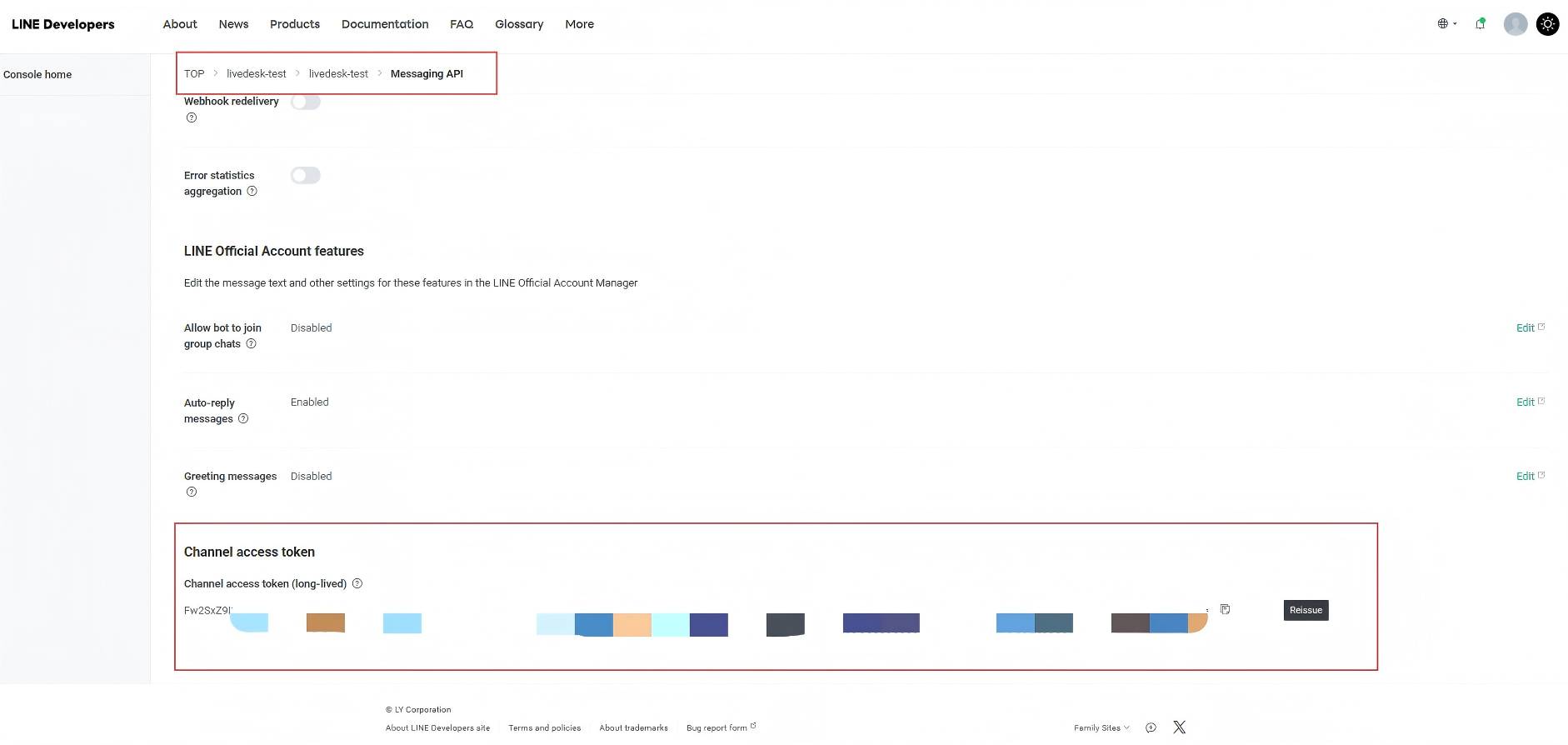
Después de completar la configuración anterior, vuelve a la Plataforma para desarrolladores de LINE, selecciona el canal configurado en el paso anterior y, en la página, podrás ver el Channel ID, el Channel Secret y el Channel access token, que se necesitarán más adelante para crear el canal en LiveDesk dentro de Basic Setting. Cópialos y guárdalos para usarlos durante la configuración.
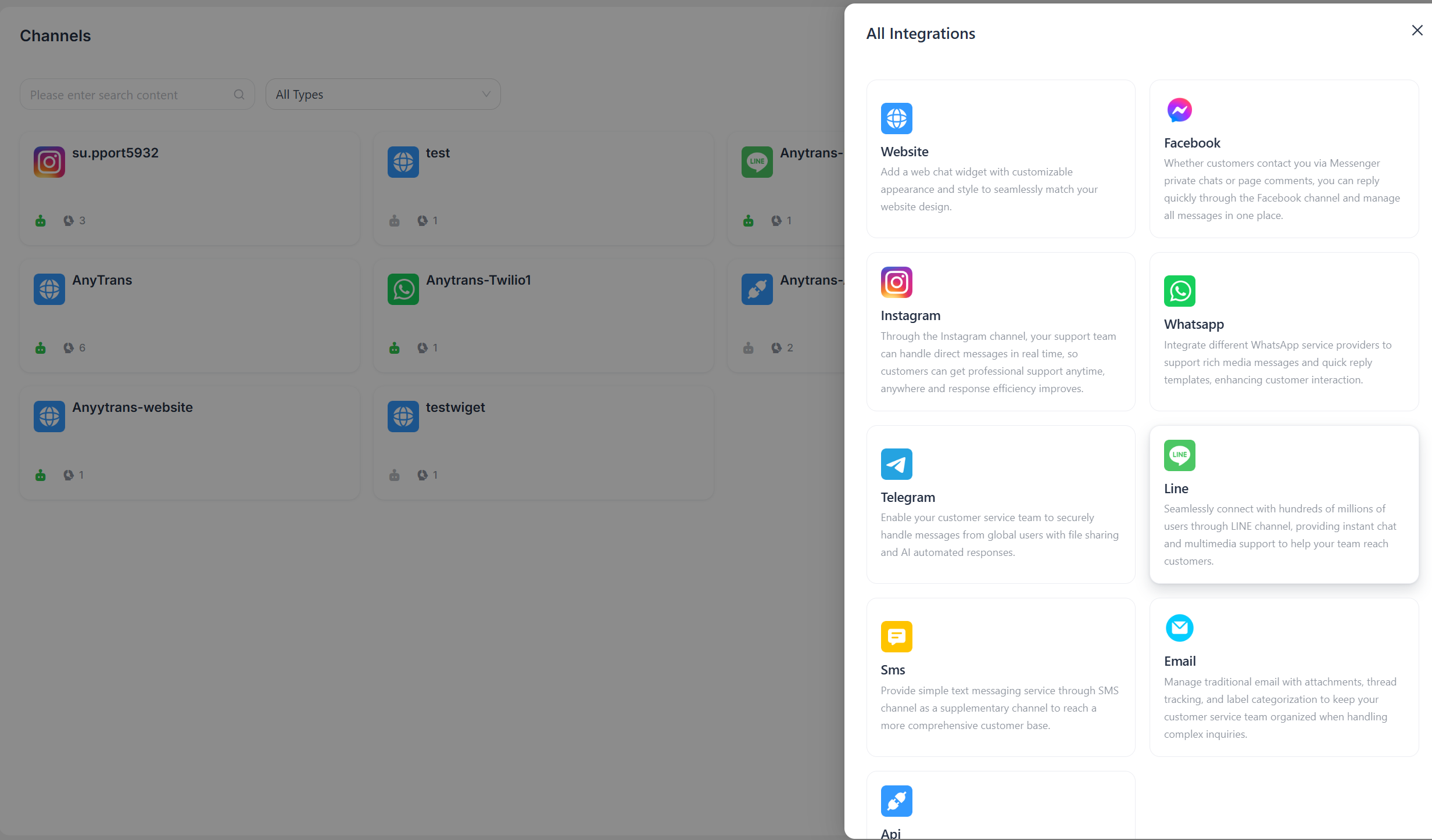
"Add Channel" - "LINE"
Introducir la información de configuración
Rellena la información de configuración según las indicaciones de la interfaz y, cuando hayas terminado, haz clic en "Confirm".
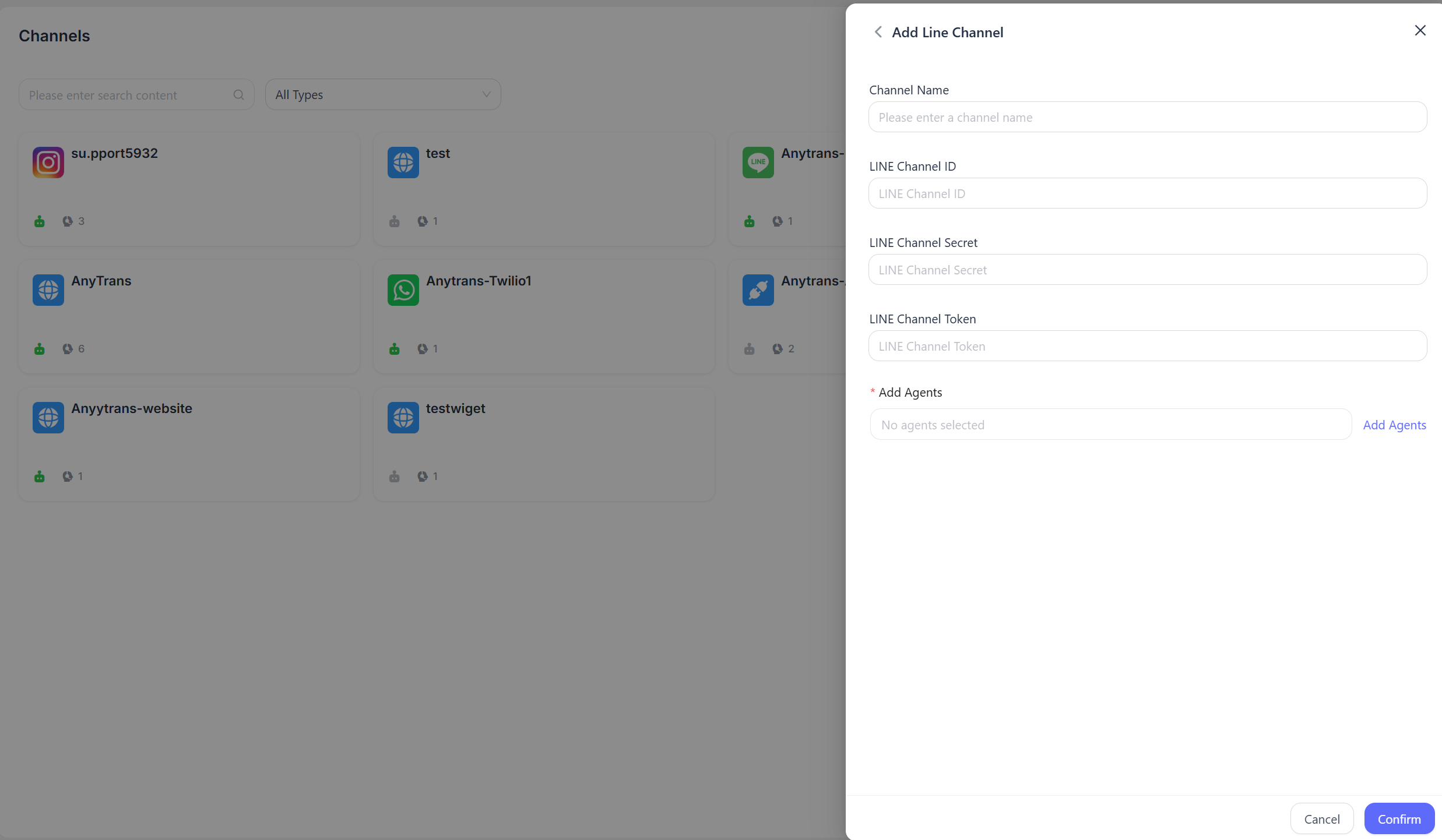
- Channel name: Introduce el nombre del canal.
- LINE Channel ID: Introduce el ID del canal de LINE utilizado para recibir mensajes.
- LINE Channel Password: Introduce la contraseña del canal de LINE.
- LINE Channel Token: Introduce el token de acceso del canal de LINE.
Configurar la dirección de callback
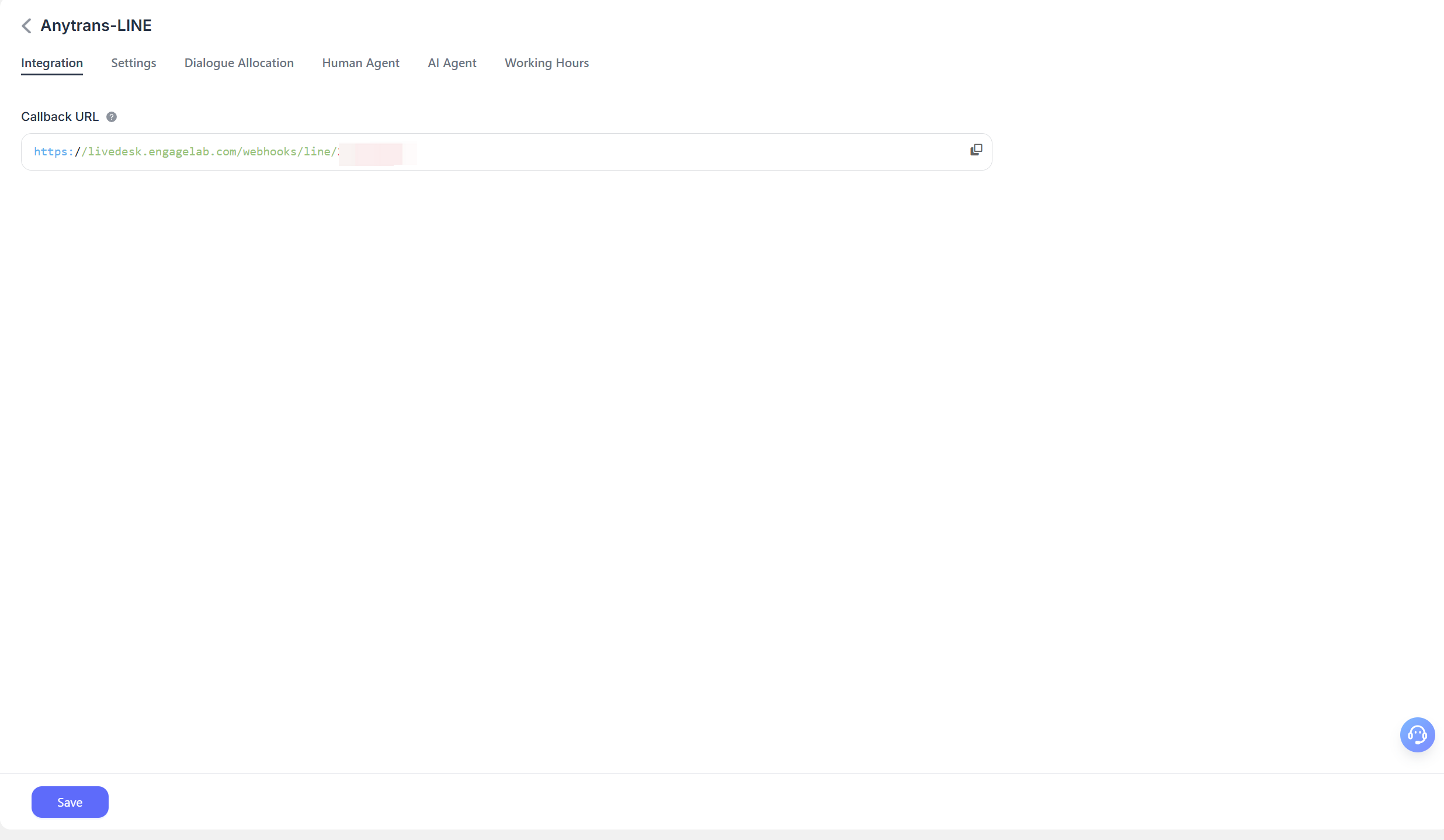
Debes configurar y verificar la dirección de callback webhook URL para los mensajes en LINE. Después de completar la creación del canal en LiveDesk, puedes ver en la configuración la dirección webhook generada para este canal y copiarla.
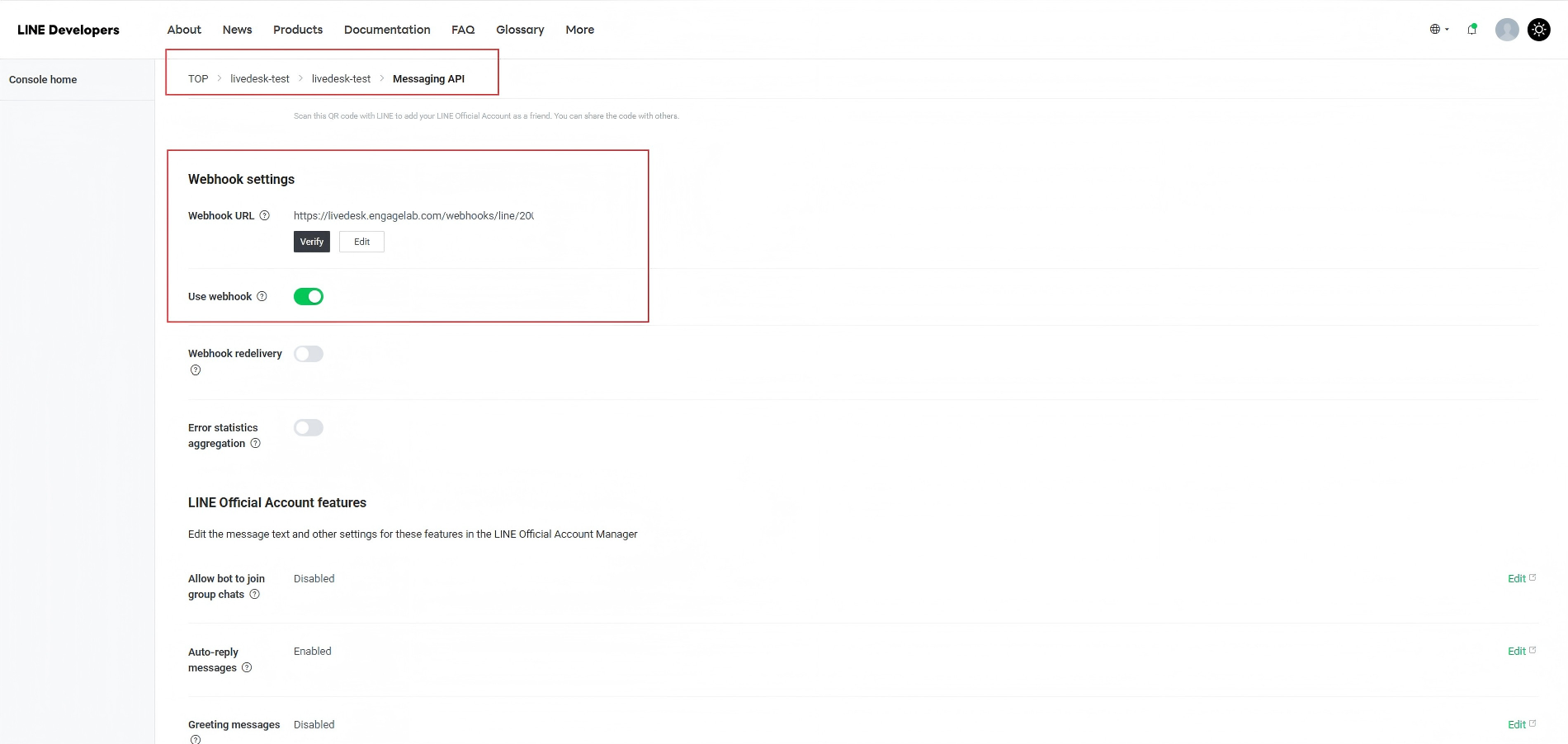
Abre la Plataforma para desarrolladores de LINE, selecciona el proveedor correspondiente que deba configurarse, abre la página de configuración de Messaging API y pega la dirección copiada en el paso anterior en el campo Webhook URL.
Configuración detallada
Después de crear el canal, puedes configurar los ajustes detallados del canal correspondiente.
Ajustes
Configurar el mensaje de bienvenida del canal
Desactivado por defecto. Introduce un mensaje de bienvenida personalizado, que se enviará automáticamente al cliente cuando inicie una conversación.
Habilitar CSAT
Después de habilitar esta función, se lanzará automáticamente una encuesta de satisfacción del cliente cada vez que se resuelva un problema. Las puntuaciones de CSAT podrán consultarse posteriormente en la sección de informes.
Asignación de conversaciones
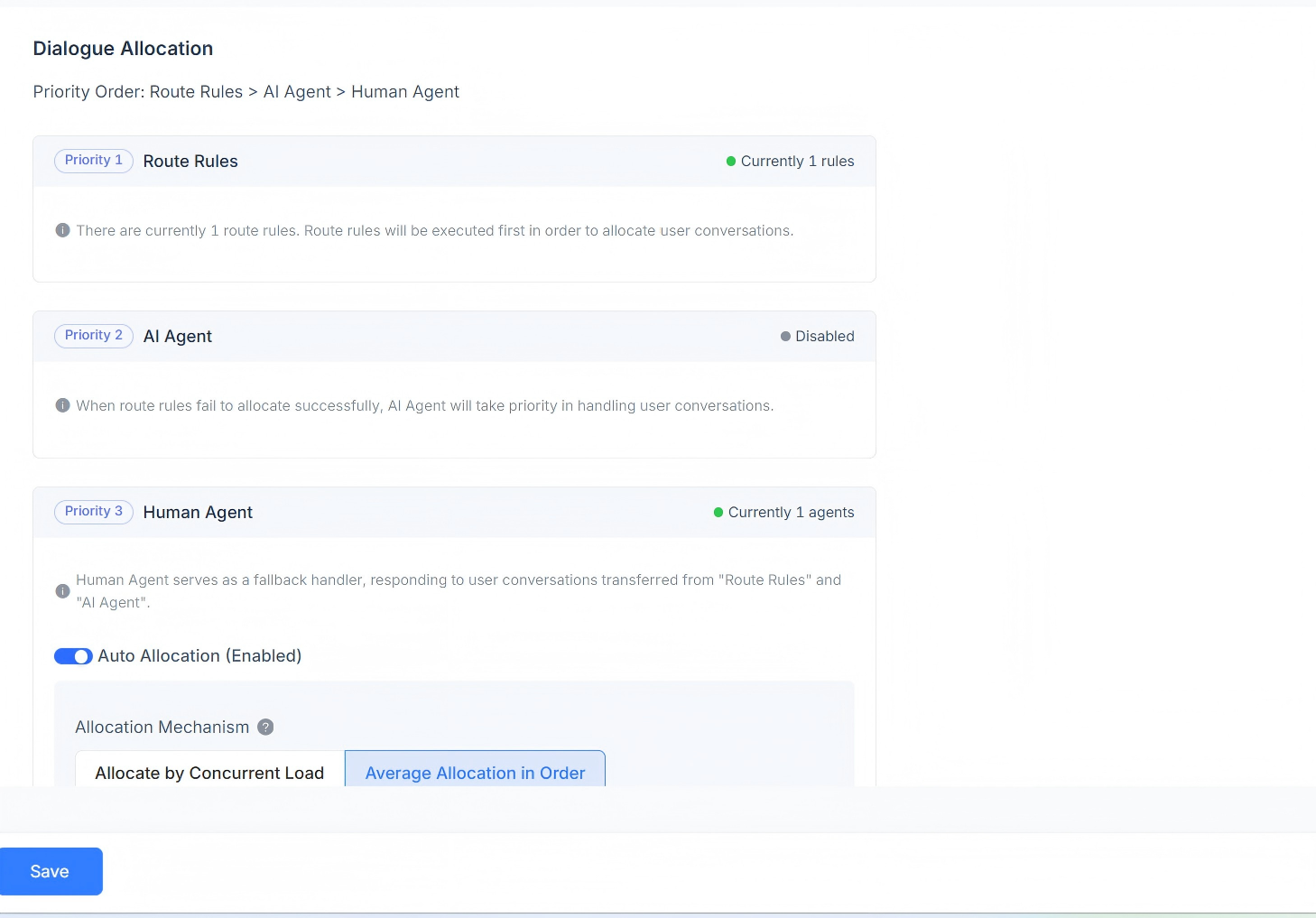
Muestra las reglas actuales de asignación de conversaciones para el canal. Admite reglas de enrutamiento, respuestas de AI Agent y respuestas de Human Agent. La prioridad de asignación de conversaciones es la siguiente: reglas de enrutamiento > AI Agent > Human Agent.
Cuando existan reglas de enrutamiento, el sistema determinará primero si se cumplen los requisitos de dichas reglas. Si existen varias reglas de enrutamiento al mismo tiempo, se evaluarán en orden. Si una regla coincide, la conversación se asignará de acuerdo con esa regla.
Si el escenario actual no satisface las reglas de enrutamiento, la conversación se asignará primero al AI Agent.
Si no hay AI Agent, se asignará al Human Agent correspondiente. Se admite la asignación automática, incluida la asignación por carga de trabajo simultánea, la asignación secuencial por turnos y la asignación basada en la carga de trabajo personalizada del agente.
Asignación por carga de trabajo
Las conversaciones se asignan según la carga de trabajo definida, dando prioridad a los agentes con menor carga de trabajo simultánea.
Asignación secuencial por turnos
Sin tener en cuenta la configuración de carga de trabajo de cada agente, las conversaciones se asignan de forma uniforme a cada agente en secuencia.
Asignación por carga de trabajo personalizada del agente
Configura un valor de carga de trabajo personalizado para cada agente de forma individual, dando prioridad a los agentes con menor carga de trabajo simultánea.
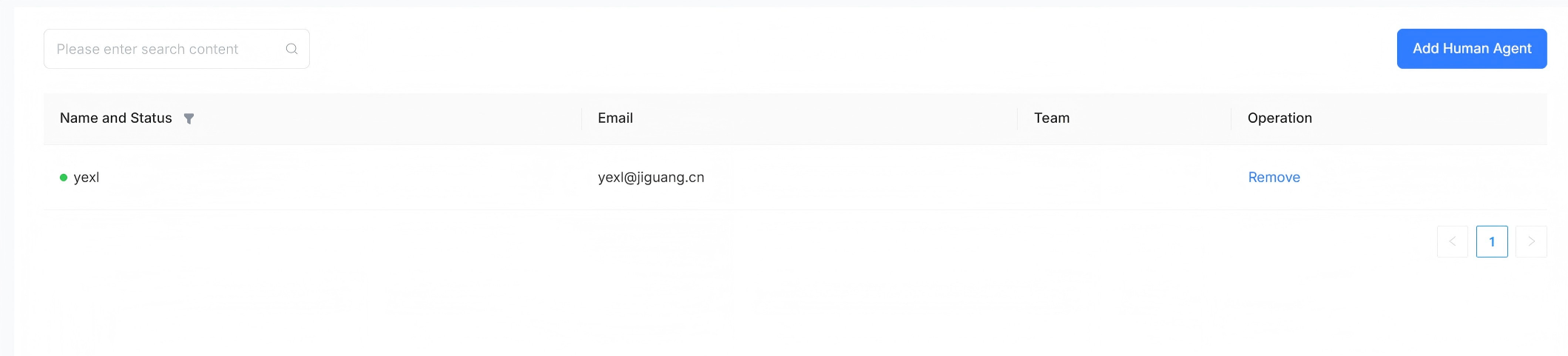
Human Agent
Admite la configuración de agentes humanos para gestionar los mensajes de conversación de este canal. Se pueden añadir o eliminar agentes.
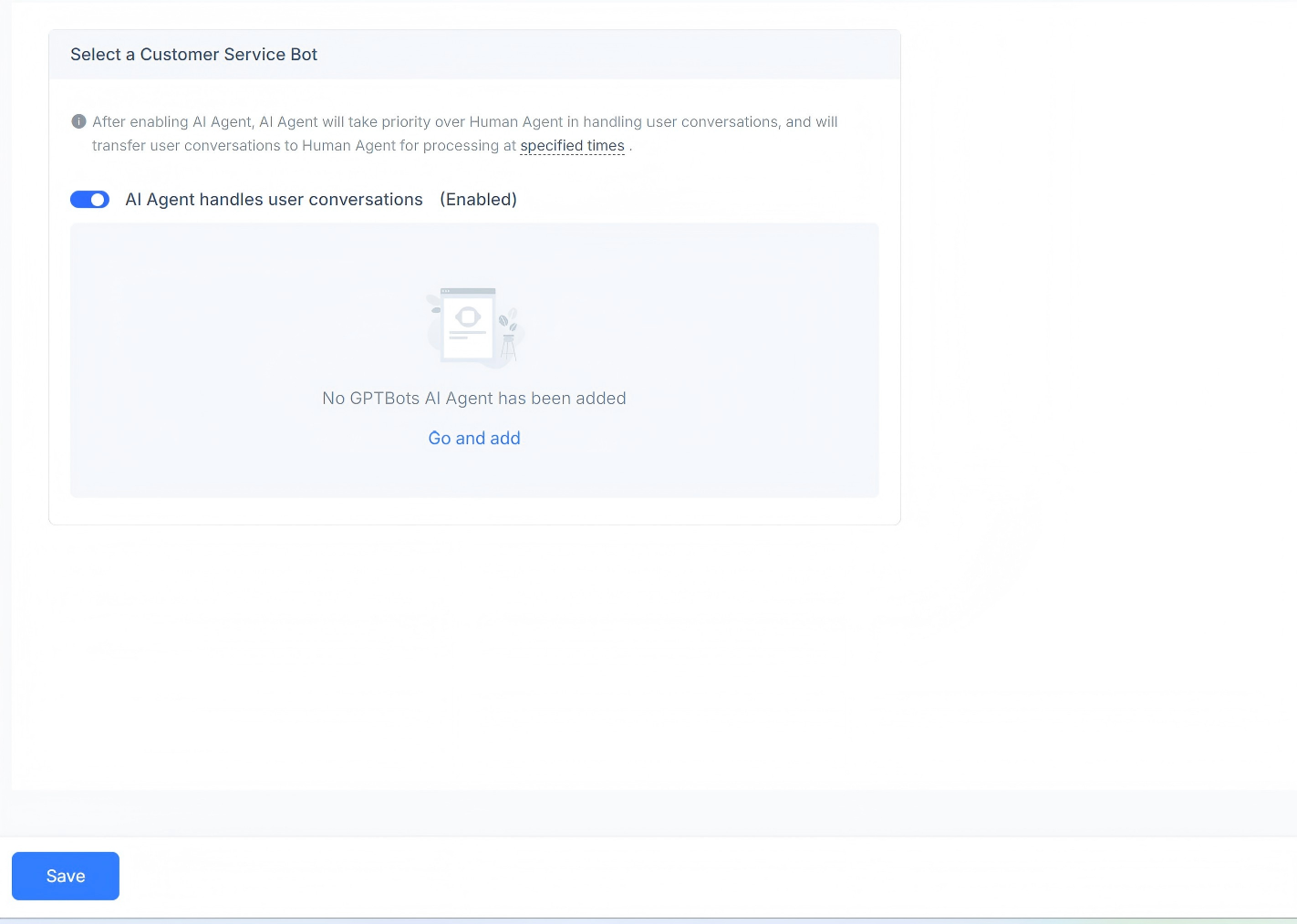
AI Agent
Admite la configuración de agentes de IA para gestionar los mensajes de conversación de este canal. Puedes elegir habilitar o deshabilitar su uso, y se admite añadir un GPT AI Agent.
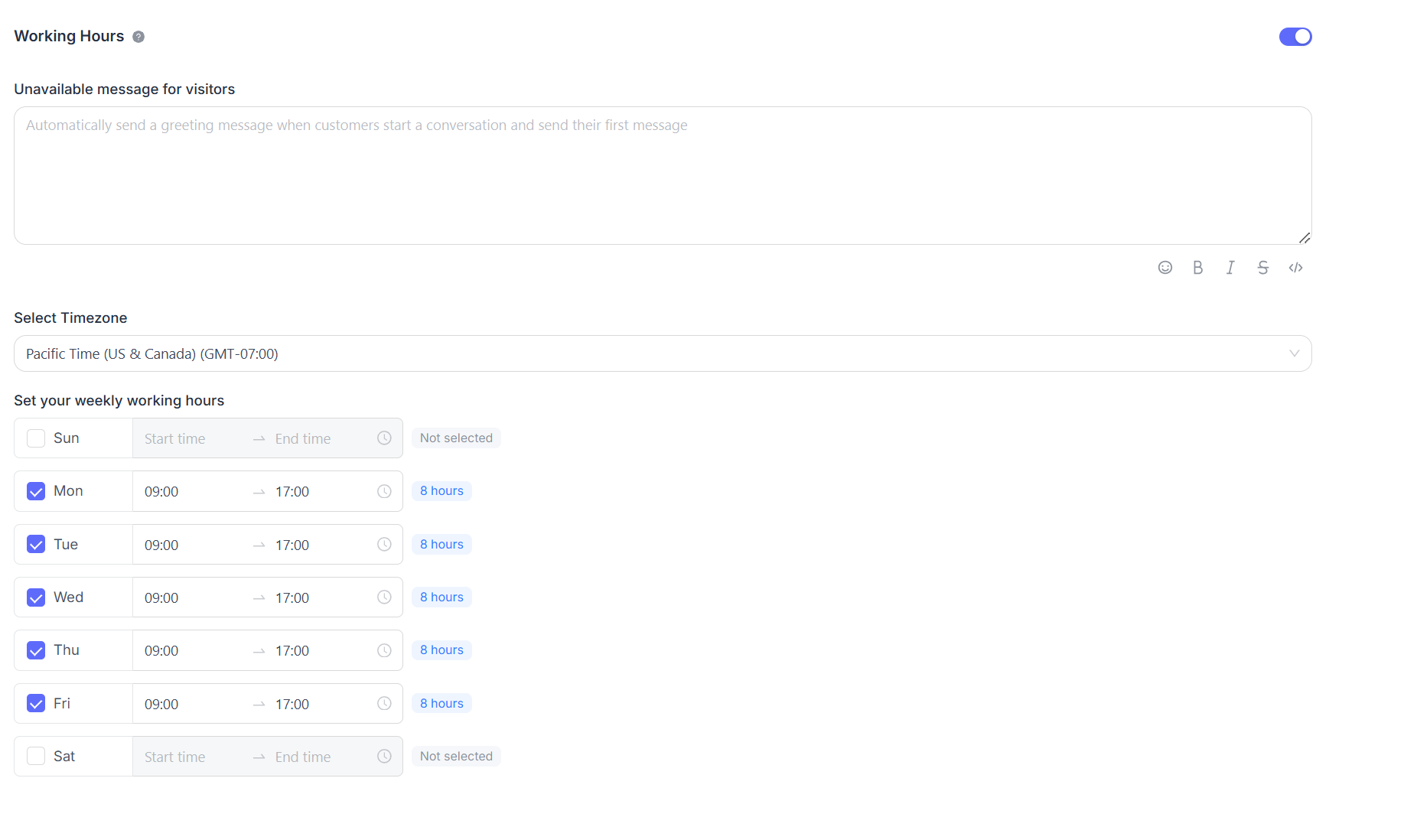
Horario comercial
Puedes configurar el horario comercial del equipo.
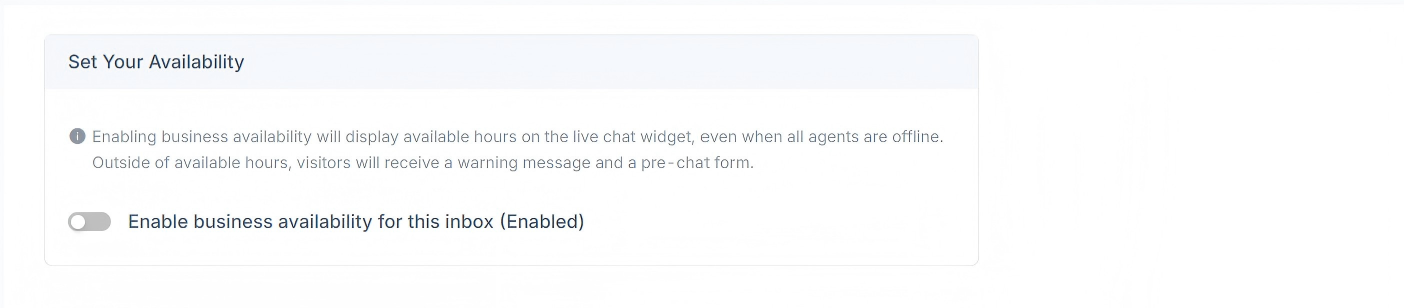
Si el horario comercial está claramente definido, selecciona la casilla "Enable business availability for this inbox (enabled)". Después de seleccionar esta casilla, se mostrarán debajo los parámetros de configuración correspondientes. Puedes configurar un mensaje de no disponibilidad para los visitantes fuera del horario comercial. También puedes configurar los rangos del horario comercial para cada día y la zona horaria correspondiente.