


EngageLab WhatsApp
LiveDesk รองรับการเพิ่มช่องทาง WhatsApp เพื่อให้ผู้ใช้สามารถสื่อสารกับลูกค้าได้ โดยมีตัวเลือกผู้ให้บริการ API 3 แบบ ได้แก่ WhatsApp Cloud Service, Twilio และ EngageLab WhatsApp ต่อไปนี้เป็นคำอธิบายวิธีการเพิ่ม EngageLab WhatsApp
ข้อกำหนดเบื้องต้น
- คุณต้องมีบัญชี EngageLab WhatsApp เพื่อทำการตั้งค่า WhatsApp API หากคุณยังไม่มีบัญชี สามารถสร้างได้โดยทำตามคู่มือ Quick Access
- มีหมายเลขโทรศัพท์ที่สามารถใช้งานได้
- หลังจากเปิดใช้งานบริการ WhatsApp แล้ว ให้ทำตาม Overview Guide เพื่อลงทะเบียนบัญชีธุรกิจ เพิ่มหมายเลขผู้ส่ง และสร้าง API key
เพิ่มช่องทางใน LiveDesk
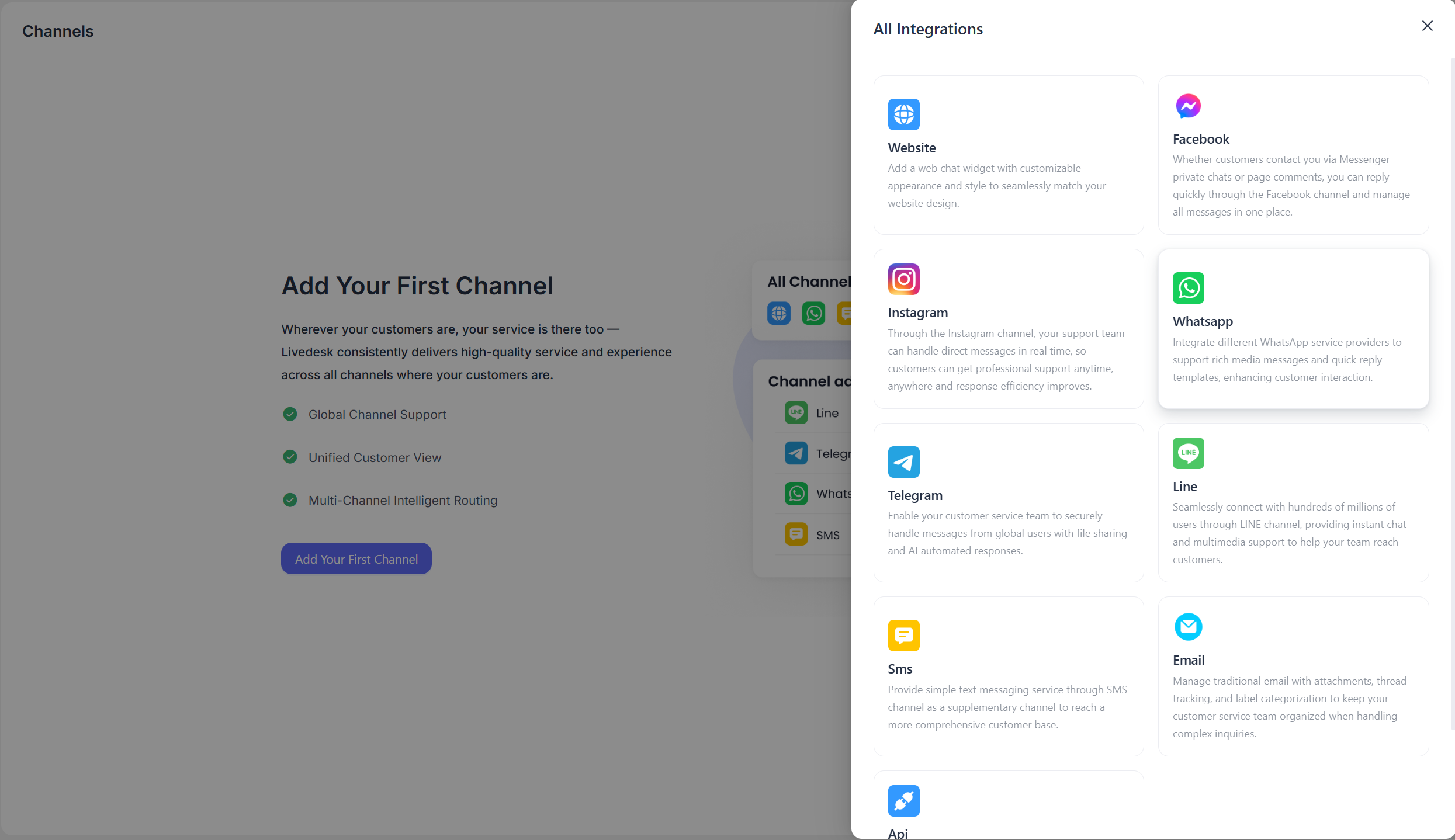
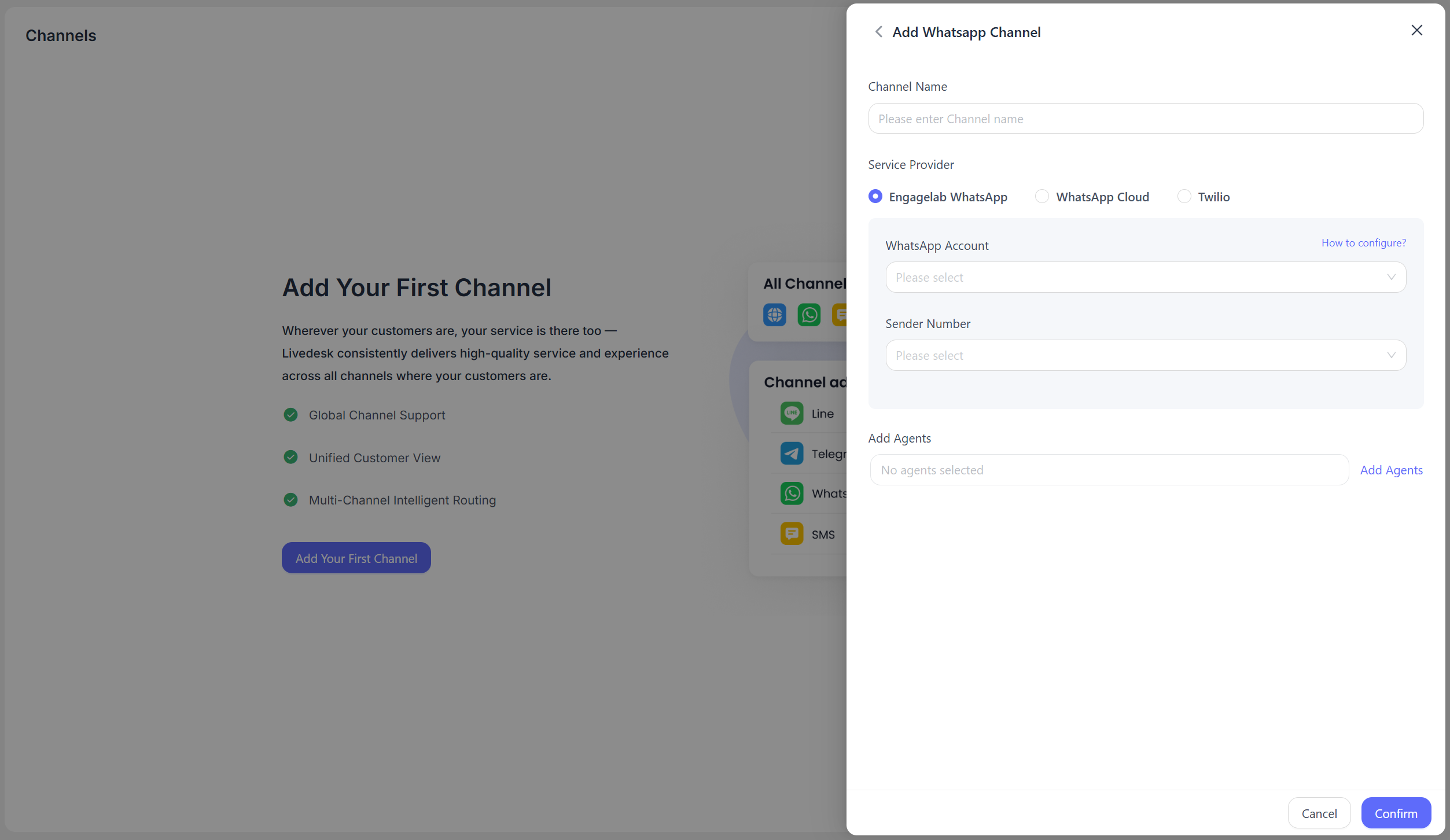
กรอกข้อมูลการตั้งค่าตามที่ระบบแสดงในอินเทอร์เฟซ จากนั้นคลิก "ยืนยัน" เมื่อเสร็จสิ้น
Channel Name
กำหนดและป้อนชื่อช่องทางตามต้องการ
Service Provider
เลือก EngageLab WhatsApp
WhatsApp Account
เลือกบัญชี WhatsApp ที่เกี่ยวข้องจากรายการดรอปดาวน์ ระบบจะอ่าน Business Account ID ที่เกี่ยวข้องภายใต้ผลิตภัณฑ์ EngageLab WhatsApp ภายในองค์กรเดียวกันโดยอัตโนมัติ หากยังไม่ได้เปิดใช้งานผลิตภัณฑ์ EngageLab WhatsApp ที่เกี่ยวข้องในองค์กรปัจจุบัน คุณสามารถทำตามคำแนะนำเพื่อสร้างและกำหนดค่าได้
Sender Number
แสดงหมายเลขผู้ส่งภายใต้บัญชี WhatsApp ที่เกี่ยวข้อง และเลือกหนึ่งหมายเลขจากรายการดรอปดาวน์
Add Customer Service Agents
ระบุเจ้าหน้าที่บริการลูกค้าที่จะเข้าร่วมในการจัดการข้อความสำหรับช่องทางปัจจุบัน
หลังจากป้อนข้อมูลการตั้งค่าข้างต้นแล้ว หากการตรวจสอบสำเร็จ ระบบจะแสดงข้อความว่าสร้างช่องทาง EngageLab WhatsApp สำเร็จแล้ว
การตั้งค่าโดยละเอียด
หลังจากสร้างช่องทางแล้ว คุณสามารถกำหนดการตั้งค่าโดยละเอียดสำหรับช่องทางที่เกี่ยวข้องได้
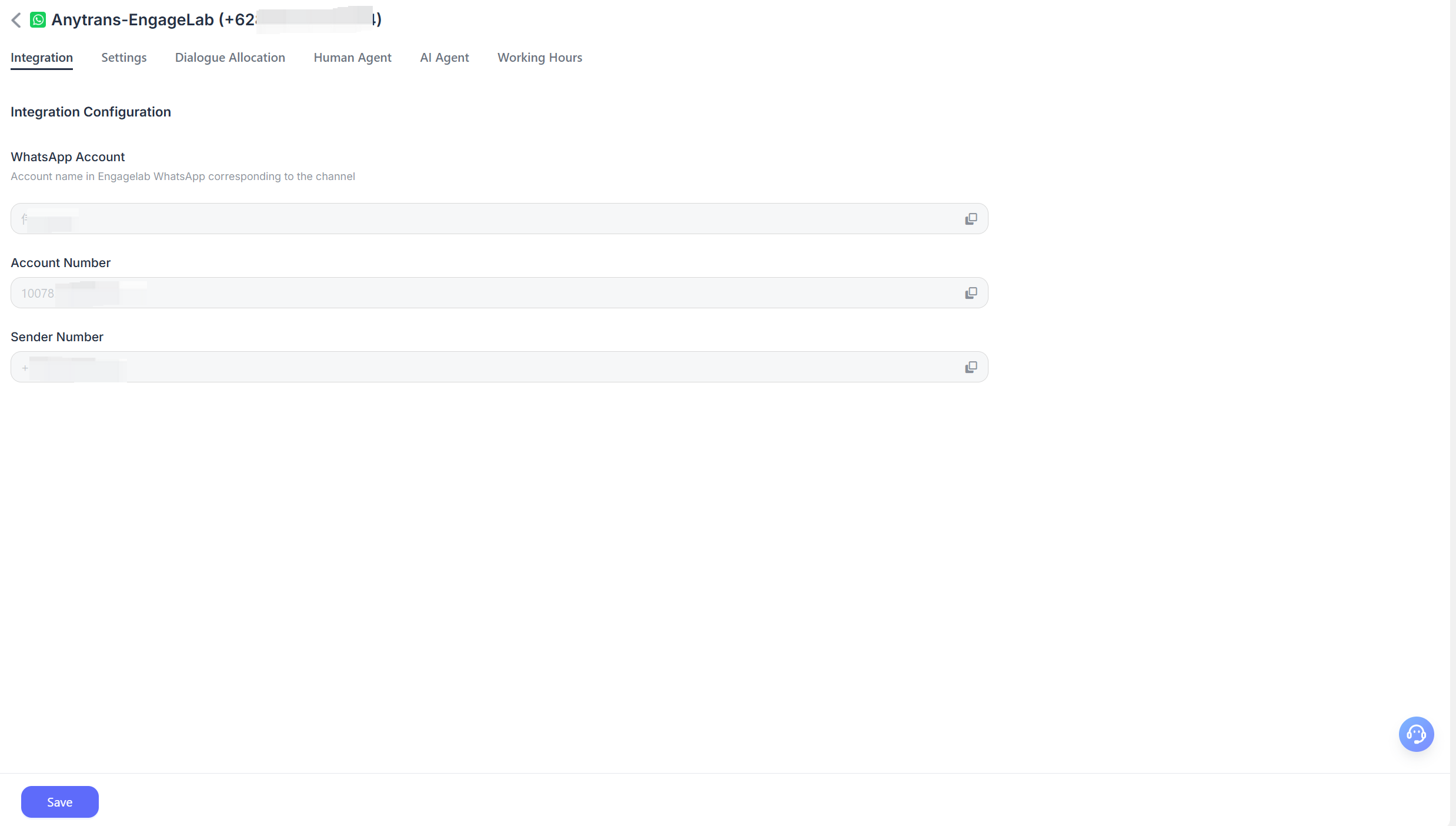
Integration
WhatsApp Account
แสดงชื่อบัญชีธุรกิจ EngageLab WhatsApp ที่เลือกไว้ตอนสร้างช่องทาง สามารถคัดลอกได้ แต่ไม่สามารถแก้ไขได้
Account ID
Business Account ID ของ EngageLab WhatsApp ที่เกี่ยวข้อง
Sender Number
หมายเลขผู้ส่งที่เลือกไว้ตอนสร้างช่องทาง
Settings
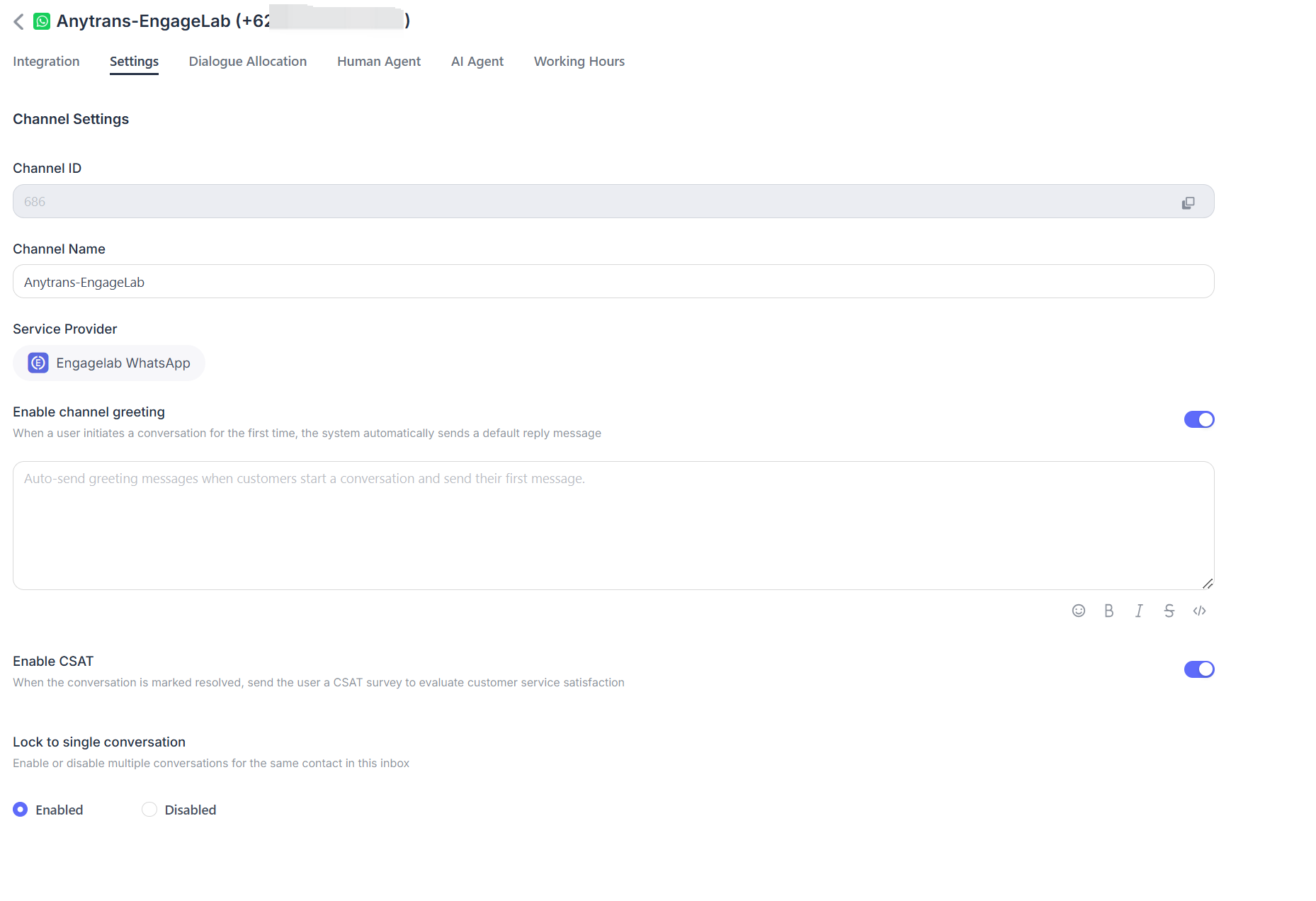
Set Channel Greeting Message
ปิดใช้งานเป็นค่าเริ่มต้น คุณสามารถป้อนข้อความทักทายแบบกำหนดเอง ซึ่งระบบจะส่งให้ลูกค้าโดยอัตโนมัติเมื่อพวกเขาเริ่มการสนทนา
Enable CSAT
หลังจากเปิดใช้งานฟีเจอร์นี้ ระบบจะเรียกใช้แบบสำรวจความพึงพอใจของลูกค้าโดยอัตโนมัติทุกครั้งที่ปัญหาได้รับการแก้ไข และสามารถดูคะแนน CSAT ได้ภายหลังในส่วนรายงาน
Conversation Assignment
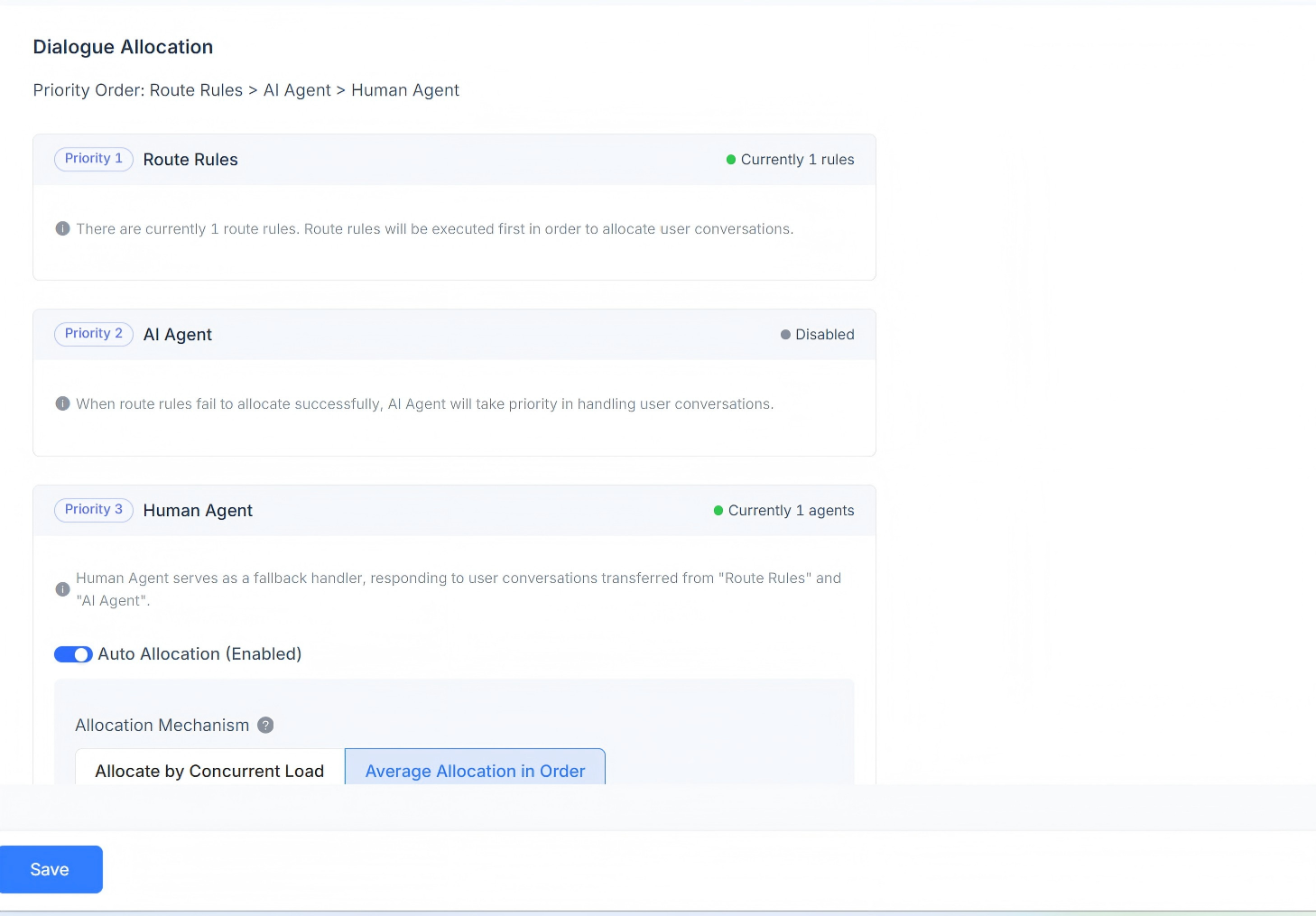
แสดงกฎการมอบหมายการสนทนาสำหรับช่องทางปัจจุบัน โดยรองรับกฎการกำหนดเส้นทาง, AI Agent และการตอบกลับโดย Human Agent ลำดับความสำคัญของการมอบหมายการสนทนาคือ: กฎการกำหนดเส้นทาง > AI Agent > Human Agent
เมื่อมีกฎการกำหนดเส้นทาง ระบบจะตรวจสอบก่อนว่าตรงตามเงื่อนไขของกฎหรือไม่ หากมีกฎการกำหนดเส้นทางหลายรายการพร้อมกัน ระบบจะประเมินตามลำดับ และการสนทนาที่ตรงตามกฎจะถูกมอบหมายตามกฎนั้น
หากสถานการณ์ปัจจุบันไม่ตรงตามกฎการกำหนดเส้นทาง ระบบจะมอบหมายการสนทนาให้ AI Agent ก่อน
หากไม่มี AI Agent ระบบจะมอบหมายการสนทนาให้กับ Human Agent ที่เกี่ยวข้อง โดยรองรับการมอบหมายอัตโนมัติ ทั้งกลไกการมอบหมายตามภาระงานพร้อมกัน และกลไกการมอบหมายแบบเฉลี่ยตามลำดับ
Load-Based Assignment Mechanism
การสนทนาจะถูกมอบหมายตามปริมาณภาระงานที่กำหนด โดยให้ความสำคัญกับเจ้าหน้าที่บริการลูกค้าที่มีภาระงานพร้อมกันต่ำกว่า
Sequential Average Assignment Mechanism
โดยไม่คำนึงถึงการตั้งค่าภาระงานของเจ้าหน้าที่บริการลูกค้าแต่ละคน ระบบจะมอบหมายการสนทนาให้แต่ละคนอย่างสม่ำเสมอตามลำดับ
Custom Agent Load Assignment Mechanism
กำหนดค่าภาระงานแบบกำหนดเองสำหรับเจ้าหน้าที่บริการลูกค้าแต่ละคน โดยให้ความสำคัญกับเจ้าหน้าที่ที่มีภาระงานพร้อมกันต่ำกว่า
Human Agent
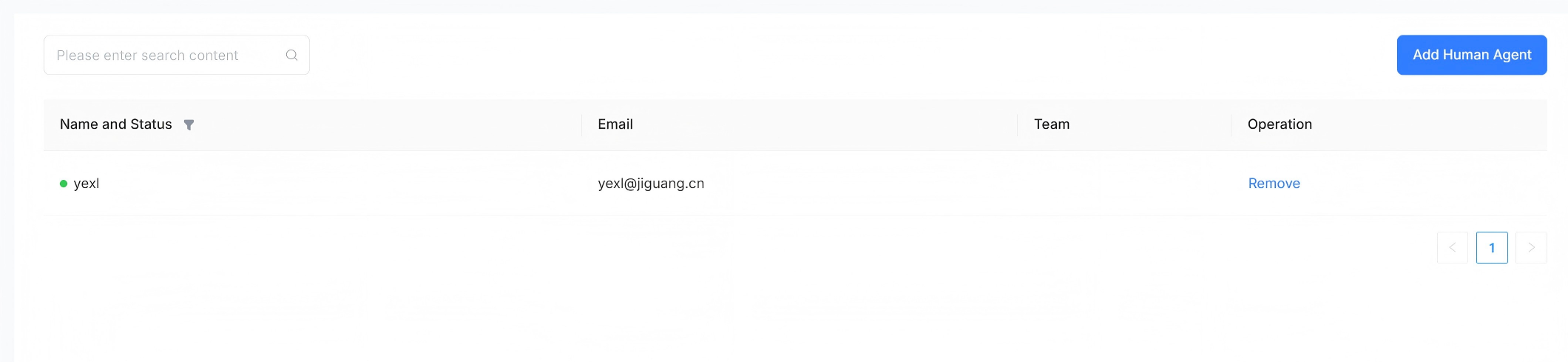
รองรับการตั้งค่า Human Agent ที่จัดการข้อความการสนทนาสำหรับช่องทางนี้ โดยสามารถเพิ่มหรือลบเจ้าหน้าที่ได้
AI Agent
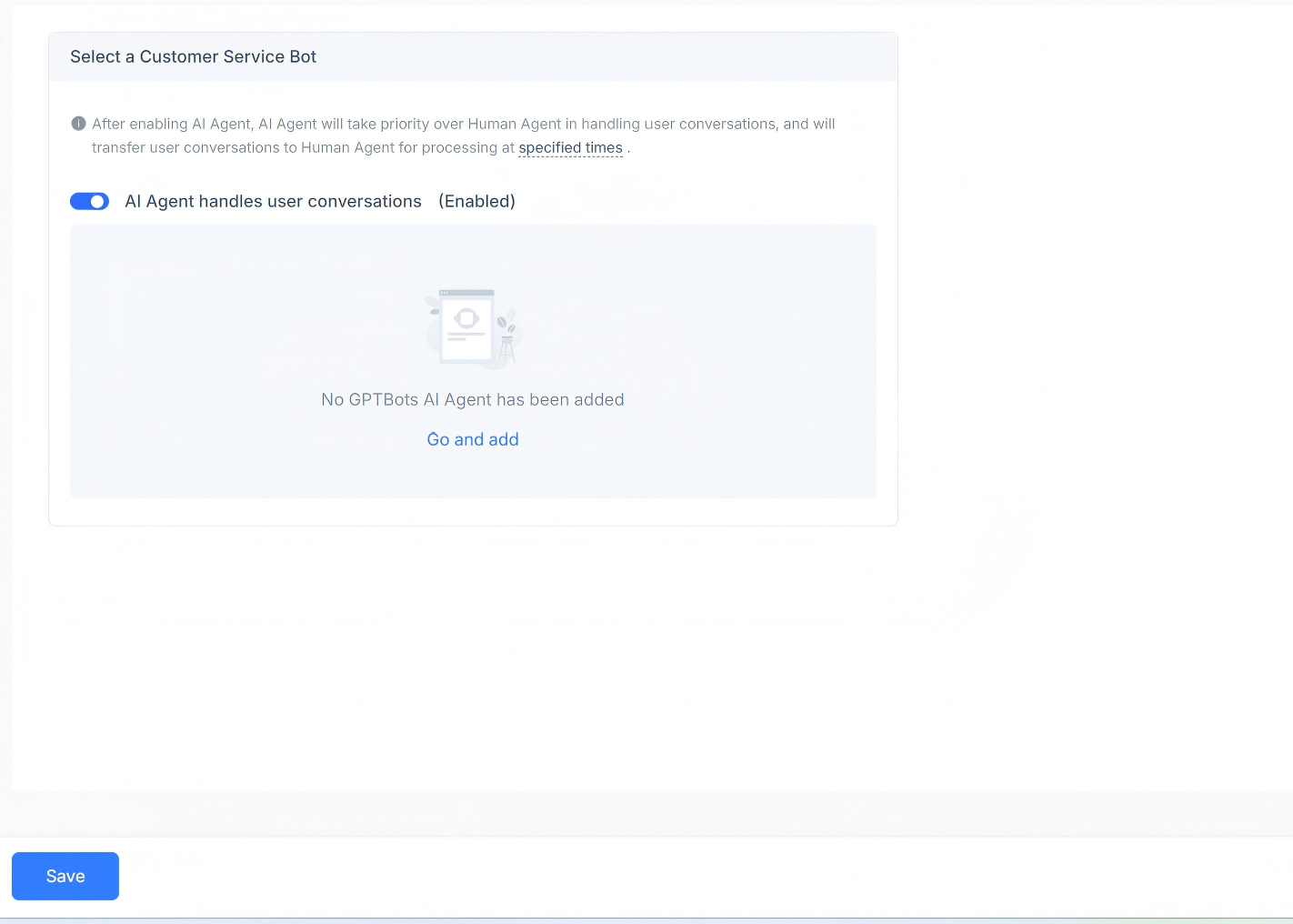
รองรับการตั้งค่า AI Agent ที่จัดการข้อความการสนทนาสำหรับช่องทางนี้ คุณสามารถเปิดหรือปิดการใช้งานได้ และสามารถเพิ่ม GPT AI Agent ได้
Business Hours
คุณสามารถกำหนดเวลาทำการของทีมได้
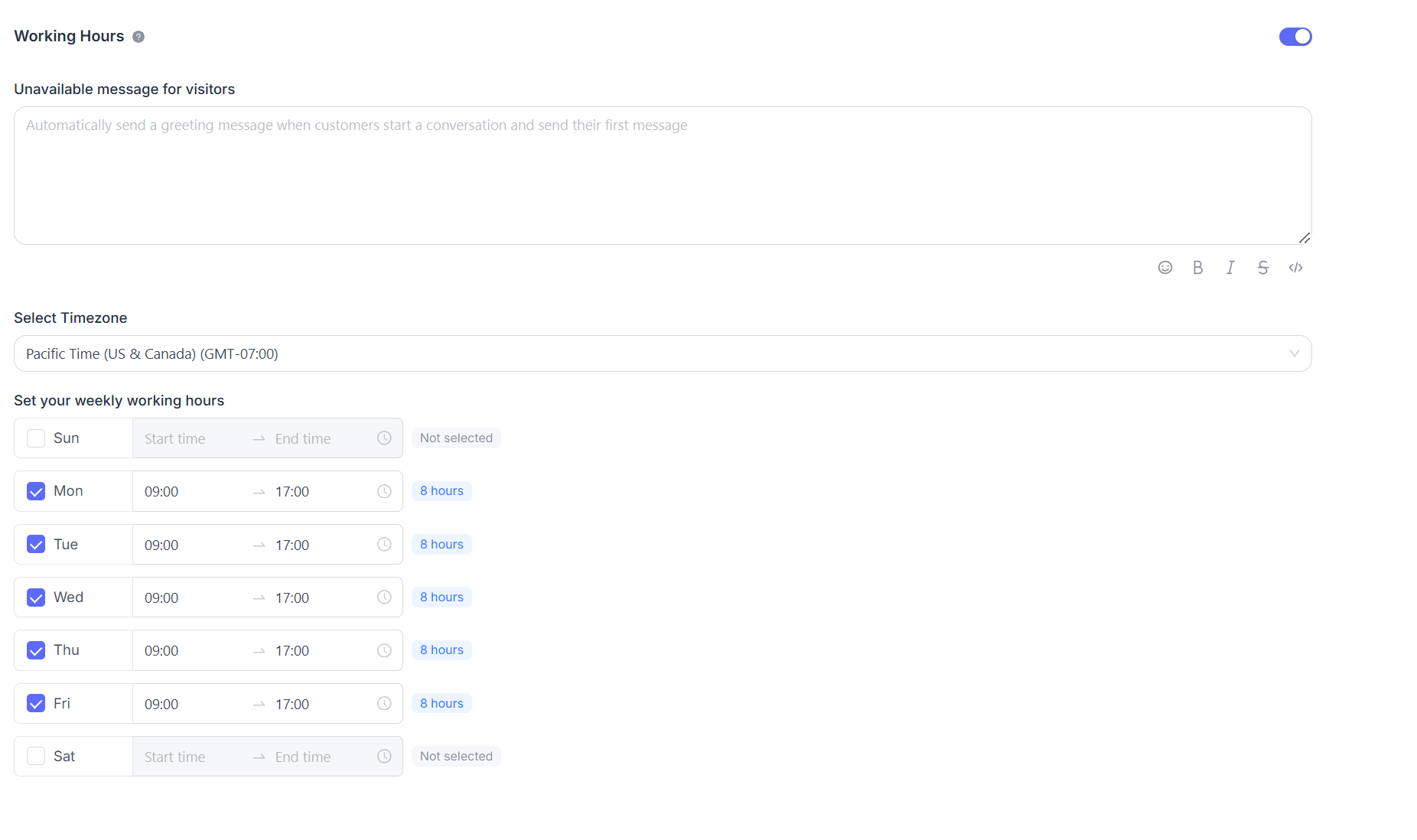
หากมีการกำหนดเวลาทำการไว้อย่างชัดเจน ให้เลือกช่องทำเครื่องหมาย "Enable business availability for this inbox (enabled)" หลังจากเลือกแล้ว ระบบจะแสดงการตั้งค่าพารามิเตอร์ที่เกี่ยวข้องด้านล่าง คุณสามารถตั้งค่าข้อความแจ้งว่าไม่พร้อมให้บริการสำหรับผู้เยี่ยมชมที่อยู่นอกเวลาทำการ และกำหนดช่วงเวลาทำการรวมถึงเขตเวลาที่เกี่ยวข้องสำหรับแต่ละวันได้
